2021 BUICK ENCLAVE change time
[x] Cancel search: change timePage 166 of 369

Buick Enclave Owner Manual (GMNA-Localizing-U.S./Canada/Mexico-
14637843) - 2021 - CRC - 12/9/20
Infotainment System 165
.Touch Disable to remove Apple
CarPlay and Android Auto capability
from the vehicle Settings menu.
Other functions may still work.
The Android Auto and Apple CarPlay icons
on the Home Page will illuminate depending
on the smartphone. Android Auto and/or
Apple CarPlay may automatically launch
upon USB connection. If not, touch the
Android Auto or Apple CarPlay icon on the
Home Page to launch.
Press
{on the center stack to return to the
Home Page.
Features are subject to change. For further
information on how to set up Android Auto
and Apple CarPlay in the vehicle, see
my.buick.com.
Android Auto is provided by Google and is
subject to Google’s terms and privacy policy.
Apple CarPlay is provided by Apple and is
subject to Apple’s terms and privacy policy.
Data plan rates apply. For Android Auto
support see https://support.google.com/
androidauto. For Apple CarPlay support see
www.apple.com/ios/carplay/. Apple or
Google may change or suspend availability
at any time. Android Auto, Android, Google, Google Play, and other marks are
trademarks of Google Inc.; Apple CarPlay is a
trademark of Apple Inc.
Press
{on the center stack to exit Android
Auto or Apple CarPlay. To enter back into
Android Auto or Apple CarPlay, press and
hold
{on the center stack.
Apple CarPlay and Android Auto can be
disabled from the infotainment system. To
do this, touch Home, Settings, and then
touch the Apps tab along the top of the
display. Use the On/Off toggled to turn off
Apple CarPlay or Android Auto.
Settings
Not all vehicles will have all features. Certain
settings can be managed in the Owner
Center sites when an account is established,
and may be modified if other users have
accessed the vehicle or created accounts.
This may result in changes to the security
or functionality of the infotainment system.
Some settings may also be transferred to a
new vehicle, if equipped. For instructions, in
the U.S. see my.buick.com or in Canada see
mybuick.ca or monbuick.ca. Refer to the User Terms and Privacy
Statement for important details. To view,
touch the Settings icon on the Home Page
of the infotainment display.
The settings menu may be organized into
four categories. Select the desired category
by touching System, Apps, Vehicle,
or Personal.
To access the personalization menus:
1. Touch Settings on the Home Page on the infotainment display.
2. Touch the desired category to display a list of available options.
3. Touch to select the desired feature setting.
4. Touch the options on the infotainment display to disable or enable a feature.
5. Touch
zto go to the top level of the
Settings menu.
System
The menu may contain the following:
Time / Date
Use the following features to set the clock:
Page 167 of 369

Buick Enclave Owner Manual (GMNA-Localizing-U.S./Canada/Mexico-
14637843) - 2021 - CRC - 12/9/20
166 Infotainment System
.Automatic Time and Date: Touch Off or
On to enable or disable automatic update
of the time and date. When this feature
is on, the time and date cannot be
manually set.
.Set Time: Touch to manually set the time
using the controls on the infotainment
display.
.Set Date: Touch to manually set the date
using the controls on the infotainment
display.
.Automatic Time Zone: Touch Off or On to
disable or enable automatic update of the
time zone based on vehicle location.
When this feature is on, the time zone
cannot be manually set.
.Select Time Zone: Touch to manually set
the time zone. Touch a time zone from
the list.
.24-hour Format: Touch to specify the
clock format shown.
Touch Off or On to disable or enable.
Language
This will set the display language used on
the infotainment display. It may also use
the selected language for voice recognition
and audio feedback. Touch Language and
touch the appropriate language. Phones
Touch to connect to a different cell phone or
mobile device source, disconnect a cell
phone or media device, or delete a cell
phone or media device.
Wi-Fi Networks
This will show connected and available Wi-Fi
networks.
If a 4G LTE data package is not active on the
vehicle, the infotainment system can be
connected to an external protected Wi-Fi
network, such as a mobile device or home
hotspot, to utilize connected services.
Wi-Fi Hotspot
Touch and the following may display:
.Wi-Fi Services: This allows devices to use
the vehicle hotspot.
Touch the controls on the infotainment
display to disable or enable.
.Wi-Fi Name: Touch to change the vehicle
Wi-Fi name.
.Wi-Fi Password: Touch to change the
vehicle Wi-Fi password.
.Connected Devices: Touch to show
connected devices.
.Share Hotspot Data: Touch On to allow
devices to use the vehicle hotspot and its
data, or touch Off to allow devices to
only use the vehicle hotspot but not
its data.
Privacy
Touch and the following may display:
.Location Services: This setting enables or
disables sharing of vehicle location
outside the vehicle. Emergency services
will not be affected when Off is selected.
.Data Services: If equipped, this setting
determines if data sharing can be used by
features including Wi-Fi, Hotspot, and
applications. Touch Off to disable data
services. Emergency services and phone
calls, such as calls with OnStar Advisors or
others, will not be affected when Off is
selected.
.Voice Recognition Sharing: This setting
determines if voice commands can be
shared with a cloud-based voice
recognition system. Touch Off to prevent
the sharing and possible recording of your
voice commands with this system. This
may limit the system’s ability to
understand your voice commands and
may disable some features.
Page 174 of 369

Buick Enclave Owner Manual (GMNA-Localizing-U.S./Canada/Mexico-
14637843) - 2021 - CRC - 12/9/20
Infotainment System 173
On certain vehicles, when the Speed Limiter
is turned ON, the vehicle’s maximum
acceleration will be limited. The DIC will
display a message that the acceleration is
limited.
Teen Driver Speed Warning :Allows the
speed warning to be turned on or off. Touch
Set Teen Driver Speed Warning to set the
warning speed.
Set Teen Driver Speed Warning : Displays a
warning in the DIC when exceeding a
selectable speed. Choose the desired speed
warning level. The speed warning does not
limit the speed of the vehicle.
SiriusXM Explicit Content Filter (if
equipped) : Allows the SiriusXM Explicit
Content Filter to be turned ON or OFF.
When ON, the teen driver will not be able
to listen to SiriusXM stations that contain
explicit content, and the Explicit Content
Filter selection in the Audio Settings will be
unavailable for change.
When Teen Driver is Active:
.The radio will mute when the driver seat
belt, and in some vehicles the front
passenger seat belt, is not buckled. The
audio from any device paired to the
vehicle will also be muted.
.If an object, such as a briefcase, handbag,
grocery bag, laptop, or other electronic
device, is on the front passenger seat, it
could cause the radio to mute. If this
happens, remove the object from the
seat. See Passenger Sensing System 057.
.Some safety systems, such as Forward
Collision Alert, if equipped, cannot be
turned off. They may include: Park Assist,
Side Blind Zone Alert, Lane Change Alert,
Rear Cross Traffic Alert, Forward Collision
Alert, Automatic Emergency Braking,
Pedestrian Braking, Lane Departure
Warning, Lane Keep Assist, Daytime
Running Lamps/Automatic Light Control,
Traction Control, Stability Control, and
Antilock Brakes.
.The gap setting for the Forward Collision
Alert and Adaptive Cruise Control,
if equipped, cannot be changed.
.When trying to change a safety feature
that is not configurable in Teen Driver,
the feature may be grayed out or
removed from the infotainment menu,
or the DIC will display a message
indicating that Teen Driver is active and
the action is not available.
.Super Cruise, if equipped, is not available.
.Enhanced Low Fuel Warning (if equipped)
–When the vehicle is low on fuel, the
low fuel light on the instrument cluster
flashes and the DIC low fuel warning
cannot be dismissed.
.Do not tow a trailer.
Report Card
The vehicle owner must secure the driver’s
consent to record certain vehicle data when
the vehicle is driven with a registered Teen
Driver key. There is one Report Card per
vehicle. Data is only recorded when a
registered Teen Driver key is used to
operate the vehicle.
The Report Card data is collected from the
time Teen Driver is activated or the last
time the Report Card was reset. The
following items may be recorded:
.Distance Driven –the total distance
driven.
.Maximum Speed –the maximum vehicle
speed detected.
.Overspeed Warnings –the number of
times the speed warning setting was
exceeded.
.Wide Open Throttle –the number of
times the accelerator pedal was pressed
nearly all the way down.
Page 176 of 369

Buick Enclave Owner Manual (GMNA-Localizing-U.S./Canada/Mexico-
14637843) - 2021 - CRC - 12/9/20
Infotainment System 175
If you decide to continue service after your
trial, your selected subscription plan will
automatically renew thereafter. You will be
charged at then-current rates. Fees and taxes
apply. Please see the SiriusXM Customer
Agreement at siriusxm.com for complete
terms and how to cancel, which includes
calling SiriusXM at 1-866-635-2349. All fees
and programming are subject to change.
Fees and Taxes: Subscription fee, taxes, one
time activation fee, and other fees may
apply. Subscription fee is consumer only. All
fees and programming subject to change.
Subscriptions subject to Customer
Agreement available at www.siriusxm.com.
SiriusXM service is only available in the
48 contiguous United States and Canada.
In Canada: Some deterioration of service
may occur in extreme northern latitudes.
This is beyond the control of SiriusXM
Satellite Radio.
Explicit Language Notice: Channels with
frequent explicit language are indicated with
an“XL” preceding the channel name.
Channel blocking is available for SiriusXM
Satellite Radio receivers by notifying
SiriusXM:
.USA Customers —See www.siriusxm.com
or call 1-888-601–6296.
.Canada Customers —See
www.siriusxm.ca or call 1-877-438-9677.
It is prohibited to copy, decompile,
disassemble, reverse engineer, hack,
manipulate, or otherwise make available any
technology or software incorporated in
receivers compatible with the SiriusXM
Satellite Radio System or that support the
SiriusXM website, the Online Service or any
of its content. Furthermore, the AMBER voice
compression software included in this
product is protected by intellectual property
rights including patent rights, copyrights,
and trade secrets of Digital Voice
Systems, Inc.
General Requirements: 1. A License Agreement from SiriusXM is required for any product that
incorporates SiriusXM Technology and/or
for use of any of the SiriusXM marks to
be manufactured, distributed,
or marketed in the SiriusXM
Service Area.
2. For products to be distributed, marketed, and/or sold in Canada, a separate
agreement is required with Canadian
Satellite Radio Inc. (operating as SiriusXM
Canada).
TouchSense Technology and TouchSense
System 1000 Series Licensed from
Immersion Corporation. TouchSense System
1000 protected under one or more of the
U.S. Patents at the following address
www.immersion.com/patent-marking.html
and other patents pending.
Bose
Bose AudioPilot and Bose Centerpoint
surround are registered trademarks of Bose
Corporation in the U.S. and other countries.
HD Radio Technology
HD Radio Technology manufactured under
license from iBiquity Digital Corporation. U.S.
and Foreign Patents. For patents see http://
Page 178 of 369

Buick Enclave Owner Manual (GMNA-Localizing-U.S./Canada/Mexico-
14637843) - 2021 - CRC - 12/9/20
Infotainment System 177
ownership rights. Under no circumstances
will Gracenote become liable for any
payment to you for any information that
you provide. You agree that Gracenote may
enforce its rights under this Agreement
against you directly in its own name.
The Gracenote service uses a unique
identifier to track queries for statistical
purposes. The purpose of a randomly
assigned numeric identifier is to allow the
Gracenote service to count queries without
knowing anything about who you are. For
more information, see the web page for the
Gracenote Privacy Policy for the Gracenote
service.
The Gracenote Software and each item of
Gracenote Data are licensed to you "AS IS."
Gracenote makes no representations or
warranties, express or implied, regarding the
accuracy of any Gracenote Data. Gracenote
reserves the right to delete data from the
Gracenote Servers or to change data
categories for any cause that Gracenote
deems sufficient. No warranty is made that
the Gracenote Software or Gracenote Servers
are error-free or that functioning of
Gracenote Software or Gracenote Servers
will be uninterrupted. Gracenote is not
obligated to provide you with new enhancedor additional data types or categories that
Gracenote may provide in the future and is
free to discontinue its services at any time.
GRACENOTE DISCLAIMS ALL WARRANTIES
EXPRESS OR IMPLIED, INCLUDING, BUT NOT
LIMITED TO, IMPLIED WARRANTIES OF
MERCHANTABILITY, FITNESS FOR A
PARTICULAR PURPOSE, TITLE, AND
NON-INFRINGEMENT. GRACENOTE DOES NOT
WARRANT THE RESULTS THAT WILL BE
OBTAINED BY YOUR USE OF THE GRACENOTE
SOFTWARE OR ANY GRACENOTE SERVER. IN
NO CASE WILL GRACENOTE BE LIABLE FOR
ANY CONSEQUENTIAL OR INCIDENTAL
DAMAGES OR FOR ANY LOST PROFITS OR
LOST REVENUES.
© 2014. Gracenote, Inc. All Rights Reserved.
MPEG4–AVC (H.264)
THIS PRODUCT IS LICENSED UNDER THE AVC
PATENT PORTFOLIO LICENSE FOR THE
PERSONAL AND NON-COMMERCIAL USE OF A
CONSUMER TO (i) ENCODE VIDEO IN
COMPLIANCE WITH THE AVC STANDARD
(“AVC VIDEO”) AND/OR (ii) DECODE AVC
VIDEO THAT WAS ENCODED BY A
CONSUMER ENGAGED IN A PERSONAL AND
NON-COMMERCIAL ACTIVITY AND/OR WAS
OBTAINED FROM A VIDEO PROVIDER
LICENSED TO PROVIDE AVC VIDEO. NOLICENSE IS GRANTED OR SHALL BE IMPLIED
FOR ANY OTHER USE. ADDITIONAL
INFORMATION MAY BE OBTAINED FROM
MPEG LA, LLC. SEE
HTTP://WWW.MPEGLA.COM.
VC-1
THIS PRODUCT IS LICENSED UNDER THE VC-1
PATENT PORTFOLIO LICENSE FOR THE
PERSONAL AND NON-COMMERCIAL USE OF A
CONSUMER TO (i) ENCODE VIDEO IN
COMPLIANCE WITH THE VC-1 STANDARD
(“VC-1 VIDEO”) AND/OR (ii) DECODE VC-1
VIDEO THAT WAS ENCODED BY A
CONSUMER ENGAGED IN A PERSONAL AND
NON-COMMERCIAL ACTIVITY AND/OR WAS
OBTAINED FROM A VIDEO PROVIDER
LICENSED TO PROVIDE VC-1 VIDEO. NO
LICENSE IS GRANTED OR SHALL BE IMPLIED
FOR ANY OTHER USE. ADDITIONAL
INFORMATION MAY BE OBTAINED FROM
MPEG LA, LLC. SEE
HTTP://WWW.MPEGLA.COM.
MPEG4–Visual
USE OF THIS PRODUCT IN ANY MANNER
THAT COMPLIES WITH THE MPEG-4 VISUAL
STANDARD IS PROHIBITED, EXCEPT FOR USE
BY A CONSUMER ENGAGING IN PERSONAL
AND NON-COMMERCIAL ACTIVITIES.
Page 206 of 369

Buick Enclave Owner Manual (GMNA-Localizing-U.S./Canada/Mexico-
14637843) - 2021 - CRC - 12/9/20
Driving and Operating 205
Engine cranking will continue until the
engine starts. SeeStarting the Engine 0205.
The ignition will then remain on.
Service Mode
This power mode is available for service and
diagnostics, and to verify the proper
operation of the malfunction indicator lamp
as may be required for emission inspection
purposes. With the vehicle off, and the
brake pedal not applied, pressing and
holding the button for more than
five seconds will place the vehicle in Service
Mode. The instruments and audio systems
will operate as they do in ON/RUN, but the
vehicle will not be able to be driven. The
engine will not start in Service Mode. Press
the button again to turn the vehicle off.
Starting the Engine
Press the P (Park) button on the shift lever
or shift the vehicle to N (Neutral). The
engine will not start in any other position.
To restart the engine when the vehicle is
already moving, use N (Neutral) only.
Caution
Do not try to shift to P (Park) if the
vehicle is moving. If you do, you could
damage the transmission. Shift to P (Park)
only when the vehicle is stopped.
Caution
If you add electrical parts or accessories,
you could change the way the engine
operates. Any resulting damage would
not be covered by the vehicle warranty.
See Add-On Electrical Equipment 0256.
Starting Procedure
1. With the Keyless Access system, the RKE
transmitter must be in the vehicle. Press
ENGINE START/STOP with the brake pedal
applied. When the engine begins
cranking, let go of the button.
The idle speed will go down as the
engine gets warm. Do not race the
engine immediately after starting it.
If the RKE transmitter is not in the
vehicle, if there is interference, or if the
RKE battery is low, the Driver
Information Center (DIC) will display a
message.
Caution
Cranking the engine for long periods of
time, by returning the ignition to the
START position immediately after
cranking has ended, can overheat and
damage the cranking motor, and drain
the battery. Wait at least 15 seconds
between each try, to let the cranking
motor cool down.
2. If the engine does not start after five to 10 seconds, especially in very cold
weather (below −18 °C or 0 °F), it could
be flooded with too much gasoline. Try
pushing the accelerator pedal all the way
to the floor and holding it there as you
press ENGINE START/STOP, for up to a
maximum of 15 seconds. Wait at least
15 seconds between each try, to allow
the cranking motor to cool down. When
the engine starts, let go of the button
and the accelerator. If the vehicle starts
briefly but then stops again, do the
same thing. This clears the extra gasoline
from the engine. Do not race the engine
immediately after starting it. Operate
the engine and transmission gently until
the oil warms up and lubricates all
moving parts.
Page 215 of 369

Buick Enclave Owner Manual (GMNA-Localizing-U.S./Canada/Mexico-
14637843) - 2021 - CRC - 12/9/20
214 Driving and Operating
Electronic Range Select (ERS), or Manual
Mode, allows for the selection of the range
of gear positions. Use this mode when
driving downhill or towing a trailer to limit
the top gear and vehicle speed. The shift
position indicator within the Driver
Information Center (DIC) will display a
number next to the L indicating the highest
available gear.
To enter Electronic Range Select or
Manual Mode:1. With the vehicle in D (Drive), pull back on the shift lever to activate L (Low). The
L in the shift pattern will illuminate in
red, and the D will switch to white. 2. Tap the left steering wheel control to
reduce the highest gear available, or the
right control to increase the highest gear
available.
3. To exit, pull back on the shift lever a second time. The D in the shift pattern
will illuminate in red, and the L will
switch to white.
When shifting to L (Low), the transmission
will shift to a preset lower gear range. For
this preset range, the highest gear available
will be displayed next to the L in the DIC.
All gears below that number are available to
use. For example, when 4 (Fourth) is shown
next to the L, 1 (First) through 4 (Fourth)
gears are shifted automatically. To shift to 5
(Fifth) gear, tap the right steering wheel
control or shift into D (Drive).
L (Low) will prevent shifting to a lower gear
range if the engine speed is too high. If the
vehicle speed is not reduced within the time
allowed, the lower gear range shift will not
be completed. Slow the vehicle, then tap the
left steering wheel control to the desired
lower gear range.
Cruise control can be used while in ERS.
Tow/Haul Mode
This feature can assist when towing or
hauling a heavy load. To activate Tow/Haul
Mode, see Driver Mode Control 0218.
Drive Systems
All-Wheel Drive
Vehicles with this feature can operate in
AWD Mode.
Press the button to select All-Wheel
Drive (AWD).
The AWD Mode will stay selected until the
mode is changed. See Driver Mode Control
0 218.
Page 216 of 369
Buick Enclave Owner Manual (GMNA-Localizing-U.S./Canada/Mexico-
14637843) - 2021 - CRC - 12/9/20
Driving and Operating 215
When operated in FWD, the vehicle will
deliver power to the front wheels only and
may provide better fuel economy.
When using a compact spare tire on an
AWD vehicle, the system automatically
detects the compact spare and reduces AWD
performance to protect the system. To
restore full AWD operation and prevent
excessive wear on the system, replace the
compact spare with a full-size tire as soon as
possible. SeeCompact Spare Tire 0309.
Brakes
Antilock Brake System (ABS)
The Antilock Brake System (ABS) helps
prevent a braking skid and maintain steering
while braking hard.
ABS performs a system check when the
vehicle is first driven. A momentary motor
or clicking noise may be heard while this
test is going on, and the brake pedal may
move slightly. This is normal.
If there is a problem with ABS, this warning
light stays on. See Antilock Brake System
(ABS) Warning Light 0104.
ABS does not change the time needed to
get a foot on the brake pedal and does not
always decrease stopping distance. If you
get too close to the vehicle ahead, there will
not be enough time to apply the brakes if
that vehicle suddenly slows or stops. Always
leave enough room ahead to stop, even
with ABS.
Using ABS
Do not pump the brakes. Just hold the brake
pedal down firmly. Hearing or feeling ABS
operate is normal.
Braking in Emergencies
ABS allows steering and braking at the same
time. In many emergencies, steering can
help even more than braking.
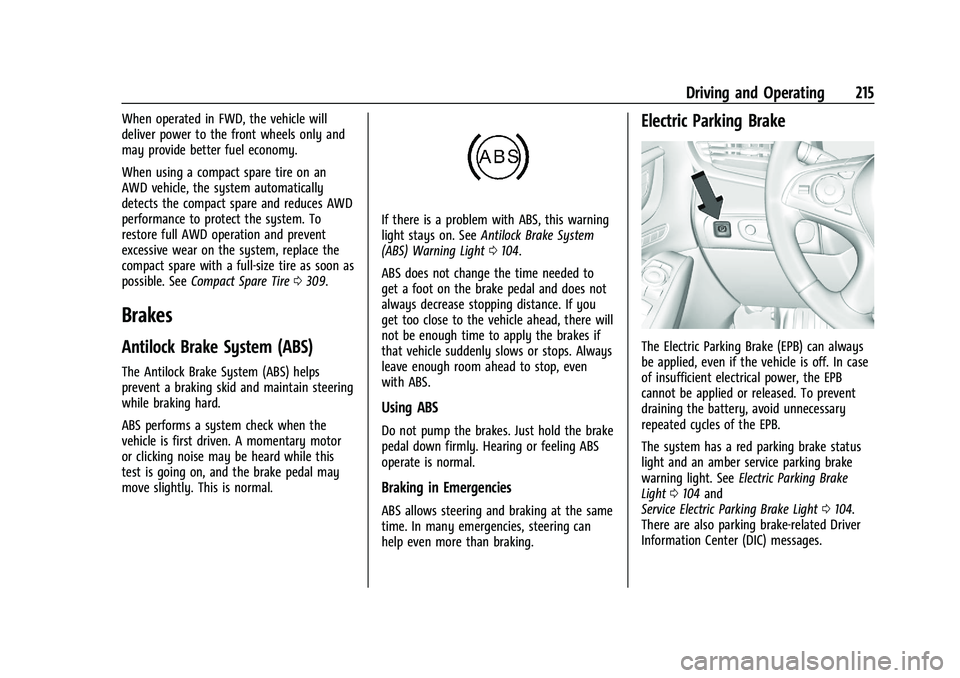
Electric Parking Brake
The Electric Parking Brake (EPB) can always
be applied, even if the vehicle is off. In case
of insufficient electrical power, the EPB
cannot be applied or released. To prevent
draining the battery, avoid unnecessary
repeated cycles of the EPB.
The system has a red parking brake status
light and an amber service parking brake
warning light. See Electric Parking Brake
Light 0104 and
Service Electric Parking Brake Light 0104.
There are also parking brake-related Driver
Information Center (DIC) messages.