2021 AUDI E-TRON ESP
[x] Cancel search: ESPPage 163 of 308

4KE012721BF
Driver assistance
approaching from behind and provide a warning
when you are changing lanes and turning. The
system uses the data from the radar sensors at
the rear corners of the vehicle.
The side assist is active at walking speeds and
higher. If an object that is classified as critical is
approaching, the display in the exterior mirror @)
on the corresponding side of the vehicle will light
up.
Driving situations
The system can provide warnings about the fol-
lowing risks:
@ Approaching vehicles: a vehicle may be clas-
sified as critical in some cases, even if it is
farther away. The faster a vehicle ap-
proaches, the sooner the display will turn on.
@® Vehicles traveling in the same direction: the
display will turn on if vehicles traveling in the
same direction as your vehicle are classified
as critical. The side assist warns you of all de-
tected vehicles when they are in the “blind
spot” or before they reach that point.
@® Vehicles you are passing: the display only
turns on if you slowly pass a detected vehicle
(difference in speed between the two vehicles
is less than 9 mph (15 km/h)). There is no
display if you pass a vehicle more quickly.
Information stage
At the information level, the side assist informs
you of detected objects that are classified as criti-
cal. This is even possible when your vehicle is sta-
tionary and the turn signal is turned on, so that
the system can also assist you when turning.
From speeds of approximately 6 mph (10 km/h)
and higher, the system will warn you of detected
objects that are classified as critical, even if the
turn signal is not turned on.
The display remains dim in the information stage
so that you are not distracted while looking for-
ward.
Warning stage
If you activate a turn signal and the display flash-
es, side assist is warning about objects that have
been classified as critical.
Depending on the vehicle equipment and other
driver assistance systems, the display may also
flash if you have not activated a turn signal. If
you are approaching a detected lane marker line
and it appears you will be leaving the lane, the
display will warn you about detected vehicles
that are classified as critical. You can also be
warned with corrective steering > page 155,
Lane departure warning.
Detection range
The radar sensors are designed to detect the left
and right adjacent lanes when the road lanes are
the normal width. In some situations, the display
may turn on even though there is no vehicle lo-
cated in the area that is critical for a lane change.
For example:
— If the lanes are narrow or if you are driving on
the edge of your lane. If this is the case, the
system may have detected a vehicle in another
lane that is not adjacent to your current lane.
— If you are driving through a curve. Side assist
may react to a vehicle that is in the same lane
or one lane over from the adjacent lane.
— If side assist reacts to other objects (such as
roadside structures like guard rails).
ZA WARNING
— Observe the safety precautions and note the
limits of the assist systems, sensors, and
cameras > page 129.
— The display may not appear on time when
vehicles are approaching or being passed
very quickly.
@ Tips
— If the window glass in the driver's door or
front passenger's door has been tinted, the
display in the exterior mirror may be incor-
rect:
— These systems are not available in trailer
towing mode. There is no guarantee the sys-
tems will switch off when using a retrofitted
trailer hitch. Do not use these functions
when towing a trailer.
161
Page 164 of 308
Driver assistance
— The coverage areas of the sensors > fig. 114
are diagrams and do not represent a true-
to-scale image of the sensor ranges.
— The system complies with United States FCC
regulations and ISED regulations
> page 288.
Adjusting side assist
Applies to: vehicles with side assist
The system can be switched on and off in the
MMI = page 132. If the system is activated, the
displays will turn on briefly when the ignition is
switched on.
Adjusting the brightness
You can adjust the brightness of the display in
the exterior mirror. The settings depend on the
vehicle equipment.
> Applies to: MMI: Select on the home screen:
VEHICLE > Driver assistance > (<23) > Side as-
sist > Brightness.
The display brightness is automatically adapted
to the ambient light. If the automatic adaptation
has already reached the upper or lower limit, no
change will be apparent when the setting is
changed, or it will only become visible when the
ambient light changes. Adjust the brightness to a
level where the display in the information stage
will not disrupt your view ahead. If you change
the brightness, the display will briefly show the
brightness level in the information stage.
Messages
Applies to: vehicles with side assist
rig or Bg is displayed when there is a malfunc-
tion, the side assist and exit warning system
functions may be unavailable or may be limited.
A message that indicates the cause and possible
solution may appear with some displays. The
weather conditions may be too poor or a sensor
may be covered. Clean the sensor area at the rear
corners of the vehicle > page 131, fig. 93 and try
to turn the systems on again later.
If the malfunction remains, drive to an author-
ized Audi dealer or authorized Audi Service Facili-
162
ty immediately to have the malfunction correct-
ed.
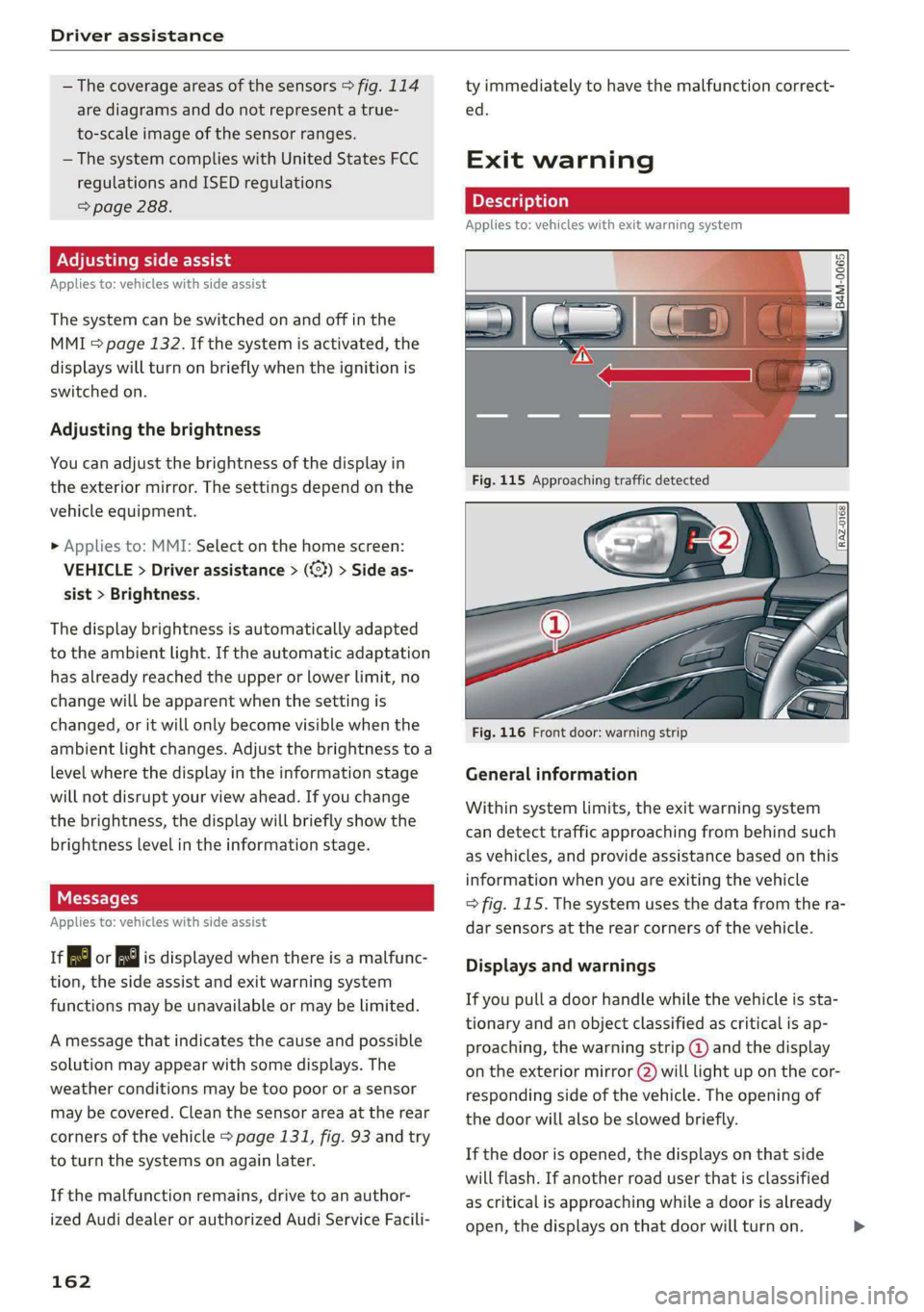
Exit warning
Applies to: vehicles with exit warning system
Fig. 116 Front door: warning strip
General information
Within system limits, the exit warning system
can detect traffic approaching from behind such
as vehicles, and provide assistance based on this
information when you are exiting the vehicle
> fig. 115. The system uses the data from the ra-
dar sensors at the rear corners of the vehicle.
Displays and warnings
If you pull a door handle while the vehicle is sta-
tionary and an object classified as critical is ap-
proaching, the warning strip @ and the display
on the exterior mirror (2) will light up on the cor-
responding side of the vehicle. The opening of
the door will also be slowed briefly.
If the door is opened, the displays on that side
will flash. If another road user that is classified
as critical is approaching while a door is already
open, the displays on that door will turn on.
Page 165 of 308

4KE012721BF
Driver assistance
The same messages apply for the exit warning
system and side assist > page 162.
Switching the exit warning on and off
— The system can be switched on and off in the
MMI & page 132.
ZA WARNING
— Observe the safety precautions and note the
limits of the assist systems, sensors, and
cameras > page 129.
— Always pay attention to traffic and to the
area around your vehicle. The exit warning
system does not replace the attention of the
vehicle occupants. The vehicle occupants are
always responsible for opening the doors
and exiting the vehicle.
— The exit warning system does not respond
to people and cannot warn you about every
type of approaching objects, such as cyclists.
Always monitor the traffic as well as the ve-
hicle's surroundings with direct eye contact.
— The display may not appear in time when
vehicles are approaching very quickly.
— The exit warning system does not react to
stationary objects or pedestrians.
— The exit warning system will not provide
alerts if your vehicle is pulled too far into
the parking space so that it is hidden by ad-
jacent vehicles.
G) Tips
— The exit warning system can be available for
up to approximately three minutes after un-
locking the vehicle and opening the door as
well as after switching off the ignition. Then
the displays flash briefly and the system
switches off.
— The system is not available when towing a
trailer. There is no guarantee the system
will switch off when using a retrofitted trail-
er hitch. Do not use these functions when
towing a trailer.
— The coverage areas of the sensors > fig. 115
are diagrams and do not represent a true-
to-scale image of the sensor ranges.
— The system complies with United States FCC
regulations and ISED regulations
> page 288.
Intersection assistant
Applies to: vehicles with intersection assistant
eo a oS
9 S| % oO
RAH-9247
Fig. 118 Instrument cluster: directional display from the
intersection assistant
General information
The intersection assistant can warn the driver of
approaching cross traffic in complex intersections
> fig. 117.
The system monitors intersections and exit
ramps using the sensors installed in the vehicle
that detect the front and side areas around the
vehicle. Moving objects that are approaching
from behind, such as cars, are detected within
the limits of the system > A\. The system can al-
so warn the driver of a potential collision with de-
tected approaching cross traffic in intersections
and exit ramps with poor visibility.
163
>
Page 170 of 308

Parking and maneuvering
Error messages
If P& appears, the sensor in the respective area
or the speaker is faulty. Drive immediately to an
authorized Audi dealer or authorized Audi Service
Facility to have the malfunction repaired.
If Av is displayed in the MMI, the ultrasonic sen-
sor indicated is icy or dirty. Clean the area in front
of the sensors > page 131.
iff or fa is displayed when there is a malfunc-
tion, the parking aid functions may be unavaila-
ble or may be limited.
A message that indicates the cause and possible
solution may appear with some displays. The
weather conditions may be too poor or a sensor
may be covered. Clean the area in front of the
sensors > page 131 and try to turn the system on
again later.
If the malfunction remains, drive to an author-
ized Audi dealer or authorized Audi Service Facili-
ty immediately to have the malfunction correct-
ed.
ZX WARNING
— Observe the safety precautions and note the
limits of the assist systems, sensors, and
cameras > page 129.
— Sensors and cameras have spots in which
the surrounding area cannot be detected.
Objects, animals, and people may only be
detected with limitations may not be detect-
ed at all. Always monitor the traffic and the
vehicle's surroundings directly and do not
become distracted.
@) Note
Keep enough distance from the curb to avoid
damage to the rims.
G) Tips
— The side area > page 130, fig. 90 is detect-
ed and evaluated when passing. There may
have been changes to the surrounding area
after switching the ignition off and on
again, after opening the doors, or if the ve-
hicle is left stationary for a period of time.
168
In this case, the area will appear black until
the area has been detected and evaluated.
— If the distance to an obstacle remains con-
stant, the volume of the distance warning
gradually lowers after a few seconds until it
is muted (this does not apply to the continu-
ous tone). If the obstacle comes closer than
it was before the sound was muted, the
tone will sound again. If the obstacle be-
comes farther away than it was before the
sound was muted, no tone will sound. Pay
attention to the vehicle's surroundings
when you start to drive.
— There is no distance warning for the rear
and the sides when trailer towing mode is
detected. The front sensors remain activat-
ed. There is no guarantee the functions will
be deactivated when using a retrofitted
trailer hitch.
Rearview camera and
peripheral cameras
Introduction
Applies to: vehicles with rearview camera/peripheral cameras
B8V-0629
Fig. 121 Orientation line display when parking
Depending on the vehicle equipment, a rearview
camera or multiple peripheral cameras may be
available.
The rearview camera helps you to park or maneu-
ver using the orientation lines.
The peripheral cameras expand the vehicle over-
view to include various views around the vehicle
that can be selected.
Page 172 of 308

Parking and maneuvering
@ Use the blue markings to help you estimate
the distance to an obstacle. Each marking
represents approximately 3 feet (1 meter).
The blue area represents an extension of the
vehicle's outline by approximately 16 feet (5
meters) to the rear.
@® You can recognize the rear bumper in the
lower display.
@ You should stop driving in reverse when the
red orientation line touches the edge of an
object, at the latest.
Trailer view
Applies to: vehicles with trailer view
The trailer view > fig. 124 assists you in position-
ing the vehicle in front of a trailer.
— Applies to: vehicles with peripheral cameras:
Switch to the Rear view > page 171, fig. 125.
— Select || > Trailer view in the upper display
when the parking aid is active.
Now you can position your vehicle in front of the
trailer. The orange orientation line ©) > fig. 124
indicates the expected path toward the trailer
hitch. Use the blue markings © to help you esti-
mate the distance to the trailer hitch. Each mark-
ing represents approximately 1 foot (0.30 me-
ters). The width of the blue surface represents
the maximum steering wheel angle.
Symbols
If 2/&9/< is displayed and the display area
represented by that symbol is not available, then
the camera on the that side is not available. The
power exterior mirrors may have been folded in
or a door or the luggage compartment lid may
have been opened.
If # is displayed, there is a system malfunction
and the display area represented by that symbol
is not available. The camera is not working in this
area.
If Avis displayed, the respective ultrasonic sensor
is icy or dirty. Clean the area in front of the sen-
sors > page 131.
If one of the symbols continues to be displayed,
drive immediately to an authorized Audi dealer or
170
authorized Audi Service Facility to have the mal-
function repaired.
ZA\ WARNING
— Observe the safety precautions and note the
limits of the assist systems, sensors, and
cameras > page 129.
— Sensors and cameras have spots in which
the surrounding area cannot be detected.
Objects, animals, and people may only be
detected with limitations may not be detect-
ed at all. Always monitor the traffic and the
vehicle's surroundings directly and do not
become distracted.
@) Note
— The orange orientation lines @ show the di-
rection the rear of the vehicle will be travel-
ing, based on the steering wheel angle. The
front of the vehicle swings out more than
the rear of the vehicle. Maintain plenty of
distance so that an exterior mirror or a cor-
ner of the vehicle does not collide with any
obstacles.
— Keep enough distance from the curb to
avoid damage to the rims.
— Only use the images provided by the camera
on the rear of the vehicle when the luggage
compartment lid is completely closed. Make
sure any objects you may have mounted on
the luggage compartment lid do not block
the rearview camera.
G) Tips
— Applies to vehicles with air suspension: The
accuracy of the orientation lines and blue
surfaces on the camera display decreases
when the vehicle is raised or lowered with
the air suspension.
— There is no distance warning for the rear
and the sides when trailer towing mode is
detected. The front sensors remain activat-
ed. The visual display switches to trailer
mode. There is no guarantee the functions
will be deactivated when using a retrofitted
trailer hitch.
Page 188 of 308
Audi connect
Audi connect
General information
Applies to: vehicles with Audi connect
Depending on the country and the vehicle equip-
ment, the following functions may be available:
— Audi connect Infotainment
— Audi connect vehicle control
ZA WARNING
—To reduce the risk of an accident, only use
Audi connect services and the Wi-Fi hotspot
only if the traffic situation permits it. Read
and follow the guidelines provided in
= page 17, Traffic safety information.
— It is only safe to use tablets, laptops, mobile
devices and other similar devices when the
vehicle is stationary because, like all loose
objects, they could be thrown around the in-
side of the vehicle in a crash and cause seri-
ous injuries. Store these types of devices se-
curely while driving. Also read the warnings
in the chapter > page 68.
@) Note
—The connection costs of Audi connect Info-
tainment services are included in the price
of Audi connect Infotainment during the
subscription period with some exceptions.
Please note that there may be additional
charges when using some services. For ex-
ample, this applies to online radio/
podcasts, additional online data, or for In-
ternet connections and services that use the
Wi-Fi hotspot. Depending on the country,
data plans may need to be purchased for
these Internet connections and services
= page 190. For additional information, see
my.audi.com.
— In certain situations, the Wi-Fi hotspot data
connection may be established as a replace-
ment for the SIM card on your Wi-Fi device.
This feature depends on the configuration
of your Wi-Fi device and operating system.
This could result in fees depending on your
cell phone service provider, especially if you
are using this feature while abroad. A flat
186
rate data plan is strongly recommended. For
more information, contact your cell phone
service provider or refer to the owner's man-
ual for your Wi-Fi device.
— You are responsible for all precautions taken
for data protection, anti-virus protection,
and protection against loss of data on mo-
bile devices that are used, for example, to
access the Internet through the Wi-Fi hot-
spot.
— In areas with poor GPS reception or outside
the coverage range of the respective cell
phone service provider, some functions
and/or services may not be available, it may
not be possible to send or receive data, or
functionality may be limited.
@) Tips
— The availability of services depends on the
subscription.
— Audi merely provides access to third party
services through the MMI and does not as-
sume any responsibility for the content and
availability of these services.
— Use of the most up-to-date mobile network
standard is not available in every country.
Contact an authorized Audi dealer or au-
thorized Audi Service Facility or your cell
phone service provider for additional infor-
mation.
— Availability, scope, providers, screen display,
and costs of services may vary depending on
the country, model, model year, end device
and rates.
— All services can be modified, activated/deac-
tivated, renamed, and enhanced without
further notification.
Audi connect
Infotainment
Applies to: vehicles with Audi connect Infotainment
With Audi connect Infotainment services, online
information is transmitted directly to the vehicle.
An Internet connection is required to use Audi
connect Infotainment. The Internet connection is >
Page 193 of 308

4KE012721BF
Emergency call
Emergency call
Overview
Applies to: vehicles with emergency call function
An emergency call is a combination of data trans-
mission and a phone call. The data transmission
from your vehicle forwards important informa-
tion, such as the vehicle and position data, to the
emergency call center.
Depending on the country and the vehicle equip-
ment, the following functions may be available:
With the emergency call, you can call for help in
dangerous situations as quickly as possible. Use
this function when emergency help is needed
=>page 191.
— Audi connect emergency call (TPS emergency
call). This eCall system uses emergency call
centers operated by third party providers.
With online roadside assistance, you can request
assistance if there is a breakdown or a minor acci-
dent > page 192.
ZA\ WARNING
In areas with poor GPS reception or outside
the coverage range of the respective cell
phone service provider, some functions and/or
services may not be available, it may not be
possible to send or receive data, or functional-
ity may be limited.
@) Tips
To see which data can be transmitted, visit
your Audi country or sales region website at
www.audi.com.
Emergency call
Applies to: vehicles with emergency call function
The services are provided through a SIM card in-
stalled in the vehicle. Services are provided as-
suming that the cell phone network required for
the installed SIM card is functioning and availa-
ble for use. The services made availably by Audi
are only available within the mobile phone net-
work coverage area for the mobile phone service
provider selected by Audi.
—The emergency call function cannot be deac-
tivated in the Infotainment system settings.
— The availability of the TPS emergency call is
limited to certain times.
—The costs for call and data connections for
TPS emergency calls is included in the price
of the services.
Applies to: vehicles with emergency call function
A TPS emergency call can be made manually or
automatically > page 191.
Making an emergency call
Applies to: vehicles with emergency call function
Fig. 131 Front headliner: cover for the emergency call but-
ton
Manual emergency call
Requirement: the ignition must be switched on.
> Tap the cover (@) to open it.
> Press and hold the emergency call button until
the LED () blinks. The emergency call will be
made.
> If the emergency call button is pressed by mis-
take, then press it again immediately and hold
it until the LED stays on. The emergency call
will be canceled.
Automatic emergency call
The vehicle electrical system initiates an auto-
matic emergency call under certain circumstan-
ces, for example if an airbag deploys. The LEDin >
191
Page 203 of 308

4KE012721BF
Navigation
Alternative routes
Applies to: vehicles with navigation system
Fig. 139 Display of alternative routes in the overview map
Opening alternative routes
Requirement: route guidance must be started
= page 195 and the map must be displayed
=> page 200.
> Press on” in the side menu on the map
=> page 199, fig. 136.
@ Current route
The distance to the destination and the calculat-
ed arrival time will be displayed for the current
route.
@ Alternative route
The difference in travel time compared to the se-
lected route will be displayed.
Displaying alternative routes in the
foreground
> Press @ in the corresponding information win-
dow, or
> Press and hold the information window for the
corresponding alternative route (for example,
@ ° fig. 139).
Select route
> Press on the information window for the corre-
sponding route (for example @) > fig. 139).
Additional functions
Applies to: vehicles with navigation system
You can access frequent destinations in the favor-
ites. You can quickly and easily start route guid-
ance using the home address or business address
function.
Accessing favorites
> Applies to: MMI: Select on the home screen:
NAVIGATION > (Ga) > Favorites.
If you use myAudi navigation, your favorites will
be synchronized with your myAudi account
=> page 194.
Storing favorites
> Press Y¥ in the Details menu > page 197,
fig. 135.
Storing a home address or business address
> Press Home address or Business address.
When accessed for the first time, you will be
prompted to set the address.
> Select: Create now > enter a destination > OK.
Editing a favorite
Requirement: the favorites list must be dis-
played.
>» Setting a favorite as a destination: press ona
favorite.
> Deleting favorites: in the Details menu, press
¥& © page 197, fig. 135, or select: Z > one or
more entries or Select all > Delete > (Done).
> Moving a favorite: press Z. Touch the $ sym-
bol and move the entry to the desired position.
Press Done.
@ Tips
— After deleting the home address or business
address, only the address is deleted and the
entry will still be displayed in the favorites.
— Please note when moving favorites that
items 1 and 2 are reserved for the home ad-
dress and business address.
On-street parking
Applies
to: navigation system and on-street parking
In supported areas, you can display parking along
the route.
Requirement: the Parking notification must be
switched on > page 20, Notification center. The
MMI must be connected to the Internet
= page 186, Audi connect. Route guidance must
be active, you must be close to your destination, >
201