2021 AUDI E-TRON steering wheel
[x] Cancel search: steering wheelPage 158 of 308

Driver assistance
ready to provide warnings after a short time, and
it will only become active again later.
If the driver does not take over steering, the lane
departure warning will no longer be ready to pro-
vide warnings. If the vehicle is equipped with
emergency assist and it is ready to function, it
will be activated > page 164.
Behavior when a turn signal is active
Applies to: vehicles with side assist: The system
will not warn you if you activate a turn signal be-
fore crossing the lane marker line. In this case, it
assumes that you are changing lanes intentional-
ly.
Applies to: vehicles with side assist: If the turn
signal is activated, the lane departure warning is
ready, and a lane change has been classified as
critical by the lane departure warning due to
vehicles traveling beside you or due to approach-
ing vehicles, then a noticeable corrective steering
movement will occur shortly before exiting the
lane. This will attempt to keep your vehicle in the
lane.
ZA\ WARNING
— Observe the safety precautions and note the
limits of the assist systems, sensors, and
cameras > page 129.
— The system warns the driver that the vehicle
is leaving the lane using corrective steering.
The driver is always responsible for keeping
the vehicle within the lane.
— Corrective steering may not occur at all in
certain situations, such as during heavy
braking. Always be ready to intervene.
@ Tips
— Always keep your hands on the steering
wheel so you can be ready to steer at any
time. The driver is always responsible for
adhering to the regulations applicable in
the country where the vehicle is being oper-
ated.
156
— The system does not provide any corrective
steering or steering wheel vibrations if it de-
tects that you are passing another vehicle.
PN Ut ae MAMLUK (Slade RN eal Lar)
Applies to: vehicles with lane departure warning
The additional warning using vibration in the
steering wheel can be switched off or on. The set-
tings depend on the vehicle equipment.
— Applies to MMI: Select on the home screen: VE-
HICLE > Driver assistance > (3) > Lane depar-
ture warning > Vibration warning.
Messages
Applies to: vehicles with lane departure warning
ray or is displayed when there is a malfunc-
tion, the lane departure warning and lane guid-
ance functions of the adaptive cruise functions
may be unavailable or limited.
A message that indicates the cause and possible
solution
may appear with some displays. The
weather conditions may be too poor or the cam-
era may be covered. Clean the area in front of the
camera > page 131 and try to turn on the sys-
tems again later.
If the malfunction remains, drive to an author-
ized Audi dealer or authorized Audi Service Facili-
ty immediately to have the malfunction correct-
ed.
Audi pre sense
Introduction
Applies to: vehicles with Audi pre sense
Within the limits of the system, the Audi pre
sense functions can initiate measures in certain
driving situations to protect the vehicle occu-
pants and other road users. Depending on the ve-
hicle equipment, various Audi pre sense systems
may
be installed:
Page 161 of 308

4KE012721BF
ZA WARNING
— Observe the safety precautions and note the
limits of the assist systems, sensors, and
cameras > page 129.
— Audi pre sense rear does not react to pedes-
trians, animals, crossing objects, and ob-
jects not detected as vehicles.
G@) Tips
— Audi pre sense rear functions switch off
when trailer mode is detected. There is no
guarantee the functions will switch off
when using a retrofitted trailer hitch.
— Audi pre sense rear functions may also
switch off if there is a malfunction in the
side assist system.
Audi pre sense side
Applies to: vehicles with Audi pre sense side
Within the limits of the system, Audi pre sense
can warn about impending collisions with cross-
traffic and vehicles approaching from the side,
and trigger Audi pre sense preemptive safety
measures.
The system uses additional sensors in the front
and rear areas and is active at speeds up to ap-
proximately 35 mph (60 km/h).
ZA WARNING
— Observe the safety precautions and note the
limits of the assist systems, sensors, and
cameras > page 129.
— Audi pre sense side does not react to pedes-
trians, animals, and objects not detected as
vehicles.
@ Tips
— The Audi pre sense side functions are limit-
ed when trailer mode is detected.
— The Audi pre sense side functions may also
switch off if there is a malfunction in the in-
tersection assistant*.
Driver assistance
Raia
Applies to: vehicles with swerve assist
The swerve assist can help you to steer the vehi-
cle around an obstacle detected in a critical area.
If you avoid an obstacle after the acute warning,
then the swerve assist assists you by applying
slight steering adjustment to correct your steer-
ing wheel angle as long as you are actively steer-
ing. The swerve assist is available at speeds be-
tween approximately 30 mph and 90 mph
(50 km/h - 150 km/h).
Z\ WARNING
— Observe the safety precautions and note the
limits of the assist systems, sensors, and
cameras > page 129.
— Swerve assist does not react to pedestrians,
animals, crossing objects, and objects not
detected as vehicles.
@ Tips
— System functions may not be available if the
ESC is limited or switched off, or if there is a
malfunction.
— An indicator in the instrument cluster will
inform you when there is an intervention.
ee
Applies to: vehicles with turn assist
When turning left, turn assist can help to reduce
the risk of a collision with an oncoming vehicle by
using braking action to keep your vehicle in its
lane. The function is only available when the turn
signal is turned on and at speeds up to maximum
of 6 mph (10 km/h).
ZA WARNING
— Observe the safety precautions and note the
limits of the assist systems, sensors, and
cameras > page 129.
— The turn assist does not react to pedes-
trians, animals, crossing objects, and ob-
jects not detected as vehicles. >
159
Page 167 of 308

4KE012721BF
Driver assistance
— Lowers the volume of the Infotainment system
— Tugs on the safety belt
— Activates the brakes
— The emergency flashers are activated
— Audi pre sense preemptive safety measures are
triggered > page 157
— The brakes are applied until the vehicle is sta-
tionary
As soon as the vehicle comes to a full stop, the
vehicle prepares for the vehicle passengers to be
rescued. The parking brake is set, “P” gear is en-
gaged, the doors are unlocked, and the interior
lighting is activated. The emergency call) will be
started if necessary once the vehicle has been
stationary
for several seconds.
Display
If /\ is displayed for example, the emergency
assist is active.
Overriding the emergency assist
You can override emergency assist as follows
>A:
— Move the steering wheel. Or
— Press the brake pedal. Or
— Press the accelerator pedal distinctly.
When stationary, you can end the emergency as-
sist by leaving the "P" position or releasing the
parking brake > page 98.
Switching the emergency assist on and off
The system can be switched on and off in the
MMI & page 132.
Messages
rg or Ey is displayed when there is a malfunc-
tion, the emergency assist functions may be un-
available or may be limited.
A message that indicates the cause and possible
solution may appear with some displays. The
weather conditions may be too poor or a sensor
may be covered. Clean the area in front of the
sensors > page 131 and try to turn the system on
again later.
If the malfunction remains, drive to an author-
ized Audi dealer or authorized Audi Service Facili-
ty immediately to have the malfunction correct-
ed.
A WARNING
— Observe the safety precautions and note the
limits of the assist systems, sensors, and
cameras > page 129.
— The emergency assist is an assist system
that should only be used in cases of emer-
gency
to take over control of the vehicle and
bring it to a stop.
) This function is not available in every market and on all ve-
hicle equipment levels.
(i) Tips
— Depending on the severity of the detected
situation, not all safety measures will be ini-
tiated. Certain functions can be adjusted or
skipped if necessary.
— If the emergency assist was triggered, it will
only be available again after a brief period.
165
Page 172 of 308

Parking and maneuvering
@ Use the blue markings to help you estimate
the distance to an obstacle. Each marking
represents approximately 3 feet (1 meter).
The blue area represents an extension of the
vehicle's outline by approximately 16 feet (5
meters) to the rear.
@® You can recognize the rear bumper in the
lower display.
@ You should stop driving in reverse when the
red orientation line touches the edge of an
object, at the latest.
Trailer view
Applies to: vehicles with trailer view
The trailer view > fig. 124 assists you in position-
ing the vehicle in front of a trailer.
— Applies to: vehicles with peripheral cameras:
Switch to the Rear view > page 171, fig. 125.
— Select || > Trailer view in the upper display
when the parking aid is active.
Now you can position your vehicle in front of the
trailer. The orange orientation line ©) > fig. 124
indicates the expected path toward the trailer
hitch. Use the blue markings © to help you esti-
mate the distance to the trailer hitch. Each mark-
ing represents approximately 1 foot (0.30 me-
ters). The width of the blue surface represents
the maximum steering wheel angle.
Symbols
If 2/&9/< is displayed and the display area
represented by that symbol is not available, then
the camera on the that side is not available. The
power exterior mirrors may have been folded in
or a door or the luggage compartment lid may
have been opened.
If # is displayed, there is a system malfunction
and the display area represented by that symbol
is not available. The camera is not working in this
area.
If Avis displayed, the respective ultrasonic sensor
is icy or dirty. Clean the area in front of the sen-
sors > page 131.
If one of the symbols continues to be displayed,
drive immediately to an authorized Audi dealer or
170
authorized Audi Service Facility to have the mal-
function repaired.
ZA\ WARNING
— Observe the safety precautions and note the
limits of the assist systems, sensors, and
cameras > page 129.
— Sensors and cameras have spots in which
the surrounding area cannot be detected.
Objects, animals, and people may only be
detected with limitations may not be detect-
ed at all. Always monitor the traffic and the
vehicle's surroundings directly and do not
become distracted.
@) Note
— The orange orientation lines @ show the di-
rection the rear of the vehicle will be travel-
ing, based on the steering wheel angle. The
front of the vehicle swings out more than
the rear of the vehicle. Maintain plenty of
distance so that an exterior mirror or a cor-
ner of the vehicle does not collide with any
obstacles.
— Keep enough distance from the curb to
avoid damage to the rims.
— Only use the images provided by the camera
on the rear of the vehicle when the luggage
compartment lid is completely closed. Make
sure any objects you may have mounted on
the luggage compartment lid do not block
the rearview camera.
G) Tips
— Applies to vehicles with air suspension: The
accuracy of the orientation lines and blue
surfaces on the camera display decreases
when the vehicle is raised or lowered with
the air suspension.
— There is no distance warning for the rear
and the sides when trailer towing mode is
detected. The front sensors remain activat-
ed. The visual display switches to trailer
mode. There is no guarantee the functions
will be deactivated when using a retrofitted
trailer hitch.
Page 174 of 308

Parking and maneuvering
Symbol/Descrip-
tion
Description
psp
Switch between 3D surroundings and Surroundings
Front corner
or Display selection
bar
This view makes it easier to drive out of tight parking spaces or areas and
intersections with poor visibility. It shows an almost 180° panorama view
in front of the vehicle.
Front
This view assists you in using the full area for maneuvering in front of the
vehicle.
Surroundings
This view helps you to maneuver and position the vehicle more precisely.
The area around the vehicle is shown using the camera images. The vehi-
cle image is shown by the system > A\.
Rear
This view assists you in using the full area for maneuvering behind the ve-
hicle. This is the rearview camera image.
Rear corner
This view can assist you when driving out of tight parking spaces or areas
with poor visibility. It shows an almost 180° panorama view behind the
vehicle.
Front tires
This view helps you to see the distance between the front tires and the
curb and the steering wheel angle when parking.
Rear tires
This view helps you to detect the distance between the rear wheels and
the curb when parking.
3D surroundings
In these views, you can see the areas surrounding the vehicle in 3D when
parking. The vehicle surrounding views are created from the camera im-
©f$;/@/e|
®
|o/e
|e]
e@
|e
ages and sensor data. The vehicle image is shown by the system > A\.
ZA\ WARNING
— Observe the safety precautions and note the
limits of the assist systems, sensors, and
cameras > page 129.
— The Surroundings and 3D surroundings are
created from the individual camera images.
The vehicle image is shown by the system.
Objects and obstacles above the camera are
not displayed.
@) Note
Only use the images provided by the camera
on the rear of the vehicle when the luggage
compartment lid is completely closed. Make
sure any objects you may have mounted on
the luggage compartment lid do not block the
rearview camera.
@) Tips
— Depending on the selected gear, it will auto-
matically switch between the Front and
172
Rear views. If you switch the view manually,
the automatic front/rear camera change will
be temporarily deactivated.
— When first activated while a forward gear is
engaged, the Front corner is displayed.
Page 181 of 308
4KE012721BF
Telephone
— The charging time and temperature will vary
depending on the mobile device being used.
Mobile device reminder signal
Applies to: vehicles with Audi phone box
When the device reminder signal is switched on,
you will be notified that your mobile device is still
in the Audi phone box when you leave the vehicle.
Requirement: your mobile device must be located
in the Audi phone box (if Qi-capable) or connect-
ed to the Audi music interface with a USB adapt-
er, and the Audi smartphone interface must be
active or your iPhone must be connected to the
MMI via Bluetooth and charging using a USB
adapter connected to the Audi music interface.
> Applies to: MMI: Select on the home screen:
SETTINGS > General > Reminder signal and
mobile device charging.
The following settings may be available, depend-
ing on vehicle equipment:
— Signal tone
— Off
Spoken cue
this setting is switched on at the factory.
Mobile device notes: reminder, charge level
When this function is switched on, the charge
status of your mobile device is displayed. You will
also be reminded not to forget your mobile de-
vice when leaving the vehicle.
Using the telephone
Accessing the telephone functions
Applies to: vehicles with telephone
rence?
Daa
Nerecunt Gis
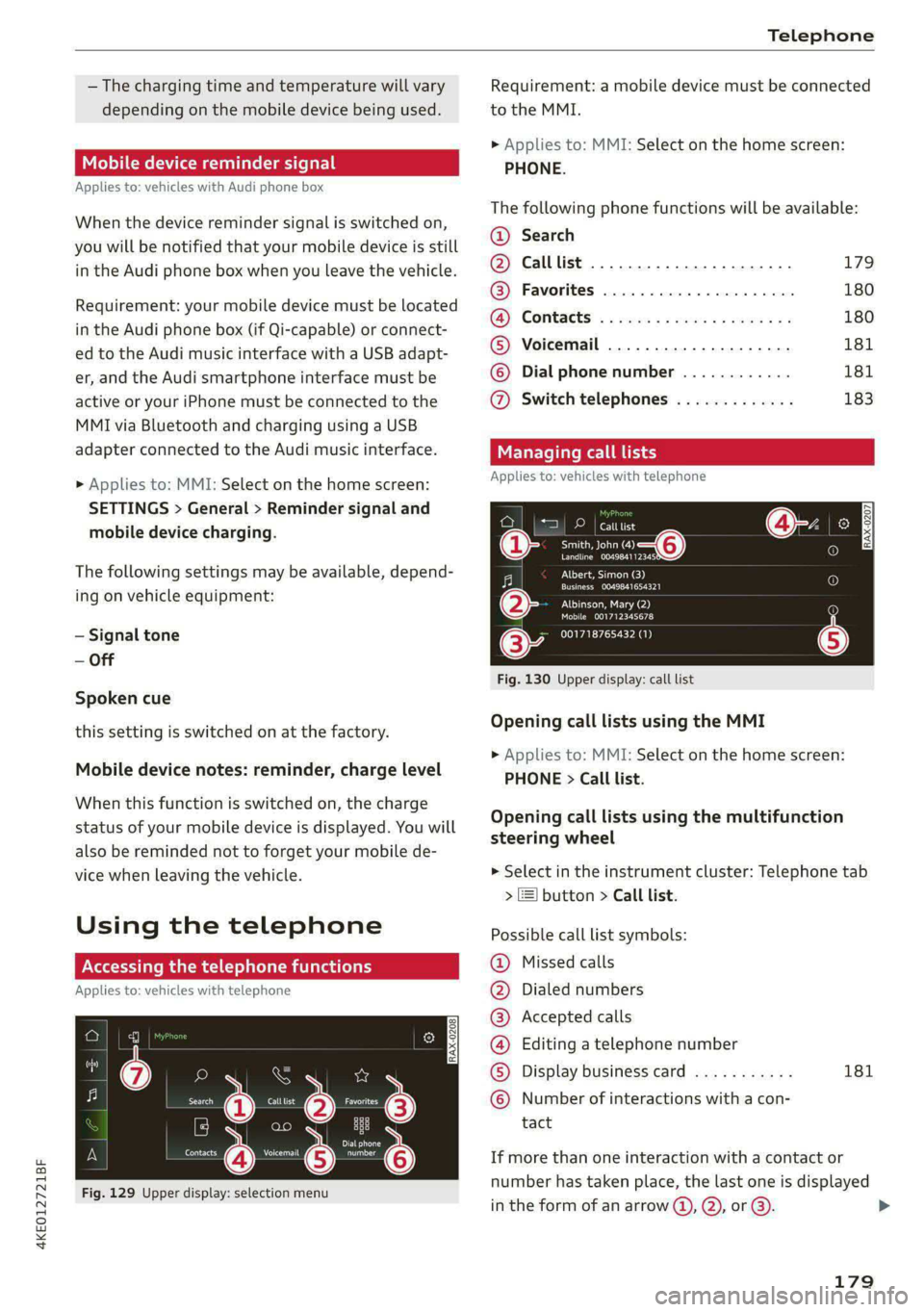
Fig. 129 Upper display: selection menu
Requirement: a mobile device must be connected
to the MMI.
> Applies to: MMI: Select on the home screen:
PHONE.
The following phone functions will be available:
@® Search
@ Calllist 20.0.0... eee. 179
@ Favorites ................0.00. 180
(@) Contacts: « ¢ esos ss cores ay cows yes 180
® Voicemail ..................2. 181
© Dial phone number ............ 181
@ Switch telephones ............. 183
Managing call
Applies to: vehicles with telephone
eae
Treas oT o—@
Landline 004984112345
Albert, Simon (3)
Cree acer)
PILE lea ea
Mobile 001712345678
001718765432 (1)
Fig. 130 Upper display: call list
Opening call lists using the MMI
> Applies to: MMI: Select on the home screen:
PHONE > Call list.
Opening call lists using the multifunction
steering wheel
> Select in the instrument cluster: Telephone tab
> ] button > Call list.
Possible call list symbols:
Missed calls
Dialed numbers
Accepted calls
Editing a telephone number
Display business card 181
QOOOCOLO Number of interactions with a con-
tact
If more than one interaction with a contact or
number has taken place, the last one is displayed
in the form of an arrow (4), Q), or @).
179
>
Page 182 of 308
Telephone
Press and hold a contact or a phone number in
the list until the Options menu appears.
Depending on your mobile device, the following
options may be available:
— Save as a shortcut > page 21, Shortcuts.
— Store as favorite > page 180.
— Send text message > page 183.
— Send e-mail > page 184.
Edit number
Edit a phone number before dialing it.
Show history
Requirement: you must have had more than one
interaction with a contact.
All interactions with a contact or a number are
displayed.
Managing favorites
Applies to: vehicles with telephone
You can store contacts for all connected mobile
devices as shortcuts in the favorites list.
Selecting favorites using the MMI
» Applies to: MMI: Select on the home screen:
PHONE > Favorites.
Opening favorites using the multifunction
steering wheel
> Select in the instrument cluster: Telephone tab
> EE] button > Favorites.
Storing favorites
> Press YY > page 181 in the business card, or
> Press Store as favorite in the options
=>page 179.
Deleting favorites
> Press Ww © page 181 in the business card, or
> Select: Favorites > Z > one or multiple favor-
ites or Select all > Delete > (Done).
@ Tips
The favorites can only be edited via the MMI.
180
Managing the directory
Applies to: vehicles with telephone
You can manage up to four directories in the
MMI.
Requirement: a mobile device must be connected
to the MMI.
Opening the directory
> Applies to: MMI: Select on the home screen:
PHONE > Contacts.
The contacts will be displayed. You can change
the sort order > page 183, Sort order.
Deleting imported contacts
Requirement: you must have imported at least
one contact > page 183.
> Select: Contacts > Z > one or more text mes-
sages > Delete > (Done). The imported contacts
are deleted.
Directory options
> Press and hold a contact in the directory until
the Options menu appears.
Depending on your mobile device, the following
options may be available:
— Store as favorite > page 180.
— Send contact: you can select Text message or
E-mail > page 183.
— Send text message > page 183.
— Send e-mail > page 184.
— Save as a shortcut > page 21, Shortcuts.
Gi) Tips
— Pay attention to any synchronization
prompts on your mobile device when down-
loading contacts.
—The contacts from the mobile device may
not be transferred in alphabetical order. If
there are too many entries, contacts with
different first letters may be missing in the
MMI.
— Only the contacts from the active connected
mobile device are displayed.
Page 183 of 308
4KE012721BF
Telephone
— The contacts in the local MMI memory are
always visible and can be accessed by other
users.
— After switching off the ignition and exiting
the vehicle, the mobile device directory will
be loaded when the MMI is started again if
the mobile device is within range and the
Bluetooth function is switched on in the mo-
bile device and the MMI.
— Only the contacts in the local MMI memory
can be deleted.
Opening business cards
Applies to: vehicles with telephone
The business card shows you details about a con-
tact.
> To open a business card, press on a contact in
the directory, or
> Press © in the call list ©) > page 179, fig. 130.
Possible options in the business card:
> Call: press on a phone number.
> Storing a favorite: press W.
> Deleting a favorite: press W.
> Sending a text message: press {1.
>» Starting navigation: press on an address.
> Sending an e-mail: press on an e-mail address.
> Send contact: you can select Text message or
E-mail > page 183.
» Save as a shortcut > page 21, Shortcuts.
Listening to voicemail
Applies to: vehicles with telephone
> Applies to: MMI: Select on the home screen:
PHONE > Voicemail.
Requirement: there must be no voicemail num-
ber stored.
> Entering the voicemail number: enter the de-
sired number. Press OK.
Requirement: a voicemail number must be stor-
ed.
> Dialing the voicemail number: press Voice-
mail. The call begins immediately.
@) Tips
This service must be set up and activated by
the mobile phone service provider.
Dialing a telephone number
Applies to: vehicles with telephone
Depending on the vehicle equipment, you may
have the following options for dialing a phone
number:
— Using text input in the MMI > page 22.
— Using voice operation > page 25.
Call options
Applies to: vehicles with telephone
> To accept or end a call, press the @ button on
the multifunction steering wheel. Operating
=> page 12 and > page 28.
Depending on your mobile device, the following
options may be available in the MMI when there
is an incoming call:
— Answer
— Decline
— Message
If you exit the vehicle during a phone call, the
Bluetooth connection will be disconnected. De-
pending on your mobile device, phone calls in
progress may be automatically transferred from
the MMI to your mobile device.
G) Tips
The radio or media playback is muted during a
phone call.
PTT Tae RW urea]
Applies to: vehicles with telephone
Depending on your mobile device and the type of
connection, the following options may be availa-
ble during a call:
— End call
— Mute
181