2021 AUDI E-TRON Battery
[x] Cancel search: BatteryPage 123 of 308

4KE012721BF
High-voltage system
Indicator lights Meaning Solution
o> Flashing green |The control unit has overheat- | After the control unit cools down, the
O A Off ed. The charging performance | malfunction will be automatically
O B&B oft will be reduced. cleared. Never leave the control panel in
direct sunlight for long periods or time.
© 0 Yellow Until it cools down, charging performance
° Off will be reduced. If the malfunction con-
tinues, have the control unit checked by
an authorized Audi dealer or authorized
Audi Service Facility.
€) Yellow The charger is connected to
O QA Off the vehicle. The high-voltage
O B oft battery is charged and the
charging process has ended
O 0 off successfully, or the vehicle is
® Off not requesting a charging pro-
cedure.
© Red The power cable has overheat- | After the cable cools down, the malfunc-
© @ Yellow ed. The charging process has __| tion will be automatically cleared and the
O B oft been interrupted. charging process will resume. If the mal-
function continues, have the control unit
O 0 off checked by an authorized Audi dealer or
© Off authorized Audi Service Facility, or have
the power supply/household connection
checked by a qualified electrician.
Q Red The control unit has overheat- | After the control unit cools down, the
O
A Off ed. The charging process has_ | malfunction will be automatically cleared
O B oft been interrupted. and the charging process will resume.
© 8 Yeltow Never leave the control panel in direct
sunlight for long periods or time. If the
© Off malfunction continues, have the control
unit checked by an authorized Audi dealer
or authorized Audi Service Facility.
O Red The charging infrastructure of | After the power supply/household con-
© Q Flashing yellow |the power supply/household | nection stabilizes, the malfunction will be
O 2 oft connection is restricted. Possi- | automatically cleared and the charging
O 6 off ble cause of the malfunction: | process will resume. If the malfunction
low voltage or poor power fre- | continues, have the power supply/house-
© Off quency. The charging process | hold connection checked by a qualified
has been interrupted. electrician.
O Red There is a malfunction inthe | After the vehicle charging system stabiliz-
O QO Off vehicle charging system. The | es, the malfunction will be automatically
© B Flashing yellow charging process has been in- | cleared and the charging process will re-
O 6 of terrupted. sume. If the malfunction continues, have
© oH the vehicle checked by an authorized Audi
dealer or authorized Audi Service Facility.
121
Page 127 of 308

4KE012721BF
High-voltage system
— Only change cables in a dry environment.
— The Audi charging system may only be used
as a complete unit consisting of the power
cables, the control unit, and the vehicle ca-
ble. Depending on the country, the total
length of the power cable, control panel and
vehicle cable may be restricted, for example
to 24.6 feet (7.5 m) in the USA. Audi recom-
mends using only cables approved by Audi.
@) Tips
The power cable with the power connector for
industrial sockets and the Audi charging sys-
tem control unit are designed to work togeth-
er. Changing the power cable to another con-
nector type may reduce the available charging
power of the entire system. Limitations on
the ability to transfer power (current capacity)
depending on the phase and the number of
available phases may affect the available
charging power.
Wall mo clip
Applies to: vehicles with wall mount clip
RAZ-0638,
Fig. 89 Wall mount clip: securing the Audi charging system
Securing the Audi charging system
> First insert the control unit in the bottom tabs
on the wall mount clip and then into the upper
tabs.
> Push the control unit in the direction of the ar-
row toward the rear > fig. 89 and let it lock into
place.
> Wrap the excess length of cable around the
charging connector mount @ when you are not
charging the high-voltage battery.
> Plug the power cable into the socket (2).
> After charging, you can hook the vehicle charg-
ing connector to the charging connector mount
©.
Locking and unlocking the Audi charging
system
> You can lock or unlock the Audi charging sys-
tem using the key provided by turning it to the
lock position @) or the unlock position 6).
Removing the Audi charging system
> Remove the power cable connector from the
socket (2).
> Unwind the cable from the charging connector
mount (@).
> To loosen the control unit from the bracket,
push the locking mechanism @) upward.
ZX WARNING
Observe the safety precautions in the assem-
bly instructions for the wall mount clip.
125
Page 191 of 308
4KE012721BF
Audi connect
ZA WARNING
— Always follow the information found in > AA
in General information on page 186.
— Driver messages, text messages, and illumi-
nated warning and indicator lights in the ve-
hicle always take priority over information
from the Audi connect services. The infor-
mation displayed by the Audi connect serv-
ices should not cause you to take safety
risks. This can result in the vehicle breaking
down in traffic and to serious injuries or ac-
cidents.
— Applies to: vehicles with electric drive: Only
perform the Audi connect climate control
functions if your vehicle was shut off cor-
rectly and the ignition is switched off.
— Applies to: vehicles with electric drive: Only
perform charging functions on the high-
voltage battery if the vehicle is shut off cor-
rectly, is connected to a suitable socket ,and
if the ignition is switched off.
@) Tips
— Accessing specific data or controlling func-
tions remotely depends on the charge level
of the vehicle battery. Therefore, these
functions only have limited availability after
switching off the ignition.
— An eSIM card establishes the Internet con-
nection for Audi connect vehicle control
services. The costs for this are included in
the price of Audi connect vehicle control
services. The cell phone network, for exam-
ple, must be available to use these services.
Applies to: vehicles with Audi connect vehicle control
Create a myAudi account by registering in the
myAudi app or at my.audi.com, depending on
your country.
>» Set the key user > page 29.
> Install the myAudi app on your mobile device
and log in with your access information.
@) Tips
Some services require you to enter a 4-digit
PIN that you set up during registration.
Settings
Applies to: vehicles with Wi-Fi hotspot
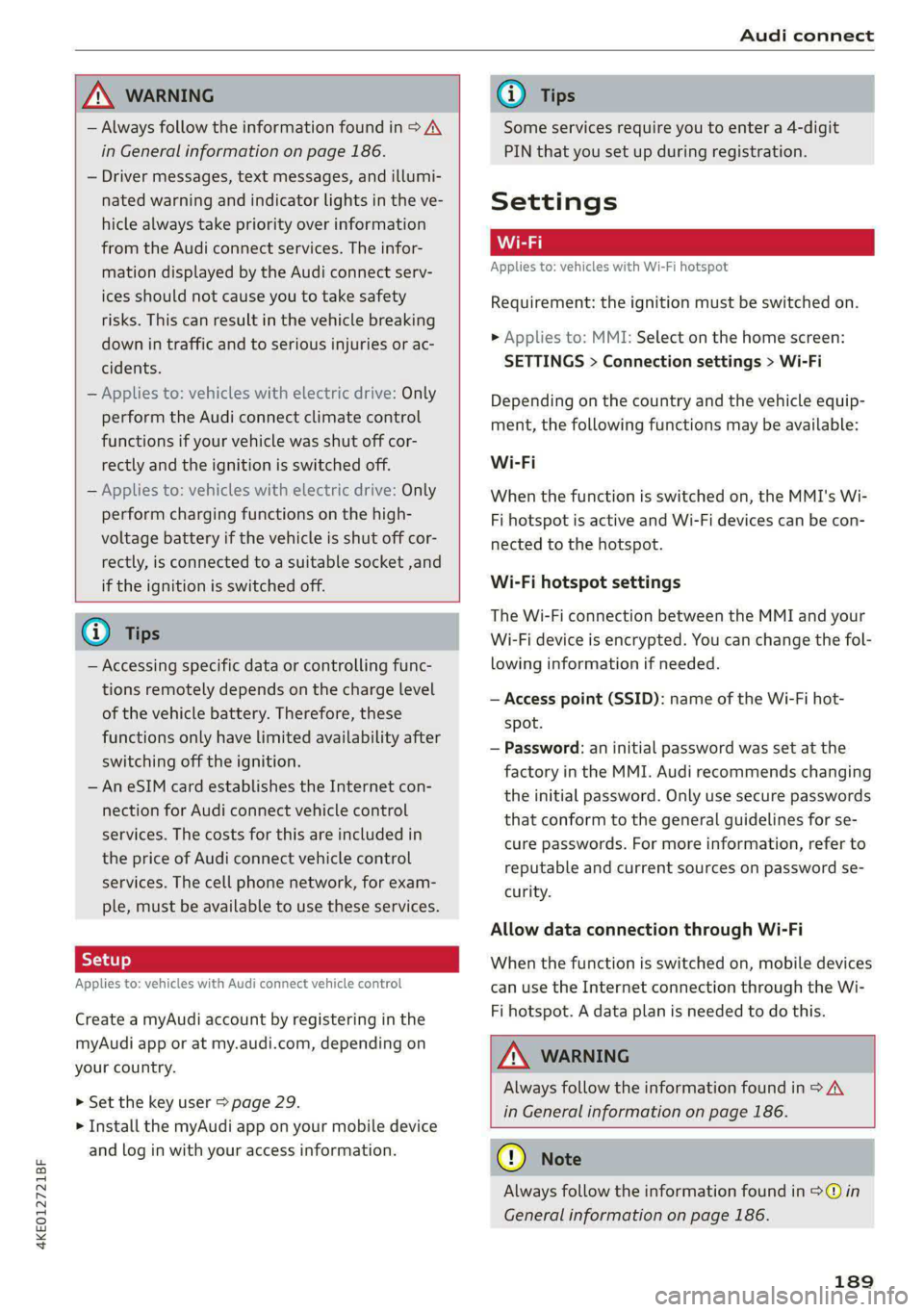
Requirement: the ignition must be switched on.
> Applies to: MMI: Select on the home screen:
SETTINGS > Connection settings > Wi-Fi
Depending on the country and the vehicle equip-
ment, the following functions may be available:
Wi-Fi
When the function is switched on, the MMI's Wi-
Fi hotspot is active and Wi-Fi devices can be con-
nected to the hotspot.
Wi-Fi hotspot settings
The Wi-Fi connection between the MMI and your
Wi-Fi device is encrypted. You can change the fol-
lowing information if needed.
— Access point (SSID): name of the Wi-Fi hot-
spot.
— Password: an initial password was set at the
factory in the MMI. Audi recommends changing
the initial password. Only use secure passwords
that conform to the general guidelines for se-
cure passwords. For more information, refer to
reputable and current sources on password se-
curity.
Allow data connection through Wi-Fi
When the function is switched on, mobile devices
can use the Internet connection through the Wi-
Fi hotspot. A data plan is needed to do this.
Z\ WARNING
Always follow the information found in > AA
in General information on page 186.
@) Note
Always follow the information found in S@ in
General information on page 186.
189
Page 200 of 308

Navigation
Selecting map content (such as POIs) as the
destination
Requirement: map content must be displayed
=> page 205.
> Press on map content on the map (for example,
fib.
Selecting the destination
> Select: F4 > Start.
Route guidance will be activated and the map will
be displayed > page 199, fig. 136.
Stopovers and route plan
Applies to: vehicles with navigation system
You can enter additional destinations during ac-
tive route guidance.
Entering a stopover
Requirement: route guidance must be active.
> Enter a destination > page 195.
Displaying stopovers or the route plan
All destinations are listed in the route plan.
> Press on fin the side menu on the map
=> page 199, fig. 136.
Editing stopovers
> Press on Pin the side menu on the map
=> page 199, fig. 136.
> Adding a stopover: Select: Add destination >
select a destination > Add to route.
> Moving a stopover: press Z. Touch the > sym-
bol and move the entry to the desired position.
Press Done.
> Deleting a stopover: Select: Z > one or more
entries or Select all > Delete > (Done).
Ce eels
Applies to: vehicles with navigation system and e-tron route
planner
The MMI includes the charging stations along the
route, if the destination cannot be reached with
the current battery charge level.
Requirement: the e-tron route planner must be
switched on > page 205.
198
Entering a destination using e-tron route
planner
> Enter a destination.
If the destination is out of range, a fast route
with stopovers for charging is automatically sug-
gested.
> To start the suggested route guidance, press
Accept.
> To display the route, press F) > page 199,
fig. 136 in the map side menu.
The destination is located outside of the
range
The F! symbol will be displayed if the destination
in the current route plan cannot be reached.
> Press on on the map. The route plan will be
displayed.
> Press e-tron route planner to calculate an al-
ternative route with suitable charging stations.
In the e-tron route planner, the following items
will be shown for each destination: the calculated
arrival time and the estimated battery charge
level at arrival (6 and after charging >, as well as
the suggested charging duration s= and the dis-
tance from the current location.
Gi) Tips
— The calculated arrival time at the destina-
tion incorporates the suggested time for
charging at the stopovers.
— The e-tron route planner continuously calcu-
lates the fastest route while taking into ac-
count the charging times at various charg-
ing stations. Therefore, a route with multi-
ple charging stops could be faster than a
route with fewer charging stops.
Stopping route guidance
Applies to: vehicles with navigation system
Requirement: route guidance must be active and
the map must be displayed.
> Applies to: MMI: Press BX > page 199, fig. 136.
> Applies to: multifunction steering wheel: Select
in the instrument cluster: Navigation tab >
button > Cancel route guidance.
Page 219 of 308
4KE012721BF
Media
» Applies to: MMI: Select on the home screen:
MEDIA > Source > Amazon Alexa.
@) Note
Read the information about Audi connect, and
be sure to note the connectivity costs section
=> page 186.
Multimedia connections
Oy ETE Tela
ae
a| =
oS
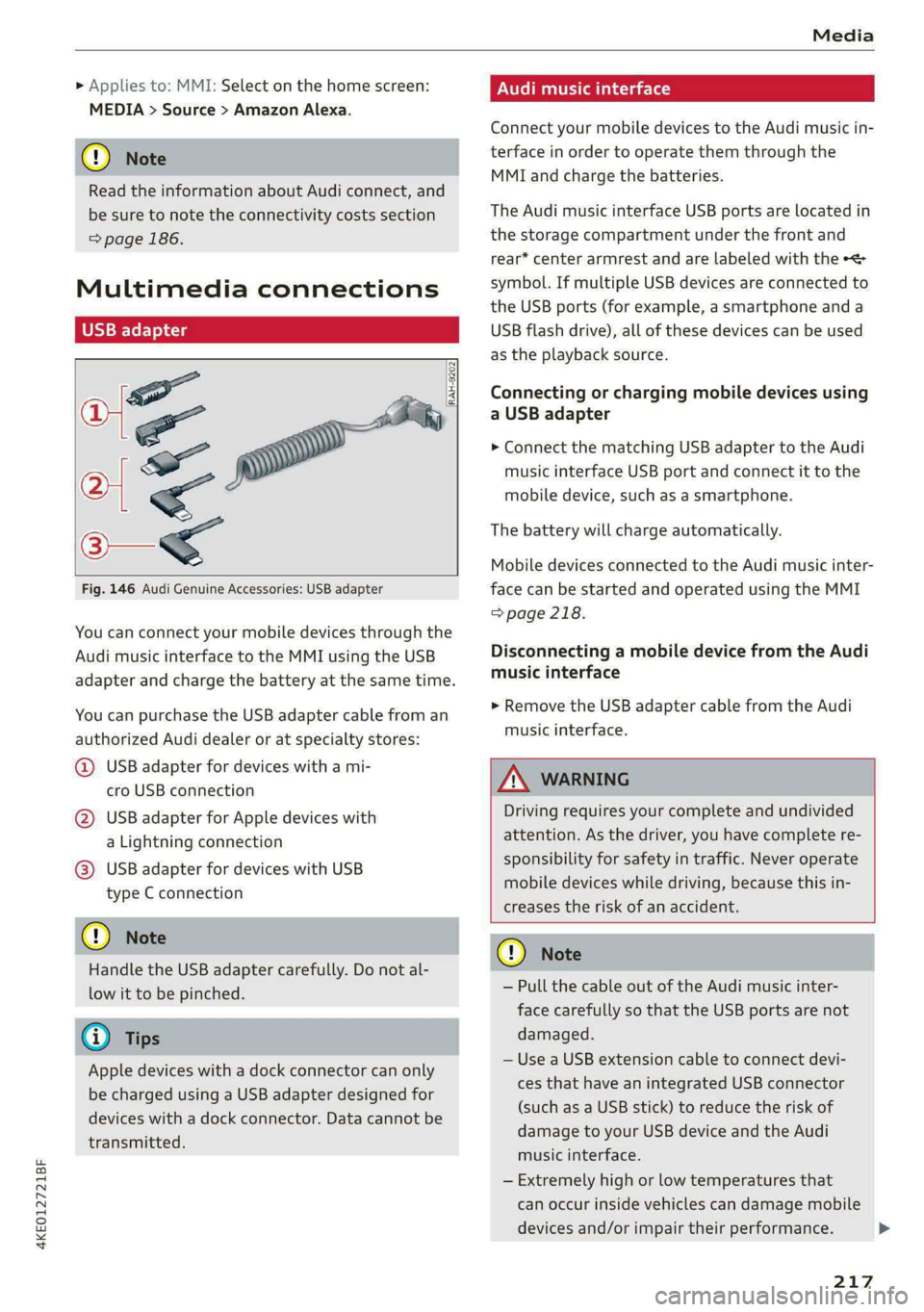
Fig. 146 Audi Genuine Accessories: USB adapter
RAH-9202
\
You can connect your mobile devices through the
Audi music interface to the MMI using the USB
adapter and charge the battery at the same time.
You can purchase the USB adapter cable from an
authorized Audi dealer or at specialty stores:
@ USB adapter for devices with a mi-
cro USB connection
@ USB adapter for Apple devices with
a Lightning connection
@ USB adapter for devices with USB
type C connection
@) Note
Handle the USB adapter carefully. Do not al-
low it to be pinched.
@) Tips
Apple devices with a dock connector can only
be charged using a USB adapter designed for
devices with a dock connector. Data cannot be
transmitted.
Audi music interface
Connect your mobile devices to the Audi music in-
terface in order to operate them through the
MMI and charge the batteries.
The Audi music interface USB ports are located in
the storage compartment under the front and
rear* center armrest and are labeled with the «<>
symbol. If multiple USB devices are connected to
the USB ports (for example, a smartphone anda
USB flash drive), all of these devices can be used
as the playback source.
Connecting or charging mobile devices using
a USB adapter
> Connect the matching USB adapter to the Audi
music interface USB port and connect it to the
mobile device, such as a smartphone.
The battery will charge automatically.
Mobile devices connected to the Audi music inter:
face can be started and operated using the MMI
> page 218.
Disconnecting a mobile device from the Audi
music interface
> Remove the USB adapter cable from the Audi
music interface.
ZA\ WARNING
Driving requires your complete and undivided
attention. As the driver, you have complete re-
sponsibility for safety in traffic. Never operate
mobile devices while driving, because this in-
creases the risk of an accident.
@) Note
— Pull the cable out of the Audi music inter-
face carefully so that the USB ports are not
damaged.
— Use a USB extension cable to connect devi-
ces that have an integrated USB connector
(such as a USB stick) to reduce the risk of
damage to your USB device and the Audi
music interface.
— Extremely high or low temperatures that
can occur inside vehicles can damage mobile
devices and/or impair their performance.
217
>
Page 227 of 308
4KE012721BF
Media
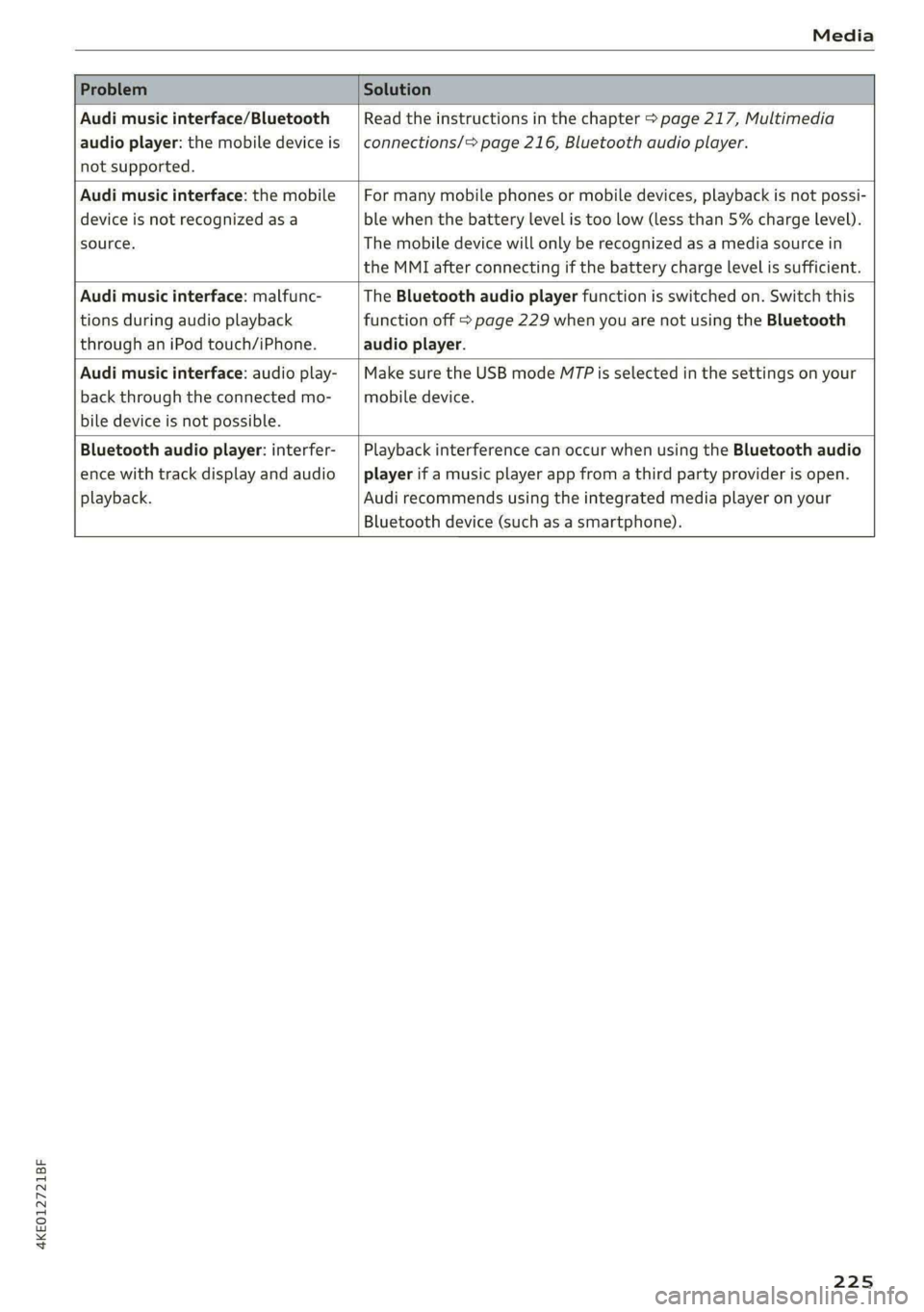
Problem Solution
Audi music interface/Bluetooth
audio player: the mobile device is
not supported.
Read the instructions in the chapter > page 217, Multimedia
connections/> page 216, Bluetooth audio player.
Audi music interface: the mobile
device is not recognized as a
source.
For many mobile phones or mobile devices, playback is not possi-
ble when the battery level is too low (less than 5% charge level).
The mobile device will only be recognized as a media source in
the MMI after connecting if the battery charge level is sufficient.
Audi music interface: malfunc-
tions during audio playback
through an iPod touch/iPhone.
The Bluetooth audio player function is switched on. Switch this
function off > page 229 when you are not using the Bluetooth
audio player.
Audi music interface: audio play-
back through the connected mo-
bile device is not possible.
Make sure the USB mode M7P is selected in the settings on your
mobile device.
Bluetooth audio player: interfer-
ence with track display and audio
playback.
Playback interference can occur when using the Bluetooth audio
player if a music player app from a third party provider is open.
Audi recommends using the integrated media player on your
Bluetooth device (such as a smartphone).
225
Page 229 of 308
4KE012721BF
Audi smartphone interface
— The menu language shown in the MMI is
based on the settings in your smartphone.
— Some MMI functions are not available when
there is an active Audi smartphone interface
— Usage of the Audi smartphone interface de-
pends on the availability of services through
third party providers.
— Audi merely provides access to third party
connection.
— You cannot connect any mobile devices via
Bluetooth when an Audi smartphone inter-
services through the MMI and does not as-
sume any responsibility for the content of
these services.
face connection is active.
Troubleshooting
Applies to: vehicles with Audi smartphone interface
The information that follows lists some trouble-
shooting options. They depend on the equip-
ment.
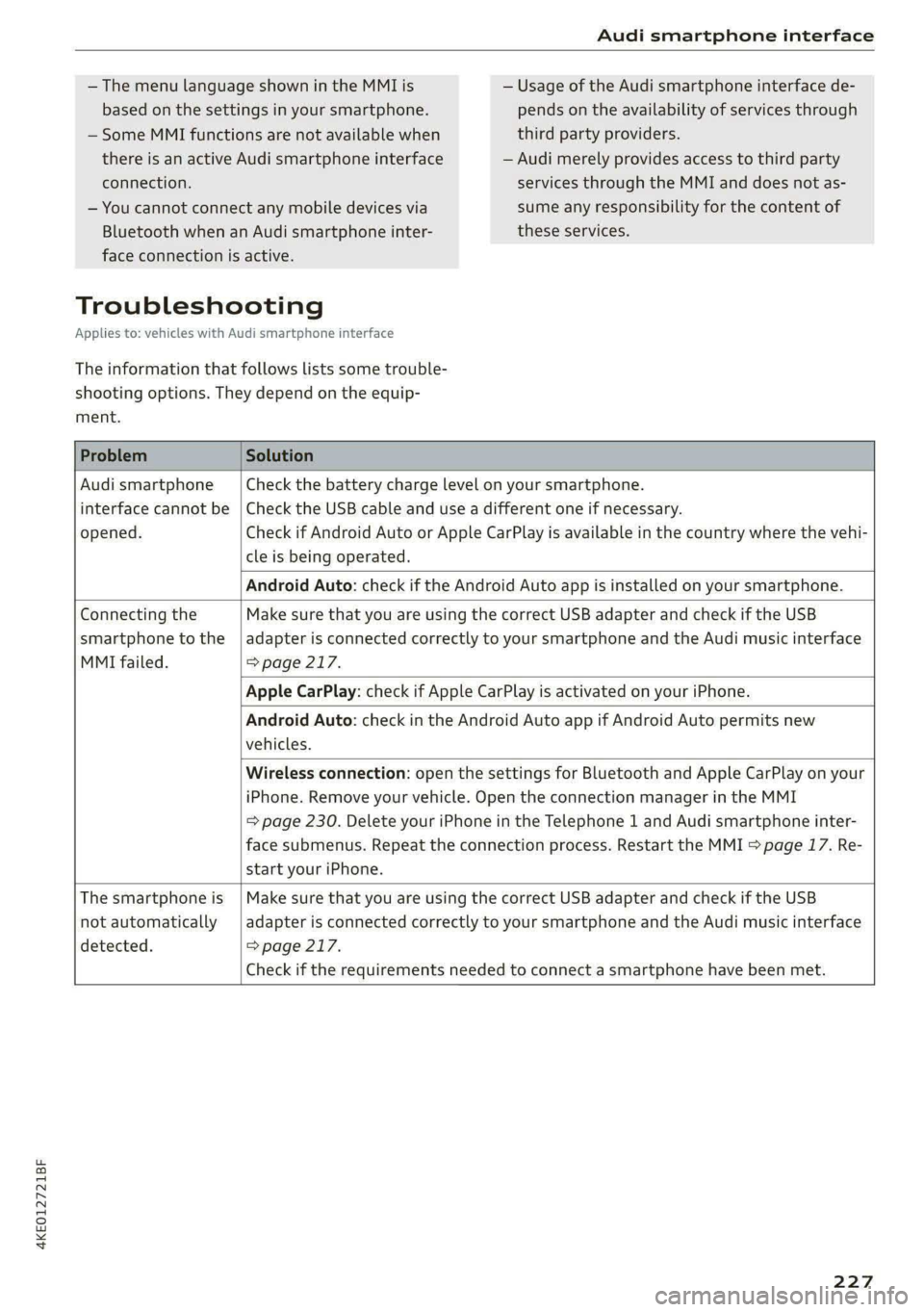
Problem Solution
Audi smartphone
interface cannot be
opened.
Check the battery charge level on your smartphone.
Check the USB cable and use a different one if necessary.
Check if Android Auto or Apple CarPlay is available in the country where the vehi-
cle is being operated.
Android Auto: check if the Android Auto app is installed on your smartphone.
Connecting the
smartphone to the
MMI failed.
Make sure that you are using the correct USB adapter and check if the USB
adapter is connected correctly to your smartphone and the Audi music interface
=> page 217.
Apple CarPlay: check if Apple CarPlay is activated on your iPhone.
Android Auto: check in the Android Auto app if Android Auto permits new
vehicles.
Wireless connection: open the settings for Bluetooth and Apple CarPlay on your
iPhone. Remove your vehicle. Open the connection manager in the MMI
= page 230. Delete your iPhone in the Telephone 1 and Audi smartphone inter-
face submenus. Repeat the connection process. Restart the MMI > page 17. Re-
start your iPhone.
The smartphone is
not automatically
detected.
Make sure that you are using the correct USB adapter and check if the USB
adapter is connected correctly to your smartphone and the Audi music interface
=> page 217.
Check if the requirements needed to connect a smartphone have been met.
227
Page 232 of 308
Additional settings
> Press on the notification, or
> Open the notification in the notification center
on > page 20 and press on the notification.
> Follow the system instructions.
Depending on the scope of the update, the online
system update may only be started if you follow
these instructions:
> Switch the emergency flashers off, if necessary
> Make sure that the starter battery is charged.
> To start the update, exit and lock the vehicle.
The MMI will start the installation. When the up-
date has ended, a notification will be displayed.
Z\ WARNING
Depending on the scope of the installation,
the ignition must not be switched on during
the installation to ensure the installation
completes successfully.
©) Note
Read the information about Audi connect, and
be sure to note the connectivity costs section
=) in General information on page 186.
@ Tips
The software update may take some time.
WEE Tel
Applies to: vehicles with online system update
Online system update: incomplete. Warning!
Vehicle functions limited
If an error occurs when installing an online sys-
tem update, certain functions such as the emer-
gency call function may not be available. Drive to
an authorized Audi dealer or authorized Audi
Service Facility immediately to have the malfunc-
tion corrected.
Connected devices
Displayed connected devices
Requirement: the vehicle must be stationary and
the ignition must be switched on.
> Applies to: MMI: Select on the home screen:
SETTINGS > Connected devices.
230
Possible menu items:
— Telephone 1
— Telephone 2
— Audio player
— Wi-Fi hotspot
— Headset
Audi smartphone interface
You can connect your smartphone to the MMI
=> page 226.
myAudi app
This function is available if the myAudi app is in-
stalled on your mobile device and started, and if
the mobile device is connected with the vehicle’s
Wi-Fi hotspot.
() Note
Read the information about Audi connect, and
be sure to note the connectivity costs section
=> page 186.
Managing connected devices
Requirement: the connected devices menu must
be displayed > page 230.
Connecting a device
Requirement: Bluetooth visibility must be acti-
vated in the MMI > page 229 and mobile device.
> Press on a menu item, such as Telephone 1.
> To search for and connect your mobile device,
press New connection > page 175.
Selecting a connected device
> Press on a menu item, such as Telephone 1.
> Press on the desired mobile device in the list of
displayed devices. The connection will be made.
Disconnecting a connected device
> Press on a menu item, such as Telephone 1.
> Press on the connected mobile device. The se-
lected mobile device will be disconnected from
the MMI.
Deleting a device
> Press on a menu item, such as Telephone 1. >