2021 AUDI A8 radio
[x] Cancel search: radioPage 137 of 362

4N0012721BF
High-voltage system
If the driver's door is opened while the ignition is
switched off, the current battery charge level and
the high-voltage battery range will be displayed
in the instrument cluster. If charging is in prog-
ress, the remaining charging time will also be
displayed.
Immediate charging and timer charging
You can switch between the immediate charging
@ and charging timer @) options during the
charging process if a charging timer is set
=> page 136. Press the corresponding button to
do this.
Ending the charging process
You can interrupt the charging process at any
time.
— Unlock the vehicle or press the @/@) button
when the vehicle is unlocked, and the LED will
turn on.
— Remove the charging connector. If the charging
connector is not removed within 30 seconds, it
will automatically relock and the charging proc-
ess may continue.
— Put the cap back on the charging port.
— Close the charging port door.
— Disconnect the charging cable from the power
supply if necessary or return it securely to the
charging station.
— Install the protective caps on the charging ca-
ble again.
— If you are transporting the charging cable in
the vehicle, store it securely > page 139.
If the charging connector cannot be removed,
you must unlock it manually > page 137.
If you cannot disconnect the charging connector
from the charging station, authenticate yourself
again at the charging station and then try again
to disconnect the charging connector. If you still
cannot disconnect the charging connector from
the charging station, contact the charging sta-
tion operator.
A WARNING
— Do not disconnect the charging cable from
the socket or the vehicle charging port while
the vehicle is charging. End the charging
process before removing the charging cable
from the socket in order to reduce the risk of
damaging the connector contacts from
sparks.
—If the charging unit is damaged, do not
charge using the charging port to reduce the
risk of injury.
— If the charging unit is damaged or the
charging port door cannot close or is miss-
ing, drive immediately to an authorized Audi
dealer or authorized Audi Service Facility
and have the malfunction corrected to re-
duce the risk of injury.
() Note
If you drive with the charging unit open, both
the charging port door and the electronics in-
stalled behind it could be damaged. Check
each time after charging if the port door is
locked before you start driving the vehicle.
@) Tips
— If the parking brake is set, it could create
noises when the charging connector is con-
nected.
— Remove ice and snow in the charging unit
using a hand brush and solvent-free deicing
spray.
— The vehicle radio and TV systems may have
limited reception when charging the vehicle.
Charging display
Applies to: vehicles with plug-in hybrid drive
The charging display is an LED light on the charg-
ing unit @) > page 134, fig. 100 that indicates
the charging status. The key for the LED light is
explained in the following table.
135
Page 204 of 362

Parking and maneuvering
ZA\ WARNING
Observe the safety precautions and note the
limits of the assist systems, sensors, and
cameras > page 150.
Messages
Applies to: vehicles with park assist plus
If the & or w indicator light turns on, the
park assist is not available or was interrupted.
A message that indicates the cause and possible
solution may appear with some displays. The
weather conditions may be too poor or a sensor
may be covered. Clean the area in front of the
sensors > page 152 and try to turn the system on
again later.
If the malfunction remains, drive to an author-
ized Audi dealer or authorized Audi Service Facili-
ty immediately to have the malfunction correct-
ed.
Remote controlled
parking!)2)
ere eeuel ela)
Applies to: vehicles with remote park assist plus
Remote controlled parking is part of park assist
plus/park assist plus with garage function. The
process for parking or exiting a parking space can
be controlled with a mobile device from outside
the vehicle. To do so, the driver must have both
the vehicle key and the mobile device with him or
her. While the driver controls the vehicle remote-
ly and monitors the vehicle's surroundings, the
system controls the steering, gear selection, ac-
celeration, braking, and locking the vehicle.
ZX WARNING
— Observe the safety precautions and note the
limits of the assist systems, sensors, and
cameras > page 150.
)_ system availability may be limited depending on the mar-
ket.
2) In preparation at the time of printing.
202
— Remote controlled parking is only an assist
system. The driver is always responsible for
maneuvering, driving, and stopping the ve-
hicle and performing other driving maneu-
vers.
— Do not use this function if the vehicle cannot
move freely, for example when on a vehicle
jack.
— Failing to pay careful attention to the vehi-
cle's surroundings increases the risk of an
accident. Sensors and cameras have spots in
which the surrounding area cannot be de-
tected. Objects, animals, and people may
only be detected with limitations may not
be detected at all. Always monitor the traf-
fic as well as the vehicle's surroundings with
direct eye contact. Stay near the vehicle
while controlling it. Make sure you have a
clear view of the vehicle and the area sur-
rounding it. Do not become distracted.
— Applies to: vehicles with anti-theft alarm
system: There is a risk of fatal injury for peo-
ple locked in the vehicle, especially children.
The vehicle is locked during remote control-
led parking. Make sure there are no persons
inside the vehicle both before and after us-
ing
remote controlled parking.
— There is a risk of asphyxiation. Never allow
the engine to run in confined spaces. After
remote controlled parking, make sure the
engine is off.
— Malfunctions when using the myAudi app in-
crease the risk of an accident. Do not exit
the app during the parking process, and
make sure that it does not go into the device
background, for example by accepting an in-
coming call. Observe the operating instruc-
tions from the manufacturer of your mobile
device.
— There is a risk of accident if the connection is
interrupted. In certain situations, the con-
nection between the mobile device and the
vehicle can be interrupted, for example from
other radio devices or when the distance to
Page 219 of 362
4N0012721BF
Telephone
> Send contact: you can select Text message or
E-mail > page 219.
> Save as a shortcut > page 24, Shortcuts.
Listening to voicemail
Applies to: vehicles with telephone
> Applies to: MMI/Rear Seat Remote: Select on
the home screen: PHONE > Voicemail.
Requirement: there must be no voicemail num-
ber stored.
>» Entering the voicemail number: enter the de-
sired number. Press OK.
Requirement: a voicemail number must be stor-
ed.
> Dialing the voicemail number: press Voice-
mail. The call begins immediately.
@® Tips
This service must be set up and activated by
the mobile phone service provider.
Dialing a telephone number
Applies to: vehicles with telephone
Depending on the vehicle equipment, you may
have the following options for dialing a phone
number:
— Using text input in the MMI > page 25.
— Using voice operation > page 34.
— by text input through the Rear Seat Remote
=> page 25.
Call options
Applies to: vehicles with telephone
> To accept or end a call, press the @ button on
the multifunction steering wheel. Operating
=> page 13 and > page 37.
Depending on your mobile device, the following
options may be available in the MMI or in the
Rear Seat Remote* when there is an incoming
call:
— Answer
— Decline
— Message |
If you exit the vehicle during a phone call, the
Bluetooth connection will be disconnected. De-
pending on your mobile device, phone calls in
progress may be automatically transferred from
the MMI to your mobile device.
G) Tips
The radio or media playback is muted during a
phone call.
During a phone call
Applies to: vehicles with telephone
Depending on your mobile device and the type of
connection, the following options may be availa-
ble during a call:
— End call
— Mute
Sending a tone sequence
Press Numbers. You can enter tone sequences
(DTMF) and send them to the other party on the
call.
Hold
Puts the current call on hold. To resume the call,
press Resume.
Answering an incoming call
One of these options will be available, depending
on the mobile phone service provider:
— Answer: the current phone call will be put on
hold. The incoming call will be answered.
— Replace: the active call will be replaced with
the incoming call.
Declining an incoming call
If you select Decline, the incoming call will be de-
clined.
Conference
Requirement: two phone calls must be in prog-
ress.
Depending on your mobile phone service provid-
er, you can add a call on hold and up to five active
callers to a conference call.
217
>
Page 220 of 362
Telephone
Swap call
Requirement: two phone calls must be in prog-
ress.
You can alternate between two phone calls.
Additional call options
Press More.
Depending on the mobile device being used and
the type of connection, the following options
may be available:
Transfer call to mobile device
Transfer the current call to your mobile device or
Bluetooth headset*.
Switch to hands-free
Applies to: MMI
Transfer the callin progress from your mobile de-
vice or Rear Seat Remote* to the MMI.
Transfer audio to MMI
Applies to: vehicles with Rear Seat Remote
Transfer the callin progress from the Rear Seat
Remote to the MMI.
Transfer audio to Rear Seat Remote
Applies to: vehicles with Rear Seat Remote
Transfer the call in progress from the MMI or
Bluetooth headset* to the Rear Seat Remote.
Add call
You can start a new call. The current call will be
put on hold.
Remove conference member
You can remove conference call members individ-
ually when a conference call is active.
Microph. input
Applies to: MMI
You can adjust the input level of the microphone
using the slider.
@ Tips
The call waiting function must be activated in
your mobile device to be alerted about an in-
coming call during an active call.
218
Making an emergency call
Applies to: vehicles with telephone
Requirement: a mobile device must be connected
to the MMI.
> Applies to: MMI/Rear Seat Remote: Select on
the home screen: PHONE > Dial number > the
local emergency call number (for example,
911) > Dial.
ZA\ WARNING
— Because your phone works with radio sig-
nals, a connection cannot be guaranteed un-
der all circumstances. Do not rely on only
your phone when it comes to essential com-
munication (such as during a medical emer-
gency).
— Always follow the instructions given by the
emergency personnel during an emergency
call and only end the call when they instruct
you to do so.
Settings
Phone settings
Applies to: vehicles with telephone
> Applies to: MMI: Select on the home screen:
PHONE > ©}.
The following options may be possible, depend-
ing on your mobile device:
— Decline with text message
— Edit voicemail number
Switching between two mobile devices
Requirement: phone 1 and phone 2 must be con-
nected to the MMI.
Switch telephones: the device name of the avail-
able mobile device is displayed. You can switch
the phone by pressing the button.
Private mode: call lists only in Rear Seat
Remote
Applies to: vehicles with Rear Seat Remote
To allow contacts and call details to only be dis-
played on the Rear Seat Remote display, activate
private mode.
Page 224 of 362
Audi connect
Audi connect
General information
Applies to: vehicles with Audi connect
Depending on the country and the vehicle equip-
ment, the following functions may be available:
— Audi connect Infotainment
— Audi connect vehicle control
ZA WARNING
—To reduce the risk of an accident, only use
Audi connect services and the Wi-Fi hotspot
only if the traffic situation permits it. Read
and follow the guidelines provided in
= page 20, Traffic safety information.
— It is only safe to use tablets, laptops, mobile
devices and other similar devices when the
vehicle is stationary because, like all loose
objects, they could be thrown around the in-
side of the vehicle in a crash and cause seri-
ous injuries. Store these types of devices se-
curely while driving. Also read the warnings
in the chapter > page 84.
@) Note
—The connection costs of Audi connect Info-
tainment services are included in the price
of Audi connect Infotainment during the
subscription period with some exceptions.
Please note that there may be additional
charges when using some services. For ex-
ample, this applies to online radio/
podcasts, additional online data, or for In-
ternet connections and services that use the
Wi-Fi hotspot. Depending on the country,
data plans may need to be purchased for
these Internet connections and services
= page 225. For additional information, see
my.audi.com.
— In certain situations, the Wi-Fi hotspot data
connection may be established as a replace-
ment for the SIM card on your Wi-Fi device.
This feature depends on the configuration
of your Wi-Fi device and operating system.
This could result in fees depending on your
cell phone service provider, especially if you
are using this feature while abroad. A flat
222
rate data plan is strongly recommended. For
more information, contact your cell phone
service provider or refer to the owner's man-
ual for your Wi-Fi device.
— You are responsible for all precautions taken
for data protection, anti-virus protection,
and protection against loss of data on mo-
bile devices that are used, for example, to
access the Internet through the Wi-Fi hot-
spot.
— In areas with poor GPS reception or outside
the coverage range of the respective cell
phone service provider, some functions
and/or services may not be available, it may
not be possible to send or receive data, or
functionality may be limited.
@) Tips
— The availability of services depends on the
subscription.
— Audi merely provides access to third party
services through the MMI and does not as-
sume any responsibility for the content and
availability of these services.
— Use of the most up-to-date mobile network
standard is not available in every country.
Contact an authorized Audi dealer or au-
thorized Audi Service Facility or your cell
phone service provider for additional infor-
mation.
— Availability, scope, providers, screen display,
and costs of services may vary depending on
the country, model, model year, end device
and rates.
— All services can be modified, activated/deac-
tivated, renamed, and enhanced without
further notification.
Audi connect
Infotainment
Applies to: vehicles with Audi connect Infotainment
With Audi connect Infotainment services, online
information is transmitted directly to the vehicle.
An Internet connection is required to use Audi
connect Infotainment. The Internet connection is >
Page 244 of 362
Radio
Radio
General information
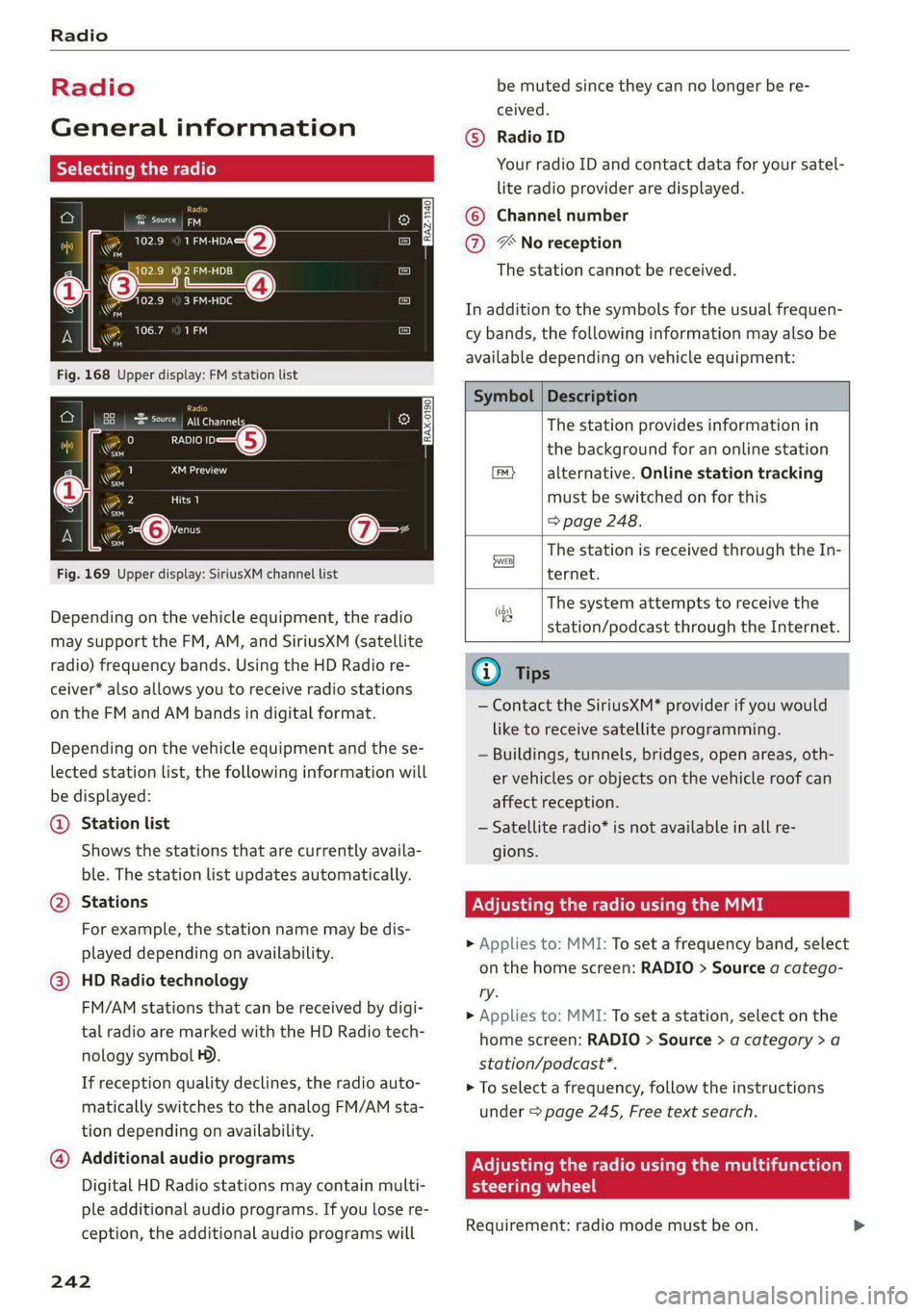
Selecting the radio
ie) | ey
See) os 2 )
\S ™
3 Pa): 4
(ones
ro
* a 106.7 ana
mao
RADIO —@
Saray
22 Lim)
i
4 Qi:
aa
Fig. 169 Upper display: SiriusXM channel list
Depending on the vehicle equipment, the radio
may support the FM, AM, and SiriusXM (satellite
radio) frequency bands. Using the HD Radio re-
ceiver* also allows you to receive radio stations
on the FM and AM bands in digital format.
Depending on the vehicle equipment and the se-
lected station list, the following information will
be displayed:
@ Station list
Shows the stations that are currently availa-
ble. The station list updates automatically.
Stations @
For example, the station name may be dis-
played depending on availability.
HD Radio technology
FM/AM stations that can be received by digi-
tal radio are marked with the HD Radio tech-
nology symbol H).
If reception quality declines, the radio auto-
matically switches to the analog FM/AM sta-
tion depending on availability.
@ Additional audio programs
Digital HD Radio stations may contain multi-
ple additional audio programs. If you lose re-
ception, the additional audio programs will
242
be muted since they can no longer be re-
ceived.
Radio ID
Your radio ID and contact data for your satel-
lite radio provider are displayed.
Channel number
® No reception e®
The station cannot be received.
In addition to the symbols for the usual frequen-
cy bands, the following information may also be
available depending on vehicle equipment:
Symbol | Description
The station provides information in
the background for an online station
alternative. Online station tracking
must be switched on for this
=> page 248.
The station is received through the In-
ternet.
The system attempts to receive the
station/podcast through the Internet.
G) Tips
— Contact the SiriusXM* provider if you would
like to receive satellite programming.
— Buildings, tunnels, bridges, open areas, oth-
er vehicles or objects on the vehicle roof can
affect reception.
— Satellite radio* is not available in all re-
gions.
Adjusting the radio using the MMI
> Applies to: MMI: To set a frequency band, select
on the home screen: RADIO > Source a catego-
ry.
> Applies to: MMI: To set a station, select on the
home screen: RADIO > Source > a category >a
station/podcast*.
> To select a frequency, follow the instructions
under > page 245, Free text search.
Adjusting the radio using the multifunction
steering wheel
Requirement: radio mode must be on. >
Page 245 of 362
4N0012721BF
Radio
> Select the radio/media tab in the instrument
cluster.
> To switch between radio and media, select the
button > Switch to radio/Switch to media.
> Turn the left thumbwheel to display the station
list.
> To switch to a different source, press the [=]
button.
> To select a station or a source, turn and press
the left thumbwheel.
@ Tips
Applies to: multifunction steering wheel: De-
pending on the selected function, operation
through the MMI may be required.
Radio functions
Leta Ta]
Adjusting the radio using the Rear Seat
Tule e
Applies to: vehicles with Rear Seat Remote
Requirement: the Rear Seat Remote must be con-
nected to the MMI > page 28.
> Applies to: Rear Seat Remote: Press RADIO on
the
home screen.
Operation of the available radio functions using
the Rear Seat Remote is very similar to operation
in the MMI > page 243.
Z\ WARNING
Observe the safety precautions > page 26,
Rear Seat Remote.
Cora eet)
Ane
[RAX-0191
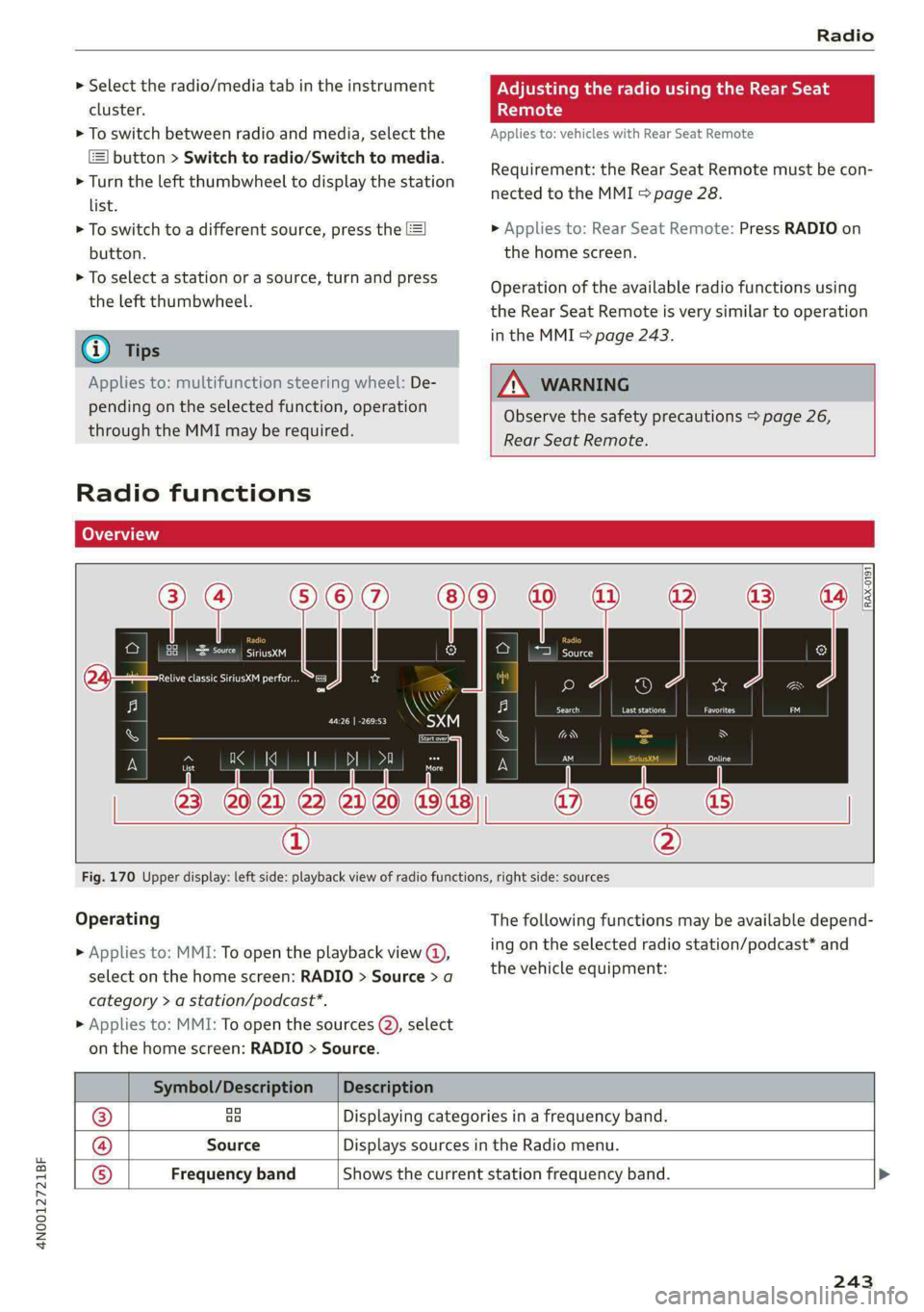
Fig. 170 Upper display: left side: playback view of radio functions, right side: sources
Operating
> Applies to: MMI: To open the playback view @),
select on the home screen: RADIO > Source > a
category > a station/podcast*.
> Applies to: MMI: To open the sources (2), select
on the home screen: RADIO > Source.
The following functions may be available depend-
ing on the selected radio station/podcast* and
the vehicle equipment:
Symbol/Description | Description
® ao Displaying categories in a frequency band.
@ Source Displays sources in the Radio menu.
® Frequency band Shows the current station frequency band.
243
Page 246 of 362
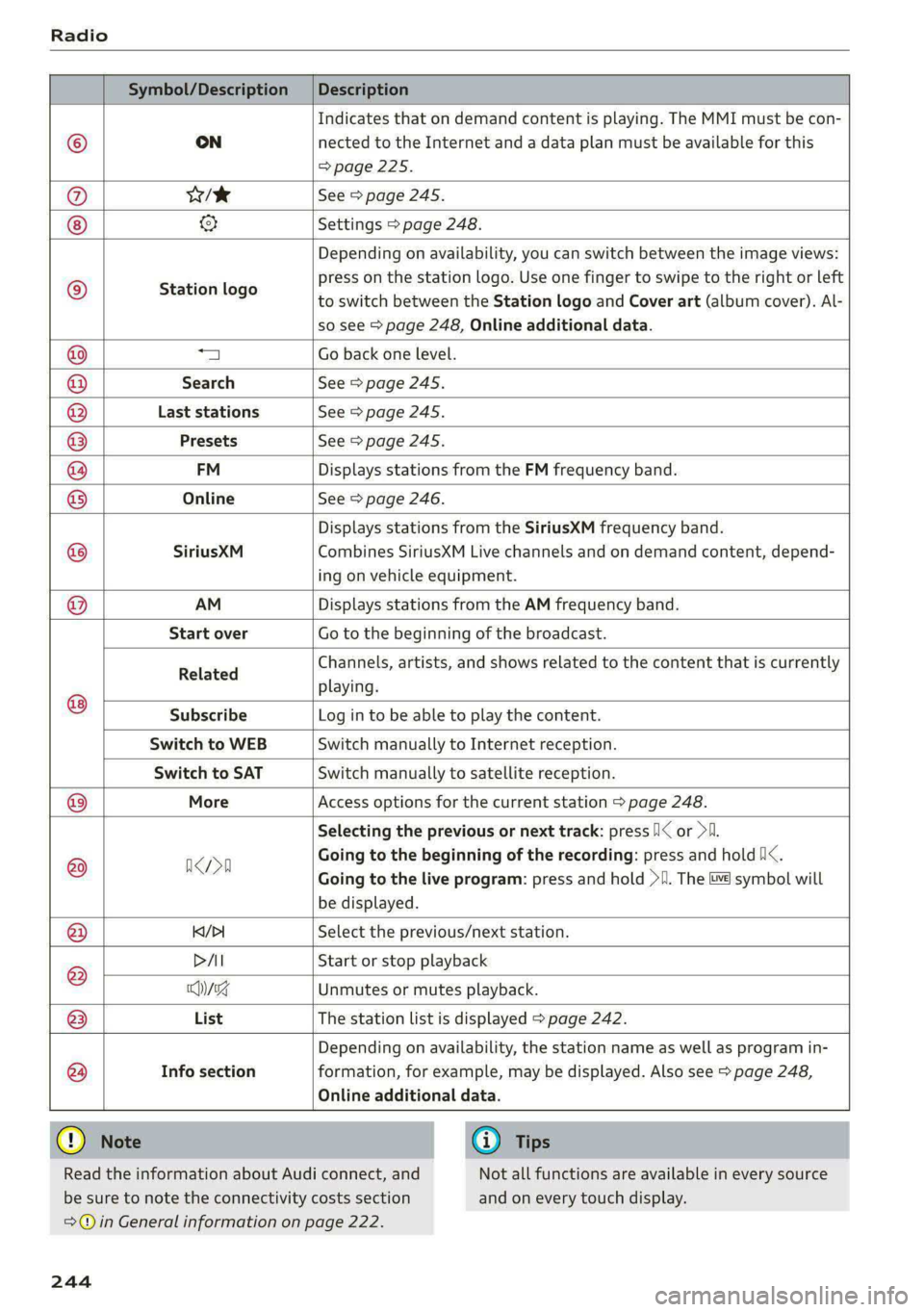
Radio
Symbol/Description | Description
Indicates that on demand content is playing. The MMI must be con-
© ON nected to the Internet and a data plan must be available for this
=> page 225.
@ es See > page 245.
& Settings > page 248.
Station logo
Depending on availability, you can switch between the image views:
press on the station logo. Use one finger to swipe to the right or left
to switch between the Station logo and Cover art (album cover). Al-
so see > page 248, Online additional data.
1 Go back one level.
Search See > page 245.
Last stations See > page 245.
Q|
©
O|O|O|O\O\O,
©
Info section
Depending on availability, the station name as well as program in-
formation, for example, may be displayed. Also see > page 248,
Presets See > page 245.
FM Displays stations from the FM frequency band.
Online See > page 246.
Displays stations from the SiriusXM frequency band.
SiriusXM Combines SiriusXM Live channels and on demand content, depend-
ing on vehicle equipment.
AM Displays stations from the AM frequency band.
Start over Go to the beginning of the broadcast.
Related Channels, artists, and shows related to the content that is currently
playing.
Subscribe Log in to be able to play the content.
Switch to WEB Switch manually to Internet reception.
Switch to SAT Switch manually to satellite reception.
@® More Access options for the current station > page 248.
Selecting the previous or next track: press /I< or >I.
@ arn Going to the beginning of the recording: press and hold /i<.
Going to the live program: press and hold >I. The &¥ symbol will
be displayed.
@ K/>| Select the previous/next station.
DAI Start or stop playback
® Chyssg Unmutes or mutes playback.
@ List The station list is displayed > page 242.
@
Online additional data.
Read the information about Audi connect, and
be sure to note the connectivity costs section
G) Tips
Not all functions are available in every source
and on every touch display.
= in General information on page 222.
244