2021 AUDI A4 screen
[x] Cancel search: screenPage 67 of 304

8W1012721BC
Sitting correctly and safely
Adjusting the lumbar support
> To adjust the lumbar support, press the button
@) in the desired direction.
Adjusting the upper thigh support
> To increase or decrease the upper thigh sup-
port, lift the handle @) and move the upper
thigh support.
Massage function
> To switch the massage function on or off, press
the button ©) > fig. 57.
Adjusting the side supports
You can adjust the side bolsters using the multi-
function button @) > fig. 57.
ZA WARNING
—To reduce the risk of an accident, only adjust
the driver's seat when the vehicle is station-
ary.
— The power front seats can also be adjusted
when the ignition is switched off. To reduce
the risk of injury, children should never be
left unattended in the vehicle for this rea-
son.
— Exercise caution when adjusting the seat
height. Unsupervised or careless seat adjust-
ment could cause parts of the body to get
pinched, which increases the risk of injury.
— The front seat backrests must not be re-
clined too far back when driving, because
this impairs the effectiveness of the safety
belts and airbag system, which increases the
risk of injury.
ON em amie MR
Applies to: vehicles with seat settings in the MMI
RAZ-0873,
Fig. 58 Center display: seat settings
The settings and the number of menus and but-
tons depend on the vehicle equipment.
Operating
Applies to: MMI
> Select on the home screen: VEHICLE > Seats.
> To access the various menus (4), swipe to the
left or right.
> To display the various seats, press ) or ( @.
The red coloring in the symbol @) indicates which
seat is selected.
Massage
See > page 65
Additional seat settings
See > page 65
aces cetera (ol)
Applies to: vehicles with massage function
Selecting the massage function
> To open the Massage menu, press the button
© > page 64, fig. 57.
Switching the massage function on or off
Applies to: MMI
> To switch the massage function on or off, press
the button ©) > page 64, fig. 57.
> Press Start/Stop on the MMI.
Setting the massage type and intensity
Applies to: MMI
> To adjust the massage type, press the desired
button on the MMI, for example Wave.
> To adjust the intensity of the massage, press
Intensity on the MMI repeatedly until the de-
sired level is reached.
G) Tips
The massage function switches off automati-
cally after approximately 10 minutes.
OX CTT eerie Mg
> Applies to: MMI: Select on the home screen:
VEHICLE > Seats.
> Swipe to the left if necessary.
65
Page 95 of 304

8W1012721BC
Warm and cold
& Defrosting
The windshield and side windows are defrosted
or cleared of condensation as quickly as possible.
Align the outer air vents with the side windows.
The maximum amount of air flows mainly from
the vents below the windshield. Recirculation
mode switches off. The temperature should be
set at 72 °F (+22 °C) or higher. The temperature
is controlled automatically.
You can switch the defroster on or off using the
X& button. You can switch the function off by
pressing a knob (4).
@ Rear window defogger
The rear window defogger only operates when
the engine is running. It switches off automati-
cally after 10 to 20 minutes, depending on the
outside temperature.
To prevent the rear window defogger from
switching off automatically, press and hold the
® button for more than three seconds. This is
stored until the ignition is switched off.
Vents
You can open or close the center and rear vents in
the cockpit and the vents in the rear center con-
sole using the ridged thumbwheels. The levers
adjust the direction of the airflow from the vents.
Residual heat
You can activate the residual heat function when
the ignition is switched off by pressing the knob
@ (left side). The residual heat from the coolant
is used to heat the vehicle interior. The residual
heat function switches off automatically after
about 15 minutes.
Additional settings
Applies to: vehicles with 3-zone deluxe automatic climate
control system
You can adjust additional settings.
> Applies to MMI: Select on the home screen: VE-
HICLE > Air conditioning.
Auto recirculation
When switched on, automatic recirculation con-
trols the recirculation mode automatically. You
must press the && button if fog forms on the win-
dows.
Steering wheel heating
Sica Lie mola
Applies to: vehicles with steering wheel heating
> Press the @ button on the multifunction steer-
ing wheel to switch the steering wheel heating
on and off.
Applies to: vehicles with steering wheel heating
@ Steering wheel heating: on / Steering wheel
heating: off
This message appears if you switched the steer-
ing wheel heating on or off by pressing the but-
ton on the multifunction steering wheel.
Steering wheel heating: malfunction! See own-
er's manual
If this message appears, there is a malfunction.
Drive immediately to an authorized Audi dealer
or authorized Audi Service Facility to have the
malfunction repaired.
Fluids in the A/C system
Refrigerant in the A/C system
The sticker in the engine compartment provides
information about the type and amount of refrig-
erant used in the vehicle’s A/C system. The stick-
er is located in the front section of the engine
compartment or at the front or back of the hood.
Symbol
A
ss
at
Meaning
Warning: the A/C system must only
be serviced by qualified technicians.
Refrigerant type
Lubricant type >
93
Page 112 of 304

Driving dynamic
Driving dynamic
Audi drive select
Introduction
Applies to: vehicles with Audi drive select
Drive select makes it possible to experience dif-
ferent types of vehicle characteristics in one vehi-
cle. With different driving modes, the driver can
switch the setting, for example from sporty to
comfortable. This allows you to adjust the set-
tings to your personal preferences. This makes it
possible to combine settings such as a sporty
drivetrain setting with comfortable steering.
Selecting an Audi drive select mode
Applies to: vehicles with Audi drive select
The sie button is located above the selector lever
in the center console.
> Press the left or right arrow key until the de-
sired mode appears in the MMI. Or:
» Applies to MMI: Select on the home screen: VE-
HICLE > Audi drive select.
You can change the driving mode when the vehi-
cle is stationary or while driving. If traffic per-
mits, briefly remove your foot from the accelera-
tor pedal after changing modes so that the mode
you have selected will be activated for the drive
system.
The following modes may be available depending
on the equipment:
Offroad - Provides assistance when driving off-
road. The ESC will be restricted and the hill de-
scent assist* will be activated. The vehicle will ex-
it this mode after the ignition is switched off.
Comfort - Provides a comfort-oriented vehicle
setup and is suited for long drives on highways.
Auto
- Provides an overall comfortable yet dy-
namic driving feel and is suited for everyday use.
Dynamic - Gives the driver a sporty driving feel
and is suited to a sporty driving style. The “S”
driving program is selected.
110
Individual - Provides the option for personalized
vehicle settings. Press &% to configure the mode
= page 110, Individual settings.
G) Tips
When the ignition is being switched on, indi-
vidual systems, such as the drive system, will
be reset to a balanced setting. Select the cur-
rent mode again to attain its full configura-
tion.
Individual settings
Applies to: vehicles with Audi drive select
The equipment in your vehicle will determine
which settings you can adjust.
Drive
The drive system will react to accelerator pedal
moves more quickly or in a more balanced man-
ner. The shift points are located in higher or low-
er engine speed ranges on vehicles with automat-
ic transmissions.
Depending on the setting, the drive power at the
rear axle will be distributed with the sport differ-
ential* to be more sporty or moderate
=> page 112.
Steering
The power steering will adapt. Light steering is
suitable for long trips on highways or smooth
driving around curves, for example.
Suspension
The suspension adjusts to be tighter or more
comfort-oriented when it comes to compensat-
ing for uneven spots on the road.
Engine sound
The engine sound adapts and can be subtle to
sporty. In the automatic setting, the engine
sound depends on the selected driving program.
Page 123 of 304

8W1012721BC
Driving information
Driving information
Speed warning system
Applies to: vehicles with speed warning system
The speed warning system helps the driver to
stay below a specified maximum speed. A warn-
ing threshold can be set in the MMI for this pur-
pose.
Once the speed slightly exceeds the stored
threshold, the speed warning system will alert
the driver with an indicator in the instrument
cluster and a warning tone. Once the speed drops
below the stored maximum speed, the indicator
will turn off.
Setting a threshold is recommended if you would
like to be reminded when you reach a certain
maximum speed. Situations where you may want
to do so include driving in a country with a gener-
al speed limit or if there is a specified maximum
speed for winter tires.
@) Tips
Regardless of the speed warning system, you
should always monitor your speed using the
speedometer and make sure you are adhering
to the legal speed limit.
Setting the warning threshold
Applies to: vehicles with speed warning system
> Applies to: MMI: Select on the home screen:
VEHICLE > Driver assistance > Speed warning.
Messages
Applies to: vehicles with speed warning system
iol Manually set speed limit XX mph
(km/h) exceeded
The stored speed was exceeded.
Camera-based traffic
sign recognition
Applies to: vehicles with camera-based traffic sign recognition
Fig. 103 Instrument cluster: traffic sign recognition
The traffic sign recognition shows the traffic
signs detected by the front camera in the instru-
ment cluster display and in the head-up display”.
Data from the navigation system is also included
in the display. Up to three traffic signs can be dis-
played in the instrument cluster at once. The
speed limit that is currently applicable is dis-
played in the status line. If necessary, it will be
hidden if the system detects that turning right is
prohibited at a red light. The display in the head-
up display* can be switched off > page 25.
Within the limits of the system and depending
on the market, speed limit restrictions @ in
school zones, highways, construction zones, or at
night may be displayed.
Limitations
The traffic sign recognition is subject to certain
system limitations and may be unavailable or on-
ly partially available in the following situations:
— When visibility is poor, such as in snow, rain,
fog, or heavy spray
— When there is glare, for example from oncom-
ing traffic or the sun
— At high speeds
—If the camera's visual field > page 118 is cov-
ered, for example by dirt or stickers. For infor-
mation on cleaning, see > page 255.
— If the traffic signs are completely or partially
covered, for example by trees, snow, dirt, or
other vehicles
121
Page 124 of 304

Driving information
— If traffic signs do not conform to the standard
format
— If traffic signs are damaged or bent
— If traffic signs are displayed on sign holders
with electronic signs
— If the traffic signs or the roadways have
changed, and the navigation data is no longer
up-to-date
Z\ WARNING
— Observe the safety precautions and note the
limits of the assist systems, sensors, and
cameras > page 117.
— Under some circumstances, traffic sign rec-
ognition may not detect traffic signs correct-
ly or detect them at all. As a result, the sys-
tem may not display the correct speed limit
or any speed limit.
@) Tips
— Traffic sign recognition does not adapt your
vehicle's speed to match the speed Limit.
— The display in the instrument cluster is
based on the units of measurement used for
speed in the country where the vehicle is be-
ing operated. As a result, a display of 50 in
the instrument cluster can mean either mph
or km/h, depending on the country.
Applies to: vehicles with camera-based traffic sign recognition
Accessing traffic sign recognition
> Select in the instrument cluster: vehicle func-
tions tab > Traffic signs.
Setting a traffic sign based speed warning
> Applies to: MMI: Select on the home screen:
VEHICLE > Driver assistance > Speed warning.
You can select a warning threshold. If you exceed
this, then the current detected speed limit will be
shown in the display with an exclamation point
for the duration that it is exceeded and it will
blink for a short time.
122
IY ett Tel -1
Applies to: vehicles with camera-based traffic sign recognition
Traffic sign recognition: currently unavaila-
ble. Camera view limited due to environmental
conditions
The camera’s visual field is covered. Clean the
windshield.
Traffic sign recognition: currently limited.
See owner's manual
This message appears if navigation system data
is not available, for example on newly-construct-
ed roads. The speed limit display will be tempo-
rarily limited, which increases the risk of an incor-
rect display. If this message continues to appear,
drive immediately to an authorized Audi dealer or
authorized Audi Service Facility to have the mal-
function repaired.
No traffic sign information available
Depending on the area, there is no valid naviga-
tion data and no speed limits were detected. This
may also appear if there is a recommended
speed, but no speed limit (for example when
driving on and off the expressway).
Malfunction! See owner's manual
The system may not function correctly so it has
been switched off. See an authorized Audi dealer
or authorized Audi Service Facility for assistance.
Function currently unavailable. See owner's
manual
If this message appears on vehicles without cam-
era-based traffic sign recognition, then the traffic
light
information function is currently unavaila-
ble. See > page 124.
Page 126 of 304

Driving information
— The traffic signs on the road always take pri-
ority over the display. The driver is always
responsible for adhering to the regulations
applicable in the country where the vehicle
is being operated.
— Units of measurement and language set-
tings are displayed based on how they were
set in the MMI system settings > page 212.
Applies to: vehicles with traffic light information
Switching traffic light information on and
off
» Applies to: MMI: Select on the home screen:
VEHICLE > Driver assistance > Traffic light in-
formation.
Accessing traffic light information
> Select in the instrument cluster: vehicle func-
tions tab > Traffic signs.
@® Tips
If another tab or another function is selected
in the instrument cluster, the traffic light in-
formation will appear in the status bar on the
instrument cluster.
Messages
Applies to: vehicles with traffic light information
Malfunction! See owner's manual
The system could not be configured, for example
due to a network malfunction. Switch the igni-
tion off and shut down the vehicle to restart the
system. Wait several minutes until the vehicle
has shut down completely and then switch the
ignition back on.
Function currently unavailable. See owner's
manual
There is a temporary system malfunction. Check
if one or more of the following situations applies
and correct the issue if necessary:
— Traffic light information is switched off
— Data transmission is deactivated
124
— The vehicle is not equipped with traffic sign rec-
ognition.
— There is no valid license
— Traffic light information is not available in that
area
Lap timer
Introduction
Applies to: vehicles with lap timer
You can record and evaluate lap times with the
lap timer. You can operate the lap timer using the
multifunction steering wheel > page 13.
Opening the lap timer
> Select in the instrument cluster: Vehicle func-
tions tab > [| button > Lap times.
An additional indicator appears in the head-up
display*.
ZA\ WARNING
Your focus should always be on driving your
vehicle safely. As the driver, you have com-
plete responsibility for safety in traffic. To re-
duce the risk of an accident, only use the lap
timer functions in such a way that you always
maintain complete control over your vehicle in
all traffic situations.
G) Tips
You can retrieve information from the trip
computer while the lap timer stopwatch is
running.
ey sae |
Applies to: vehicles with lap timer
Requirement: the lap timer must be open
=> page 124.
Timing laps
> To start timing manually, select Start lap 1 in
the menu.
> To start timing automatically as soon as you be-
gin to drive, select Start lap 1 by driving off or
Start by driving off in the menu.
Page 127 of 304

8W1012721BC
Driving information
> To start timing a new lap after driving a lap, se-
lect New lap in the menu. This starts timing
the next lap at the same time.
After completing a lap, the difference between
the last lap and the previous best lap time will be
won an indicated with a “~” or “+”.
Pausing timing and displaying a split time
> To insert a pause @ select Pause in the menu.
> To resume timing, select Resume in the menu.
> To display a split time, select Split time in the
menu. The split time appears for approxi-
mately ten seconds in the instrument cluster.
The current lap timing will continue running.
Canceling lap timing
The timing of the current lap will stop. The lap
time will be erased and will not be included in the
statistics.
> Select Cancel lap in the menu.
Resetting the time
> Select Reset lap times in the menu.
G) Tips
— A maximum of 99 lap times can be meas-
ured.
— If timing is paused, you can continue it later
even if you switch the ignition off.
— Saved lap times cannot be individually de-
leted from the total results.
— The saved lap timer values will remain after
switching the ignition off.
yo e-) a(t)
Applies to: vehicles with lap timer
Displaying lap statistics
You can display the number of laps driven
the fastest lap “+”, the slowest lap “-”, and the
average time “®” in the instrument cluster.
> Select in the instrument cluster: Vehicle func-
tions tab > E] button > Lap statistics.
> Turn the thumbwheel down or up to display the
individual lap times.
> To return to the lap timing that was started, se-
lect the [I button > Lap times.
Resetting lap statistics
Requirement: the lap statistics menu must be
displayed.
> To reset the lap statistics, press and hold the
left thumbwheel until the message No lap
times have been recorded yet. appears.
@) Tips
The lap statistics list the lap times for the last
30 laps. The fastest and slowest lap times out
of up to 99 measured laps are also displayed.
Integrated Toll Module
Applies to: vehicles with Integrated Toll Module
Depending on the region, you can pay toll fees in
certain countries using the Integrated Toll Mod-
ule (ITM). It replaces a separate transponder for
detecting toll fees. The system electronics are in-
tegrated in the rearview mirror housing.
To use the ITM in toll zones, you must register
and activate it.
Registration
> Applies to MMI: Select on the home screen: VE-
HICLE > Settings & Service > Vehicle informa-
tion Toll module.
> Note the Integrated Toll Module ID.
> To register the ITM, go to the displayed web ad-
dress and follow the instructions.
Activation
> To activate the ITM, press CD in the MMI.
Entering the number of passengers
Depending on the number of passengers and the
region, a lower toll fee may be charged. You must
either enter the number of passengers or deacti-
vate the ITM based on the laws applicable in the
area where you are driving.
> To enter the number of passengers, select the
appropriate button in the MMI.
> To deactivate the ITM, press @ in the MMI.
125
>
Page 131 of 304
8W1012721BC
Driver assistance
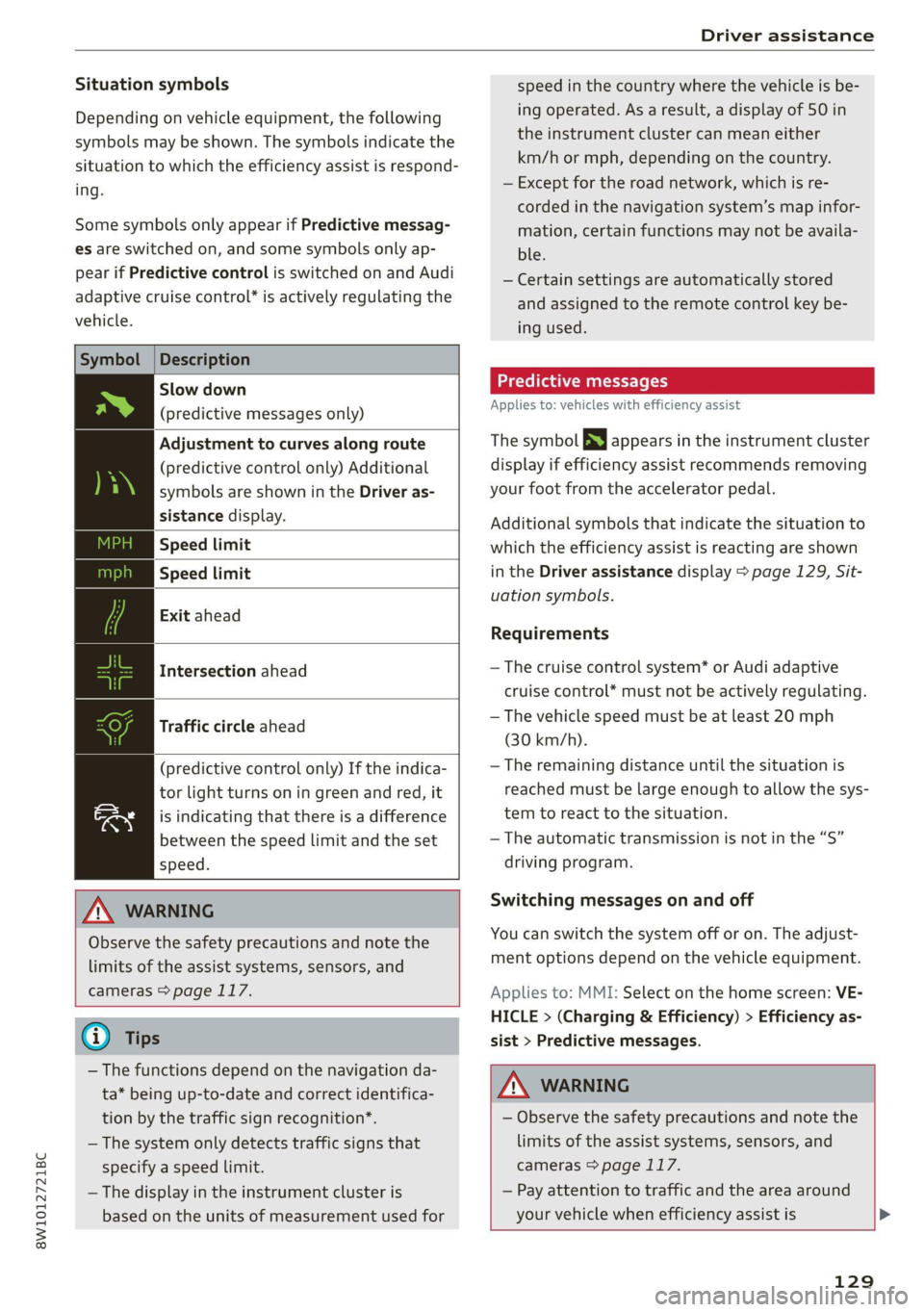
Situation symbols
Depending on vehicle equipment, the following
symbols may be shown. The symbols indicate the
situation to which the efficiency assist is respond-
ing.
Some symbols only appear if Predictive messag-
es are switched on, and some symbols only ap-
pear if Predictive control is switched on and Audi
adaptive cruise control” is actively regulating the
vehicle.
Symbol |Description
Slow down
(predictive messages only)
Adjustment to curves along route
(predictive control only) Additional
symbols are shown in the Driver as-
sistance display.
Speed limit
Speed limit
Exit ahead
Intersection ahead
Traffic circle ahead
(predictive control only) If the indica-
tor light turns on in green and red, it
is indicating that there is a difference
between the speed limit and the set
speed.
ZA WARNING
Observe the safety precautions and note the
limits of the assist systems, sensors, and
cameras > page 117.
@ Tips
— The functions depend on the navigation da-
ta* being up-to-date and correct identifica-
tion by the traffic sign recognition*.
— The system only detects traffic signs that
specify a speed limit.
— The display in the instrument cluster is
based on the units of measurement used for
speed in the country where the vehicle is be-
ing operated. As a result, a display of 50 in
the instrument cluster can mean either
km/h or mph, depending on the country.
— Except for the road network, which is re-
corded in the navigation system’s map infor-
mation, certain functions may not be availa-
ble.
— Certain settings are automatically stored
and assigned to the remote control key be-
ing used.
Predictive messages
Applies to: vehicles with efficiency assist
The symbol BS appears in the instrument cluster
display if efficiency assist recommends removing
your foot from the accelerator pedal.
Additional symbols that indicate the situation to
which the efficiency assist is reacting are shown
in the Driver assistance display > page 129, Sit-
uation symbols.
Requirements
— The cruise control system* or Audi adaptive
cruise control* must not be actively regulating.
— The vehicle speed must be at least 20 mph
(30 km/h).
— The remaining distance until the situation is
reached must be large enough to allow the sys-
tem to react to the situation.
— The automatic transmission is not in the “S”
driving program.
Switching messages on and off
You can switch the system off or on. The adjust-
ment options depend on the vehicle equipment.
Applies to: MMI: Select on the home screen: VE-
HICLE > (Charging & Efficiency) > Efficiency as-
sist > Predictive messages.
Z\ WARNING
— Observe the safety precautions and note the
limits of the assist systems, sensors, and
cameras > page 117.
— Pay attention to traffic and the area around
your vehicle when efficiency assist is >
129