Page 3 of 85
Multimedia Navi Pro /
Multimedia ..................................... 5
Multimedia Navi ........................... 31Contents
Page 5 of 85
Introduction.................................... 6
Basic operation ............................ 10
Profiles ......................................... 13
Audio ............................................ 15
Navigation .................................... 17
Speech recognition ......................21
Phone .......................................... 25
Index ............................................ 28Multimedia Navi Pro / Multimedia
Page 6 of 85
6IntroductionIntroductionNotice
This manual describes all options
and features available for the
various Infotainment systems.
Certain descriptions, including those
for display and menu functions, may not apply to this vehicle due to model
variant, country specifications,
special equipment or accessories.
For additional information including
some videos, visit us online.
Important information on
operation and traffic safety9 Warning
The Infotainment system must be
used so that the vehicle can be
driven safely at all times. If in
doubt, stop the vehicle and
operate the Infotainment system
while the vehicle is stationary.
Radio reception
Radio reception may be disrupted by
static, noise, distortion or loss of
reception due to:
● changes in distance from the transmitter
● multipath reception due to reflection
● shadowing
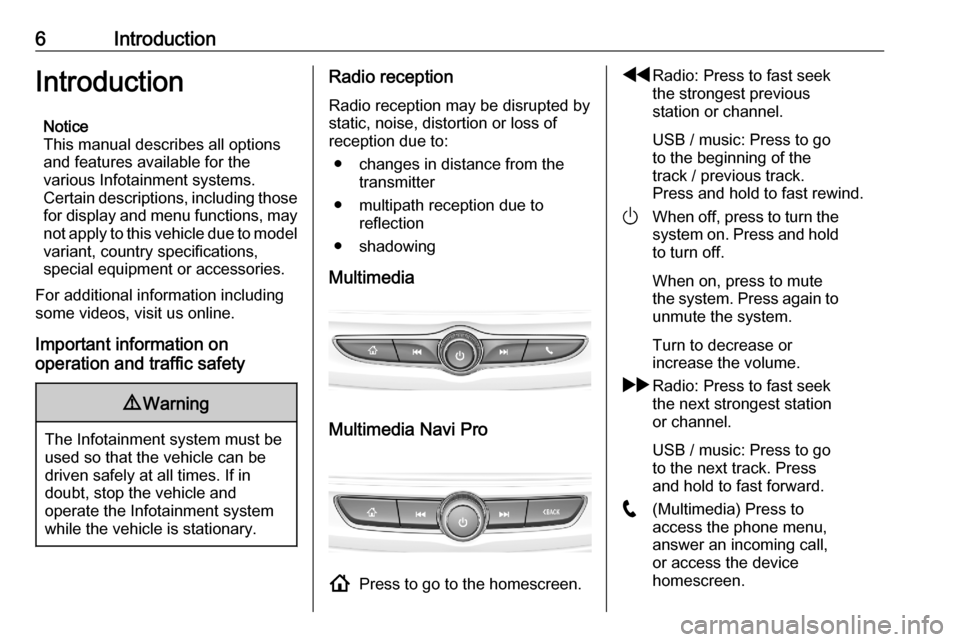
Multimedia
Multimedia Navi Pro
! Press to go to the homescreen.
fRadio: Press to fast seek
the strongest previous
station or channel.
USB / music: Press to go
to the beginning of the
track / previous track.
Press and hold to fast rewind.
) When off, press to turn the
system on. Press and hold
to turn off.
When on, press to mute
the system. Press again to unmute the system.
Turn to decrease or
increase the volume.
g Radio: Press to fast seek
the next strongest station
or channel.
USB / music: Press to go
to the next track. Press
and hold to fast forward.
w (Multimedia) Press to
access the phone menu,
answer an incoming call,
or access the device
homescreen.
Page 7 of 85
Introduction7O(Multimedia Navi Pro)
Press to go to the previous
screen.Steering wheel controls
Y Short press: take phone call
or activate speech
recognition (Multimedia
Navi Pro)
or activate voice pass-thru
(Multimedia)
or interrupt a prompt and
speak directly
Long press: activate voice
pass-thru (Multimedia Navi Pro)
7 Press: end / decline call
or deactivate speech recognition
or activate / deactivate
mute function of the audio
application
Page 8 of 85
8Introduction
L
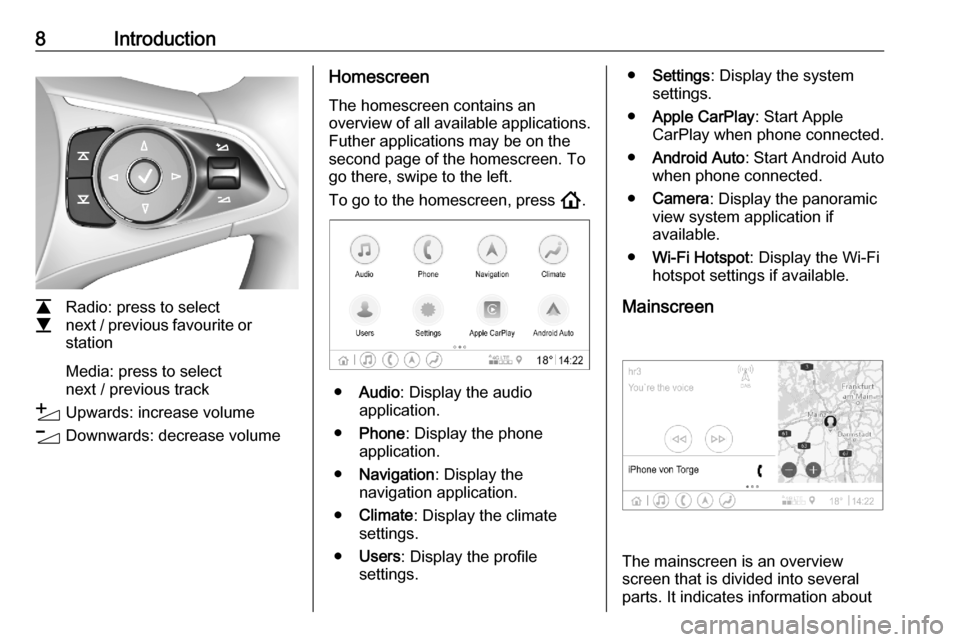
M Radio: press to select
next / previous favourite or
station
Media: press to select
next / previous track
Y Upwards: increase volume
Z Downwards: decrease volume
Homescreen
The homescreen contains an
overview of all available applications.
Futher applications may be on the
second page of the homescreen. To
go there, swipe to the left.
To go to the homescreen, press !.
● Audio : Display the audio
application.
● Phone : Display the phone
application.
● Navigation : Display the
navigation application.
● Climate : Display the climate
settings.
● Users : Display the profile
settings.
● Settings : Display the system
settings.
● Apple CarPlay : Start Apple
CarPlay when phone connected.
● Android Auto : Start Android Auto
when phone connected.
● Camera : Display the panoramic
view system application if
available.
● Wi-Fi Hotspot : Display the Wi-Fi
hotspot settings if available.
Mainscreen
The mainscreen is an overview
screen that is divided into several
parts. It indicates information about
Page 9 of 85
Introduction9the currently playing audio, the phone
status and a small view of the
navigation map.
By touching one of the parts of the
mainscreen, the corresponding
application will be opend. Some
functions like playing the next audio
track and zooming the navigation
map can be operated on the
mainscreen.
Notice
Starting a route guidance is only possible in the navigation
application, not on the mainscreen.
To go to the mainscreen, go to the
homescreen and swipe to the right.
Bottom bar The bottom bar on the screen
indicates the following information:
● time
● temperature
● connection status
Additionally, the bottom bar includes
icons for quick access to the
homescreen and the most important
applications.Extended status view
The extended status view is
accessible via touching in the middle
of the bottom bar and indicates the
following information:
● important notifications
● date, time, temperature
● the currently active profile
● network and Wi-Fi connection status
Page 11 of 85
Basic operation11Drag
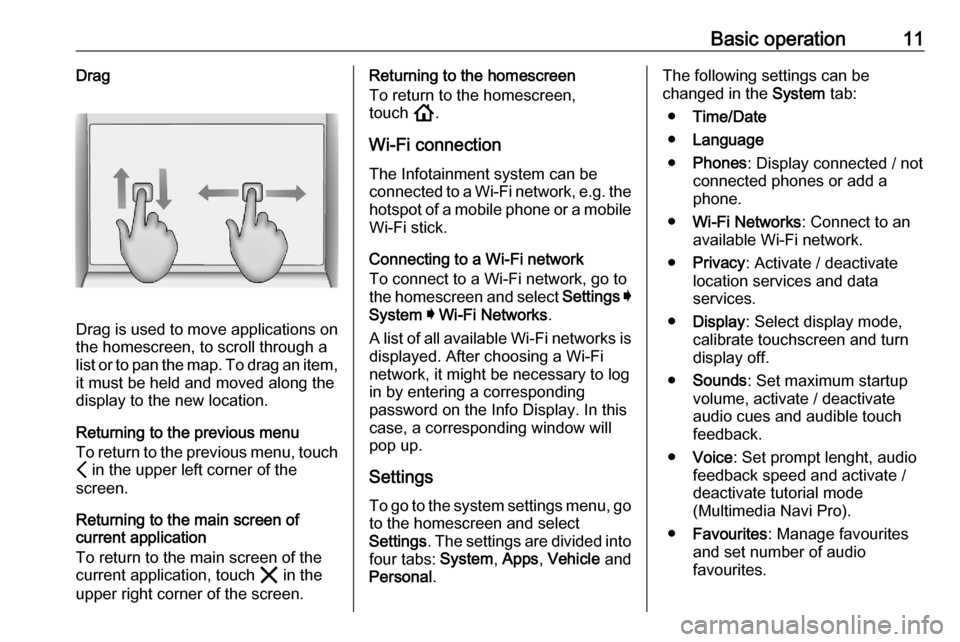
Drag is used to move applications on
the homescreen, to scroll through a
list or to pan the map. To drag an item,
it must be held and moved along the
display to the new location.
Returning to the previous menu
To return to the previous menu, touch P in the upper left corner of the
screen.
Returning to the main screen of
current application
To return to the main screen of the
current application, touch & in the
upper right corner of the screen.
Returning to the homescreen
To return to the homescreen,
touch !.
Wi-Fi connection The Infotainment system can beconnected to a Wi-Fi network, e.g. the
hotspot of a mobile phone or a mobile Wi-Fi stick.
Connecting to a Wi-Fi network
To connect to a Wi-Fi network, go to
the homescreen and select Settings I
System I Wi-Fi Networks .
A list of all available Wi-Fi networks is
displayed. After choosing a Wi-Fi
network, it might be necessary to log
in by entering a corresponding
password on the Info Display. In this
case, a corresponding window will
pop up.
Settings
To go to the system settings menu, go to the homescreen and select
Settings . The settings are divided into
four tabs: System, Apps , Vehicle and
Personal .The following settings can be
changed in the System tab:
● Time/Date
● Language
● Phones : Display connected / not
connected phones or add a
phone.
● Wi-Fi Networks : Connect to an
available Wi-Fi network.
● Privacy : Activate / deactivate
location services and data
services.
● Display : Select display mode,
calibrate touchscreen and turn
display off.
● Sounds : Set maximum startup
volume, activate / deactivate audio cues and audible touch
feedback.
● Voice : Set prompt lenght, audio
feedback speed and activate /
deactivate tutorial mode
(Multimedia Navi Pro).
● Favourites : Manage favourites
and set number of audio favourites.
Page 12 of 85

12Basic operation●About : Display information about
open soure software and device registration.
● Running Applications : Stop
applications, e.g. Climate or
Users .
● Restore Factory Settings : Reset
vehicle settings, delete settings
and personal data and clear
default applications
The following settings can be
changed in the Apps tab:
● Android Auto : Activate /
deactivate the Android Auto
application.
● Apple CarPlay : Activate /
deactivate the Apple CarPlay
application.
● Audio (options depend on current
audio source): Change the tone
settings, auto volume, activate /
deactivate traffic programme,
DAB-FM linking, DAB
announcements, etc.
● Climate : Change the climate
settings.
Climate settings are described in the Owner's Manual.● Navigation : Change the
navigation settings (Multimedia
Navi Pro).
● Phone : Sort contacts, re-
synchronise contacts, delete all
vehicle contacts, etc.
The vehicle settings can be changed
in the Vehicle tab. Vehicle settings
are described in the Owner's Manual.
The profile settings can be changed
in the Personal tab (Multimedia Navi
Pro).