2020 VAUXHALL ASTRA K navi
[x] Cancel search: naviPage 13 of 85

Profiles13ProfilesThis application is only applicable toMultimedia Navi Pro.
Touch Users on the homescreen to
display a list of all available profiles.
Due to the option of creating profiles,
the Infotainment system can be fitted
to several drivers. Different settings
as well as favourite radio stations and destinations will be connected to aspecific profile. Thereby, the settings
and favourites don't need to be
adjusted every time another person is driving the vehicle.
A profile can be connected to a
specific vehicle key. While starting the
vehicle, the corresponding profile will
be activated.
Creating a profile 1. Select Users on the homescreen.
2. If applicable, select Add User
Profile .
3. Select Create Profile .
4. Enter a profile name and select Next .5.If desired, choose a profile picture
and select Next. Otherwise, select
Skip .
6. If desired, choose a vehicle key which is intended to be connectedto the profile and select Next.
Otherwise, select Skip.
7. Select Done.
A new profile is created. The profile settings can be changed at any time.
Notice
Whenever a new profile is created or the active profile is switched, the
audio application is paused and
restarted.
Creating a PIN for a profile
Every created profile can be secured
with a PIN. After switching on the vehicle, the PIN has to be entered.
To create a PIN, go to the
homescreen and select Settings I
Personal I Security .
The Guest profile cannot be secured
with a PIN.Switching the profile
There are two ways to switch the
profile:
● Select Users on the homescreen
and select the desired profile.
● If the Guest profile is not active:
Go the the homescreen and
select Settings I Personal I
Switch User . Select the desired
profile.
Editing a profile Only the currently active profile can
be edited. There are two ways to edit
a profile:
● Go to the homescreen and select
Users I / .
● Go to the homescreen and select
Settings I Personal .
All profile settings, e.g. name, profile
picture, connected vehicle key, can
be changed.
Deleting a profile
To delete a profile, select f next to
the corresponding profile. The Guest
profile cannot be deleted.
Page 15 of 85
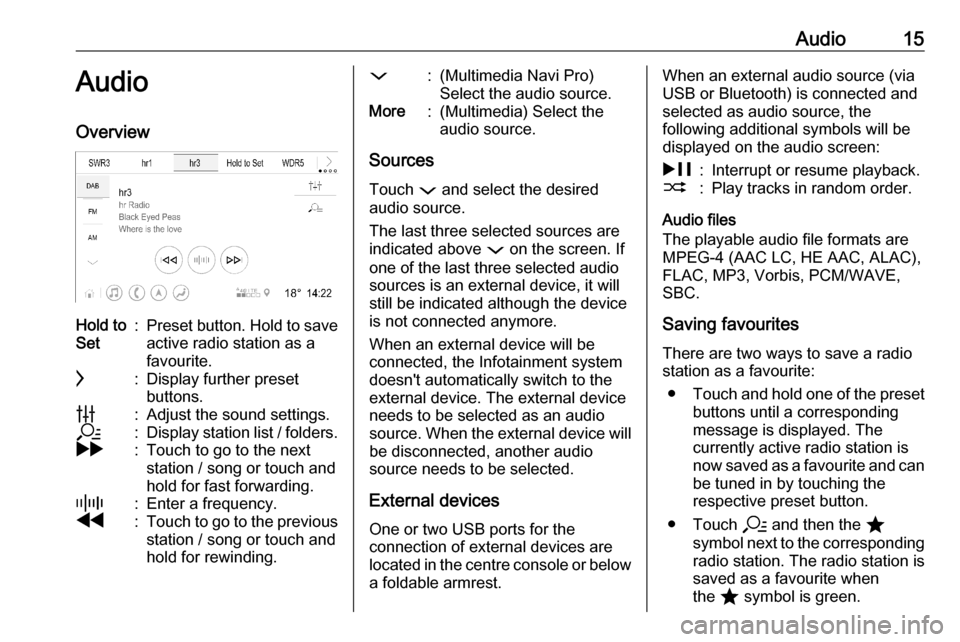
Audio15AudioOverviewHold to
Set:Preset button. Hold to save
active radio station as a
favourite.c:Display further preset
buttons.b:Adjust the sound settings.a:Display station list / folders.g:Touch to go to the next
station / song or touch and
hold for fast forwarding._:Enter a frequency.f:Touch to go to the previous station / song or touch and
hold for rewinding.::(Multimedia Navi Pro)
Select the audio source.More:(Multimedia) Select the
audio source.
Sources
Touch : and select the desired
audio source.
The last three selected sources are
indicated above : on the screen. If
one of the last three selected audio
sources is an external device, it will
still be indicated although the device
is not connected anymore.
When an external device will be
connected, the Infotainment system doesn't automatically switch to the
external device. The external device
needs to be selected as an audio
source. When the external device will be disconnected, another audio
source needs to be selected.
External devices One or two USB ports for theconnection of external devices are
located in the centre console or below
a foldable armrest.
When an external audio source (via
USB or Bluetooth) is connected and
selected as audio source, the
following additional symbols will be
displayed on the audio screen:&:Interrupt or resume playback.2:Play tracks in random order.
Audio files
The playable audio file formats are
MPEG-4 (AAC LC, HE AAC, ALAC),
FLAC, MP3, Vorbis, PCM/WAVE,
SBC.
Saving favourites
There are two ways to save a radio
station as a favourite:
● Touch and hold one of the preset
buttons until a corresponding
message is displayed. The
currently active radio station is
now saved as a favourite and can be tuned in by touching the
respective preset button.
● Touch a and then the ;
symbol next to the corresponding
radio station. The radio station is
saved as a favourite when
the ; symbol is green.
Page 17 of 85
Navigation17NavigationNavigation system.......................17
Connected navigation ..................18Navigation system
This application is only applicable to
Multimedia Navi Pro.
For each profile, the terms and
conditions and a privacy statement of
the navigation function need to be
accepted when starting the
navigation application for the first
time. After a short introduction about
the connected navigation feature,
also a privacy statement of the
predictive navigation function needs
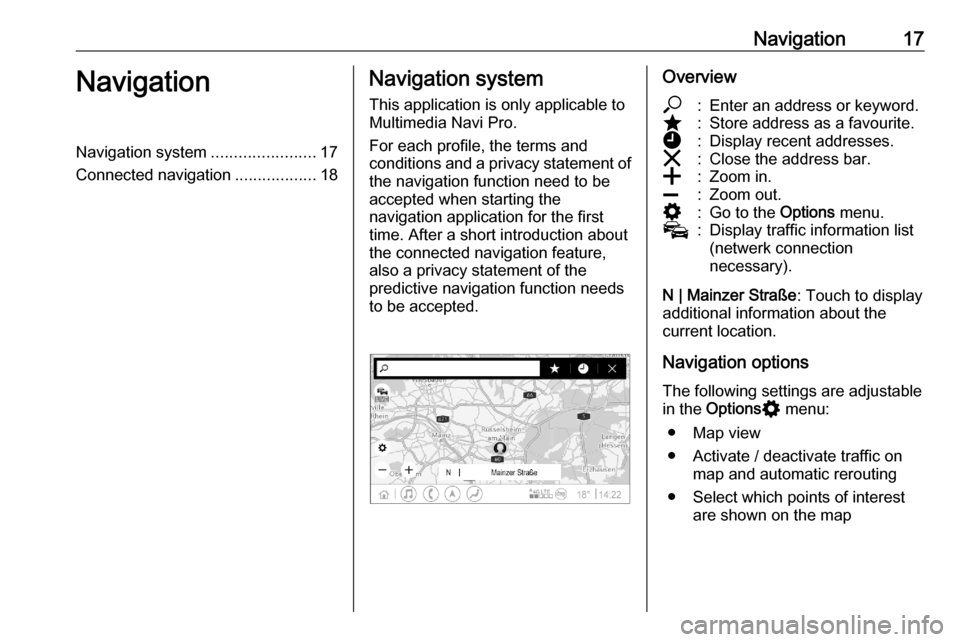
to be accepted.Overview*:Enter an address or keyword.;:Store address as a favourite.':Display recent addresses.&:Close the address bar.g:Zoom in.h:Zoom out.%:Go to the Options menu.v:Display traffic information list
(netwerk connection
necessary).
N | Mainzer Straße : Touch to display
additional information about the
current location.
Navigation options
The following settings are adjustable
in the Options % menu:
● Map view
● Activate / deactivate traffic on map and automatic rerouting
● Select which points of interest are shown on the map
Page 18 of 85
18Navigation●Select the routing options and the
map colours, look for map
updates, change the volume of
the voice prompts, change home
and work address, etc.
● Indicate routes that should be avoided
● Edit destinations
Starting a route guidance 1. Touch * to display the keyboard.
2. Enter an address, choose a favourite or choose a point of
interest.
Points of interest are sorted by
different categories (fuel, parking,
food, etc.).
3. Touch Go and the route guidance
is started.
Different routes can also be
displayed before touching Go.
It is possible to enter a second
destination which will be added
before the first destination. The order
of the destinations can be changed in the Options % menu.Active route guidance
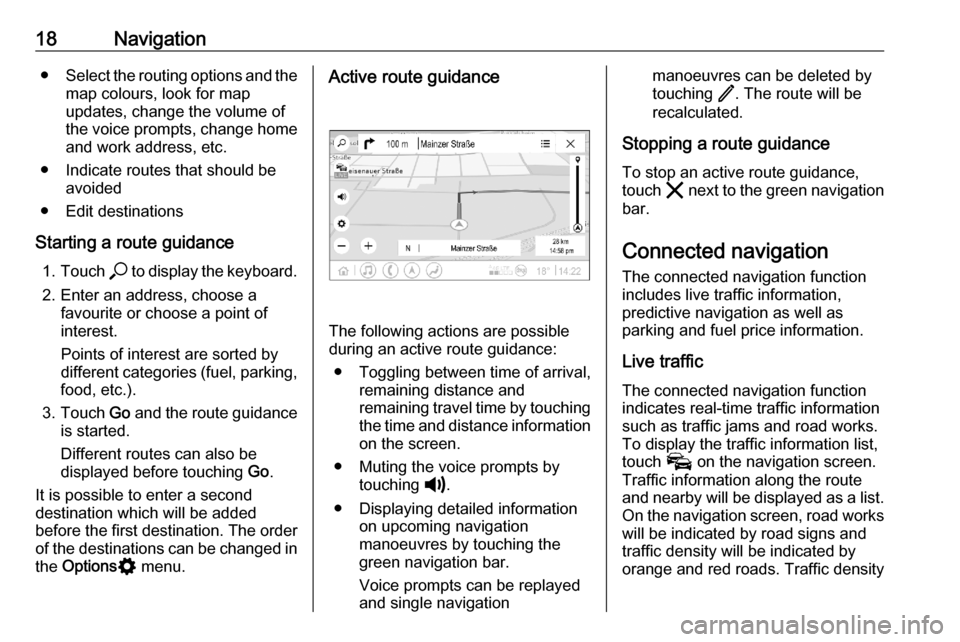
The following actions are possible
during an active route guidance:
● Toggling between time of arrival, remaining distance and
remaining travel time by touching
the time and distance information on the screen.
● Muting the voice prompts by touching ?.
● Displaying detailed information on upcoming navigation
manoeuvres by touching the
green navigation bar.
Voice prompts can be replayed
and single navigation
manoeuvres can be deleted by
touching /. The route will be
recalculated.
Stopping a route guidance To stop an active route guidance,
touch & next to the green navigation
bar.
Connected navigationThe connected navigation function
includes live traffic information,
predictive navigation as well as
parking and fuel price information.
Live traffic The connected navigation function
indicates real-time traffic information
such as traffic jams and road works.
To display the traffic information list,
touch v on the navigation screen.
Traffic information along the route and nearby will be displayed as a list.
On the navigation screen, road works
will be indicated by road signs and
traffic density will be indicated by
orange and red roads. Traffic density
Page 19 of 85

Navigation19will also be indicated when the traffic
information list is empty due to no
incidents like road works or accidents.
Notice
Using the connected navigation
function consumes mobile data.
Additional costs could emerge.
Network connection
To use the connected navigation
function, a network connection is
necessary. A mobile hotspot, e.g.
mobile phone or mobile Wi-Fi stick,
can be used.
When connected to a hotspot, y will
appear in the bottom bar. If a mobile
phone is connected via Bluetooth,
y will only appear for a few seconds
but y will appear in the extended
status view.
Connected navigation will be
indicated by the word LIVE on the
traffic symbol v on the navigation
screen.
Notice
When no traffic information are
available although LIVE is indicated
on the traffic symbol v, thenetwork connection might be
interrupted. Wait some minutes until
the network connection is built up
again.
In some countries, traffic information
can also be received via FM TMC and DAB+ TPEG when no network
connection is available.
Predictive navigationPredictive navigation is a
personalised and increasingly useful
function that detects common
destinations like home and work.
Additionally, the predictive navigation
function understands the driver's
patterns and uses historical driving
and traffic data to predict usual traffic conditions.
To activate or deactivate the
predictive navigation function, go to
the homescreen and select
Navigation I Options % I Settings .
Parking and fuel price information
Depending on the country, the
connected navigation function
indicates parking and fuel price
information. When the vehicle isreaching a densely populated
destination, and if the system
determines that parking may be
limited then it will attempt to display
nearby parking destinations with price information if available. The function
also indicates real-time fuel prices of participating petrol stations.
To display the parking and fuel prices
as well as opening hours and
telephone numbers, if available,
touch the point of interest on the map or see the results of the points of
interest search.
Due to different update rates of the
petrol stations and the navigation
system, the fuel prices can
temporarily vary.
Online map updates
The navigation map can be updated
up to four times a year. The updates
are based on the driving patterns by
considering updates of typically
driven areas and overlapping
countries.
To update the navigation map, a
network connection is necessary. To check for updates, go to the
Page 20 of 85

20Navigationhomescreen and select Navigation I
Options % I Settings . If desired,
automatic map updates can be
activated. Additionally, a message
will be displayed if the update
exceeds 250 MB.
Updating the whole continent is not possible via online map updates. A
new SD card is necessary due to the
data volume.
Navigation map card port
The map data will be delivered on a
SD card. The SD card slot is only to
be used for navigation map SD cards.
The SD card slot is located in the
centre console or below a foldable
armrest.
Page 21 of 85

Speech recognition21Speech recognitionGeneral information.....................21
Usage .......................................... 22General information
Embedded speech recognition
This application is only applicable to Multimedia Navi Pro.
The embedded speech recognition of
the Infotainment system enables
operation of various functions of the
Infotainment system via voice input. It recognises commands and numeric
sequences. The commands and
numeric sequences can be spoken
without a voice pause between the
individual words.
In the event of incorrect operation or commands, the speech recognition
gives visual and / or acoustic
feedback and requests to re-enter the
desired command. Apart from this,
the speech recognition
acknowledges important commands
and will enquire if necessary.
In general, there are different ways to
speak commands for performing the
desired actions.Notice
To ensure that conversations inside the vehicle do not lead to
unintentional triggering of the
system functions, the speech
recognition does not start until it has
been activated.
The system can only be operated by the driver.
Important informationLanguage support ● Not all languages available for the Info Display are also
available for the speech
recognition.
● If the display language currently selected is not supported by the
speech recognition, speech
recognition is not available.
In such a case, selecting another language is necessary to control
the Infotainment system via voice input.Address input of destination
Address input is only possible in the
language of the country of the
destination.
Page 28 of 85

28IndexAActivating phone projection ..........27
Android Auto ................................. 27
Apple CarPlay............................... 27
Audio ............................................ 15
Audio files ..................................... 15
B Basic operation ............................. 10
Bluetooth connection ....................25
Bottom bar ...................................... 6
C
Connected navigation ...................18
Connecting a phone .....................25
Control elements ............................ 6
D DAB announcements ...................15
DAB-DAB linking .......................... 15
DAB-FM linking............................. 15
Display operation ..........................10
E Extended status view...................... 6
F
Fuel price information ...................18
G General information ................21, 25H
Homescreen ................................... 6
I
Introduction .................................... 6
L Live traffic ..................................... 18
M
Mainscreen ..................................... 6
Map updates ................................. 18
N Navigation system .......................17
P Pairing a phone ............................ 25
Parking information....................... 18
Phone Bluetooth connection ................25
Phone projection .......................... 27
Playing audio ................................ 15
Predictive navigation ....................18
Profiles.......................................... 13
R Radio ............................................ 15
Route guidance ............................ 17