Page 159 of 232
Opening the Charge Port
The charge port is located on the left side of Model Y,
behind a door that is part of the rear tail light assembly.
Before charging, park
Model Y to ensure that the
charge cable easily reaches the charge port.
With Model Y unlocked (or an authenticated phone is
within range) and in Park, press and release the button on the Tesla charge cable to open the charge port door.
You can also open the charge port door using any of these methods:
Page 160 of 232
During Charging
During charging, the charge port light (the Tesla "T"
logo) pulses green, and the touchscreen displays the
charging status. The frequency at which the charge
port light pulses slows down as the charge level approaches full. When charging is complete, the light stops pulsing and is solid green.
NOTE: If Model Y is locked, the charge port light does
not light up.
If the charge port light turns red while charging, a fault
is detected. Check the touchscreen for a message describing the fault. A fault can occur due to something as common as a power outage. If a power outage
occurs, charging resumes automatically when power is
restored.
NOTE: When charging, particularly at high currents, the
refrigerant compressor and fan operate as needed to keep the Battery cool. Therefore, it is normal to hear sounds during charging.
NOTE: Air conditioning performance is generally not
affected by charging. However, under certain
circumstances (for example, you are charging at high currents during a particularly warm day), the air coming from the vents may not be as cool as expected and a message displays on the
touchscreen. This is normal
behavior and ensures that the Battery stays within an optimum temperature range while charging to support longevity and optimum performance.
WARNING: Never spray liquid at a high velocity
(for example, if using a pressure washer) towards
the charge port while charging. Failure to follow
these instructions can result in serious injury or
damage to the vehicle, charging equipment, or
property.
Stopping Charging
Stop charging at any time by disconnecting the charge
cable or touching
Stop Charging on the touchscreen.
NOTE: To prevent unauthorized unplugging of the
charge cable, the charge cable latch remains locked
and
Model Y must be unlocked or able to recognize
your
authenticated phone before you can disconnect
the charge cable.
To disconnect the charge cable using a connector:
1.
Press and hold the button on the connector handle to release the latch. Alternatively, unlock the vehicle
by opening a door, using a
key card or key fob, or
touching
Stop Charging on the touchscreen. These
methods unlock the charge port as well.
2.
Pull the connector from the charge port.
To disconnect the charge cable using an adapter at a
public charge station:
1. Ensure that Model Y is unlocked.2.
While holding the public charging handle in one
hand and the adapter in the other hand, press and hold the button on the public charging handle and
pull both outwards, removing the handle and
adapter at the same time.
NOTE: If the charging station handle separates from
the adapter, leaving the adapter in
Model Y, use the
touchscreen to unlock the charge port (touch the charging icon on the overhead view of the vehicle).
3.
Press and hold the charging handle button again to release the adapter from the charging handle.
NOTE: The charge port automatically closes within
approximately 10 seconds of removing the connector from the charge port.
CAUTION: Tesla strongly recommends leaving
Model Y plugged in when not in use. This
maintains the Battery at the optimum level of
charge.
CAUTION: Model Y will not shift out of Park if the
charge port is unable to determine whether a
charging cable is plugged in. Ensure any charging
cables are unplugged and follow the instructions
on the touchscreen to proceed (see Park on page
51.
Manually Releasing Charge Cable
If the usual methods for releasing a charge cable from the charge port (using the charge handle release button, touchscreen, or mobile app) do not work,
carefully follow these steps:
1.
Ensure that Model Y is not actively charging by
displaying the charging screen on the touchscreen. If necessary, touch
Stop Charging.
2.
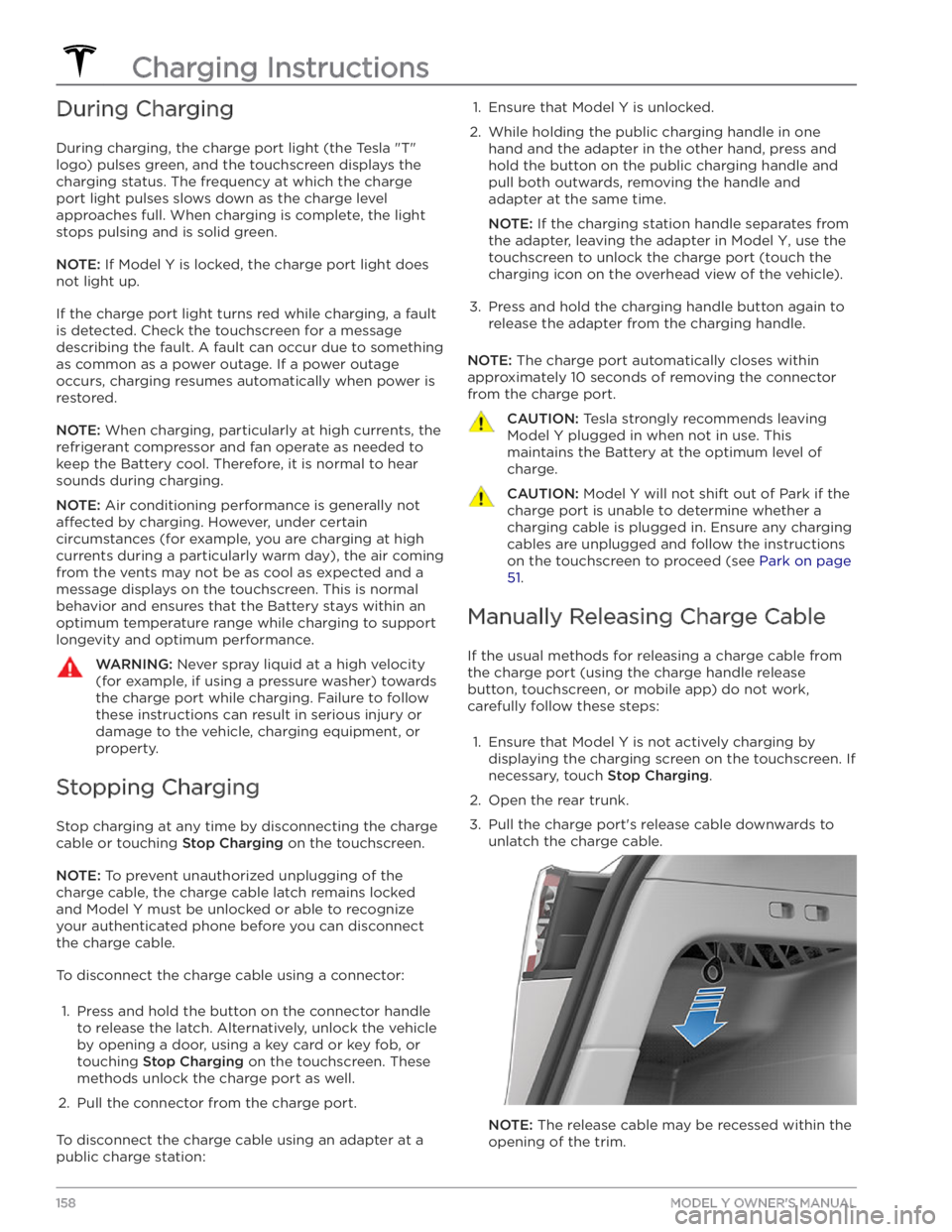
Open the rear trunk.
3.
Pull the charge port
Page 226 of 232
CE certifications: 202
CHAdeMO: 155
chains: 168
change of ownership: 124
charge port: 157
charge port light: 159
charge port manual release: 158
charge port release cable: 158
charging: 154, 155, 157, 159
charge settings: 159
charging status: 159
components and equipment: 154
instructions: 157
public charging stations: 155
scheduling: 159
charging locations, finding: 132
child protection: 15
disabling rear window switches: 15
child seats: 32
installing and using: 32
child-protection locks: 14
cleaning: 170
climate controls: 125
coat hangers: 23
cold weather best practices: 79
collision avoidance assist: 114
connecting to Wi-Fi: 148
console: 21, 23
12V power socket: 23
opening: 21
rear: 21
USB ports: 21
consumption chart: 67
contact information: 193, 202
roadside assistance: 193
Tesla: 202
copyrights: 198
cruise control: 84
D
dashboard overview: 2
Dashcam: 70
data recording: 199
data sharing: 199
declarations of conformity: 202
delivery mileage: 200
devices: 136, 137
Bluetooth, playing audio files: 137
playing audio files from: 136
dimensions: 181
Dog Mode: 128
dome (map) lights: 53
door handles: 13
door labels: 179
doors: 13, 14
Child Lock: 14
exterior door handles: 13
interior locking and unlocking: 14
keyless entry: 13
locking: 13
opening from exterior: 13
opening from interior: 13
Unlock on Park: 14
unlocking: 13
doorsfunction: 14
Walk-Away Door Lock: 14
drive away locking: 14
Drive gear: 51
driver: 44
profiles: 44
driving: 25, 49, 67
seating position: 25
starting: 49
tips to maximize range: 67
E
Easter Eggs: 198
easy entry, driver profile: 44
EDR (event data recorder): 199
electric parking brake: 62
emergency braking: 114
emergency flashers: 55
Emergency Lane Departure Avoidance: 111
emission label: 178
energy: 56, 61
gained from regenerative braking: 61
range information: 56
Energy app: 67
energy use predictions (navigating): 132
Erase & Reset: 124
event data recording: 199
exterior: 3, 53, 170, 171, 172, 181
car cover: 172
cleaning: 170
dimensions: 181
lights: 53
overview: 3
polishing, touch up, & repair: 171
Index
