2020 Ram 3500 ad blue
[x] Cancel search: ad bluePage 6 of 568

4
GARAGE DOOR OPENER — IF EQUIPPED .........76 Before You Begin Programming
HomeLink® .................................................. 76 Canadian/Gate Operator Programming ..... 79
Using HomeLink® ........................................ 79
Security......................................................... 80
Troubleshooting Tips ................................... 80
General Information .................................... 80
INTERNAL EQUIPMENT ........................................81
Storage ......................................................... 81
Cupholders .................................................. 86
Electrical Power Outlets .............................. 86
Power Inverter — If Equipped ..................... 88
Wireless Charging Pad — If Equipped ........ 89
Overhead Sunglass Storage........................ 90
PICKUP BOX .........................................................90
Cargo Camera — If Equipped ...................... 91
RAMBOX — IF EQUIPPED .....................................92
RamBox Integrated Box Side
Storage Bins ................................................. 92 RamBox Safety Warning .............................. 94
Bed Divider — If Equipped ........................... 94
Bed Rail Tie-Down System — If Equipped .. 96
SLIDE-IN CAMPERS .............................................98
Camper Applications ................................... 98 EASY-OFF TAILGATE ........................................... 98
Disconnecting The Rear Camera And
Remote Keyless Entry ................................. 98 Removing The Tailgate ................................ 99
Locking Tailgate ........................................... 99
TRI-FOLD TONNEAU COVER — IF EQUIPPED ..100
Tri-Fold Tonneau Cover Removal.............. 100
Tri-Fold Tonneau Cover Installation.......... 102Tri-Fold Tonneau Cover Cleaning .............. 105
GETTING TO KNOW YOUR
INSTRUMENT PANEL
BASE / MIDLINE INSTRUMENT CLUSTER —
GAS ENGINE........................................................ 106
Base / Midline Instrument Cluster
Descriptions — Gas Engine ....................... 106
PREMIUM INSTRUMENT CLUSTER —
GAS ENGINE........................................................ 108
Premium Instrument Cluster
Descriptions — Gas Engine ....................... 108
BASE INSTRUMENT CLUSTER —
DIESEL ENGINE ................................................. 110
Base Instrument Cluster Descriptions —
Diesel Engine ............................................. 110 PREMIUM INSTRUMENT CLUSTER —
DIESEL ENGINE .................................................. 112
Premium Instrument Cluster
Descriptions — Diesel Engine ................... 112
INSTRUMENT CLUSTER DISPLAY ................... 113
Instrument Cluster Display Controls ........ 114
Oil Life Reset ............................................. 115
Display Menu Items ................................... 116
Diesel Messages And Warnings — 6.7L
Cummins Diesel Engine ............................ 125 Battery Saver On/Battery Saver Mode
Message — Electrical Load Reduction
Actions — If Equipped ............................... 129
WARNING LIGHTS AND MESSAGES ............... 130
Red Warning Lights ................................... 130
Yellow Warning Lights ............................... 133Yellow Indicator Lights .............................. 138
Green Indicator Lights ............................... 140White Indicator Lights ............................... 141Blue Indicator Lights ................................. 142
ONBOARD DIAGNOSTIC SYSTEM — OBD II ... 142
Onboard Diagnostic System
(OBD II) Cybersecurity ............................... 142
EMISSIONS INSPECTION AND MAINTENANCE
PROGRAMS ....................................................... 143
20_DJD2_OM_EN_USC_t.book Page 4
Page 66 of 568

64GETTING TO KNOW YOUR VEHICLE
Faceplate Temperature
Knobs
Touchscreen
Temperature Buttons Driver and Passenger Temperature Up and Down Buttons
Provides the driver and passenger with independent temperature control. Push the red button (or rotate knob if equipped)
on the faceplate or touchscreen, or press and slide the temperature bar towards the red arrow button on the touchscreen
for warmer temperature settings. Push the blue button (or rotate knob if equipped) on the faceplate or touchscreen, or
press and slide the temperature bar towards the blue arrow button on the touchscreen for cooler temperature settings.
NOTE:
The numbers within the temperature display will only appear if the system is equipped with an automatic climate control
system.
Up and down buttons are only available on vehicles equipped with a 12-inch display.
SYNC
Press the SYNC button on the touchscreen to toggle the SYNC feature on/off. The SYNC indicator illuminates when SYNC is
on. SYNC synchronizes the passenger temperature setting with the driver temperature setting. Changing the passenger’s
temperature setting while in SYNC will automatically exit this feature.
NOTE:
The SYNC button is only available on the touchscreen.
Icon Description
20_DJD2_OM_EN_USC_t.book Page 64
Page 144 of 568
142GETTING TO KNOW YOUR INSTRUMENT PANEL
BLUE INDICATOR LIGHTS
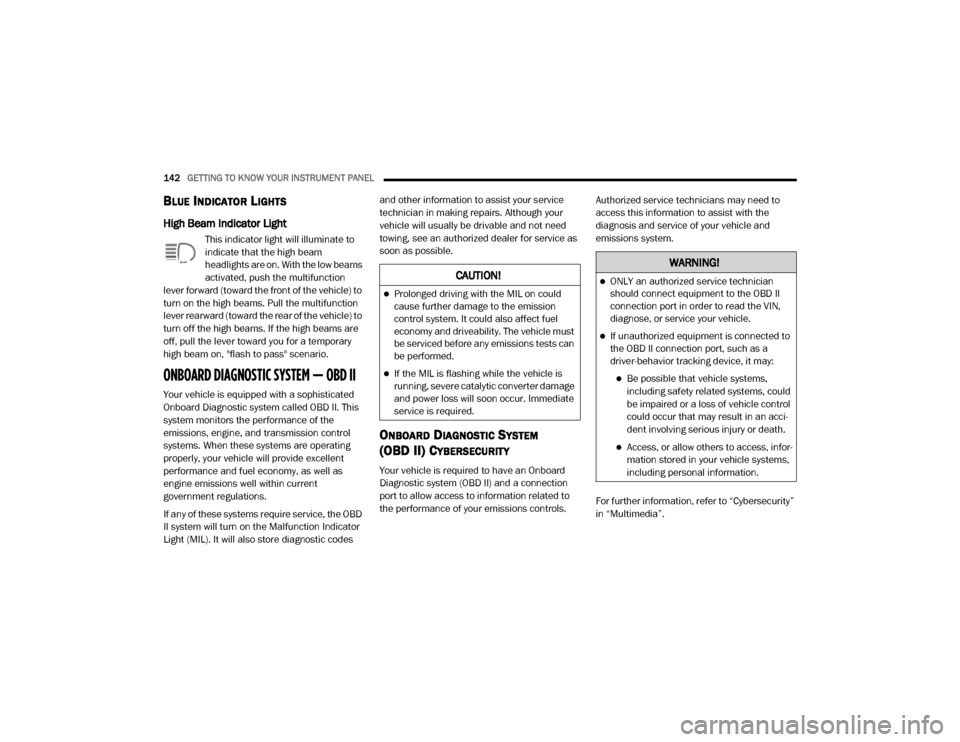
High Beam Indicator Light
This indicator light will illuminate to
indicate that the high beam
headlights are on. With the low beams
activated, push the multifunction
lever forward (toward the front of the vehicle) to
turn on the high beams. Pull the multifunction
lever rearward (toward the rear of the vehicle) to
turn off the high beams. If the high beams are
off, pull the lever toward you for a temporary
high beam on, "flash to pass" scenario.
ONBOARD DIAGNOSTIC SYSTEM — OBD II
Your vehicle is equipped with a sophisticated
Onboard Diagnostic system called OBD II. This
system monitors the performance of the
emissions, engine, and transmission control
systems. When these systems are operating
properly, your vehicle will provide excellent
performance and fuel economy, as well as
engine emissions well within current
government regulations.
If any of these systems require service, the OBD
II system will turn on the Malfunction Indicator
Light (MIL). It will also store diagnostic codes and other information to assist your service
technician in making repairs. Although your
vehicle will usually be drivable and not need
towing, see an authorized dealer for service as
soon as possible.
ONBOARD DIAGNOSTIC SYSTEM
(OBD II) C
YBERSECURITY
Your vehicle is required to have an Onboard
Diagnostic system (OBD II) and a connection
port to allow access to information related to
the performance of your emissions controls. Authorized service technicians may need to
access this information to assist with the
diagnosis and service of your vehicle and
emissions system.
For further information, refer to “Cybersecurity”
in “Multimedia”.
CAUTION!
Prolonged driving with the MIL on could
cause further damage to the emission
control system. It could also affect fuel
economy and driveability. The vehicle must
be serviced before any emissions tests can
be performed.
If the MIL is flashing while the vehicle is
running, severe catalytic converter damage
and power loss will soon occur. Immediate
service is required.
WARNING!
ONLY an authorized service technician
should connect equipment to the OBD II
connection port in order to read the VIN,
diagnose, or service your vehicle.
If unauthorized equipment is connected to
the OBD II connection port, such as a
driver-behavior tracking device, it may:
Be possible that vehicle systems,
including safety related systems, could
be impaired or a loss of vehicle control
could occur that may result in an acci
-
dent involving serious injury or death.
Access, or allow others to access, infor -
mation stored in your vehicle systems,
including personal information.
20_DJD2_OM_EN_USC_t.book Page 142
Page 314 of 568

312STARTING AND OPERATING
Deactivation
The AUX Camera is deactivated by pressing the
“X” in the upper right corner of the touchscreen.
This will return the display back to the
previously displayed screen.
NOTE:
If the AUX button is pressed and no AUX
Camera is connected, the touchscreen will
display a blue screen along with the message
“Camera System Unavailable.” The screen
can be exited out by pressing the “X” in the
upper right hand corner. This will return the
display back to the previously displayed
screen.
Zoom View is not available with the AUX
Camera feature.
The display will always default to the Trailer
Camera display (AUX 1).
SURROUND VIEW CAMERA SYSTEM — IF
EQUIPPED
Your vehicle may be equipped with the
Surround View Camera system that allows you
to see an on-screen image of the surroundings
and Top View of your vehicle whenever the gear
selector is put into REVERSE or manually
activated via the Uconnect system. The Top
View of the vehicle will show which doors are
open. The image will be displayed on the
touchscreen display along with a caution note
“Check Entire Surroundings” across the top of
the screen. After five seconds, this note will
disappear. The Surround View Camera system
is comprised of four sequential cameras
located in the front grille, rear tailgate and side
mirrors.
NOTE:
The Surround View Camera system has
programmable settings that may be selected
through the Uconnect System. Refer to “Ucon -
nect Settings” in “Multimedia” for further infor -
mation. When the vehicle is shifted into REVERSE, the
Rear View and Top View is the default view of
the system (Automatic Activation).
When the vehicle is shifted out of REVERSE (with
camera delay turned on), the Rear View will
continue to be displayed for up to 10 seconds,
unless the vehicle speed exceeds 8 mph
(13 km/h), the vehicle is shifted into PARK or the
ignition is placed in the OFF position. There is a
touchscreen button “X” to disable the display of
the camera image.
When the vehicle is shifted out of REVERSE
(with camera delay turned off), the Surround
View system is exited and the last known screen
appears again.
While the Rear View is displayed and guidelines
are enabled, active guidelines are overlaid on
the image to illustrate the width of the vehicle,
including the side view mirrors and its projected
backup path based on the steering wheel
position.
Different colored zones indicate the distance to
the rear of the vehicle.
20_DJD2_OM_EN_USC_t.book Page 312
Page 320 of 568

318STARTING AND OPERATING
NOTE:
If the vehicle is not equipped with a Pickup Box:
The bottom wedge of the Top View will be
displayed in black.
The Rear Cross Path soft button will be
grayed out.
The guidelines will not be overlaid on Top
View/Rear View and Full Screen of Backup
Camera view.
Black video will be displayed for the right side
of the Top and Rear View, and full screen of
the Backup Camera view when the Rear View
Camera is not connected.
AUX CAMERA — IF EQUIPPED
Your vehicle may be equipped with one or two
AUX Cameras, which display rearview and side
view images from the trailer on the
touchscreen.
Activation
The AUX Camera is activated by first pressing
the Backup Camera, Cargo Camera (if
equipped), or Surround View Camera (if
equipped) button on the touchscreen, followed
by the AUX button located in the upper left
corner of the rearview display. The AUX camera
can also be activated when the vehicle is in
REVERSE by pressing the AUX button.
If equipped with two AUX Cameras, you can
switch between each camera by then pressing
the AUX1 or AUX2 buttons on the Trailer Camera
display.
AUX1 Camera Button
AUX2 Camera Button Deactivation
The AUX Camera is deactivated by pressing the
“X” in the upper right corner of the touchscreen.
This will return the display back to the
previously displayed screen.
NOTE:
If the AUX button is pressed and no AUX
Camera is connected, the touchscreen will
display a blue screen along with the message
“Camera System Unavailable.” The screen
can be exited out by pressing the “X” in the
upper right hand corner. This will return the
display back to the previously displayed
screen.
Zoom View is not available with the AUX
Camera feature.
The display will always default to the Trailer
Camera display (AUX 1).
To avoid vehicle damage, the vehicle must
be driven slowly when using Surround View
to be able to stop in time when an obstacle
is seen. It is recommended that the driver
look frequently over his/her shoulder when
using Surround View.
CAUTION!
(Continued)
20_DJD2_OM_EN_USC_t.book Page 318
Page 361 of 568

IN CASE OF EMERGENCY359
F0640 Amp Green –Steering Torque Overlay Module (STOM)
F07 40 Amp Green –Starter Solenoid
F08 20 Amp Blue –NOX Sensor – If Equipped
F09 40 Amp Green –Diesel / Fuel Heater – If Equipped
F09 30 Amp Pink –Gas / Brake Vacuum Pump – If Equipped
F10 40 Amp Green –CBC #2 / Ext Lights
F11 40 Amp Green –Brake System Module (ECU and Valves)
F12 40 Amp Green –CBC #3 / Pwr Locks
F13 40 Amp Green –Blower Motor
F14 40 Amp Green –CBC #4 / Ext Lights
F15 30 Amp Pink –Power Side Steps — If Equipped
F16 30 Amp Pink –Smart-Bar Module – If Equipped
F17 30 Amp Pink –Winch Control Module – If Equipped
F19 30 Amp Pink –Diesel SCR Feed– If Equipped
F20 30 Amp Pink –Passenger Door Module
F21 30 Amp Pink –Drive Train Control Module
F22 20 Amp Blue –Gas / ECM– If Equipped
F22 25 Amp White –Diesel PCM – If Equipped
F23 30 Amp Pink –CBC #1 / Int Light
F24 30 Amp Pink –Driver Door Module
Cavity Cartridge Fuse Micro Fuse Description
6
20_DJD2_OM_EN_USC_t.book Page 359
Page 362 of 568

360IN CASE OF EMERGENCY
F2530 Amp Pink –Front Wiper
F26 —–Spare
F27 —–Spare
F28 20 Amp Blue –Trailer Tow Backup Lights – If Equipped
F29 20 Amp Blue –Trailer Tow Parking Lights – If Equipped
F30 30 Amp Pink –Trailer Tow Receptacle / Trailer Tow (Separate E-Brake) /
Trailer Tow
F31 ––Spare
F32 ––Spare
F33 20 Amp Blue –Trans Control Module – If Equipped
F34 30 Amp Pink –Vehicle System Interface Module #2 – If Equipped
F35 30 Amp Pink –Sunroof – If Equipped
F36 30 Amp Pink –Electric Back Light – If Equipped
F37 30 Amp Pink –Diesel Frame / Fuel Heater #2– If Equipped
F38 30 Amp Pink –Integrated Trailer Brake Module – If Equipped
F39 ––Spare
F40 –10 Amp Red Ventilated Seats – If Equipped
F41 –10 Amp Red Active Grille Shutter / Active Air Dam – If Equipped
F42 –20 Amp Yellow Horn
F43 –15 Amp Blue Heated Steering Wheel – If Equipped
F44 –10 Amp Red Diagnostic Port
CavityCartridge Fuse Micro Fuse Description
20_DJD2_OM_EN_USC_t.book Page 360
Page 364 of 568

362IN CASE OF EMERGENCY
F64 –25 Amp ClearFuel Injectors / Powertrain Control Module / SRV – If
Equipped
F65 –10 Amp RedMOD Inverter (Wake Up) / Power Port / USB IP / WCPM –
If Equipped
F66 –10 Amp Red Sunroof / USB Rear– If Equipped
F67 –10 Amp Red CDM / UCI Port / USB Front
F68 –10 Amp Red AEB RACAM HTR – If Equipped
F69 –15 Amp Blue SCR Module 12 Volt– If Equipped
F70 –30 Amp Green Fuel Pump Motor / K09 RLY Coil Feed – If Equipped
F71 –25 Amp Clear Amplifier / Active Noise Cancellation – If Equipped
F72 –—Spare
F73 –20 Amp Yellow Fuel Transfer Pump – If Equipped
F74 –10 Amp Red Backup Alarm – If Equipped
F75 –10 Amp Red ATMM / Coil-SCR Module RLY – If Equipped
F76 –10 Amp Red Electronic Stability Control — If Equipped
F77 –10 Amp RedDrivetrain Control Module / Front Axle Disconnect Module
/ TCM/ STOM
F78 –15 Amp BlueEngine Control Module / Powertrain Control Module / AEB
RACM MOD / Feed To AUX PDC Relay Coils/ HRLS
F79 –15 Amp Blue ID / Clearance Lights
F80 –10 Amp Red Overhead Console / Assist / 911 – If Equipped
CavityCartridge Fuse Micro Fuse Description
20_DJD2_OM_EN_USC_t.book Page 362