2020 MERCEDES-BENZ C-CLASS ESTATE service
[x] Cancel search: servicePage 291 of 565
Un
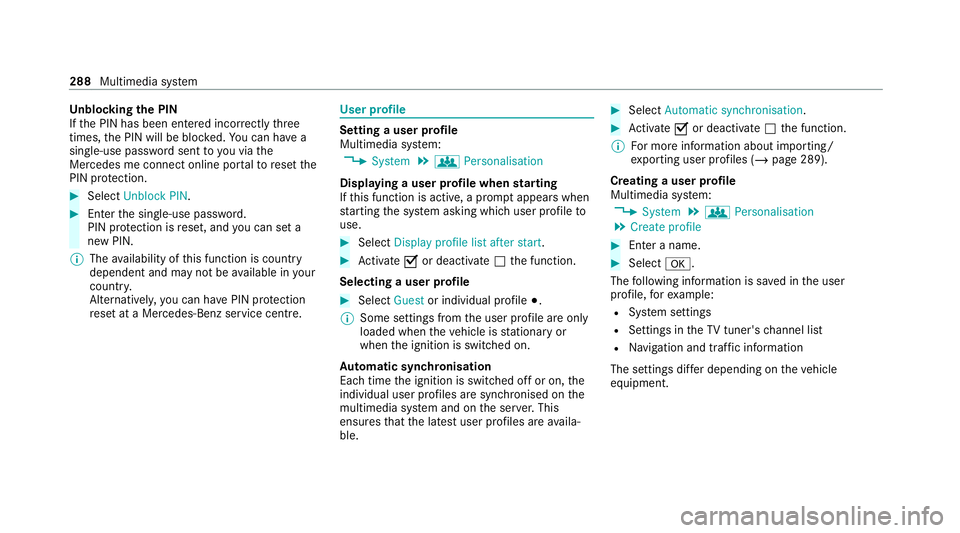
blocking the PIN
If th e PIN has been entered incor rectly three
times, the PIN will be bloc ked. You can ha ve a
single-use password sent to you via the
Mercedes me connect online por talto reset the
PIN pr otection. #
Select Unblock PIN. #
Ente rth e single-use password.
PIN pr otection is reset, and you can set a
new PIN.
% The availability of this function is country
dependent and may not be available in your
count ry.
Alternati vely, you can ha vePIN pr otection
re set at a Mercedes-Benz service centre. User profile
Setting a user profile
Multimedia sy
stem:
4 System 5
g Personalisation
Displaying a user profile when starting
If th is function is active, a prom ptappears when
st arting the sy stem asking which user profile to
use. #
Select Display profile list after start . #
Activate Oor deacti vate ª the function.
Selecting a user profile #
Select Guestor individual profile #.
% Some settings from the user profile are only
loaded when theve hicle is stationary or
when the ignition is switched on.
Au tomatic syn chronisation
Each time the ignition is switched off or on, the
individual user profiles are synchronised on the
multimedia sy stem and on the ser ver.This
ensures that the latest user profiles are availa‐
ble. #
Select Automatic synchronisation. #
Activate Oor deacti vate ª the function.
% For more information about importing/
ex porting user profiles (/ page 289).
Creating a user profile
Multimedia sy stem:
4 System 5
g Personalisation
5 Create profile #
Ente r a name. #
Select a.
The following information is sa ved in the user
profile, forex ample:
R System settings
R Settings in theTV tuner's channel list
R Navigation and traf fic information
The settings diff er depending on theve hicle
equipment. 288
Multimedia sy stem
Page 292 of 565
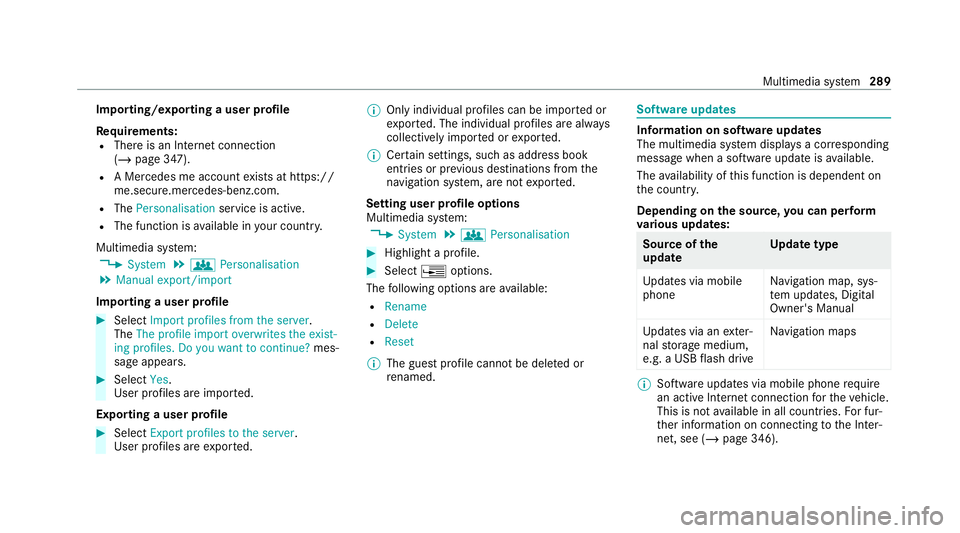
Importing/exporting a user profile
Re
quirements:
R There is an Internet connection
(/ page 347).
R A Mercedes me account exists at https://
me.secure.mercedes-benz.com.
R The Personalisation service is active.
R The function is available in your count ry.
Multimedia sy stem:
4 System 5
g Personalisation
5 Manual export/import
Importing a user profile #
Select Import profiles from the server.
The The profile import overwrites the exist-
ing profiles. Do you want to continue? mes‐
sage appears. #
Select Yes.
User profiles are impor ted.
Exporting a user profile #
Select Export profiles to the server.
User profiles are expor ted. %
Only individual profiles can be impor ted or
ex por ted. The individual profiles are alw ays
collectively impor ted or expor ted.
% Certain settings, such as address book
ent ries or pr evious destinations from the
navigation sy stem, are not expor ted.
Setting user profile options
Multimedia sy stem:
4 System 5
g Personalisation #
Highlight a profile. #
Select ¥options.
The following options are available:
R Rename
R Delete
R Reset
% The guest profile cannot be dele ted or
re named. So
ftwa reupdates Information on software updates
The multimedia sy
stem displa ysa cor responding
message when a software update isavailable.
The availability of this function is dependent on
th e count ry.
Depending on the source, you can per form
va rious update s: Source of
the
update Up
date type
Up dates via mobile
phone Na
vigation map, sys‐
te m updates, Digital
Owner's Manual
Up dates via an exter‐
nal storage medium,
e.g. a USB flash drive Na
vigation maps %
Software updates via mobile phone requ ire
an active Internet connection forth eve hicle.
This is not available in all countries. For fur‐
th er information on connecting tothe Inter‐
net, see (/ page 346). Multimedia sy
stem 289
Page 293 of 565
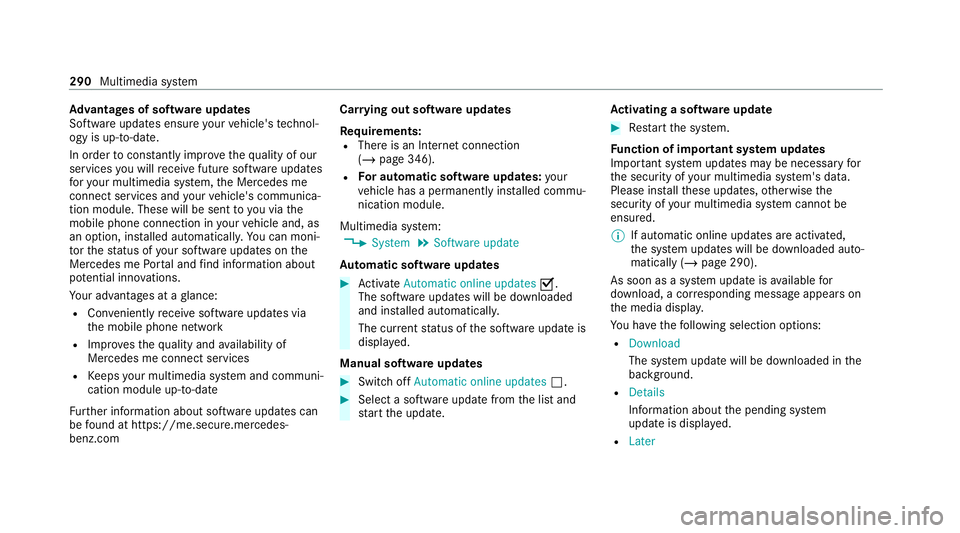
Ad
vantages of software updates
Software updates ensure your vehicle's tech nol‐
ogy is up-to-date.
In order tocons tantly impr ovethequ ality of our
services you will recei vefuture software updates
fo ryo ur multimedia sy stem, the Mercedes me
connect services and your vehicle's communica‐
tion module. These will be sent to you via the
mobile phone connection in your vehicle and, as
an option, ins talled automaticall y.Yo u can moni‐
to rth est atus of your software updates on the
Mercedes me Portal and find information about
po tential inno vations.
Yo ur advantages at a glance:
R Con veniently recei vesoftware update s via
th e mobile phone network
R Impr ovesth equ ality and availability of
Mercedes me connect services
R Keeps your multimedia sy stem and communi‐
cation module up-to-date
Fu rther information about software updates can
be found at https://me.secure.mercedes-
benz.com Car
rying out software updates
Requ irements:
R There is an Internet connection
(/ page 346).
R For automatic so ftwa reupdates: your
ve hicle has a permanently ins talled commu‐
nication module.
Multimedia sy stem:
4 System 5
Software update
Au tomatic so ftwa reupdates #
Activate Automatic online updates O.
The software upda tes will be downloaded
and ins talled automaticall y.
The cur rent status of the software update is
displa yed.
Manual software updates #
Switch off Automatic online updates ª. #
Select a software update from the list and
st art the update. Ac
tivating a so ftwa reupdate #
Restart the sy stem.
Fu nction of important sy stem updates
Impor tant sy stem updates may be necessary for
th e security of your multimedia sy stem's data.
Please ins tallth ese updates, otherwise the
security of your multimedia sy stem cann otbe
ensured.
% If automatic online updates are activated,
the sy stem updates will be downloaded auto‐
matically (/ page 290).
As soon as a sy stem update is available for
download, a cor responding message appears on
th e media displa y.
Yo u ha vethefo llowing selection options:
R Download
The sy stem update will be downloaded in the
bac kground.
R Details
Info rm ation about the pending sy stem
update is displa yed.
R Later 290
Multimedia sy stem
Page 294 of 565
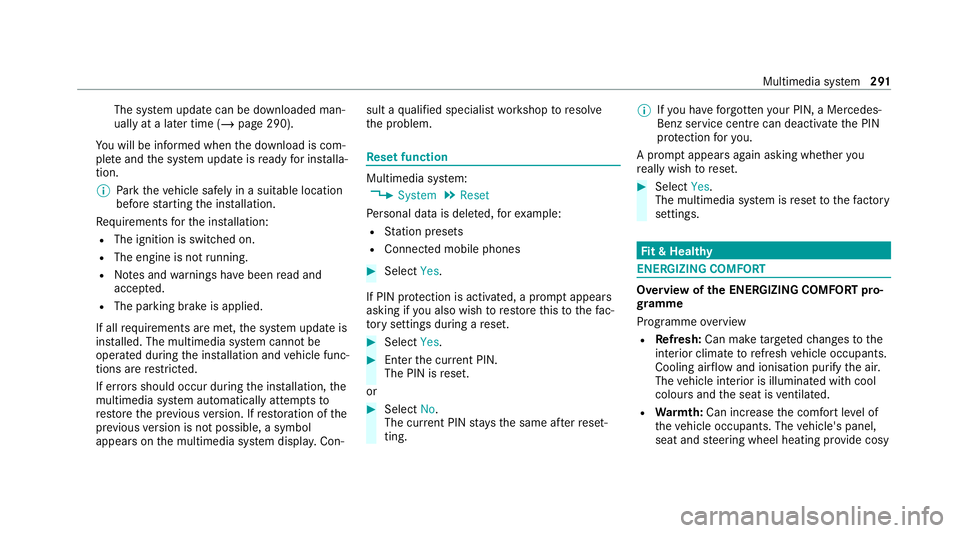
The sy
stem update can be downloaded man‐
ually at a later time (/ page 290).
Yo u will be informed when the download is com‐
ple teand the sy stem update is ready for ins talla‐
tion.
% Park theve hicle safely in a suitable location
before starting the ins tallation.
Re quirements forth e ins tallation:
R The ignition is switched on.
R The engine is not running.
R Notes and warnings ha vebeen read and
accep ted.
R The parking brake is applied.
If all requirements are met, the sy stem update is
ins talled. The multimedia sy stem cann otbe
operated during the ins tallation and vehicle func‐
tions are restricted.
If er rors should occur during the ins tallation, the
multimedia sy stem automatically attem ptsto
re store the pr evious version. If restoration of the
pr ev ious version is not possible, a symbol
appears on the multimedia sy stem displa y.Con‐ sult a
qualified specialist workshop toresol ve
th e problem. Re
set function Multimedia sy
stem:
4 System 5
Reset
Pe rsonal data is dele ted, forex ample:
R Station presets
R Connec ted mobile phones #
Select Yes.
If PIN pr otection is activated, a prom ptappears
asking if you also wish torestore this to thefa c‐
to ry settings during a reset. #
Select Yes. #
Enter the cur rent PIN.
The PIN is reset.
or #
Select No.
The cur rent PIN stay sth e same af terre set‐
ting. %
Ifyo u ha veforg ottenyo ur PIN, a Mercedes-
Benz service centre can deactivate the PIN
pr otection foryo u.
A prom ptappears again asking whe ther you
re ally wish toreset. #
Select Yes.
The multimedia sy stem is reset tothefa ctory
settings. Fi
t & Healthy ENE
RGIZING COMFORT Overview of
the ENERGIZING COMFORT pro‐
gr amme
Programme overview
R Refresh: Can make targeted changes tothe
interior climate torefresh vehicle occupants.
Cooling air flow and ionisation purify the air.
The vehicle interior is illuminated with cool
colours and the seat is ventilated.
R Warmth: Can inc rease the comfort le vel of
th eve hicle occupants. The vehicle's panel,
seat and steering wheel heating pr ovide cosy Multimedia sy
stem 291
Page 297 of 565
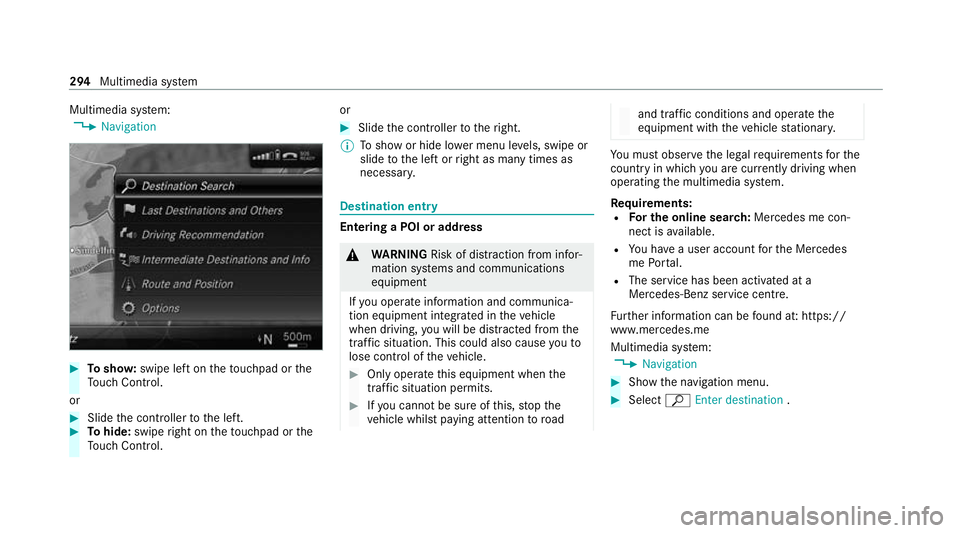
Multimedia sy
stem:
4 Navigation #
Tosho w:swipe left on theto uchpad or the
To uch Control.
or #
Slide the controller tothe left. #
Tohide: swipe right on theto uchpad or the
To uch Control. or #
Slide the controller totheright.
% Toshow or hide lo wer menu le vels, swipe or
slide tothe left or right as many times as
necessar y. Destination ent
ry Entering a POI or address
&
WARNING Risk of dist raction from infor‐
mation sy stems and communications
equipment
If yo u operate information and communica‐
tion equipment integ rated in theve hicle
when driving, you will be distracted from the
traf fic situation. This could also cause youto
lose control of theve hicle. #
Only operate this equipment when the
traf fic situation permits. #
Ifyo u cannot be sure of this, stop the
ve hicle whilst paying attention toroad and traf
fic conditions and ope rate the
equipment with theve hicle stationar y. Yo
u must obse rveth e legal requirements forthe
country in whi chyou are cur rently driving when
operating the multimedia sy stem.
Re quirements:
R For the online sear ch:Me rcedes me con‐
nect is available.
R You ha vea user account forth e Mercedes
me Portal.
R The service has been activated at a
Mercedes-Benz service centre.
Fu rther information can be found at: https://
www.mercedes.me
Multimedia sy stem:
4 Navigation #
Show the navigation menu. #
Select ªEnter destination .294
Multimedia sy stem
Page 302 of 565
#
Tochange the order of destinations: high‐
light the destination or the intermediate des‐
tination. #
Select ¥Move . #
Movethe intermediate destination tothe
desired position. #
Press theTo uch Control, the controller or the
to uchpad. #
Todel ete a destination: highlightthe desti‐
nation or the intermediate destination. #
Select ¥Delete.
Calculating a route with intermediate desti‐
nations
Re quirements:
R The destination and at least one intermediate
destination ha vebeen entered.
Multimedia sy stem:
4 Navigation
5 Intermediate destinations and info #
Select Start new route guidance.
The route is calculated with the set inter‐
mediate destinations. Selecting a contact
for destination entry
Re quirements:
R A mobile phone is connecte dto the multime‐
dia sy stem (/ page 322).
R The "N avigate tocontact" online service is
av ailable and activated.
Multimedia sy stem:
4 Navigation
5 ¬ Previous and other destinations
5 Contacts #
Select the conta ct.
The contact de tails are displa yed. #
Select the address.
The Please wait... message appears. The
sear chis car ried out online. #
Select the destination.
Fi ltering displa ysfor contacts #
Enter a name or telephone number, forex am‐
ple, into the sear chfield. #
Select ¡.
The firs t contact in the list is highlighted. #
Select the conta ct. #
Select the address.
Entering geo-coordina tes
Multimedia sy stem:
4 Navigation
5 ¬ Previous and other destinations
5 Geo-coordinates #
Ente rge o-coordinates as latitude and longi‐
tude coordinates in degrees, minutes and
seconds.
The map sho ws the position. #
Confirm the entry. #
Tocalculate a route: select Start route
guidance. #
If a route has already been created, select
Start new route guidance orSet as inter-
mediate destination .
Entering the destination as a 3 wordaddress
Re quirements:
R Sear ching for a destination using 3 word
addresses is possible in the online sear ch
( / page 294). Multimedia sy
stem 299
Page 307 of 565
The prom
ptFuel tank reserve level Do you want
to start the search for filling stations? appears.#
Select Yes.
The au tomatic filling station sear chbegins.
The available filling stations along thero ute
or in the vicinity are displa yed. #
Select thefilling station. #
When there is no route, thefilling station is
set as the destination.
or #
When there is a route, thefilling station is set
as the next intermediate destination.
St arting the automatic service station
sear ch
Re quirements:
R ATTENTION ASSIST and theSuggest rest
area function are activated (/ page 200).
Driving situation
The ATTENTION ASSIST Do you want to start
the rest area search? message is shown. #
Select Yes.
The service station sear ch starts. The availa‐
ble service stations along thero ute or in the
vicinity of theve hicle's cur rent position are
displ ayed. #
Select the service station.
The service station address is displa yed. #
Ifro ute guidance is not active, select Start
route guidance .
The selected service station is set as a desti‐
nation. Route guidance begins.
or #
Ifro ute guidance is active, select Start new
route guidance orSet as next intermediate
destination .
Start new route guidance: the selected
service station is set as a new destination.
The pr evious destination and all intermediate
destinations are dele ted. Ro ute guidance to
th e service station begins.
Set as next intermediate destination: the
selected service station is set as the next
intermediate destination. Route guidance
begins. Ro
ute guidance Note
s onroute guidance &
WARNING Risk of dist raction from oper‐
ating integrated communication equip‐
ment while theve hicle is in motion
If yo u operate communication equipment
integrated in theve hicle when driving, you
will be distracted from the tra ffic situation.
This could also cause youto lose control of
th eve hicle. #
Only operate this equipment when the
traf fic situation permits. #
Ifyo u cannot be sure of this, stop the
ve hicle whilst paying attention toroad
and traf fic conditions and ope rate the
equipment with theve hicle stationar y. Yo
u must obse rveth e legal requirements forthe
country in whi chyou are cur rently driving when
operating the multimedia sy stem.
Ro ute guidance begins once a route has been
calculated. 304
Multimedia sy stem
Page 310 of 565
Switching navigation announcements on/off
Re
quirements:
R route guidance is active. #
Toswitch off: pressthevo lume control on
th e multifunction steering wheel during a
navigation announcement (/ page277).
or #
Press thevo lume control on the cent recon‐
sole du ring a navigation announcement
(/ page 277).
The Spoken driving recommendations have
been deactivated. messageappears.
or #
Show the navigation menu (/ page 293).#
Select !Driving recommendation .
The symbol changes to# . #
Toactivate: select#Driving recommen-
dation .
The cur rent navigation announcement is
pl ay ed. %
Inthefo llowing situations, navigation
announcements are switched on automati‐
cally:
R A new route guidance is star ted.
R The route is recalculated.
% You can add and call up this function as a
fa vo urite under Spoken driving recommenda-
tions on/off.
Swit ching navigation announcements on/off
during a phone call #
Select System. #
Select õAudio. #
Select Navigation and traffic announce-
ments. #
Swit chDriving recommendations during
phone call onO or off ª.
Ad justing the volume of navigation
announcements
Re quirements:
R Route guidance is active. #
On the multifunction steering wheel or
on the multimedia sy stem: turn thevo lume
control on the multifunction steering wheel
during a navigation announcement.
or #
Turn thevo lume control on the cent recon‐
sole du ring a navigation announcement
(/ page 278).
% Inthefo llowing situations, thevo lume is
ra ised tothe maximum volume or lo weredto
th e minimum volume:
R A new route guidance is star ted.
R The route is recalculated.
% The minimum volume can be individually set
at a Mercedes-Benz Service Cent re. #
Via sy stem settings: selectSystem. #
Select õAudio. #
Select Navigation and traffic announce-
ments. #
Select Driving recommendation volume. #
Set thevo lume. Multimedia sy
stem 307