Page 381 of 609
3. Locate the rear left side and right side
cargo tie-down rings. Push the loop end
of the retainer strap through one cargo
tie-down ring. Thread the non-loop end
through the loop.
4. Weave the retainer strap through the wheel openings. 5.
Locate the cargo tie-down in the opposite
rear corner of the cargo area. Thread the
retainer strap though the tie-down and
pull tight. 6.
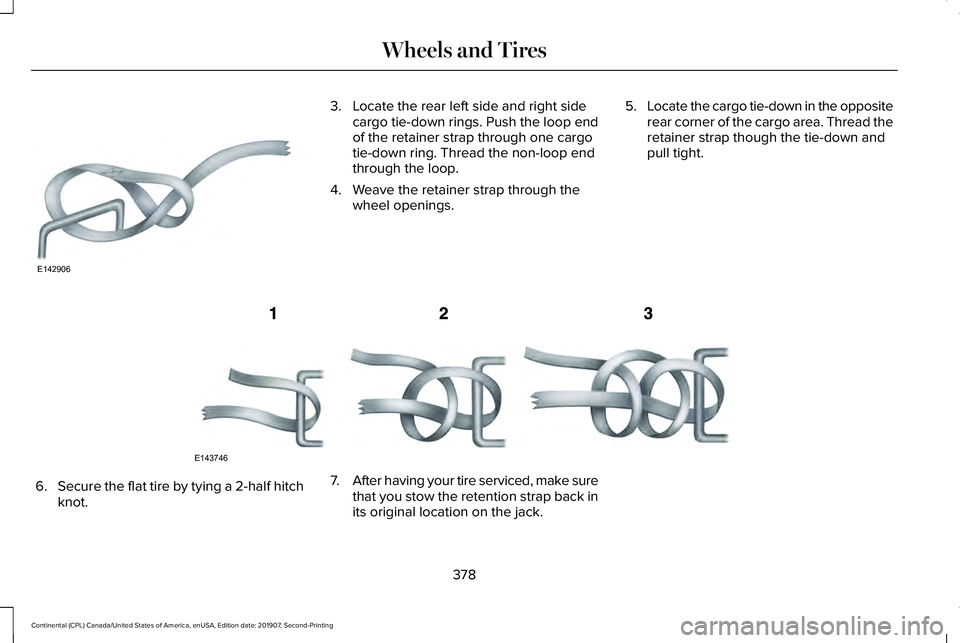
Secure the flat tire by tying a 2-half hitch
knot. 7.
After having your tire serviced, make sure
that you stow the retention strap back in
its original location on the jack.
378
Continental (CPL) Canada/United States of America, enUSA, Edition date: 201907, Second-Printing Wheels and TiresE142906 E143746
Page 382 of 609

TECHNICAL SPECIFICATIONS
Wheel Lug Nut Torque Specifications
WARNING: When installing a wheel, always remove any corrosion, dirt or foreign ma\
terials present on the mounting surfaces of the
wheel or the surface of the wheel hub, brake drum or brake disc that contacts the wheel. Make sure that any fasteners that attach the rotor
to the hub are secured so they do not interfere with the mounting surfac\
es of the wheel. Installing wheels without correct metal-to-metal
contact at the wheel mounting surfaces can cause the wheel nuts to loose\
n and the wheel to come off while your vehicle is in motion,
resulting in loss of control. Ib-ft (Nm)
*
Bolt size
162 lb.ft (220 Nm)
M14 x 1.5
* Torque specifications are for nut and bolt threads free of dirt and rust.\
Use only Ford recommended replacement fasteners.
Retighten the lug nuts to the specified torque within 100 miles (160 kil\
ometers) after any wheel disturbance (such as tire rotation, changing \
a
flat tire, wheel removal).
379
Continental (CPL) Canada/United States of America, enUSA, Edition date: 201907, Second-Printing Wheels and Tires
Page 383 of 609
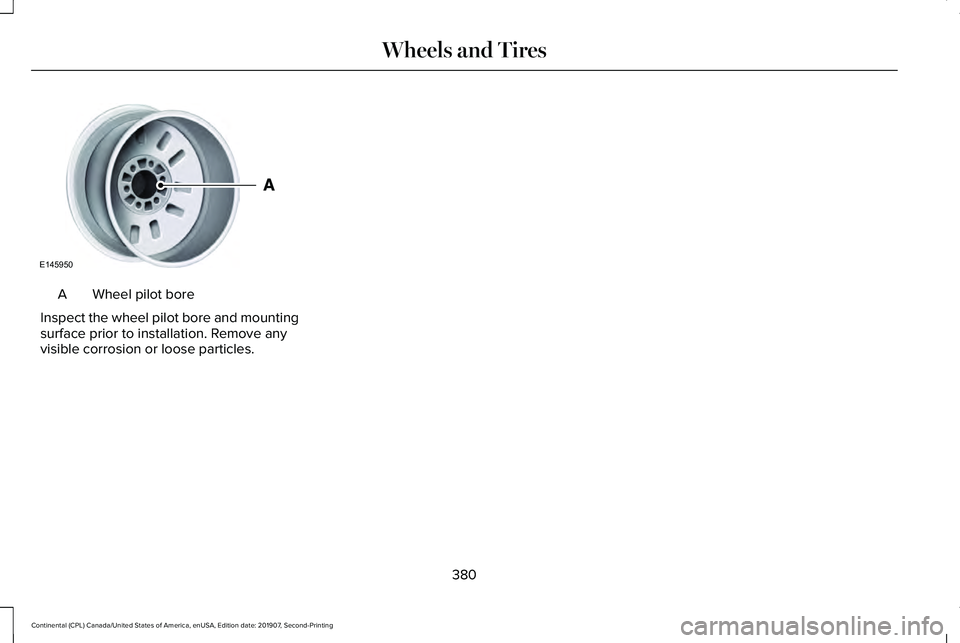
Wheel pilot bore
A
Inspect the wheel pilot bore and mounting
surface prior to installation. Remove any
visible corrosion or loose particles.
380
Continental (CPL) Canada/United States of America, enUSA, Edition date: 201907, Second-Printing Wheels and TiresE145950
Page 396 of 609
Capacities
Quantity
Variant
11.6 qt (11 L)1
All.
1 Approximate dry fill capacity. Actual amount could vary during fluid changes.
Materials Specification
Name
MERCON® LV WSS-M2C938-A
Motorcraft® MERCON® LV Automatic Transmission Fluid (U.S.)
Motorcraft® MERCON® LV Automatic Transmission Fluid / Huile pour boîte auto-
matique MERCON® LV Motorcraft® (Canada)
XT-10-QLVC (U.S.)
CXT-10-LV6 (Canada)
Engine Coolant
Capacities Quantity
Variant
10.9 qt (10.3 L)
Front wheel drive.
11.0 qt (10.4 L)
Rear wheel drive.
393
Continental (CPL) Canada/United States of America, enUSA, Edition date: 201907, Second-Printing Capacities and Specifications
Page 449 of 609

4. Follow the instructions provided to
download the update to the USB drive.
Installing an Update
Note: You can use the system when an
installation is in progress.
1. Disconnect all other USB devices from the USB ports.
2. Connect the USB drive with the update to a USB port.
Note: Installation starts automatically within
10 minutes.
Updating the System Using a Wi-Fi Network
Connection
Connecting to a Wi-Fi Network Select the settings option on the
feature bar.
1. Select Automatic Updates.
2. Select
System Wi-Fi.
3. Switch
System Wi-Fi on.
4. Select
Available Wi-Fi Networks.
5. Select an available Wi-Fi network. Note:
Enter the network password to
connect to a secure network.
Switching Automatic System Updates On Select the settings option on the
feature bar.
1. Select
Automatic Updates.
2. Switch
Automatic System Updates on.
The system is now set to check for and
receive system updates when it is connected
to a Wi-Fi network.
Note: You can use the system when a
download is in progress.
Note: If the system is disconnected from the
Wi-Fi network when a download is in
progress, the download continues the next
time the system is connected to a Wi-Fi
network.
Additional Information and Assistance
For additional information and assistance,
we recommend that you contact an
authorized dealer or refer to the local Ford
website. USING VOICE RECOGNITION
The system allows you to interact with the
entertainment, information and
communication systems on your vehicle
using voice commands. This allows you to
keep your hands on the steering wheel and
focus on what is in front of you.
Press the voice control button on
the steering wheel and wait for the
voice prompt.
Note: Press the voice control button again
to interrupt a voice prompt and begin
speaking.
Note: Turn the volume control when a voice
prompt plays to adjust the volume.
Note: Press and hold the voice control
button on the steering wheel to use Siri on
your iOS device.
The following voice commands are designed
to help you from any screen:
• List of Commands
• Help
446
Continental (CPL) Canada/United States of America, enUSA, Edition date: 201907, Second-Printing SYNC™ 3E280315 E280315 E142599
Page 475 of 609
Switching the Heated Exterior Mirrors
On and Off
Touch the button.
Switching the Heated Windshield On
and Off Touch the button to clear the
windshield of thin ice and fog. The
heated windshield turns off after a
short period of time.
Switching the Heated Rear Window On
and Off Touch the button to clear the rear
window of thin ice and fog.
Switching the Heated Seats On and Off Touch the button to cycle through
the various heat settings. Switching the Heated Steering Wheel
On and Off Touch the button.
Switching Maximum Air Conditioning
On and Off Touch the button for maximum
cooling.
Recirculated air flows through the instrument
panel air vents, air conditioning turns on and
the blower motor adjusts to the highest
speed.
Switching Maximum Defrost On and
Off Touch the button for maximum
defrosting.
Air flows through the windshield air vents,
and the blower motor adjusts to the highest
speed.
You can also use this setting to defog and
clear the windshield of a thin covering of ice. Note:
To prevent window fogging, you
cannot select recirculated air when
maximum defrost is on.
Note: The heated rear window also turns on
when you select maximum defrost.
Switching Recirculated Air On and Off Touch the button to switch
between outside air and
recirculated air.
The air currently in the passenger
compartment recirculates. This may reduce
the time needed to cool the interior, when
used with A/C, and reduce unwanted odors
from entering your vehicle.
Note: Recirculated air may turn off, or
prevent you from switching on, in all air flow
modes except MAX A/C to reduce the risk
of fogging. Recirculation may also turn on
and off in various air distribution control
combinations during hot weather to improve
cooling efficiency.
472
Continental (CPL) Canada/United States of America, enUSA, Edition date: 201907, Second-Printing SYNC™ 3E266189 E184884
Page 486 of 609
The navigation system map data may contain
inaccurate or incomplete information due to
the passage of time, changing
circumstances, sources used and the nature
of collecting comprehensive geographic
data, any of which may lead to incorrect
results. Inaccurate speed limit information,
turn restrictions and other road attributes
may affect the determined route and
associated guidance
Annual navigation map updates are available
for purchase through your dealership.
Depending on your purchase agreement,
you might be eligible for free Map update.
You can choose to download the Map data
update onto a USB, order a USB, or use Wi-Fi
to deliver automatic updates. To update your
Map data over Wi-Fi, your vehicle must be
connected to a Wi-Fi access point. Map Data
files are large, so it is highly recommended
to perform the update when free Wi-Fi is
available otherwise high data rates may
apply. For USB updates, free map update
eligibility, and other details, contact dealers
at 1-866-462-8837 in the United States and
Canada or 01-800-557-5539 in Mexico or
visit our local website for more information.
APPS
The system allows you interact with select
mobile apps while keeping your eyes on the
road. Voice commands, your steering wheel
buttons, or a quick tap on your touchscreen
give you advanced control of compatible
mobile apps. You can also stream your
favorite music or podcasts, share your time
of arrival with friends, and keep connected
safely.
When you start an app through the system
for the first time, you could be asked to grant
certain permissions. You can review and
change the permissions that you have
granted at any time when your vehicle is not
moving. We recommend that you check your
data plan before using your apps through
the system. Using them could result in
additional charges. We also recommend that
you check the app provider's terms and
conditions and privacy policy before using
their app. Make sure that you have an active
account for apps that you want to use
through the system. Some apps will work
with no setup. Others require you to
configure some personal settings before you
can use them.
Note:
For more information about available
apps, visit catalog.ford.com.
Using Apps on an iOS Device Select the apps option on the
feature bar.
1. If your device is connected via USB, switch Apple CarPlay off. See Phone
(page 473).
2. Connect your device to a USB port or pair and connect using Bluetooth.
3. If prompted to enable CarPlay, select Disable
.
4. Start the apps on your device that you want to use through SYNC.
Note: If you close the apps on your device,
you will not be able to use them through the
system.
483
Continental (CPL) Canada/United States of America, enUSA, Edition date: 201907, Second-Printing SYNC™ 3
Page 492 of 609
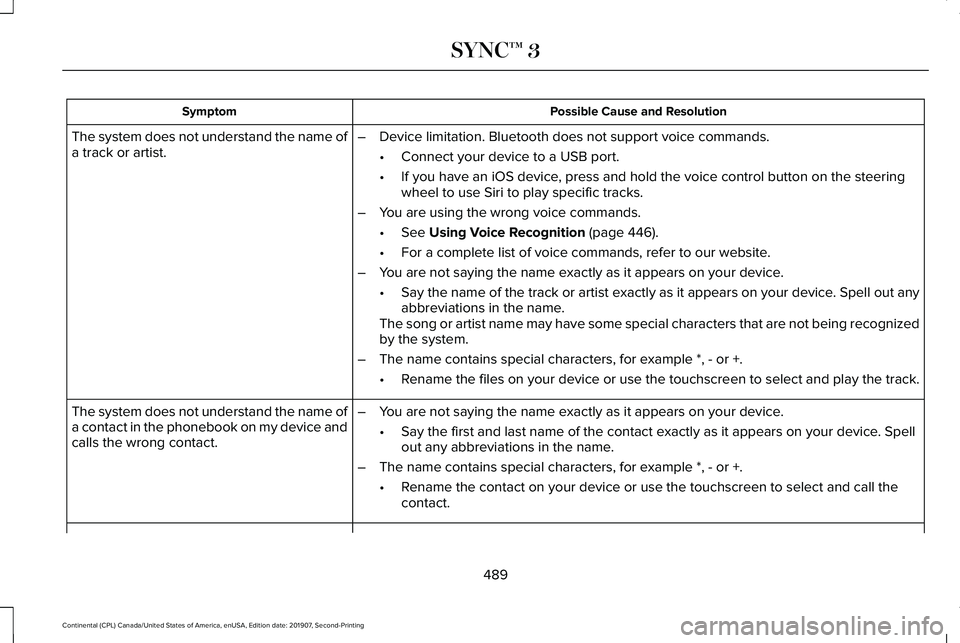
Possible Cause and Resolution
Symptom
–Device limitation. Bluetooth does not support voice commands.
•Connect your device to a USB port.
• If you have an iOS device, press and hold the voice control button on the steering
wheel to use Siri to play specific tracks.
– You are using the wrong voice commands.
•See Using Voice Recognition (page 446).
• For a complete list of voice commands, refer to our website.
– You are not saying the name exactly as it appears on your device.
•Say the name of the track or artist exactly as it appears on your device\
. Spell out any
abbreviations in the name.
The song or artist name may have some special characters that are not be\
ing recognized
by the system.
– The name contains special characters, for example *, - or +.
•Rename the files on your device or use the touchscreen to select and play\
the track.
The system does not understand the name of
a track or artist.
–You are not saying the name exactly as it appears on your device.
•Say the first and last name of the contact exactly as it appears on your\
device. Spell
out any abbreviations in the name.
– The name contains special characters, for example *, - or +.
•Rename the contact on your device or use the touchscreen to select and ca\
ll the
contact.
The system does not understand the name of
a contact in the phonebook on my device and
calls the wrong contact.
489
Continental (CPL) Canada/United States of America, enUSA, Edition date: 201907, Second-Printing SYNC™ 3