2020 Hyundai Tucson change wheel
[x] Cancel search: change wheelPage 107 of 637
3-21
Convenient features of your vehicle
3
S ST
TE
EE
ER
RI
IN
NG
G
W
WH
HE
EE
EL
L
Electric power steering (EPS)
The system assists you with steering
the vehicle. If the engine is off or if
the power steering system becomes
inoperative, the vehicle may still be
steered, but it will require increased
steering effort.
Also, the steering effort becomes
heavier as the vehicle’s speed
increases and becomes lighter as
the vehicle’s speed decreases for
better control of the steering wheel.
Should you notice any change in the
effort required to steer during normal
vehicle operation, we recommend
that the system be checked by an
authorised HYUNDAI dealer.If the Electric Power Steering
(EPS) System does not operate
normally, the warning light ( )
will illuminate on the instrument
cluster. The steering wheel may
become difficult to control or
operate. Take your vehicle to an
authorised HYUNDAI dealer and
have the system checked as soon
as possible.
Information
The following symptoms may occur
during normal vehicle operation:
• The steering effort may be high
immediately after placing the igni-
tion switch or the Engine Start/Stop
button in the ON position.
This happens as the system per-
forms the EPS system diagnostics.
When the diagnostics are complet-
ed, the steering wheel will return to
its normal condition.• A click noise may be heard from the
EPS relay after the ignition switch is
placed to the ON or LOCK/OFF
position (Without Smart key sys-
tem).
A click noise may be heard from the
EPS relay after the Engine
Start/Stop button is placed in the
ON or OFF position. (With Smart
key system)
• Motor noise may be heard when the
vehicle is at a stop or at a low driv-
ing speed.
• When you operate the steering
wheel in low temperatures, the
steering effort may be high and
abnormal noise may occur. If the
temperature rises, the noise will dis-
appear. This is a normal condition.
• When the vehicle is stationary, if
you turn the steering wheel all the
way to the left or right continuously,
the steering wheel effort increases.
This is not a system malfunction. As
time passes, the steering wheel
effort will return to its normal con-
dition.
i
NOTICE
Page 156 of 637
3-70
Convenient features of your vehicle
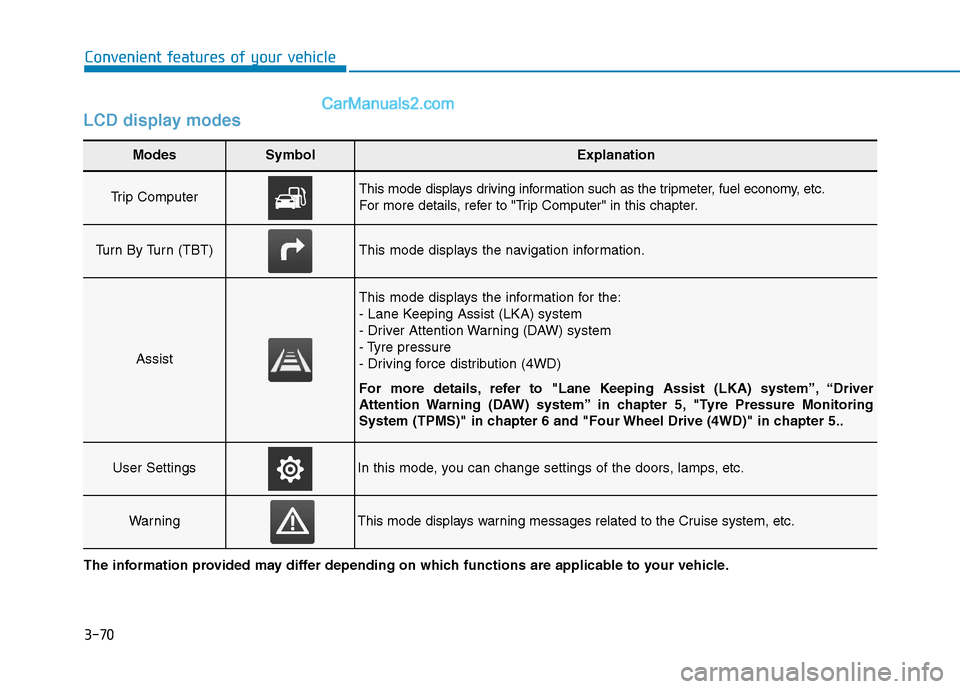
LCD display modes
Modes SymbolExplanation
Trip Computer This mode displays driving information such as the tripmeter, fuel economy, etc.
For more details, refer to "Trip Computer" in this chapter.
Turn By Turn (TBT)This mode displays the navigation information.
Assist
This mode displays the information for the:
- Lane Keeping Assist (LKA) system
- Driver Attention Warning (DAW) system
- Tyre pressure
- Driving force distribution (4WD)
For more details, refer to "Lane Keeping Assist (LKA) system”, “Driver
Attention Warning (DAW) system” in chapter 5, "Tyre Pressure Monitoring
System (TPMS)" in chapter 6 and "Four Wheel Drive (4WD)" in chapter 5..
User SettingsIn this mode, you can change settings of the doors, lamps, etc.
WarningThis mode displays warning messages related to the Cruise system, etc.
The information provided may differ depending on which functions are applicable to your vehicle.
Page 166 of 637
3-80
Convenient features of your vehicle
Warning messages (if equipped)
Shift to P position
(for smart key system and auto-
matic transmission/dual clutch
transmission)
This warning message illuminates if
you try to turn off the engine without
the shift lever in P (Park) position.
At this time, the Engine Start/Stop
button turns to the ACC position (If
you press the Engine Start/Stop but-
ton once more, it will turn to the ON
position).
Low key battery
(for smart key system)
This warning message illuminates if
the battery of the smart key is dis-
charged when the Engine Start/Stop
button changes to the OFF position.
Press START button whilst turn-
ing wheel (for smart key sys-
tem)
This warning message illuminates if
the steering wheel does not unlock
normally when the Engine Start/Stop
button is pressed.
It means that you should press the
Engine Start/Stop button whilst turn-
ing the steering wheel right and left.
Steering wheel unlocked
(for smart key system)
This warning message illuminates if
the steering wheel does not lock
when the Engine Start/Stop button
changes to the OFF position.
Check steering wheel lock
system (for smart key system)
This warning message illuminates if
the steering wheel does not lock nor-
mally when the Engine Start/Stop
button changes to the OFF position.
Press brake pedal to start
engine (for smart key system
and automatic transmission/
dual clutch transmission)
This warning message illuminates if
the Engine Start/Stop button
changes to the ACC position twice
by pressing the button repeatedly
without depressing the brake pedal.
It means that you should depress the
brake pedal to start the engine.
Press clutch pedal to start
engine (for smart key system
and manual transmission)
This warning message illuminates if
the Engine Start/Stop button is in the
ACC position twice by pressing the
button repeatedly without depressing
the clutch pedal.
Depress the clutch pedal to start the
engine.
Page 173 of 637
3-87
Convenient features of your vehicle
The trip computer is a microcomput-
er-controlled driver information sys-
tem that displays information related
to driving.
Information
Some driving information stored in the
trip computer (for example Average
Vehicle Speed) resets if the battery is
disconnected.
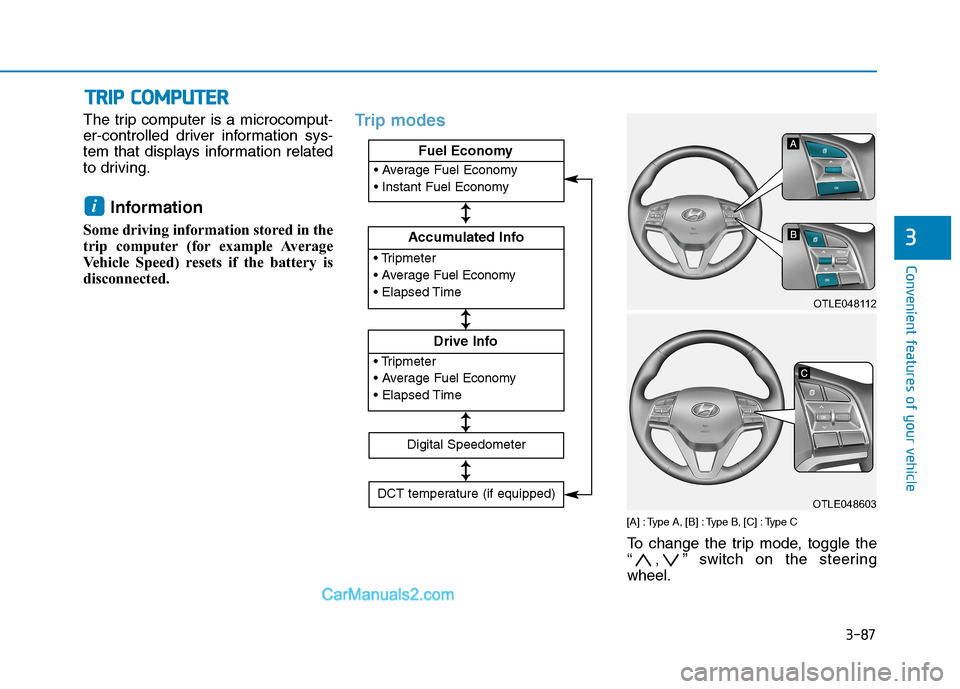
Trip modes
[A] : Type A, [B] : Type B, [C] : Type C
To change the trip mode, toggle the
“ , ” switch on the steering
wheel.
i
T TR
RI
IP
P
C
CO
OM
MP
PU
UT
TE
ER
R
3
Accumulated Info
Fuel Economy
Drive Info
Fuel Economy
Digital Speedometer
DCT temperature (if equipped)
↕ ↕
↕ ↕
↕ ↕
↕ ↕
OTLE048112
OTLE048603
Page 287 of 637
4-12
Multimedia System
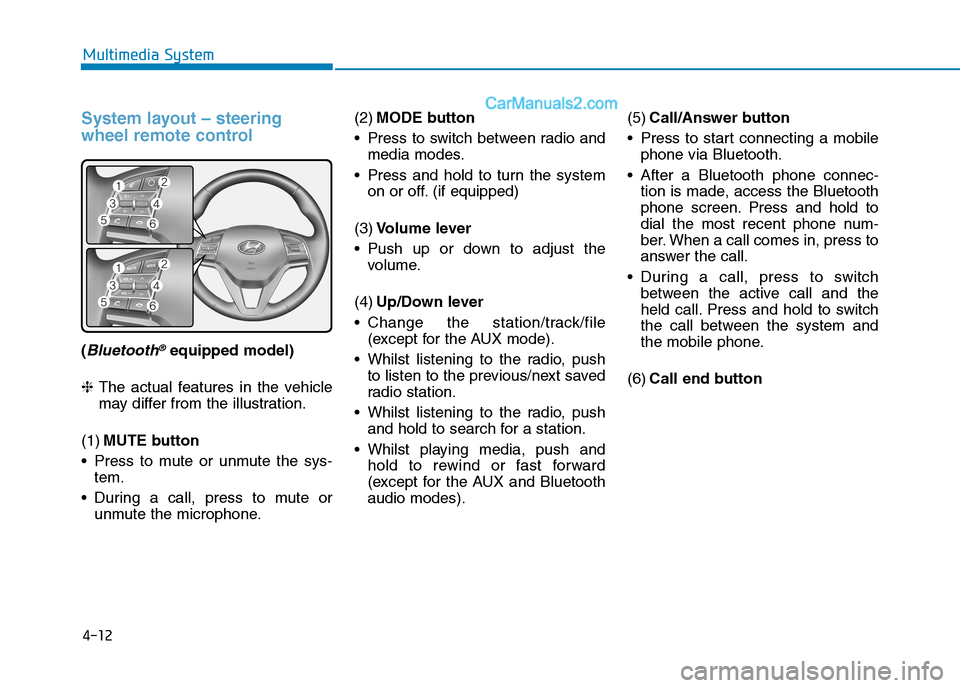
System layout – steering
wheel remote control
(Bluetooth®equipped model)
❈The actual features in the vehicle
may differ from the illustration.
(1)MUTE button
Press to mute or unmute the sys-
tem.
During a call, press to mute or
unmute the microphone.(2)MODE button
Press to switch between radio and
media modes.
Press and hold to turn the system
on or off. (if equipped)
(3)Volume lever
Push up or down to adjust the
volume.
(4)Up/Down lever
Change the station/track/file
(except for the AUX mode).
Whilst listening to the radio, push
to listen to the previous/next saved
radio station.
Whilst listening to the radio, push
and hold to search for a station.
Whilst playing media, push and
hold to rewind or fast forward
(except for the AUX and Bluetooth
audio modes).(5)Call/Answer button
Press to start connecting a mobile
phone via Bluetooth.
After a Bluetooth phone connec-
tion is made, access the Bluetooth
phone screen. Press and hold to
dial the most recent phone num-
ber. When a call comes in, press to
answer the call.
During a call, press to switch
between the active call and the
held call. Press and hold to switch
the call between the system and
the mobile phone.
(6)Call end button
Page 293 of 637
4-18
Multimedia System
Scanning for available radio
stations
You can listen to each radio station
for a few seconds to test the recep-
tion and select the one you want.
1. From the radio screen, press the
[MENU] button on the control
panel.
2. Turn the [TUNE] knob to select
Scan, and then press the knob.
The system searches for radio
stations with strong radio sig-
nals and plays each radio sta-
tion for about five seconds.
3. When you find the radio station
you want to listen to, press the
[TUNE] knob.
You can continue listening to the
selected station.
Searching for radio stations
To search for the previous or next
available radio station, press the
[∨ ∨
SEEK/TRACK ∧ ∧
] button on the
control panel.
You can also press and hold the
[∨ ∨
SEEK/TRACK ∧ ∧
] button to
search for frequencies quickly.
When you release the button, a
radio station with a strong signal is
selected automatically.
If you know the exact frequency of
the radio station you want to listen to,
turn the [TUNE] knob on the control
panel to change the frequency.
Saving radio stations
You can save your favourite radio
stations and listen to them by select-
ing them from the preset list.
Whilst listening to the radio, press
the number button for an empty pre-
set slot on the radio screen.
The radio station you are listening
to will be added to the selected
number. You can save up to 36 radio sta-
tions.
If the preset list is full, you can
replace one of your favourite
stations with the station you are
listening to. On the control
panel, press and hold the
desired number button.
Listening to saved radio stations
1. Confirm the preset number for the
radio station you want to listen to.
2. On the control panel, press the
desired number button.
Alternatively, push the Up/Down
lever on the steering wheel to
change the station.
NOTICE
Page 294 of 637
4-19
Multimedia System
4
Using the media player
You can play music stored in various
media storage devices, such as USB
storage devices, smartphones, and
iPods.
1. Connect a device to the USB port
or the AUX port in your vehicle.
Playback may start immediately
depending on the device that
you connect to the system.
2. On the control panel, press the
[MEDIA] button.
If you have multiple media stor-
age devices, press the [MEDIA]
button again and press the cor-
responding number button to
select the desired mode. When you connect an Apple
device, playback does not start
automatically. To start the media
player in the iPod mode, press
the [MEDIA] button on the con-
trol panel.
You can also change the mode
by pressing the [MODE] button
repeatedly on the steering
wheel.
Make sure to connect or discon-
nect external USB devices with
the system power turned off.
Depending on vehicle model
and specifications, available
buttons or the appearance and
layout of the USB/AUX ports in
your vehicle may vary.
Do not connect a smartphone or
an MP3 device to the system via
multiple methods such as USB,
Bluetooth, and AUX, simultane-
ously. Doing so may cause a dis-
torted noise or a system mal-
function. When the equaliser function of
the connected device and
Equaliser (Tone) settings of the
system are both activated, the
effects may interfere with each
other and may lead to sound
degradation or distortion.
Deactivate the device’s equalis-
er function if possible.
Noise may occur when an Apple
device or AUX device is con-
nected. When such devices are
not being used, disconnect the
device for storage.
When the Apple device or AUX
device power is connected to
the power jack, playing the
external device may result in
noise. In such cases, disconnect
the power connection before
use.
NOTICE
M ME
ED
DI
IA
A
P
PL
LA
AY
YE
ER
R
Page 298 of 637
![Hyundai Tucson 2020 Owners Manual - RHD (UK, Australia) 4-23
Multimedia System
4
Press the [MENU] button on the con-
trol panel to access the following
menu options:
Information: Display information
about the song currently playing.
Sound Settings: Customi](/manual-img/35/19693/w960_19693-297.png "Hyundai Tucson 2020 Owners Manual - RHD (UK, Australia) 4-23
Multimedia System
4
Press the [MENU] button on the con-
trol panel to access the following
menu options:
Information: Display information
about the song currently playing.
Sound Settings: Customi")
4-23
Multimedia System
4
Press the [MENU] button on the con-
trol panel to access the following
menu options:
Information: Display information
about the song currently playing.
Sound Settings: Customise the
system sound settings.
Rewinding/Fast forwarding
On the control panel, press and hold
the [∨ ∨
SEEK/TRACK∧ ∧
] button.
You can also push and hold the
Up/Down lever on the steering
wheel.
Restarting the current playback
On the control panel, press the
[∨ ∨
SEEK/TRACK] button.
You can also push the Down lever
on the steering wheel.
Playing the previous or next
song
To play the previous song, press the
[∨ ∨
SEEK/TRACK] button twice on the
control panel. To play the next song,
press the [SEEK/TRACK∧ ∧
] button
on the control panel.
You can also use the Up/Down
lever on the steering wheel.
On the control panel, turn the
[FILE] knob to find the desired
song and press the knob within
five seconds to play the file.
If no control is detected within
five seconds, the search is can-
celled and the screen displays
information about the song cur-
rently playing.
Playing repeatedly
On the control panel, press the [1]
button. The repeat play mode
changes each time you press it. The
corresponding mode icon will be dis-
played on the screen.
Playing in random order
On the control panel, press the [2]
button. The shuffle play mode is acti-
vated or deactivated each time you
press it. When you activate the shuf-
fle mode, the corresponding mode
icon will be displayed on the screen.
Searching for music files on a
file list
1. On the control panel, press the [3]
button to select List.
2. Turn the [TUNE] knob to select the
desired category and file, and
then press the knob to play the
music file.
Information
• Be sure to start the engine before
you connect devices to the system.
The device may be damaged if the
engine is started whilst the device
connected.
• Do not connect and disconnect a
USB connector repeatedly in a short
time. Doing so may cause an error in
the device or a system malfunction.
i
NOTICE