2020 GMC YUKON 4g icon
[x] Cancel search: 4g iconPage 30 of 116
GMC Infotainment System (U.S./Canada 2.6) (GMNA-Localizing-U.S./Canada-
13583174) - 2020 - CRC - 4/15/19
Rear Seat Infotainment 29
3. Opening a screen will turn thesystem on. If the screens are
open with the system off, press
the power icon on the remote
to turn the system on.
The system can also be turned
on from the front infotainment
system by touching the Video
icon on the Home Page and
then touching On/Off.
If RSI audio is desired without
video being displayed, stow the
display in the closed position.
To turn the audio off, press the
power button on the remote or
press On/Off on the front
infotainment Video page.
Push the video screen into the
locked position when it is not in
use. The screen turns off
automatically.
Caution
Avoid directly touching the video
screen, as damage may occur.
Sources
Sources include AM, FM, SXM (if
equipped), HDMI/MHL, CD/DVD/
Blu-ray, and USB.
Menus and Features
AM/FM Menu
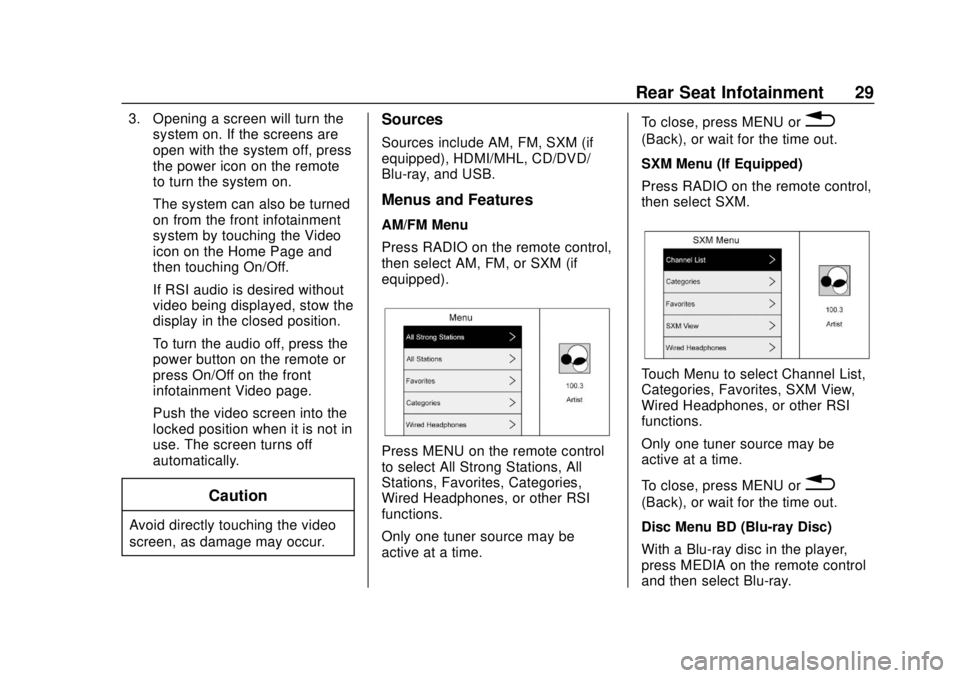
Press RADIO on the remote control,
then select AM, FM, or SXM (if
equipped).
Press MENU on the remote control
to select All Strong Stations, All
Stations, Favorites, Categories,
Wired Headphones, or other RSI
functions.
Only one tuner source may be
active at a time. To close, press MENU or
0
(Back), or wait for the time out.
SXM Menu (If Equipped)
Press RADIO on the remote control,
then select SXM.
Touch Menu to select Channel List,
Categories, Favorites, SXM View,
Wired Headphones, or other RSI
functions.
Only one tuner source may be
active at a time.
To close, press MENU or
0
(Back), or wait for the time out.
Disc Menu BD (Blu-ray Disc)
With a Blu-ray disc in the player,
press MEDIA on the remote control
and then select Blu-ray.
Page 38 of 116
GMC Infotainment System (U.S./Canada 2.6) (GMNA-Localizing-U.S./Canada-
13583174) - 2020 - CRC - 4/15/19
Rear Seat Infotainment 37
of the headphones. Change the
channel on the headphones to the
desired screen source.
One user can listen to the audio
from SCREEN 1 and view the
source on the overhead display
while another user can listen to a
separate audio source by changing
the channel on the wireless
headphones or setting their wired
headphones to SCREEN 2 in
the MENU.
RSI Controls Available from
the Front Screen
To access the RSI, touch the Video
icon from the Home Page. The
Video app may also be touched
from the applications tray if it has
been stored in one of the five
locations.
Sourcing to DVD/BD
This allows for watching a DVD/BD
video on the front screen when the
vehicle is in P (Park).
After a disc is inserted, it will
automatically begin playing. To
resume play of the video where itleft off, Pseudo Resume must be
on. See "Player Setup BD/DVD"
previously in this section.
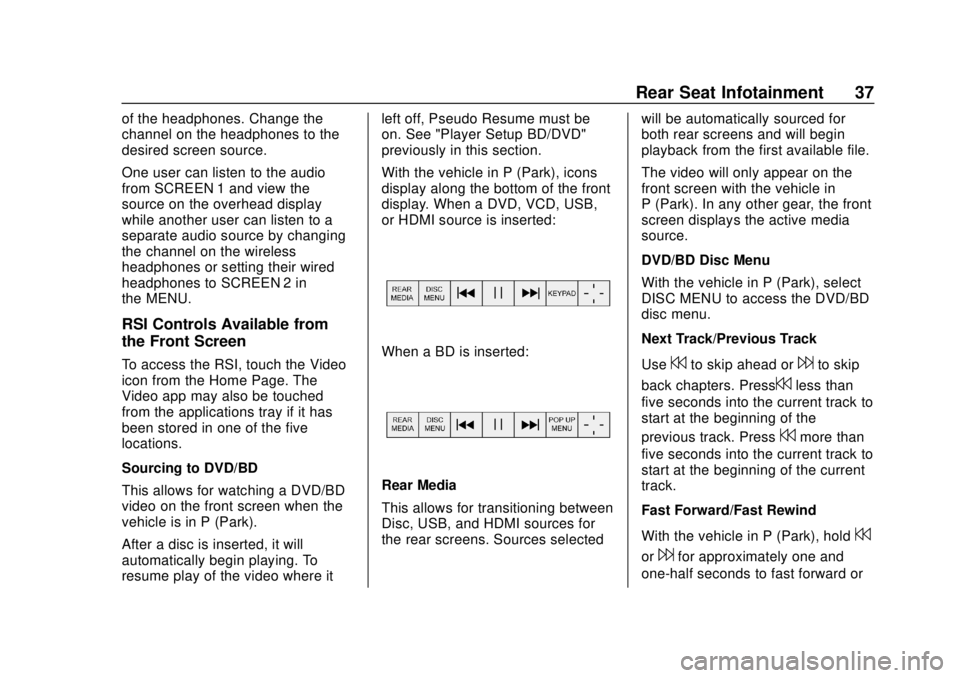
With the vehicle in P (Park), icons
display along the bottom of the front
display. When a DVD, VCD, USB,
or HDMI source is inserted:When a BD is inserted:
Rear Media
This allows for transitioning between
Disc, USB, and HDMI sources for
the rear screens. Sources selected
will be automatically sourced for
both rear screens and will begin
playback from the first available file.
The video will only appear on the
front screen with the vehicle in
P (Park). In any other gear, the front
screen displays the active media
source.
DVD/BD Disc Menu
With the vehicle in P (Park), select
DISC MENU to access the DVD/BD
disc menu.
Next Track/Previous Track
Use
7to skip ahead or6to skip
back chapters. Press
7less than
five seconds into the current track to
start at the beginning of the
previous track. Press
7more than
five seconds into the current track to
start at the beginning of the current
track.
Fast Forward/Fast Rewind
With the vehicle in P (Park), hold
7
or6for approximately one and
one-half seconds to fast forward or
Page 39 of 116
GMC Infotainment System (U.S./Canada 2.6) (GMNA-Localizing-U.S./Canada-
13583174) - 2020 - CRC - 4/15/19
38 Rear Seat Infotainment
fast rewind. If7or6are held for
approximately six seconds, the rate
of fast forward or fast rewind will
increase.
Play/Pause
Touch
rto play orjto pause,
depending on the current selection.
Keypad for DVD/VCD/USB
With the vehicle in P (Park), select
to display the DVD keypad. DVD
keypad functionality is disc
dependent and may not be available
on all DVDs. Up to four digits can
be entered. Select Clear to remove
one digit in the entry field. Touch
and hold Clear to remove all digits
in the entry field.
Pop-Up Menu (BD Only)
This displays the pop-up menu
contents for the BD. Make a
selection or use the interaction
selector to exit pop-up menu view. Cursor
Use to navigate and select items in
the disc menu. Press the up, down,
right, or left arrows, or ENTER.
Touch the cursor to close the
interaction selector and display a
vertical menu of cursors. The cursor
will time out and close.
Enter
Touch the cursor to close the
interaction selector and display a
vertical menu of cursors. The cursor
will time out and close.
Sourcing USB/VCD/HDMI with
Video
This allows for watching videos on
the front screen from devices
plugged into the rear module when
in P (Park).
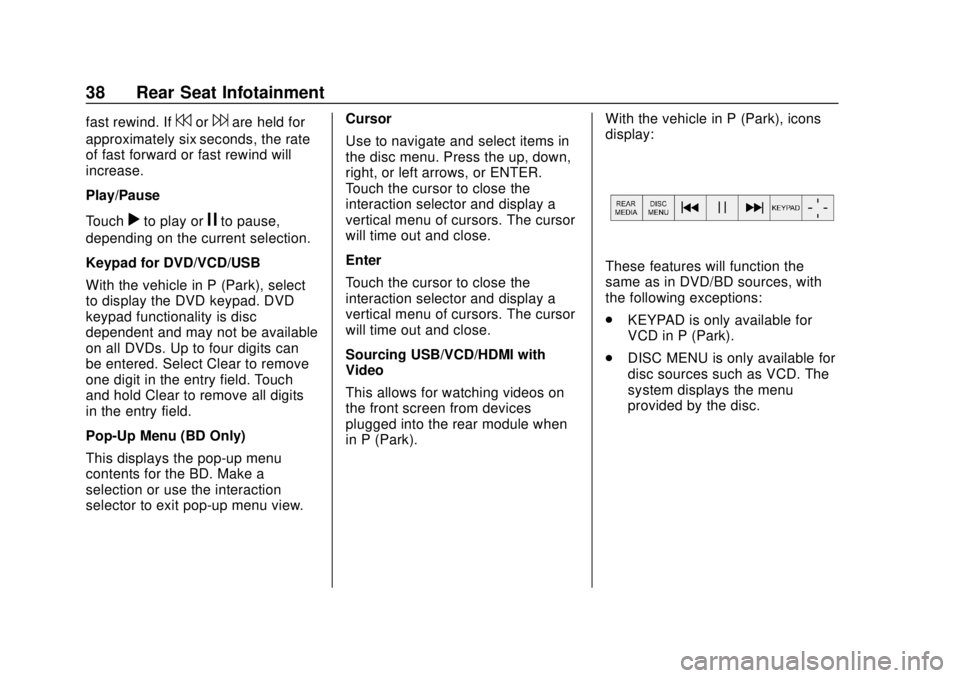
With the vehicle in P (Park), icons
display:
These features will function the
same as in DVD/BD sources, with
the following exceptions:
.
KEYPAD is only available for
VCD in P (Park).
. DISC MENU is only available for
disc sources such as VCD. The
system displays the menu
provided by the disc.
Page 40 of 116
GMC Infotainment System (U.S./Canada 2.6) (GMNA-Localizing-U.S./Canada-
13583174) - 2020 - CRC - 4/15/19
Rear Seat Infotainment 39
Sourcing DVD/BD/USB/VCD/AUX
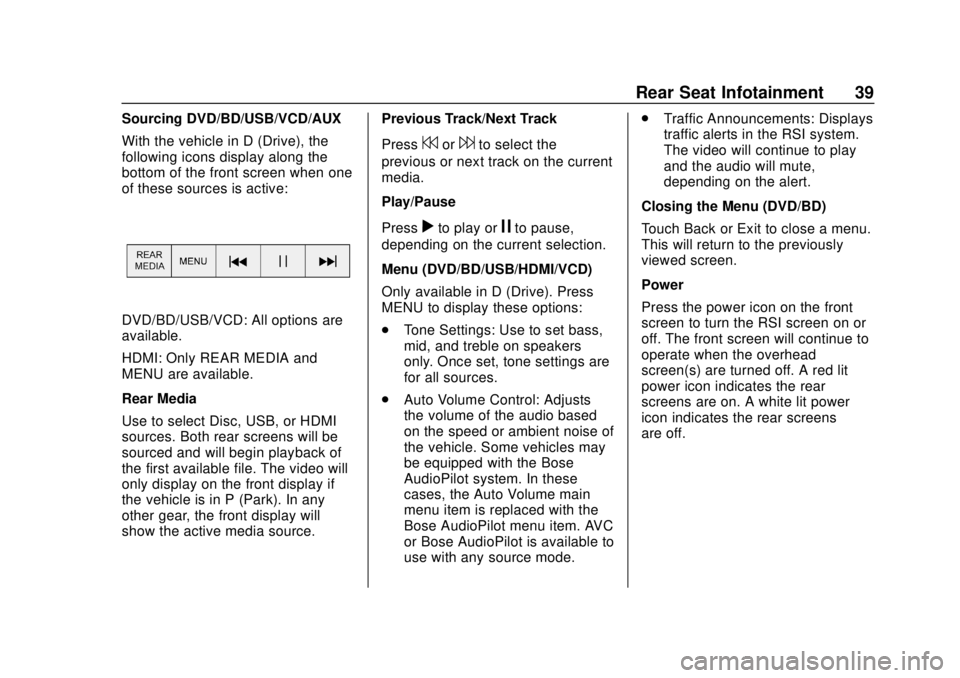
With the vehicle in D (Drive), the
following icons display along the
bottom of the front screen when one
of these sources is active:
DVD/BD/USB/VCD: All options are
available.
HDMI: Only REAR MEDIA and
MENU are available.
Rear Media
Use to select Disc, USB, or HDMI
sources. Both rear screens will be
sourced and will begin playback of
the first available file. The video will
only display on the front display if
the vehicle is in P (Park). In any
other gear, the front display will
show the active media source.Previous Track/Next Track
Press
7or6to select the
previous or next track on the current
media.
Play/Pause
Press
rto play orjto pause,
depending on the current selection.
Menu (DVD/BD/USB/HDMI/VCD)
Only available in D (Drive). Press
MENU to display these options:
. Tone Settings: Use to set bass,
mid, and treble on speakers
only. Once set, tone settings are
for all sources.
. Auto Volume Control: Adjusts
the volume of the audio based
on the speed or ambient noise of
the vehicle. Some vehicles may
be equipped with the Bose
AudioPilot system. In these
cases, the Auto Volume main
menu item is replaced with the
Bose AudioPilot menu item. AVC
or Bose AudioPilot is available to
use with any source mode. .
Traffic Announcements: Displays
traffic alerts in the RSI system.
The video will continue to play
and the audio will mute,
depending on the alert.
Closing the Menu (DVD/BD)
Touch Back or Exit to close a menu.
This will return to the previously
viewed screen.
Power
Press the power icon on the front
screen to turn the RSI screen on or
off. The front screen will continue to
operate when the overhead
screen(s) are turned off. A red lit
power icon indicates the rear
screens are on. A white lit power
icon indicates the rear screens
are off.
Page 41 of 116
GMC Infotainment System (U.S./Canada 2.6) (GMNA-Localizing-U.S./Canada-
13583174) - 2020 - CRC - 4/15/19
40 Rear Seat Infotainment
Headphones
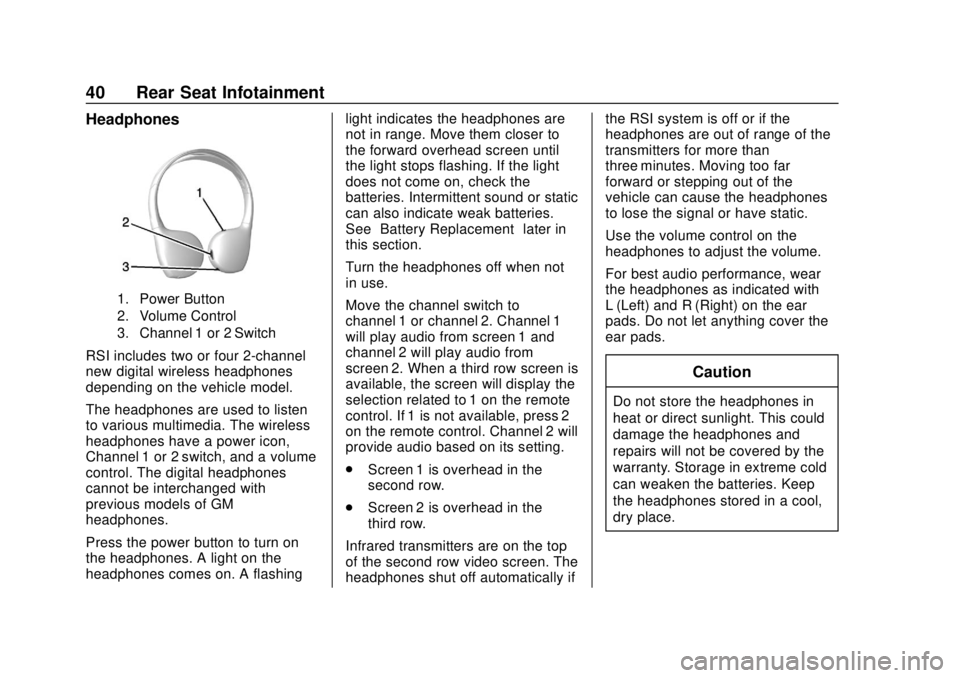
1. Power Button
2. Volume Control
3. Channel 1 or 2 Switch
RSI includes two or four 2-channel
new digital wireless headphones
depending on the vehicle model.
The headphones are used to listen
to various multimedia. The wireless
headphones have a power icon,
Channel 1 or 2 switch, and a volume
control. The digital headphones
cannot be interchanged with
previous models of GM
headphones.
Press the power button to turn on
the headphones. A light on the
headphones comes on. A flashinglight indicates the headphones are
not in range. Move them closer to
the forward overhead screen until
the light stops flashing. If the light
does not come on, check the
batteries. Intermittent sound or static
can also indicate weak batteries.
See
“Battery Replacement” later in
this section.
Turn the headphones off when not
in use.
Move the channel switch to
channel 1 or channel 2. Channel 1
will play audio from screen 1 and
channel 2 will play audio from
screen 2. When a third row screen is
available, the screen will display the
selection related to 1 on the remote
control. If 1 is not available, press 2
on the remote control. Channel 2 will
provide audio based on its setting.
. Screen 1 is overhead in the
second row.
. Screen 2 is overhead in the
third row.
Infrared transmitters are on the top
of the second row video screen. The
headphones shut off automatically if the RSI system is off or if the
headphones are out of range of the
transmitters for more than
three minutes. Moving too far
forward or stepping out of the
vehicle can cause the headphones
to lose the signal or have static.
Use the volume control on the
headphones to adjust the volume.
For best audio performance, wear
the headphones as indicated with
L (Left) and R (Right) on the ear
pads. Do not let anything cover the
ear pads.
Caution
Do not store the headphones in
heat or direct sunlight. This could
damage the headphones and
repairs will not be covered by the
warranty. Storage in extreme cold
can weaken the batteries. Keep
the headphones stored in a cool,
dry place.
Page 44 of 116
GMC Infotainment System (U.S./Canada 2.6) (GMNA-Localizing-U.S./Canada-
13583174) - 2020 - CRC - 4/15/19
Rear Seat Infotainment 43
HDMI Input
An HDMI cable is required to
connect an HDMI device to the RSI
hub. The RSI HDMI input allows
connection to:
.Video games, disc players,
cameras, smartphones, tablets,
and A/V dongles that have HDMI
(version 1.4a) outputs.
. Smart devices that support
Mobile High-Definition Link
(MHL) version 2.0.
. Apple devices. A supporting
HDMI cable from Apple is
required.
For certain HDMI devices that
support USB charging, the USB
ports can be used as a power
source.
To use the HDMI input of the RSI
system: 1. Connect the auxiliary device with an HDMI cable.
2. Power on both the auxiliary device and the RSI video
screen. 3. Press MEDIA on the remote
control and use the arrows to
change the source to HDMI.
USB
There are two USB ports to provide
the RSI system audio/video from
supported devices, as well as to
provide device charging.
Audio from these ports can only be
heard and controlled by the rear
seat passengers. Video can be
heard, shown, and controlled by the
rear and front passengers.
To use the USB: 1. Insert the device into one of the two ports.
2. Select the source (USB 1 or USB 2) through the rear screen
menu using MEDIA on the
remote control.
3. Select the source via the front by touching the Video icon on
the Home Page.Audio Output
Audio from a Blu-ray/DVD/CD
player or HDMI inputs can be heard
through:
.Wireless headphones: Available
for any source depending on the
selected channel.
. Vehicle speakers: Touch the
Video icon on the Home Page.
Select any other source to stop
the speaker audio; rear audio
will continue to play.
. Vehicle wired headphone jack:
See “Wired Headphone Jack”
following.
The RSI system transmits the audio
signal to the wireless headphones if
an audio signal is available. See
“Headphones” earlier in this section.
Front seat passengers can listen to
playback from the attached rear
device through the vehicle speakers
by selecting that source from the
Video Application on the front
display Home Page.
Page 49 of 116
GMC Infotainment System (U.S./Canada 2.6) (GMNA-Localizing-U.S./Canada-
13583174) - 2020 - CRC - 4/15/19
48 Navigation
Navigation
Using the Navigation
System
Touch the NAV icon on the Home
Page or the Nav icon on the
applications tray to access the
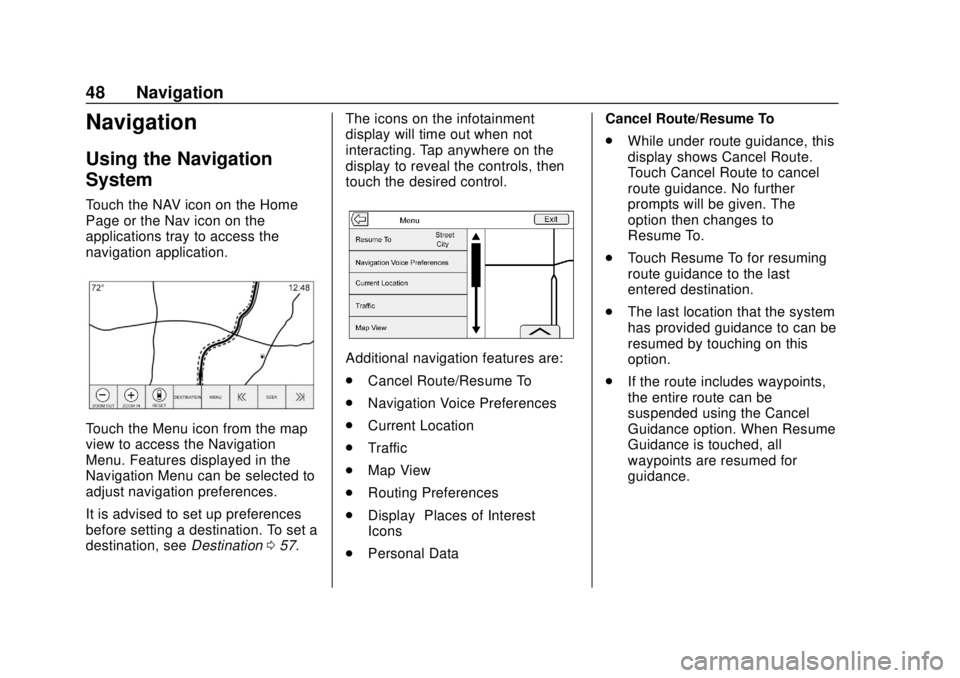
navigation application.
Touch the Menu icon from the map
view to access the Navigation
Menu. Features displayed in the
Navigation Menu can be selected to
adjust navigation preferences.
It is advised to set up preferences
before setting a destination. To set a
destination, seeDestination057. The icons on the infotainment
display will time out when not
interacting. Tap anywhere on the
display to reveal the controls, then
touch the desired control.
Additional navigation features are:
.
Cancel Route/Resume To
. Navigation Voice Preferences
. Current Location
. Traffic
. Map View
. Routing Preferences
. Display “Places of Interest”
Icons
. Personal Data Cancel Route/Resume To
.
While under route guidance, this
display shows Cancel Route.
Touch Cancel Route to cancel
route guidance. No further
prompts will be given. The
option then changes to
Resume To.
. Touch Resume To for resuming
route guidance to the last
entered destination.
. The last location that the system
has provided guidance to can be
resumed by touching on this
option.
. If the route includes waypoints,
the entire route can be
suspended using the Cancel
Guidance option. When Resume
Guidance is touched, all
waypoints are resumed for
guidance.
Page 50 of 116
GMC Infotainment System (U.S./Canada 2.6) (GMNA-Localizing-U.S./Canada-
13583174) - 2020 - CRC - 4/15/19
Navigation 49
Navigation Voice Preferences
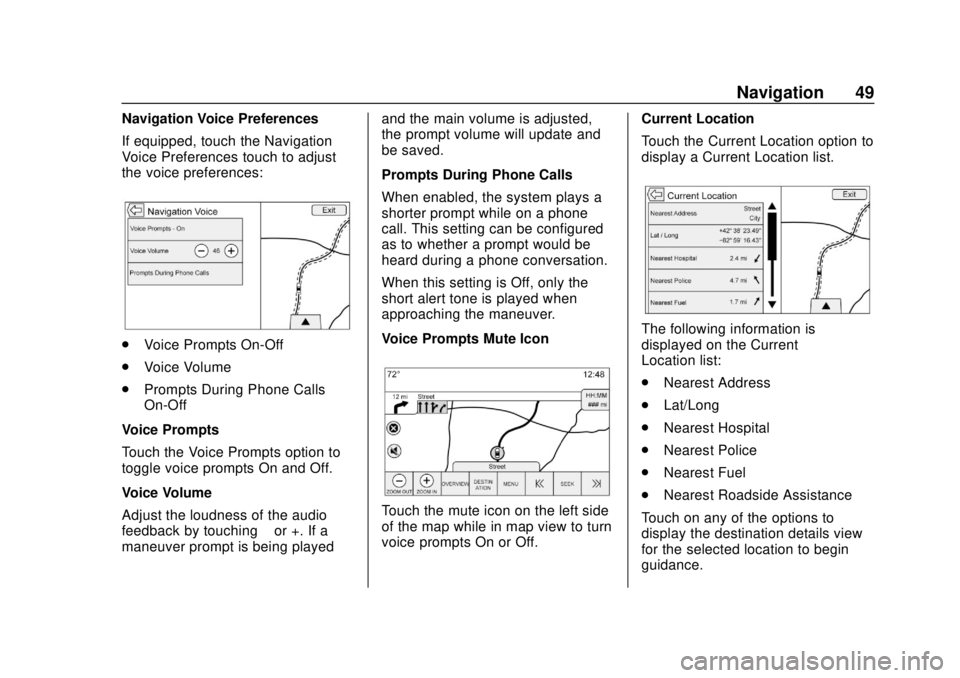
If equipped, touch the Navigation
Voice Preferences touch to adjust
the voice preferences:
.Voice Prompts On-Off
. Voice Volume
. Prompts During Phone Calls
On-Off
Voice Prompts
Touch the Voice Prompts option to
toggle voice prompts On and Off.
Voice Volume
Adjust the loudness of the audio
feedback by touching –or +. If a
maneuver prompt is being played and the main volume is adjusted,
the prompt volume will update and
be saved.
Prompts During Phone Calls
When enabled, the system plays a
shorter prompt while on a phone
call. This setting can be configured
as to whether a prompt would be
heard during a phone conversation.
When this setting is Off, only the
short alert tone is played when
approaching the maneuver.
Voice Prompts Mute Icon
Touch the mute icon on the left side
of the map while in map view to turn
voice prompts On or Off.
Current Location
Touch the Current Location option to
display a Current Location list.
The following information is
displayed on the Current
Location list:
.
Nearest Address
. Lat/Long
. Nearest Hospital
. Nearest Police
. Nearest Fuel
. Nearest Roadside Assistance
Touch on any of the options to
display the destination details view
for the selected location to begin
guidance.