2020 FORD MUSTANG ECO mode
[x] Cancel search: ECO modePage 255 of 464

WARNING:
Track Apps™ is for
track use only. Remember that even
advanced technology cannot defy the
laws of physics. It is always possible to
lose control of a vehicle due to
inappropriate driver input for the
conditions. Aggressive driving on any
road condition can cause you to lose
control of your vehicle increasing the risk
of personal injury or property damage.
Appropriately change the engine oil for
racing and other track events:
• 2.3L: Prior to the track event, drain the
engine oil, replace the oil filter and
change the engine oil to 5W-50. After
the track event, drain the engine oil,
replace the oil filter and refill the engine
oil with 5W-30.
See Capacities and
Specifications (page 303).
• 5.0L: Prior to the track event, drain the
engine oil, replace the oil filter and
change the engine oil to 5W-30. After
the track event, drain the engine oil,
replace the oil filter and refill the engine
oil with 5W-20.
See Capacities and
Specifications (page 303).
Regularly check the engine oil level during
the event. Maintain the engine oil level at
or near the max mark on the engine oil
dipstick. See Engine Oil Check (page 237).
Track Apps
This information display driven feature
provides a suite of menu options to record
and optimize your track performances.
See
General Information (page 90).
Note: Track Apps
are for track use only.
Do not use them under any other driving
conditions. Note:
You cannot view or clear your results
unless your vehicle is at a complete stop
with the right arrow on the display menu
inactive. If your vehicle does not reach
100 mph (160 km/h)
during the track run,
your display may not show your selected
interval's results.
Note: The pre-collision assist system turns
off when using
Track Apps or when you
switch off your stability control system.
Acceleration Timer
Displays your vehicle's rate of acceleration
for a given speed or distance range.
Accelerometer
Displays your vehicle's rate of acceleration
or deceleration. A dot moves toward the
area of acceleration or deceleration.
LEFT Acceleration or Deceleration
When accelerating or decelerating left, the
dot moves to the right on the
accelerometer.
RIGHT Acceleration or Deceleration
When accelerating or decelerating right,
the dot moves to the left on the
accelerometer.
Brake Performance
Displays your vehicle's rate of deceleration
for a given speed range.
Exhaust Mode
Gives the driver the ability to choose the
vehicle's exhaust mode.
252
Mustang (CZG) Canada/United States of America, Vehicles Built From: 15-07-2019, enUSA, Edition date: 201906, Second-Printing Track Use
Page 256 of 464

Note:
The Track Exhaust Mode setting is
only for use at tracks and not for use on
public roadways. Use of this setting results
in increased exterior noise, which may not
meet state and local laws and regulations.
It is the obligation of the driver to operate
the vehicle in a manner that complies with
state and local requirements. Only use the
Track Exhaust Mode
setting at a
competition track or an off-road course
where elevated exterior vehicle noise is
acceptable.
Lap Timer
Gives you the ability to record lap times at
three separate tracks.
Launch Control (If Equipped)
Maximizes your vehicle's traction from a
standing start.
Use launch control, follow these steps:
1. Bring your vehicle to a complete stop.
2. Make sure launch control is enabled. The indicator illuminates in the
instrument display when launch control
is enabled.
See Warning Lamps and
Indicators (page 85).
3. Fully depress the clutch pedal.
4. Shift the transmission into 1st gear.
5. Fully depress the accelerator pedal and
allow the engine RPM to stabilize.
6. Release the clutch pedal.
Line Lock
Line lock is a feature intended for use at
tracks only and should not be used on
public roadways. Use of this feature may
result in significantly increased rear tire
wear. It is intended to condition the rear
tires to maximize traction prior to track use.
Line lock maintains brake force at the front
wheels, allowing the rear wheels to spin
with minimal vehicle movement. This feature is located in the
Track Apps
menu. Make selections through the 5-way
information display control and OK button
located on the steering wheel.
Using
Line Lock
There are three line lock stages:
• Initiated.
• Engaged.
• Off.
Initiating
Line Lock
The initiation stage verifies that the vehicle
is ready for line lock function, and confirms
driver intent. Follow the prompts in the
information display to initiate line lock.
The following conditions must be met to
initialize line lock:
• The vehicle is on a level surface.
• The engine is running.
• The vehicle is traveling less than
25 mph (40 km/h)
.
• Selectable drive mode is not in wet
mode (if equipped).
• There are no electronic stability control
faults.
If you want to cancel line lock once it is
initialized, press the left information
display control. Once initiated, line lock is
prepared for activation and remains
initiated up to 25 mph (40 km/h). If vehicle
speed exceeds 25 mph (40 km/h), line lock
automatically cancels.
253
Mustang (CZG) Canada/United States of America, Vehicles Built From: 15-07-2019, enUSA, Edition date: 201906, Second-Printing Track Use
Page 257 of 464

Engaging Line Lock
Follow the prompts in the information
display to engage line lock after it is
initialized. To engage, firmly apply the
brakes. Then press the OK button. Once
engaged, release the brake pedal. The
front brakes remain applied and the rear
brakes release. At this point, the
engagement timer is initiated and shown
on the driver information display.
The following conditions must be met to
engage line lock:
• The vehicle is on a level surface.
• The engine is running.
• The vehicle is stopped.
• The parking brake is not applied.
• The driver door is closed.
• The transmission is in a forward gear.
• Selectable drive mode is not in wet
mode (if equipped).
• There are no electronic stability control
faults.
• The steering wheel must be in the
straight ahead position.
Releasing
Line Lock
While line lock is engaged, you can exit
(release) the feature using the OK button.
When you press the OK button, line lock
releases immediately and normal vehicle
function resumes. When line lock engages,
a countdown timer shows the remaining
time before line lock is released
automatically. If you exceed the time limit,
or another vehicle condition requires line
lock to release, the system safely
disengages and normal vehicle function
resumes.
Note: If you apply the brake pedal while
line lock is engaged, line lock automatically
cancels and normal brake function resumes. Start Option
Allows you to select the type of countdown
the information display shows before
starting an event.
Status Screen
Provides the status of your chosen
performance-related settings.
View/Clear Results
Allows you to view and clear the last and
saved results of the
Acceleration Timer,
Brake Performance, and All Time Best
results.
254
Mustang (CZG) Canada/United States of America, Vehicles Built From: 15-07-2019, enUSA, Edition date: 201906, Second-Printing Track Use
Page 265 of 464
Removing Vehicle From Storage
When your vehicle is ready to come out of
storage, do the following:
•
Wash your vehicle to remove any dirt
or grease film build-up on window
surfaces.
• Check windshield wipers for any
deterioration.
• Check under the hood for any foreign
material that may have collected
during storage such as mice or squirrel
nests.
• Check the exhaust for any foreign
material that may have collected
during storage.
• Check tire pressures and set tire
inflation per the Tire Label.
• Check brake pedal operation. Drive
your vehicle 15 ft (4.5 m) back and
forth to remove rust build-up.
• Check fluid levels (including coolant,
oil and gas) to make sure there are no
leaks, and fluids are at recommended
levels.
• If you remove the battery, clean the
battery cable ends and check for
damage.
Contact an authorized dealer if you have
any concerns or issues.
CLEANING THE CONVERTIBLE
TOP
(IF EQUIPPED)
Remove lint with a lint roller or a vacuum
with a soft bristle brush.
For cloth and vinyl tops, wash with an
approved high-quality convertible top
cleaner and protectant.
Note: Do not use stiff bristle brushes,
abrasive materials or household cleaning
products. Note:
High-pressure water may cause
water leaks and possible seal damage to
the convertible top.
Note: Do not fold the convertible top when
it is wet.
Note: Avoid hot wax on vinyl materials
during car washes.
BODY STYLING KITS
The distance between the underside of
your vehicle and the ground is less than
that of other models. Drive with extreme
care to avoid damage to your vehicle.
262
Mustang (CZG) Canada/United States of America, Vehicles Built From: 15-07-2019, enUSA, Edition date: 201906, Second-Printing Vehicle Care
Page 304 of 464

VEHICLE IDENTIFICATION
NUMBER
The vehicle identification number is
located on the left-hand side of the
instrument panel.
Please note that in the graphic, XXXX is
representative of your vehicle identification
number.
The Vehicle Identification Number contains
the following information: World manufacturer identifier
A
Brake system, Gross Vehicle
Weight Rating, Restraint Devices
and their locations
B
Make, vehicle line, series, body
type
C
Engine type
D
Check digit
E
Model year
F
Assembly plant
G
Production sequence number
H
301
Mustang (CZG) Canada/United States of America, Vehicles Built From: 15-07-2019, enUSA, Edition date: 201906, Second-Printing Capacities and SpecificationsE142476 E142477
Page 323 of 464

CONNECTING THE VEHICLE TO
A MOBILE NETWORK
What Is the Modem
The modem allows you to connect your
vehicle to the Internet to use when you are
on the road.
If you enable the modem using the
FordPass app, you can access the
following services:
•
Locating and remotely starting, locking
and unlocking your vehicle. See the
information in FordPass app.
• Automatic system updates.
Enabling the Modem Using
FordPass
1. Open the FordPass app on your device
and log in.
2. Select your vehicle. 3. Select the option for vehicle details.
4. Select the option to activate or
deactivate your vehicle.
5. Switch the ignition on.
6. Make sure that the name on the screen
matches the name shown in your
FordPass account.
7. Confirm the association of your vehicle
with your FordPass account.
Enabling the Modem Using the
Touchscreen Select the settings option on the
feature bar.
1. Select FordPass Connect.
2. Select
Connectivity Settings.
3. Switch
Connectivity Features on.
4. Switch
Send vehicle data on.
Note: To disable the modem, perform the
steps in reverse order.
320
Mustang (CZG) Canada/United States of America, Vehicles Built From: 15-07-2019, enUSA, Edition date: 201906, Second-Printing Network Connectivity
(If Equipped)E280315
Page 325 of 464
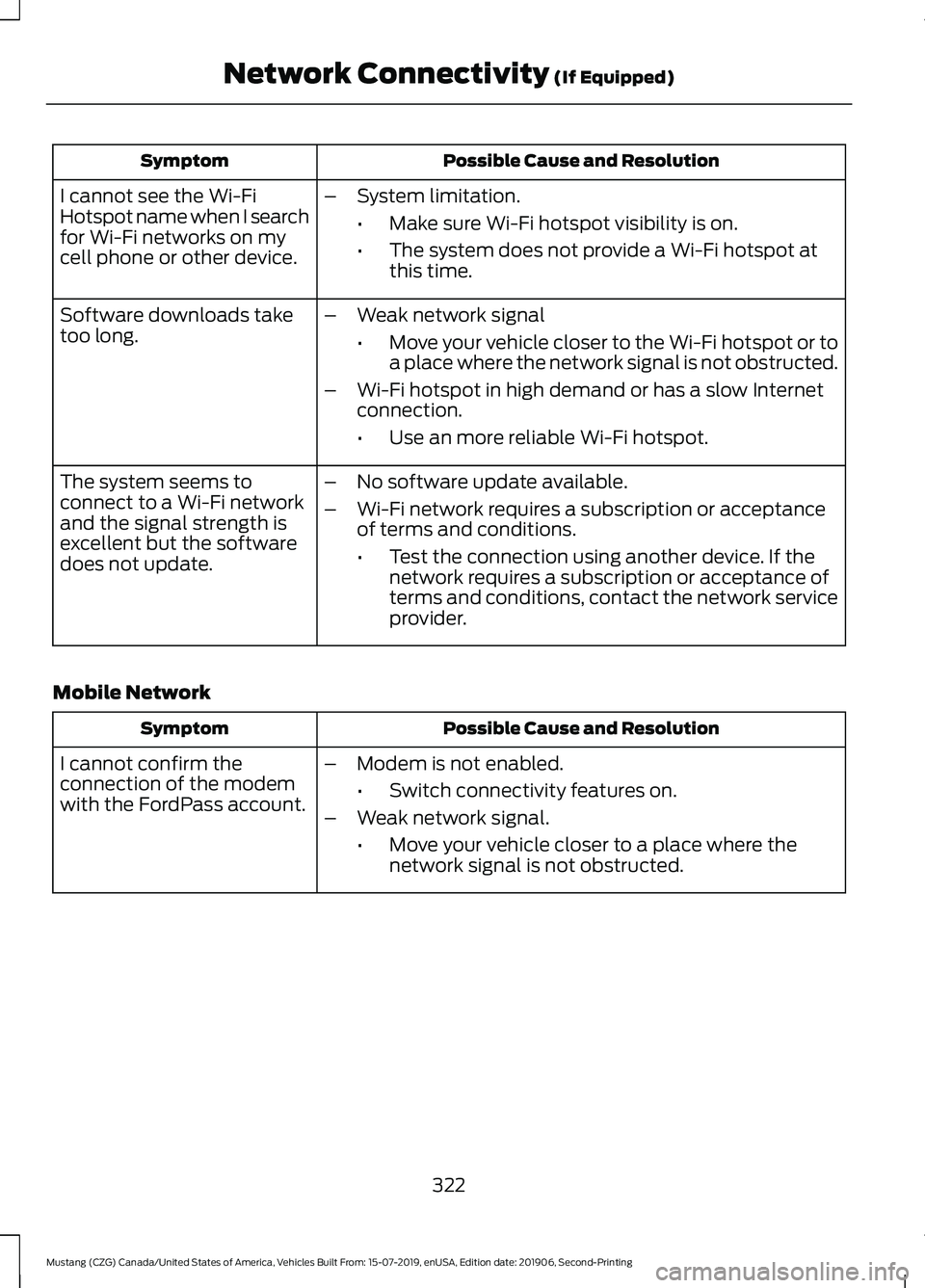
Possible Cause and Resolution
Symptom
I cannot see the Wi-Fi
Hotspot name when I search
for Wi-Fi networks on my
cell phone or other device. –
System limitation.
•Make sure Wi-Fi hotspot visibility is on.
• The system does not provide a Wi-Fi hotspot at
this time.
– Weak network signal
•Move your vehicle closer to the Wi-Fi hotspot or to
a place where the network signal is not obstructed.
– Wi-Fi hotspot in high demand or has a slow Internet
connection.
•Use an more reliable Wi-Fi hotspot.
Software downloads take
too long.
–No software update available.
– Wi-Fi network requires a subscription or acceptance
of terms and conditions.
•Test the connection using another device. If the
network requires a subscription or acceptance of
terms and conditions, contact the network service
provider.
The system seems to
connect to a Wi-Fi network
and the signal strength is
excellent but the software
does not update.
Mobile Network Possible Cause and Resolution
Symptom
–Modem is not enabled.
•Switch connectivity features on.
– Weak network signal.
•Move your vehicle closer to a place where the
network signal is not obstructed.
I cannot confirm the
connection of the modem
with the FordPass account.
322
Mustang (CZG) Canada/United States of America, Vehicles Built From: 15-07-2019, enUSA, Edition date: 201906, Second-Printing Network Connectivity (If Equipped)
Page 328 of 464

Accessing the Apps Menu
Press and release the button to
access the apps menu. Follow
the on-screen prompts to make
your selection.
Accessing the Clock Settings Press and release the button to
access the clock setting.
Use the center arrow controls to
change the hours and minutes.
Accessing the Media Source Menu Press and release to open the
media source menu.
You can press this multiple times to
change to a SYNC-Media device or scroll
through the media sources using the arrow
buttons. Press OK to select a source.
Accessing the Phone Features Press and release the button to
access the phone features of the
SYNC system.
Accessing the Settings Menu Press and release the button to
access the settings menu.
Follow the on-screen prompts
to make your selection.
Accessing the Sound Settings Press and release the button to
access settings for Treble,
Midrange, Bass, Fade and
Balance. Adjusting the Volume
Turn to adjust the volume.
Changing Radio Stations
In radio mode, turn to search through the
radio frequency band.
In satellite radio mode, turn to find the
previous or next available satellite radio
station.
325
Mustang (CZG) Canada/United States of America, Vehicles Built From: 15-07-2019, enUSA, Edition date: 201906, Second-Printing Audio SystemE249410 E265036 E265035 E142607 E265373 E265696