2020 FORD GT lock
[x] Cancel search: lockPage 190 of 316

Note:
If you experience any unusual
vibration, ride disturbance or noise while
driving, reduce your speed until you can
safely pull off to the side of the road to call
for roadside assistance. Note: Do not
proceed to the second stage of this
operation.
Second Stage: Checking Tire
Pressure WARNING: The power plug may
get hot after use and should be handled
carefully when unplugging.
If you are proceeding from the First Stage:
Re-inflating the Tire with Sealing
Compound and Air section and have
injected sealant in the tire and the pressure
is below
20 psi (137 kPa), continue to the
next step.
Check the air pressure of your tires as
follows: 1. Remove the valve cap from the tire
valve.
2. Firmly screw the air compressor hose onto the valve stem by turning
clockwise.
3. Push and turn the dial clockwise to the
air position. 4. If required, switch on the compressor
and adjust the tire to the
recommended inflation pressure
shown on the tire label located on the
driver's door or door jamb area. You
should check the tire pressure with the
compressor turned OFF in order to get
an accurate pressure reading.
5. Unplug the hoses, re-install the valve cap on the tire and return the kit to the
stowage area.
What to Do After the Tire has Been
Sealed
After using the kit to seal your tire, you will
need to replace the sealant canister. You
can obtain sealant canisters and spare
parts at an authorized Ford dealer. You can
dispose of empty sealant canisters at
home. However, you should dispose of
canisters still containing liquid sealant
through your local authorized Ford dealer
or tire dealer, or in accordance with local
waste disposal regulation.
Note: After you use the sealing compound,
the maximum vehicle speed is
50 mph
(80 km/h) and the maximum driving
distance is 120 mi (200 km). You should
inspect the sealed tire immediately.
You can check the tire pressure any time
within the 120 mi (200 km) by performing
the steps listed previously in the Second
Stage: Checking Tire Pressure procedure.
187
Ford GT (CGX) Canada/United States of America, enUSA, Edition date: 201908, First-Printing Wheels and TiresE175983
Page 218 of 316

Capacities
Quantity
Variant
15.3 qt (14.5 L)
Engine oil with oil filter (dry fill capacity).
13.7 qt (13 L)
Engine oil with oil filter (oil change refill
capacity).
Materials Specification
Name
WSS-M2C931-C
Castrol® EDGE® Supercar 5W-50 (U.S.)
(Canada)
Fuel Tank
Capacities Quantity
Variant
15.2 gal (57.54 L)
All.
Grease
Materials Specification
Name
ESB-M1C93-B
Motorcraft® Multi-Purpose Grease Spray (U.S.)
Motorcraft® Multi-Purpose Grease Spray / Graisse
tout usage en aérosol Motorcraft® (Canada)
XL-5-A (U.S. & Canada)
Locks
215
Ford GT (CGX) Canada/United States of America, enUSA, Edition date: 201908, First-Printing Capacities and Specifications
Page 219 of 316

Materials
Specification
Name
-
Motorcraft® Penetrating and Lock Lubricant (U.S.)
Motorcraft® Penetrating Fluid / Liquide dégrippant
Motorcraft® (Canada)
XL-1 (U.S.)
CXC-51-A (Canada)
Hydraulic Brake System
Capacities Quantity
Variant
1.1 qt (1.04 L)
All.
Materials Specification
Name
WSS-M6C57-A2
Brake Fluid
Note: We recommend using DOT 4 Low
Viscosity (LV) High Performance Brake Fluid
or equivalent meeting WSS-M6C57-A2. Use
of any fluid other than the recommended
fluid may cause degraded brake
performance and not meet our performance
standards. Keep brake fluid clean and dry.
Contamination with dirt, water, petroleum
products or other materials may result in
brake system damage and possible failure.
Hydraulic Power Steering, Active Suspension, and Active Aero System
Capacities Quantity
Variant
6.3 qt (6 L)
All.
216
Ford GT (CGX) Canada/United States of America, enUSA, Edition date: 201908, First-Printing Capacities and Specifications
Page 222 of 316

GENERAL INFORMATION
WARNING: Driving while
distracted can result in loss of vehicle
control, crash and injury. We strongly
recommend that you use extreme
caution when using any device that may
take your focus off the road. Your
primary responsibility is the safe
operation of your vehicle. We
recommend against the use of any
hand-held device while driving and
encourage the use of voice-operated
systems when possible. Make sure you
are aware of all applicable local laws
that may affect the use of electronic
devices while driving.
About SYNC
The system allows you to interact with the
entertainment, information and
communication systems on your vehicle
using voice commands and a touchscreen.
The system provides easy interaction with
audio, phone, navigation, mobile apps and
settings.
Note: You can switch the system on and
use it for up to an hour without switching
the ignition on.
Note: You can use the system after you
switch the ignition off for up to 10 minutes
or until you open a door.
Note: For your safety, some features are
speed-dependent. Their use is limited to
when your vehicle speed is less than 3 mph
(5 km/h)
. Using the Touchscreen
Status bar.
A
Home screen.
B
Clock. See Settings (page 247).
C
Outside air temperature.
D
Feature bar.
E
Status Bar Cell phone microphone muted.
Audio system muted.
Software update installed.
Wi-Fi connected.
Cell phone roaming.
Text message received.
219
Ford GT (CGX) Canada/United States of America, enUSA, Edition date: 201908, First-Printing SYNC™ 3E293823
Page 227 of 316
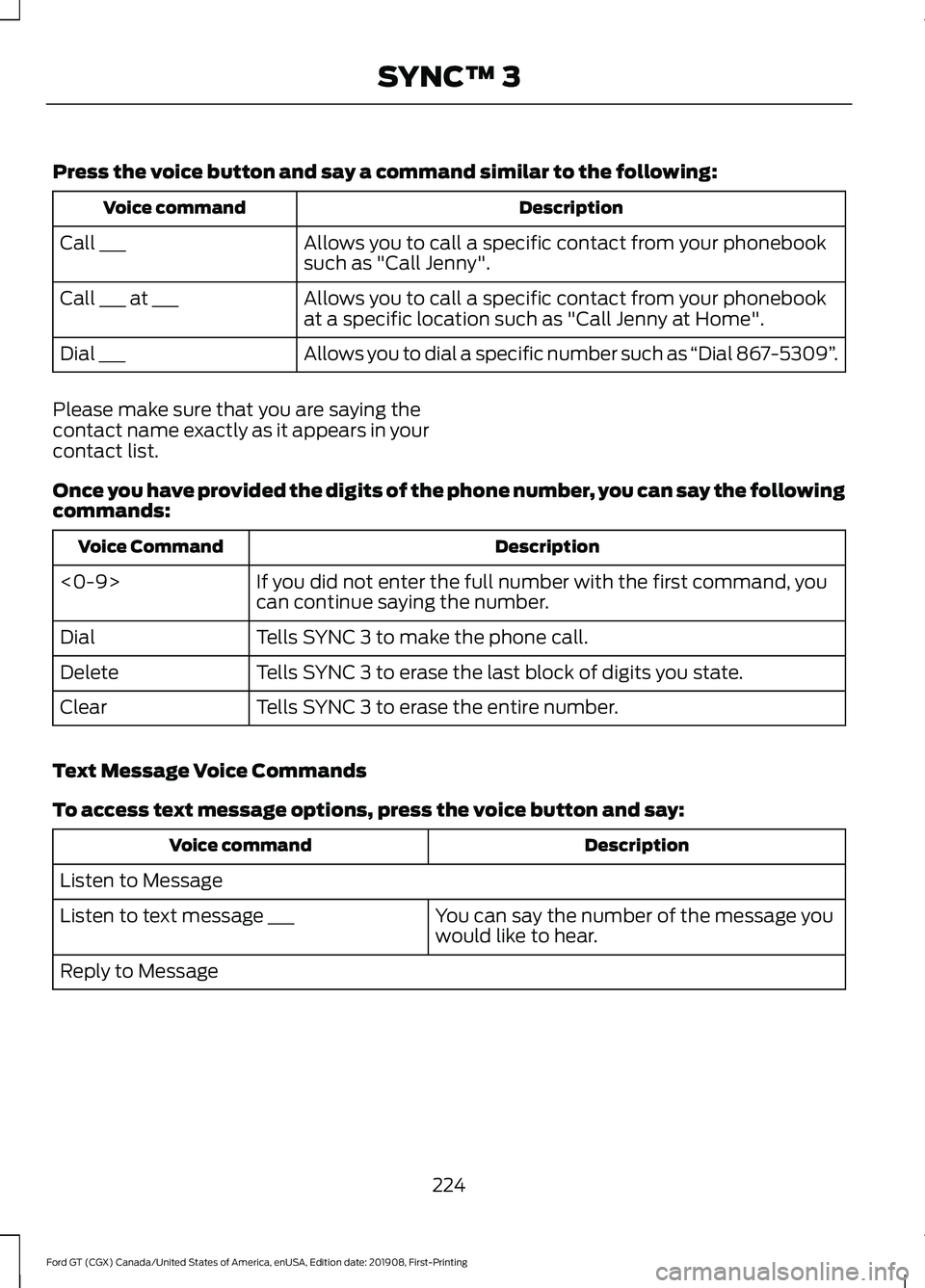
Press the voice button and say a command similar to the following:
Description
Voice command
Allows you to call a specific contact from your phonebook
such as "Call Jenny".
Call ___
Allows you to call a specific contact from your phonebook
at a specific location such as "Call Jenny at Home".
Call ___ at ___
Allows you to dial a specific number such as “Dial 867-5309”.
Dial ___
Please make sure that you are saying the
contact name exactly as it appears in your
contact list.
Once you have provided the digits of the phone number, you can say the following
commands: Description
Voice Command
If you did not enter the full number with the first command, you
can continue saying the number.
<0-9>
Tells SYNC 3 to make the phone call.
Dial
Tells SYNC 3 to erase the last block of digits you state.
Delete
Tells SYNC 3 to erase the entire number.
Clear
Text Message Voice Commands
To access text message options, press the voice button and say: Description
Voice command
Listen to Message You can say the number of the message you
would like to hear.
Listen to text message ___
Reply to Message
224
Ford GT (CGX) Canada/United States of America, enUSA, Edition date: 201908, First-Printing SYNC™ 3
Page 235 of 316

Troubleshooting Tips
Action
Cause
Message
No action required. This
message should disappear
shortly.
Radio requires more than two
seconds to produce audio for
the selected channel.
Acquiring Signal
If this message does not clear
shortly, or with an ignition key
cycle, your receiver may have
a fault. See an authorized
dealer for service.
There is an internal module or
system failure present.
Satellite antenna fault
SIRIUS system failure
Tune to another channel or
choose another preset.
The channel is no longer avail-
able.
Invalid Channel
Contact SiriusXM at 1-888-
539-7474 to subscribe to the
channel, or tune to another
channel.
Your subscription does not
include this channel.
Unsubscribed Channel
The signal is blocked. When
you move into an open area,
the signal should return.
The signal is lost from the Siri-
usXM satellite or SiriusXM
tower to your vehicle antenna.
Satellite acquiring
signal…
No action required. The
process may take up to three
minutes.
Update of channel program-
ming in progress.
Updating…
Contact SiriusXM at 1-888-
539-7474 to resolve subscrip-
tion issues.
Your satellite service is no
longer available.
Questions? Call 1-
888-539-7474
Use the channel guide or the
Sirius XM Settings tile to turn
off the Lock or Skip function on
that station.
All the channels in the selected
category are either skipped or
locked.
None found. Check
channel guide.
No action required.
SiriusXM has updated the
channels available for your
vehicle.
SIRIUS Subscription
updated
HD Radio ™ Information (If
Available)
To activate HD radio, please see the Radio
Settings in the Settings Chapter. See
Settings (page 247). Note:
HD Radio broadcasts are not
available in all markets.
232
Ford GT (CGX) Canada/United States of America, enUSA, Edition date: 201908, First-Printing SYNC™ 3
Page 249 of 316

Note:
If you close the apps on your device,
you will not be able to use them through the
system.
5. Select the app that you want to use on
the touchscreen.
Note: Connect your device to a USB port if
you want to use a navigation app. When
using a navigation app, keep your device
unlocked and the app open.
Using Apps on an Android Device Select the apps option on the
feature bar.
1. If your device is connected via USB, switch Android Auto off. See Phone
(page 238).
2. Pair your device. See Phone (page 238).
3. Start the apps on your device that you want to use through SYNC.
Note: If you close the apps on your device,
you will not be able to use them through the
system.
4. Select
Find Mobile Apps.
Note: The system searches and connects
to compatible apps that are running on your
device.
5. Select the app that you want to use on
the touchscreen.
Note: Mobile Apps on your device use the
USB port to establish a connection with
SYNC. Some devices may lose the ability to
play music over USB when Mobile Apps are
enabled.
Using Mobile Navigation on an
Android Device
1. Connect your device to a USB port.
2. Switch Android Auto off. See
Phone
(page 238).
3. Switch on
Enable Mobile Apps via
USB in the Mobile Apps Settings tile. 4. Select the apps option on the feature
bar.
5. Select the navigation app that you want to use on the touchscreen.
Note: When using a navigation app, keep
your device unlocked and the app open.
SiriusXM Traffic and Travel Link (If
Equipped) WARNING:
Driving while
distracted can result in loss of vehicle
control, crash and injury. We strongly
recommend that you use extreme
caution when using any device that may
take your focus off the road. Your
primary responsibility is the safe
operation of your vehicle. We
recommend against the use of any
hand-held device while driving and
encourage the use of voice-operated
systems when possible. Make sure you
are aware of all applicable local laws
that may affect the use of electronic
devices while driving.
Note: SiriusXM Traffic and Travel Link may
not be available in all markets.
Note: In order to use SiriusXM Traffic and
Travel Link, your vehicle must have
navigation.
Note: A paid subscription is required to
access and use these features. Go to
www.siriusxm.com/travellink for more
information.
Note: Visit www.siriusxm.com/traffic and
click on Coverage map and details for a
complete listing of all traffic areas covered
by SiriusXM Traffic and Travel Link.
Note: Neither Sirius nor Ford is responsible
for any errors or inaccuracies in the SiriusXM
Traffic and Travel Link services or its use in
vehicles.
246
Ford GT (CGX) Canada/United States of America, enUSA, Edition date: 201908, First-Printing SYNC™ 3
Page 250 of 316

When you subscribe to SiriusXM Traffic
and Travel Link, it can help you locate the
best gas prices, find movie listings, get
current traffic alerts, view the current
weather map, get accurate ski conditions
and see scores to current sports games. Action and Description
Menu Item
Touch these buttons to identify traffic incidents on your route,
near your vehicle’s current location or near any of your favorite
places, if programmed.
Traffic on Route
Traffic Nearby
Touch this button to view fuel prices at stations close to your
vehicle’s location or on an active navigation route.
Fuel Prices
Touch this button to view nearby movie theaters and their
show times, if available.
Movie Listings
Touch this button to view the nearby weather, current weather,
or the five-day forecast for the chosen area.
Weather
Select to see the weather map,
which can show storms, radar
information, charts and winds.
Map
Select to choose from a listing of
weather locations.
Area
Touch this button to view scores and schedules from a variety
of sports. You can also save up to 10 favorite teams for easier
access. The score automatically refreshes when a game is in
progress.
Sports Info
Touch this button to view ski conditions for a specific area.
Ski Conditions
SETTINGS Press the button to enter the
settings menu.
Once you select a tile, press the
button next to a menu item to
view an explanation of the
feature or setting.
Sound
Select this tile to adjust sound the settings. Clock
Select this tile to adjust the clock settings.
Bluetooth
Select this tile to switch Bluetooth on and
off and adjust the settings.
Phone
Select this tile to connect, disconnect, and
manage the connected device settings.
Audio
Select this tile to adjust the audio settings.
247
Ford GT (CGX) Canada/United States of America, enUSA, Edition date: 201908, First-Printing SYNC™ 3E280315 E268570