2020 FORD EXPEDITION tow
[x] Cancel search: towPage 227 of 542

WARNING: Active park assist does
not apply the brakes under any
circumstances. WARNING: You are responsible for
controlling your vehicle at all times. The
system is designed to be an aid and does
not relieve you of your responsibility to
drive with due care and attention. Failure
to follow this instruction could result in
the loss of control of your vehicle,
personal injury or death.
Active park assist is a multi-step process
and may require you to shift the
transmission multiple times. Follow the
onscreen instructions until the parking
maneuver is complete.
If you are uncomfortable with the proximity
to any vehicle or object, you may choose
to override the system by grabbing the
steering wheel, or by taking full control of
your vehicle after pressing the active park
assist button.
Keep your hands, hair, clothing and any
loose items clear of the steering wheel
when using active park assist.
The sensors are on the front and rear
bumpers.
Note: Keep the sensors free from snow, ice
and large accumulations of dirt.
Note: Do not cover up the sensors.
Note: Do not clean the sensors with sharp
objects.
Note: The sensors may not detect objects
with surfaces that absorb ultrasonic waves.
The sensors may falsely detect objects due
to ultrasonic interference caused by
motorcycle exhausts, truck air brakes or
horns, for example.
Note: If you change any tires, the system
must recalibrate and may not correctly
operate for a short time. The system may not correctly operate in
any of the following conditions:
•
You use a spare tire or a tire that is
significantly worn more than the other
tires.
• One or more tires are incorrectly
inflated.
• You try to park on a tight curve.
• Something passes between the front
bumper and the parking space. For
example, a pedestrian or cyclist.
• The edge of the neighboring parked
vehicle is high off the ground. For
example, a bus, tow truck or flatbed
truck.
• The weather conditions are poor. For
example, during heavy rain, snow, fog,
high humidity and high temperatures.
Do not use the system if:
• You have attached an add-on
accessory close to the sensors on the
front or rear of your vehicle. For
example, a bike rack or trailer.
• You have attached an overhanging
object to the roof. For example, a
surfboard.
• The front bumper, rear bumper or the
side sensors are damaged.
• The correct tire size is not in use on your
vehicle. For example, a mini-spare tire.
Using Active Park Assist
Selecting an Active Park Assist Mode Press the button once to
activate parallel parking. Press
the button a second time to
activate perpendicular parking. If you press
the button again the system switches off.
224
Expedition (TB8) Canada/United States of America, enUSA, Edition date: 201907, Third-Printing- Parking AidsE146186
Page 234 of 542
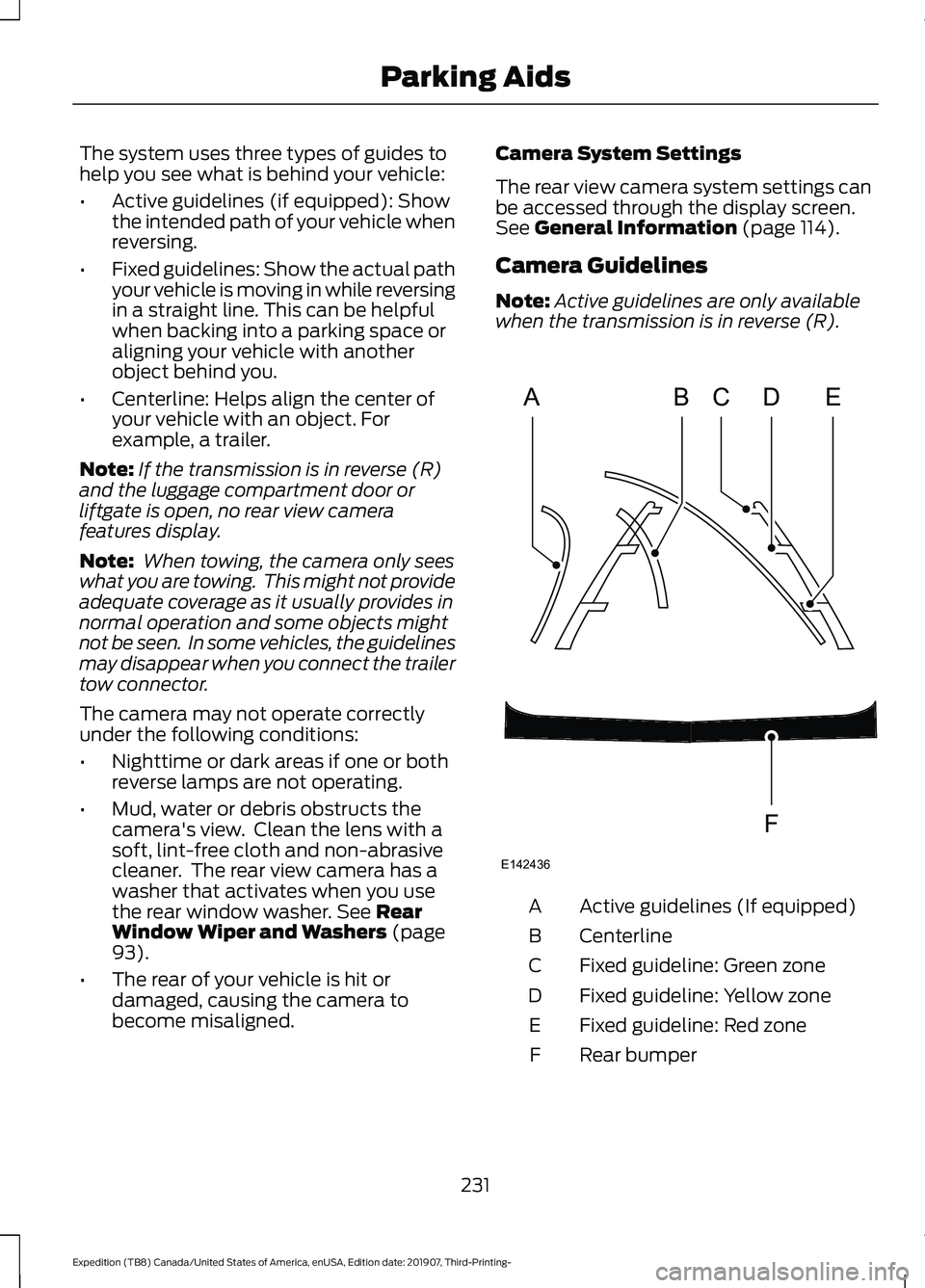
The system uses three types of guides to
help you see what is behind your vehicle:
•
Active guidelines (if equipped): Show
the intended path of your vehicle when
reversing.
• Fixed guidelines: Show the actual path
your vehicle is moving in while reversing
in a straight line. This can be helpful
when backing into a parking space or
aligning your vehicle with another
object behind you.
• Centerline: Helps align the center of
your vehicle with an object. For
example, a trailer.
Note: If the transmission is in reverse (R)
and the luggage compartment door or
liftgate is open, no rear view camera
features display.
Note: When towing, the camera only sees
what you are towing. This might not provide
adequate coverage as it usually provides in
normal operation and some objects might
not be seen. In some vehicles, the guidelines
may disappear when you connect the trailer
tow connector.
The camera may not operate correctly
under the following conditions:
• Nighttime or dark areas if one or both
reverse lamps are not operating.
• Mud, water or debris obstructs the
camera's view. Clean the lens with a
soft, lint-free cloth and non-abrasive
cleaner. The rear view camera has a
washer that activates when you use
the rear window washer. See Rear
Window Wiper and Washers (page
93).
• The rear of your vehicle is hit or
damaged, causing the camera to
become misaligned. Camera System Settings
The rear view camera system settings can
be accessed through the display screen.
See
General Information (page 114).
Camera Guidelines
Note: Active guidelines are only available
when the transmission is in reverse (R). Active guidelines (If equipped)
A
Centerline
B
Fixed guideline: Green zone
C
Fixed guideline: Yellow zone
D
Fixed guideline: Red zone
E
Rear bumper
F
231
Expedition (TB8) Canada/United States of America, enUSA, Edition date: 201907, Third-Printing- Parking AidsABCD
F
E
E142436
Page 235 of 542

Active guidelines are only shown with fixed
guidelines. To use active guidelines, turn
the steering wheel to point the guidelines
toward an intended path. If you change
the steering wheel position while reversing,
your vehicle might deviate from the original
intended path.
The fixed and active guidelines fade in and
out depending on the steering wheel
position. The active guidelines do not
display when the steering wheel position
is straight.
Always use caution while reversing.
Objects in the red zone are closest to your
vehicle and objects in the green zone are
farther away. Objects are getting closer to
your vehicle as they move from the green
zone to the yellow or red zones. Use the
side view mirrors and rear view mirror to
get better coverage on both sides and rear
of the vehicle.
Obstacle Distance Indicator (If
Equipped) The system will provide an image of your
vehicle and the sensor zones. The zones
will highlight green, yellow and red when
the parking aid sensors detect an object in
the coverage area.
Manual Zoom
WARNING:
When manual zoom is
on, the full area behind your vehicle may
not show. Be aware of your surroundings
when using the manual zoom feature.
Note: Manual zoom is only available when
the transmission is in reverse (R).
Note: When you enable manual zoom, only
the centerline is shown.
Selectable settings for this feature are
Zoom in (+) and Zoom out (-). Press the
symbol in the camera screen to change the
view. The default setting is Zoom OFF.
This allows you to get a closer view of an
object behind your vehicle. The zoomed
image keeps the bumper in the image to
provide a reference. The zoom is only
active while the transmission is in reverse
(R).
Rear Camera Delay
Selectable settings for this feature are ON
and OFF.
The default setting for the rear camera
delay is OFF.
When shifting the transmission out of
reverse (R) and into any gear other than
park (P), the camera image remains in the
display until:
• Your vehicle speed reaches
approximately
6 mph (10 km/h).
• You shift your vehicle into park (P).
232
Expedition (TB8) Canada/United States of America, enUSA, Edition date: 201907, Third-Printing- Parking AidsE190459
Page 240 of 542

CANCELING THE SET SPEED
Press the button, or tap the
brake pedal to cancel the set
speed.
Note: The system remembers the set
speed.
Note: The system cancels if the vehicle
speed drops below 10 mph (16 km/h) under
the set speed when driving uphill.
RESUMING THE SET SPEED Press the button.
CRUISE CONTROL
INDICATORS Illuminates when you switch the
system on.
USING ADAPTIVE CRUISE
CONTROL (IF EQUIPPED) WARNING:
Always pay close
attention to changing road conditions
when using the system. It does not
replace attentive driving. Failure to
follow this instruction could result in
personal injury or death. WARNING:
Do not use the system
when entering or leaving a highway, on
roads with intersections or roundabouts
or non-vehicular traffic or roads that are
winding, slippery, unpaved, or steep
slopes. WARNING:
Do not use the system
in poor visibility, for example fog, heavy
rain, spray or snow. WARNING:
Do not use the system
when towing a trailer that has
aftermarket electronic trailer brake
controls. Failure to follow this instruction
could result in the loss of control of your
vehicle, personal injury or death. WARNING:
Do not use tire sizes
other than those recommended because
this can affect the normal operation of
the system. Failure to do so may result
in a loss of vehicle control, which could
result in serious injury. WARNING:
The system may not
detect stationary or slow moving
vehicles below
6 mph (10 km/h). WARNING:
The system does not
detect pedestrians or objects in the road. WARNING:
The system does not
detect oncoming vehicles in the same
lane. WARNING:
The system is not a
crash warning or avoidance system. WARNING:
Do not use the system
with a snow plow blade installed.
The system adjusts your vehicle speed to
maintain the set gap between you and the
vehicle in front of you in the same lane.
You can select four gap settings.
The system uses a radar sensor which
projects a beam directly in front of your
vehicle.
Note: It is your responsibility to stay alert,
drive safely and be in control of the vehicle
at all times.
237
Expedition (TB8) Canada/United States of America, enUSA, Edition date: 201907, Third-Printing- Cruise ControlE265298 E71340
Page 249 of 542
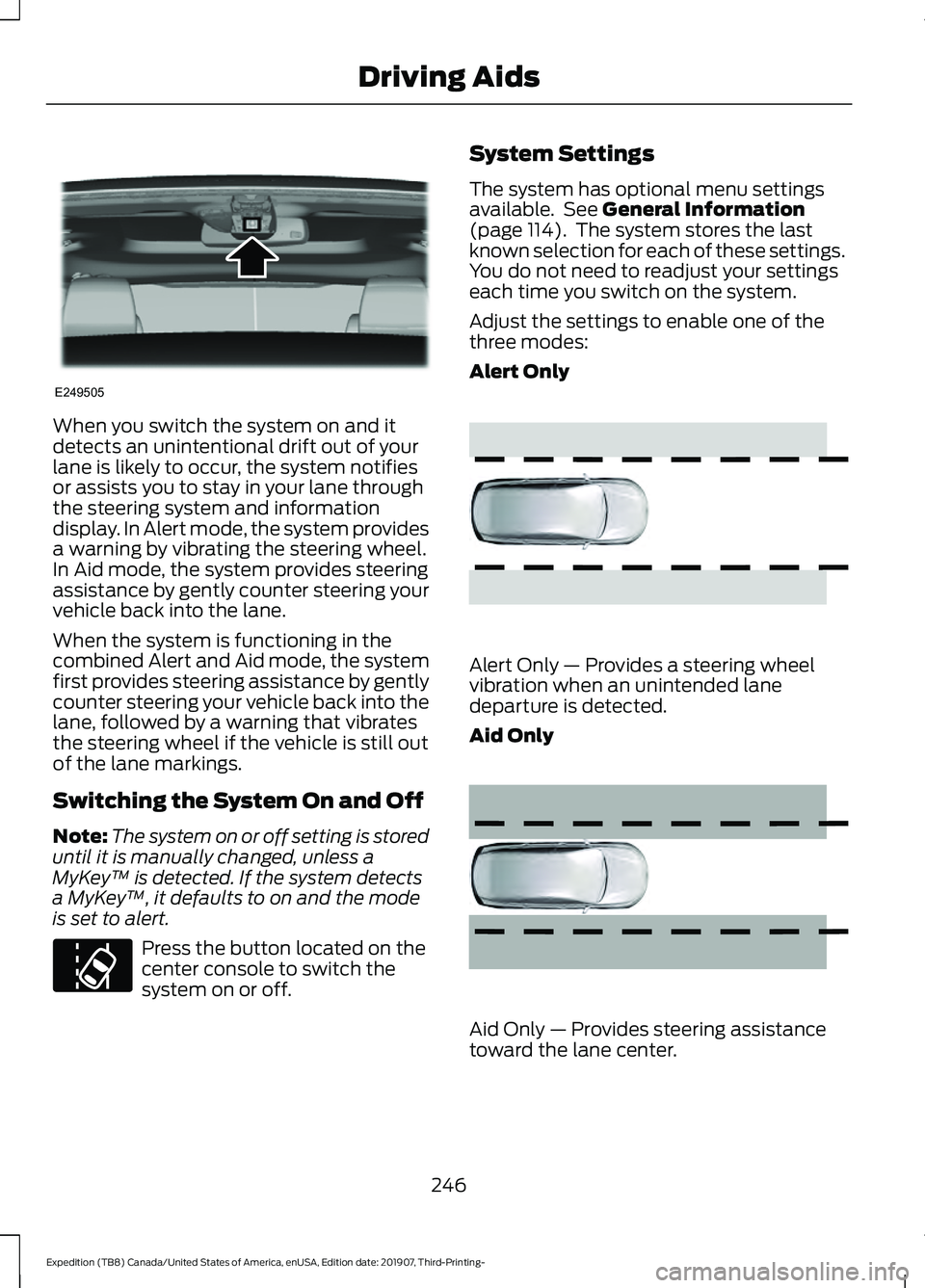
When you switch the system on and it
detects an unintentional drift out of your
lane is likely to occur, the system notifies
or assists you to stay in your lane through
the steering system and information
display. In Alert mode, the system provides
a warning by vibrating the steering wheel.
In Aid mode, the system provides steering
assistance by gently counter steering your
vehicle back into the lane.
When the system is functioning in the
combined Alert and Aid mode, the system
first provides steering assistance by gently
counter steering your vehicle back into the
lane, followed by a warning that vibrates
the steering wheel if the vehicle is still out
of the lane markings.
Switching the System On and Off
Note:
The system on or off setting is stored
until it is manually changed, unless a
MyKey ™ is detected. If the system detects
a MyKey ™, it defaults to on and the mode
is set to alert. Press the button located on the
center console to switch the
system on or off. System Settings
The system has optional menu settings
available. See General Information
(page 114). The system stores the last
known selection for each of these settings.
You do not need to readjust your settings
each time you switch on the system.
Adjust the settings to enable one of the
three modes:
Alert Only Alert Only — Provides a steering wheel
vibration when an unintended lane
departure is detected.
Aid Only
Aid Only — Provides steering assistance
toward the lane center.
246
Expedition (TB8) Canada/United States of America, enUSA, Edition date: 201907, Third-Printing- Driving AidsE249505 E173233 E165515 E165516
Page 250 of 542
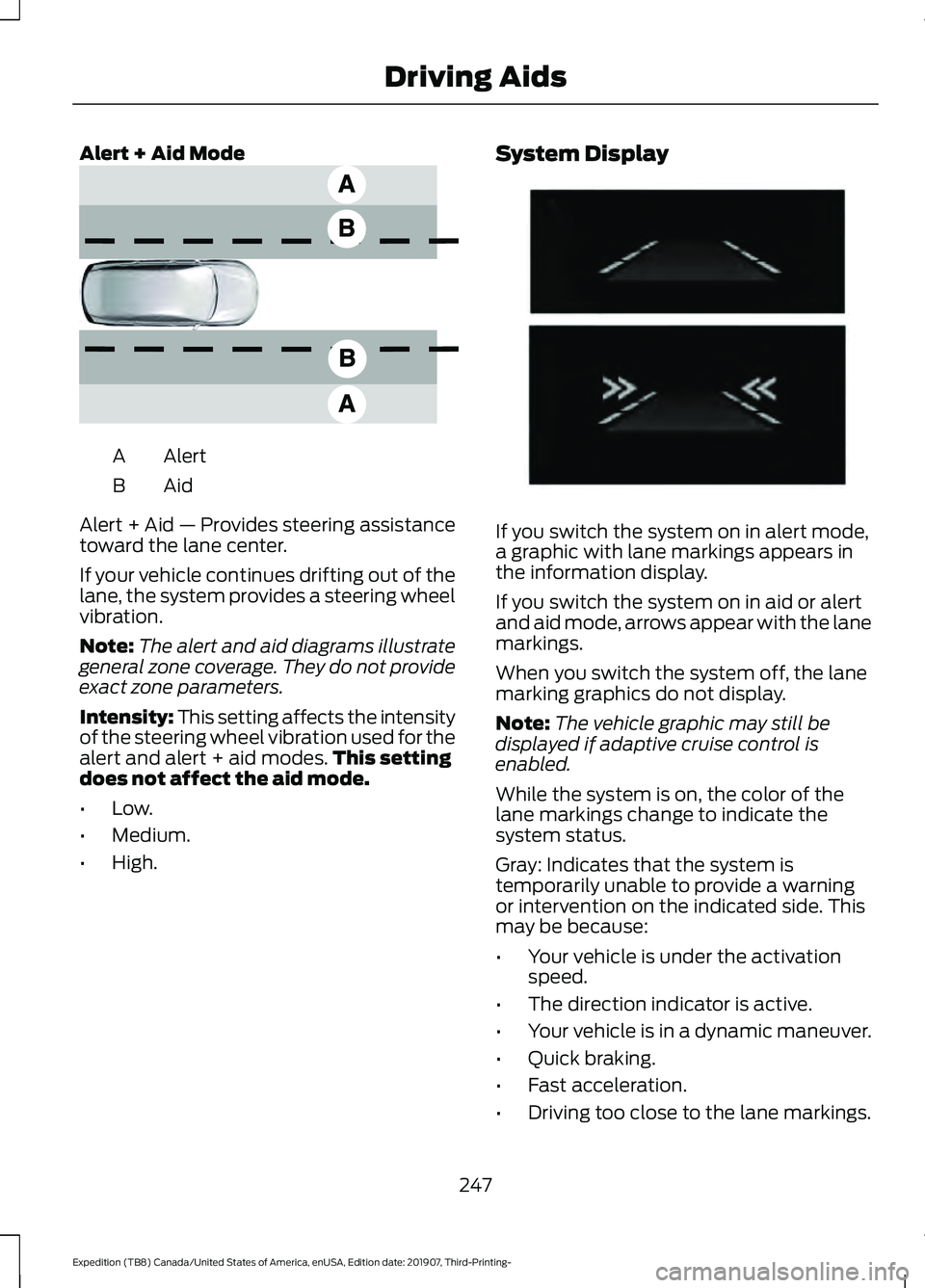
Alert + Aid Mode
Alert
A
AidB
Alert + Aid — Provides steering assistance
toward the lane center.
If your vehicle continues drifting out of the
lane, the system provides a steering wheel
vibration.
Note: The alert and aid diagrams illustrate
general zone coverage. They do not provide
exact zone parameters.
Intensity: This setting affects the intensity
of the steering wheel vibration used for the
alert and alert + aid modes. This setting
does not affect the aid mode.
• Low.
• Medium.
• High. System Display
If you switch the system on in alert mode,
a graphic with lane markings appears in
the information display.
If you switch the system on in aid or alert
and aid mode, arrows appear with the lane
markings.
When you switch the system off, the lane
marking graphics do not display.
Note:
The vehicle graphic may still be
displayed if adaptive cruise control is
enabled.
While the system is on, the color of the
lane markings change to indicate the
system status.
Gray: Indicates that the system is
temporarily unable to provide a warning
or intervention on the indicated side. This
may be because:
• Your vehicle is under the activation
speed.
• The direction indicator is active.
• Your vehicle is in a dynamic maneuver.
• Quick braking.
• Fast acceleration.
• Driving too close to the lane markings.
247
Expedition (TB8) Canada/United States of America, enUSA, Edition date: 201907, Third-Printing- Driving AidsE165517 E274073
Page 252 of 542
Why is the feature not available (line markings are gray) when I can see the lane markings
on the road?
Lane width is too narrow or too wide.
The camera has not been calibrated after a windshield replacement.
Driving on tight roads or on uneven roads. Why does the vehicle not come back toward the middle of the lane, as expected, in the
Aid or Aid + Alert mode?
High cross winds are present.
There is a large road crown.
Rough roads, grooves or shoulder drop-offs.
Heavy uneven loading of the vehicle or improper tire inflation pressure.
The tires have been changed, or the suspension has been modified.
BLIND SPOT INFORMATION
SYSTEM WARNING: Do not use the blind
spot information system as a
replacement for using the interior and
exterior mirrors or looking over your
shoulder before changing lanes. The
blind spot information system is not a
replacement for careful driving. WARNING:
The system may not
operate properly during severe weather
conditions, for example snow, ice, heavy
rain and spray. Always drive with due
care and attention. Failure to take care
may result in a crash. 249
Expedition (TB8) Canada/United States of America, enUSA, Edition date: 201907, Third-Printing- Driving AidsE255695
Page 254 of 542

If the sensors become blocked, a message
may appear in the information display. See
Information Messages (page 123). The
alert indicators remain illuminated but the
system does not alert you.
Blind Spot Information System
with Trailer Tow
(If Equipped) The system is designed to detect vehicles
that may have entered the blind spot zone
(A). The detection area is on both sides of
your vehicle and trailer, extending rearward
from the exterior mirrors to the end of your
trailer.
The system turns on when all of the
following occur:
•
You attach a trailer to your vehicle.
• You have set up the trailer to work with
the system through the information
display.
• You start your vehicle.
• You shift into drive (D).
• The vehicle speed is greater than
6 mph (10 km/h)
.
Note: If you switch the Blind Spot
Information System off, the Blind Spot
Information System with Trailer Tow
automatically turns off. Note:
If you connect a trailer to your vehicle
and do not set up the trailer through the
information display, the system turns off
and a warning message appears.
See
Information Messages (page 123).
Note: When towing a trailer, the extended
blind spot zone range decreases to a short
fixed or non-variable distance behind the
trailer. The extended blind spot zone range
returns to
59 ft (18 m) when the trailer is
disconnected.
Setting up a Trailer Trailer length
A
Trailer width
B
Trailer hitch ball
C
You can set-up a trailer to work with the
system through the information display.
See
General Information (page 114).
When setting up a trailer, a sequence of
screens appear asking for trailer
information.
• Select type of trailer screen -
Conventional, fifth wheel or gooseneck.
The system only supports conventional
trailers. If you select fifth wheel or
gooseneck, the system automatically turns
off.
• Do you want to set up BLIS with trailer
screen?
If no, the system turns off.
If yes, the menu goes to the next screen.
251
Expedition (TB8) Canada/United States of America, enUSA, Edition date: 201907, Third-Printing- Driving AidsE225007 E225008