2020 FORD EXPEDITION lock
[x] Cancel search: lockPage 464 of 542
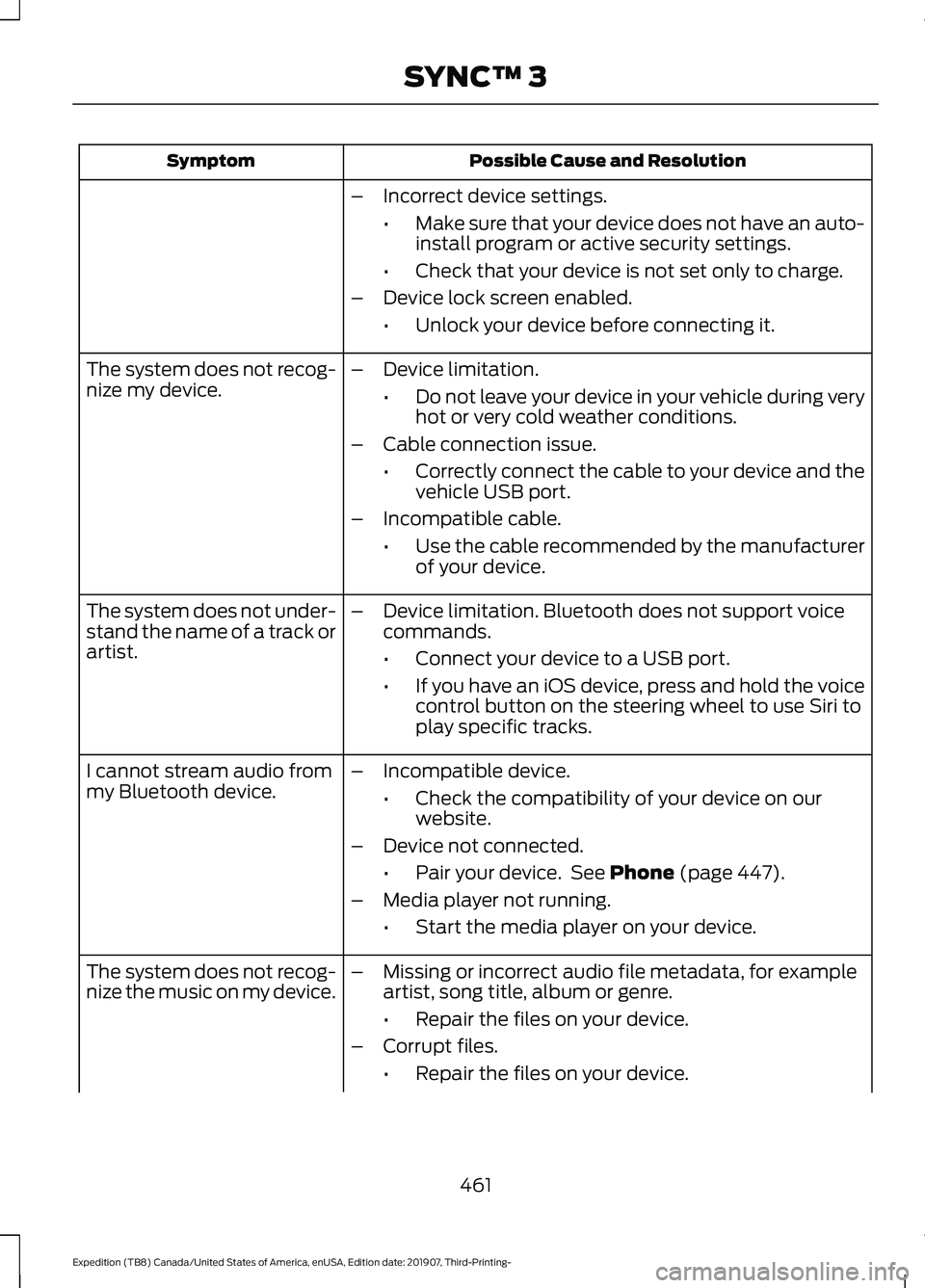
Possible Cause and Resolution
Symptom
–Incorrect device settings.
•Make sure that your device does not have an auto-
install program or active security settings.
• Check that your device is not set only to charge.
– Device lock screen enabled.
•Unlock your device before connecting it.
The system does not recog-
nize my device. –
Device limitation.
•Do not leave your device in your vehicle during very
hot or very cold weather conditions.
– Cable connection issue.
•Correctly connect the cable to your device and the
vehicle USB port.
– Incompatible cable.
•Use the cable recommended by the manufacturer
of your device.
The system does not under-
stand the name of a track or
artist. –
Device limitation. Bluetooth does not support voice
commands.
•Connect your device to a USB port.
• If you have an iOS device, press and hold the voice
control button on the steering wheel to use Siri to
play specific tracks.
I cannot stream audio from
my Bluetooth device. –
Incompatible device.
•Check the compatibility of your device on our
website.
– Device not connected.
•Pair your device. See Phone (page 447).
– Media player not running.
•Start the media player on your device.
The system does not recog-
nize the music on my device. –
Missing or incorrect audio file metadata, for example
artist, song title, album or genre.
•Repair the files on your device.
– Corrupt files.
•Repair the files on your device.
461
Expedition (TB8) Canada/United States of America, enUSA, Edition date: 201907, Third-Printing- SYNC™ 3
Page 465 of 542
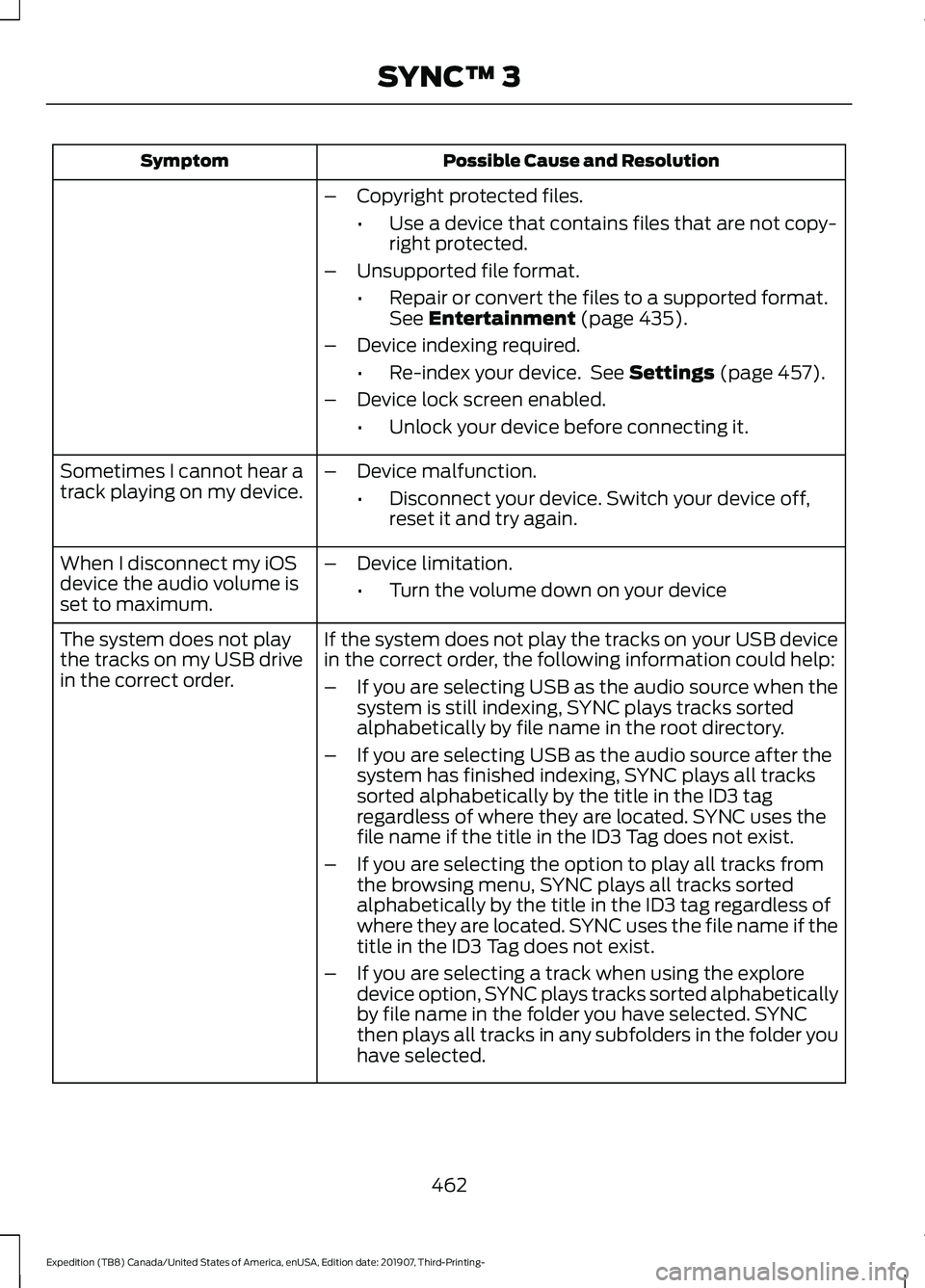
Possible Cause and Resolution
Symptom
–Copyright protected files.
•Use a device that contains files that are not copy-
right protected.
– Unsupported file format.
•Repair or convert the files to a supported format.
See Entertainment (page 435).
– Device indexing required.
•Re-index your device. See
Settings (page 457).
– Device lock screen enabled.
•Unlock your device before connecting it.
Sometimes I cannot hear a
track playing on my device. –
Device malfunction.
•Disconnect your device. Switch your device off,
reset it and try again.
When I disconnect my iOS
device the audio volume is
set to maximum. –
Device limitation.
•Turn the volume down on your device
If the system does not play the tracks on your USB device
in the correct order, the following information could help:
The system does not play
the tracks on my USB drive
in the correct order.
–If you are selecting USB as the audio source when the
system is still indexing, SYNC plays tracks sorted
alphabetically by file name in the root directory.
– If you are selecting USB as the audio source after the
system has finished indexing, SYNC plays all tracks
sorted alphabetically by the title in the ID3 tag
regardless of where they are located. SYNC uses the
file name if the title in the ID3 Tag does not exist.
– If you are selecting the option to play all tracks from
the browsing menu, SYNC plays all tracks sorted
alphabetically by the title in the ID3 tag regardless of
where they are located. SYNC uses the file name if the
title in the ID3 Tag does not exist.
– If you are selecting a track when using the explore
device option, SYNC plays tracks sorted alphabetically
by file name in the folder you have selected. SYNC
then plays all tracks in any subfolders in the folder you
have selected.
462
Expedition (TB8) Canada/United States of America, enUSA, Edition date: 201907, Third-Printing- SYNC™ 3
Page 466 of 542
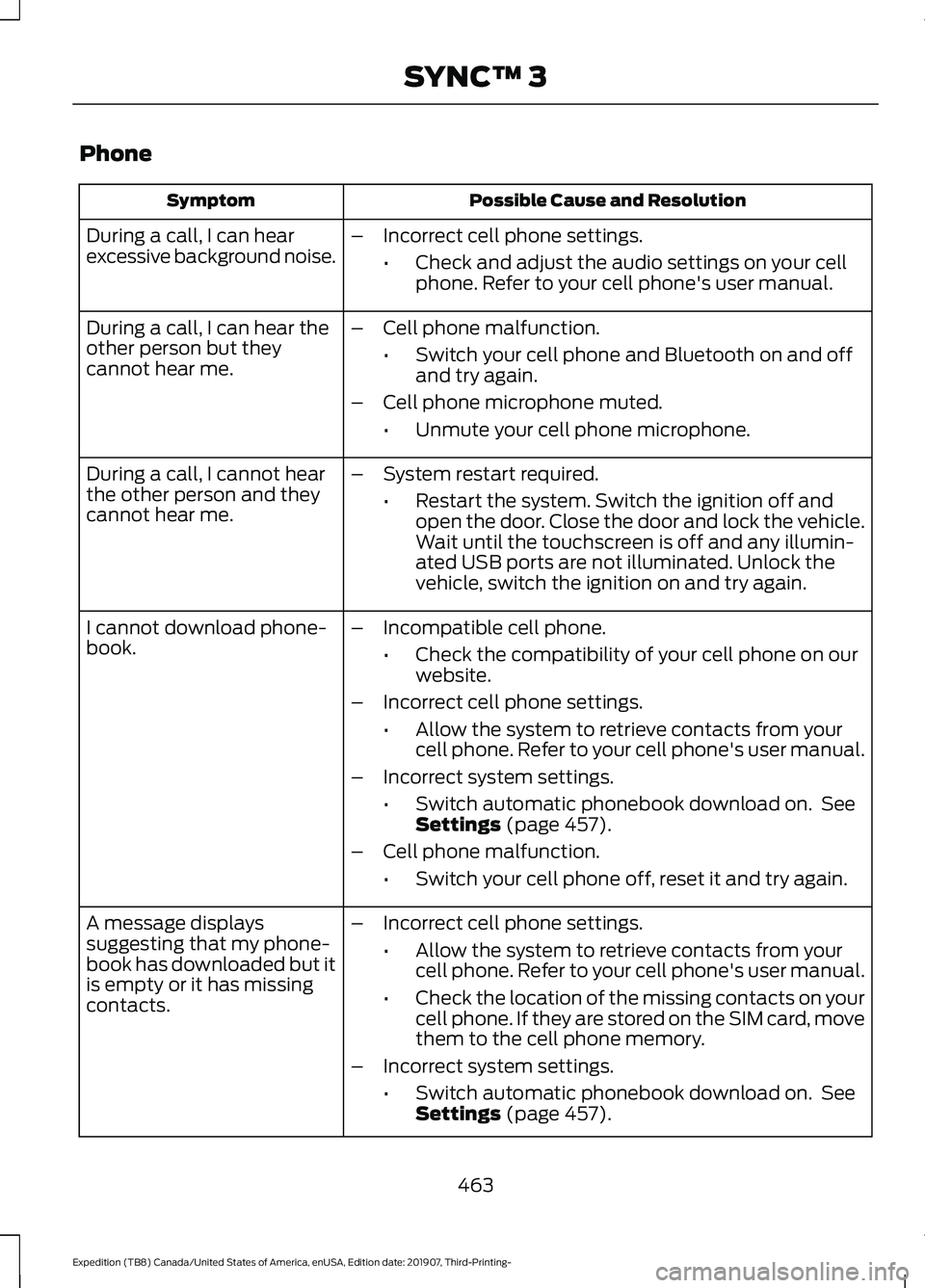
Phone
Possible Cause and Resolution
Symptom
During a call, I can hear
excessive background noise. –
Incorrect cell phone settings.
•Check and adjust the audio settings on your cell
phone. Refer to your cell phone's user manual.
– Cell phone malfunction.
•Switch your cell phone and Bluetooth on and off
and try again.
– Cell phone microphone muted.
•Unmute your cell phone microphone.
During a call, I can hear the
other person but they
cannot hear me.
During a call, I cannot hear
the other person and they
cannot hear me.
–
System restart required.
•Restart the system. Switch the ignition off and
open the door. Close the door and lock the vehicle.
Wait until the touchscreen is off and any illumin-
ated USB ports are not illuminated. Unlock the
vehicle, switch the ignition on and try again.
I cannot download phone-
book. –
Incompatible cell phone.
•Check the compatibility of your cell phone on our
website.
– Incorrect cell phone settings.
•Allow the system to retrieve contacts from your
cell phone. Refer to your cell phone's user manual.
– Incorrect system settings.
•Switch automatic phonebook download on. See
Settings (page 457).
– Cell phone malfunction.
•Switch your cell phone off, reset it and try again.
– Incorrect cell phone settings.
•Allow the system to retrieve contacts from your
cell phone. Refer to your cell phone's user manual.
• Check the location of the missing contacts on your
cell phone. If they are stored on the SIM card, move
them to the cell phone memory.
– Incorrect system settings.
•Switch automatic phonebook download on. See
Settings
(page 457).
A message displays
suggesting that my phone-
book has downloaded but it
is empty or it has missing
contacts.
463
Expedition (TB8) Canada/United States of America, enUSA, Edition date: 201907, Third-Printing- SYNC™ 3
Page 472 of 542
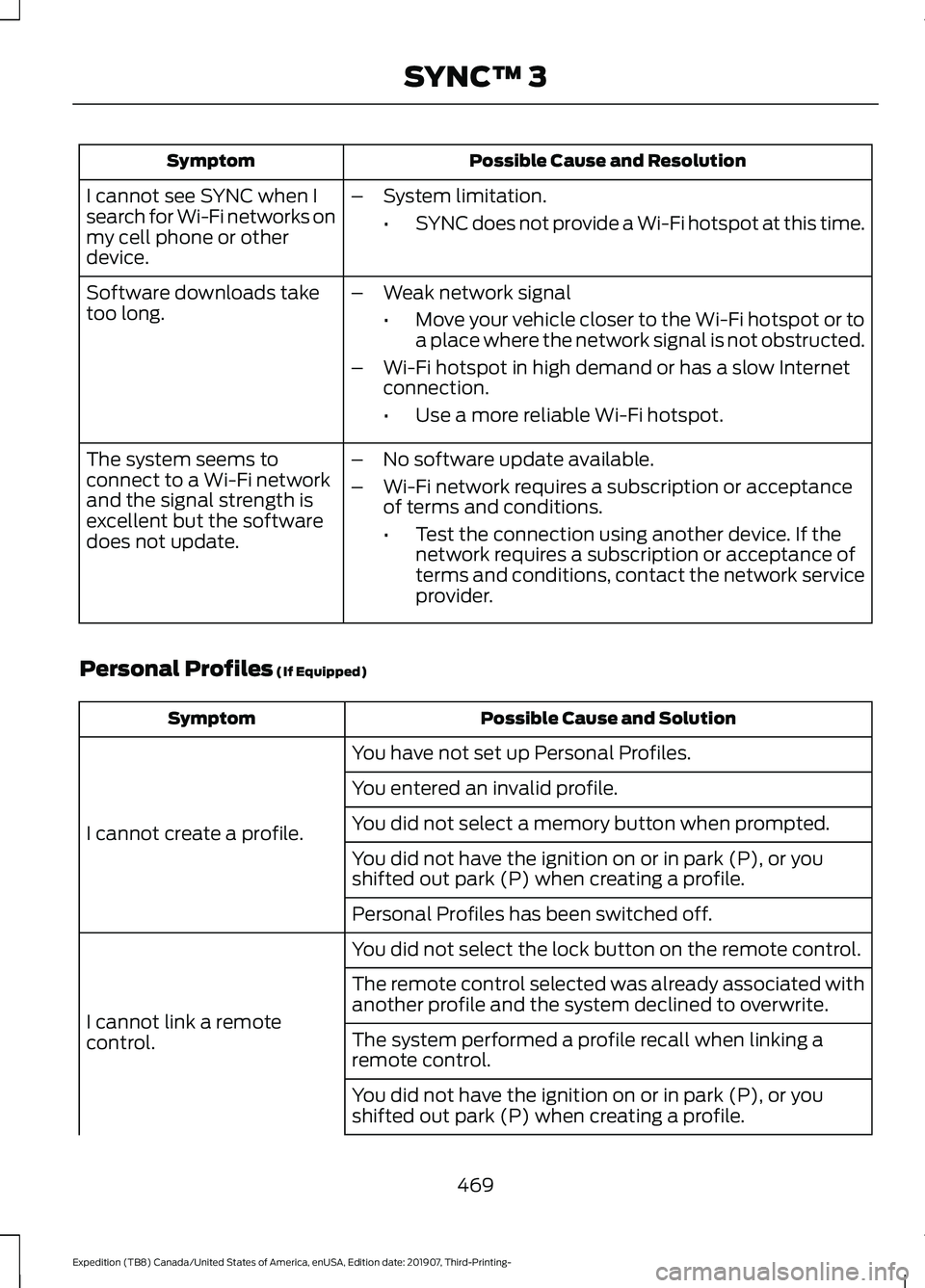
Possible Cause and Resolution
Symptom
I cannot see SYNC when I
search for Wi-Fi networks on
my cell phone or other
device. –
System limitation.
•SYNC does not provide a Wi-Fi hotspot at this time.
– Weak network signal
•Move your vehicle closer to the Wi-Fi hotspot or to
a place where the network signal is not obstructed.
– Wi-Fi hotspot in high demand or has a slow Internet
connection.
•Use a more reliable Wi-Fi hotspot.
Software downloads take
too long.
–No software update available.
– Wi-Fi network requires a subscription or acceptance
of terms and conditions.
•Test the connection using another device. If the
network requires a subscription or acceptance of
terms and conditions, contact the network service
provider.
The system seems to
connect to a Wi-Fi network
and the signal strength is
excellent but the software
does not update.
Personal Profiles (If Equipped) Possible Cause and Solution
Symptom
You have not set up Personal Profiles.
I cannot create a profile. You entered an invalid profile.
You did not select a memory button when prompted.
You did not have the ignition on or in park (P), or you
shifted out park (P) when creating a profile.
Personal Profiles has been switched off.
You did not select the lock button on the remote control.
I cannot link a remote
control. The remote control selected was already associated with
another profile and the system declined to overwrite.
The system performed a profile recall when linking a
remote control.
You did not have the ignition on or in park (P), or you
shifted out park (P) when creating a profile.
469
Expedition (TB8) Canada/United States of America, enUSA, Edition date: 201907, Third-Printing- SYNC™ 3
Page 473 of 542
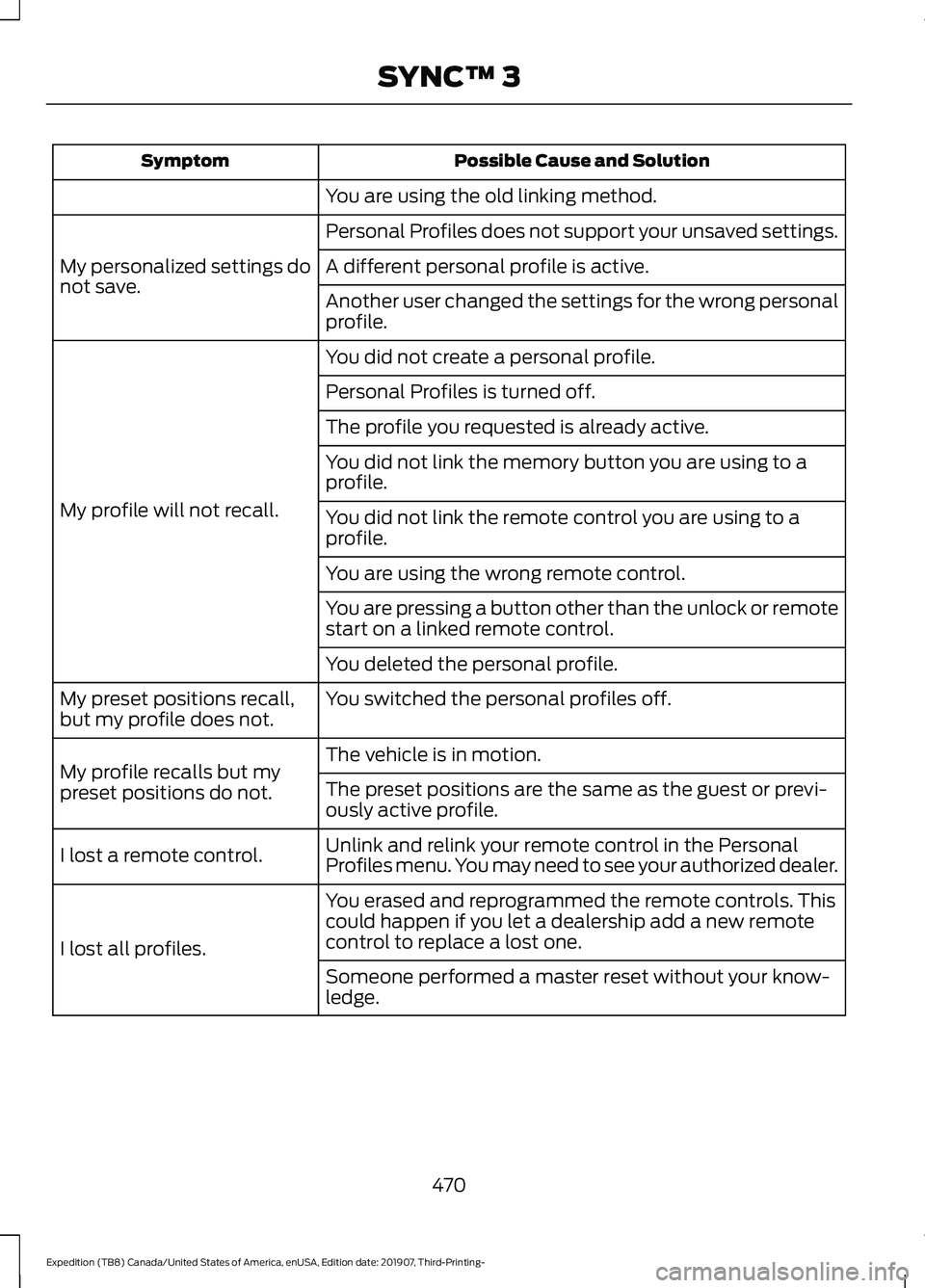
Possible Cause and Solution
Symptom
You are using the old linking method.
Personal Profiles does not support your unsaved settings.
My personalized settings do
not save. A different personal profile is active.
Another user changed the settings for the wrong personal
profile.
You did not create a personal profile.
My profile will not recall. Personal Profiles is turned off.
The profile you requested is already active.
You did not link the memory button you are using to a
profile.
You did not link the remote control you are using to a
profile.
You are using the wrong remote control.
You are pressing a button other than the unlock or remote
start on a linked remote control.
You deleted the personal profile.
You switched the personal profiles off.
My preset positions recall,
but my profile does not.
The vehicle is in motion.
My profile recalls but my
preset positions do not. The preset positions are the same as the guest or previ-
ously active profile.
Unlink and relink your remote control in the Personal
Profiles menu. You may need to see your authorized dealer.
I lost a remote control.
You erased and reprogrammed the remote controls. This
could happen if you let a dealership add a new remote
control to replace a lost one.
I lost all profiles.
Someone performed a master reset without your know-
ledge.
470
Expedition (TB8) Canada/United States of America, enUSA, Edition date: 201907, Third-Printing- SYNC™ 3
Page 476 of 542
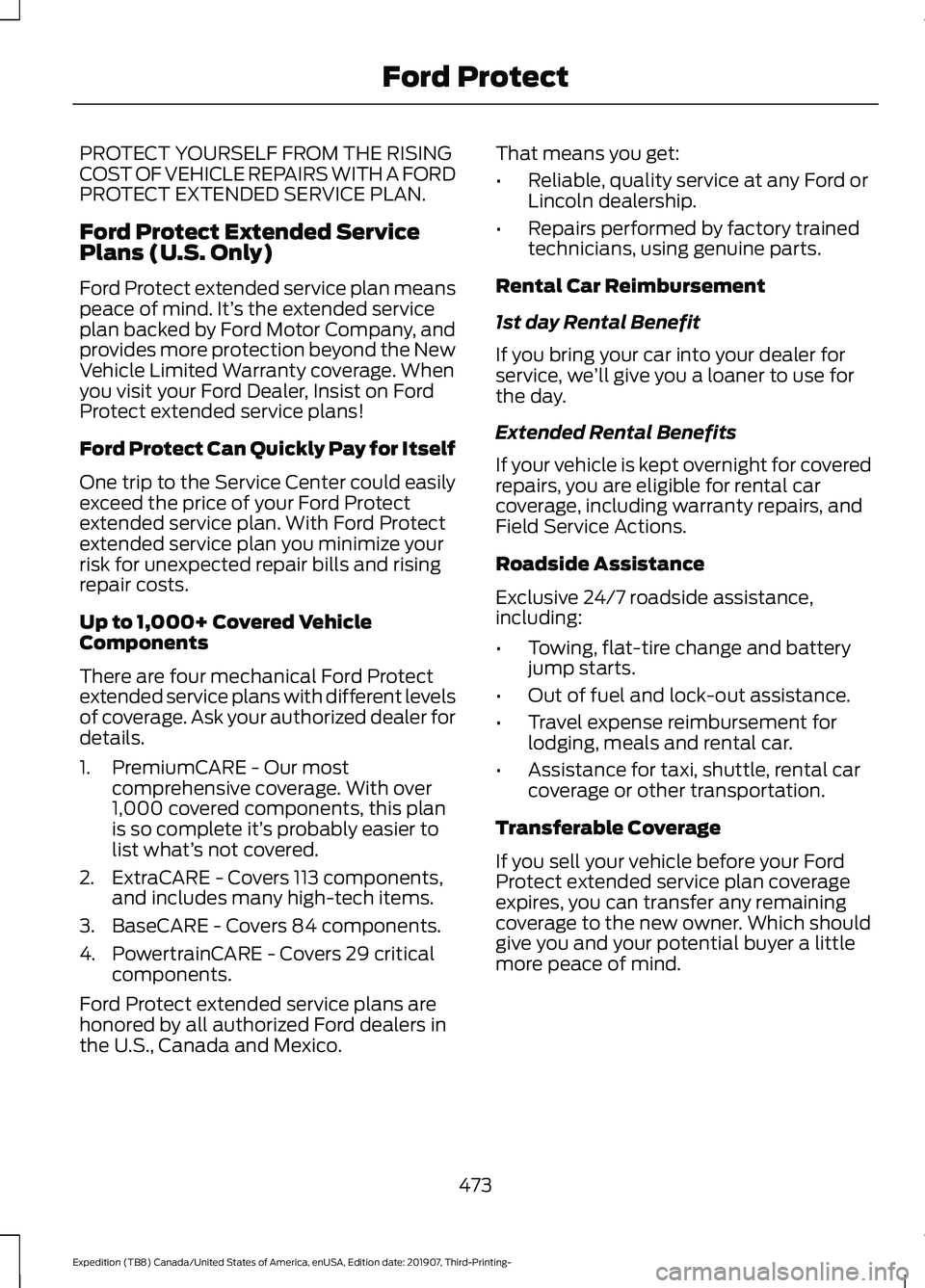
PROTECT YOURSELF FROM THE RISING
COST OF VEHICLE REPAIRS WITH A FORD
PROTECT EXTENDED SERVICE PLAN.
Ford Protect Extended Service
Plans (U.S. Only)
Ford Protect extended service plan means
peace of mind. It’
s the extended service
plan backed by Ford Motor Company, and
provides more protection beyond the New
Vehicle Limited Warranty coverage. When
you visit your Ford Dealer, Insist on Ford
Protect extended service plans!
Ford Protect Can Quickly Pay for Itself
One trip to the Service Center could easily
exceed the price of your Ford Protect
extended service plan. With Ford Protect
extended service plan you minimize your
risk for unexpected repair bills and rising
repair costs.
Up to 1,000+ Covered Vehicle
Components
There are four mechanical Ford Protect
extended service plans with different levels
of coverage. Ask your authorized dealer for
details.
1. PremiumCARE - Our most comprehensive coverage. With over
1,000 covered components, this plan
is so complete it’ s probably easier to
list what’ s not covered.
2. ExtraCARE - Covers 113 components, and includes many high-tech items.
3. BaseCARE - Covers 84 components.
4. PowertrainCARE - Covers 29 critical components.
Ford Protect extended service plans are
honored by all authorized Ford dealers in
the U.S., Canada and Mexico. That means you get:
•
Reliable, quality service at any Ford or
Lincoln dealership.
• Repairs performed by factory trained
technicians, using genuine parts.
Rental Car Reimbursement
1st day Rental Benefit
If you bring your car into your dealer for
service, we ’ll give you a loaner to use for
the day.
Extended Rental Benefits
If your vehicle is kept overnight for covered
repairs, you are eligible for rental car
coverage, including warranty repairs, and
Field Service Actions.
Roadside Assistance
Exclusive 24/7 roadside assistance,
including:
• Towing, flat-tire change and battery
jump starts.
• Out of fuel and lock-out assistance.
• Travel expense reimbursement for
lodging, meals and rental car.
• Assistance for taxi, shuttle, rental car
coverage or other transportation.
Transferable Coverage
If you sell your vehicle before your Ford
Protect extended service plan coverage
expires, you can transfer any remaining
coverage to the new owner. Which should
give you and your potential buyer a little
more peace of mind.
473
Expedition (TB8) Canada/United States of America, enUSA, Edition date: 201907, Third-Printing- Ford Protect
Page 480 of 542
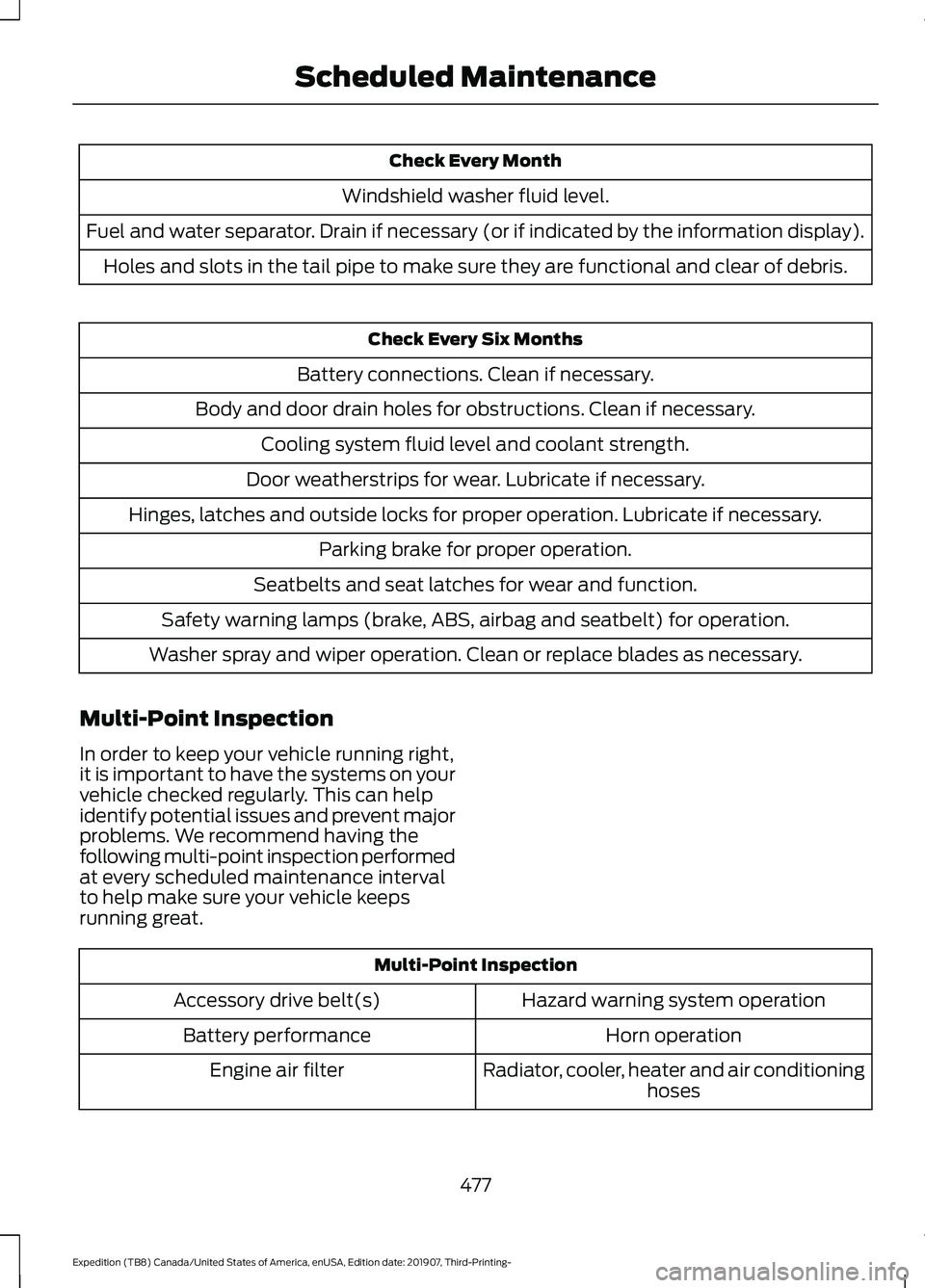
Check Every Month
Windshield washer fluid level.
Fuel and water separator. Drain if necessary (or if indicated by the information display). Holes and slots in the tail pipe to make sure they are functional and clear of debris. Check Every Six Months
Battery connections. Clean if necessary.
Body and door drain holes for obstructions. Clean if necessary. Cooling system fluid level and coolant strength.
Door weatherstrips for wear. Lubricate if necessary.
Hinges, latches and outside locks for proper operation. Lubricate if necessary. Parking brake for proper operation.
Seatbelts and seat latches for wear and function.
Safety warning lamps (brake, ABS, airbag and seatbelt) for operation.
Washer spray and wiper operation. Clean or replace blades as necessary.
Multi-Point Inspection
In order to keep your vehicle running right,
it is important to have the systems on your
vehicle checked regularly. This can help
identify potential issues and prevent major
problems. We recommend having the
following multi-point inspection performed
at every scheduled maintenance interval
to help make sure your vehicle keeps
running great. Multi-Point Inspection
Hazard warning system operation
Accessory drive belt(s)
Horn operation
Battery performance
Radiator, cooler, heater and air conditioninghoses
Engine air filter
477
Expedition (TB8) Canada/United States of America, enUSA, Edition date: 201907, Third-Printing- Scheduled Maintenance
Page 528 of 542

3
360 Degree Camera...................................233
Advanced Camera Views................................ 233
Camera Views..................................................... 233
Front Camera...................................................... 234
Keep Out Zone.................................................... 234
Side Camera........................................................ 234
4
4WD See: Four-Wheel Drive.................................... 200
A
A/C See: Climate Control......................................... 139
About This Manual...........................................7
ABS See: Brakes.......................................................... 209
ABS driving hints See: Hints on Driving With Anti-Lock
Brakes............................................................... 209
Accessories.....................................................472
Accessories See: Replacement Parts
Recommendation............................................ 14
ACC See: Using Adaptive Cruise Control............237
Active Park Assist.........................................223 Using Active Park Assist.................................. 224
Adjustable Pedals...........................................91
Adjusting the Headlamps.........................337 Horizontal Aim Adjustment........................... 338
Vertical Aim Adjustment................................. 337
Adjusting the Pedals......................................91
Adjusting the Steering Wheel - Vehicles With: Manual Adjustable Steering
Column............................................................87
Adjusting the Steering Wheel - Vehicles With: Power Adjustable Steering
Column............................................................87
End of Travel Position........................................ 88
Memory Feature................................................... 88
Airbag Disposal...............................................55
Air Conditioning See: Climate Control......................................... 139Air Filter
See: Changing the Engine Air Filter.............329
Alarm See: Anti-Theft Alarm........................................ 83
Ambient Lighting
...........................................98
Adjusting the Brightness................................... 98
Switching Ambient Lighting Off..................... 98
Switching Ambient Lighting On..................... 98
Anti-Theft Alarm............................................83 Arming the Alarm................................................ 84
Disarming the Alarm........................................... 84
Using the System................................................. 83
Appendices....................................................494
Apps.................................................................454 SiriusXM Traffic and Travel Link.................. 456
Using Apps on an Android Device...............455
Using Apps on an iOS Device........................ 455
Using Mobile Navigation on an Android Device............................................................... 455
At a Glance........................................................18
Audible Warnings and Indicators.............113 Direction Indicator Tone.................................... 113
Headlamps On Warning Tone......................... 113
Key in Ignition Warning Tone........................... 113
Keyless Warning Alert........................................ 113
Parking Brake On Warning Tone.................... 113
Audio Control
..................................................88
You can operate the following functions
with the control:.............................................. 88
Audio System
...............................................398
General Information......................................... 398
Audio Unit - Vehicles With: Touchscreen Display...........................................................401
Accessing the Sound Settings...................... 401
Adjusting the Volume....................................... 401
Changing Radio Stations............................... 402
Muting the Audio............................................... 402
Playing or Pausing Media............................... 402
Setting the Memory Presets......................... 402
Switching the Audio Unit On and Off........402
Switching the Display On and Off..............402
Using Seek, Fast Forward and Reverse............................................................. 402
Audio Unit - Vehicles Without: Touchscreen Display
...............................398
Accessing the Settings Menu....................... 399
Accessing the Sound Settings..................... 399
Adjusting the Volume...................................... 399
525
Expedition (TB8) Canada/United States of America, enUSA, Edition date: 201907, Third-Printing- Index