2020 CHEVROLET BOLT EV speed
[x] Cancel search: speedPage 130 of 347

Chevrolet BOLT EV Owner Manual (GMNA-Localizing-U.S./Canada/Mexico-
13556250) - 2020 - CRC - 2/11/20
Lighting 129
;:Turns on the parking lamps
including all lamps, except the
headlamps. The instrument panel
lights also turn on.
5: Turns on the headlamps
together with the parking lamps and
instrument panel lights.
IntelliBeam System
If equipped, this system turns the
vehicle's high-beam headlamps on
and off according to surrounding
traffic conditions.
The system turns the high-beam
headlamps on when it is dark
enough and there is no other traffic
present.
This light comes on in the
instrument cluster when the
IntelliBeam system is enabled.
Turning On and Enabling
IntelliBeam
To enable the IntelliBeam system,
press
bon the turn signal lever
when the exterior lamp control is in
the AUTO or
5position.
Driving with IntelliBeam
The system only activates the high
beams when driving over 40 km/h
(25 mph).
The blue high-beam on light
appears on the instrument cluster
when the high beams are on.
There is a sensor near the top
center of the windshield that
automatically controls the system. Keep this area of the windshield
clear of debris to allow for best
system performance.
The high-beam headlamps remain
on, under the automatic control,
until one of the following situations
occurs:
.
The system detects an
approaching vehicle’s
headlamps.
. The system detects a preceding
vehicle’s taillamps.
. The outside light is bright
enough that high-beam
headlamps are not required.
. The vehicle's speed drops below
20 km/h (12 mph).
. The IntelliBeam system is
disabled by the button on
the turn signal lever. If this
happens, press
bon the turn
signal lever when the exterior
lamp control is in the AUTO or
5position.
Page 132 of 347

Chevrolet BOLT EV Owner Manual (GMNA-Localizing-U.S./Canada/Mexico-
13556250) - 2020 - CRC - 2/11/20
Lighting 131
.The exterior lamp control is
in AUTO.
. The light sensor determines it is
daytime.
. The vehicle is not in P (Park).
When the DRL are on, the taillamps,
sidemarker lamps, instrument panel
lights, and other lamps will not
be on.
The DRL turn off when the
headlamps are turned to
Por the
vehicle is off.
For vehicles first sold in Canada,
the DRL can only be turned off
when the vehicle is parked.
Automatic Headlamp
System
The headlamps come on
automatically when the exterior
lamp control is set to AUTO and it is
dark enough outside.
There is a light sensor on top of the
instrument panel. Do not cover the
sensor, otherwise the headlamps
will come on when they are not
needed.
The system may also turn on the
headlamps when driving through a
parking garage or tunnel.
When it is bright enough outside,
the headlamps will turn off or may
change to Daytime Running
Lamps (DRL).
The automatic headlamp system
turns off when the exterior lamp
control is turned to
Por the vehicle
is off.
Lights On with Wipers
If the windshield wipers are
activated in daylight with the vehicle
on, and the exterior lamp control is
in AUTO, the headlamps, parking
lamps, and other exterior lamps
come on. The transition time for the
lamps coming on varies based on
wiper speed. When the wipers are
not operating, these lamps turn off.
Move the exterior lamp control to
P
or;to disable this feature.
Hazard Warning Flashers
Page 140 of 347

Chevrolet BOLT EV Owner Manual (GMNA-Localizing-U.S./Canada/Mexico-
13556250) - 2020 - CRC - 2/11/20
Infotainment System 139
Phone
To operate Bluetooth Hands-Free
function, connect the Bluetooth
phone to the infotainment system.1. Touch
T.
2. Touch Phone, then touch
5on
the infotainment display,
or press
gon the steering
wheel controls.
Settings
1. Touch
T.
2. Touch Settings, then select an item from the menu and adjust
the settings by selecting from
the available options. See
Settings 0157.
Gallery
1. Touch
T.
2. Touch Gallery, then touch
'
menu to view picture files
contained in the USB storage
device.
Software Updates
Over-the-Air Software Updates
If equipped, the infotainment system
can download and install select
software updates over a wireless
connection. The system will prompt
for certain updates to be
downloaded and installed. There is
also an option to check for updates
manually.
To manually check for updates,
touch Settings on the Home Page,
followed by Software Information,
and then System Update. Follow the
on-screen prompts. Steps for
downloading and installing updates
may vary by vehicle.
Downloading Over-the-Air vehicle
software updates requires Internet
connectivity, which can be accessed
through the vehicle’ s built-in OnStar
4G LTE connection, if equipped and
active. If required, data plans are
provided by a third party. Optionally,
a secure Wi-Fi hotspot such as a
compatible mobile device hotspot, home hotspot, or public hotspot can
be used. Applicable data rates may
apply.
To connect the infotainment system
to a secured mobile device hotspot,
home hotspot, or public hotspot,
touch Settings on the Home Page,
followed by Wi-Fi, and then Manage
Wi-Fi Networks. Select the
appropriate Wi-Fi network, and
follow the on-screen prompts.
Download speeds may vary.
On most compatible mobile devices,
activation of the Wi-Fi hotspot is in
the Settings menu under Mobile
Network Sharing, Personal Hotspot,
Mobile Hotspot, or similar.
Availability of Over-the-Air vehicle
software updates varies by vehicle
and country. For more information
on this feature, see
www.my.chevrolet.com/learn.
Page 142 of 347
Chevrolet BOLT EV Owner Manual (GMNA-Localizing-U.S./Canada/Mexico-
13556250) - 2020 - CRC - 2/11/20
Infotainment System 141
Update AM or FM Stations1. Touch Browse Audio.
2. Touch Update AM Stations or Update FM Stations.
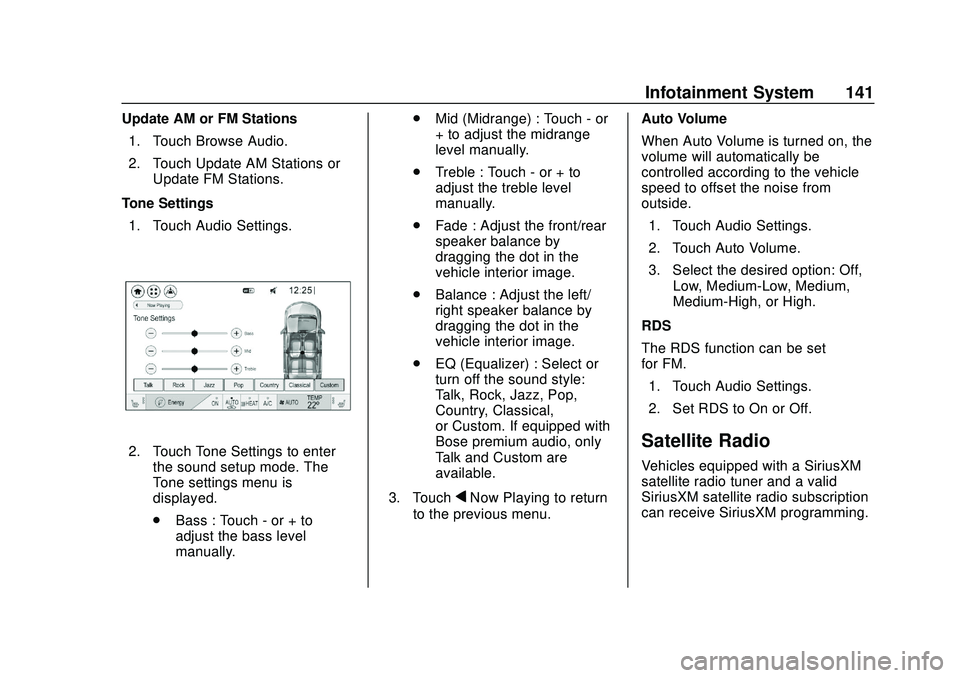
Tone Settings 1. Touch Audio Settings.
2. Touch Tone Settings to enter the sound setup mode. The
Tone settings menu is
displayed.
.Bass : Touch - or + to
adjust the bass level
manually. .
Mid (Midrange) : Touch - or
+ to adjust the midrange
level manually.
. Treble : Touch - or + to
adjust the treble level
manually.
. Fade : Adjust the front/rear
speaker balance by
dragging the dot in the
vehicle interior image.
. Balance : Adjust the left/
right speaker balance by
dragging the dot in the
vehicle interior image.
. EQ (Equalizer) : Select or
turn off the sound style:
Talk, Rock, Jazz, Pop,
Country, Classical,
or Custom. If equipped with
Bose premium audio, only
Talk and Custom are
available.
3. Touch
qNow Playing to return
to the previous menu. Auto Volume
When Auto Volume is turned on, the
volume will automatically be
controlled according to the vehicle
speed to offset the noise from
outside.
1. Touch Audio Settings.
2. Touch Auto Volume.
3. Select the desired option: Off, Low, Medium-Low, Medium,
Medium-High, or High.
RDS
The RDS function can be set
for FM. 1. Touch Audio Settings.
2. Set RDS to On or Off.
Satellite Radio
Vehicles equipped with a SiriusXM
satellite radio tuner and a valid
SiriusXM satellite radio subscription
can receive SiriusXM programming.
Page 147 of 347
Chevrolet BOLT EV Owner Manual (GMNA-Localizing-U.S./Canada/Mexico-
13556250) - 2020 - CRC - 2/11/20
146 Infotainment System
USB Player
Playing USB Storage Device
Music Files
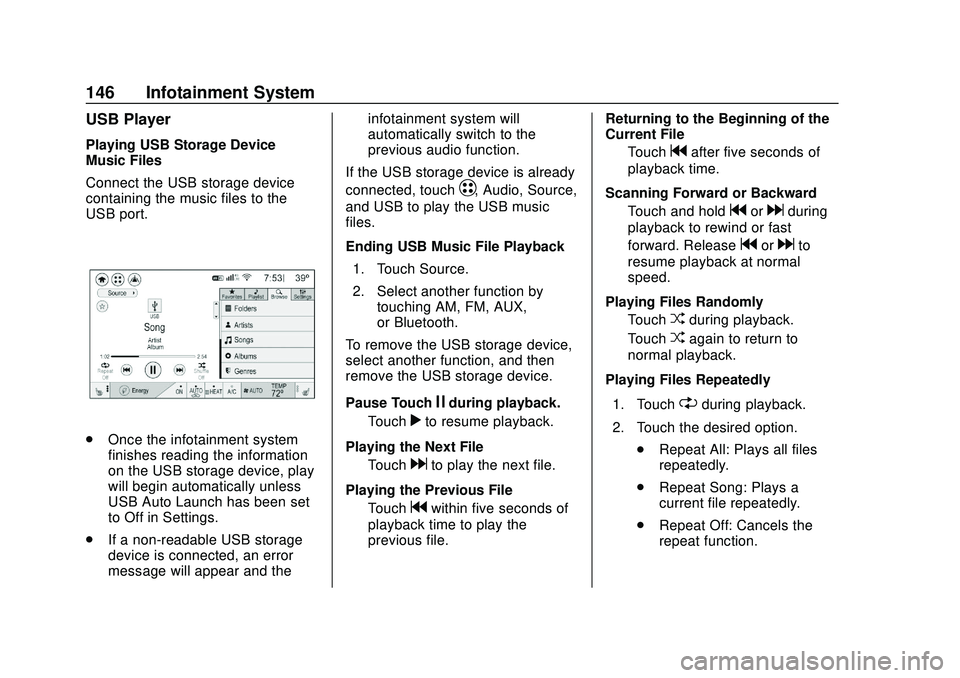
Connect the USB storage device
containing the music files to the
USB port.
.Once the infotainment system
finishes reading the information
on the USB storage device, play
will begin automatically unless
USB Auto Launch has been set
to Off in Settings.
. If a non-readable USB storage
device is connected, an error
message will appear and the infotainment system will
automatically switch to the
previous audio function.
If the USB storage device is already
connected, touch
T, Audio, Source,
and USB to play the USB music
files.
Ending USB Music File Playback
1. Touch Source.
2. Select another function by touching AM, FM, AUX,
or Bluetooth.
To remove the USB storage device,
select another function, and then
remove the USB storage device.
Pause Touch
jduring playback.
Touch
rto resume playback.
Playing the Next File Touch
dto play the next file.
Playing the Previous File Touch
gwithin five seconds of
playback time to play the
previous file. Returning to the Beginning of the
Current File
Touch
gafter five seconds of
playback time.
Scanning Forward or Backward Touch and hold
gordduring
playback to rewind or fast
forward. Release
gordto
resume playback at normal
speed.
Playing Files Randomly Touch
Zduring playback.
Touch
Zagain to return to
normal playback.
Playing Files Repeatedly
1. Touch
"during playback.
2. Touch the desired option. .Repeat All: Plays all files
repeatedly.
. Repeat Song: Plays a
current file repeatedly.
. Repeat Off: Cancels the
repeat function.
Page 149 of 347
Chevrolet BOLT EV Owner Manual (GMNA-Localizing-U.S./Canada/Mexico-
13556250) - 2020 - CRC - 2/11/20
148 Infotainment System
.Other operations are the same
as the USB player. See “USB
Player” under“USB Port”
previously in this section.
. The USB connection setting on
the device may need to be
changed to MTP.
iPod/iPhone Player
This is limited to devices supporting
the iPod/iPhone connection.
Playing iPod/iPhone Music Files
Use an Apple certified cord to
connect the iPod/iPhone containing
the music files to the USB port.
.
Once the infotainment system
finishes reading the information
on the iPod/iPhone, it will be
automatically played from the
previously played point. If Auto
Launch in Settings is set to Off,
it will not be automatically
played.
If the iPod/iPhone is already
connected, touch
T, Audio, Source,
then iPod to play the iPod/iPhone. Ending iPod/iPhone Playback
1. Touch Source.
2. Select another function by touching AM, FM, AUX,
or Bluetooth, or unplug the
iPod/iPhone.
To remove the iPod/iPhone, select
another function, and then remove
the iPod/iPhone.
Pause Touch
jduring playback.
Touch
rto resume playback.
Playing the Next Song Touch
dto play the next song.
Playing the Previous Song Touch
gwithin two seconds of
playback time to play the
previous song.
Returning to the Beginning of the
Current Song Touch
gafter two seconds of
playback time. Scanning Forward or Backward
Hold
gordduring playback
to rewind or fast forward.
Release
gordto resume
playback at normal speed.
Playing Files Randomly Touch
Zduring playback.
Touch
Zagain to return to
normal playback.
Browse Music 1. Touch Browse Music.
2. Touch the desired music.
Tone Settings
Set up sound features from the
Tone Settings menu. See “Tone
Settings” under“AM-FM Radio”
previously in this section.
Auto Volume
Volume will be automatically
controlled. See “Auto Volume”under
“AM-FM Radio” previously in this
section.
Page 152 of 347
Chevrolet BOLT EV Owner Manual (GMNA-Localizing-U.S./Canada/Mexico-
13556250) - 2020 - CRC - 2/11/20
Infotainment System 151
PauseTouch
jduring playback.
Touch
ragain to resume
playback.
Playing the Next Music Touch
dto play the next music.
Playing the Previous Music Touch
gwithin two seconds of
playback time to play the
previous music.
Returning to the Beginning of the
Current Music Touch
gafter two seconds of
playback time.
Scanning Forward or Backward Hold
gordduring playback
to rewind or fast forward.
Release
gordto resume
playback at normal speed.
Playing Files Randomly Touch
Zduring playback.
Touch
Zagain to return to
normal playback. Playing Files Repeatedly
1. Touch
"during playback.
2. Touch the desired option. .Repeat All: Plays all files
repeatedly.
. Repeat Song: Plays a
current file repeatedly.
. Repeat Off: Cancels repeat
function.
Browse Music
This function may not be supported
depending on the mobile phone. 1. Touch Browse Music.
2. Touch the desired item. The number of relevant songs is
displayed.
3. Touch the desired music to listen.
Tone Settings
From the Bluetooth music menu,
sound features can be set up. See
“Tone Settings” under“AM-FM
Radio” previously in this section. Auto Volume
Volume will be automatically
controlled. See
“Auto Volume”under
“AM-FM Radio” previously in this
section.
Manage Bluetooth Devices
1. Touch Audio Settings.
2. Touch Manage Bluetooth Devices.
3. Select the desired device and then connect/disconnect or
delete.
Playing Bluetooth Music
. Do not change the track too
quickly when playing Bluetooth
music.
. It takes some time to transmit
data from the mobile phone or
Bluetooth device to the
infotainment system. The
infotainment system outputs the
audio from the mobile phone or
Bluetooth device as it is
transmitted.
Page 153 of 347
Chevrolet BOLT EV Owner Manual (GMNA-Localizing-U.S./Canada/Mexico-
13556250) - 2020 - CRC - 2/11/20
152 Infotainment System
.If the mobile phone or Bluetooth
device is not in the idle screen
mode, it may not automatically
play despite being carried out
from the Bluetooth music
play mode.
. The infotainment system
transmits the order to play from
the mobile phone in the
Bluetooth music play mode.
If this is done in a different
mode, then the device transmits
the order to stop. Depending on
the mobile phone’s options, this
order to play/stop may take time
to activate.
. If Bluetooth music playback is
not functioning, then check to
see if the mobile phone is in the
idle screen mode.
. Sometimes, sounds may be cut
off during Bluetooth music
playback.OnStar System
OnStar with 4G LTE
If equipped with OnStar 4G LTE, up
to seven devices, such as
smartphones, tablets, and laptops,
can be connected to high-speed
Internet through the vehicle’s built-in
Wi-Fi hotspot. Call 1-888-4-ONSTAR
(1-888-466-7827) to connect to an
OnStar Advisor for assistance. See
www.onstar.com for a detailed
instruction guide, vehicle availability,
details, and system limitations.
Services and apps vary by make,
model, year, carrier, availability, and
conditions. 4G LTE service is
available in select markets. 4G LTE
performance is based on industry
averages and vehicle systems
design. Some services require a
data plan.