2020 AUDI E-TRON battery
[x] Cancel search: batteryPage 177 of 316

4KE012721BE
Telephone
A PIN for a secure Bluetooth connection will be
generated.
> Confirm the PIN on your mobile device, or
> Enter the PIN for connecting on your cell
phone. The time allowed for entering the PIN is
limited to approximately 30 seconds.
> Follow the system instructions.
> Pay attention to any other system prompts on
the MMI and on your cell phone.
After connecting successfully
See > page 174, After connecting successfully.
Switching between two mobile devices
Requirement: phone 1 and phone 2 must be con-
nected to the MMI.
>» Applies to: MMI: Select on the home screen:
PHONE > ¢{].
Disconnecting a mobile device
Applies to: vehicles with telephone
The mobile device will be disconnected from the
MMI and removed from the list of paired devices.
> To disconnect a connected device, use the con-
nection manager = page 238.
Using the Audi phone
box
Applies to: vehicles with Audi phone box
Fig. 133 Storage compartment in the center console: Audi
phone box with holder and connections
) Not available in all countries. These are additional car
phone functions only in conjunction with Audi connect In-
fotainment*.
2) The Qi standard makes it possible to charge your mobile
device wirelessly.
You can charge your mobile device battery wire-
lessly using the Audi phone box. You can make
calls through the exterior antenna* on the vehi-
cle. Using the external antenna* helps when
there is a low signal and also provides better re-
ception quality.
— Audi phone box with holder: open the Audi
phone box holder (@). Position the mobile de-
vice so that the back of it is facing the @ symbol
@ between the Audi phone box and the holder.
Depending on the vehicle equipment, you may
then be able to use the following functions:
— Connect to the exterior vehicle antenna?)
— Wirelessly charge the mobile device. Require-
ment: the ignition must be switched on. The
charging function must be switched on in the
MMI. You must have a Qi-capable2) mobile de-
vice.
You can also charge a mobile device using the
USB adapter: connect your mobile device to the
Audi music interface using a USB adapter cable
@. You can charge your mobile device using spe-
cific USB adapters > page 225.
Reminder signal
When the device reminder signal is switched on,
you will be notified that your mobile device is still
in the Audi phone box when you leave the vehicle.
Requirement
— A Qi-capable?) mobile device must be in the
Audi phone box, or
— Your mobile device must be connected to the
Audi music interface by a USB adapter, and the
Audi smartphone interface must be active, or
— Your iPhone® must be connected to the MMI
via Bluetooth® > page 173 and must be charg-
ing through the Audi music interface using a
USB adapter.
175
Page 191 of 316

4KE012721BE
Audi connect
Services
Applies to: vehicles with Audi connect Infotainment
Depending on the country and the vehicle equip-
ment, the following services may be available:
Weather information
Applies to: MMI
> Press WEATHER on the home screen.
Editing settings: Select: WEATHER > Ga.
Adding a location: select: In a new city > enter
the desired location.
> To permanently set weather for a location,
press on a location.
> To always show the weather based on the vehi-
cle position, press on the crosshairs.
Requirement: route guidance must be active.
> To show the weather at the destination, press
on B&.
Removing a location: select: Z > one or more lo-
cations or Select all > Delete.
Online news
> Applies to: MMI: Press NEWS on the home
screen.
If you logged in to myAudi in your vehicle
= page 27, personalized newsfeeds can be dis-
played.
Access to Twitter
Requirement: you must have connected your ve-
hicle with myAudi > page 27. You must have con-
nected your myAudi account with Twitter.
You can only connect one Twitter account with
your myAudi account. Not all settings can be ad-
justed in the MMI. Some can only be adjusted
through the Twitter website.
> Applies to: MMI: Select on the home screen:
NEWS > G5. Press on a Twitter entry in the list.
Access to the calendar
Requirement: the myAudi app must be installed
and open on your mobile device. Access to your
)) Depends on the country and equipment. These services
are available for a limited time.
calendar must be enabled on your mobile device.
You must be logged into the myAudi app with
your myAudi login data and you must have select-
ed your vehicle. The Wi-Fi function on your mo-
bile device and the MMI must be enabled and
your mobile device must be paired to the MMI
Wi-Fi hotspot > page 188.
You can display the your mobile device calendar
on the MMI.
» Applies to: MMI: Press CALENDAR on the home
screen.
Z\ WARNING
Always follow the information found in > A\
in General information on page 187.
@) Note
Always follow the information found in >@ in
General information on page 187.
Audi connect vehicle
control services
Applies to: vehicles with Audi connect vehicle control
With Audi connect vehicle control services 1), you
can utilize various services using the myAudi app
or online at my.audi.com.
ZA\ WARNING
Always follow the information found in > A\
in General information on page 187.
@) Tips
— Accessing specific data or controlling func-
tions remotely depends on the charge level
of the vehicle battery. Therefore, these
functions only have limited availability after
switching off the ignition.
— An eSIM card establishes the Internet con-
nection for Audi connect vehicle control
services. The costs for this are included in
the price of Audi connect vehicle control >
189
Page 193 of 316

4KE012721BE
Audi connect
— Start or stop climate control
— Program the timer
— Deactivate or activate the timer
For additional information, see > page 85.
Alert services
Requirement: a key user must be set in the vehi-
cle > page 190.
You can adjust the following services in the
myAudi app. You will be notified by a push notifi-
cation and/or e-mail if an alarm is triggered for
your vehicle.
— Geofencing Alert: a permitted/prohibited zone
was entered.
— Speed Alert: a set speed was exceeded.
— Valet Alert: a set speed was exceeded or a per-
mitted/prohibited zone was entered.
ZA\ WARNING
— Do not ignore messages and warning or indi-
cator lights that turn on in the vehicle be-
cause of the information in the vehicle sta-
tus report. This could lead to break downs in
on the road, accidents and serious injuries.
— Only perform the climate control functions
if your vehicle was shut off correctly and the
ignition is switched off.
— Only perform charging functions on the
high-voltage battery if the vehicle is shut off
correctly, is connected to a suitable socket
and if the ignition is switched off.
@) Tips
For some services, you can select if you would
like to be notified with a push notification
and/or an e-mail.
Settings
Ce) atolnl Mariano) 4
> Applies to: MMI: Select on the home screen:
SETTINGS > Connection settings > Mobile
phone network.
Depending on the country, vehicle equipment,
and connection type, the following functions may
be available:
Data connection settings
Using the Data connection settings menu, you
can set when the system should connect to the
Internet. The Internet connection disconnects
automatically once the requested Audi connect
Infotainment service no longer requires any data.
— Data roaming: data roaming is switched off at
the factory. To use a data connection outside of
the country, data roaming must be switched
on. The setting is stored for the current SIM
card or the mobile device that is currently con-
nected.
— Allow MMI online services: when this function
is switched on, a data connection is automati-
cally established in order to use Audi connect
Infotainment services.
— Allow Wi-Fi devices: when the function is
switched on, mobile devices can use the Inter-
net connection through the Wi-Fi hotspot.
Access point
The connection is configured automatically based
on the SIM card being used. The following values
can be changed. You can obtain more information
from your cell phone service provider.
— Access Point Name (APN): the access point de-
pends on the cell phone service provider and is
assigned automatically.
— User name: your cell phone service provider as-
signs the user name for your online profile.
— Password: your cell phone service provider as-
signs the password for your online profile.
— Apply settings: saves the changed settings.
— Reset configuration: resets the connection set-
tings.
Data usage counter
Your current data usage is displayed.
— Reset counter: you can reset your usage statis-
tics to zero.
— Warning limit: you can set a warning limit for
your data usage (GB/MB).
191
>
Page 204 of 316

Navigation
@® More: see > page 211, Options.
@ Weather: Requirement: the MMI must be
connected to the Internet > page 187, Audi
connect. Also see > page 189.
® Applies to: MMI and telephone
Call: Requirement: a mobile device must be
connected to the MMI = page 173. You will
make a direct call to the phone number that
is stored for the destination.
© Start: starts navigation to the displayed des-
tination directly. The map will be displayed
= page 204, Map operation.
@ Parking: press Parking to search for a park-
ing space at the destination. You can use the
parking space as the destination or stopover.
Details: Requirement: the MMI must be con-
nected to the Internet > page 187, Audi con-
nect.
© Weather at the destination: Requirement:
the MMI must be connected to the Internet
=> page 187, Audi connect.
Display of distance/driving time to the des-
tination
@) Note
Read the information about Audi connect, and
be sure to note the connectivity costs section
=@ in General information on page 187.
Selecting a destination from the map
Applies to: vehicles with navigation system
A point on the map can be used as the destina-
tion.
Opening the map
Applies to: MMI
> Press NAVIGATION on the home screen.
> If necessary, press A to display the map.
Adjusting the scale
> Select: / > select a scale.
Marking the destination
> Press and hold a point on the map until a mark-
ing appears @1) > page 203, fig. 143. Or: the
address of the selected destination is displayed
> page 203, fig. 143.
202
Selecting map content (such as POIs) as the
destination
Requirement: map content must be displayed
=> page 211.
> Press on map content on the map (for example,
@) > page 203, fig. 143).
Selecting the destination
> Select: @) > page 203, fig. 143. Or:
> To display destination details, press on 9
=> page 203, fig. 143 > Start.
Route guidance will be activated and the map will
be displayed > page 203, fig. 142.
SS) ree meee) EL
Applies to: vehicles with navigation system
You can enter additional destinations during ac-
tive route guidance.
Entering a stopover
Requirement: route guidance must be active.
> Enter a destination > page 198.
Displaying stopovers or the route plan
All destinations are listed in the route plan.
> Press on @) > page 203, fig. 142 on the map.
Editing stopovers
> Press on 7) 9 page 203, fig. 142 on the map.
> Adding a stopover: Select: Add destination >
select a destination > Add.
> Moving a stopover: press Z. Touch the > sym-
bol and move the entry to the desired position.
Press Done.
> Deleting a stopover: Select: Z > one or more
entries or Select all > Delete > (Done).
Come eC lle
Applies to: vehicles with navigation system and e-tron route
planner
The MMI includes the charging stations along the
route, if the destination cannot be reached with
the current battery charge level.
Page 227 of 316

4KE012721BE
Media
Amazon Alexa
Applies to: vehicles with Amazon Alexa Integration
You can play various Amazon Alexa content using
the MMI. The voice recognition system is used to
operate it.
Requirement: Amazon Alexa must be activated
=>page 25.
> Start Amazon Alexa using the voice recognition
system.
> Applies to: MMI: Select on the home screen:
MEDIA > Source > Amazon Alexa.
@) Note
Read the information about Audi connect, and
be sure to note the connectivity costs section
=> page 187.
Multimedia connections
USB adapter cable
OL
a| =
oS
Fig. 152 Audi Genuine Accessories: USB adapter
[RAH-9202.
\
You can connect your mobile devices through the
Audi music interface to the MMI using the USB
adapter and charge the battery at the same time.
You can purchase the USB adapter cable from an
authorized Audi dealer or at specialty stores:
@ USB adapter for devices with a mi-
cro USB connection
@ USB adapter for devices with an Ap-
ple Lightning connection
@ USB adapter for devices with USB
type C connection
CG) Note
Handle the USB adapter carefully. Do not al-
low it to be pinched.
@ Tips
Mobile devices with an Apple Dock connector
can only be charged using a USB adapter de-
signed for devices with an Apple Dock connec-
tor. Data cannot be transmitted.
ONU reason Tale)
Connect your mobile devices to the Audi music in-
terface in order to operate them through the
MMI and charge the batteries.
The Audi music interface USB ports are located in
the storage compartment under the front and
rear* center armrest and are labeled with the «<>
symbol. If multiple USB devices are connected to
the USB ports (for example, a smartphone and a
USB flash drive), all of these devices can be used
as the playback source.
Connecting or charging mobile devices using
a USB adapter
> Connect the matching USB adapter to the Audi
music interface USB port and connect it to the
mobile device, such as a smartphone.
The battery will charge automatically.
Mobile devices connected to the Audi music inter:
face can be started and operated using the MMI
=> page 226.
Disconnecting a mobile device from the Audi
music interface
> Remove the USB adapter cable from the Audi
music interface.
ZA WARNING
Driving requires your complete and undivided
attention. As the driver, you have complete re-
sponsibility for safety in traffic. Never operate
mobile devices while driving, because this in-
creases the risk of an accident. >
225
Page 235 of 316

4KE012721BE
Media
@) Tips
— The media sources do not support the Win-
dows Media Audio 9 Voice format.
— For compressing MP3 files, AUDI AG recom-
mends a bit rate of at least 160 kbit/s. The
display showing the remaining play time
may differ for audio files with variable bit
rate.
— Special characters (such as those in ID3 tag
information) may display differently or may
Troubleshooting
The information that follows lists some trouble-
shooting options. They depend on the equip-
not always display, depending on the sys-
tem language.
—The manufacturer of the storage device can
provide information about its “USB Device
Subclass”.
— Some MTP player functions are not support-
ed, such as rating music tracks and video
playback.
ment.
Problem Solution
Audi music interface/Bluetooth
audio player: the mobile device is
not supported.
Read the instructions in the chapter > page 225, Multimedia
connections/> page 223, Bluetooth audio player.
Audi music interface: the mobile
device is not recognized as a
source.
For many mobile phones or mobile devices, playback is not possi-
ble when the battery level is too low (less than 5% charge level).
The mobile device will only be recognized as a media source in
the MMI after connecting if the battery charge level is sufficient.
Audi music interface: malfunc-
tions during audio playback
through an iPod/iPhone.
The Bluetooth audio player function is switched on. Switch this
function off > page 237 when you are not using the Bluetooth
audio player.
Audi music interface: audio play-
back through the connected mo-
bile device is not possible.
Make sure the USB mode M7P is selected in the settings on your
mobile device.
Bluetooth audio player: interfer-
ence with track display and audio
playback.
Playback interference can occur when using the Bluetooth audio
player if a music player app from a third party provider is open.
AUDI AG recommends using the integrated media player on your
Bluetooth device (such as a smartphone).
Online media: connection failed
between the MMI and the myAudi
app.
To establish a connection to the MMI, the MMI connection switch
must be switched on in the myAudi app status screen.
Online media: no playback of on-
line media.
Check if a suitable data plan has been purchased.
Wi-Fi hotspot: your Wi-Fi device is
disconnected from the Wi-Fi hot-
spot.
Make sure the network optimization functions are switched off in
the Wi-Fi settings or in the network settings for your Wi-Fi de-
vice. For additional information, refer to the user guide for your
Wi-Fi device.
233
Page 237 of 316
4KE012721BE
Audi smartphone interface
— You cannot connect any mobile devices via
Bluetooth when an Audi smartphone inter-
face connection is active.
— Usage of the Audi smartphone interface de-
pends on the availability of services through
third party providers.
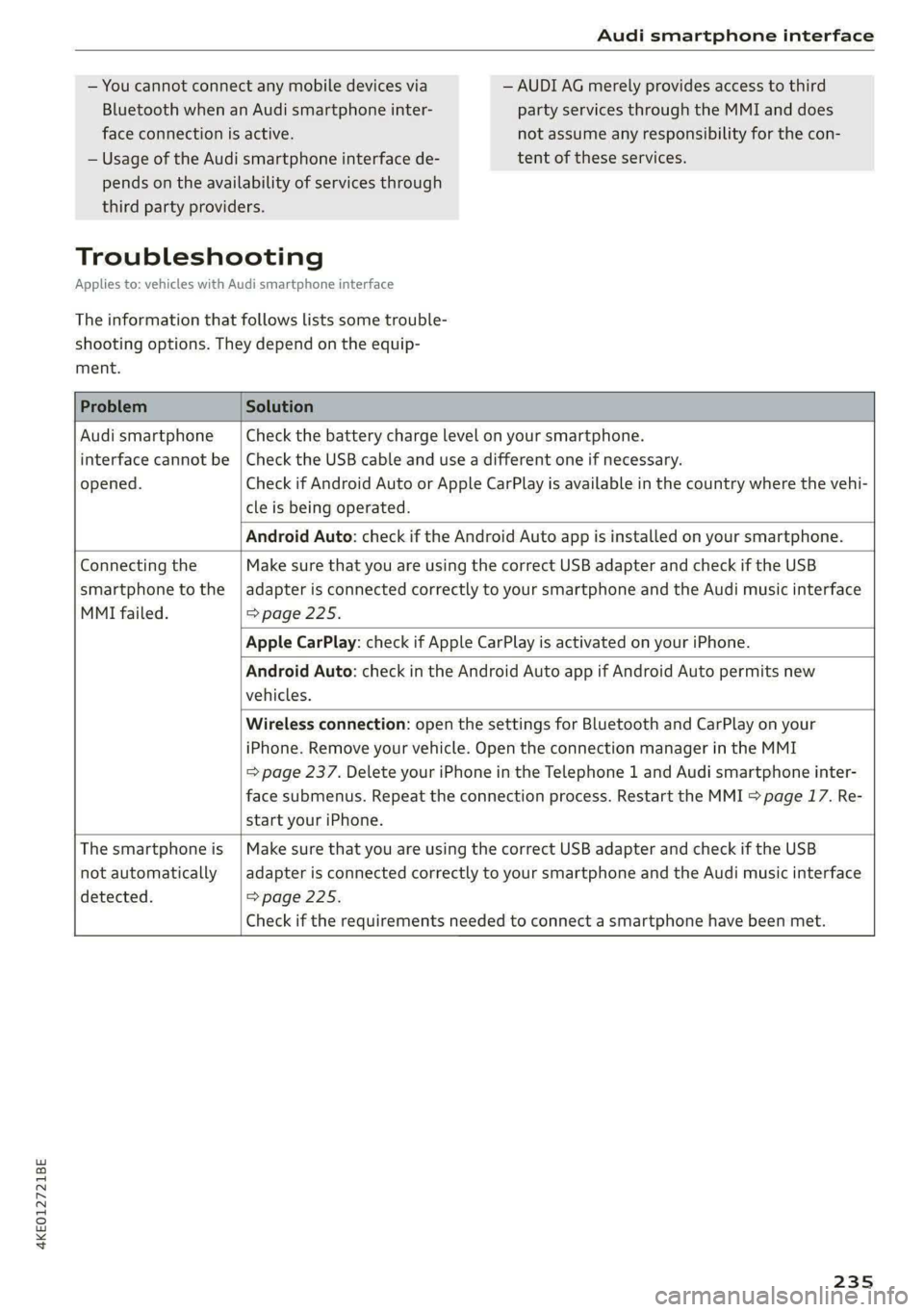
Troubleshooting
Applies to: vehicles with Audi smartphone interface
The information that follows lists some trouble-
shooting options. They depend on the equip-
ment.
— AUDI AG merely provides access to third
party services through the MMI and does
not assume any responsibility for the con-
tent of these services.
Problem Solution
Audi smartphone
opened.
cle is being operated.
Check the battery charge level on your smartphone.
interface cannot be | Check the USB cable and use a different one if necessary.
Check if Android Auto or Apple CarPlay is available in the country where the vehi-
Android Auto: check if the Android Auto app is installed on your smartphone.
Connecting the
MMI failed. =>page 225.
Make sure that you are using the correct USB adapter and check if the USB
smartphone to the | adapter is connected correctly to your smartphone and the Audi music interface
Apple CarPlay: check if Apple CarPlay is activated on your iPhone.
vehicles.
Android Auto: check in the Android Auto app if Android Auto permits new
start your iPhone.
Wireless connection: open the settings for Bluetooth and CarPlay on your
iPhone. Remove your vehicle. Open the connection manager in the MMI
=> page 237. Delete your iPhone in the Telephone 1 and Audi smartphone inter-
face submenus. Repeat the connection process. Restart the MMI > page 17. Re-
The smartphone is
not automatically
detected. >page 225.
Make sure that you are using the correct USB adapter and check if the USB
adapter is connected correctly to your smartphone and the Audi music interface
Check if the requirements needed to connect a smartphone have been met.
235
Page 242 of 316

Checking and Filling
Checking and Filling
Motor compartment
(eT r eeeuel ela)
Special care is required if you are working in the
motor compartment
For work in the motor compartment, such as
checking and filling fluids, there is a risk of in-
jury, scalding, accidents, and burns. For this
reason, follow all the warnings and general
safety precautions provided in the following in-
formation. The vehicle's motor compartment is
a dangerous area. > /A\.
Explanation of warnings (sticker in the motor
compartment):
Hot motor components!
@® Rotating parts!
The radiator fan can switch on at any
LB, time!
— The coolant expansion tank cap is equipped
with a seal that must never be removed un-
der any circumstances > page 243. If the
coolant expansion tank is not sealed, con-
tact an authorized Audi dealer or authorized
Audi Service Facility.
— The cap on the coolant expansion tank must
never be opened when the coolant is hot.
The cooling system is under pressure.
—To protect your face, hands, and arms from
hot steam or coolant, cover the cap with a
thick cloth when opening.
— All work on the battery or electrical system
in your vehicle can result in injuries, chemi-
cal burns, accidents, or burns. Because of
this, all work must be performed only by an
authorized Audi dealer or authorized Audi
Service Facility.
— Limit your exposure to chemicals to as short
a time as possible.
High voltage! The voltage in the high-
voltage system is high enough to cause
fatal injuries. Touching a damaged high-
voltage component can result in a fatal
electric shock.
Always follow the instructions in the op-
Cy erating manual.
ZA\ WARNING
— Switch the ignition off.
— Set the parking brake.
— Select the “P” (Park) selector lever position.
— Keep children away from the motor com-
partment.
— Never spill operating fluids in the motor
compartment.
— Avoid short circuits in the electrical system.
— Never open the hood when there is steam or
coolant escaping from the motor compart-
ment, because there is a risk that you could
be burned. Wait until no steam or coolant is
escaping.
— The cap on the coolant expansion tank may
only be opened by an authorized Audi dealer
ZA WARNING
The voltage in the high-voltage system is high
enough to cause fatal injuries. Touching a
damaged high-voltage component can result
in a fatal electric shock. The components in
the high-voltage system are marked with a
warning label which warns of the high-volt-
age.
— The voltage level in the high-voltage system
is still dangerous and potentially life-threat-
ening when the ignition is switched off.
— Never perform work on orange high-voltage
cables or on high-voltage components. Only
authorized repair facilities that are certified
may perform work on the high-voltage sys-
tem.
or authorized Audi Service Facility.
240
ZA\ WARNING
California Proposition 65 Warning:
— Engine exhaust, some of its constituents,
and certain vehicle components contain or
emit chemicals known to the State of Cali-
fornia to cause cancer and birth defects and
reproductive harm. In addition, certain flu-
ids contained in vehicles and certain prod-
ucts of component wear contain or emit