2020 AUDI E-TRON change wheel
[x] Cancel search: change wheelPage 145 of 316
4KE012721BE
Driver assistance
of the vehicle when necessary, for example by ap-
plying the brakes.
— Ifa vehicle that was already detected @ turns
or changes lanes, the system will react to the
vehicle ahead of it (2).
— When driving into a curve > fig. 104 and out of
a curve, the system may react to a vehicle in the
adjacent lane and apply the brakes. You can
override the system by pressing the accelerator
pedal briefly.
— The system works with the various sensors and
cameras in the vehicle. Vehicles can only be de-
tected once they are within the area and range
covered by the sensors > page 128, fig. 94.
— When driving around tight curves, a vehicle
driving ahead that was previously detected may
no longer be detected, and the adaptive cruise
assist may accelerate unexpectedly.
— The system does not react to a stationary vehi-
cle in the same lane if it expects that you can
easily drive around the stationary vehicle by
turning the steering wheel.
— The system cannot react to stationary objects,
such as vehicles at the end of a traffic jam, es-
pecially when traveling at high speeds.
— The system has a limited ability to detect
vehicles that are a short distance ahead, off to
the side of your vehicle, or moving into your
lane.
— Objects that are difficult to detect, such as mo-
torcycles, vehicles with high ground clearance,
or vehicles with an overhanging load, may be
detected late or not detected at all.
— The system does not respond to people, ani-
mals, or objects that are crossing or approach-
ing from the opposite direction.
ZA WARNING
Observe the safety precautions and note the
limits of the assist systems, sensors, and
cameras > page 127.
Display overview
Applies to: vehicles with adaptive cruise assist
3 g S
eS ee
RAZ-0396
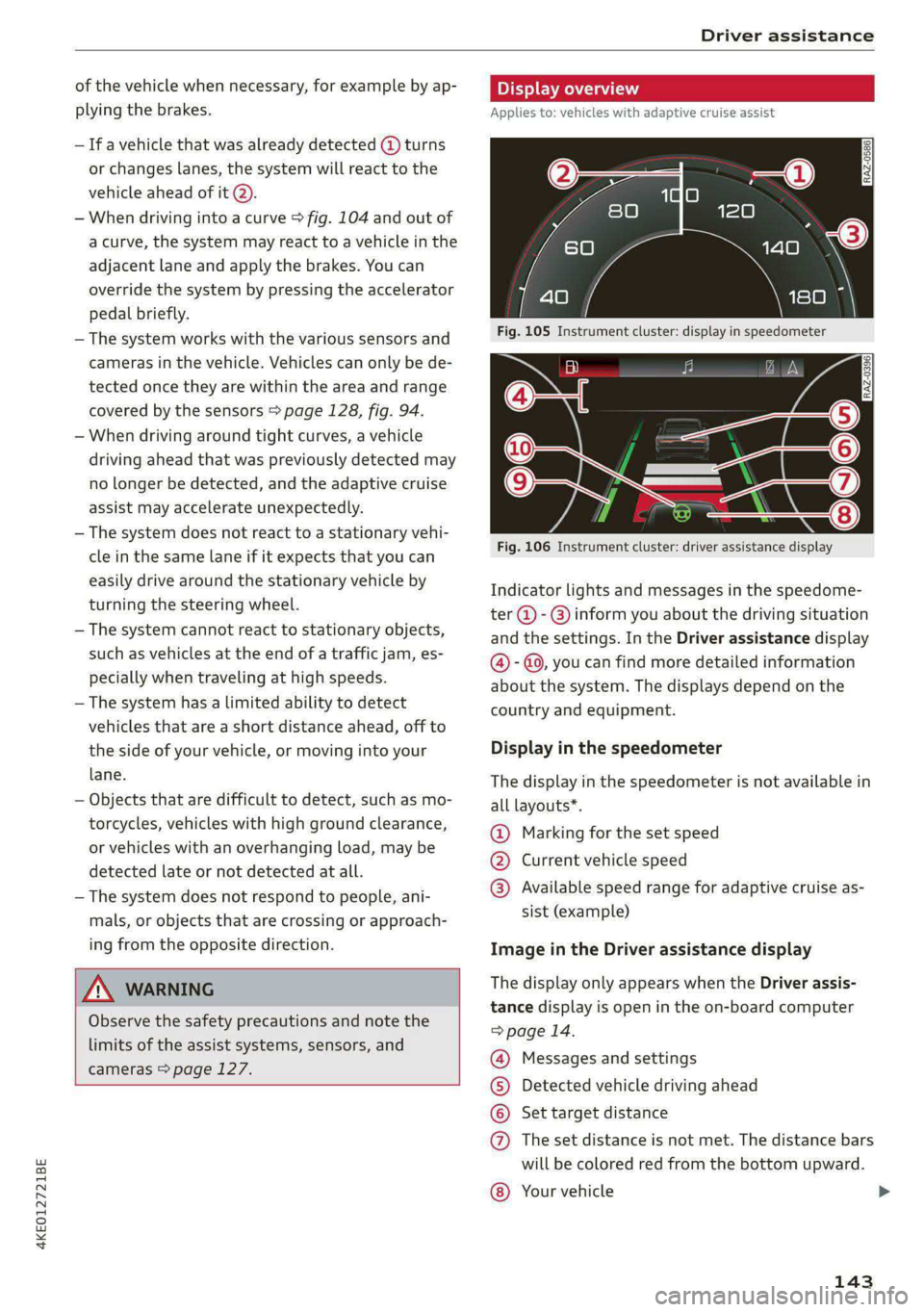
Fig. 106 Instrument cluster: driver assistance display
Indicator lights and messages in the speedome-
ter @ -@) inform you about the driving situation
and the settings. In the Driver assistance display
@ - @, you can find more detailed information
about the system. The displays depend on the
country and equipment.
Display in the speedometer
The display in the speedometer is not available in
all layouts*.
@ Marking for the set speed
@® Current vehicle speed
@® Available speed range for adaptive cruise as-
sist (example)
Image in the Driver assistance display
The display only appears when the Driver assis-
tance display is open in the on-board computer
=> page 14.
Messages and settings
Detected vehicle driving ahead
Set target distance
The set distance is not met. The distance bars
will be colored red from the bottom upward.
COO®
Your vehicle ©
143
>
Page 156 of 316

Driver assistance
Steering intervention request
If the lane departure warning intervenes multiple
times
when no steering activity is detected, the
steering intervention request will provide a warn-
ing using audio and visual signals. Take over the
steering and keep your hands on the steering
wheel so that you will be ready to steer at any
time. The system may no longer be ready to pro-
vide warnings after a short time, and it will only
become active again later.
If the driver does not take over steering, the lane
departure warning will no longer be ready to pro-
vide warnings. If the vehicle is equipped with
emergency assist and it is ready to function, it
will be activated > page 162.
Behavior when a turn signal is active
Applies to: Vehicles without side assist: The sys-
tem will not warn you before crossing a lane
marker line if you have activated the turn signal.
In this case, it assumes that you are changing
lanes intentionally.
Applies to: Vehicles with side assist: A noticeable
corrective steering movement will occur briefly
before the vehicle exits the lane if the turn signal
is activated, the lane departure warning is ready,
and a lane change has been classified as critical
by the system due to vehicles traveling beside
you or due to approaching vehicles. This will at-
tempt to keep your vehicle in the lane.
ZA WARNING
— Observe the safety precautions and note the
limits of the assist systems, sensors, and
cameras > page 127.
— The system warns the driver that the vehicle
is leaving the lane using corrective steering.
The driver is always responsible for keeping
the vehicle within the lane.
— Corrective steering may not occur at all in
certain situations, such as during heavy
braking. Always be ready to intervene.
0} Tips
— Always keep your hands on the steering
wheel so you can be ready to steer at any
time. The driver is always responsible for
154
adhering to the regulations applicable in
the country where the vehicle is being oper-
ated.
— The system does not provide any corrective
steering or steering wheel vibrations if it de-
tects that you are passing another vehicle.
ONT M nM TMC) yTa dee RN eaT Lae)
Applies to: vehicles with lane departure warning
The additional warning using vibration in the
steering wheel can be switched off or on. The set-
tings depend on the vehicle equipment.
— Applies to: MMI: Select on the home screen:
VEHICLE > Driver assistance >(<})> Lane de-
parture warning > Vibration warning.
Messages
Applies to: vehicles with lane departure warning
ra or A is displayed when there is a malfunc-
tion, the lane departure warning and lane guid-
ance functions of the adaptive cruise functions
may be unavailable or limited.
A message that indicates the cause and possible
solution
may appear with some displays. The
weather conditions may be too poor or the cam-
era may be covered. Clean the area in front of the
camera > page 129 and try to turn on the sys-
tems again later.
If the malfunction remains, drive to an author-
ized Audi dealer or authorized Audi Service Facili-
ty immediately to have the malfunction correct-
ed.
Audi pre sense
Introduction
Applies to: vehicles with Audi pre sense
Within the limits of the system, the Audi pre
sense functions can initiate measures in certain
driving situations to protect the vehicle occu-
pants and other road users. Depending on the ve-
hicle equipment, various Audi pre sense systems
may
be installed:
— Audi pre sense basic can react during emergen-
cy and dangerous braking maneuvers and
Page 172 of 316

Parking and maneuvering
Symbol/Descrip-
tion
Description
psp
Switch between 3D surroundings and Surroundings
Front corner
or display the selec-
tion bar
This view makes it easier to drive out of tight parking spaces or areas and
intersections with poor visibility. It shows an almost 180° panorama view
in front of the vehicle.
Front
This view assists you in using the full area for maneuvering in front of the
vehicle.
Surroundings
This view helps you to maneuver and position the vehicle more precisely.
The area around the vehicle is shown using the camera images. The vehi-
cle image is shown by the system > A\.
Rear
This view assists you in using the full area for maneuvering behind the ve-
hicle. This is the rearview camera image.
Rear corner
This view can assist you when driving out of tight parking spaces or areas
with poor visibility. It shows an almost 180° panorama view behind the
vehicle.
Front tires
This view helps you to see the distance between the front tires and the
curb and the steering wheel angle when parking.
Rear tires
This view helps you to detect the distance between the rear wheels and
the curb when parking.
3D surroundings
In these views, you can see the areas surrounding the vehicle in 3D when
parking. The vehicle surrounding views are created from the camera im-
©f$;/@/e|
®
|o/e
|e]
e@
|e
ages and sensor data. The vehicle image is shown by the system > A\.
ZA\ WARNING
— Observe the safety precautions and note the
limits of the assist systems, sensors, and
cameras > page 127.
— The Surroundings and 3D surroundings are
created from the individual camera images.
The vehicle image is shown by the system.
Objects and obstacles above the camera are
not displayed.
@) Note
Only use the images provided by the camera
on the rear of the vehicle when the luggage
compartment lid is completely closed. Make
sure any objects you may have mounted on
the luggage compartment lid do not block the
rearview camera.
@) Tips
— Depending on the selected gear, it will auto-
matically switch between the Front and
170
Rear views. If you switch the view manually,
the automatic front/rear camera change will
be temporarily deactivated.
— When first activated while a forward gear is
engaged, the Front corner is displayed.
Page 199 of 316

4KE012721BE
Navigation
Navigation
Opening navigation
Applies to: vehicles with navigation system
Fig. 139 Upper display: standard map: route guidance is
not started
The navigation system directs you to your desti-
nation, around traffic incidents, and on alterna-
tive routes, if desired.
Opening navigation
» Applies to: MMI: Press NAVIGATION on the
home screen.
After accessing the navigation for the first time,
the map is displayed.
Opening navigation using the multifunction
steering wheel
> Applies to: Multifunction steering wheel: Select
the Navigation tab in the instrument cluster.
> To display navigation when route guidance has
started, select in the instrument cluster:
button > Map.
The following functions are available in the MMI:
@ Open the Select destination menu
=> page 198, fig. 140.
@ Open intelligent search directly > page 198.
@ Switch between the map and the menu:
press A repeatedly until the desired function
is displayed.
You can find additional information about the
map update at > page 204, Map operation.
A WARNING
— The demands of traffic require your full at-
tention. Always read the chapter > page 17,
Traffic safety information.
—The route calculated by the navigation sys-
tem is a driving recommendation. Follow
the traffic regulations that are applicable in
the country where you are operating the ve-
hicle. In the event that the driving directions
contradict traffic regulations, always follow
the traffic regulations applicable in the
country where you are operating the vehicle
to reduce the risk of an accident.
@) Note
Read the information about Audi connect, and
be sure to note the connectivity costs section
=>©) in General information on page 187.
— Snow and obstructions on the GPS antenna
or trees and large buildings can impair sat-
ellite reception and affect the system's abil-
ity to determine the vehicle position. Sever-
al deactivated or malfunctioning satellites
can also interrupt GPS reception and affect
the system's ability to determine the vehicle
position.
— Because street names sometimes change,
the names stored in the MMI may in rare
cases differ from the actual street name.
— Applies to: Multifunction steering wheel:
Depending on the selected function, it may
be necessary to use the upper display.
— Applies to: vehicles with Audi connect Info-
tainment: Other services may be available
depending on the country and vehicle equip-
ment.
— An additional indicator will appear in the
head-up display.
myAudi navigation
Applies to: vehicles with Audi connect Infotainment
MMI navigation works seamlessly with the myAu-
di app.
Your destinations (favorites, last destinations)
are synchronized through your myAudi account.
Allimportant destinations can be displayed in
the vehicle and in the myAudi app.
197
Page 202 of 316

Navigation
Changing and loading a previous destination
> Applies to: MMI: Select on the home screen:
NAVIGATION > (88) > Last destinations > Z >
& > Change address > Use address > Start.
Restore last tour
Requirement: a route with at least two stopovers
must have already been canceled.
Your last route is labeled with the © symbol.
» Applies to: MMI: Select on the home screen:
NAVIGATION > (Gs) > Last destinations > Re-
store last tour. Route guidance will start imme-
diately.
Deleting previous destinations
» Applies to: MMI: Select on the home screen:
NAVIGATION > (G8) > Last destinations > Z >
one or more entries or Select all > Delete >
(Done).
@ Tips
The last route will be automatically deleted
from the list if you start a new route guidance
after canceling the route.
Setting a favorite as the destination
Applies to: vehicles with navigation system
You can access frequent destinations in the favor-
ites. You can quickly and easily start route guid-
ance using the home address or business address
function.
Requirement: a favorite must be stored
=> page 206.
» Applies to: MMI: Select on the home screen:
NAVIGATION > (Gs) > Favorites > a destination
> Start. Or
> Applies to: Multifunction steering wheel: Select
in the instrument cluster: Navigation tab >
button > Favorites > a destination.
POIs (Online Points of Interest)
Applies to: vehicles with a navigation system and Audi con-
nect Infotainment
Search for points of interest such as restaurants.
If the MMI is connected to the Internet, points of
200
interest will be automatically included in the
search.
> Applies to: MMI: Select on the home screen:
NAVIGATION > (&a) > Points of interest.
The system always searches in the search area
that is currently selected > table on page 200.
> Searching for points of interest: enter the
name of a POI.
> Searching for a point of interest in a specific
category: Select: a category (for example, res-
taurants) > a point of interest.
> Changing the search area: Requirement: route
guidance must be active. Press (4)/2:9/B! repeat-
edly until the desired search area > table on
page 200 is selected.
Sorting points of interest
Requirement: the MMI must be connected to the
Internet > page 187, Audi connect. You must
have a category selected.
> Press on the respective symbol for sorting until
the desired sorting order is selected.
Search areas in detail
Symbol Description
7) Search nearby
£9 Search along the route
a Search at destination/Search at
stopover
Search nearby: the points of interest will be list-
ed starting from the immediate vicinity around
the vehicle position.
Search along the route: points of interest along
the route can only be selected during active route
guidance. The points of interest are located di-
rectly along or in the immediate vicinity of the
calculated route. You can select points of interest
from various categories. For example, you can
search for a hotel or parking lot along route.
Search at destination/Search at stopover: points
of interest near a destination or a stopover can
only be selected during active route guidance.
You can select points of interest from various cat-
egories. For example, you can search for a hotel
or parking lot at the destination.
Page 213 of 316

4KE012721BE
Navigation
Requirement: the MMI must be connected to the
Internet > page 187, Audi connect. Traffic infor-
mation must be switched on in the MMI
> page 211.
Traffic information will be displayed on the
standard map > page 203, fig. 142.
Online traffic information is also displayed on the
standard map > page 208.
©) Note
Read the information about Audi connect, and
be sure to note the connectivity costs section
=@ in General information on page 187.
@ Tips
— Having the online traffic information func-
tion switched on provides the most accurate
reports of traffic situations and traffic fore-
casting. Your vehicle transmits and process-
es its anonymous, encrypted position infor-
mation at regular intervals to the traffic da-
ta provider. You can switch off data transfer
at any time > page 289.
— The online traffic information network is
not available in all countries, and the cover-
age is not nationwide.
Options and settings
Applies to: vehicles with navigation system
Context-specific functions and settings may be
available depending on the vehicle equipment.
» Press More, or
> Open a list with navigation destinations (such
as recent destinations) and press and hold an
item until the Options menu is displayed.
Storing a favorite
See > page 206.
Edit address
You can edit an address for the next destination
entry and navigate to the destination. Select: Ed-
it address > enter a street > Use address > Start.
If the address is permanently stored (for exam-
ple, in the favorites), the stored entry will not be
changed.
Change address
See > page 206, Favorites.
Entering an address
See > page 207, Contacts as navigation destina-
tions.
Change name
See > page 206, Favorites.
Weather
See > page 189, Services.
Save as a shortcut
See > page 20, Shortcuts.
Applies to: vehicles with navigation system
You can adjust the navigation system settings in
the instrument cluster and in the MMI display
separately. The settings depend on the country
and vehicle equipment.
Accessing settings
> Applies to: MMI: Select on the home screen:
NAVIGATION > ©}.
Accessing settings using the multifunction
steering wheel
> Applies to: Multifunction steering wheel: Select
in the instrument cluster: Navigation tab >
button.
Please note that a setting applied to the multi-
function steering wheel is only valid for the in-
strument cluster map.
Map settings
Satellite map: see > page 208.
Show range: see > page 208.
Traffic: you can display current traffic informa-
tion on the map. See > page 204, Traffic infor-
mation display on the map or map preview
— Free flow of traffic
211
Page 228 of 316

— Pull the cable out of the Audi music inter-
face carefully so that the USB ports are not
damaged.
— Use a USB extension cable to connect devi-
ces that have an integrated USB connector
(such as a USB stick) to reduce the risk of
damage to your USB device and the Audi
music interface.
— Extremely high or low temperatures that
can occur inside vehicles can damage mobile
devices and/or impair their performance.
Never leave mobile devices in the vehicle in
extremely high or low temperatures.
@ Tips
— Always follow the information found in
=> page 75.
— When you switch the ignition off, the USB
ports are still supplied with power until the
energy management intervenes.
— Do not use an additional adapter or USB ex-
tension cable to connect mobile devices to
the Audi music interface that already have a
cable or that must be connected with a USB
adapter > page 225, fig. 152. Using an ad-
ditional adapter or US extension cable may
impair functionality.
— Functionality is not guaranteed for mobile
devices that do not conform to the USB 2.0
specification.
— USB hubs are not supported.
— Video playback through the Audi music in-
terface is not supported on Apple and MTP
devices (such as smartphones).
— iPod or iPhone malfunctions also affect the
operation of the MMI. Reset your mobile de-
vice in these situations.
— Audi recommends updating the iPod or
iPhone software to the latest version. Refer
to your mobile device owner's manual for
more information.
— The USB adapter on the Audi music inter-
face will support iPod touch or iPhone devi-
ces from the 5th generation or newer with
the lightning connector.
226
—Aselection of supported devices can be
found in the database for tested mobile de-
vices at www.audi.com/mp3.
Playing media
The following sources can be selected depending
on the vehicle equipment:
— Amazon Alexa > page 225.
-—SD card > page 222.
— USB > page 225.
— DVD drive > page 223.
— Connect external device: you can connect ex-
ternal devices via Bluetooth and use the Blue-
tooth audio player > page 223, or you can con-
nect
an external device directly to the Audi mu-
sic interface > page 225.
— Connect online media > page 224.
PN matte)
Playing media files using the MMI
> Applies to: MMI: Select on the home screen:
MEDIA > Source > a source. Depending on the
connected device or online media service*, the
symbol for a source may change. The device
name may be displayed (for example: my-
Phone).
> Select a track from the categories in the media
center > page 227.
Playing media files using the multifunction
steering wheel
Requirement: a media drive must contain media
files > page 226.
> Select the Radio/Media tab using the multi-
function steering wheel.
> Turn the left thumbwheel to display the play-
list.
> To switch to a different source, press the
button.
> To select a media file or a source, turn and
press the left thumbwheel.
> To switch between radio and media, select:
button > Switch to radio/Switch to media. >
Page 229 of 316

4KE012721BE
Media
@) Tips
— For safety reasons, the video image is only
displayed when the vehicle is stationary. On-
ly the sound from the video plays while driv-
ing.
— Applies to: Multifunction steering wheel:
Depending on the selected function, it may
be necessary to use the MMI.
Media center
3 g
S
Ig es
Fig. 153 Upper display: media center view
Various categories are available in the media cen-
ter for selecting media files or browsing through
media sources.
You can browse through your music collection us-
ing the categories in the media center, such as al-
bums. You can browse through the active source
or any available source (for example, an SD card).
While browsing through the media center, the
music from the active source will continue to
play.
Opening the media center
> Applies to: MMI: Searching any source: select
on the home screen: MEDIA > Source > a
source > a category.
> Searching through the active source: select in
the playback view > page 228: a8 > a category.
@ Source symbol
The system will display the symbol for the source
that is currently being searched. Depending on
the connected device or online media service”,
the symbol for a source may change. As an exam-
ple, a USB stick is shown connected to the Audi
music interface.
@ Source device name
The system will display the device name of the
source that is currently being searched.
@ Categories
The media center will display categories depend-
ing on the connected device, the selected source
content, and the connection type. The search is
limited to the active source.
Search
If a source supports the search, then the catego-
ry is displayed > page 230.
Last played track
The last played media file will be played.
Artists
All available artists are displayed.
>» Select: an artist > an album > a song.
Playlists
All playlists and smart playlists in the source are
displayed.
> Select: a playlist > a song.
Smart playlists
Last played tracks: the tracks that were dis-
played last are displayed.
Most played tracks: the tracks that are played
most frequently are displayed.
Directories
The folder structure or track/chapter list is dis-
played.
> Select: a folder > a song.
Compilations
You can control your playlists through the MMI.
> Select: a playlist > a song.
Composers
All available composers are displayed.
> Select: ad composer > an album > a song.
227