2020 AUDI A6 instrument cluster
[x] Cancel search: instrument clusterPage 151 of 316

4K0012721BD
Driver assistance
slowly, to reduce the risk of your vehicle colliding
with an oncoming vehicle when you are making a
left turn. The braking intervention causes your
vehicle to stay in its lane. The function is only
available when the turn signal is turned on and at
speeds up to maximum of 6 mph (10 km/h).
Z\ WARNING
— Follow the safety precautions and note the
limits of the assist systems, sensors, and
cameras > page 118.
— The turn assist does not react to pedes-
trians, animals, crossing objects, and ob-
jects not detected as vehicles.
@) Tips
— System functions may not be available if the
ESC is limited or switched off, or if there is a
malfunction.
— An indicator in the instrument cluster will
inform you when there is an intervention.
Adjusting Audi pre sense
Applies to: vehicles with Audi pre sense
The system can be switched on and off in the
MMI & page 121.
You can adjust the Audi pre sense functions to
your preferences. The settings depend on the ve-
hicle equipment.
> Applies to MMI: Select on the home screen: VE-
HICLE > Driver assistance > (23) > Audi pre
sense.
Possible settings:
— Turn assist
— Swerve assist
Prewarning”) - The prewarning can be switched
off or the Audi pre sense warning time can be set
(Early/Medium/Late).
Set the warning time for the early warning to
Early at first. If you feel that the prewarnings ap-
pear too early, then set the warning time to Me-
D_ In certain countries
dium. The Late warning time should only be set
in special circumstances.
G) Tips
— Switch Audi pre sense off when you are not
using public streets, when loading the vehi-
cle onto a vehicle carrier, train, ship, or oth-
er type of transportation, or when towing
the vehicle. This can help to prevent an un-
desired intervention from the Audi pre
sense system.
—If the system is switched off, it switches on
again automatically once the ignition is
switched on again).
— Certain settings are stored automatically in
the active personal profile.
Messages
Applies to: vehicles with Audi pre sense
re or s displayed when there is a malfunc-
tion, the Audi pre sense functions may be un-
available or may be limited.
A message that indicates the cause and possible
solution may appear with some displays. The
weather conditions may be too poor or a sensor
may be covered. Clean the area in front of the
sensors > page 120 and try to turn on the sys-
tems again later.
If the malfunction remains, drive to an author-
ized Audi dealer or authorized Audi Service Facili-
ty immediately to have the malfunction correct-
ed.
149
Page 155 of 316

4K0012721BD
Driver assistance
Intersection assistant
Applies to: vehicles with intersection assistant
o D
oS
& > &
ao
Fig. 120 Instrument cluster: directional display from the
intersection assistant
General information
The intersection assistant can warn the driver of
approaching cross traffic in complex intersections
> fig. 119.
The system monitors intersections and exit
ramps using the sensors installed in the vehicle
that detect the front and side areas around the
vehicle. Moving objects that are approaching
from behind, such as cars, are detected within
the limits of the system > A\. The system can al-
so warn the driver of a potential collision with de-
tected approaching cross traffic in intersections
and exit ramps with poor visibility.
Requirements for using the intersection
assistant:
— The speed must not be higher than approxi-
mately 18 mph (30 km/h).
— The “D” gear is selected.
Displays, warnings, and braking
— Display: the red arrow (@) can indicate the direc-
tion from which the cross traffic is approaching.
The indicator in the upper display only appears
when the parking aid is activated. For vehicles
with peripheral cameras only in the Front and
Front corner camera views. The display only ap-
pears in the instrument cluster > fig. 120 when
the Driver assistance display is open in the on-
board computer > page 16.
— Warnings: the message Cross traffic! © can
warn you of critical cross traffic when driving
forward. There may also be an audible signal.
— Automatic brake activation: if you do not react
to a warning, a brief braking by the system can
warn you of a potential collision with an ap-
proaching object when driving forward at
speeds up to approximately 6 mph (10 km/h).
Switching the intersection assistant on and
off
— The system can be switched on and off in the
MMI & page 121.
Messages
If Ey, or > is displayed when there is a mal-
function, the intersection assistant functions
may be unavailable or may be limited.
A message that indicates the cause and possible
solution may appear with some displays. The
weather conditions may be too poor or a sensor
may be covered. Clean the area in front of the
sensors > page 120 and try to turn on the sys-
tems again later.
If the malfunction remains, drive to an author-
ized Audi dealer or authorized Audi Service Facili-
ty immediately to have the malfunction correct-
ed.
Z\ WARNING
— Follow the safety precautions and note the
limits of the assist systems, sensors, and
cameras > page 118.
— The intersection assistant will not provide
alerts about people and cannot warn you
about every type of approaching objects,
such as cyclists. Always monitor the traffic >
153
Page 157 of 316

4K0012721BD
Driver assistance
— Follow the safety precautions and note the
limits of the assist systems, sensors, and
cameras > page 118.
— The emergency assist is an assist system
that should only be used in cases of emer-
gency to take over control of the vehicle and
bring it to a stop.
— Depending on the severity of the detected
situation, not all safety measures will be ini-
tiated. Certain functions can be adjusted or
skipped if necessary.
— If the emergency assist was triggered, it will
only be available again after a brief period.
— Certain settings are stored automatically in
the active personal profile.
— An indicator in the instrument cluster will
inform you when there is an intervention.
155
Page 170 of 316

Telephone
— You can purchase a USB adapter from an au-
thorized Audi dealer or authorized Audi
Service Facility, or at specialty stores.
— Audi recommends using Audi Genuine Ac-
cessories. Audi has verified their reliability,
safety, and suitability.
Using the telephone
Accessing the telephone functions
Applies to: vehicles with telephone
6: NS ad
| iN a 3)
ic (inant
a) | ac)
Fig. 130 Upper display: selection menu
Requirement: a mobile device must be connected
to the MMI > page 164.
> Applies to: MMI: Select on the home screen:
PHONE.
The following phone functions will be available:
@ Search
@ Calllist 0.00.0... eee 168
GY Presets civic 2 x ssesocs a oxsce vw astm ¥ 169
B®; COMtACtS cams za ene x » eeu ee ep 169
® Voicemail ..................00. 170
© Dialnumber ...............000 170
@ Switching between two mobile de-
VIGES sesvaus x % soasces oa exeaene v % anstine Wn 174
Selected phone functions are also available in the
instrument cluster > page 175.
168
Coy y rem ae] Ue
Applies to: vehicles with telephone
Call list @-- ec3
Se ea “@ Pate}
Peace ean eeeS Be)
Albert, Simon (3)
Pe ee aed ErEn
Albinson, Mary (2)
POL a te}
Petes}
(0) (0)
PEC ue RPE Ly PL) @
PAU eta) Pate} (5)
Mobile 001712345678 1:50PM
Fig. 131 Upper display: call list
Requirement: the call list must contain a phone
number.
> Applies to: MMI: Select on the home screen:
PHONE > Call list.
Possible call list symbols:
Missed calls
Dialed numbers
Received calls
Edit call list
Displaying a business card ....... 169
Number of interactions with a con-
tact
©OOOCOLO
If more than one interaction with a contact has
already taken place, the last one is always dis-
played in the form of an arrow (), 2) or ).
Press and hold a contact or a phone number in
the list until the Options menu appears. Depend-
ing on your mobile device, the following options
may be available:
— Save as a shortcut > page 23, Shortcuts.
— Edit telephone number: edit a phone number
before dialing it. Press Dial and start the call.
— Show history*: Requirement: you must have al-
ready had more than one interaction with a
contact. All interactions with a contact or a
number are displayed.
— Store as favorite > page 169.
— Send text message > page 171.
— Send e-mail > page 173.
@) Tips
The call list can only be edited via the MMI.
Page 177 of 316

4K0012721BD
Telephone
—To delete all paired Bluetooth devices, the
Bluetooth function can be reset to the fac-
tory default settings > page 224.
Directory settings
Applies to: vehicles with telephone
> Applies to: MMI: Select on the home screen:
PHONE > Contacts > ©}.
Switching between two mobile devices
Requirement: telephone 1 and telephone 2 must
be connected.
Switch telephones: the device name of the avail-
able mobile device is displayed. You can switch
the phone by pressing the button.
The directory for the selected phone will be dis-
played.
Hide grayed-out contacts
When this function is switched on, contacts that
have no phone numbers stored for them will be
hidden.
Sort order
You can sort the contacts by Last name or First
name.
Download contacts
Requirement: a mobile device must be connected
to the MMI.
To update the contacts in the MMI, you can man-
ually download your mobile device contacts. De-
pending on the mobile device, you may need to
disconnect and reconnect the Bluetooth connec-
tion to update the contacts.
Memory capacity
You can manage up to 23,000 contacts. You can
also download up to 5,000 contacts from maxi-
mum four mobile devices. You can also import up
to 3,000 contacts from a storage medium.
Importing and exporting contacts
Requirement: an SD card must be in the SD card
reader* > page 209 or a USB storage device must
be connected to the Audi music interface
=> page 212.
Contacts in vCard format (.vcf) can be imported
or exported from the MMI.
— Applies to: MMI: Importing contacts from a
storage medium: Select: Import contacts >
Search for import data > SD card 1 or USB de-
vice 1/USB device 2 > desired contacts or Se-
lect all contacts > Start import.
— Applies to: MMI: Exporting contacts to a stor-
age device: Requirement: Only previously im-
ported contacts can be exported. Select: Export
contacts > Find source for exporting > SD card
1 or USB device 1/USB device 2 > desired con-
tacts or Select all contacts > Start export.
@ Tips
— For more information about the myAudi ac-
count, visit my.audi.com.
— The imported contacts are stored in the lo-
cal MMI memory.
— Contacts that were downloaded from a mo-
bile device cannot be exported.
— There should be no other files or folders on
the storage medium containing the contacts
to be imported.
— Apple devices and MTP devices (such as
smartphones) are not recognized as USB
storage devices.
Mobile phone network settings
Applies to: vehicles with telephone
> Applies to: MMI: Select on the home screen:
SETTINGS > Connection settings > Mobile
phone network.
Switching the car phone or data module on
Applies to: vehicles with car phone/data module
See > page 174.
Instrument cluster
Telephone
Applies to: vehicles with multifunction steering wheel and
telephone
In the instrument cluster display, you can control
the MMI functions with the multifunction
175
>
Page 178 of 316

Telephone
steering wheel. Operating > page 13 and
=> page 29, Additional function buttons.
Requirement: the Telephone tab must be select-
— Favorites: Requirement: favorites must be stor-
ed in the MMI.
— Switch telephones: Requirement: two cell
ed in the instrument cluster.
> Press the [=] button.
Possible options:
— Call list: Requirement: the call list must con-
tain a phone number.
Troubleshooting
Applies to: vehicles with telephone
phones must be connected to the MMI.
— Back to call: Requirement: there must be a call
in progress.
(i) Tips
Depending on the selected function, it may be
necessary to use the MMI.
The information that follows lists some trouble-
shooting options. They depend on the equip-
ment.
Problem Solution
Pairing the mobile device to the
MMI failed.
Make sure the requirements for connecting a mobile phone have
been met > page 164, or
make sure you did not accidentally decline the PIN for establishing
a connection on your mobile phone. If necessary, repeat the pair-
ing process > page 164.
After pairing, not all contacts or
no contacts have been loaded in-
to the MMI.
Avoid using special characters in names.
Avoid using contact groups on your mobile phone.
Check for prompts on your mobile device when connecting via
Bluetooth.
Certain telephone functions are
grayed out or not available.
The telephone functions depend on the mobile device service pro-
vider and the mobile device you are using.
Some telephone functions may
be switched off or not available,
even though the mobile device is
supported.
Check if the Bluetooth settings on your cell phone are limited or
individual Bluetooth settings are deactivated. This may be the
case with business cell phones.
Wireless cell phone charging is
not working or is interrupted.
Check if wireless charging with the Audi phone box is switched on.
Check if your mobile device is Qi-capable.
Check if your mobile device is positioned correctly in the Audi
phone box > page 166 and no other objects are between them.
The MESSAGES menu is not avail-
able.
Check if the Show messages option is on your mobile device and it
is enabled.
176
Page 187 of 316
4K0012721BD
Navigation
Navigation
Opening navigation
Applies to: vehicles with navigation system
The navigation system directs you to your desti-
nation, around traffic incidents, and on alterna-
tive routes, if desired.
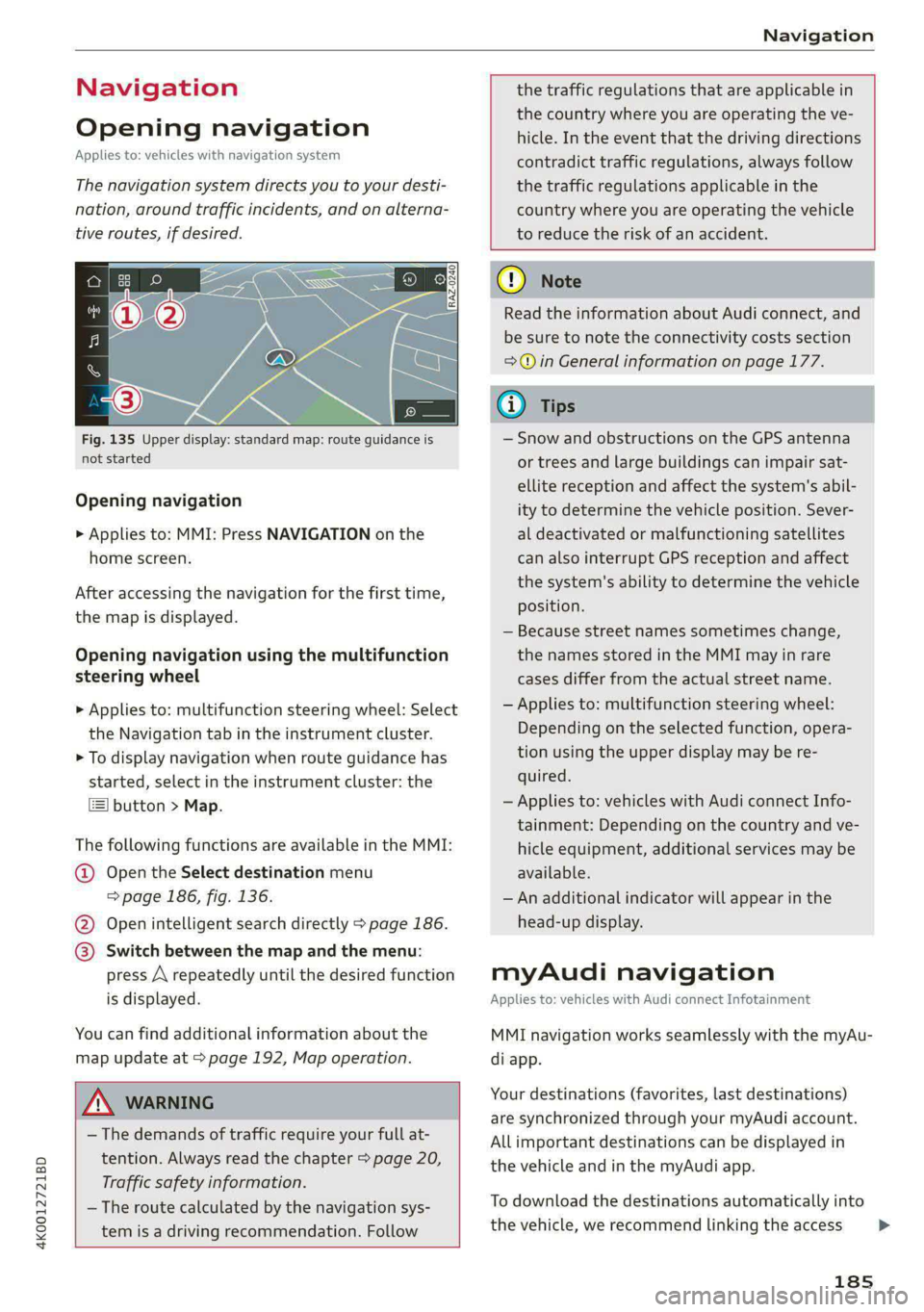
Fig. 135 Upper display: standard map: route guidance is
not started
Opening navigation
> Applies to: MMI: Press NAVIGATION on the
home screen.
After accessing the navigation for the first time,
the map is displayed.
Opening navigation using the multifunction
steering wheel
> Applies to: multifunction steering wheel: Select
the Navigation tab in the instrument cluster.
> To display navigation when route guidance has
started, select in the instrument cluster: the
button > Map.
The following functions are available in the MMI:
@ Open the Select destination menu
=> page 186, fig. 136.
@ Open intelligent search directly > page 186.
@ Switch between the map and the menu:
press A repeatedly until the desired function
is displayed.
You can find additional information about the
map update at > page 192, Map operation.
the traffic regulations that are applicable in
the country where you are operating the ve-
hicle. In the event that the driving directions
contradict traffic regulations, always follow
the traffic regulations applicable in the
country where you are operating the vehicle
to reduce the risk of an accident.
ZX WARNING
— The demands of traffic require your full at-
tention. Always read the chapter > page 20,
Traffic safety information.
— The route calculated by the navigation sys-
tem is a driving recommendation. Follow
@) Note
Read the information about Audi connect, and
be sure to note the connectivity costs section
=> in General information on page 177.
iG) Tips
— Snow and obstructions on the GPS antenna
or trees and large buildings can impair sat-
ellite reception and affect the system's abil-
ity to determine the vehicle position. Sever-
al deactivated or malfunctioning satellites
can also interrupt GPS reception and affect
the system's ability to determine the vehicle
position.
— Because street names sometimes change,
the names stored in the MMI may in rare
cases differ from the actual street name.
— Applies to: multifunction steering wheel:
Depending on the selected function, opera-
tion using the upper display may be re-
quired.
— Applies to: vehicles with Audi connect Info-
tainment: Depending on the country and ve-
hicle equipment, additional services may be
available.
— An additional indicator will appear in the
head-up display.
myAudi navigation
Applies to: vehicles with Audi connect Infotainment
MMI navigation works seamlessly with the myAu-
di app.
Your destinations (favorites, last destinations)
are synchronized through your myAudi account.
All important destinations can be displayed in
the vehicle and in the myAudi app.
To download the destinations automatically into
the vehicle, we recommend linking the access
185
>
Page 189 of 316

4K0012721BD
Navigation
Requirement: the MMI must be connected to the
Internet > page 177, Audi connect.
> Applies to: MMI: Select on the home screen:
NAVIGATION > © > G.
> Enter one or more search terms into the input
field.
> The search engine provider shows suggestions
to narrow down the search.
> Press on suggestions until the desired destina-
tion appears in the results list. If necessary, use
one finger to swipe upward or downward until
the suggestions © or destinations appear.
> Press on the desired destination 9. The Details
menu will be displayed.
> Press Start.
Route guidance will be activated and the map will
be displayed. > page 191, fig. 138
() Note
Read the information about Audi connect, and
be sure to note the connectivity costs section
=>@ in General information on page 177.
@) Tips
— The MMI input suggestions depend on the
last navigated destinations.
— The navigation system always searches for
the fastest route. You can have alternative
routes displayed if necessary > page 193.
— If the destination cannot be found, it may
not be stored in the navigation database.
Check
the spelling of the term that was
searched or check the search area
> page 186.
Entering an address
Applies to: vehicles with navigation system
As an alternative to the intelligent search, you
can also enter an address in stages.
Opening a menu
> Applies to: MMI: Select on the home screen:
NAVIGATION > (G5) > Enter address.
Enter a destination using an address
> Press on the respective input field and enter an
address.
> Press Apply. The Details menu will be dis-
played.
> Press Start.
Route guidance will be activated and the map will
be displayed > page 191, fig. 138.
Destination entry for a street intersection
> Select: Intersection > enter a street > Start.
Loading previous destinations
Applies to: vehicles with navigation system
Your last destinations and routes can be loaded
directly as a navigation destination.
As soon as you start route guidance, the destina-
tion is automatically saved in the last destina-
tions. Your previous destinations are marked with
the © symbol.
If you use myAudi navigation, your previous des-
tinations will be synchronized with your myAudi
account > page 185.
Accessing previous destinations
> Applies to: MMI: Select on the home screen:
NAVIGATION > (8) > Last destinations > select
a desired destination > Start.
> Applies to: multifunction steering wheel: Select
in the instrument cluster: Navigation tab >
button > Last destinations > desired destina-
tion.
Changing and loading a previous destination
> Applies to: MMI: Select on the home screen:
NAVIGATION > (Ge) > Last destinations > Z >
Z > change the address > Use address > Start.
Restore last tour
Requirement: a route with at least two stopovers
must have already been canceled.
Your last route is labeled with the © symbol.
187
>