2020 AUDI A4 steering wheel
[x] Cancel search: steering wheelPage 191 of 296
![AUDI A4 2020 Owners Manual 8W1012721BB
Radio
@) Tips
Applies to: multifunction steering wheel: De-
pending on the selected function, operation
through the MMI may be required.
Radio functions
Leta Tan]
[RAX-0143}](/manual-img/6/57558/w960_57558-190.png "AUDI A4 2020 Owners Manual 8W1012721BB
Radio
@) Tips
Applies to: multifunction steering wheel: De-
pending on the selected function, operation
through the MMI may be required.
Radio functions
Leta Tan]
[RAX-0143}")
8W1012721BB
Radio
@) Tips
Applies to: multifunction steering wheel: De-
pending on the selected function, operation
through the MMI may be required.
Radio functions
Leta Tan]
[RAX-0143}
Fig. 152 Center display: left side: playback view of radio functions, right side: sources
Operating
> Applies to: MMI: To open the playback view @),
select on the home screen: RADIO > Source > a
category > a station/podcast*.
The following functions may be available depend-
ing on the selected radio station/podcast* and
the vehicle equipment:
> Applies to: MMI: To open the sources (2), select
on the home screen: RADIO > Source.
Station logo
Symbol/Description Description
® Source Displays sources in the Radio menu.
@ Ws See > page 190.
® & Settings > page 193.
© The station logo will be displayed.
Depending on availability, you can switch between the image views:
press on the station logo. Use one finger to swipe to the right or left
to switch between the Station logo and Cover art (album cover). Al-
so see > page 193, Online additional data.
@ = Go back one level.
Search See > page 190.
© Last stations See > page 190.
Presets See > page 190.
@ FM Displays stations from the FM frequency band.
® Online See > page 191.
® SiriusXM Displays stations from the SiriusXM frequency band.
189
Page 199 of 296
Media
8W1012721BB
— Extremely high or low temperatures that Playi ng media
can occur inside vehicles can damage mobile
devices and/or impair their performance. SES
Never leave mobile devices in the vehicle in
extremely high or low temperatures. The following sources can be selected depending
on the vehicle equipment:
G) Tips — USB device > page 196.
— Always follow the information found in — Connect external device: you can connect ex-
> page 78. ternal devices via Bluetooth and use the Blue-
— When you switch the ignition off, the USB tooth audio player > page 195, or you can con-
nect an external device directly to the Audi mu- ports are still supplied with power until the
sic interface > page 196. energy management intervenes.
— Do not use an additional adapter cable or
USB extension cable to connect mobile devi-
ces to the Audi music interface that already Playi igs .
have a cable or that must be connected with axing rediadilesidsing/tieihanat
a USB adapter cable (> page 196, fig. 153). » Applies to: MMI: Select on the home screen:
Using an additional adapter or US extension MEDIA > Source > a source. Depending on the
cable may impair functionality. connected device, the symbol for a source may
—Functionality is not guaranteed for mobile change. The device name may be displayed (for
devices that do not conform to the USB 2.0 example: myPhone).
specification. > Select a track from the categories in the media
— USB hubs are not supported. center > page 198.
— Video playback through the Audi music in- Playing media files through the
terface is not supported on Apple and MTP multifunction steering wheel
devices (such as smartphones). . . |
Requirement: a media source must contain me-
— iPod touch or iPhone malfunctions also af- hs
dia files > page 197.
fect the operation of the MMI. Reset your
mobile device in these situations. > Select the radio/media tab in the instrument
— Audi recommends updating the iPod touch cluster.
or iPhone software to the latest version. Re- > Turn the left thumbwheel to display the play-
fer to your mobile device owner's manual list.
for more information. > To switch to a different source, press the
— The USB adapter on the Audi music inter- button.
face will support iPod touch or iPhone devi- > To select a media file or a source, turn and
ces from the 5th generation or newer with press the left thumbwheel.
the lightning connector. » To switch between radio and media, select in
— For more information about the Audi music the instrument cluster: the =] button > Switch
interface and supported devices, check the to radio/Switch to media.
Audi database for mobile devices at www. -
audi.com/mp3 or contact an authorized @ Tips
Audi dealer or authorized Audi Service Fa- — For safety reasons, the video image is only
displayed when the vehicle is stationary. On-
ly the sound from the video plays while driv-
ing. >
cility.
197
Page 200 of 296
Media
— Applies to: multifunction steering wheel:
Depending on the selected function, opera-
tion through the center display may be
required.
a a eon erence
RL
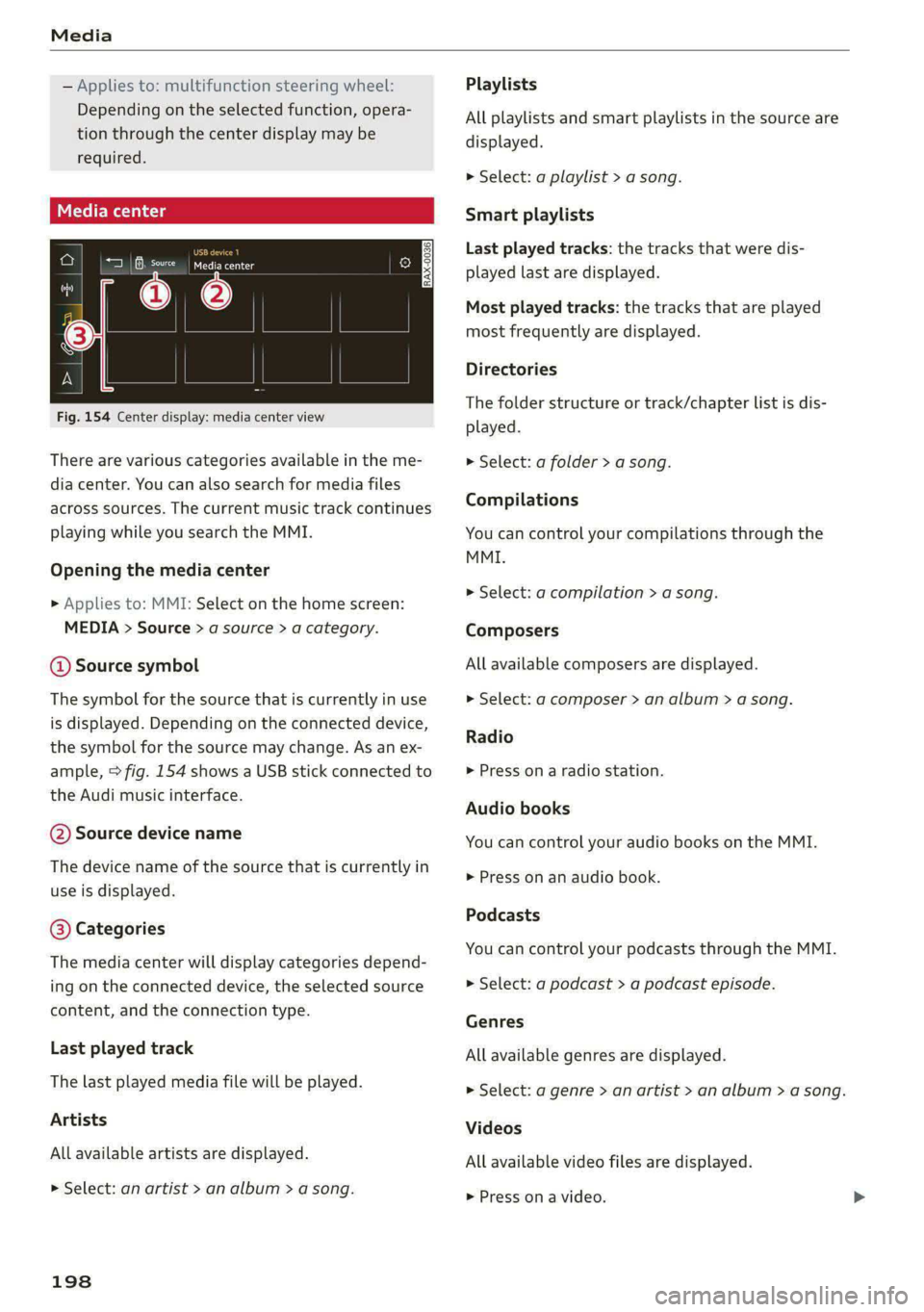
Fig. 154 Center display: media center view
There are various categories available in the me-
dia center. You can also search for media files
across sources. The current music track continues
playing while you search the MMI.
Opening the media center
> Applies to: MMI: Select on the home screen:
MEDIA > Source > a source > a category.
@ Source symbol
The symbol for the source that is currently in use
is displayed. Depending on the connected device,
the symbol for the source may change. As an ex-
ample, > fig. 154 shows a USB stick connected to
the Audi music interface.
@ Source device name
The device name of the source that is currently in
use is displayed.
@ Categories
The media center will display categories depend-
ing on the connected device, the selected source
content, and the connection type.
Last played track
The last played media file will be played.
Artists
All available artists are displayed.
> Select: an artist > an album > a song.
198
Playlists
All playlists and smart playlists in the source are
displayed.
> Select: a playlist > a song.
Smart playlists
Last played tracks: the tracks that were dis-
played last are displayed.
Most played tracks: the tracks that are played
most frequently are displayed.
Directories
The folder structure or track/chapter list is dis-
played.
> Select: a folder > a song.
Compilations
You can control your compilations through the
MMI.
> Select: a compilation > a song.
Composers
All available composers are displayed.
> Select: gd composer > an album > a song.
Radio
>» Press on a radio station.
Audio books
You can control your audio books on the MMI.
» Press on an audio book.
Podcasts
You can control your podcasts through the MMI.
> Select: a podcast > a podcast episode.
Genres
All available genres are displayed.
» Select: a genre > an artist > an album > a song.
Videos
All available video files are displayed.
> Press on a video.
Page 210 of 296

Additional settings
Connecting a device
Requirement: Bluetooth visibility must be acti-
vated in the MMI & page 206 and mobile device.
> Press ona menu item, such as Telephone 1.
> To search for and connect your mobile device,
press New connection > page 158.
Selecting a connected device
> Press ona menu item, such as Telephone 1.
> Press on the desired mobile device in the list of
displayed devices. The connection will be made.
Disconnecting a connected device
> Press ona menu item, such as Telephone 1.
> Press on the connected mobile device. The se-
lected mobile device will be disconnected from
the MMI.
Deleting a device
> Press ona menu item, such as Telephone 1.
> Press and hold an element until the Options
menu is displayed.
> Press Delete.
If a device is listed multiple times, it will be de-
leted from all menu items.
Additional options
Depending on the selected function, additional
options may be available.
Requirement: the connected devices menu must
be displayed > page 207.
> Press ona menu item, such as Telephone 1.
> Press and hold an element until the Options
menu is displayed.
Bluetooth profiles
You can switch desired profiles on or off sepa-
rately in the MMI.
Favorite
To set a paired mobile device as the default
phone, activate this function in the MMI.
When the mobile device is in range and the Blue-
tooth function on the mobile device and in the
MMLis switched on, the default phone will be
208
given priority over the other Bluetooth devices
and will be connected directly to the MMI.
Legal information
General information
Information on the software licenses can be
found online at www.audi.com/softwareinfo.
Information in the MMI
> Applies to: MMI: Select on the home screen:
SETTINGS > General.
License subscription
Version information
Legal information
Possible options:
— Software information
— About Audi connect
ONT ad nel M Uae)
Applies to: vehicles with Audi smartphone interface
Requirement: a smartphone must be connected
to the MMI > page 204.
> Applies to: MMI: Select on the home screen:
SETTINGS > Connected devices > Audi smart-
phone interface.
> Press and hold an element until the Options
menu is displayed.
> Press Legal notes.
Requirement: the vehicle must be stationary.
> Select in the instrument cluster: vehicle func-
tions tab > page 12.
> Press and hold the EI button on the multifunc-
tion steering wheel until the display appears.
Possible options:
— Engine code
— Software information
— Version information
Page 238 of 296

Wheels
—Only use tires that are more
than six years old when abso-
lutely necessary and drive
carefully when doing so.
—Do not use run-flat tires on
your vehicle. Using them when
not permitted can lead to ve-
hicle damage or accidents.
—If you install wheel covers on
the vehicle, make sure they al-
low enough air circulation to
cool the brake system. If they
do not, this could increase the
risk of an accident.
Tire wear and damage
N
LA
Fig. 169 Tire profile: treadwear indica-
tor
Tire wear
Check the tires regularly for wear.
) Obey any applicable regulations in the
country where the vehicle is being oper-
ated.
236
—Inflation pressure that is too low
or high can increase tire wear
considerably.
—Driving quickly through curves,
rapid acceleration, and heavy
braking increase tire wear.
—Have an authorized Audi dealer
or authorized Audi Service Facili-
ty check the wheel alignment if
there is unusual wear.
—Have the wheels rebalanced if an
imbalance is causing noticeable
vibration in the steering wheel.
If you do not, the tires and other
vehicle components could wear
more
quickly.
Treadwear indicator
Original equipment tires contain
treadwear indicators in the tread
pattern, which are bars that are
1/16 in (1.6 mm) high and are
spaced evenly around the tire per-
pendicular to the running direc-
tion > fig. 169. The letters “TWI”
or triangles on the tire sidewall
indicate the location of the tread-
wear indicators.
The tires have reached the mini-
mum tread depth !) when they >
Page 247 of 296

8W1012721BB
Wheels
Your vehicle has also been equipped with a TPMS
malfunction indicator to indicate when the sys-
tem is not operating properly. The TPMS mal-
function indicator is combined with the low tire
pressure telltale. When the system detects a
malfunction, the telltale will flash for approxi-
mately one minute and then remain continuously
illuminated. This sequence will continue upon
subsequent vehicle start-ups as long as the mal-
function exists.
When the malfunction indicator is illuminated,
the system may not be able to detect or signal
low tire pressure as intended. TPMS malfunctions
may occur for a variety of reasons, including the
installation of replacement or alternate tires or
wheels on the vehicle that prevent the TPMS
from functioning properly. Always check the
TPMS malfunction telltale after replacing one or
more tires or wheels on your vehicle to ensure
that the replacement or alternate tires and
wheels allow the TPMS to continue to function
properly.
If the tire pressure monitoring indicator
appears
Applies to: vehicles with Tire Pressure Monitoring System in-
dicator
The tire pressure indicator in the instrument
cluster informs you if the tire pressure is too low
or if there is a system malfunction.
Using the ABS sensors, the tire pressure monitor-
ing system compares the tire tread circumference
and vibration characteristics of the individual
tires. If the pressure changes in one or more
tires, this is indicated in the instrument cluster
display with an indicator light @ and a message.
If only one tire is affected, the location of that
tire will be indicated.
The tire pressures must be stored again each
time you change the pressures (switching be-
tween partial and full load pressure) or after
changing or replacing a tire on your vehicle
=> page 246. The tire pressure monitoring system
only monitors the tire pressure you have stored.
Refer to the tire pressure label for the recom-
mended tire pressure for your vehicle
= page 237, fig. 171.
Tire tread circumference and vibration character-
istics can change and cause a tire pressure warn-
ing if:
— The tire pressure in one or more tires is too low
— The tires have structural damage
— The tire was replaced or the tire pressure was
changed and it was not stored > page 246
— Tires that are only partially used are replaced
with new tires
Indicator lights
If the @ indicator light turns on, there is a loss
of pressure in at least one tire .> A\ Check the
tires and replace or repair if necessary. Check and
correct the pressures of all four tires and store
the pressure again > page 246.
ia Tire pressure: malfunction! See owner's
manual
if appears after switching the ignition on or
while driving and the @ indicator light in the in-
strument cluster blinks for approximately one
minute and then stays on, there is system mal-
function. Try to store the correct tire pressures
=> page 246. In some cases, you must drive for
several minutes after storing the pressures until
the indicator light turns off. If the indicator light
does turn off or turns on again after a short peri-
od of time, drive to an authorized Audi dealer or
authorized Audi Service Facility immediately to
have the malfunction corrected.
Z\ WARNING
— If the tire pressure indicator appears in the
display, reduce your speed immediately and
avoid any hard steering or braking maneu-
vers. Stop as soon as possible and check the
tires and their pressure.
— The driver is responsible for maintaining the
correct tire pressure. You must check the
tire pressure regularly.
— Under certain conditions (such as a sporty
driving style, winter conditions, or unpaved
roads), the tire pressure monitoring system
indicator may be delayed.
245
Page 264 of 296

Emergency assistance
the special considerations when towing, especial-
ly when using a towing cable.
Always make sure the traction force does not ex-
ceed the permitted level and there are no shock
loading conditions. There is always the risk of the
coupling becoming overloaded when driving off-
road.
For the most safety and security, drive with a tow
bar. You should use a towing cable only if a tow
bar is not available. Use a towing cable made of
synthetic elastic cable similar elastic material.
Z\ WARNING
— Towing highly increases the risk of an acci-
dent, for example from colliding with the
towing vehicle.
—To reduce the risk of an accident, do not al-
low anyone to remain inside the vehicle
when it is being transported by a tow truck
or a special transporter.
@) Note
— If normal towing is not possible, for exam-
ple if the transmission is faulty or if the
towing distance is greater than 30 miles
(50 km), then transport the vehicle on a
special carrier.
— If the vehicle is towed by a tow truck at the
axle that is not permitted, this can cause se-
vere damage to the transmission.
— The vehicle must not be tow started for
technical reasons.
@ Tips
— If the power supply is interrupted, then it
will not be possible to move the selector
lever out of the "P" position. The parking
lock must be released using the emergency
release before towing the vehicle
=> page 97.
— Follow the local legal regulations for tow-
ing.
Read and follow the important information under
=> page 261.
262
Preparations
> Only secure the towing cable or tow bar at the
designated towing loop > page 262.
> Make sure the towing cable is not twisted. Oth-
erwise it could disconnect from the towing loop
while towing.
> Switch the emergency flashers on in both
vehicles > page 50. However, do not do this if it
prohibited by law.
Towing vehicle (front)
> Only start to drive when the towing cable is
taut.
> Press the brake pedal very carefully.
> Avoid sudden braking or driving maneuvers.
Vehicle being towed (rear)
> Make sure the ignition is switched on so that
the steering wheel is not locked and so that you
can use the turn signals, the horn, and the
windshield wipers if needed > A\.
> Switching it off before the vehicle has stopped
may impair the function of the brake booster
and power steering. You would then need to
use more force to steer and brake the vehicle.
> Release the parking brake > page 102.
> Select the “N” selector lever position.
» Make sure the towing cable is always taut.
ZA WARNING
Never tow a vehicle using a tow bar or towing
cable if the vehicle does not have electrical
power.
Rear towing loop
Fig. 184 Rear bumper: installing the towing loop
Page 269 of 296

8W1012721BB
Fuses and bulbs
Fuse assignment - Left side of the luggage
compartment
Fuse assignment - Driver's side of the
(ole 4o}ig
Fig. 189 Driver side cockpit: fuse panel with plastic bracket
Fuse panel
No. | Equipment
1 |Vehicle opening/start (NFC)
2 | Telephone, mobile device charger
4 |Head-up display
5 |Audi music interface, USB charging port
6 Front climate control panel, instrument
Fig. 190 Left side of the luggage compartment: fuse panel
n panel
with plastic clip
7 |Steering column lock
Infotainment system display Fuse panel @) (black)
9 |Instrument cluster No. | Equipment
Windshield defroster
Windshield defroster
10 | Infotainment unit
11 | Light switch, switch module
12 | Steering column electronics Suspension control
Particulate matter sensor for climate con-
trol system
13 Automatic transmission
Rear window defogger
14 | Infotainment system Rear seat heating
Left tail lights
10 | Airbag control module
WOl/OINID|M|)WInN 16 | Steering wheel heating
Luggage compartment lid central locking,
11 | fuel filler door, luggage compartment cov-
er
12 | Luggage compartment lid control module
Fuse panel (®) (red)
No. | Equipment
6 | Battery power interrupt
267