2020 AUDI A4 steering wheel
[x] Cancel search: steering wheelPage 140 of 296

Driver assistance
Steering intervention request
If no steering activity is detected or the steering
power from the system is not sufficient, the driv-
er steering intervention request will alert the
driver using audio and visual signals. Take over
the steering and keep your hands on the steering
wheel so that you will be ready to steer at any
time. The system may no longer be ready to pro-
vide warnings after a short time, and it will only
become active again later.
If the driver takes over steering, active lane assist
will be switched off.
Behavior when a turn signal is active
Applies to: vehicles with side assist: The system
will not warn you if you activate a turn signal be-
fore crossing the lane marker line. In this case, it
assumes that you are changing lanes intentional-
ly.
Applies to: vehicles with side assist: If the side
assist system classifies a lane change as critical
due to other vehicles traveling with your vehicle
or approaching your vehicle when your turn sig-
nal is activated, there will be a noticeable steer-
ing correction shortly before your vehicle leaves
the lane. This will attempt to keep your vehicle in
the lane.
ZX WARNING
— Follow the safety precautions and note the
limits of the assist systems, sensors, and
cameras > page 114.
— The system warns the driver that the vehicle
is leaving the lane using corrective steering.
The driver is always responsible for keeping
the vehicle within the lane.
— Corrective steering may not occur at all in
certain situations, such as during heavy
braking. Always be ready to intervene.
G) Tips
— Always keep your hands on the steering
wheel so you can be ready to steer at any
time. The driver is always responsible for
YD In certain countries
138
adhering to the regulations applicable in
the country where the vehicle is being oper-
ated.
— The system does not provide any corrective
steering or steering wheel vibrations if it de-
tects that you are passing another vehicle.
— The image in the Driver assistance display
only appears if it was opened in the on-
board computer = page 15.
Scare Le melal
Applies to: vehicles with Audi active lane assist
B8V-0692
Fig. 125 Turn signal lever: switching Audi active lane assist
on and off
Active lane assist switches on automatically as
soon as the ignition is switched on )).
> To switch the system on or off, press the button
=> fig. 125. The respective indicator light in the
instrument cluster will turn off or on.
ZA\ WARNING
Follow the safety precautions and note the
limits of the assist systems, sensors, and
cameras > page 114.
Adjusting Audi active lane assist
Applies to: vehicles with Audi active lane assist
You can adjust active lane assist individually. The
settings depend on the vehicle equipment.
> Applies to: MMI: Select on the home screen:
VEHICLE > Driver assistance > Audi active lane
assist
Possible settings:
Page 141 of 296

8W1012721BB
Driver assistance
— Steering correction - With the Early setting,
steering correction occurs continuously in order
to help the driver keep the vehicle in the center
of the lane. In the Late setting, the steering
correction will only occur shortly before a wheel
crosses a detected lane marker line.
— Vibration warning - You can select if you would
also like to be warned using a vibration in the
steering wheel.
@ Tips
Certain settings are automatically stored and
assigned to the remote control key being
used.
Applies to: vehicles with Audi active lane assist
ri or is displayed when there is a malfunc-
tion, the active lane assist functions may be un-
available or limited.
A message that indicates the cause and possible
solution may appear with some displays. The
weather conditions may be too poor or the cam-
era may be covered. Clean the area in front of the
camera > page 116 and try to turn on the sys-
tems again later.
If the malfunction remains, drive to an author-
ized Audi dealer or authorized Audi Service Facili-
ty immediately to have the malfunction correct-
ed.
Audi pre sense
Introduction
Applies to: vehicles with Audi pre sense
Within the limits of the system, the Audi pre
sense functions can initiate measures in certain
driving situations to protect the vehicle occu-
pants and other road users. Depending on the ve-
hicle equipment, various Audi pre sense systems
may be installed:
— Audi pre sense basic can react during emergen-
cy and dangerous braking maneuvers and un-
stable driving situations (such as oversteering
or understeering).
— Audi pre sense front can detect an impending
frontal collision with vehicles ahead and react
with warnings, braking interventions, and pre-
emptive safety measures for the vehicle occu-
pants.
— Audi pre sense city can detect an impending
collision with vehicles and pedestrians and re-
act with warnings, braking interventions, and
preemptive safety measures for the vehicle oc-
cupants.
— Audi pre sense rear monitors the rear traffic
behind your vehicle and can react to an impend-
ing rear impact.
— The swerve assist can help you to steer the ve-
hicle around an obstacle during an evasive ma-
neuver that is detected as critical.
— The turn assist can detect vehicles in the oppo-
site lane and react with braking maneuvers.
Peele ea ey
Applies to: vehicles with Audi pre sense
Depending on the vehicle speed and the vehicle
equipment, the following functions may be initi-
ated in certain situations:
— Visual and audio warnings
— Reversible tensioning of safety belts
— Closing the windows and panoramic glass roof
— Adjusting the seats
Z\ WARNING
Follow the safety precautions and note the
limits of the assist systems, sensors, and
cameras > page 114.
G) Tips
— Depending on the dangerous situation that
is detected and the selected Audi drive se-
lect* mode, all preemptive safety measures
may not be initiated under certain circum-
stances. Certain functions can be adjusted
or skipped if necessary.
— Audi pre sense may be restricted or unavail-
able under certain circumstances, for exam-
ple if:
— There are passengers with unfastened
safety belts
139
Page 144 of 296

Driver assistance
ZA WARNING
— Follow the safety precautions and note the
limits of the assist systems, sensors, and
cameras > page 114.
— Audi pre sense rear does not react to pedes-
trians, animals, crossing objects, and ob-
jects
not detected as vehicles.
G@) Tips
Audi pre sense rear functions may also switch
off if there is a malfunction in the side assist
system.
Saree cid
Applies to: vehicles with swerve assist
The swerve assist can help you to steer the vehi-
cle around an obstacle detected in a critical area.
If you avoid an obstacle after the acute warning,
then the swerve assist assists you by applying
slight steering adjustment to correct your steer-
ing wheel angle as long as you are actively steer-
ing. Swerve assist is available at speeds between
approximately 20 mph (30 km/h) and 90 mph
(150 km/h).
ZA WARNING
— Follow the safety precautions and note the
limits of the assist systems, sensors, and
cameras > page 114.
— Swerve assist does not react to pedestrians,
animals, crossing objects, and objects not
detected as vehicles.
@) Tips
— System functions may not be available if the
ESC is limited or switched off, or if there is a
malfunction.
— An indicator in the instrument cluster will
inform you when there is an intervention.
2) When making a right turn in countries with left-hand drive
vehicles.
2) Incertain countries
142
ae
Applies to: vehicles with turn assist
When your vehicle is turning
The turn assist can assist you with a braking in-
tervention when starting to drive or when driving
slowly, to reduce the risk of your vehicle colliding
with an oncoming vehicle when you are making a
left turn). The braking intervention causes your
vehicle to stay in its lane. The function is only
available when the turn signal is turned on and at
speeds up to maximum of 6 mph (10 km/h).
Z\ WARNING
— Follow the safety precautions and note the
limits of the assist systems, sensors, and
cameras > page 114.
— The turn assist does not react to pedes-
trians, animals, crossing objects, and ob-
jects not detected as vehicles.
@) Tips
— System functions may not be available if the
ESC is limited or switched off, or if there is a
malfunction.
— An indicator in the instrument cluster will
inform you when there is an intervention.
Adjusting Audi pre sense
Applies to: vehicles with Audi pre sense
You can adjust the Audi pre sense functions to
your preferences. The settings depend on the ve-
hicle equipment.
> Applies to MMI: Select on the home screen: VE-
HICLE > Driver assistance > Audi pre sense.
Possible settings:
The pre sense functions can be switched on and
off.
Prewarning” - The prewarning can be switched
off or the Audi pre sense warning time can be set
(Early/Medium/Late). >
Page 153 of 296
8W1012721BB
Parking and maneuvering
vehicle's surroundings directly and do not ner of the vehicle does not collide with any
become distracted. obstacles.
— Keep enough distance from the curb to
@) Note avoid damage to the rims.
— Only use the images provided by the camera
on the rear of the vehicle when the luggage
compartment lid is completely closed. Make
sure any objects you may have mounted on
the luggage compartment lid do not block
the rearview camera.
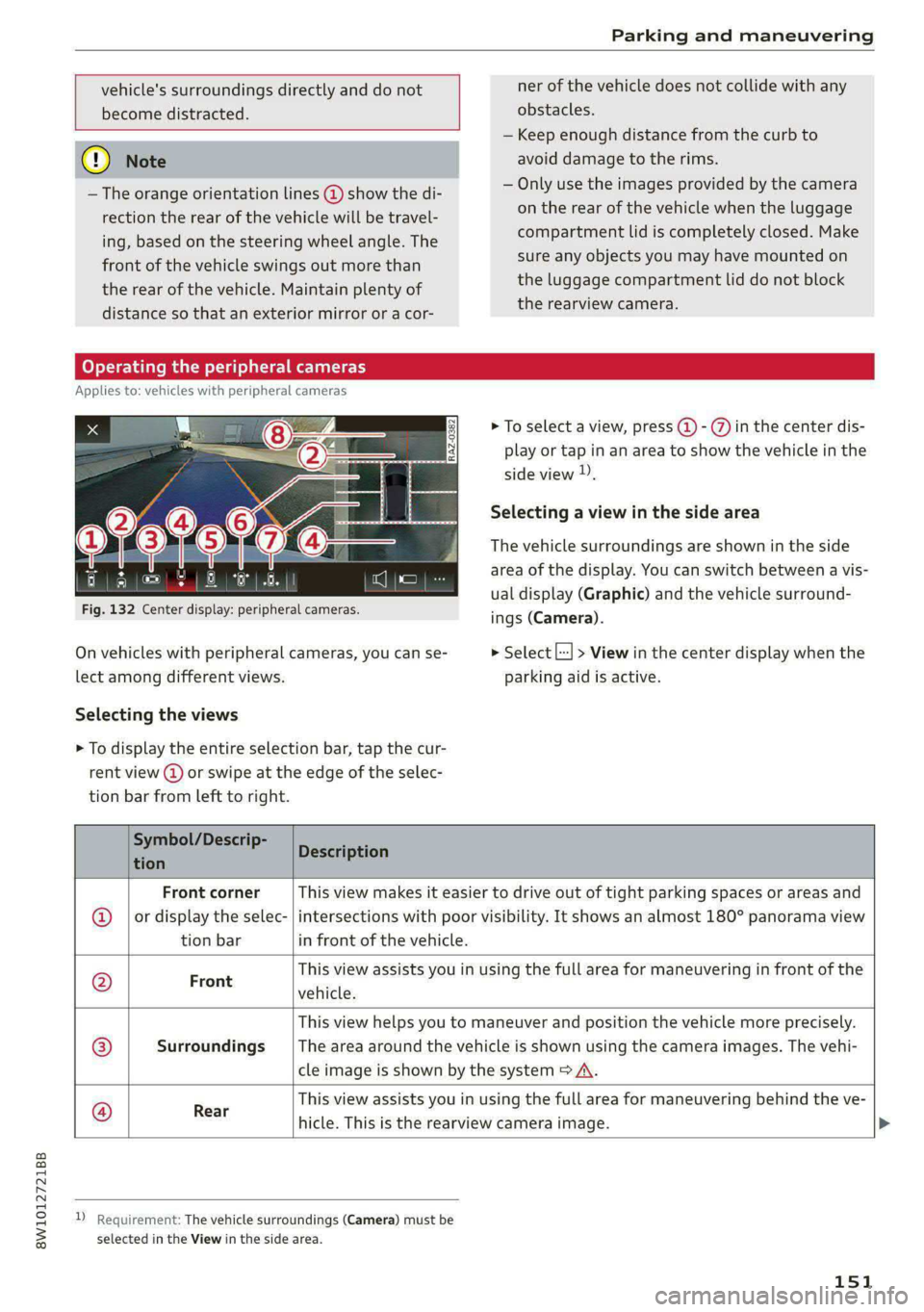
— The orange orientation lines @ show the di-
rection the rear of the vehicle will be travel-
ing, based on the steering wheel angle. The
front of the vehicle swings out more than
the rear of the vehicle. Maintain plenty of
distance so that an exterior mirror or a cor-
Operating the peripheral cameras
Applies to: vehicles with peripheral cameras
> To select a view, press (2) - %) in the center dis-
play or tap in an area to show the vehicle in the
side view )),
Selecting a view in the side area
The vehicle surroundings are shown in the side
area of the display. You can switch between a vis-
ual display (Graphic) and the vehicle surround-
ings (Camera).
Fig. 132 Center display: peripheral cameras.
On vehicles with peripheral cameras, you can se- > Select |---| > View in the center display when the
lect among different views. parking aid is active.
Selecting the views
> To display the entire selection bar, tap the cur-
rent view () or swipe at the edge of the selec-
tion bar from left to right.
Symbol/Descrip-
tion Description
Front corner This view makes it easier to drive out of tight parking spaces or areas and
or display the selec- | intersections with poor visibility. It shows an almost 180° panorama view
tion bar in front of the vehicle.
This view assists you in using the full area for maneuvering in front of the F
a vehicle.
This view helps you to maneuver and position the vehicle more precisely.
Surroundings _ |The area around the vehicle is shown using the camera images. The vehi-
cle image is shown by the system > A\.
This view assists you in using the full area for maneuvering behind the ve-
Rear
hicle. This is the rearview camera image.
®|
©
|®}]
©
D_ Requirement: The vehicle surroundings (Camera) must be
selected in the View in the side area.
151
Page 154 of 296
Parking and maneuvering
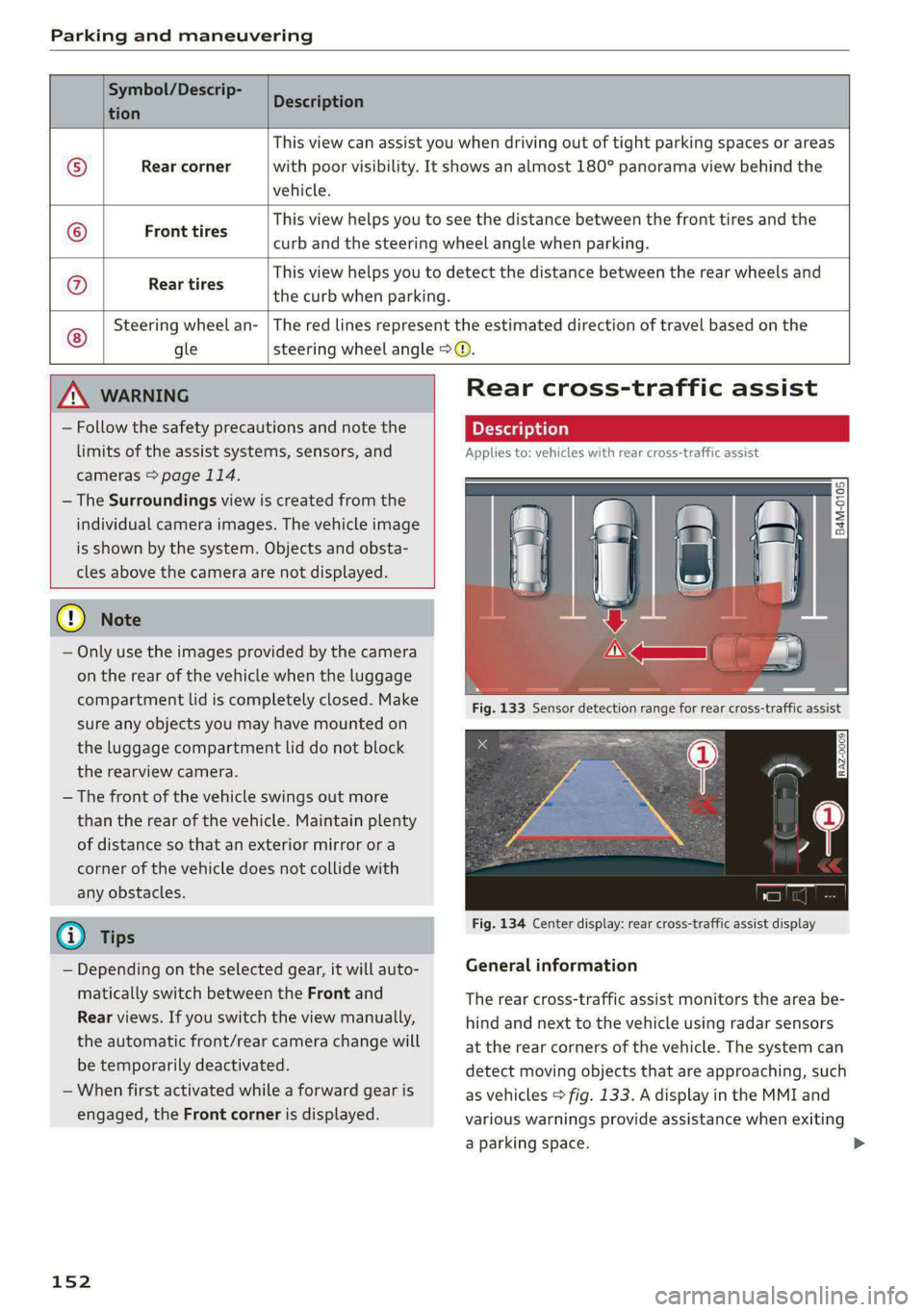
Symbol/Descrip-
Description
tion P
Rear corner
vehicle.
This view can assist you when driving out of tight parking spaces or areas
with poor visibility. It shows an almost 180° panorama view behind the
This view helps you to see the distance between the front tires and the
curb and the steering wheel angle when parking.
©
© Front tires
@ Rear tires
This view helps you to detect the distance between the rear wheels and
the curb when parking.
Steering wheel an-
The red lines represent the estimated direction of travel based on the
gle steering wheel angle > ©.
ZA WARNING
— Follow the safety precautions and note the
limits of the assist systems, sensors, and
cameras > page 114.
— The Surroundings view is created from the
individual camera images. The vehicle image
is shown by the system. Objects and obsta-
cles above the camera are not displayed.
@) Note
— Only use the images provided by the camera
on the rear of the vehicle when the luggage
compartment lid is completely closed. Make
sure any objects you may have mounted on
the luggage compartment lid do not block
the rearview camera.
— The front of the vehicle swings out more
than the rear of the vehicle. Maintain plenty
of distance so that an exterior mirror or a
corner of the vehicle does not collide with
any obstacles.
G) Tips
— Depending on the selected gear, it will auto-
matically switch between the Front and
Rear views. If you switch the view manually,
the automatic front/rear camera change will
be temporarily deactivated.
— When first activated while a forward gear is
engaged, the Front corner is displayed.
152
Rear cross-traffic assist
on
Applies to: vehicles with rear cross-traffic assist
Fig. 134 Center display: rear cross-traffic assist display
General information
The rear cross-traffic assist monitors the area be-
hind and next to the vehicle using radar sensors
at the rear corners of the vehicle. The system can
detect moving objects that are approaching, such
as vehicles > fig. 133. A display in the MMI and
various warnings provide assistance when exiting
a parking space. >
Page 156 of 296
Parking and maneuvering
If a parking space is found, the system helps you
to park while the driver monitors the vehicle's
surroundings with the parking aids, cameras”,
and direct eye contact. The vehicle moves the
steering wheel autonomously.
/\. WARNING
Follow the safety precautions and note the
limits of the assist systems, sensors, and
cameras > page 114.
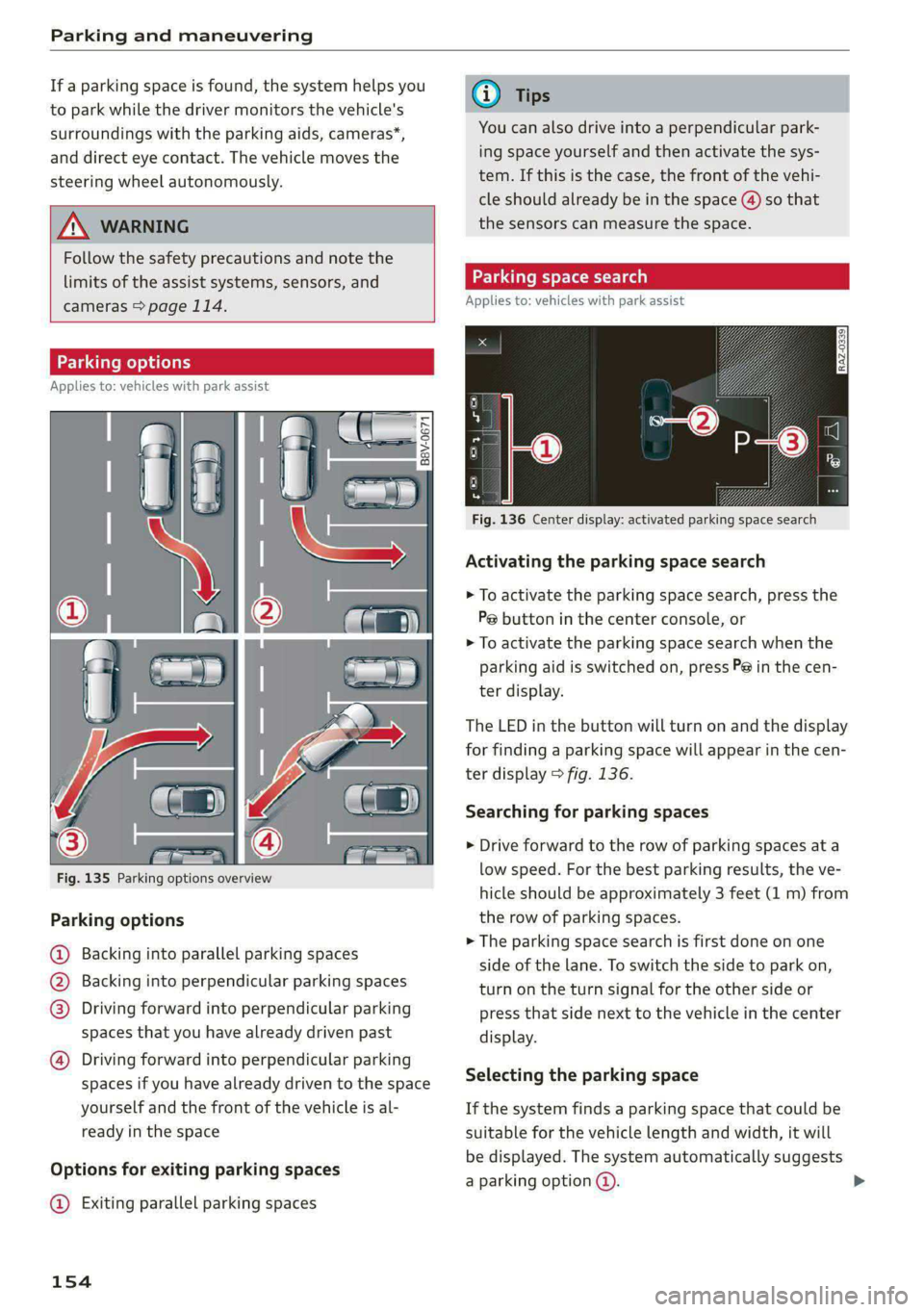
Parking options
Applies to: vehicles with park assist
Fig. 135 Parking options overview
Parking options
Backing into parallel parking spaces
Backing into perpendicular parking spaces
Driving forward into perpendicular parking
spaces that you have already driven past
®
©0800
Driving forward into perpendicular parking
spaces if you have already driven to the space
yourself
and the front of the vehicle is al-
ready in the space
Options for exiting parking spaces
@ Exiting parallel parking spaces
154
@ Tips
You can also drive into a perpendicular park-
ing space yourself and then activate the sys-
tem. If this is the case, the front of the vehi-
cle should already be in the space () so that
the sensors can measure the space.
Parking space search
Applies to: vehicles with park assist
Fig. 136 Center display: activated parking space search
Activating the parking space search
> To activate the parking space search, press the
Pe button in the center console, or
> To activate the parking space search when the
parking aid is switched on, press P@ in the cen-
ter display.
The LED in the button will turn on and the display
for finding a parking space will appear in the cen-
ter display > fig. 136.
Searching for parking spaces
> Drive forward to the row of parking spaces at a
low speed. For the best parking results, the ve-
hicle should be approximately 3 feet (1 m) from
the row of parking spaces.
> The parking space search is first done on one
side of the lane. To switch the side to park on,
turn on the turn signal for the other side or
press that side next to the vehicle in the center
display.
Selecting the parking space
If the system finds a parking space that could be
suitable for the vehicle length and width, it will
be displayed. The system automatically suggests
a parking option @.
Page 158 of 296
Parking and maneuvering
— The driver is always responsible when enter-
ing or exiting a parking space and during
similar maneuvers.
— Do not use this function if the vehicle cannot
move freely, for example when on a vehicle
jack.
— Sensors and cameras have spots in which
the surrounding area cannot be detected.
Objects, animals, and people may only be
detected with limitations may not be detect-
ed at all. Always monitor the traffic and the
vehicle's surroundings directly and do not
become distracted.
@ Note
— Do not use the park assist systems when
transporting cargo that extends out of the
vehicle, when snow chains are mounted, or
when the parking space is on a hill or in-
cline.
— Park assist guides the vehicle either away
from curbs or onto them if other vehicles
are parked on the curb. Make sure that your
vehicle's tires and rims are not damaged.
Resume control of the vehicle in time or
stop the parking process if needed to pre-
vent damage.
— In parking spaces without curbs, maintain a
distance of at least 19 inches (50 cm) from
walls and buildings in order to reduce the
risk of vehicle damage.
@ Tips
Follow the legal regulations in the country
where you are located when using Park assist.
Parking with the park assists
Applies to: vehicles with park assist
Requirement: a suitable parking space must be
found and selected > page 154. The vehicle must
initially be stationary.
> Select the reverse gear after stopping briefly.
> Remove your hands from the steering wheel.
> Pay attention to the path of the vehicle. If the
traffic situation permits, accelerate carefully
>A.
156
> Follow the visual instructions in the center dis-
play and the warning tones until the parking
process
has ended.
> The indicators in the center display show the
necessary direction of travel. Drive in the direc-
tion indicated by the arrows or symbols on the
roof in the parking aid image @) > page 154,
fig. 136.
Park assist automatically steers the vehicle into
the parking space while the driver presses the
pedals. The maximum parking speed is approxi-
mately 4 mph (7 km/h).
ZA WARNING
— Follow the safety precautions and note the
limits of the assist systems, sensors, and
cameras > page 114.
— The park assist is an assist system. The driv-
er is still responsible for monitoring the ve-
hicle's surroundings and preventing colli-
sions when using the system.
— When using park assist to drive into or out
of a parking space, the steering wheel turns
quickly on its own. Reaching into the steer-
ing wheel spokes while this is happening can
result in injury.
G) Tips
You can also cancel the driving direction set
by the system by shifting between D and re-
verse gear. Based on the position of the vehi-
cle, the system then calculates the additional
steering and driving directions for maneuver-
ing.
Exiting parking spaces with park assist
Applies to: vehicles with park assist
If you parked the vehicle in a parallel parking
space, park assist can help you drive out of it.
> Start the engine.
> Press the Pe button in the center console.
> Wait until a message appears in the center dis-
play that specifies the direction of travel re-
quired to exit the parking space.
Page 159 of 296
8W1012721BB
Parking and maneuvering
> Activate the turn signal on the desired side or
press that side next to the vehicle in the center
display.
> Remove your hands from the steering wheel.
> Pay attention to the path of the vehicle. If the
traffic situation permits, accelerate carefully
of.
> Follow the visual instructions in the display and
the warning tones until the vehicle has finished
exiting the parking space.
> The indicators in the center display show the
necessary direction of travel. Drive in the direc-
tion indicated by the arrows or symbols on the
roof in the parking aid image @) 9 page 154,
fig. 136.
> The process of exiting the parking space has
ended if additional corrective movements are
no longer necessary and the specified steering
wheel angle is sufficient to drive out of the
parking space. Resume control of the steering
wheel >@).
Park assist automatically steers the vehicle out of
the parking space while the driver presses the
pedals. The maximum speed for exiting a parking
space is 3 mph (5 km/h).
Z\ WARNING
— Follow the safety precautions and note the
limits of the assist systems, sensors, and
cameras © page 114.
— The park assist is an assist system. The driv-
er is still responsible for monitoring the ve-
hicle's surroundings and preventing colli-
sions when using the system.
— When using park assist to drive into or out
of a parking space, the steering wheel turns
quickly on its own. Reaching into the steer-
ing wheel spokes while this is happening can
result in injury.
@) Note
Resume steering immediately after the last
corrective movement and the takeover
prompt, so that the specified steering wheel
angle is not recentered.
Interrupting the park assists
Applies to: vehicles with park assist
Park assist will be canceled automatically in the
following scenarios:
— You switch the system off.
— You start steering.
— The speed is too high.
— The time limit is exceeded.
— An obstacle is detected.
— ESC intervenes.
Resume control of the vehicle, end the parking
process manually, or:
— You can resume the parking process in some sit-
uations. Press the Pe button in the center con-
sole.
— To continue exiting the parking space, switch
the engine off and on. Press the Pe button.
Z\ WARNING
Follow the safety precautions and note the
limits of the assist systems, sensors, and
cameras > page 114.
tLe Ly
Applies to: vehicles with park assist
If the & or indicator light turns on, the park
assist is not available or was interrupted.
A message that indicates the cause and possible
solution may appear with some displays. The
weather conditions may be too poor or a sensor
may be covered. Clean the area in front of the
sensors > page 116, fig. 106 and try to turn on
the systems again later.
If the malfunction remains, drive to an author-
ized Audi dealer or authorized Audi Service Facili-
ty immediately to have the malfunction correct-
ed.
157