2019 VOLVO XC90 TWIN ENGINE reset
[x] Cancel search: resetPage 236 of 697

||CLIMATE CONTROL
234
Related information
Parking climate (p. 231)
Preconditioning (p. 232)
Preconditioning timer (p. 234) Preconditioning timer
The timer can be set to finish preconditioning at
a predetermined time.
The timer can store up to 8 preset times for:
A time on a particular date
A time on one or more days of the week, with
or without the repeat function.
NOTE Preconditioning is only available when the car
is connected to an electrical outlet. A charg-
ing post that is not always active, for example
because of a timer, can cause loss of function
for preconditioning.
If the car is not connected to an electrical
socket it is still possible in a warm climate to
achieve brief cooling of the passenger com-
partment by direct starting preconditioning.
Related information
Preconditioning (p. 232)
Adding and editing timer settings for precon-
ditioning (p. 234)
Activating and deactivating preconditioning
timer (p. 235)
Deleting preconditioning timer settings
(p. 236) Adding and editing timer settings
for preconditioning
The preconditioning timer can store up to 8 pre-
set timer settings.
Adding a timer setting Button for adding a timer setting in the Parking climate
tab in Climate view.
1. Open Climate view in the center display.
2.
Select the Parking climate tab.
3. Tap Add timer.
>
A pop-up window will appear.
NOTE It is not possible to add a time setting if there
are already 8 settings for the timer. Delete a
time setting to be able to add a new one.
Page 271 of 697

KEY, LOCKS AND ALARM
* Option/accessory.269
Related information
Setting a maximum height for the power tail-
gate* (p. 269)
Foot movement tailgate operation* (p. 270)
Remote key range (p. 248) Setting a maximum height for the
power tailgate*
The tailgate can be set to stop opening at a cer-
tain height, for example if the tailgate needs to
be opened in a garage with a low ceiling.
Setting maximum opening height:
1.
Open the tailgate to the desired opening
height.
NOTE It is not possible to program an opening posi-
tion lower than half-open tailgate.
2.
Press the button on the lower edge of
the tailgate and hold for at least 3 seconds.
>
Two brief audio signals will sound to indi-
cate that the position has been stored.
Resetting to maximum opening position:
– Move the tailgate manually to its highest
possible position and press the button
on the tailgate for at least 3 seconds.
>
Two audio signals will sound to indicate
that the stored position has been erased.
The tailgate can then be opened to its
maximum position.
NOTE
If the system has been working continu-
ously for a prolonged period of time, it will
be switched off to avoid overload. It can
be used again after approximately
2 minutes.
Related information
Opening and closing the power tailgate*
(p. 266)
Page 274 of 697
KEY, LOCKS AND ALARM
* Option/accessory.
272 Activating and deactivating private
locking
Private locking is activated using the function
button in the center display and a PIN code.
NOTE For the valet lock function to be activated the
car must be in at least ignition mode I.
Entering security code before initial useThe first time the function is used, a security
code must be selected. This code can then be
used to deactivate private locking if the selected
PIN code has been lost or forgotten. The security
code functions as a PUK (security) code for all
PIN codes used for private locking.
Save the security code in a safe place.
To create a security code:
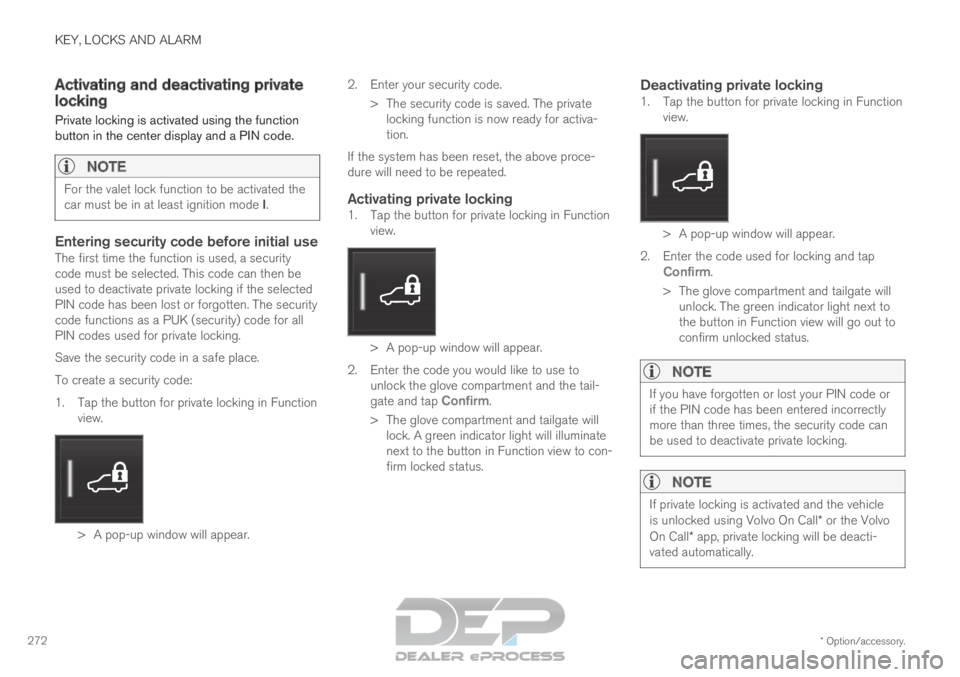
1. Tap the button for private locking in Function
view. > A pop-up window will appear. 2.
Enter your security code.
> The security code is saved. The private locking function is now ready for activa-
tion.
If the system has been reset, the above proce-
dure will need to be repeated.
Activating private locking1. Tap the button for private locking in Function view. > A pop-up window will appear.
2.
Enter the code you would like to use to
unlock the glove compartment and the tail-
gate and tap Confirm.
>
The glove compartment and tailgate will
lock. A green indicator light will illuminate
next to the button in Function view to con-
firm locked status.
Deactivating private locking1. Tap the button for private locking in Function view. > A pop-up window will appear.
2.
Enter the code used for locking and tap
Confirm.
>
The glove compartment and tailgate will
unlock. The green indicator light next to
the button in Function view will go out to
confirm unlocked status.
NOTE If you have forgotten or lost your PIN code or
if the PIN code has been entered incorrectly
more than three times, the security code can
be used to deactivate private locking.
NOTE
If private locking is activated and the vehicle
is unlocked using Volvo On Call* or the Volvo
On Call* app, private locking will be deacti-
vated automatically.
Page 285 of 697

DRIVER SUPPORT
283
Speed limiter
A Speed Limiter (SL 11
) could be described as a
reverse cruise control. The driver regulates the
vehicle's speed using the accelerator pedal, but
is prevented by the Speed Limiter from inadver-
tently exceeding a preset maximum speed. Function buttons and symbols
12
. : Activates the Speed Limiter from
standby mode and resumes the set maxi-
mum speed. : Increases the set maximum speed
: From standby mode - activates the
Speed Limiter and sets the current speed : From active mode - deactivates/puts
the Speed Limiter in standby mode : Reduces the set maximum speed
Marker for set maximum speed
The vehicle's current speed
The set maximum speed
WARNING
The Speed Limiter function is supple-
mentary driver support intended to facili-
tate driving and help make it safer – it
cannot handle all situations in all traffic,
weather and road conditions.
The driver must always pay attention to
traffic conditions and take action if the
Speed Limiter is not maintaining a suita-
ble speed.
The Speed Limiter is not a substitute for
the driver's attention and judgment. The
driver is always responsible for ensuring
the vehicle is driven in a safe manner, at
the appropriate speed, with an appropri-
ate distance to other vehicles, and in
accordance with current traffic rules and
regulations.
Related information
Cruise Control limitations (p. 287)
Activating and starting Speed Limiter
(p. 284)
Managing Speed Limiter speed (p. 284)
Deactivating and putting Speed Limiter in
standby mode (p. 285)
Reactivating Speed Limiter from standby
mode (p. 286)
Turning off Cruise Control (p. 286)
Automatic Speed Limiter (p. 287)
Automatic Speed Limiter limitations (p. 291)
Activating/deactivating Automatic Speed
Limiter (p. 289)
Changing Automatic Speed Limiter tolerance
(p. 290) 11
Speed Limiter
12 Note: This illustration is general and details may vary depending on mod\
el.
Page 299 of 697

DRIVER SUPPORT
}}
* Option/accessory. 297Distance Alert warning light on the windshield
32
.
A warning light will appear on the windshield and
glow steadily if the time interval to the vehicle
ahead is shorter than the set time interval.
NOTE Visual warnings on the windshield may be dif-
ficult to notice in cases of strong sunlight,
reflections, extreme light contrasts, or if the
driver is wearing sunglasses or is not looking
straight ahead.
NOTE
Distance Alert is only available in vehicles
that can display information on the wind-
shield with a head-up display.
Distance Alert is deactivated while Adap-
tive Cruise Control or Pilot Assist is
active.
WARNING Distance Alert only reacts of the time interval
to the vehicle ahead is shorter than the preset
value – vehicle speed is not affected.
Related information
Head-up display for Distance Alert (p. 297)
Activating/deactivating Distance Alert
(p. 298)
Setting a time interval for Distance Alert
(p. 298)
Distance Alert limitations (p. 299) Head-up display for Distance Alert
33
In vehicles equipped with a head-up display*, a
symbol will be displayed on the windshield as
long as the time interval to the vehicle ahead is
shorter than the set time interval. Distance Alert warning symbol on the windshield
34
.
For this to be possible, however, the
Show
Driver Support function must be activated
under Settings in the center display's menus (see
"Head-up display" for instructions). 32
Note: This illustration is general and details may vary depending on mod\
el.
33 The Distance Alert function is only available in vehicles that can displ\
ay information on the windshield with a head-up display.
34 Note: This illustration is general and details may vary depending on mod\
el.
Page 308 of 697

||DRIVER SUPPORT
* Option/accessory.
306
Automatic transmission
Adaptive Cruise Control can follow another vehi-
cle at speeds from a standstill up to 200 km/h
(125 mph).
The lowest speed that can be set for Adaptive
Cruise Control is 30 km/h (20 mph). When fol-
lowing another vehicle, ACC can monitor that
vehicle's speed and slow your own vehicle down
to a standstill, but it is not possible to set speeds
lower than 30 km/h (20 mph).
The highest possible speed that can be set is
200 km/h (125 mph).
Related information
Adaptive Cruise Control* (p. 300) Setting Adaptive Cruise Control
time intervals
Adaptive Cruise Control (ACC
44
) can be set to
various time intervals to the vehicle ahead.
Different time intervals to the
vehicle ahead can be selected
and are shown in the instru-
ment panel as 1–5 horizontal
bars. The more bars, the longer
the time interval. One bar rep-
resents an interval of
approx. 1 second to the vehicle ahead. 5 bars
represents approx. 3 seconds.
The same symbol appears when the Distance
Alert function is activated.
NOTE When the symbol in the instrument panel
shows two vehicles, ACC is following the vehi-
cle ahead at a preset time interval.
When only one vehicle is shown, there is no
vehicle ahead within a reasonable distance. Controls for setting a time interval
45
. Reduce the time interval
Increase the time interval
Distance indicator
– Press the (1) or (2) button to decrease or
increase the time interval.
>
The distance indicator (3) shows the cur-
rent time interval.
In order to help your vehicle follow the vehicle
ahead as smoothly and comfortably as possible,
Adaptive Cruise Control allows the time interval
to vary noticeably in certain situations. At low
speeds, when the distance to the vehicle ahead
is short, Adaptive Cruise Control increases the
time interval slightly. 44
Adaptive Cruise Control
45 Note: This illustration is general and details may vary depending on mod\
el.
Page 315 of 697

DRIVER SUPPORT
* Option/accessory.313
Switching between Cruise Control
and Adaptive Cruise Control
In vehicles equipped with Adaptive Cruise Con-
trol (ACC), the driver can switch between Cruise
Control (CC) and ACC.
A symbol in the instrument panel indicates which
cruise control system is active CC
ACCA A
Cruise control
Adaptive Cruise Control A
WHITE symbol: The function is active. GRAY symbol: Standby
mode
Switching from ACC to CCTo do so:
1. Press the button on the steering wheel
keypad to put Adaptive Cruise Control in
standby mode.
2. Tap the Cruise Control button in the center
display's Function view. The button's indica-
tor will change from GRAY to GREEN.
>
The symbol in the instrument panel will
change from ACC to
CC, indicating that Adaptive Cruise Con-
trol is off and Cruise Control is in standby
mode. 3.
Pressing the button on the steering
wheel keypad.
>
Cruise Control will start and the vehicle's
current speed will be set.
WARNING Switching from ACC to CC means that the
vehicle:
will no longer maintain a preset time
interval to the vehicle ahead.
will only follow the stored speed and the
driver must therefore apply the brakes
when necessary.
If CC is active when the engine is turned off, ACC
will be automatically activated the next time the
engine is started.
Switching from CC to ACCTo do so:
1. Press the button on the steering wheel
keypad to put Cruise Control in standby
mode. 2.
Tap the Cruise Control button in Function
view. The button's indicator will change from
GREEN to GRAY.
>
The symbols in the instrument panel will
switch from CC to ACC
to indicate that Adaptive Cruise Control is
in standby mode.
3. Pressing the button on the steering
wheel keypad.
>
Adaptive Cruise Control will go into active
mode and set the vehicle's current speed
and the selected time interval to the vehi-
cle ahead.
Related information
Adaptive Cruise Control* (p. 300)
Cruise control (p. 291)
Page 325 of 697

DRIVER SUPPORT
}}
* Option/accessory. 323
Setting a time interval for Pilot
Assist
Pilot Assist
can be set to different time intervals.
Different time intervals to the
vehicle ahead can be selected
and are shown in the instru-
ment panel as 1–5 horizontal
bars. The more bars, the longer
the time interval. One bar rep-
resents an interval of
approx. 1 second to the vehicle ahead. 5 bars
represents approx. 3 seconds.
NOTE When the symbol in the instrument panel
shows a vehicle and a steering wheel, Pilot
Assist follows a vehicle ahead at a preset
time interval.
When only a steering wheel is shown, there is
no vehicle ahead within a reasonable dis-
tance. Controls for setting a time interval
60
. Reduce the time interval
Increase the time interval
Distance indicator
– Press the (1) or (2) button to decrease or
increase the time interval.
>
The distance indicator (3) shows the cur-
rent time interval.
In order to follow the vehicle ahead as smoothly
as possible, Pilot Assist allows the time interval to
vary considerably in certain situations. For exam-
ple, at low speeds and short distances to the
vehicle ahead, Pilot Assist increases the time
interval slightly.
NOTE
The greater the vehicles' speed, the
greater the distance between them for a
set time interval.
Only use the time intervals permitted by
local traffic regulations.
If Pilot Assist does not seem to respond
with a speed increase when activated, it
may be because the time interval to the
vehicle ahead is shorter than the set time
interval.
WARNING
Only use a time interval suitable for the
current traffic conditions.
The driver should be aware that short
time intervals give them limited time to
react and act to any unforeseen traffic
situation.
Setting how Pilot Assist should
maintain distance* to the vehicle ahead
The driver can choose different drive modes to
determine how Pilot Assist should maintain a
time interval to the vehicle ahead. Settings are
made using the DRIVE MODE controls. 60
Note: This illustration is general and details may vary depending on mod\
el.