2019 VOLVO XC60 TWIN ENGINE change time
[x] Cancel search: change timePage 138 of 695
||
DISPLAYS AND VOICE CONTROL
* Option/accessory.136
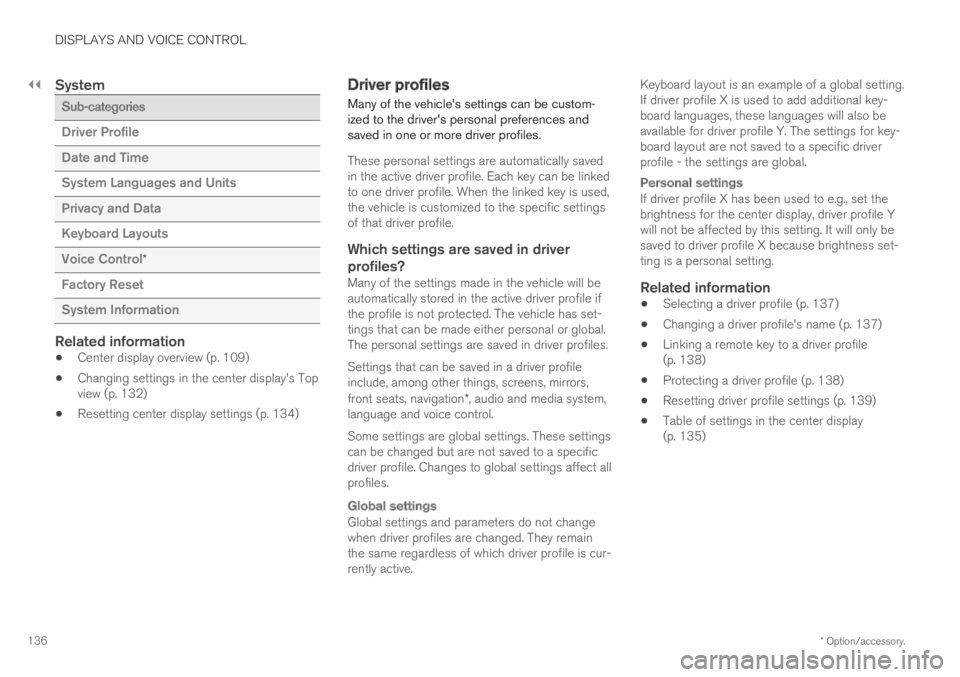
System
Sub-categories
Driver Profile
Date and Time
System Languages and Units
Privacy and Data
Keyboard Layouts
Voice Control*
Factory Reset
System Information
Related information
Center display overview (p. 109)
Changing settings in the center display's Topview (p. 132)
Resetting center display settings (p. 134)
Driver profiles
Many of the vehicle's settings can be custom-ized to the driver's personal preferences andsaved in one or more driver profiles.
These personal settings are automatically savedin the active driver profile. Each key can be linkedto one driver profile. When the linked key is used,the vehicle is customized to the specific settingsof that driver profile.
Which settings are saved in driver
profiles?
Many of the settings made in the vehicle will beautomatically stored in the active driver profile ifthe profile is not protected. The vehicle has set-tings that can be made either personal or global.The personal settings are saved in driver profiles.
Settings that can be saved in a driver profileinclude, among other things, screens, mirrors,front seats, navigation*, audio and media system,language and voice control.
Some settings are global settings. These settingscan be changed but are not saved to a specificdriver profile. Changes to global settings affect allprofiles.
Global settings
Global settings and parameters do not changewhen driver profiles are changed. They remainthe same regardless of which driver profile is cur-rently active.
Keyboard layout is an example of a global setting.If driver profile X is used to add additional key-board languages, these languages will also beavailable for driver profile Y. The settings for key-board layout are not saved to a specific driverprofile - the settings are global.
Personal settings
If driver profile X has been used to e.g., set thebrightness for the center display, driver profile Ywill not be affected by this setting. It will only besaved to driver profile X because brightness set-ting is a personal setting.
Related information
Selecting a driver profile (p. 137)
Changing a driver profile's name (p. 137)
Linking a remote key to a driver profile(p. 138)
Protecting a driver profile (p. 138)
Resetting driver profile settings (p. 139)
Table of settings in the center display(p. 135)
Page 139 of 695
DISPLAYS AND VOICE CONTROL
137
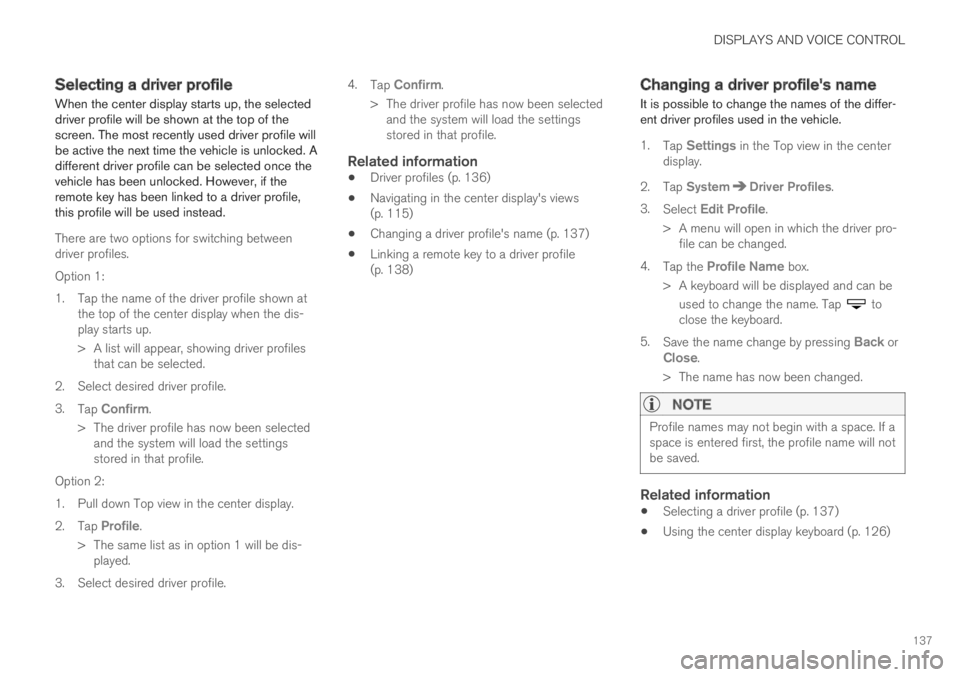
Selecting a driver profile
When the center display starts up, the selecteddriver profile will be shown at the top of thescreen. The most recently used driver profile willbe active the next time the vehicle is unlocked. Adifferent driver profile can be selected once thevehicle has been unlocked. However, if theremote key has been linked to a driver profile,this profile will be used instead.
There are two options for switching betweendriver profiles.
Option 1:
1.Tap the name of the driver profile shown atthe top of the center display when the dis-play starts up.
> A list will appear, showing driver profilesthat can be selected.
2. Select desired driver profile.
3.Tap Confirm.
>The driver profile has now been selectedand the system will load the settingsstored in that profile.
Option 2:
1. Pull down Top view in the center display.
2.Tap Profile.
>The same list as in option 1 will be dis-played.
3. Select desired driver profile.
4.Tap Confirm.
>The driver profile has now been selectedand the system will load the settingsstored in that profile.
Related information
Driver profiles (p. 136)
Navigating in the center display's views(p. 115)
Changing a driver profile's name (p. 137)
Linking a remote key to a driver profile(p. 138)
Changing a driver profile's name
It is possible to change the names of the differ-ent driver profiles used in the vehicle.
1.Tap Settings in the Top view in the centerdisplay.
2.Tap SystemDriver Profiles.
3.Select Edit Profile.
>A menu will open in which the driver pro-file can be changed.
4.Tap the Profile Name box.
>A keyboard will be displayed and can be
used to change the name. Tap toclose the keyboard.
5.Save the name change by pressing Back orClose.
>The name has now been changed.
NOTE
Profile names may not begin with a space. If aspace is entered first, the profile name will notbe saved.
Related information
Selecting a driver profile (p. 137)
Using the center display keyboard (p. 126)
Page 140 of 695
DISPLAYS AND VOICE CONTROL
138
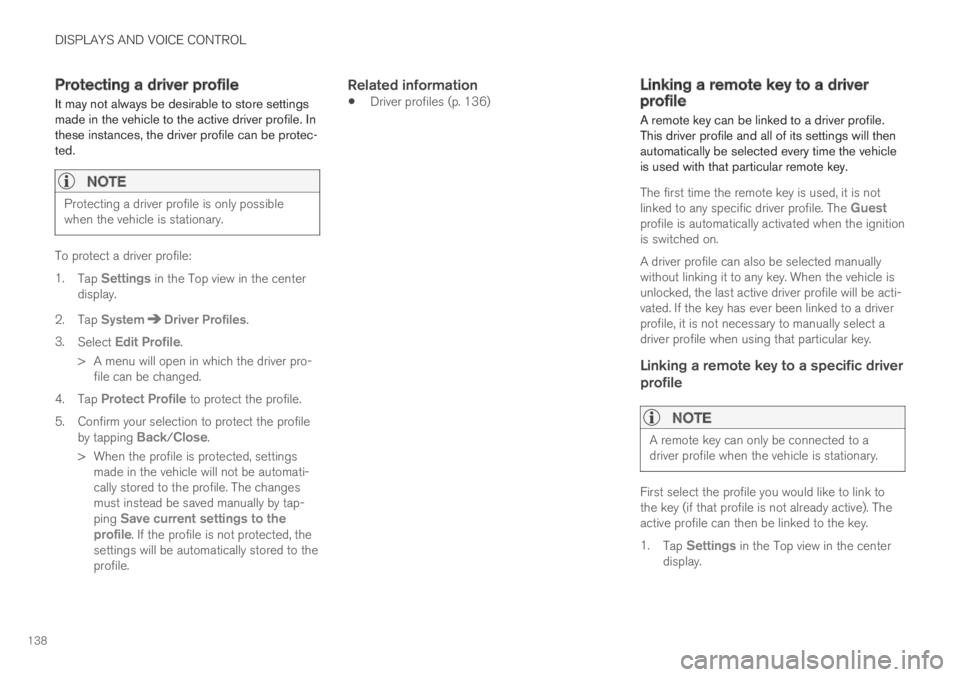
Protecting a driver profile
It may not always be desirable to store settingsmade in the vehicle to the active driver profile. Inthese instances, the driver profile can be protec-ted.
NOTE
Protecting a driver profile is only possiblewhen the vehicle is stationary.
To protect a driver profile:
1.Tap Settings in the Top view in the centerdisplay.
2.Tap SystemDriver Profiles.
3.Select Edit Profile.
>A menu will open in which the driver pro-file can be changed.
4.Tap Protect Profile to protect the profile.
5.Confirm your selection to protect the profileby tapping Back/Close.
>When the profile is protected, settingsmade in the vehicle will not be automati-cally stored to the profile. The changesmust instead be saved manually by tap-ping Save current settings to theprofile. If the profile is not protected, thesettings will be automatically stored to theprofile.
Related information
Driver profiles (p. 136)Linking a remote key to a driverprofile
A remote key can be linked to a driver profile.This driver profile and all of its settings will thenautomatically be selected every time the vehicleis used with that particular remote key.
The first time the remote key is used, it is notlinked to any specific driver profile. The Guestprofile is automatically activated when the ignitionis switched on.
A driver profile can also be selected manuallywithout linking it to any key. When the vehicle isunlocked, the last active driver profile will be acti-vated. If the key has ever been linked to a driverprofile, it is not necessary to manually select adriver profile when using that particular key.
Linking a remote key to a specific driver
profile
NOTE
A remote key can only be connected to adriver profile when the vehicle is stationary.
First select the profile you would like to link tothe key (if that profile is not already active). Theactive profile can then be linked to the key.
1.Tap Settings in the Top view in the centerdisplay.
Page 172 of 695

WINDOWS, GLASS AND MIRRORS
* Option/accessory.170
Adjusting the rearview mirrordimming function
Bright light entering the vehicle from behind, e.g.from the headlights of following vehicles, couldreflect in the rearview mirror and door mirrorsand cause a glare. Use the dimming functionwhen light from behind is distracting.
Auto-dim
If bright light enters the vehicle from behind, thedoor mirrors will automatically dim. Auto-dim isalways active when the engine is running, exceptwhen reverse gear is engaged.
NOTE
Adjustments to the sensitivity level will not benoticeable immediately but will instead takeeffect after a short period of time.
The sensitivity level for dimming will affect boththe rearview mirror and door mirrors.
To change the dimming sensitivity level:
1.Tap Settings in the Top view in the centerdisplay.
2.Tap My CarMirrors and Convenience.
3.Under Rearview Mirror Auto Dimming,select Normal, Dark or Light.
The rearview mirror instead has two sensors -one pointing forward and one pointing rearward -
which work together to identify and eliminateglare. The forward-pointing sensor monitorsambient light, while the rearward-pointing sensormonitors light from the headlights of followingvehicles.
For the door mirrors to be equipped with auto-dim, the rearview mirror must also be equippedwith auto-dim.
NOTE
If the sensors are obstructed by e.g. a parkingpermit, transponder, sunshade or objects onthe seats or in the cargo compartment in away that prevents light from reaching the sen-sors, the auto-dim function in the door andrearview mirrors will be reduced.
Related information
Rearview/door mirrors (p. 169)
Adjusting the door mirrors (p. 170)
Adjusting the door mirrors
To improve visibility to the rear, the door mirrorsneed to be adjusted to the driver's height andseating position. There are several automaticsettings that can also be connected to the mem-ory function buttons for the power seat*.
Controls used for door mirrors
Door mirror controls.
The joystick in the drivers' door control panel isused to adjust the position of the door mirrors.The ignition must be in at least mode I.
1.Press the L button for the left door mirror orR for the right door mirror. The button willlight up.
2.Adjust the position using the joystick locatedbetween the buttons.
3.Press the L or R button again. The light inthe button will go out.
Page 188 of 695

||
SEATS AND STEERING WHEEL
* Option/accessory.186
Raise/lower the seat by moving the controlup/down.
Move the seat forward/rearward by movingthe control forward/rearward.
Change the backrest tilt by moving the con-trol forward/backward.
Only one movement (forward/rearward/up/down) can be performed at a time.
The front seat backrests cannot be folded downcompletely.
Related information
Manual front seats (p. 184)
Power* front seats (p. 185)
Storing positions for seats, mirrors and head-up display* (p. 186)
Using stored positions for seats, mirrors andhead-up display* (p. 187)
Adjusting front seat massage settings*(p. 189)
Adjusting* front seat cushion length (p. 189)
Front seat massage* settings (p. 188)
Adjusting front seat side bolster settings*(p. 190)
Adjusting front seat lumbar support* (p. 191)
Adjusting the passenger seat from the driv-er's seat* (p. 192)
Storing positions for seats, mirrors
and head-up display*
Adjustment settings for the power* seat, doormirrors and head-up display* can be stored inthe memory buttons.
Two different positions for the power* seat, doormirrors and head-up display* can be stored usingthe memory buttons. The buttons are located onthe inside of either one or both* front doors.
Button M for storing a setting
Memory button
Memory button
Storing positions
1. Adjust the seat, door mirrors and head-updisplay to the desired position.
2.Press and hold the M button. The indicatorlight in the button will illuminate.
3.Within three seconds, press and hold the 1or 2 button.
> When the position has been stored in thememory button, an audio signal will soundand the indicator light in the M button willgo out.
If none of the memory buttons are pressed withinthree seconds, the M button will go out and noposition will be stored.
The seats, door mirrors or head-up display mustbe readjusted before a new memory position canbe set.
Related information
Manual front seats (p. 184)
Power* front seats (p. 185)
Adjusting the power* front seats (p. 185)
Using stored positions for seats, mirrors andhead-up display* (p. 187)
Adjusting front seat massage settings*(p. 189)
Adjusting* front seat cushion length (p. 189)
4Not available in vehicles with two-way lumbar support*.
Page 219 of 695

CLIMATE CONTROL
217
NOTE
It is possible to change the temperature andblower speed without deactivating automaticclimate control. Automatic climate control isdeactivated when the air distribution ischanged manually or when the max defrosteris activated.
Related information
Climate system controls (p. 212)
Activating and deactivatingrecirculation
The climate system's recirculation function helpsshut out smog, smoke, exhaust fumes, etc. byreusing the air in the passenger compartment.
Air recirculation button in Climate view.
1. Open Climate view in the center display.
2.Tap Recirc.
>Air recirculation is activated/deactivatedand the button lights up/goes out.
CAUTION
If the air in the vehicle is recirculated too long,there is a risk of fogging on the inside of thewindows.
NOTE
Recirculation cannot be activated when themax defroster is on.
Related information
Climate system controls (p. 212)
Activating and deactivating the recirculationtimer setting (p. 218)
Page 230 of 695

||
CLIMATE CONTROL
228
4.Tap Date to set a time for a specific date.
Tap Days to set a time for one or more daysof the week.
With Days: Activate/deactivate the repeatfunction by selecting/deselecting theRepeat weekly checkbox.
5.With Date: Select a date for preconditioningby scrolling in the date list using the arrows.
With Days: Select days of the week for pre-conditioning by tapping the buttons for thedays.
6.Set the time at which preconditioning shouldbe completed by scrolling using the arrows inthe clock.
7.Tap Confirm to add a timer setting.
>The timer setting will be added to the listand activated.
Editing a timer setting
1. Open Climate view in the center display.
2.Select the Parking climate tab.
3.Tap the timer setting you would like tochange.
> A pop-up window will appear.
4. To edit a timer setting, follow the proceduresdescribed under the heading "Adding a timersetting" above.
Related information
Preconditioning (p. 225)
Preconditioning timer (p. 227)
Activating and deactivating preconditioningtimer (p. 228)
Deleting preconditioning timer settings(p. 229)
Activating and deactivatingpreconditioning timer
Timer settings in the preconditioning timer canbe activated or deactivated as needed.
Timer buttons in the Parking climate tab in Climateview.
1. Open Climate view in the center display.
2.Select the Parking climate tab.
3.Activate/deactivate a timer setting by tap-ping the timer button to the right of the set-ting.
> The timer setting is activated/deactivatedand the button lights up/goes out.
Related information
Preconditioning (p. 225)
Preconditioning timer (p. 227)
Page 231 of 695

CLIMATE CONTROL
229
Adding and editing timer settings for precon-ditioning (p. 227)
Deleting preconditioning timer settings(p. 229)
Deleting preconditioning timersettings
A preconditioning timer setting that is no longerneeded can be deleted.
The button for editing a list/deleting a timer setting inthe Parking climate tab in Climate view.
1. Open Climate view in the center display.
2.Select the Parking climate tab.
3.Tap Edit list.
4.Tap the editing icon to the right in the list.
>The icon will change to the text Delete.
5.Tap Delete to confirm.
>The timer setting will be deleted from thelist.
Related information
Preconditioning (p. 225)
Preconditioning timer (p. 227)
Adding and editing timer settings for precon-ditioning (p. 227)
Activating and deactivating preconditioningtimer (p. 228)