2019 SUZUKI CELERIO air
[x] Cancel search: airPage 108 of 201

5-12
OTHER CONTROLS AND EQUIPMENT
76MH1-74E
76MH1-74E
Air conditioning switch (5) To turn on the air conditioning system, set the blower speed selector to a positionother than “OFF” and push in the “A/C” switch. With this “A/C” switch operation, a indicator light will come on when the airconditioning system is on. To turn off the air conditioning system, push the “A/C” switch again.
During operation of the air conditioner, you may notice slight changes in enginespeed. These changes are normal, the system is designed so that the compressor turns on or off to maintain the desired tem-perature.
Less operation of the compressor results in better fuel economy.
System Operating Instructions
Natural ventilationSelect “VENTILATION” and “FRESH AIR”, the temperature selector to the desired temperature position, and the blowerspeed selector to “OFF”. Fresh air will flow through the vehicle during driving.
Forced ventilation The control settings are the same as for natural ventilation except you set theblower speed selector to a position other than “OFF”.
Normal heating (using outside air) Select “HEAT” and “FRESH AIR”, the tem- perature selector to the desired tempera-ture position and the blower speed selector
to the desired blower speed position. Set- ting the blower speed selector to a higher blower speed position increases heatingefficiency.
Quick heating (using recirculated air) The control settings are the same as for normal heating except you select “RECIR- CULATED AIR”. If you use this heatingmethod for an extended period of time, the air in the vehicle can become contami- nated and the windows can become misty.Therefore, use this method only for quick heating and change to the normal heating method as soon as possible.
Head cooled/Feet warmed heating Select “BI-LEVEL” and “FRESH AIR”, thetemperature selector to the desired tem- perature position, and the blower speed selector to the desired blower speed posi-tion. Unless the temperature selector is in the fully COLD position or fully HOT posi- tion, the air that comes out of the centerand side outlets will be cooler than the air that comes out of the floor outlets.
Normal cooling Set the air flow selector to “VENTILA- TION”, the temperatur e selector to the desired temperature position and the blower speed selector to the desired blower speed position, and turn on the “A/C” switch. Setting the blower speed selec- tor to a higher blower speed position increases cooling efficiency.
You can switch the air intake selector to either “FRESH AIR” or “RECIRCULATED AIR” as you desire. Choosing “RECIRCU-LATED AIR” increases cooling efficiency.
Quick cooling (using recirculated air) The control settings are the same as for normal cooling except you select “RECIR- CULATED AIR” and the highest blowerspeed.
NOTE: • To turn on the air conditioning system, push in the “A/C” switch and set the blower speed selector to a position otherthan “OFF”. With this “A/C” switch opera- tion, an indicator light will come on when the air conditioning system is on. To turnoff the air conditioning system, push the “A/C” switch again. • During operation of the air conditioner,you may notice slight changes in engine speed. These changes are normal, the system is designed so that the compres-sor turns on or of f to maintain the desired temperature. Less operation of the compressor result s in better fuel economy.
NOTE: • If you select “RECIRCULATED AIR” for an extended period of time, the air in the vehicle can become contaminated.Therefore, you should occasionally select “FRESH AIR”. • If your vehicle has been left in the sunwith the windows closed, it will cool
97
Page 109 of 201

5-13
OTHER CONTROLS AND EQUIPMENT
76MH1-74E
76MH1-74E
faster if you open the windows briefly while you operate the air conditioner with the air intake selector at “FRESH AIR”and the blower at high speed.
DehumidifyingSet the air flow selector to a desired air flow selector position, the temperature selector to the desired temperature position and theblower speed selector to the desired blower speed position. Also select “FRESH AIR” and turn on the “A/C” switch.
NOTE:Because the air conditioner dehumidifiesthe air, turning it on will help keep the win- dows clear, even when blowing heated air using the “DEFROST” or “HEAT &DEFROST” functions.
76MH0A090
NOTE:If you need maximum defrosting:• set the air flow selector to “DEFROST”,
• set the blower speed selector to HIGH, • adjust the temperature selector to the HOT end, • turn on the “A/C” switch, and• adjust the side outlets so the air blows on the side windows.
MaintenanceIf you do not use the air conditioner for a long period, such as during winter, it may not give the best performance when youstart using it again. To help maintain opti- mum performance and durability of your air conditioner, it needs to be run periodically.Operate the air conditioner at least once a month for one minute with the engine idling. This circulates the refrigerant and oiland helps protect the internal components.
NOTE: Your vehicle uses the air conditioning refrigerant HFC-134a, commonly called “R-134a”. R-134a replaced R-12 around1993 for automotive applications. Other refrigerants are available, including recy- cled R-12, but only R-134a should be usedin your vehicle.
Radio Antenna
68KN028
The radio antenna on the roof is remov-able. To remove the antenna, turn it coun-terclockwise. To reinstall the antenna, turn it clockwise firmly by hand.
EXAMPLE
NOTICE
Using the wrong refrigerant may damage your air conditioning sys- tem. Use R-134a only. Do not mix or replace the R-134a with other refrig-erants.
NOTICE
To avoid damage to the radio antenna: • Remove the antenna when using anautomatic car wash. • Remove the antenna when the antenna hits anything such as alow ceiling in a parking garage or putting a car cover over your vehi- cle.
EXAMPLE
98
Page 111 of 201
5-15
OTHER CONTROLS AND EQUIPMENT
76MH1-74E
76MH1-74E
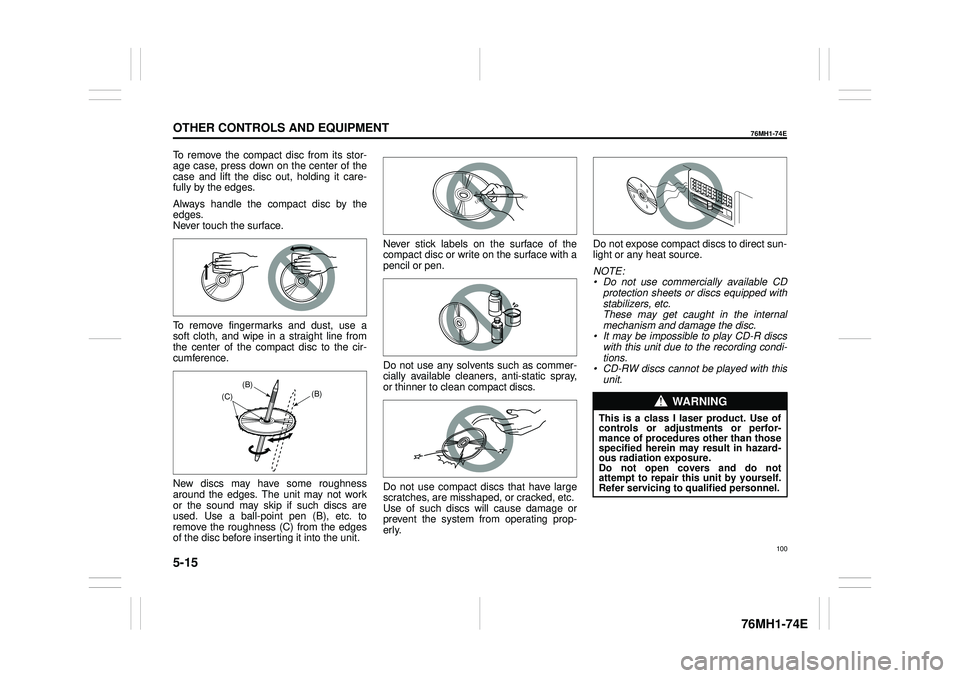
To remove the compact disc from its stor- age case, press down on the center of the case and lift the disc out, holding it care-fully by the edges.
Always handle the compact disc by the edges. Never touch the surface.
To remove fingermarks and dust, use a soft cloth, and wipe in a straight line fromthe center of the compact disc to the cir- cumference.
New discs may have some roughness around the edges. The unit may not work or the sound may skip if such discs areused. Use a ball-point pen (B), etc. to remove the roughness (C) from the edges of the disc before inserting it into the unit.
Never stick labels on the surface of the compact disc or write on the surface with apencil or pen.
Do not use any solvents such as commer- cially available cleaners, anti-static spray, or thinner to clean compact discs.
Do not use compact discs that have large scratches, are misshaped, or cracked, etc. Use of such discs will cause damage or prevent the system from operating prop-erly.
Do not expose compact discs to direct sun- light or any heat source.
NOTE: • Do not use commercially available CD protection sheets or discs equipped with stabilizers, etc.These may get caught in the internal mechanism and damage the disc. • It may be impossible to play CD-R discswith this unit due to the recording condi- tions. • CD-RW discs cannot be played with thisunit.(B) (B) (C)WA R N I N G
This is a class I laser product. Use of controls or adjustments or perfor-mance of procedures other than thosespecified herein may result in hazard- ous radiation exposure. Do not open covers and do notattempt to repair this unit by yourself.Refer servicing to qualified personnel.
100
Page 124 of 201

5-28
OTHER CONTROLS AND EQUIPMENT
76MH1-74E
76MH1-74E
(4) Bluetooth® setup button (5) Off Hook button (6) On Hook button (7) VOL switch
Phone registration
NOTE: • Up to 5 phones can be registered. • To set up a new phone, disconnect theaudio player from the unit. Connect the audio player again after phone setup is completed if necessary.• When failed to establish the pairing within 120 seconds, the connecting operation will be canceled. Please tryagain or refer to the manual of the phone in use for how to establish the pairing with the phone.
1) Press the Bluetooth® setup button (4). The Bluetooth® setup menu will be dis- played.2) Turn the TUNE FOLDER PUSH SOUND knob (1) to select “Setup Blue- tooth”, and press the knob (1) to deter-mine the selection. 3) Turn the TUNE FOLDER PUSH SOUND knob (1) to select “Pairing”, and press the knob (1) to determine the selection. 4) Select
Page 129 of 201

5-33
OTHER CONTROLS AND EQUIPMENT
76MH1-74E
76MH1-74E
Selection of phone (Select Phone) Follow the instructions below to select a phone to be paired with from the registeredphones. 1) Press the Bluetooth® setup button (4). The Bluetooth® setup menu will be dis-played. 2) Turn the TUNE FOLDER PUSH SOUND knob (1) to select “Setup Blue-tooth”, and press the knob (1) to deter- mine the selection. 3) Turn the TUNE FOLDER PUSHSOUND knob (1) to select “List Phone”, and press the knob (1) to determine the selection.4) Turn the TUNE FOLDER PUSH SOUND knob (1) to select a phone to be paired with, and press the knob (1)to determine the selection. 5) Turn the TUNE FOLDER PUSH SOUND knob (1) to select “Select”, andpress the knob (1) to determine the selection.
NOTE: • When selecting “Go Back”, the previous menu will be displayed.• The Bluetooth® ready audio device will be disconnected when the phone is selected.
List of phones (List Phones) Follow the instructions below to display the names of the registered phones insequence. 1) Press the Bluetooth® setup button (4). The Bluetooth® setup menu will be dis-played. 2) Turn the TUNE FOLDER PUSH SOUND knob (1) to select “Setup Blue-tooth”, and press the knob (1) to deter- mine the selection. 3) Turn the TUNE FOLDER PUSHSOUND knob (1) to select “List Phone”, and press the knob (1) to determine the selection.The names of the registered phones are displayed in sequence.
NOTE: When selecting “Go Back”, the previous menu will be displayed.
Passkey setting (Set Passkey) Follow the instructions below to set thesecurity number (Passkey). 1) Press the Bluetooth® setup button (4). The Bluetooth® setup menu will be dis-played. 2) Turn the TUNE FOLDER PUSH SOUND knob (1) to select “Setup Blue-tooth”, and press the knob (1) to deter- mine the selection. 3) Turn the TUNE FOLDER PUSHSOUND knob (1) to select “Passkey”, and press the knob (1) to determine the selection.
4) Turn the TUNE FOLDER PUSH SOUND knob (1) to select “New Pass- key”, and press the knob (1) to deter-mine the selection. 5) Press or turn the TUNE FOLDER PUSH SOUND knob (1) to select “Con-firm”. 6) Turn the TUNE FOLDER PUSH SOUND knob (1) to select a number forthe first digit, and press the knob (1) to determine the selection. Select and determine numbers for the second,third and fourth digits in order in the same manner. When not entering up to the eighth digit, enter blanks for thesuccessive digits. 7) Turn the TUNE FOLDER PUSH SOUND knob (1) to determine thepasskey setting.
NOTE: When selecting “Go Back”, the previous menu will be displayed.
118
Page 131 of 201

5-35
OTHER CONTROLS AND EQUIPMENT
76MH1-74E
76MH1-74E
Display
(1) MEDIA button (2) TUNE FOLDER PUSH SOUND knob (3) Up button (4) Down button(5) DISP button (6) Bluetooth® setup button
(A) Track number (B) Play time
Registration of audio devices
NOTE: • To set up a new audio player, disconnectthe phone from the unit. Connect the phone after audio player setup is com- pleted if necessary.• When failed to establish the connection within 120 seconds, the connecting operation will be canceled. Please try again or refer to the audio player manual for assistance with the pairing process.
1) Press the Bluetooth® setup button (6). The Bluetooth® setup menu will be dis- played.2) Turn the TUNE FOLDER PUSH SOUND knob (2) to select “Setup Blue- tooth”, and press the knob (2) to deter-mine the selection. 3) Turn the TUNE FOLDER PUSH SOUND knob (2) to select “Pairing”, and press the knob (2) to determine the selection. 4) Select
Page 132 of 201

5-36
OTHER CONTROLS AND EQUIPMENT
76MH1-74E
76MH1-74E
NOTE: If text data contains more than 12 charac- ters, the “>” mark will appear at the rightend. Holding down the DISP button (5) for 1 second or longer can display the next page.
Selection of audio device (Select Audio) Follow the instructions below to select anaudio device to be paired with from the registered audio devices. 1) Press the Bluetooth® setup button (6). The Bluetooth® setup menu will be dis- played. 2) Turn the TUNE FOLDER PUSHSOUND knob (2) to select “Setup Blue- tooth”, and press the knob (2) to deter- mine the selection.3) Turn the TUNE FOLDER PUSH SOUND knob (2) to select “List Audio”, and press the knob (2) to determine theselection. 4) Turn the TUNE FOLDER PUSH SOUND knob (2) to select an audio
device to be used, and press the knob (2) to determine the selection. 5) Turn the TUNE FOLDER PUSHSOUND knob (2) to select “Select”, and press the knob (2) to determine the selection.6) Turn the TUNE FOLDER PUSH SOUND knob (2) to select “Confirm”, and press the knob (2) to complete thepairing.
NOTE: • When selecting “Go Back”, the previous menu will be displayed. • The phone will be disconnected whenthe Bluetooth® ready audio device is selected.
List of audio devices (List Audio) Follow the instructions below to display the names of the registered audio devices insequence. 1) Press the Bluetooth® setup button (6). The Bluetooth® setup menu will be dis-played. 2) Turn the TUNE FOLDER PUSH SOUND knob (2) to select “Setup Blue-tooth”, and press the knob (2) to deter- mine the selection. 3) Turn the TUNE FOLDER PUSHSOUND knob (2) to select “List Audio”, and press the knob (2) to determine the selection. The na mes of registered audio devices will be displayed in sequence.
NOTE: When selecting “Go Back”, the previous menu will be displayed.
Passkey setting (Set Passkey) Follow the instructions below to set thesecurity number (Passkey).1) Press the Bluetooth® setup button (6). The Bluetooth® setup menu will be dis- played. 2) Turn the TUNE FOLDER PUSH SOUND knob (2) to select
Page 133 of 201

5-37
OTHER CONTROLS AND EQUIPMENT
76MH1-74E
76MH1-74E
NOTE: When selecting “Go Back”, the previous menu will be displayed.
Deletion of audio device information (Delete Audio)Follow the instructions below to delete the registered information of audio device. 1) Press the Bluetooth® setup button (6). The Bluetooth® setup menu will be dis- played. 2) Turn the TUNE FOLDER PUSHSOUND knob (2) to select “Setup Blue- tooth”, and press the knob (2) to deter- mine the selection.3) Turn the TUNE FOLDER PUSH SOUND knob (2) to select “List Audio”, and press the knob (2) to determine theselection. 4) Turn the TUNE FOLDER PUSH SOUND knob (2) to select an audiodevice to be deleted, and press the knob (2) to determine the selection. 5) Turn the TUNE FOLDER PUSHSOUND knob (2) to select “Delete”, and press the knob (2) to determine the selection.6) Turn the TUNE FOLDER PUSH SOUND knob (2) to select “Delete?”, and press the knob (2) to determine theselection. 7) Turn the TUNE FOLDER PUSH SOUND knob (2) to select “Confirm”,and press the knob (2) to complete the deletion.
NOTE: When selecting “Go Back”, the previous menu will be displayed.
Disclaimer for Bluetooth® function Depending on the mobile phone models, some phones may not be compatible fully or partially (some function may berestricted). Connectivity or voice quality may get affected depending on circumstances. After the ignition switch is turned to the “ON” position, the audio system takes few seconds to detect and connect to theBluetooth® device (if already paired). Make sure that you are aware of all applicable local laws and accordinglyuse Bluetooth device.
Remote Audio Controls
(if equipped)Controlling of basic functions of the audio system is available us ing the switches on the steering wheel.
Adjusting the volume To increase the volume, hold down “+” of the VOL switch (1). The volume will keepon being increased until the switch is released. To decrease the volume, hold down “-” ofthe VOL switch (1). The volume will keep on being decreased until the switch is released. To mute the sound, press the switch (2).
Selecting the mode Press the switch (3). Each time the button is pressed, the mode will change as follows:
It is possible to turn on the audio system by pressing the switch (3).
(2)(3)
(1) (4)
FM1 (Radio)
FM2 (Radio)
CD
Bluetooth® audio (if equipped)
AUX (if equipped)
USB (iPod®) (if equipped)
AM (Radio)
122