Page 173 of 348

If it’s necessary to keep the ball mount and hitch ball
assembly mounted for a long period, it is possible to filter
out the ball mount and hitch ball assembly presence in
sensor field of view. The filtering operation must be
performed only by an authorized dealer.
PARKVIEW REAR BACK UP CAMERA
Your vehicle is equipped with the ParkView Rear Back Up
Camera that allows you to see an on-screen image of the rear
surroundings of your vehicle whenever the gear selector is
put into REVERSE. The image will be displayed on the
touchscreen display along with a caution note to “check
entire surroundings” across the top of the screen. After five
seconds this note will disappear. The ParkView camera is
located on the rear of the vehicle above the rear license plate.
The Rear Back Up Camera can also be activated when the
vehicle is not in REVERSE through the Uconnect System.
Refer to “Uconnect Settings” in “Multimedia” for further
information.
NOTE:If one of the rear cargo doors is not completely
closed, the Back Up Camera cannot provide an accurate
image of the area behind the vehicle. A dedicated message
will appear on the Uconnect display indicating the camera
is not in the correct position. The Camera Delay setting can be set to on/off in the rear
camera settings menu. When the vehicle is shifted out of
REVERSE and the Camera Delay is turned off, the rear
camera mode is exited and the navigation or audio screen
appears on display again.
When the transmission is shifted out of REVERSE, and
Camera Delay is activated in the menu screen, the camera
image will continue to be displayed for up to 10 seconds,
unless the speed of the vehicle is greater than 8 mph
(13 km/h), the transmission is in PARK, or the ignition key
is in the OFF position.
When displayed, static grid lines will illustrate the width of
the vehicle and will show separate zones that will help
indicate the distance to the rear of the vehicle. The follow-
ing table shows the approximate distances for each zone:
Zone
Distance To The Rear Of The
Vehicle
Red 0 - 1 ft (0 - 30 cm)
Yellow 1 ft - 3 ft (30 cm - 1 m)
Green 3 ft or greater (1 m or greater)
6
STARTING AND OPERATING 171
Page 235 of 348

SCHEDULED SERVICING
Your vehicle is equipped with an automatic oil change
indicator system. The oil change indicator system will
remind you that it is time to take your vehicle in for
scheduled maintenance.
Based on engine operation conditions, the oil change
indicator message will illuminate. This means that service
is required for your vehicle. Operating conditions such as
frequent short-trips, trailer tow, extended engine idle time,
extremely hot or cold ambient temperatures will influence
when the “Oil Change Required” message is displayed.
Severe Operating Conditions can cause the change oil
message to illuminate as early as 3,500 miles (5,600 km)
since last reset. Have your vehicle serviced as soon as
possible, within the next 500 miles (805 km).
Your authorized dealer will reset the oil change indicator
message after completing the scheduled oil change. If a
scheduled oil change is performed by someone other than
your authorized dealer, the message can be reset by
referring to the steps described under “Oil Change Reset”
in “Instrument Cluster Display” in “Getting To Know Your
Instrument Panel” for further information.NOTE:
Under no circumstances should oil change inter-
vals exceed 10,000 miles (16,000 km), 350 hours of engine
run time or twelve months, whichever comes first. The 350
hours of engine run or idle time is generally only a concern
for fleet customers.
Severe Duty All Models
Change Engine Oil at 4,000 miles (6,500 km) or 350 hours of
engine run time if the vehicle is operated in a dusty and off
road environment or is operated predominantly at idle, or
only very low engine RPM’s. This type of vehicle use is
considered Severe Duty.
Once A Month Or Before A Long Trip:
• Check engine oil level.
• Check windshield washer fluid level.
• Check tire pressure and look for unusual wear or
damage. Rotate tires at the first sign of irregular wear,
even if it occurs before the oil indicator system turns on.
• Check the fluid levels of the coolant reservoir and brake
master cylinder, fill as needed.
• Check function of all interior and exterior lights.
8
SERVICING AND MAINTENANCE 233
Page 299 of 348

NOTE:
•FCA US LLC or your dealer may contact you directly
regarding software updates.
• To help further improve vehicle security and minimize
the potential risk of a security breach, vehicle owners
should:
• Routinely check www.driveuconnect.com/
support/software-update.html (U.S. Residents) or
www.driveuconnect.ca (Canadian Residents) to learn
about available Uconnect software updates.
• Only connect and use trusted media devices (e.g.
personal mobile phones, USBs, CDs).
Privacy of any wireless and wired communications cannot
be assured. Third parties may unlawfully intercept infor-
mation and private communications without your consent.
For further information, refer to “Onboard Diagnostic
System (OBD II) Cybersecurity” in “Getting To Know Your
Instrument Panel”.
UCONNECT SETTINGS
The Uconnect system uses a combination of buttons on the
touchscreen and buttons on the faceplate located on the
center of the instrument panel that allows you to access and change the customer programmable features. Many
features can vary by vehicle.
CAUTION!
Do NOT attach any object to the touchscreen, doing so
can result in damage to the touchscreen.
Uconnect 3/3 NAV With 5-inch Display Buttons On The
Touchscreen And Buttons On The Faceplate
1 — Uconnect Buttons On The Touchscreen
2 — Uconnect Buttons On The Faceplate
10
MULTIMEDIA 297
Page 300 of 348

Uconnect 3/3 NAV Settings
Push the Settings button on the faceplate to display the
menu setting screen. In this mode the Uconnect system
allows you to access programmable features that may be
equipped such as Language, Display, Units (if equipped),
Voice, Clock, Safety & Driving Assistance (if equipped),
Lights, Doors & Locks, Engine off Options, Audio, Phone
(if equipped), SiriusXM Setup (if equipped), Radio Setup,
Restore Settings and Clear Personal Data.
NOTE:
•Only one category may be selected at a time.
• The Back arrow will change into a Done button if any
changes are made. When making a selection, press the button on the touch-
screen to enter the desired mode. Once in the desired
mode, press and release the preferred setting. Once the
setting is complete, either press the Back Arrow button on
the touchscreen or the Back button on the faceplate to
return to the previous menu or press the X button on the
touchscreen to return to the Main Settings screen. Pressing
the Up or Down Arrow buttons on the touchscreen on the
right side of the screen will allow you to toggle up or down
through the available settings.
Language
After pressing the “Language” button on the touchscreen,
the following settings will be available:
Setting Name
Selectable Options
Set Language English/Français/Español
NOTE:
When the “Set Language” feature is selected, you may select one of multiple languages (English/Français/Español)
for all display nomenclature, including the trip functions and the navigation system (if equipped). Press the “Set Lan-
guage” button on the touchscreen, then press the desired language button on the touchscreen until a check-mark ap-
pears next to the language, showing that setting has been selected.
298 MULTIMEDIA
Page 301 of 348
Display
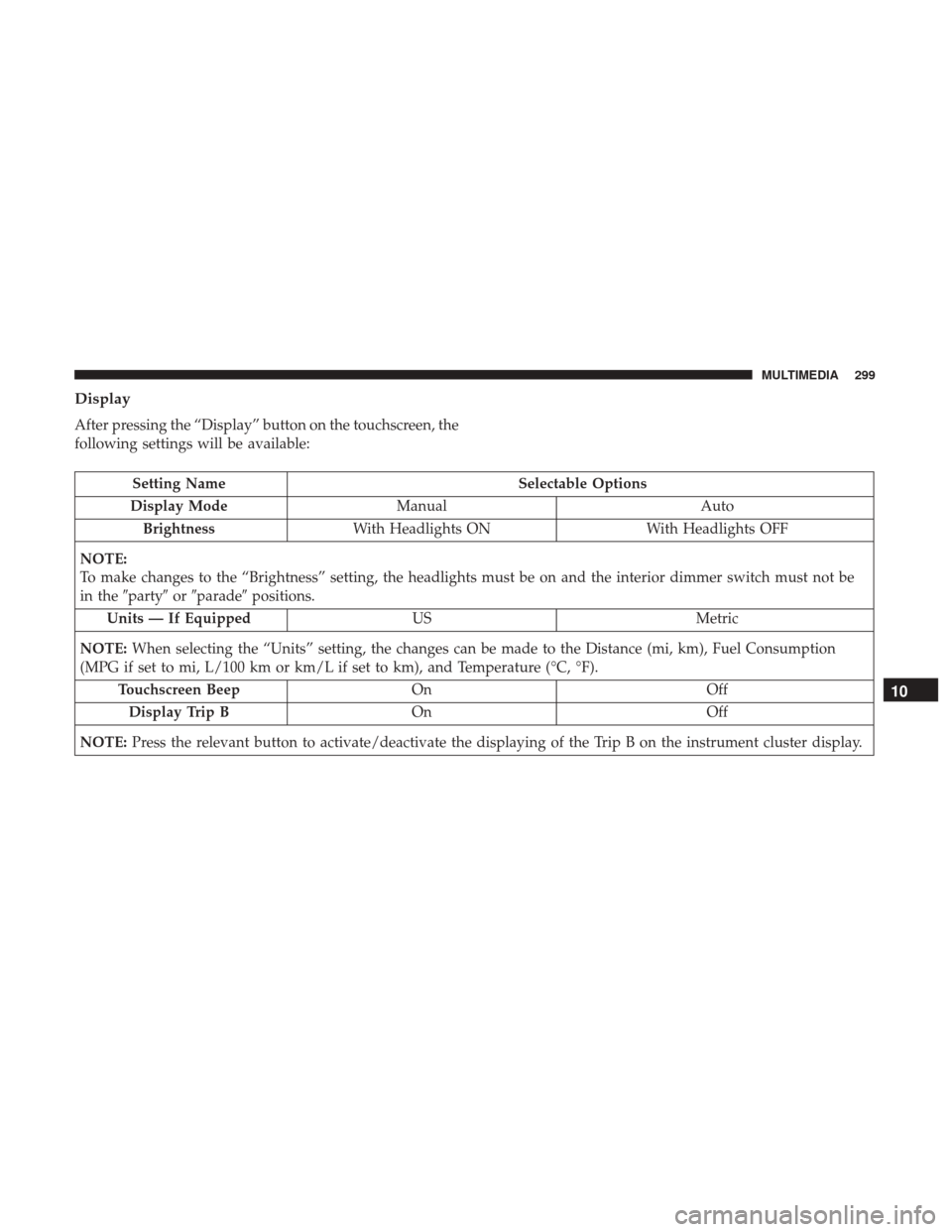
After pressing the “Display” button on the touchscreen, the
following settings will be available:
Setting NameSelectable Options
Display Mode Manual Auto
Brightness With Headlights ON With Headlights OFF
NOTE:
To make changes to the “Brightness” setting, the headlights must be on and the interior dimmer switch must not be
in the �party� or�parade� positions.
Units — If Equipped USMetric
NOTE: When selecting the “Units” setting, the changes can be made to the Distance (mi, km), Fuel Consumption
(MPG if set to mi, L/100 km or km/L if set to km), and Temperature (°C, °F).
Touchscreen Beep On Off
Display Trip B On Off
NOTE: Press the relevant button to activate/deactivate the displaying of the Trip B on the instrument cluster display.
10
MULTIMEDIA 299
Page 302 of 348
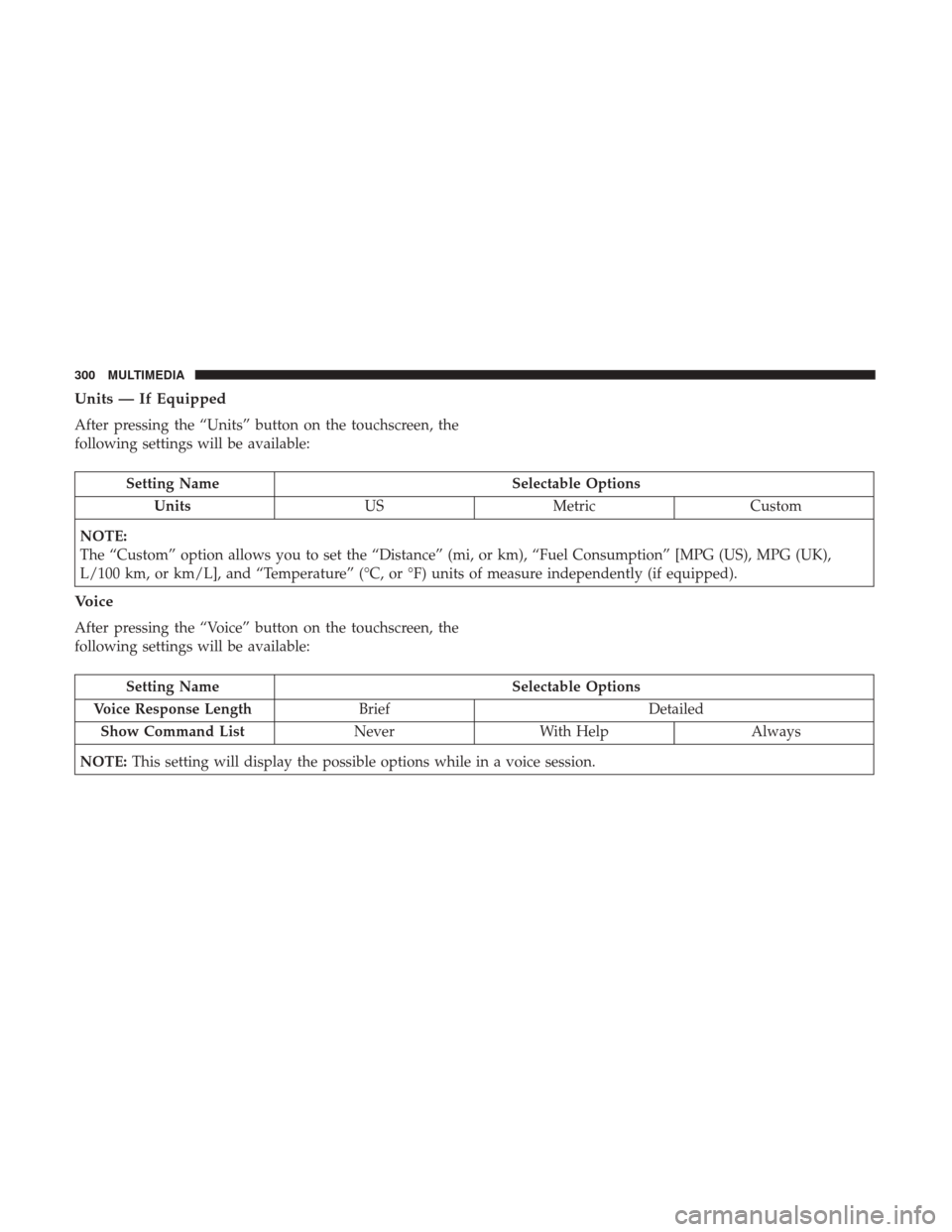
Units — If Equipped
After pressing the “Units” button on the touchscreen, the
following settings will be available:
Setting NameSelectable Options
Units USMetric Custom
NOTE:
The “Custom” option allows you to set the “Distance” (mi, or km), “Fuel Consumption” [MPG (US), MPG (UK),
L/100 km, or km/L], and “Temperature” (°C, or °F) units of measure independently (if equipped).
Voice
After pressing the “Voice” button on the touchscreen, the
following settings will be available:
Setting Name Selectable Options
Voice Response Length Brief Detailed
Show Command List NeverWith Help Always
NOTE: This setting will display the possible options while in a voice session.
300 MULTIMEDIA
Page 304 of 348
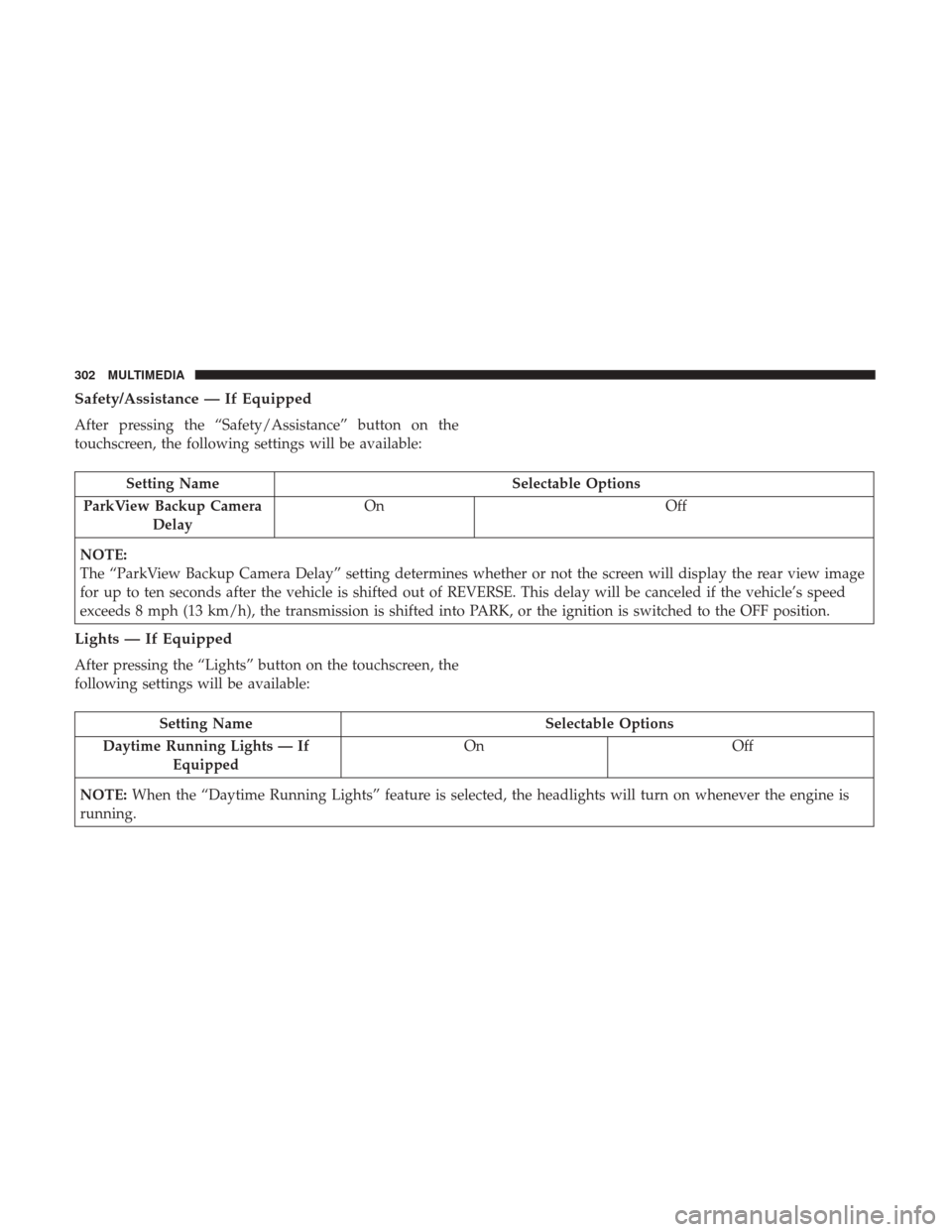
Safety/Assistance — If Equipped
After pressing the “Safety/Assistance” button on the
touchscreen, the following settings will be available:
Setting NameSelectable Options
ParkView Backup Camera Delay On
Off
NOTE:
The “ParkView Backup Camera Delay” setting determines whether or not the screen will display the rear view image
for up to ten seconds after the vehicle is shifted out of REVERSE. This delay will be canceled if the vehicle’s speed
exceeds 8 mph (13 km/h), the transmission is shifted into PARK, or the ignition is switched to the OFF position.
Lights — If Equipped
After pressing the “Lights” button on the touchscreen, the
following settings will be available:
Setting Name Selectable Options
Daytime Running Lights — If Equipped On
Off
NOTE: When the “Daytime Running Lights” feature is selected, the headlights will turn on whenever the engine is
running.
302 MULTIMEDIA
Page 306 of 348
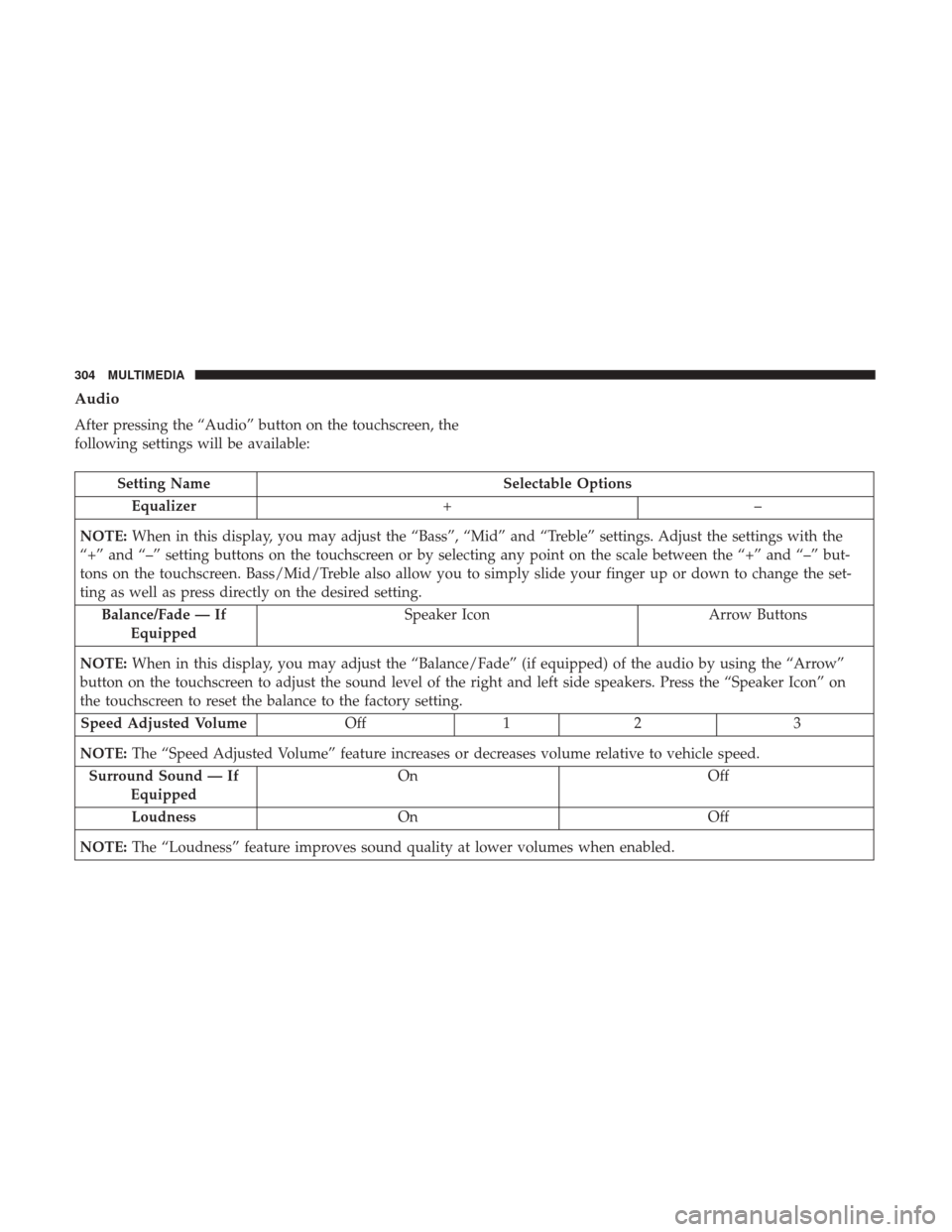
Audio
After pressing the “Audio” button on the touchscreen, the
following settings will be available:
Setting NameSelectable Options
Equalizer +–
NOTE: When in this display, you may adjust the “Bass”, “Mid” and “Treble” settings. Adjust the settings with the
“+” and “–” setting buttons on the touchscreen or by selecting any point on the scale between the “+” and “–” but-
tons on the touchscreen. Bass/Mid/Treble also allow you to simply slide your finger up or down to change the set-
ting as well as press directly on the desired setting.
Balance/Fade — If Equipped Speaker Icon
Arrow Buttons
NOTE: When in this display, you may adjust the “Balance/Fade” (if equipped) of the audio by using the “Arrow”
button on the touchscreen to adjust the sound level of the right and left side speakers. Press the “Speaker Icon” on
the touchscreen to reset the balance to the factory setting.
Speed Adjusted Volume Off12 3
NOTE: The “Speed Adjusted Volume” feature increases or decreases volume relative to vehicle speed.
Surround Sound — If Equipped On
Off
Loudness On Off
NOTE: The “Loudness” feature improves sound quality at lower volumes when enabled.
304 MULTIMEDIA