Page 208 of 348
3. Rotate the wheel wrench handle counterclockwise untilthe spare tire is on the ground with enough cable slack
to allow you to pull it out from under the vehicle.
NOTE: The winch mechanism is designed for use with the
winch extension only. Use of an air wrench or other power
tools is not recommended and can damage the winch. 4. Pull the spare tire out from under the vehicle to gain
access to the spare tire retainer.
Jack Tools
1 — Winch Extension
2 — Wrench HandleSpare Tire
206 IN CASE OF EMERGENCY
Page 217 of 348
2. The plastic fin must be directed downwards and per-fectly coincide with the flange cut part; fit the bracket in
the adapter, fold the bracket up and secure it to the
adapter with the fastening knob.
3. Position the tire vertically and lay the mounted adapter on the inner part of the rim, using the supplied bolts
fasten the wheel to the adapter using the bolt install
wrench. 4. Tighten the bolts with the wrench handle.
5. Rotate the winch mechanism clockwise until the wheel
is properly stowed under the vehicle and until the
wench makes three audible noises.
6. Reach underneath and shake tire by hand to confirm that it is secure. The tire should not move. If the tire is
still loose and/or three audible noises are not heard,
place and secure damaged wheel into the vehicle and
seek dealer assistance for the winch mechanism.
This is for temporary use only.
Adapter/Bracket
1 — Adapter
2 — Fastening Knob
Alloy Wheel Mounting
7
IN CASE OF EMERGENCY 215
Page 218 of 348

Vehicles Equipped With Wheel Covers
1. Mount the road tire on the axle.
2. To ease the installation process for steel wheels withwheel covers, install two wheel bolts on the wheel.
Install the wheel bolts with the threaded end of the bolt
toward the wheel. Lightly tighten the wheel bolts. 3. Align the valve notch in the wheel cover with the valve
stem on the wheel. Install the cover by hand, snapping
the cover over the two wheel bolts. Do not use a
hammer or excessive force to install the cover.
4. Install the remaining wheel bolts with the threaded end of the wheel bolt toward the wheel. Lightly tighten the
wheel bolts.
WARNING!
To avoid the risk of forcing the vehicle off the jack, do
not fully tighten the wheel bolts until the vehicle has
been lowered. Failure to follow this warning may
result in serious injury.
5. Lower the vehicle to the ground by turning the jack handle counterclockwise.
6. Finish tightening the wheel bolts. Push down on the wrench while holding at the end of the handle for
increased leverage. Tighten the wheel bolts in a star
pattern until each wheel bolt has been tightened twice.
Refer to “Torque Specifications” in “Technical Specifica-
tions” for correct wheel bolt torque.
Tire And Wheel Cover Or Center Cap
1 — Valve Stem 4 — Wheel Cover
2 — Valve Notch 5 — Road Wheel
3 — Wheel Bolt 216 IN CASE OF EMERGENCY
Page 300 of 348

Uconnect 3/3 NAV Settings
Push the Settings button on the faceplate to display the
menu setting screen. In this mode the Uconnect system
allows you to access programmable features that may be
equipped such as Language, Display, Units (if equipped),
Voice, Clock, Safety & Driving Assistance (if equipped),
Lights, Doors & Locks, Engine off Options, Audio, Phone
(if equipped), SiriusXM Setup (if equipped), Radio Setup,
Restore Settings and Clear Personal Data.
NOTE:
•Only one category may be selected at a time.
• The Back arrow will change into a Done button if any
changes are made. When making a selection, press the button on the touch-
screen to enter the desired mode. Once in the desired
mode, press and release the preferred setting. Once the
setting is complete, either press the Back Arrow button on
the touchscreen or the Back button on the faceplate to
return to the previous menu or press the X button on the
touchscreen to return to the Main Settings screen. Pressing
the Up or Down Arrow buttons on the touchscreen on the
right side of the screen will allow you to toggle up or down
through the available settings.
Language
After pressing the “Language” button on the touchscreen,
the following settings will be available:
Setting Name
Selectable Options
Set Language English/Français/Español
NOTE:
When the “Set Language” feature is selected, you may select one of multiple languages (English/Français/Español)
for all display nomenclature, including the trip functions and the navigation system (if equipped). Press the “Set Lan-
guage” button on the touchscreen, then press the desired language button on the touchscreen until a check-mark ap-
pears next to the language, showing that setting has been selected.
298 MULTIMEDIA
Page 303 of 348
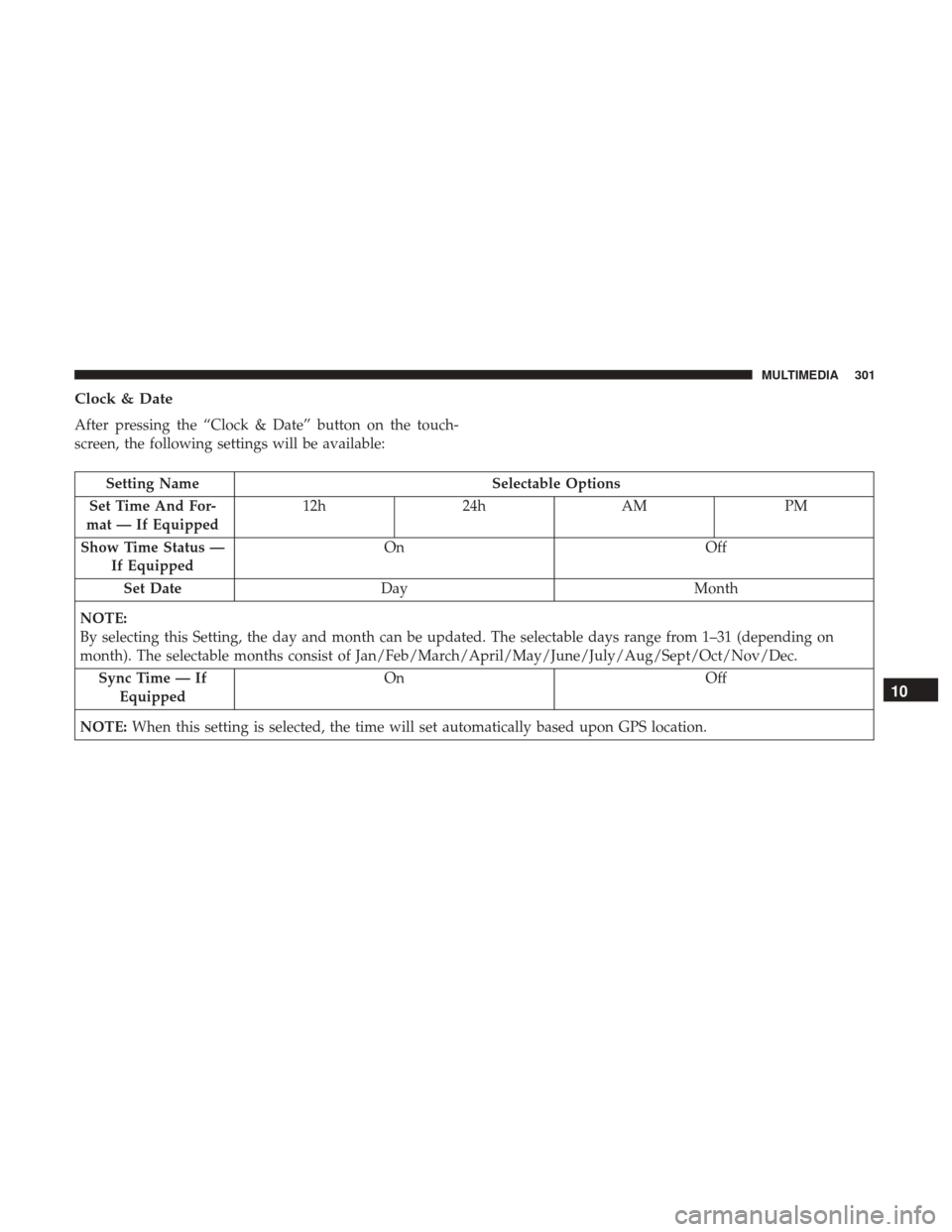
Clock & Date
After pressing the “Clock & Date” button on the touch-
screen, the following settings will be available:
Setting NameSelectable Options
Set Time And For-
mat — If Equipped 12h
24hAM PM
Show Time Status — If Equipped On
Off
Set Date Day Month
NOTE:
By selecting this Setting, the day and month can be updated. The selectable days range from 1–31 (depending on
month). The selectable months consist of Jan/Feb/March/April/May/June/July/Aug/Sept/Oct/Nov/Dec. Sync Time — If Equipped On
Off
NOTE: When this setting is selected, the time will set automatically based upon GPS location.
10
MULTIMEDIA 301
Page 309 of 348
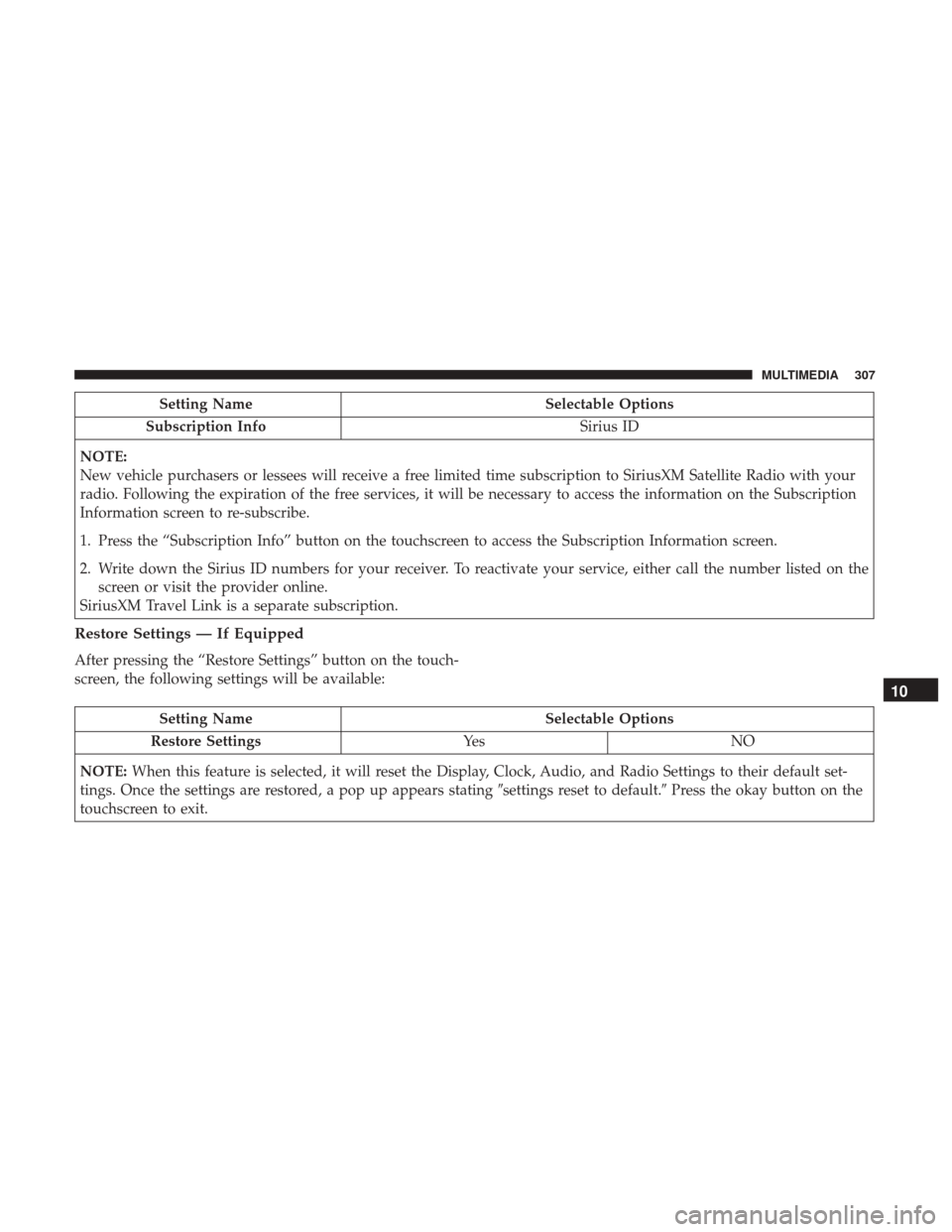
Setting NameSelectable Options
Subscription Info Sirius ID
NOTE:
New vehicle purchasers or lessees will receive a free limited time subscription to SiriusXM Satellite Radio with your
radio. Following the expiration of the free services, it will be necessary to access the information on the Subscription
Information screen to re-subscribe.
1. Press the “Subscription Info” button on the touchscreen to access the Subscription Information screen.
2. Write down the Sirius ID numbers for your receiver. To reactivate your service, either call the number listed on the screen or visit the provider online.
SiriusXM Travel Link is a separate subscription.
Restore Settings — If Equipped
After pressing the “Restore Settings” button on the touch-
screen, the following settings will be available:
Setting Name Selectable Options
Restore Settings Ye sN O
NOTE: When this feature is selected, it will reset the Display, Clock, Audio, and Radio Settings to their default set-
tings. Once the settings are restored, a pop up appears stating �settings reset to default.�Press the okay button on the
touchscreen to exit.
10
MULTIMEDIA 307