Page 458 of 698
CavityCartridge Fuse Micro Fuse Description
F34 –15 Amp Blue Frt & RR Ventilated Seat Motor
F35 –10 Amp Red Mod Inverter / Mtr Sunshade Sunroof / Mtr
Dual Sunroof
F36 40 Amp Green –Mod CBC 2 Exterior Light 1
F37 –– Spare
F38 –– Spare
F39 –– Spare
F40 –– Spare
F41 A&B –15 Amp Blue Lumbar Support & Pass SW / Mod Cluster
CCN
F42 –10 Amp Red Mod Transfer Case Switch Module (TCSM) /
SBW / Electric Park Brake SW / Overhead
Console (OHC) SW / E-Call / Bank 3 SW / Seat LT & RT Vent
F43 –10 Amp Red Port Diagnostics / Mod CD / Front & Rear
USB
F44 –20 Amp Yellow Radio / DCSD / Telematics Box Mod
F45 30 Amp Pink –Mod Door MUX Driver
F46 30 Amp Pink –Mod Door MUX Passenger
F47 –– Spare
456 IN CASE OF EMERGENCY
Page 477 of 698

Preparations For Jump Start
The battery in your vehicle is located in the front of the
engine compartment, behind the left headlight assembly.
NOTE:The positive battery post may be covered with a
protective cap if equipped. Lift up on the cap to gain access
to the positive battery post. Do not jump off fuses. Only
jump directly off positive post which has a positive (+)
symbol on or around the post.
WARNING!
• Take care to avoid the radiator cooling fan whenever
the hood is raised. It can start anytime the ignition
switch is ON. You can be injured by moving fan
blades.
• Remove any metal jewelry such as rings, watch
bands and bracelets that could make an inadvertent
electrical contact. You could be seriously injured.
• Batteries contain sulfuric acid that can burn your
skin or eyes and generate hydrogen gas which is
flammable and explosive. Keep open flames or
sparks away from the battery.
1. Apply the parking brake, shift the automatic transmis- sion into PARK and turn the ignition OFF.
2. Turn off the heater, radio, and all unnecessary electrical accessories.
3. If using another vehicle to jump start the battery, park the vehicle within the jumper cables’ reach, apply the
parking brake and make sure the ignition is OFF.
Positive Battery Post
7
IN CASE OF EMERGENCY 475
Page 491 of 698

SCHEDULED SERVICING
Your vehicle is equipped with an automatic oil change
indicator system. The oil change indicator system will
remind you that it is time to take your vehicle in for
scheduled maintenance.
Based on engine operation conditions, the oil change
indicator message will illuminate. This means that service
is required for your vehicle. Operating conditions such as
frequent short-trips, trailer tow, and extremely hot or cold
ambient temperatures will influence when the “Oil Change
Required” message is displayed. Severe Operating Condi-
tions can cause the change oil message to illuminate as
early as 3,500 miles (5,600 km) since last reset. Have your
vehicle serviced as soon as possible, within the next 500
miles (805 km).
Your authorized dealer will reset the oil change indicator
message after completing the scheduled oil change. If a
scheduled oil change is performed by someone other than
your authorized dealer, the message can be reset by
referring to the steps described under “Instrument Cluster
Display” in “Getting To Know Your Instrument Panel”.NOTE:
Under no circumstances should oil change inter-
vals exceed 10,000 miles (16,000 km), twelve months or 350
hours of engine run time, whichever comes first. The 350
hours of engine run or idle time is generally only a concern
for fleet customers.
Severe Duty All Models
NOTE: Change Engine Oil at 4,000 miles (6,500 km) or 350
hours of engine run time if the vehicle is operated in a
dusty and off road environment or is operated predomi-
nantly at idle, or only very low engine RPM’s. This type of
vehicle use is considered Severe Duty.
Once A Month Or Before A Long Trip:
• Check engine oil level.
• Check windshield washer fluid level.
• Check tire pressure and look for unusual wear or
damage. Rotate tires at the first sign of irregular wear,
even if it occurs before the oil indicator system turns on.
• Check the fluid levels of the coolant reservoir, brake
master cylinder, and fill as needed.
• Check function of all interior and exterior lights.
8
SERVICING AND MAINTENANCE 489
Page 558 of 698

IDENTIFICATION DATA
Vehicle Identification Number
The Vehicle Identification Number (VIN) is found on the
left front corner of the instrument panel, visible through
the windshield. This number also appears on the vehicle
frame etched on right hand center rail, as well as the
Automobile Information Disclosure Label affixed to a
window on your vehicle, the vehicle registration and title.
NOTE:It is illegal to remove or alter the VIN.
BRAKE SYSTEM
If power assist is lost for any reason (for example, repeated
brake applications with the engine off), the brakes will still
function. However, you will experience a substantial in-
crease in braking effort to stop the vehicle.
If either the front or rear hydraulic system loses normal
braking capability, the remaining system will still function
with some loss of overall braking effectiveness. This will be
evident by increased pedal travel during application,
greater pedal force required to slow or stop, and activation
of the “Brake Warning Light” and the “ABS Warning
Light” (if equipped) during brake use.
WHEEL AND TIRE TORQUE SPECIFICATIONS
Proper lug nut/bolt torque is very important to ensure that
the wheel is properly mounted to the vehicle. Any time a
wheel has been removed and reinstalled on the vehicle, the
lug nuts/bolts should be torqued using a properly cali-
brated torque wrench using a high quality six sided (hex)
deep wall socket.
Vehicle Identification Number
556 TECHNICAL SPECIFICATIONS
Page 574 of 698
UCONNECT SETTINGS
The Uconnect system uses a combination of buttons on the
touchscreen and buttons on the faceplate located on the
center of the instrument panel that allows you to access
and change the customer programmable features. Many
features can vary by vehicle.
Uconnect 3 Settings
Push the MORE or SETTINGS button on the faceplate, then
press the “Settings” button on the touchscreen (if
equipped) to display the settings menu screen. In this
mode the Uconnect system allows you to access program-
mable features that may be equipped such as Display,
Units, Voice, Clock, Safety & Driving Assistance, Lights,
Doors & Locks, Auto-On Comfort (if equipped), Engine Off
Options, Suspension, Trailer Brake, Audio, Compass Set-
tings, Phone/Bluetooth, SiriusXM Setup (if equipped),
Restore Settings, Clear Personal Data and System Informa-
tion.
NOTE:Only one category may be selected at a time.
When making a selection, press the button on the touch-
screen to enter the desired mode. Once in the desired
mode, press and release the preferred setting until the
button is highlighted. Once the setting is complete, either
press the back arrow or the “Done” button on the touch-
screen or the Back button on the faceplate to return to the
previous menu. Pressing the Up or Down Arrow buttons
on the touchscreen on the right side of the screen will allow
you to toggle up or down through the list of available
settings.
NOTE: All settings should be changed with the ignition in
the RUN position.
Uconnect 3 With 5–inch Display Buttons On The
Touchscreen And Buttons On The Faceplate
1 — Uconnect Buttons On The Touchscreen
2 — Uconnect Buttons On The Faceplate 572 MULTIMEDIA
Page 580 of 698
Brakes — If Equipped
After pressing the “Brakes” button on the touchscreen the
following setting will be available:
Setting NameSelectable Options
Brake Service Ye sN o
NOTE:
Selecting the “Brake Service” feature will display a pop-up asking whether or you would like to retract the park
brakes to all break system service. Auto Park Brake OnOff
Lights
After pressing the “Lights” button on the touchscreen, the
following settings will be available:
Setting Name Selectable Options
Headlight Off Delay 0 sec30 sec
60 sec 90 sec
Headlight Illumination On Approach 0 sec
30 sec
60 sec 90 sec
578 MULTIMEDIA
Page 587 of 698
Setting NameSelectable Options
Wheel Alignment Mode OnOff
NOTE:
The “Wheel Alignment Mode” feature prevents auto leveling of the air suspension while performing a wheel align-
ment service. Before performing a wheel alignment, this mode must be enabled. Refer to an authorized dealer for fur-
ther information.
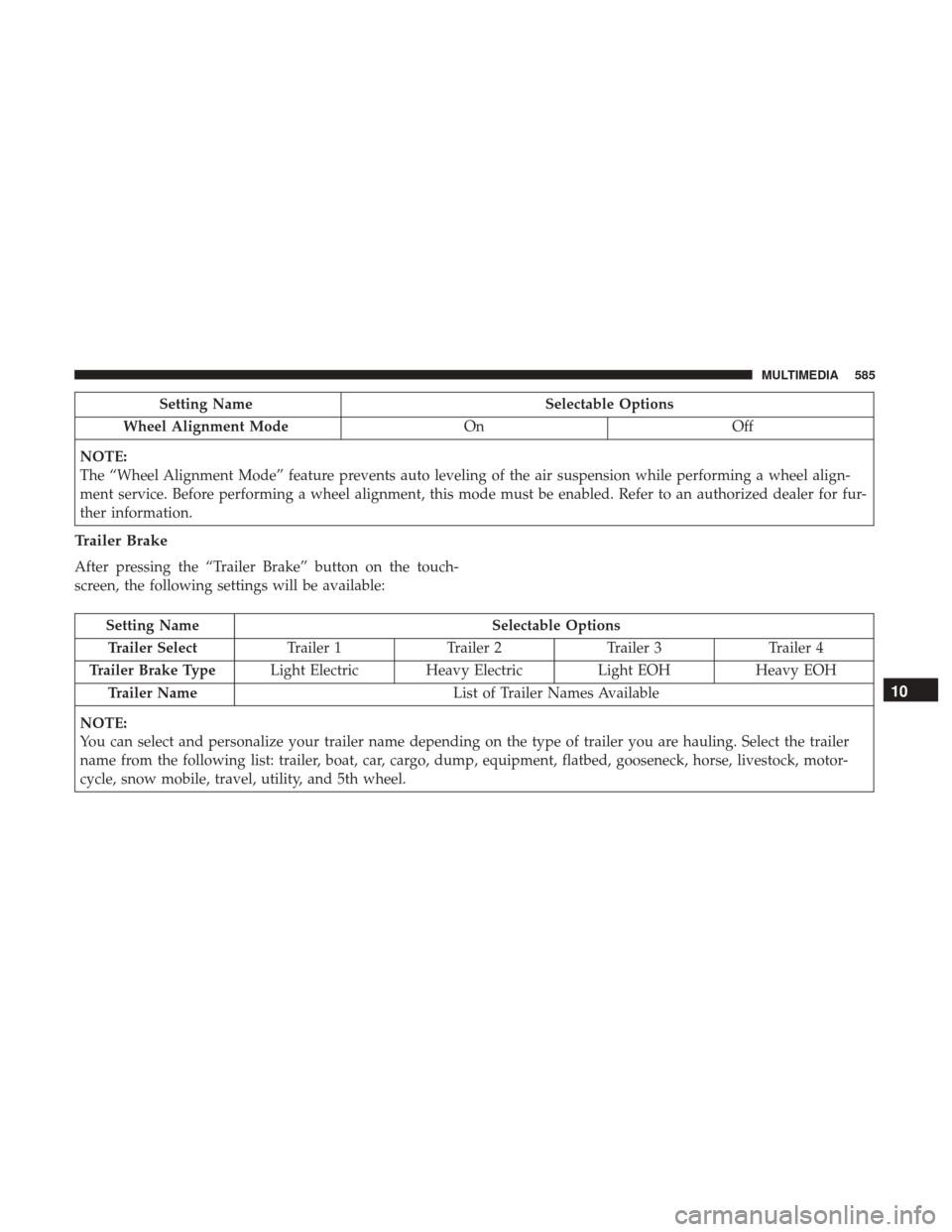
Trailer Brake
After pressing the “Trailer Brake” button on the touch-
screen, the following settings will be available:
Setting Name Selectable Options
Trailer Select Trailer 1Trailer 2Trailer 3 Trailer 4
Trailer Brake Type Light Electric Heavy Electric Light EOHHeavy EOH
Trailer Name List of Trailer Names Available
NOTE:
You can select and personalize your trailer name depending on the type of trailer you are hauling. Select the trailer
name from the following list: trailer, boat, car, cargo, dump, equipment, flatbed, gooseneck, horse, livestock, motor-
cycle, snow mobile, travel, utility, and 5th wheel.
10
MULTIMEDIA 585
Page 595 of 698
Uconnect 4/4C/4C NAV Settings
Press the “Apps” button on the touchscreen then press the
“Settings” button on the touchscreen to display the settings
menu screen. In this mode the Uconnect system allows you
to access programmable features that may be equipped
such as Display, Voice, Clock, Safety & Driving Assistance,
Lights, Doors & Locks, Auto-On Comfort (if equipped),Engine Off Options, Suspension, Trailer Brake, Audio,
Phone/Bluetooth, SiriusXM Setup (if equipped), Restore
Settings, Clear Personal Data and System Information.
NOTE:
Only one category may be selected at a time.
When making a selection, press the button on the touch-
screen to enter the desired mode. Once in the desired
mode, press and release the preferred setting until a
check-mark appears next to the setting, showing that
setting has been selected. Once the setting is complete,
press the back arrow button on the touchscreen to return to
the previous menu or press the “X” button on the touch-
screen to close out of the settings screen. Pressing the Up or
Down Arrow buttons on the touchscreen on the right side
of the screen will allow you to toggle up or down through
the list of available settings.
NOTE: All settings should be changed with the ignition in
the RUN position.
Uconnect 4/4C/4C NAV With 8.4–inch Display Buttons On
The Touchscreen And Buttons On The Faceplate
1 — Uconnect Buttons On The Touchscreen
2 — Uconnect Buttons On The Faceplate
10
MULTIMEDIA 593