2019 Ram 1500 buttons
[x] Cancel search: buttonsPage 114 of 698

Programming A Non-Rolling Code
For programming Garage Door Openers manufactured
before 1995.
1. Cycle the ignition to the ON/RUN position.
2. Place the hand-held transmitter 1 to 3 inches (3 to 8 cm)away from the HomeLink button you wish to program
while keeping the HomeLink indicator light in view.
3. Press and hold the HomeLink button you want to program while you press and hold the hand-held trans-
mitter button.
4. Continue to hold both buttons and observe the indicator light. The HomeLink indicator will flash slowly and
then rapidly after HomeLink has received the frequency
signal from the hand-held transmitter. Release both
buttons after the indicator light changes from slow to
rapid.
5. Press and hold the programmed HomeLink button and observe the indicator light.
• If the indicator light stays on constantly, programming
is complete and the garage door/device should acti-
vate when the HomeLink button is pressed. •
To program the two remaining HomeLink buttons,
repeat each step for each remaining button. DO NOT
erase the channels.
Reprogramming A Single HomeLink Button (Non-
Rolling Code)
To reprogram a channel that has been previously trained,
follow these steps:
1. Cycle the ignition to the ON/RUN position.
2. Press and hold the desired HomeLink button until the indicator light begins to flash after 20 seconds. Do not
release the button.
3. Without releasing the button, proceed with “Program- ming A Non-Rolling Code” step 2 and follow all remain-
ing steps.
Canadian/Gate Operator Programming
For programming transmitters in Canada/United States
that require the transmitter signals to “time-out” after
several seconds of transmission.
Canadian radio frequency laws require transmitter signals
to time-out (or quit) after several seconds of transmission –
which may not be long enough for HomeLink to pick up
112 GETTING TO KNOW YOUR VEHICLE
Page 115 of 698

the signal during programming. Similar to this Canadian
law, some U.S. gate operators are designed to time-out in
the same manner.
It may be helpful to unplug the device during the cycling
process to prevent possible overheating of the garage door
or gate motor.
1. Cycle the ignition to the ON/RUN position.
2. Place the hand-held transmitter 1 to 3 inches (3 to 8 cm)away from the HomeLink button you wish to program
while keeping the HomeLink indicator light in view.
3. Continue to press and hold the HomeLink button, while you press and release (“cycle”) your hand-held trans-
mitter every two seconds until HomeLink has success-
fully accepted the frequency signal. The indicator light
will flash slowly and then rapidly when fully trained.
4. Watch for the HomeLink indicator to change flash rates. When it changes, it is programmed. It may take up to 30
seconds or longer in rare cases. The garage door may
open and close while you are programming.
5. Press and hold the programmed HomeLink button and observe the indicator light. NOTE:
•If the indicator light stays on constantly, programming
is complete and the garage door/device should acti-
vate when the HomeLink button is pressed.
• To program the two remaining HomeLink buttons,
repeat each step for each remaining button. DO NOT
erase the channels.
If you unplugged the garage door opener/device for
programming, plug it back in at this time.
Reprogramming A Single HomeLink Button (Canadian/
Gate Operator)
To reprogram a channel that has been previously trained,
follow these steps:
1. Cycle the ignition to the ON/RUN position.
2. Press and hold the desired HomeLink button until the indicator light begins to flash after 20 seconds. Do not
release the button.
3. Without releasing the button, proceed with “Canadian/ Gate Operator Programming” step 2 and follow all
remaining steps.
3
GETTING TO KNOW YOUR VEHICLE 113
Page 116 of 698
Using HomeLink
To operate, push and release the programmed HomeLink
button. Activation will now occur for the programmed
device (i.e. garage door opener, gate operator, security
system, entry door lock, home/office lighting, etc.) The
hand-held transmitter of the device may also be used at
any time.
Security
It is advised to erase all channels before you sell or turn in
your vehicle.
To do this, push and hold the two outside buttons for 20
seconds until the orange indicator flashes. Note that all
channels will be erased. Individual channels cannot be
erased.
The HomeLink Universal Transceiver is disabled when the
Vehicle Security Alarm is active.
Troubleshooting Tips
If you are having trouble programming HomeLink, here
are some of the most common solutions:
•Replace the battery in the Garage Door Opener hand-
held transmitter. •
Push the LEARN button on the Garage Door Opener to
complete the training for a Rolling Code.
• Did you unplug the device for programming and re-
member to plug it back in?
If you have any problems, or require assistance, please call
toll-free 1-800-355-3515 or, on the Internet at
HomeLink.com for information or assistance.
General Information
The following regulatory statement applies to all Radio
Frequency (RF) devices equipped in this vehicle:
This device complies with Part 15 of the FCC Rules and
with Innovation, Science and Economic Development
Canada license-exempt RSS standard(s). Operation is sub-
ject to the following two conditions:
1. This device may not cause harmful interference, and
2. This device must accept any interference received, in- cluding interference that may cause undesired opera-
tion.
NOTE: Changes or modifications not expressly approved
by the party responsible for compliance could void the
user ’s authority to operate the equipment.
114 GETTING TO KNOW YOUR VEHICLE
Page 170 of 698
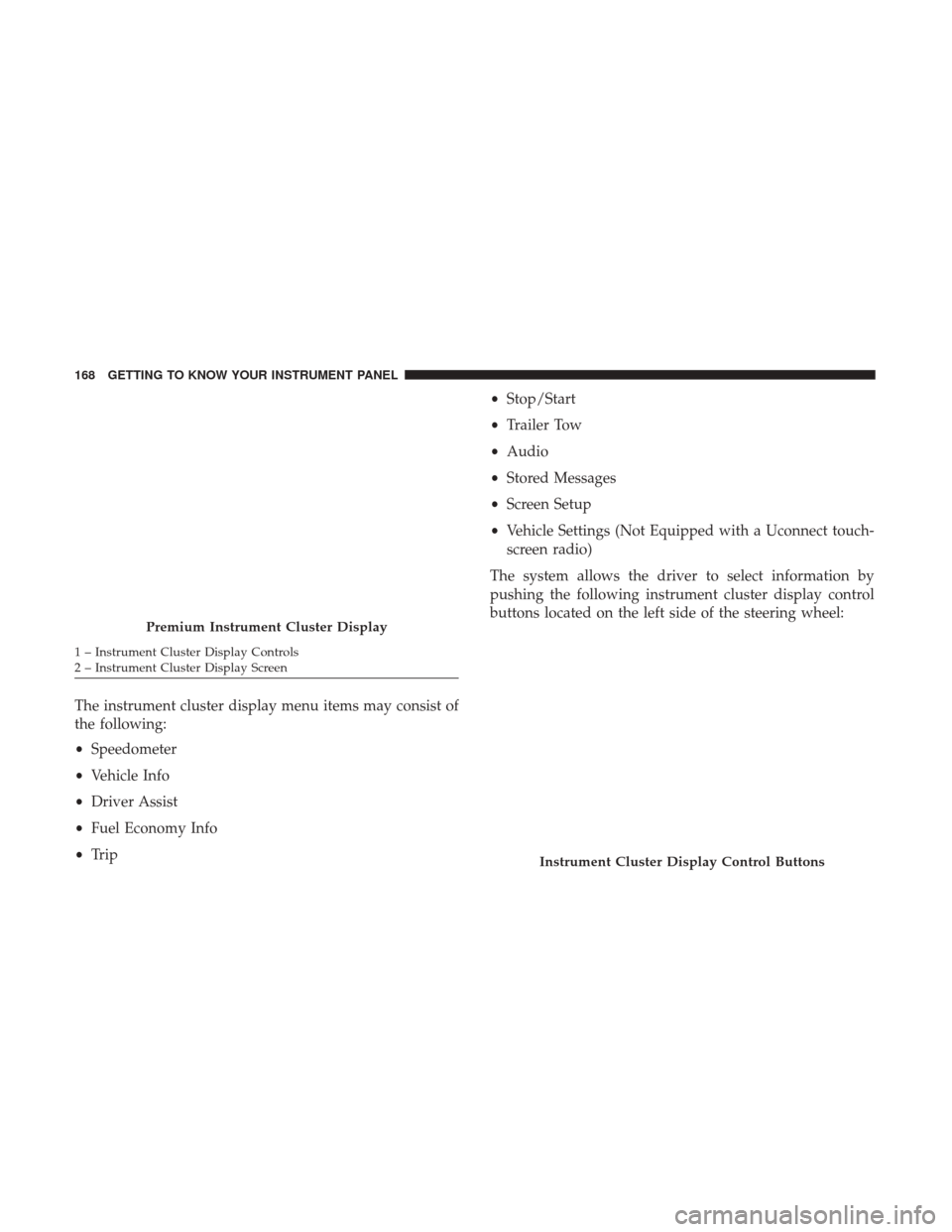
The instrument cluster display menu items may consist of
the following:
•Speedometer
• Vehicle Info
• Driver Assist
• Fuel Economy Info
• Trip •
Stop/Start
• Trailer Tow
• Audio
• Stored Messages
• Screen Setup
• Vehicle Settings (Not Equipped with a Uconnect touch-
screen radio)
The system allows the driver to select information by
pushing the following instrument cluster display control
buttons located on the left side of the steering wheel:
Premium Instrument Cluster Display
1 – Instrument Cluster Display Controls
2 – Instrument Cluster Display Screen
Instrument Cluster Display Control Buttons
168 GETTING TO KNOW YOUR INSTRUMENT PANEL
Page 171 of 698
Up And Down Arrow Buttons:
Using theupordown arrows allows you to cycle through
the Main Menu Items.
Left And Right Arrow Buttons:
Using the leftorright arrow button allows you to cycle
through the submenu items of the Main menu item.
NOTE:
• Holding the up/downorleft/right arrow button will
loop the user through the currently selected menu or
options presented on the screen.
•
Main menu and submenus wrap for continuous scrolling.
• Upon returning to a main menu, the last submenu
screen viewed within that main menu will be displayed.
OK Button:
For Digital Speedometer:
• Pushing the OKbutton changes units (mph or km/h).
For Screen Setup:
• OK button allows user to enter menu and submenus.
• Within each submenu layer, the upand down arrows
will allow the user to select the item of interest. •
Pushing the OKbutton makes the selection and a
confirmation screen will appear (returning the user to
the first page of the submenu).
• Pushing the leftarrow button will exit each submenu
layer and return to the main menu.
Oil Life Reset
Your vehicle is equipped with an engine oil change indi-
cator system. The “Oil Change Required” message will
display in the instrument cluster display for five seconds
after a single chime has sounded, to indicate the next
scheduled oil change interval. The engine oil change indi-
cator system is duty cycle based, which means the engine
oil change interval may fluctuate, dependent upon your
personal driving style.
Unless reset, this message will continue to display each
time you place the ignition in the ON/RUN position. To
turn off the message temporarily, push and release the OK
or arrow buttons. To reset the oil change indicator system
(after performing the scheduled maintenance), refer to the
following procedure:
1. Without pressing the brake pedal, push the ENGINE START/STOP button and place the ignition in the
ON/RUN position (do not start the engine).
4
GETTING TO KNOW YOUR INSTRUMENT PANEL 169
Page 174 of 698
LaneSense — If Equipped
The instrument cluster display displays the current Lane-
Sense system settings. The information displayed depends
on LaneSense system status and the conditions that need to
be met. For further information, refer to “LaneSense — If
Equipped” in “Starting And Operating.”
Fuel Economy
Push and release theupordown arrow button until the
Fuel Economy menu item is highlighted in the instrument
cluster display. Push and hold the OKbutton to reset
Average Fuel Economy.
• Current Fuel Economy Gauge
• Average Fuel Economy Value
• Range To Empty
Trip
Push and release the upordown arrow button until the
Trip menu item is highlighted in the instrument cluster
display. Push and release the rightorleft arrow buttons to
enter the submenus of Trip A and Trip B. The Trip A or Trip
B information will display the following:
• Distance •
Average Fuel Economy
• Elapsed Time
Push and hold OKbutton to reset all information.
Stop/Start — If Equipped
Push and release the upordown arrow button until the
Stop/Start icon/title is highlighted in the instrument clus-
ter display. The screen will display the Stop/Start status.
Trailer Tow
Push and release the upordown arrow button until the
Trailer Tow menu item is highlighted in the instrument
cluster display. Push and release the rightorleft arrow
buttons to cycle through the following trailer trip
information:
• Trip (trailer specific) Distance: Push and hold the OK
button to reset the distance.
• Trailer Brake
• Output
• Type
• Gain
172 GETTING TO KNOW YOUR INSTRUMENT PANEL
Page 175 of 698
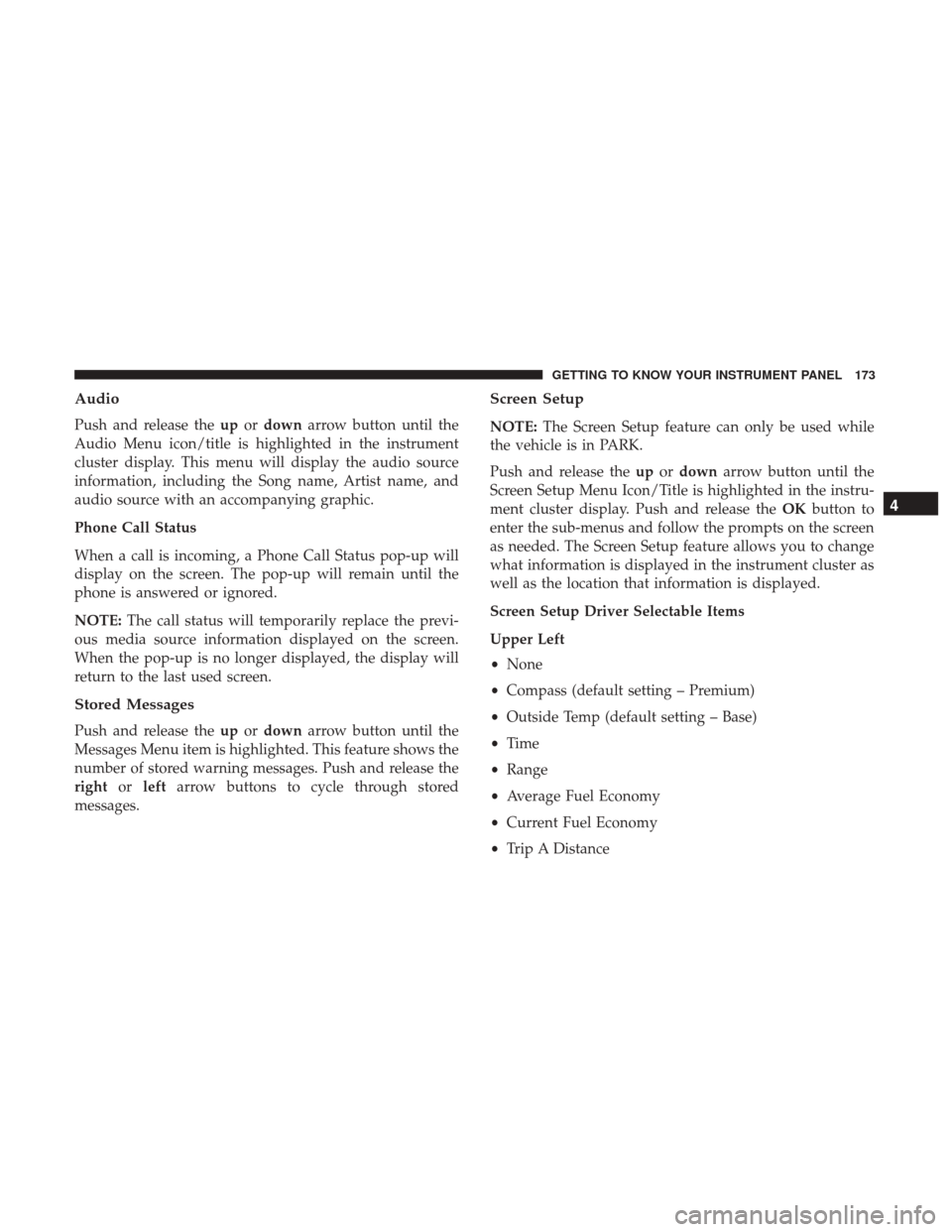
Audio
Push and release theupordown arrow button until the
Audio Menu icon/title is highlighted in the instrument
cluster display. This menu will display the audio source
information, including the Song name, Artist name, and
audio source with an accompanying graphic.
Phone Call Status
When a call is incoming, a Phone Call Status pop-up will
display on the screen. The pop-up will remain until the
phone is answered or ignored.
NOTE: The call status will temporarily replace the previ-
ous media source information displayed on the screen.
When the pop-up is no longer displayed, the display will
return to the last used screen.
Stored Messages
Push and release the upordown arrow button until the
Messages Menu item is highlighted. This feature shows the
number of stored warning messages. Push and release the
right orleft arrow buttons to cycle through stored
messages.
Screen Setup
NOTE: The Screen Setup feature can only be used while
the vehicle is in PARK.
Push and release the upordown arrow button until the
Screen Setup Menu Icon/Title is highlighted in the instru-
ment cluster display. Push and release the OKbutton to
enter the sub-menus and follow the prompts on the screen
as needed. The Screen Setup feature allows you to change
what information is displayed in the instrument cluster as
well as the location that information is displayed.
Screen Setup Driver Selectable Items
Upper Left
• None
• Compass (default setting – Premium)
• Outside Temp (default setting – Base)
• Time
• Range
• Average Fuel Economy
• Current Fuel Economy
• Trip A Distance
4
GETTING TO KNOW YOUR INSTRUMENT PANEL 173
Page 342 of 698

3. At the next vehicle stop (after turning off the STOP/START system) the engine will not be stopped.
4. If the STOP/START system is manually turned off, the engine can be started and stopped by cycling the
ignition switch or pressing the STOP/START switch
again.
5. The STOP/START system will reset itself back to an ON condition every time the key is turned off and back on.
To Manually Turn On The Stop Start System
1. Push the STOP/START Off switch (located near the gearselector module).
2. The light on the switch will turn off.
System Malfunction
If there is a malfunction in the STOP/START system, the
system will not shut down the engine. A “SERVICE STOP/
START SYSTEM” message will appear in the instrument
cluster display. Refer to “Instrument Cluster Display” in
“Getting To Know Your Instrument Panel” for further
information.
The system will need to be checked by your authorized
dealer.
SPEED CONTROL — IF EQUIPPED
When engaged, the Speed Control takes over accelerator
operations at speeds greater than 20 mph (32 km/h).
The Speed Control buttons are located on the right side of
the steering wheel.
Speed Control Buttons
1 — SET (+)/Accel 4 — SET (-)/Decel
2 — On/Off 5 — CANC/Cancel
3 — RES/Resume
340 STARTING AND OPERATING