Page 457 of 698
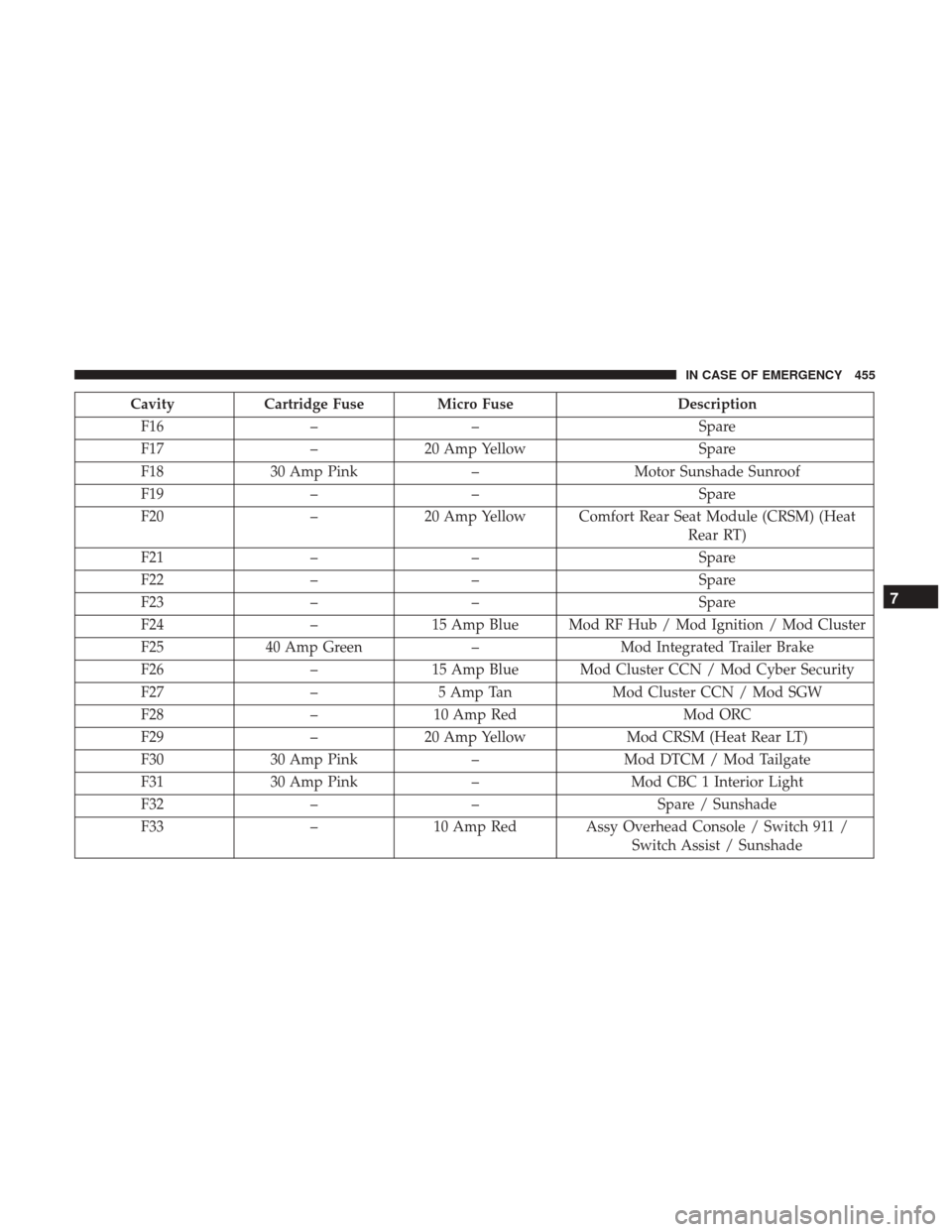
CavityCartridge Fuse Micro Fuse Description
F16 –– Spare
F17 –20 Amp Yellow Spare
F18 30 Amp Pink –Motor Sunshade Sunroof
F19 –– Spare
F20 –20 Amp Yellow Comfort Rear Seat Module (CRSM) (Heat
Rear RT)
F21 –– Spare
F22 –– Spare
F23 –– Spare
F24 –15 Amp Blue Mod RF Hub / Mod Ignition / Mod Cluster
F25 40 Amp Green –Mod Integrated Trailer Brake
F26 –15 Amp Blue Mod Cluster CCN / Mod Cyber Security
F27 –5 Amp Tan Mod Cluster CCN / Mod SGW
F28 –10 Amp Red Mod ORC
F29 –20 Amp Yellow Mod CRSM (Heat Rear LT)
F30 30 Amp Pink –Mod DTCM / Mod Tailgate
F31 30 Amp Pink –Mod CBC 1 Interior Light
F32 –– Spare / Sunshade
F33 –10 Amp Red Assy Overhead Console / Switch 911 /
Switch Assist / Sunshade
7
IN CASE OF EMERGENCY 455
Page 458 of 698
CavityCartridge Fuse Micro Fuse Description
F34 –15 Amp Blue Frt & RR Ventilated Seat Motor
F35 –10 Amp Red Mod Inverter / Mtr Sunshade Sunroof / Mtr
Dual Sunroof
F36 40 Amp Green –Mod CBC 2 Exterior Light 1
F37 –– Spare
F38 –– Spare
F39 –– Spare
F40 –– Spare
F41 A&B –15 Amp Blue Lumbar Support & Pass SW / Mod Cluster
CCN
F42 –10 Amp Red Mod Transfer Case Switch Module (TCSM) /
SBW / Electric Park Brake SW / Overhead
Console (OHC) SW / E-Call / Bank 3 SW / Seat LT & RT Vent
F43 –10 Amp Red Port Diagnostics / Mod CD / Front & Rear
USB
F44 –20 Amp Yellow Radio / DCSD / Telematics Box Mod
F45 30 Amp Pink –Mod Door MUX Driver
F46 30 Amp Pink –Mod Door MUX Passenger
F47 –– Spare
456 IN CASE OF EMERGENCY
Page 459 of 698
CavityCartridge Fuse Micro Fuse Description
F48A 10 Amp Red –Rear View Mirror / Humidity Rain And
Light Sensor (HRLS) / SW Window Passen- ger / Rear USB / Wireless Charging Pad Mod
F49 –15 Amp Blue Mod CVPM / SNSR Blind Spot / HDLP
Adaptive Front Lighting Sensor (AFLS)
F50A –10 Amp Red Battery PACK Control Mod
F51 A&B –– Spare
F52 20 Amp Blue –Direct Battery Feed
F53 –15 Amp Blue Mod ICS Switch / Mod HVAC CTRL / Sw
Bank Upper / Sw EPB / Mod Control Steer- ing
F54B –20 Amp Yellow Power Outlet Center Seat
F55 25 Amp White – Upfitter
F56 30 Amp Pink –Mod Network Interface
F57 20 Amp Blue –Direct Battery Feed
F58 20 Amp Blue –Direct Battery Feed
F60 50 Amp Red – Mod Inverter
F61 –– Spare
7
IN CASE OF EMERGENCY 457
Page 574 of 698
UCONNECT SETTINGS
The Uconnect system uses a combination of buttons on the
touchscreen and buttons on the faceplate located on the
center of the instrument panel that allows you to access
and change the customer programmable features. Many
features can vary by vehicle.
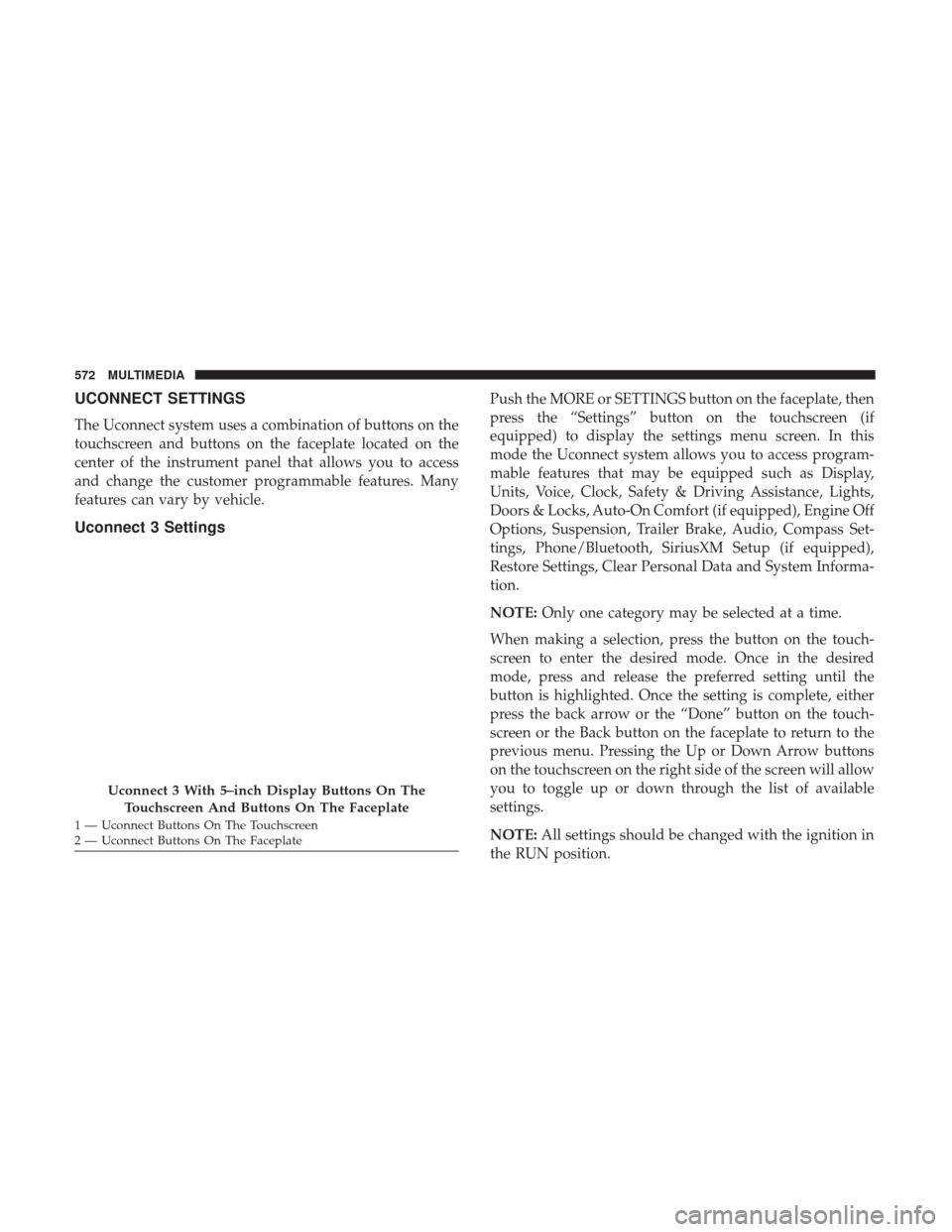
Uconnect 3 Settings
Push the MORE or SETTINGS button on the faceplate, then
press the “Settings” button on the touchscreen (if
equipped) to display the settings menu screen. In this
mode the Uconnect system allows you to access program-
mable features that may be equipped such as Display,
Units, Voice, Clock, Safety & Driving Assistance, Lights,
Doors & Locks, Auto-On Comfort (if equipped), Engine Off
Options, Suspension, Trailer Brake, Audio, Compass Set-
tings, Phone/Bluetooth, SiriusXM Setup (if equipped),
Restore Settings, Clear Personal Data and System Informa-
tion.
NOTE:Only one category may be selected at a time.
When making a selection, press the button on the touch-
screen to enter the desired mode. Once in the desired
mode, press and release the preferred setting until the
button is highlighted. Once the setting is complete, either
press the back arrow or the “Done” button on the touch-
screen or the Back button on the faceplate to return to the
previous menu. Pressing the Up or Down Arrow buttons
on the touchscreen on the right side of the screen will allow
you to toggle up or down through the list of available
settings.
NOTE: All settings should be changed with the ignition in
the RUN position.
Uconnect 3 With 5–inch Display Buttons On The
Touchscreen And Buttons On The Faceplate
1 — Uconnect Buttons On The Touchscreen
2 — Uconnect Buttons On The Faceplate 572 MULTIMEDIA
Page 592 of 698
Phone/Bluetooth
After pressing the “Phone/Bluetooth” button on the touch-
screen, the following settings will be available:
Setting NameSelectable Options
Paired Phones List of Paired Phones
NOTE:
The “Paired Phones” feature shows which phones are paired to the Phone/Bluetooth system. For further information,
refer to the Uconnect Owner ’s Manual Supplement.
SiriusXM Setup — If Equipped
After pressing the “SiriusXM Setup” button on the touch-
screen, the following settings will be available:
Setting Name Selectable Options
Tune Start OnOff
Channel Skip List of Channels
NOTE:
SiriusXM can be programmed to exclude undesirable channels while scanning. To make your selection, press the
“Channel Skip” button on the touchscreen, select the channels you would like to skip.
590 MULTIMEDIA
Page 594 of 698
Clear Personal Data
After pressing the “Clear Personal Data Settings” button on
the touchscreen, the following settings will be available:
Setting NameSelectable Options
Clear Personal Data YesCancel
NOTE:
When this feature is selected it will remove all personal data including Bluetooth devices and presets. If “Yes” is se-
lected a pop-up will appear asking �Are you sure you want to clear all personal data?” select “Yes” to Clear, or “Can-
cel” to exit.
System Information
After pressing the “System Information” button on the
touchscreen, the following settings will be available:
Setting Name Selectable Options
System Information System Software Information Screen
NOTE:
When the “System Information” feature is selected, a “System Software Information” screen will appear, displaying
the system software version. You can also update your maps with a USB device. Please see an authorized dealer for
further information.
592 MULTIMEDIA
Page 595 of 698
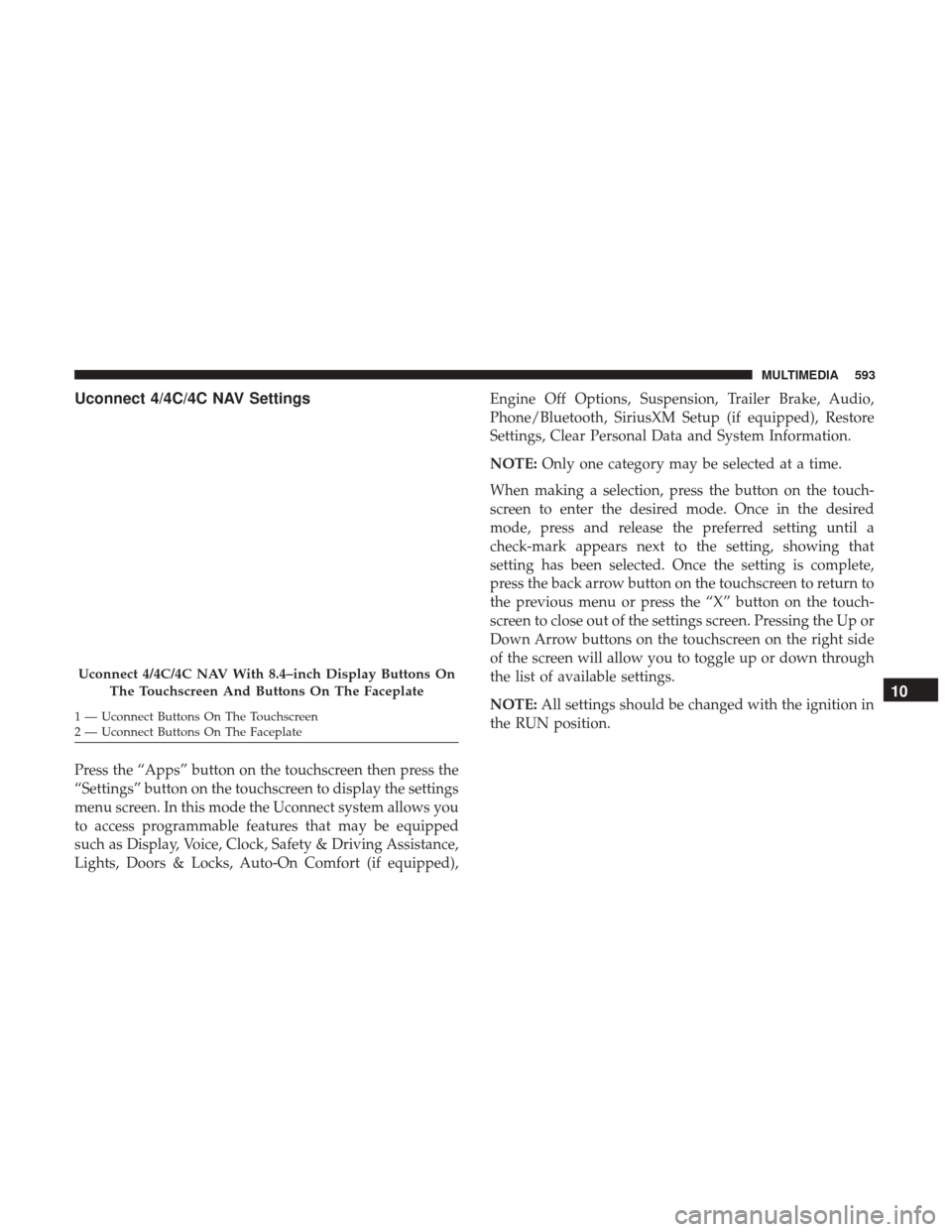
Uconnect 4/4C/4C NAV Settings
Press the “Apps” button on the touchscreen then press the
“Settings” button on the touchscreen to display the settings
menu screen. In this mode the Uconnect system allows you
to access programmable features that may be equipped
such as Display, Voice, Clock, Safety & Driving Assistance,
Lights, Doors & Locks, Auto-On Comfort (if equipped),Engine Off Options, Suspension, Trailer Brake, Audio,
Phone/Bluetooth, SiriusXM Setup (if equipped), Restore
Settings, Clear Personal Data and System Information.
NOTE:
Only one category may be selected at a time.
When making a selection, press the button on the touch-
screen to enter the desired mode. Once in the desired
mode, press and release the preferred setting until a
check-mark appears next to the setting, showing that
setting has been selected. Once the setting is complete,
press the back arrow button on the touchscreen to return to
the previous menu or press the “X” button on the touch-
screen to close out of the settings screen. Pressing the Up or
Down Arrow buttons on the touchscreen on the right side
of the screen will allow you to toggle up or down through
the list of available settings.
NOTE: All settings should be changed with the ignition in
the RUN position.
Uconnect 4/4C/4C NAV With 8.4–inch Display Buttons On
The Touchscreen And Buttons On The Faceplate
1 — Uconnect Buttons On The Touchscreen
2 — Uconnect Buttons On The Faceplate
10
MULTIMEDIA 593
Page 615 of 698
Phone/Bluetooth Settings
After pressing the “Phone/Bluetooth Settings” button on
the touchscreen, the following settings will be available:
Setting NameSelectable Options
Phone Pop-ups Displayed in Cluster — If Equipped On
Off
Do Not Disturb List of Settings
NOTE:
Press “Do Not Disturb” to access the available settings. The following settings are: Auto Reply (both, text, call), Auto
Reply Message (custom, default) and Custom Auto Reply Message (create message). Paired Phones and Audio Devices List Of Paired Phones and Audio Sources
NOTE:
The “Paired Phones and Audio Devices” feature shows which phones and audio sources are paired to the Phone and
Audio Sources Settings system. For further information, refer to the Uconnect Owner ’s Manual Supplement. Smartphone Projection Manager OnOff
10
MULTIMEDIA 613