Page 619 of 698

Uconnect 4C NAV With 12–inch Display Settings
Press the “Settings” button on the touchscreen to display
the settings menu screen. In this mode the Uconnect
system allows you to access programmable features that
may be equipped such as Language, Display, Voice Set-
tings, Clock & Date, Camera, Safety & Driving Assistance,
Mirrors and Wipers, Brakes, Lights, Doors & Locks,Auto-On Comfort & Remote Start (if equipped), Engine Off
Options, Suspension, Trailer Brake, Audio Settings,
Bluetooth, SiriusXM Setup (if equipped), and Reset.
NOTE:
Only one category may be selected at a time.
When making a selection, press the button on the touch-
screen to enter the desired mode. Once in the desired
mode, press and release the preferred setting until a
check-mark appears next to the setting, showing that
setting has been selected. Once the setting is complete,
press the back arrow button on the touchscreen to return to
the previous menu or press the “X” button on the touch-
screen to close out of the settings screen. Pressing the Up or
Down Arrow buttons on the touchscreen on the right side
of the screen will allow you to toggle up or down through
the list of available settings.
NOTE: All settings should be changed with the ignition in
the RUN position.
Uconnect 4C NAV With 12–inch Display Buttons On The
Touchscreen And Buttons On The Faceplate
1 — Uconnect Buttons On The Touchscreen
2 — Uconnect Buttons On The Faceplate
10
MULTIMEDIA 617
Page 633 of 698
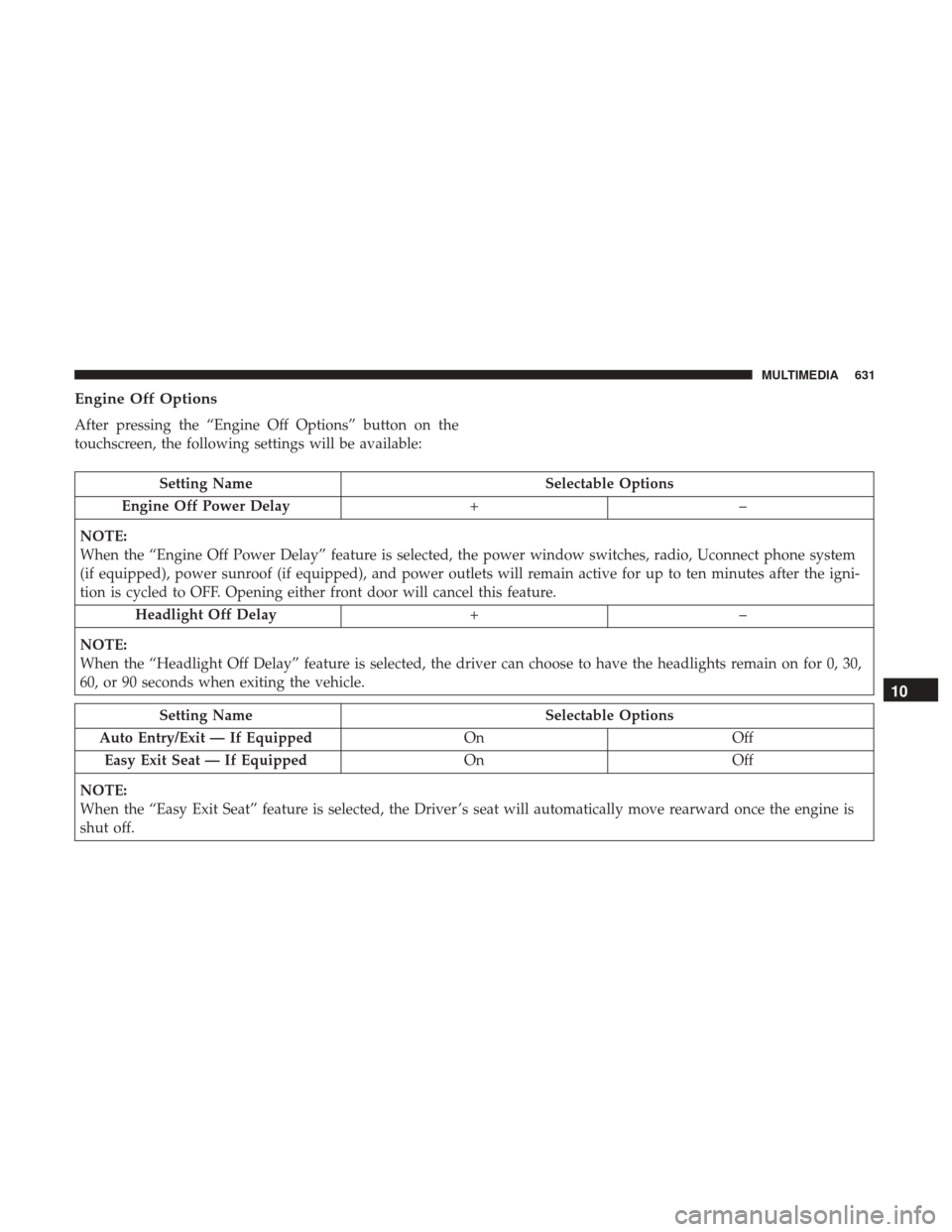
Engine Off Options
After pressing the “Engine Off Options” button on the
touchscreen, the following settings will be available:
Setting NameSelectable Options
Engine Off Power Delay +–
NOTE:
When the “Engine Off Power Delay” feature is selected, the power window switches, radio, Uconnect phone system
(if equipped), power sunroof (if equipped), and power outlets will remain active for up to ten minutes after the igni-
tion is cycled to OFF. Opening either front door will cancel this feature. Headlight Off Delay +–
NOTE:
When the “Headlight Off Delay” feature is selected, the driver can choose to have the headlights remain on for 0, 30,
60, or 90 seconds when exiting the vehicle.
Setting Name Selectable Options
Auto Entry/Exit — If Equipped OnOff
Easy Exit Seat — If Equipped OnOff
NOTE:
When the “Easy Exit Seat” feature is selected, the Driver ’s seat will automatically move rearward once the engine is
shut off.
10
MULTIMEDIA 631
Page 638 of 698
Setting NameSelectable Options
AUX Volume Offset — If Equipped On
Off
NOTE:
The “AUX Volume Offset” feature provides the ability to tune the audio level for portable devices connected through
the AUX input. Auto Play On Off
Bluetooth
After pressing the “Bluetooth” button on the touchscreen,
the following settings will be available:
Setting Name Selectable Options
Phone Pop-Ups Displayed in Clus- ter On
Off
Do Not Disturb List of Settings
NOTE:
Press “Do Not Disturb” to access the available settings. The following settings are: Auto Reply (both, text, call), Auto
Reply Message (custom, default) and Custom Auto Reply Message (create message).
636 MULTIMEDIA
Page 639 of 698
Setting NameSelectable Options
Paired Phones and Audio Devices List Of Paired Phones and Audio Sources
NOTE:
The “Paired Phones and Audio Sources” feature shows which phones and audio sources are paired to the Phone and
Audio Sources Settings system. For further information, refer to the Uconnect Owner ’s Manual Supplement. Smartphone Device Mirroring OnOff
Enable CarPlay Projections OnOff
Automatically Display Pop-Ups in Cluster On
Off
Set as Default Device OnOff
Projection Manager Smartphone Device Mirroring On Smartphone Device Mirroring Off
SiriusXM Setup — If Equipped
After pressing the “SiriusXM Setup” button on the touch-
screen, the following settings will be available:
Setting Name Selectable Options
Sirius All Access Choose a Subscription Package
Add Listener Add up to five profiles
NOTE:
The “Add Listener” feature allows you to add up to five different profiles for customizing personal music or satellite
radio choices.
10
MULTIMEDIA 637
Page 644 of 698
IPOD/USB/MP3 CONTROL — IF EQUIPPED
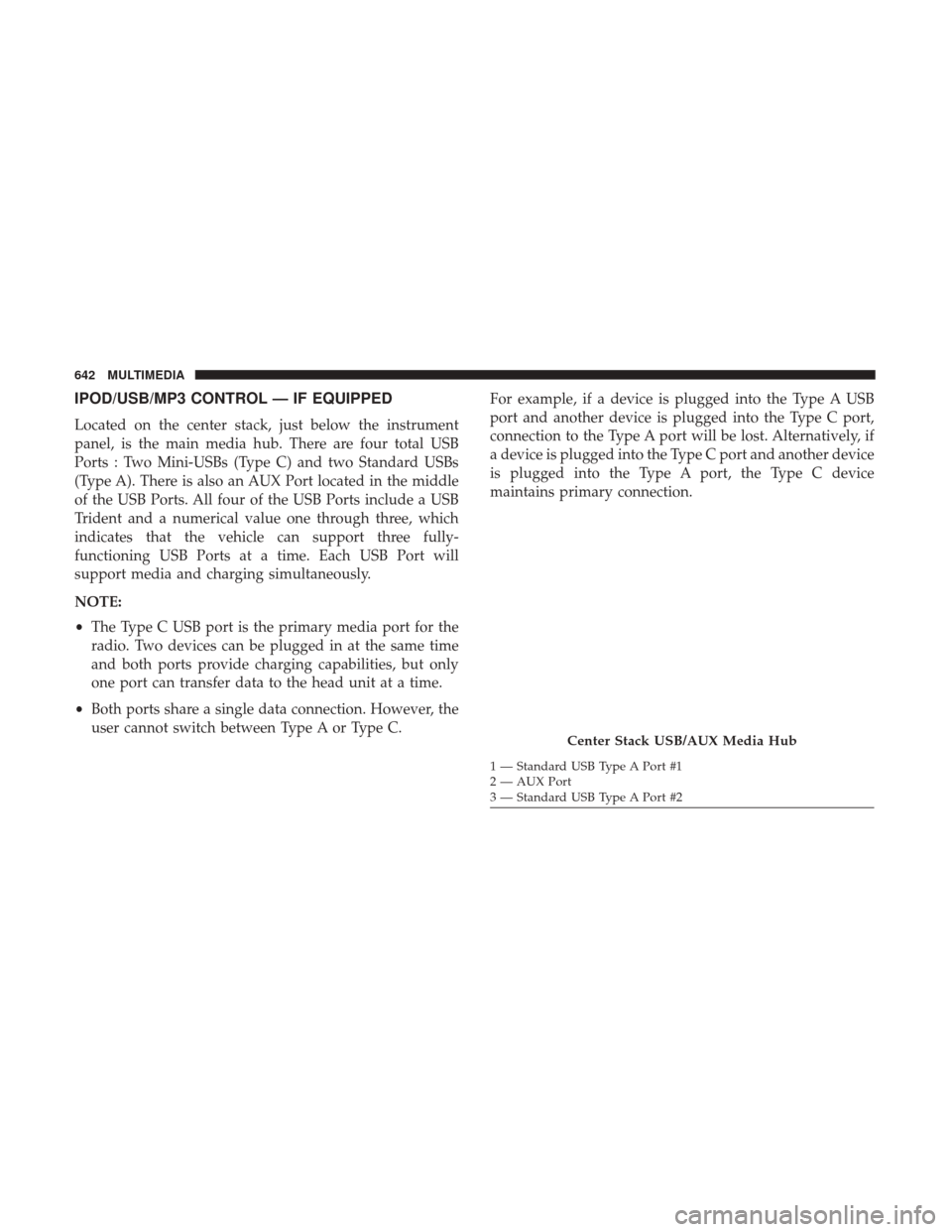
Located on the center stack, just below the instrument
panel, is the main media hub. There are four total USB
Ports : Two Mini-USBs (Type C) and two Standard USBs
(Type A). There is also an AUX Port located in the middle
of the USB Ports. All four of the USB Ports include a USB
Trident and a numerical value one through three, which
indicates that the vehicle can support three fully-
functioning USB Ports at a time. Each USB Port will
support media and charging simultaneously.
NOTE:
•The Type C USB port is the primary media port for the
radio. Two devices can be plugged in at the same time
and both ports provide charging capabilities, but only
one port can transfer data to the head unit at a time.
• Both ports share a single data connection. However, the
user cannot switch between Type A or Type C. For example, if a device is plugged into the Type A USB
port and another device is plugged into the Type C port,
connection to the Type A port will be lost. Alternatively, if
a device is plugged into the Type C port and another device
is plugged into the Type A port, the Type C device
maintains primary connection.
Center Stack USB/AUX Media Hub
1 — Standard USB Type A Port #1
2 — AUX Port
3 — Standard USB Type A Port #2
642 MULTIMEDIA
Page 647 of 698
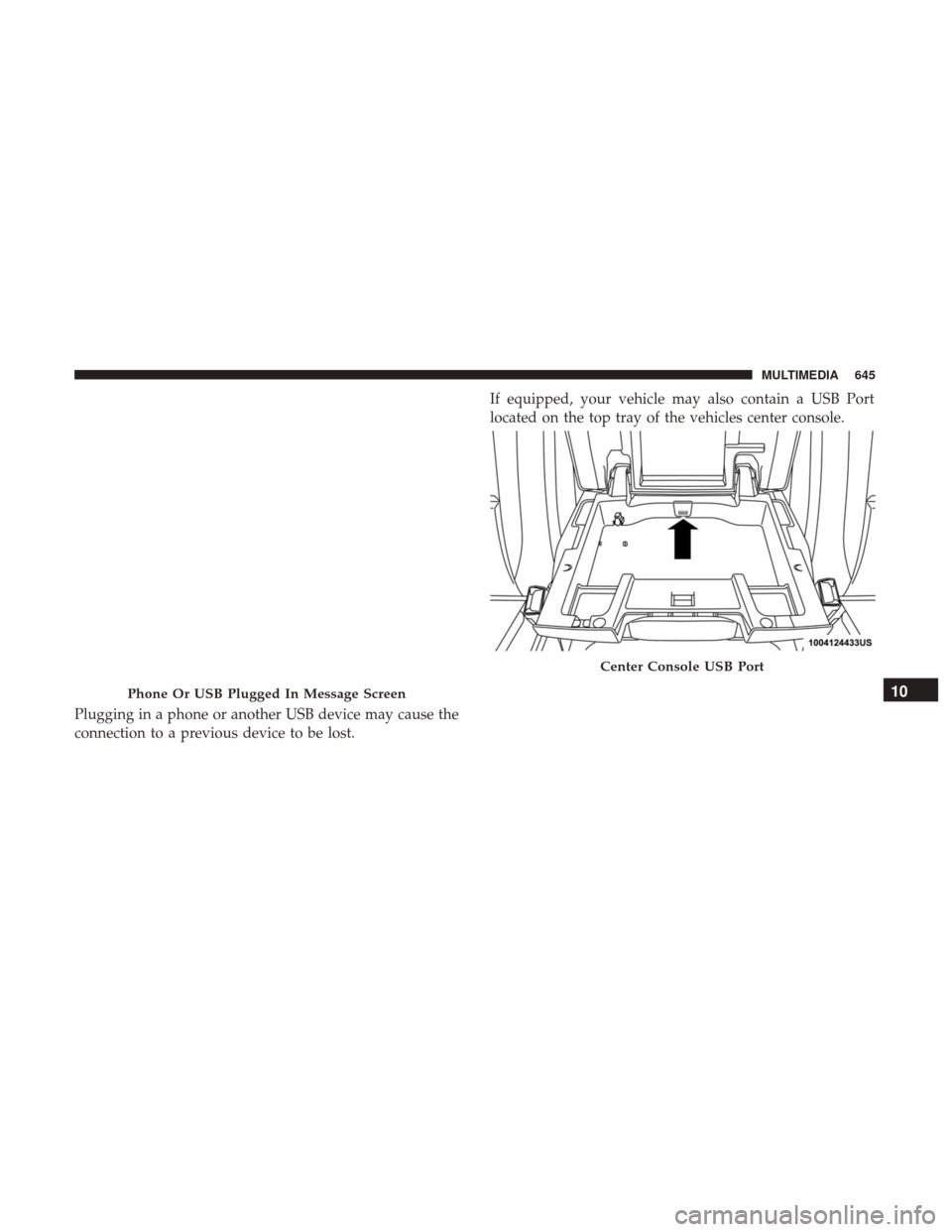
Plugging in a phone or another USB device may cause the
connection to a previous device to be lost.If equipped, your vehicle may also contain a USB Port
located on the top tray of the vehicles center console.
Phone Or USB Plugged In Message Screen
Center Console USB Port
10
MULTIMEDIA 645
Page 648 of 698

If equipped, two Mini-USB Ports (Type C), two Standard
USB Ports (Type A), and one AUX Port may be located to
the left of the center stack, just below the climate controls.
Some USB ports support media and charging. You can use
features, such as Apple CarPlay, Android Auto, Pandora
and others while charging your phone.NOTE:
Plugging in a phone or another USB device may
cause the connection to a previous device to be lost.
For further information, refer to the Uconnect Owner ’s
Manual Supplement or visit UconnectPhone.com.
RADIO OPERATION AND MOBILE PHONES
Under certain conditions, the mobile phone being on in
your vehicle can cause erratic or noisy performance from
your radio. This condition may be lessened or eliminated
by relocating the mobile phone antenna. This condition is
not harmful to the radio. If your radio performance does
not satisfactorily “clear” by the repositioning of the an-
tenna, it is recommended that the radio volume be turned
down or off during mobile phone operation when not
using Uconnect (if equipped).
Regulatory And Safety Information
USA/CANADA
Exposure to Radio Frequency Radiation
The radiated output power of the internal wireless radio is
far below the FCC and IC radio frequency exposure limits.
Nevertheless, the wireless radio will be used in such a
manner that the radio is 20 cm or further from the human
body.Center Console USB/AUX Media Hub
1 — Standard USB Type A Ports
2 — Mini-USB Type C Ports
3 — AUX Port 646 MULTIMEDIA
Page 650 of 698

VOICE COMMANDS
Introducing Uconnect
Start using Uconnect Voice Recognition with these helpful
quick tips. It provides the key Voice Commands and tips
you need to know to control your Uconnect system.
If you see the NAV icon on the bottom bar, or in the Apps
menus, of your touchscreen, you have the Uconnect 4C
NAV With 8.4–inch Display or the Uconnect 4C NAV With
12–inch Display system. If not, you have a Uconnect 4C
With 8.4–inch Display system.
Get Started
All you need to control your Uconnect system with your
voice are the buttons on your steering wheel.
1. Visit UconnectPhone.com to check mobile device andfeature compatibility and to find phone pairing instruc-
tions. 2. Reduce background noise. Wind noise and passenger
conversations are examples of noise that may impact
recognition.
3. Speak clearly at a normal pace and volume while facing straight ahead. The microphone is located in the head-
liner and aimed at the driver.
4. Each time you give a Voice Command, you must first push either the VR or Phone button, wait until afterthe
beep, then say your Voice Command.
5. You can interrupt the help message or system prompts by pushing the VR or Phone button and saying a Voice
Command from current category.
648 MULTIMEDIA