2019 Ram 1500 instrument panel
[x] Cancel search: instrument panelPage 442 of 698

WARNING!
•Ignoring the overhead console light could mean you
will not have SOS Call services. If the overhead
console light is illuminated, have your authorized
dealer service the SOS Call system immediately.
• The Occupant Restraint Control module turns on the
air bag Warning Light on the instrument panel if a
malfunction in any part of the system is detected. If
the Air Bag Warning Light is illuminated, have your
authorized dealer service the Occupant Restraint
Control system immediately.
Even if the SOS Call system is fully functional, factors
beyond FCA US LLC’s control may prevent or stop the SOS
Call system operation. These include, but are not limited
to, the following factors:
• Delayed accessories mode is active.
• The ignition is in the OFF position.
• The vehicle’s electrical systems are not intact.
• The SOS Call system software and/or hardware are
damaged during a crash. •
The vehicle battery loses power or becomes discon-
nected during a vehicle crash.
• LTE (voice/data) or 4G (data) network and/or Global
Positioning Satellite signals are unavailable or ob-
structed.
• Equipment malfunction at the SOS operator facility.
• Operator error by the SOS operator.
• LTE (voice/data) or 4G (data) network congestion.
• Weather.
• Buildings, structures, geographic terrain, or tunnels.
WARNING!
ALWAYS obey traffic laws and pay attention to the
road. ALWAYS drive safely with your hands on the
steering wheel. You have full responsibility and as-
sume all risks related to the use of the features and
applications in this vehicle. Only use the features and
applications when it is safe to do so. Failure to do so
may result in an accident involving serious injury or
death.
440 IN CASE OF EMERGENCY
Page 456 of 698

Internal Power Distribution Center
The Power Distribution Center is located under the drivers
side instrument panel. This center contains cartridge fuses,
micro fuses, relays, and circuit breakers. A description ofeach fuse and component may be stamped on the inside
cover, otherwise the cavity number of each fuse is stamped
on the inside cover that corresponds to the following chart.
Cavity
Cartridge Fuse Micro Fuse Description
F01 30 Amp Pink –Trailer Tow Receptacle
F03 –15 Amp Blue Module Seat Heater Front (Pass)
F04 –– Spare
F05 –20 Amp Yellow Module PPU Cooling Fan
F06 40 Amp Green –Mod CBC 4 Exterior Light 2
F07 40 Amp Green –Mod CBC 3 PWR Locks
F08 –– Spare
F09 –– Spare
F10 40 Amp Green –HVAC Blower Motor
F11 –5 Amp Tan Output to Underhood Power Distribition
Center (UPDC) Run Coil
F12 –25 Amp Clear Mod Audio Amplifier / Active Noise Can-
cellation / SW Inverter
F13 –20 Amp Yellow Mod Seat Heater Front (Driver)
F14 –15 Amp Blue Mod Seat Heater Front (Steering Wheel)
F15 –– Spare
454 IN CASE OF EMERGENCY
Page 491 of 698

SCHEDULED SERVICING
Your vehicle is equipped with an automatic oil change
indicator system. The oil change indicator system will
remind you that it is time to take your vehicle in for
scheduled maintenance.
Based on engine operation conditions, the oil change
indicator message will illuminate. This means that service
is required for your vehicle. Operating conditions such as
frequent short-trips, trailer tow, and extremely hot or cold
ambient temperatures will influence when the “Oil Change
Required” message is displayed. Severe Operating Condi-
tions can cause the change oil message to illuminate as
early as 3,500 miles (5,600 km) since last reset. Have your
vehicle serviced as soon as possible, within the next 500
miles (805 km).
Your authorized dealer will reset the oil change indicator
message after completing the scheduled oil change. If a
scheduled oil change is performed by someone other than
your authorized dealer, the message can be reset by
referring to the steps described under “Instrument Cluster
Display” in “Getting To Know Your Instrument Panel”.NOTE:
Under no circumstances should oil change inter-
vals exceed 10,000 miles (16,000 km), twelve months or 350
hours of engine run time, whichever comes first. The 350
hours of engine run or idle time is generally only a concern
for fleet customers.
Severe Duty All Models
NOTE: Change Engine Oil at 4,000 miles (6,500 km) or 350
hours of engine run time if the vehicle is operated in a
dusty and off road environment or is operated predomi-
nantly at idle, or only very low engine RPM’s. This type of
vehicle use is considered Severe Duty.
Once A Month Or Before A Long Trip:
• Check engine oil level.
• Check windshield washer fluid level.
• Check tire pressure and look for unusual wear or
damage. Rotate tires at the first sign of irregular wear,
even if it occurs before the oil indicator system turns on.
• Check the fluid levels of the coolant reservoir, brake
master cylinder, and fill as needed.
• Check function of all interior and exterior lights.
8
SERVICING AND MAINTENANCE 489
Page 558 of 698

IDENTIFICATION DATA
Vehicle Identification Number
The Vehicle Identification Number (VIN) is found on the
left front corner of the instrument panel, visible through
the windshield. This number also appears on the vehicle
frame etched on right hand center rail, as well as the
Automobile Information Disclosure Label affixed to a
window on your vehicle, the vehicle registration and title.
NOTE:It is illegal to remove or alter the VIN.
BRAKE SYSTEM
If power assist is lost for any reason (for example, repeated
brake applications with the engine off), the brakes will still
function. However, you will experience a substantial in-
crease in braking effort to stop the vehicle.
If either the front or rear hydraulic system loses normal
braking capability, the remaining system will still function
with some loss of overall braking effectiveness. This will be
evident by increased pedal travel during application,
greater pedal force required to slow or stop, and activation
of the “Brake Warning Light” and the “ABS Warning
Light” (if equipped) during brake use.
WHEEL AND TIRE TORQUE SPECIFICATIONS
Proper lug nut/bolt torque is very important to ensure that
the wheel is properly mounted to the vehicle. Any time a
wheel has been removed and reinstalled on the vehicle, the
lug nuts/bolts should be torqued using a properly cali-
brated torque wrench using a high quality six sided (hex)
deep wall socket.
Vehicle Identification Number
556 TECHNICAL SPECIFICATIONS
Page 573 of 698
The risk of unauthorized and unlawful access to your
vehicle systems may still exist, even if the most recent
version of vehicle software (such as Uconnect software) is
installed.
WARNING!
•It is not possible to know or to predict all of the
possible outcomes if your vehicle’s systems are
breached. It may be possible that vehicle systems,
including safety related systems, could be impaired
or a loss of vehicle control could occur that may
result in an accident involving serious injury or
death.
• ONLY insert media (e.g., USB, SD card, or CD) into
your vehicle if it came from a trusted source. Media
of unknown origin could possibly contain malicious
software, and if installed in your vehicle, it may
increase the possibility for vehicle systems to be
breached.
• As always, if you experience unusual vehicle behav-
ior, take your vehicle to your nearest authorized
dealer immediately. NOTE:
•
FCA US LLC or your dealer may contact you directly
regarding software updates.
• To help further improve vehicle security and minimize
the potential risk of a security breach, vehicle owners
should:
• Routinely check www.driveuconnect.com/support/
software-update.html (U.S. Residents) or
www.driveuconnect.ca (Canadian Residents) to learn
about available Uconnect software updates.
• Only connect and use trusted media devices (e.g.
personal mobile phones, USBs, CDs).
Privacy of any wireless and wired communications cannot
be assured. Third parties may unlawfully intercept infor-
mation and private communications without your consent.
For further information, refer to “Data Collection & Pri-
vacy” in your Uconnect Owner ’s Manual Supplement or
“Onboard Diagnostic System (OBD II) Cybersecurity” in
“Getting To Know Your Instrument Panel”.
10
MULTIMEDIA 571
Page 574 of 698
UCONNECT SETTINGS
The Uconnect system uses a combination of buttons on the
touchscreen and buttons on the faceplate located on the
center of the instrument panel that allows you to access
and change the customer programmable features. Many
features can vary by vehicle.
Uconnect 3 Settings
Push the MORE or SETTINGS button on the faceplate, then
press the “Settings” button on the touchscreen (if
equipped) to display the settings menu screen. In this
mode the Uconnect system allows you to access program-
mable features that may be equipped such as Display,
Units, Voice, Clock, Safety & Driving Assistance, Lights,
Doors & Locks, Auto-On Comfort (if equipped), Engine Off
Options, Suspension, Trailer Brake, Audio, Compass Set-
tings, Phone/Bluetooth, SiriusXM Setup (if equipped),
Restore Settings, Clear Personal Data and System Informa-
tion.
NOTE:Only one category may be selected at a time.
When making a selection, press the button on the touch-
screen to enter the desired mode. Once in the desired
mode, press and release the preferred setting until the
button is highlighted. Once the setting is complete, either
press the back arrow or the “Done” button on the touch-
screen or the Back button on the faceplate to return to the
previous menu. Pressing the Up or Down Arrow buttons
on the touchscreen on the right side of the screen will allow
you to toggle up or down through the list of available
settings.
NOTE: All settings should be changed with the ignition in
the RUN position.
Uconnect 3 With 5–inch Display Buttons On The
Touchscreen And Buttons On The Faceplate
1 — Uconnect Buttons On The Touchscreen
2 — Uconnect Buttons On The Faceplate 572 MULTIMEDIA
Page 590 of 698
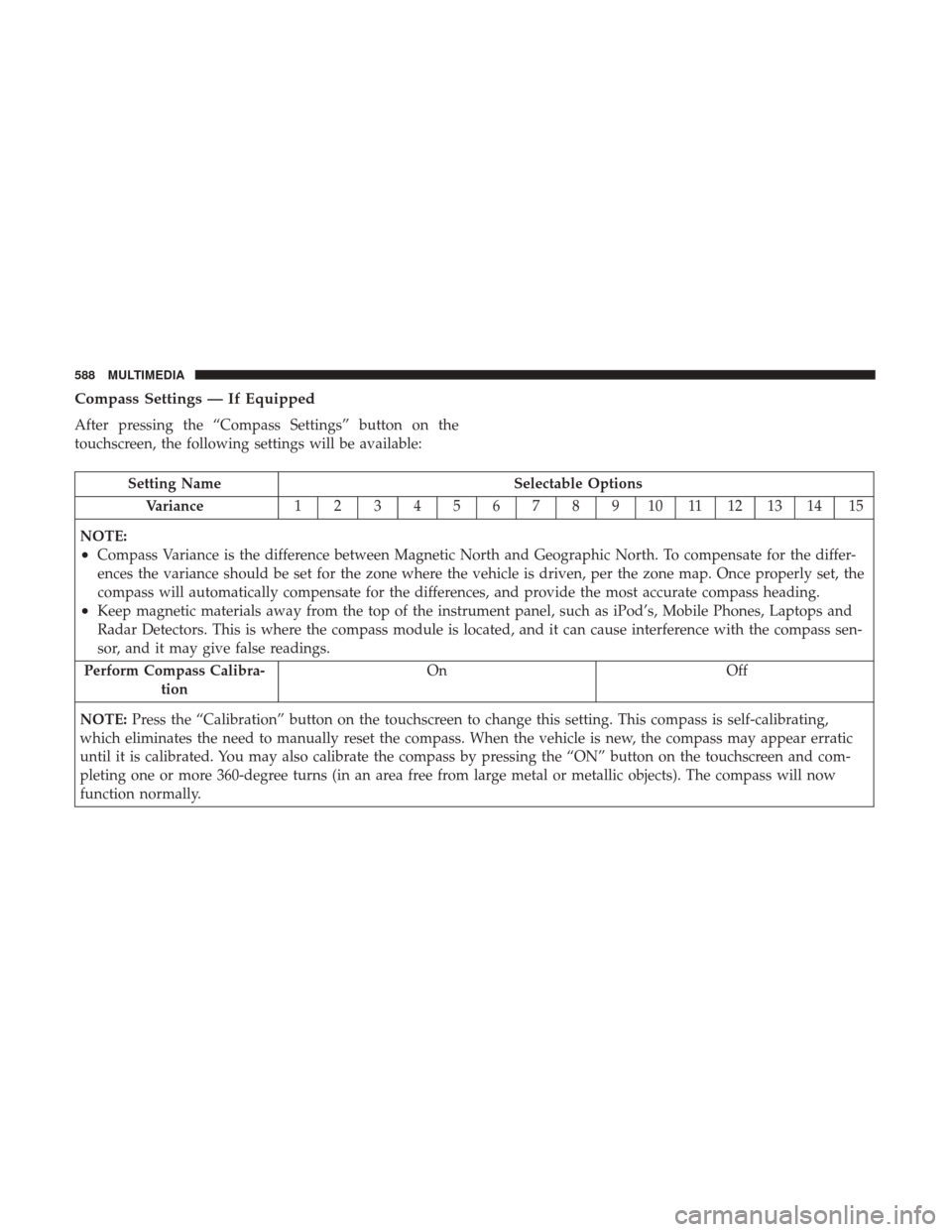
Compass Settings — If Equipped
After pressing the “Compass Settings” button on the
touchscreen, the following settings will be available:
Setting NameSelectable Options
Variance 123456789101112131415
NOTE:
•Compass Variance is the difference between Magnetic North and Geographic North. To compensate for the differ-
ences the variance should be set for the zone where the vehicle is driven, per the zone map. Once properly set, the
compass will automatically compensate for the differences, and provide the most accurate compass heading.
•Keep magnetic materials away from the top of the instrument panel, such as iPod’s, Mobile Phones, Laptops and
Radar Detectors. This is where the compass module is located, and it can cause interference with the compass sen-
sor, and it may give false readings.
Perform Compass Calibra- tion On Off
NOTE: Press the “Calibration” button on the touchscreen to change this setting. This compass is self-calibrating,
which eliminates the need to manually reset the compass. When the vehicle is new, the compass may appear erratic
until it is calibrated. You may also calibrate the compass by pressing the “ON” button on the touchscreen and com-
pleting one or more 360-degree turns (in an area free from large metal or metallic objects). The compass will now
function normally.
588 MULTIMEDIA
Page 644 of 698
IPOD/USB/MP3 CONTROL — IF EQUIPPED
Located on the center stack, just below the instrument
panel, is the main media hub. There are four total USB
Ports : Two Mini-USBs (Type C) and two Standard USBs
(Type A). There is also an AUX Port located in the middle
of the USB Ports. All four of the USB Ports include a USB
Trident and a numerical value one through three, which
indicates that the vehicle can support three fully-
functioning USB Ports at a time. Each USB Port will
support media and charging simultaneously.
NOTE:
•The Type C USB port is the primary media port for the
radio. Two devices can be plugged in at the same time
and both ports provide charging capabilities, but only
one port can transfer data to the head unit at a time.
• Both ports share a single data connection. However, the
user cannot switch between Type A or Type C. For example, if a device is plugged into the Type A USB
port and another device is plugged into the Type C port,
connection to the Type A port will be lost. Alternatively, if
a device is plugged into the Type C port and another device
is plugged into the Type A port, the Type C device
maintains primary connection.
Center Stack USB/AUX Media Hub
1 — Standard USB Type A Port #1
2 — AUX Port
3 — Standard USB Type A Port #2
642 MULTIMEDIA