2019 Peugeot Partner key
[x] Cancel search: keyPage 233 of 312

13
With certain telephones connected by
Bluetooth you can send a contact to the
directory of the audio system.
Contacts imported in this way are saved
in a permanent directory visible to all,
whatever the telephone connected.
The menu for the directory is not
accessible if it is empty.
Managing calls
During a call, press OK to display
the contextual menu.
End call
In the contextual menu, select
" Hang up " to end the call.
Confirm with OK.
Microphone off
(so that the caller cannot hear) In the contextual menu:
-
s
elect "
Micro OFF " to switch off
the microphone.
-
d
eselect "
Micro OFF " to switch
the microphone on.
Confirm with OK.
Telephone mode
In the contextual menu:
- s elect " Telephone mode " to
transfer the call to the telephone
(for example, to leave the vehicle
while continuing a conversation).
-
d
eselect " Telephone mode " to
transfer the call to the vehicle.
Confirm with OK.
If the contact has been cut off, when you
reconnect on returning to the vehicle,
the Bluetooth connection will be restored
automatically and sound returned to the
system (depending on the compatibility of the
telephone).
In some cases, the Telephone mode must be
activated from the telephone.
Interactive voice response
From the contextual menu, select
" DTMF tones " and confirm to use
the digital keypad to navigate in the
interactive voice response menu.
Confirm with OK.
Call waiting
From the contextual menu, select
" Switch " and confirm to return to a
call left on hold.
Confirm with OK.
Directory
To access the directory, press and
hold SRC/TEL .
Select " Directory " to see the list of
contacts.
Confirm with OK.
.
Bluetooth® audio system
Page 244 of 312

6
Managing messages
Press Applications to display the
primary page.
Press "SMS".
Select the "SMS" tab.
Press this button to select the
display settings for messages.
Press this button to search and
select a recipient.
Select the "Quick messages" tab.
Press this button to select the
display settings for messages.
Press this button to write a new
message.
Press the basket alongside the
selected message to delete it.
Press this button alongside the
selected message to display the
secondary page. Press this button to edit and modify
the existing text.
Press this button to write a new
message.
Press the basket to delete the
message.
Radio
Selecting a station
Press Radio Media
to display the
primary page.
Press one of the buttons for an
automatic search for radio stations.
Or Move the cursor for a manual search
for frequencies up or down.
Or Press the frequency.
Enter the FM and AM waveband
values using the virtual keypad. Press "
OK" to confirm.
Radio reception may be affected by the
use of electrical equipment not approved
by the Brand, such as a USB charger
connected to the 12 V socket.
The external environment (hills, buildings,
tunnels, basement car parks, etc.) may
block reception, including in RDS mode.
This is a normal effect of the way in
which radio waves are transmitted and
does not indicate any failure of the audio
equipment.
Changing waveband
Press Radio Media to display the
primary page.
Press the " OPTIONS" button to go to the
secondary page.
Press "Band" to change waveband.
Press in the grey zone to confirm.
PEUGEOT Connect Radio
Page 253 of 312
15
Press on the name of the telephone
chosen in the list to disconnect it.
Press again to connect it.
Deleting a telephone
Press the basket at the top right
of the screen to display a basket
alongside the telephone chosen.
Press the basket alongside the
telephone chosen to delete it.
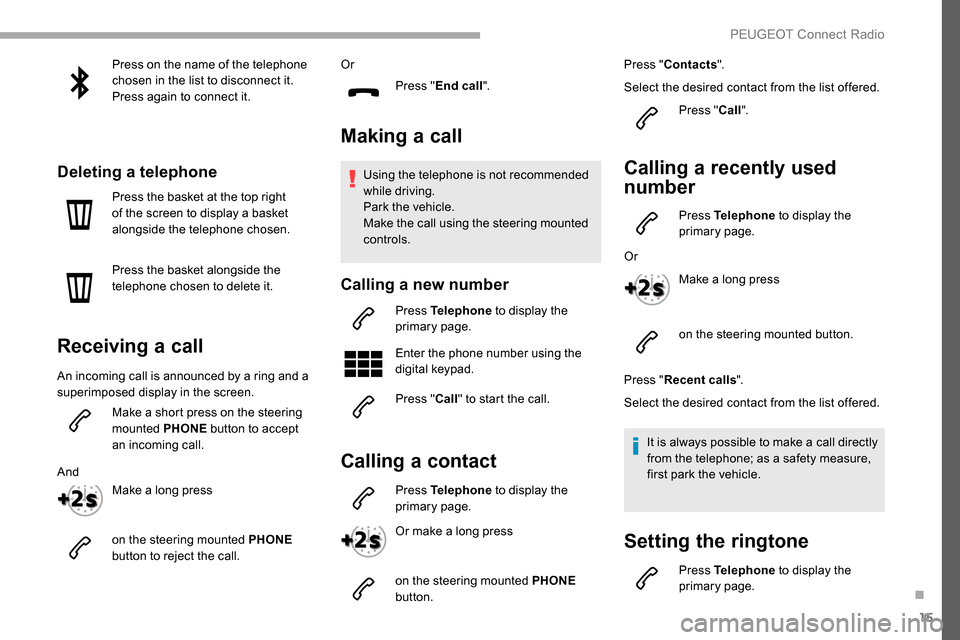
Receiving a call
An incoming call is announced by a ring and a
superimposed display in the screen.Make a short press on the steering
mounted PHONE button to accept
an incoming call.
And Make a long press
on the steering mounted PHONE
button to reject the call. Or
Press "End call".
Making a call
Using the telephone is not recommended
while driving.
Park the vehicle.
Make the call using the steering mounted
controls.
Calling a new number
Press Telephone to display the
primary page.
Enter the phone number using the
digital keypad.
Press " Call" to start the call.
Calling a contact
Press Telephone to display the
primary page.
Or make a long press
on the steering mounted PHONE
button. Press "
Contacts ".
Select the desired contact from the list offered. Press "Call".
Calling a recently used
number
Press Telephone to display the
primary page.
Or Make a long press
on the steering mounted button.
Press " Recent calls ".
Select the desired contact from the list offered.
It is always possible to make a call directly
from the telephone; as a safety measure,
first park the vehicle.
Setting the ringtone
Press Telephone to display the
primary page.
.
PEUGEOT Connect Radio
Page 254 of 312
16
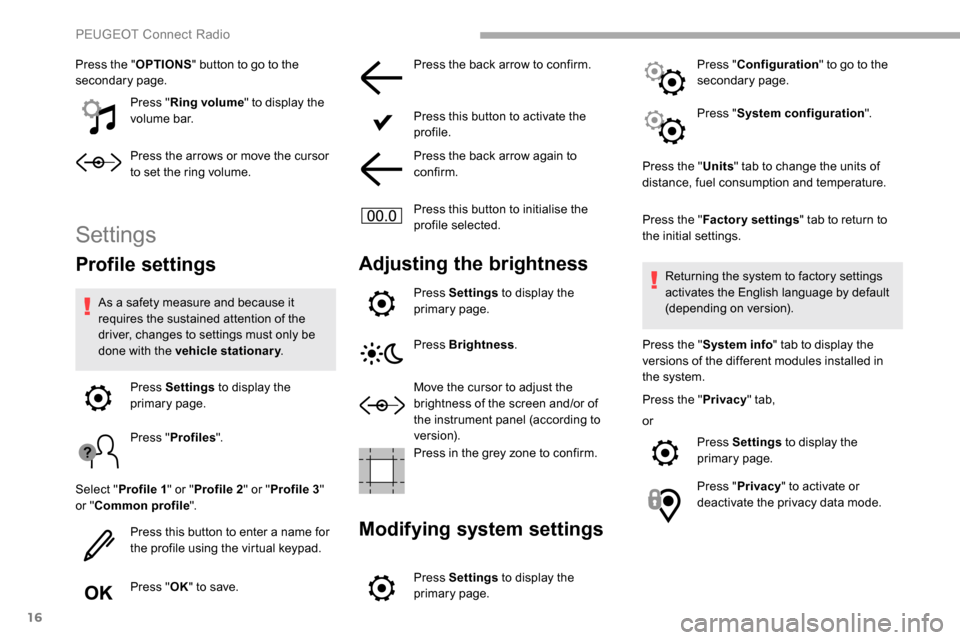
Press the "OPTIONS" button to go to the
secondary page.
Press "Ring volume " to display the
volume bar.
Press the arrows or move the cursor
to set the ring volume.
Settings
Profile settings
As a safety measure and because it
requires the sustained attention of the
driver, changes to settings must only be
done with the vehicle stationary .
Press Settings to display the
primary page.
Press " Profiles ".
Select " Profile 1 " or "Profile 2 " or "Profile 3 "
or " Common profile ".
Press this button to enter a name for
the profile using the virtual keypad.
Press " OK" to save. Press the back arrow to confirm.
Press this button to activate the
profile.
Press the back arrow again to
confirm.
Press this button to initialise the
profile selected.
Adjusting the brightness
Press Settings
to display the
primary page.
Press Brightness .
Move the cursor to adjust the
brightness of the screen and/or of
the instrument panel (according to
ve r s i o n).
Press in the grey zone to confirm.
Modifying system settings
Press Settings to display the
primary page. Press "
Configuration " to go to the
secondary page.
Press " System configuration ".
Press the " Units" tab to change the units of
distance, fuel consumption and temperature.
Press the " Factory settings " tab to return to
the initial settings.
Returning the system to factory settings
activates the English language by default
(depending on version).
Press the " System info " tab to display the
versions of the different modules installed in
the system.
Press the " Privacy" tab,
or Press Settings to display the
primary page.
Press " Privacy " to activate or
deactivate the privacy data mode.
PEUGEOT Connect Radio
Page 255 of 312
17
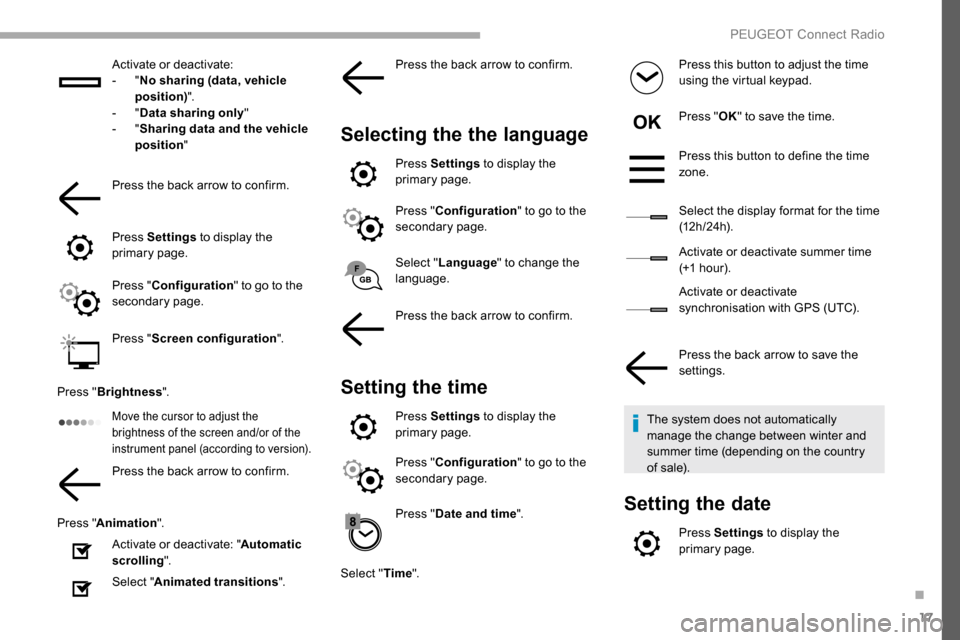
Activate or deactivate:
- "No sharing (data, vehicle
position) ".
-
"Data sharing only "
-
"Sharing data and the vehicle
position "
Press the back arrow to confirm.
Press Settings to display the
primary page.
Press " Configuration " to go to the
secondary page.
Press " Screen configuration ".
Press " Brightness ".
Move the cursor to adjust the
brightness of the screen and/or of the
instrument panel (according to version).
Press the back arrow to confirm.
Press " Animation ".
Activate or deactivate: " Automatic
scrolling ".
Select " Animated transitions ".Press the back arrow to confirm.
Selecting the the language
Press Settings
to display the
primary page.
Press " Configuration " to go to the
secondary page.
Select " Language " to change the
language.
Press the back arrow to confirm.
Setting the time
Press Settings to display the
primary page.
Press " Configuration " to go to the
secondary page.
Press " Date and time ".
Select " Time". Press this button to adjust the time
using the virtual keypad.
Press "
OK" to save the time.
Press this button to define the time
zone.
Select the display format for the time
(12 h / 24 h).
Activate or deactivate summer time
(+1 hour).
Activate or deactivate
synchronisation with GPS (UTC).
Press the back arrow to save the
settings.
The system does not automatically
manage the change between winter and
summer time (depending on the country
of sale).
Setting the date
Press Settings to display the
primary page.
.
PEUGEOT Connect Radio
Page 273 of 312
13
Select "My destinations ".
Select the " Recent" tab.
Select the address chosen in the list to display
the " Guidance criteria ".
Press " OK" to start navigation.
Select " Position " to visualise the arrival
point geographically.
To "My home" or "My work"
Press Navigation to display the
primary page.
Press the " MENU" button to go to the
secondary page.
Select "My destinations ".
Select the " Preferred" tab.
Select " My home ".
Or Select "My work ".
Or
Select a preset favourite destination.
To a contact
Press Navigation to display the
primary page.
Press the " MENU" button to go to the
secondary page.
Navigation
Choice of a destination
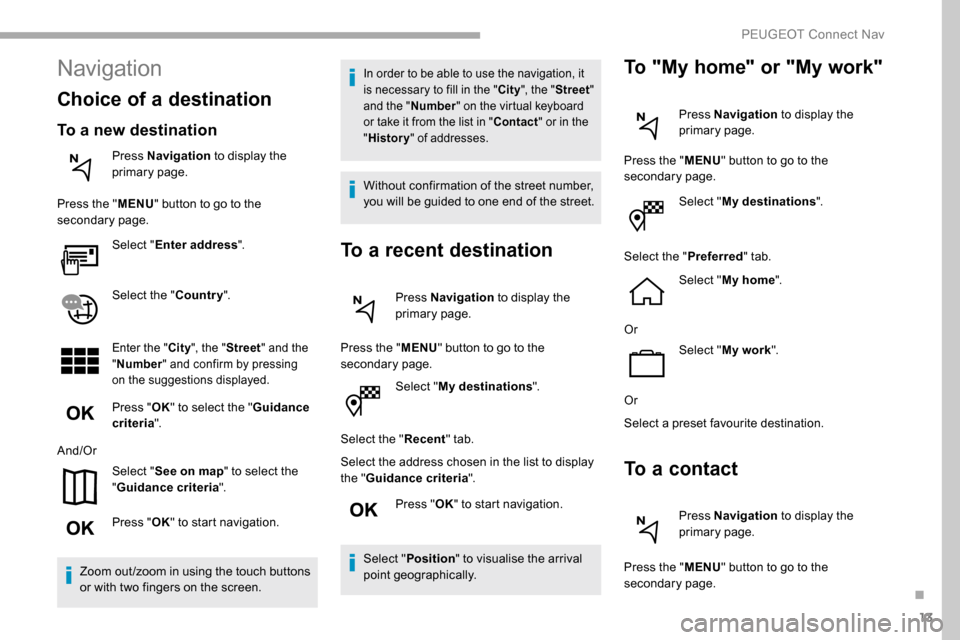
To a new destination
Press Navigation to display the
primary page.
Press the " MENU" button to go to the
secondary page.
Select "Enter address ".
Select the " Country".
Enter the " City", the " Street " and the
" Number " and confirm by pressing
on the suggestions displayed.
Press " OK" to select the " Guidance
criteria ".
And/Or Select "See on map " to select the
" Guidance criteria ".
Press " OK" to start navigation.
Zoom out /zoom in using the touch buttons
or with two fingers on the screen.
In order to be able to use the navigation, it
is necessary to fill in the " City", the " Street "
and the " Number" on the virtual keyboard
or take it from the list in " Contact" or in the
" History " of addresses.
Without confirmation of the street number,
you will be guided to one end of the street.
To a recent destination
Press Navigation to display the
primary page.
Press the " MENU" button to go to the
secondary page.
.
PEUGEOT Connect Nav
Page 274 of 312
14
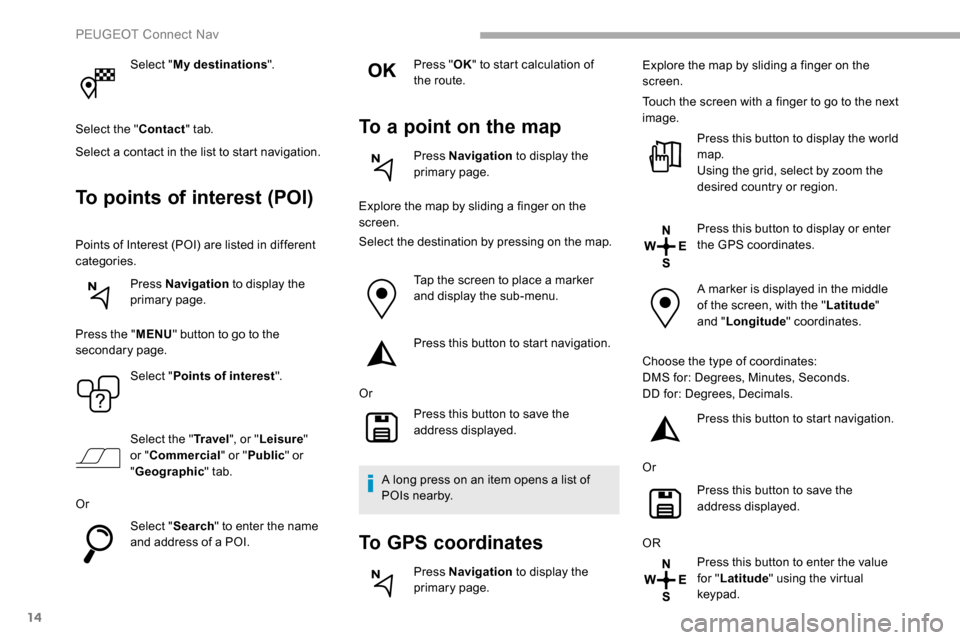
Select "My destinations ".
Select the " Contact" tab.
Select a contact in the list to start navigation.
To points of interest (POI)
Points of Interest (POI) are listed in different
categories. Press Navigation to display the
primary page.
Press the " MENU" button to go to the
secondary page.
Select "Points of interest ".
Select the " Tr a v e l", or "Leisure "
or " Commercial" or " Public" or
" Geographic " tab.
Or Select "Search" to enter the name
and address of a POI. Press "
OK" to start calculation of
the route.
To a point on the map
Press Navigation to display the
primary page.
Explore the map by sliding a finger on the
screen.
Select the destination by pressing on the map.
Tap the screen to place a marker
and display the sub-menu.
Press this button to start navigation.
Or Press this button to save the
address displayed.
A long press on an item opens a list of
POIs nearby.
To GPS coordinates
Press Navigation to display the
primary page. Explore the map by sliding a finger on the
screen.
Touch the screen with a finger to go to the next
image.
Press this button to display the world
map.
Using the grid, select by zoom the
desired country or region.
Press this button to display or enter
the GPS coordinates.
A marker is displayed in the middle
of the screen, with the " Latitude"
and " Longitude " coordinates.
Choose the type of coordinates:
DMS for: Degrees, Minutes, Seconds.
DD for: Degrees, Decimals. Press this button to start navigation.
Or Press this button to save the
address displayed.
OR Press this button to enter the value
for "Latitude " using the virtual
keypad.
PEUGEOT Connect Nav
Page 275 of 312

15
AndPress this button to enter the value
for "Longitude " using the virtual
keypad.
TMC (Traffic Message
Channel)
TMC (Traffic Message Channel)
messages are linked to a European
standard on the broadcasting of traffic
information via the RDS system on FM
radio, transmitting traffic information in
real time.
The TMC information is then displayed
on a GPS Navigation system map and
taken into account straight away during
navigation, so as to avoid accidents, traffic
jams and closed roads.
The display of danger zones depends on
the legislation in force and subscription to
the service.
Connected navigation
Depending on version
Depending on the equipment level of the vehicle
Network connection provided by
the vehicle
OR
Network connection provided by
the user
For the list of eligible smartphones, go to
the vehicle brand's internet website in your
c o u nt r y.
Connected navigation
connection
As a safety measure and because it
requires sustained attention by the driver,
using a smartphone when driving is
prohibited.
All operations must be done with the
vehicle stationary . For access to connected navigation, you
can use the connection provided by the
vehicle via the "Emergency or assistance
call" ser vices or use your smartphone as
a modem.
Activate and enter settings for sharing
the smartphone connection.
Network connection provided by
the vehicle
The system is automatically
connected to the modem included
for the "Emergency or assistance
calls" ser vices and does not require
a connection provided by the user
via their smartphone.
Network connection provided by
the user
Connect a USB cable.
The smartphone charges when
connected by a USB cable.
USB connection
Activate the Bluetooth function on
the telephone and ensure that it is
visible to all (see the "Applications"
section).
Bluetooth connection
.
PEUGEOT Connect Nav