2019 Peugeot Expert connect
[x] Cancel search: connectPage 222 of 324
220
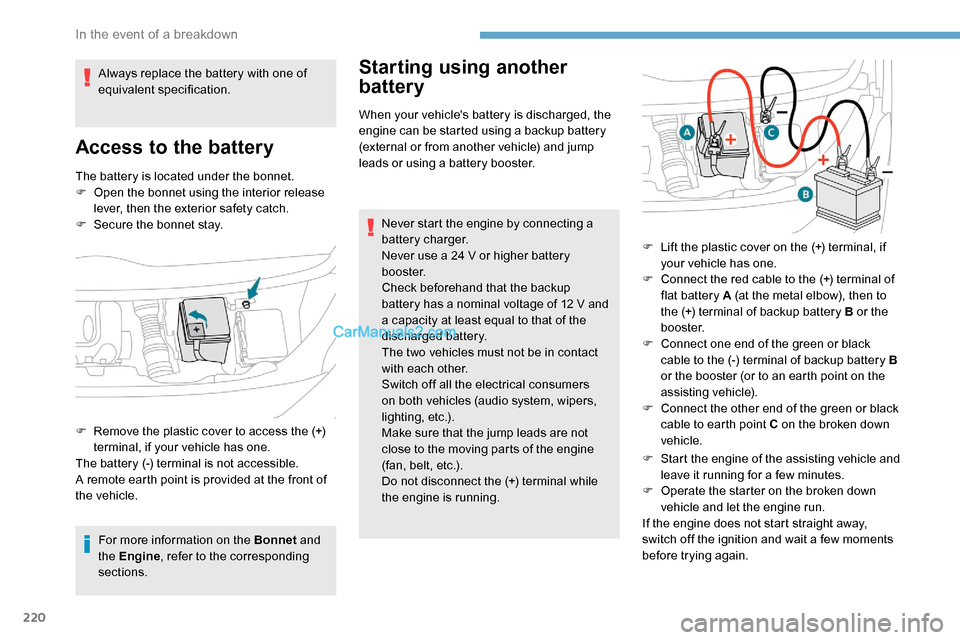
The battery is located under the bonnet.
F O pen the bonnet using the interior release
lever, then the exterior safety catch.
F
S
ecure the bonnet stay.
For more information on the Bonnet and
the Engine , refer to the corresponding
sections.
Starting using another
battery
When your vehicle's battery is discharged, the
engine can be started using a backup battery
(external or from another vehicle) and jump
leads or using a battery booster.
Never start the engine by connecting a
battery charger.
Never use a 24 V or higher battery
b o o s t e r.
Check beforehand that the backup
battery has a nominal voltage of 12 V and
a capacity at least equal to that of the
discharged battery.
The two vehicles must not be in contact
with each other.
Switch off all the electrical consumers
on both vehicles (audio system, wipers,
lighting, etc.).
Make sure that the jump leads are not
close to the moving parts of the engine
(fan, belt, etc.).
Do not disconnect the (+) terminal while
the engine is running.
Always replace the battery with one of
equivalent specification.
Access to the battery
F Remove the plastic cover to access the (+)
terminal, if your vehicle has one.
The battery (-) terminal is not accessible.
A remote earth point is provided at the front of
the vehicle. F
L
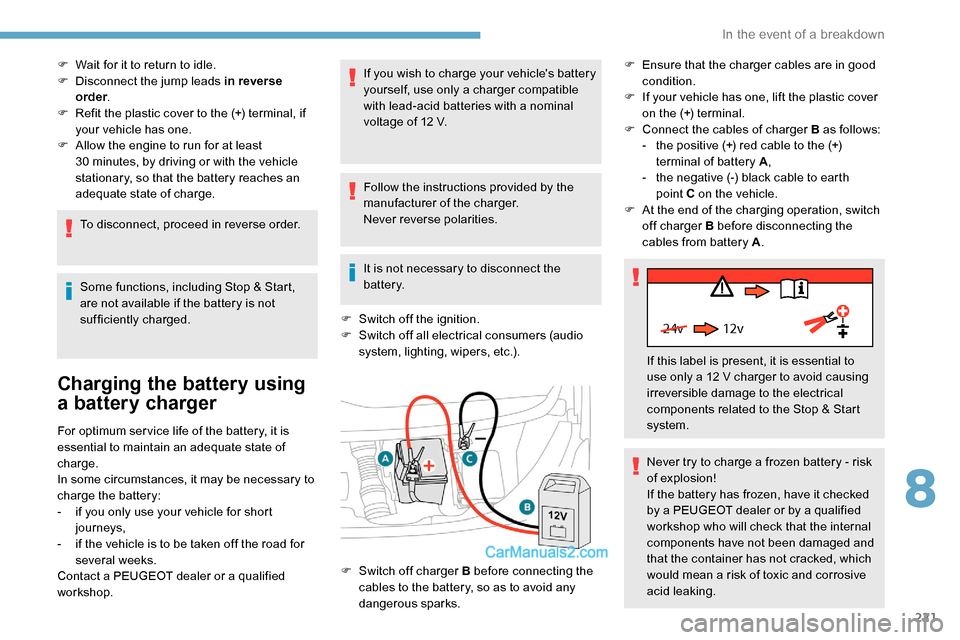
ift the plastic cover on the (+) terminal, if
your vehicle has one.
F
C
onnect the red cable to the (+) terminal of
flat battery A (at the metal elbow), then to
the (+) terminal of backup battery B or the
b o o s t e r.
F
C
onnect one end of the green or black
cable to the (-) terminal of backup battery B
or the booster (or to an earth point on the
assisting vehicle).
F
C
onnect the other end of the green or black
cable to earth point C on the broken down
vehicle.
F
S
tart the engine of the assisting vehicle and
leave it running for a few minutes.
F
O
perate the starter on the broken down
vehicle and let the engine run.
If the engine does not start straight away,
switch off the ignition and wait a few moments
before trying again.
In the event of a breakdown
Page 223 of 324
221
24v 12v
F Wait for it to return to idle.
F D isconnect the jump leads in reverse
order .
F
R
efit the plastic cover to the (+) terminal, if
your vehicle has one.
F
A
llow the engine to run for at least
30
minutes, by driving or with the vehicle
stationary, so that the battery reaches an
adequate state of charge.
To disconnect, proceed in reverse order.
Some functions, including Stop & Start,
are not available if the battery is not
sufficiently charged.
Charging the battery using
a battery charger
For optimum ser vice life of the battery, it is
essential to maintain an adequate state of
charge.
In some circumstances, it may be necessary to
charge the battery:
-
i
f you only use your vehicle for short
journeys,
-
i
f the vehicle is to be taken off the road for
several weeks.
Contact a PEUGEOT dealer or a qualified
workshop. If you wish to charge your vehicle's battery
yourself, use only a charger compatible
with lead-acid batteries with a nominal
voltage of 12 V.
Follow the instructions provided by the
manufacturer of the charger.
Never reverse polarities.
It is not necessary to disconnect the
battery.
F
S
witch off the ignition.
F
S
witch off all electrical consumers (audio
system, lighting, wipers, etc.). F
E
nsure that the charger cables are in good
condition.
F
I
f your vehicle has one, lift the plastic cover
on the (+) terminal.
F
C
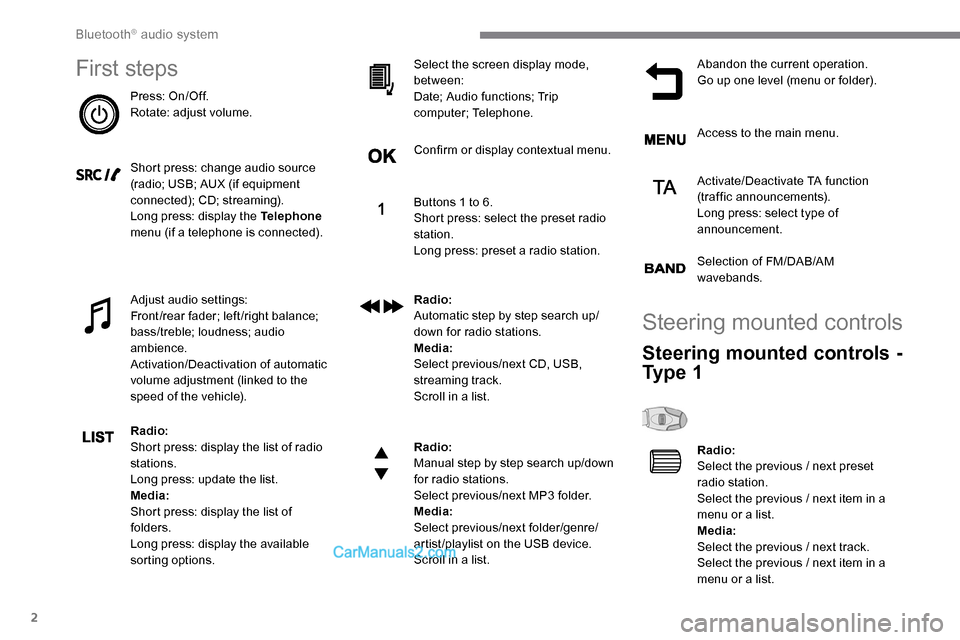
onnect the cables of charger B as follows:
-
t
he positive (+) red cable to the (+)
terminal of battery A ,
-
t
he negative (-) black cable to earth
point C on the vehicle.
F
A
t the end of the charging operation, switch
off charger B before disconnecting the
cables from battery A .
F
S
witch off charger B before connecting the
cables to the battery, so as to avoid any
dangerous sparks. If this label is present, it is essential to
use only a 12 V charger to avoid causing
irreversible damage to the electrical
components related to the Stop & Start
system.
Never try to charge a frozen battery - risk
of explosion!
If the battery has frozen, have it checked
by a PEUGEOT dealer or by a qualified
workshop who will check that the internal
components have not been damaged and
that the container has not cracked, which
would mean a risk of toxic and corrosive
acid leaking.
8
In the event of a breakdown
Page 224 of 324

222
Disconnecting the battery
In order to maintain an adequate state
of charge for starting the engine, it is
recommended that the battery be disconnected
if the vehicle is taken out of ser vice for a long
period.
Before disconnecting the battery:
F
c
lose the windows and the doors before
disconnecting the battery,
F
s
witch off all electrical consumers (audio
system, wipers, lighting, etc.).
F
s
witch off the ignition and wait for four
minutes.
At the battery, detach the (+) terminal only.
Quick-release terminal clamp
Disconnecting the (+) terminal Reconnecting the (+) terminal
Do not force the lever as locking will be
impossible if the clamp is not positioned
correctly; start the procedure again.
Following reconnection of the
battery
F Raise the lever A fully to release the clamp B.
F
R
emove the clamp B by lifting it off.
Following reconnection of the battery, turn on
the ignition and wait 1 minute before starting
the engine, in order to enable the electronic
systems to initialise. The Stop & Start system may not be
operational during the trip following the
first engine start.
In this case, the system will only be
available again after a continuous
period of immobilisation of the vehicle,
a period which depends on the exterior
temperature and the state of charge of the
battery (up to about 8 hours).
To w i n g
Procedure for having your vehicle towed or
for towing another vehicle using a removable
mechanical device.
Accessing the eye
The towing eye is stowed in the tool box.
F
Ra
ise the lever A fully.
F
R
eplace the open clamp B on the (+)
terminal.
F
P
ush the clamp B fully down.
F
L
ower the lever A to lock the clamp B
.However, if minor problems persist following
this operation, contact a PEUGEOT dealer or a
qualified workshop.
Referring to the corresponding section, you
must reset certain systems yourself, such as:
-
t
he remote control or electronic key
(depending on version),
-
t
he electric windows,
-
t
he electric doors,
-
t
he date and time,
-
t
he radio preset stations.
In the event of a breakdown
Page 236 of 324
2
First steps
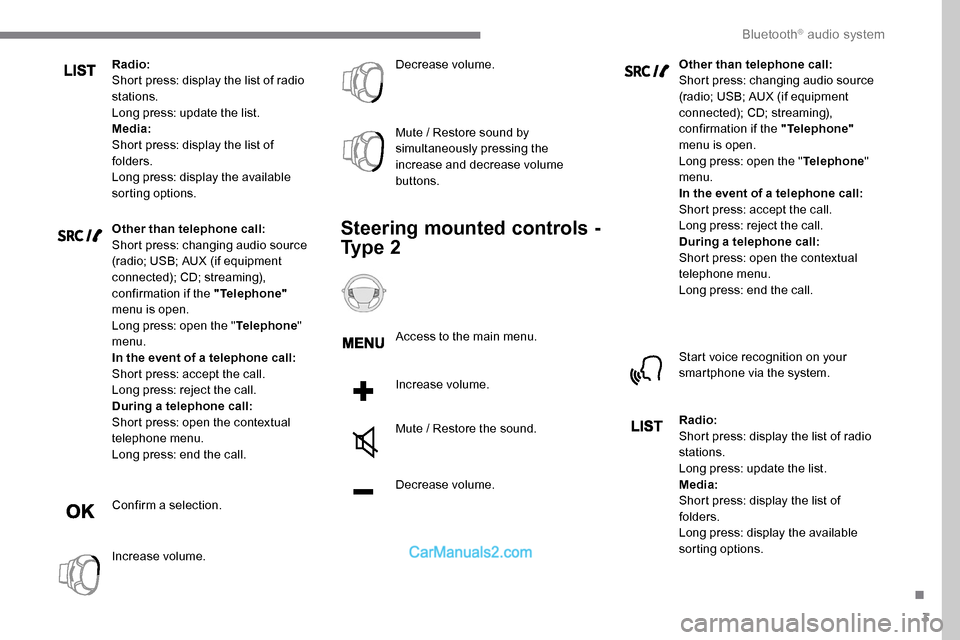
Press: On/Off.
Rotate: adjust volume.
Short press: change audio source
(radio; USB; AUX (if equipment
connected); CD; streaming).
Long press: display the Telephone
menu (if a telephone is connected).
Adjust audio settings:
Front/rear fader; left/right balance;
bass/treble; loudness; audio
ambience.
Activation/Deactivation of automatic
volume adjustment (linked to the
speed of the vehicle).
Radio:
Short press: display the list of radio
stations.
Long press: update the list.
Media:
Short press: display the list of
folders.
Long press: display the available
sorting options. Select the screen display mode,
between:
Date; Audio functions; Trip
computer; Telephone.
Confirm or display contextual menu.
Buttons 1 to 6.
Short press: select the preset radio
station.
Long press: preset a radio station.
Radio:
Automatic step by step search up/
down for radio stations.
Media:
Select previous/next CD, USB,
streaming track.
Scroll in a list.
Radio:
Manual step by step search up/down
for radio stations.
Select previous/next MP3 folder.
Media:
Select previous/next folder/genre/
artist/playlist on the USB device.
Scroll in a list.
Abandon the current operation.
Go up one level (menu or folder).
Access to the main menu.
Activate/Deactivate TA function
(traffic announcements).
Long press: select type of
announcement.
Selection of FM/DAB/AM
wavebands.
Steering mounted controls
Steering mounted controls -
Ty p e 1
Radio:
Select the previous / next preset
radio station.
Select the previous / next item in a
menu or a list.
Media:
Select the previous / next track.
Select the previous / next item in a
menu or a list.
Bluetooth® audio system
Page 237 of 324
3
Radio:
Short press: display the list of radio
stations.
Long press: update the list.
Media:
Short press: display the list of
folders.
Long press: display the available
sorting options.
Other than telephone call:
Short press: changing audio source
(radio; USB; AUX (if equipment
connected); CD; streaming),
confirmation if the "Telephone"
menu is open.
Long press: open the " Telephone"
menu.
In the event of a telephone call:
Short press: accept the call.
Long press: reject the call.
During a telephone call:
Short press: open the contextual
telephone menu.
Long press: end the call.
Confirm a selection.
Increase volume. Decrease volume.
Mute / Restore sound by
simultaneously pressing the
increase and decrease volume
buttons.
Steering mounted controls -
Ty p e 2
Access to the main menu.
Increase volume.
Mute / Restore the sound.
Decrease volume. Other than telephone call:
Short press: changing audio source
(radio; USB; AUX (if equipment
connected); CD; streaming),
confirmation if the "Telephone"
menu is open.
Long press: open the " Telephone"
menu.
In the event of a telephone call:
Short press: accept the call.
Long press: reject the call.
During a telephone call:
Short press: open the contextual
telephone menu.
Long press: end the call.
Start voice recognition on your
smartphone via the system.
Radio:
Short press: display the list of radio
stations.
Long press: update the list.
Media:
Short press: display the list of
folders.
Long press: display the available
sorting options.
.
Bluetooth® audio system
Page 238 of 324
4
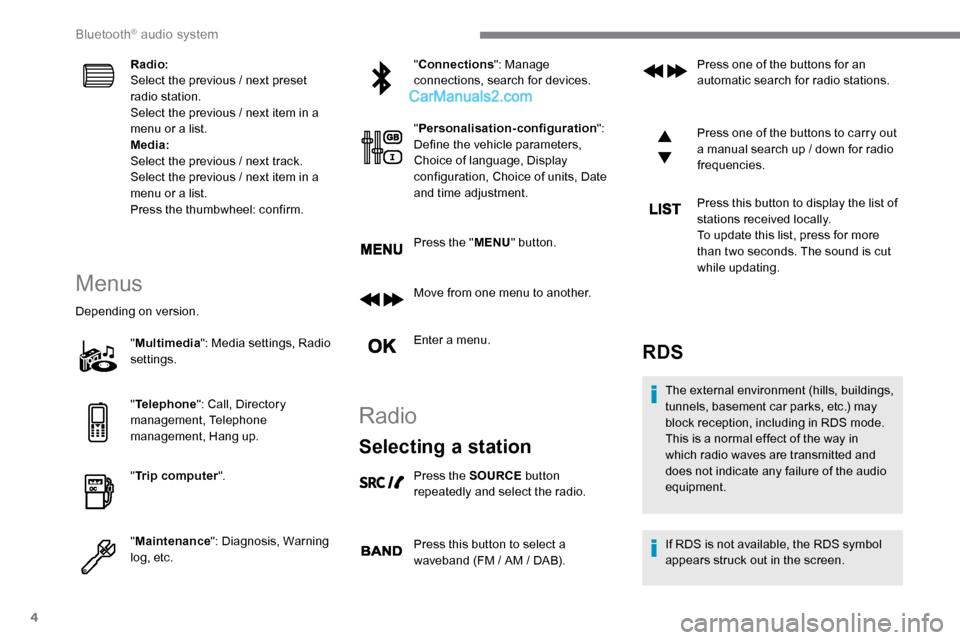
Radio:
Select the previous / next preset
radio station.
Select the previous / next item in a
menu or a list.
Media:
Select the previous / next track.
Select the previous / next item in a
menu or a list.
Press the thumbwheel: confirm.
Menus
Depending on version."Multimedia ": Media settings, Radio
settings.
" Telephone ": Call, Directory
management, Telephone
management, Hang up.
" Trip computer ".
" Maintenance ": Diagnosis, Warning
log, etc. "
Connections ": Manage
connections, search for devices.
" Personalisation-configuration ":
Define the vehicle parameters,
Choice of language, Display
configuration, Choice of units, Date
and time adjustment.
Press the " MENU" button.
Move from one menu to another.
Enter a menu.
Radio
Selecting a station
Press the SOURCE button
repeatedly and select the radio.
Press this button to select a
waveband (FM / AM / DAB). Press one of the buttons for an
automatic search for radio stations.
Press one of the buttons to carry out
a manual search up / down for radio
frequencies.
Press this button to display the list of
stations received locally.
To update this list, press for more
than two seconds. The sound is cut
while updating.
RDS
The external environment (hills, buildings,
tunnels, basement car parks, etc.) may
block reception, including in RDS mode.
This is a normal effect of the way in
which radio waves are transmitted and
does not indicate any failure of the audio
equipment.
If RDS is not available, the RDS symbol
appears struck out in the screen.
Bluetooth® audio system
Page 241 of 324

7
DAB / FM station tracking
"DAB" does not have 100% coverage of
the country.
When the digital signal is weak,
"DAB / FM auto tracking" allows you to
continue listening to the same station,
by automatically switching to the
corresponding analogue FM station (if it
ex i st s).
When the "DAB
/ FM auto tracking" is
active, the DAB station will be selected
automatically.
Press the MENU button.
Select " Multimedia " and confirm.
Select " DAB
/ FM auto tracking"
and confirm.
If "DAB
/ FM auto tracking" tracking is
enabled, there is a lag of a few seconds
when the system switches to the analogue
FM station sometimes with a change in
volume. If the "DAB" station you are listening to
is not available on FM ("
DAB/FM" option
struck out), or if "DAB / FM auto tracking"
is not on, the sound will be cut when the
digital signal is too weak.
Media
USB port
To protect the system, do not use a USB
hub. Any additional equipment connected to
the system must conform to the standard
of the product or standard IEC 60950 -1.
Insert the USB memory stick into the USB port
or connect the USB device to the USB port
using a suitable cable (not supplied).
The system changes automatically to "USB"
source. The system builds playlists (in temporary
memory), an operation which can take from
a few seconds to several minutes at the first
connection.
Reduce the number of non-music files and the
number of folders to reduce the waiting time.
Playlists are updated every time a new USB
memory stick is connected.
When the USB port is used, the portable
device charges automatically.
Play mode
The play modes available are:
- No rmal: the tracks are played in order,
depending on the classification of the
selected files.
-
Ra
ndom: the tracks in an album or folder
are played in a random order.
-
R
andom on all media: all of the tracks
saved in the media are played in random
o r d e r.
.
Bluetooth® audio system
Page 242 of 324

8
- Repeat: the tracks played are only those
from the current album or folder.
Press this button to display the
contextual menu for the Media
function.
Press this button to select the
chosen play mode.
Press this button to confirm.
The choice made is displayed at the top of the
screen.
Choosing a track to play
Press one of these buttons to go to
the previous / next track.
Press one of these buttons to go to
the previous / next folder.
File classification
Make a long press on this button to
display the different classifications. Select by "
Folder" / "Artist " /
" Genre " / "Playlist ".
Depending on availability and type
of device used.
Press OK to select the desired
classification, then press OK again
to confirm.
Playing files
Make a short press on this button to
display the chosen classification.
Navigate in the list using the left /
right and up / down buttons.
Confirm the selection by pressing
OK.
Press one of these buttons to go to
the previous / next track in the list.
Press and hold one of these buttons
for fast for ward or rewind.
Press one of these buttons to go
to the previous / next " Folder" /
" Artist " / "Genre " / "Playlist "* in
the list.
Auxiliary socket (AUX)
(depending on model / depending on
equipment)
*
D
epending on availability and the type of
device used. Connect a portable device (MP3 player, etc.)
to the Jack socket using an audio cable (not
supplied).
Any additional equipment connected to
the system must conform to the standard
of the product or standard IEC 60950 -1.
Press the SOURCE button several
times in succession and select
" AUX ".
First adjust the volume on your portable device
(to a high level). Then adjust the volume of your
audio system. Display and management of the
controls are via the portable device.
Do not connect a device to both the Jack
auxiliary socket and the USB port at the
same time.
Bluetooth® audio system