2019 Peugeot Expert Screen
[x] Cancel search: ScreenPage 267 of 324

15
Modifying system
settings
Press Settings to display the
primary page.
Press " Configuration " to go to the
secondary page.
Press " System configuration ".
Press the " Units" tab to change the units of
distance, fuel consumption and temperature.
Press the " Factory settings " tab to return to
the initial settings.
Returning the system to factory settings
activates the English language by default
(depending on version).
Press the " System info " tab to display the
versions of the different modules installed in
the system.
Press the " Privacy" tab,
or Press Settings to display the
primary page.
Press " Privacy " to activate or
deactivate the privacy data mode. Activate or deactivate:
-
"
No sharing (data, vehicle
position) ".
- "
Data sharing only "
- "Sharing data and the vehicle
position "
Press the back arrow to confirm.
Press Settings to display the
primary page.
Press " Configuration " to go to the
secondary page.
Press " Screen configuration ".
Press " Brightness ".
Move the cursor to adjust the
brightness of the screen and/or of
the instrument panel (according to
ve r s i o n).
Press the back arrow to confirm.
Press " Animation ".
Activate or deactivate: " Automatic
scrolling ".
Select " Animated transitions ".Select "
Language " to change the
language.
Press the back arrow to confirm.
Setting the time
Press Settings to display the
primary page.
Press " Configuration " to go to the
secondary page.
Press " Date and time ".
Select " Time".
Press this button to adjust the time
using the virtual keypad. Press the back arrow to confirm.
Select the language
Press Settings to display the
primary page.
Press " Configuration " to go to the
secondary page.
.
PEUGEOT Connect Radio
Page 270 of 324
18
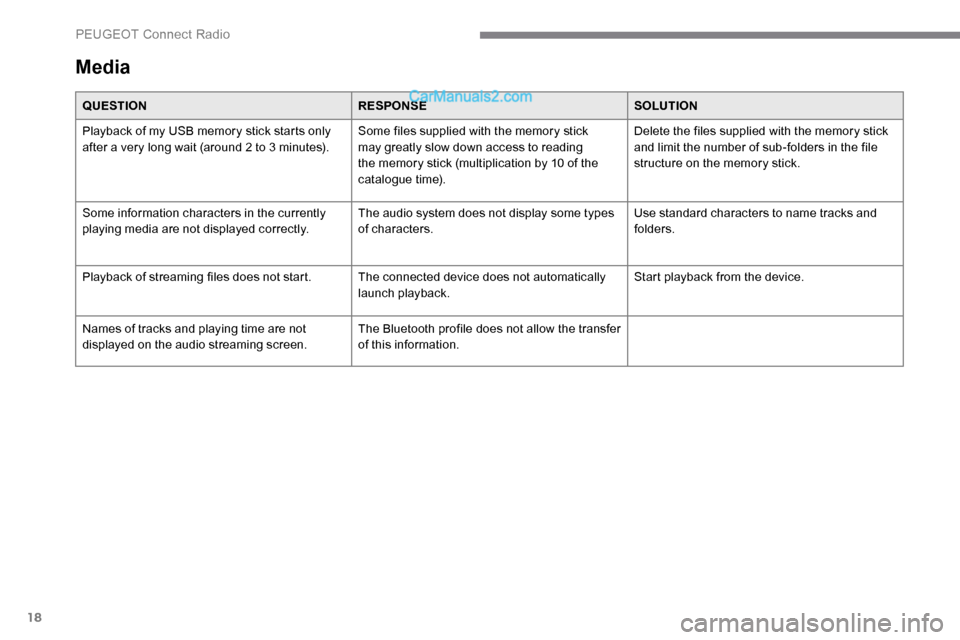
Media
QUESTIONRESPONSESOLUTION
Playback of my USB memory stick starts only
after a very long wait (around 2 to 3 minutes). Some files supplied with the memory stick
may greatly slow down access to reading
the memory stick (multiplication by 10 of the
catalogue time).Delete the files supplied with the memory stick
and limit the number of sub-folders in the file
structure on the memory stick.
Some information characters in the currently
playing media are not displayed correctly. The audio system does not display some types
of characters.Use standard characters to name tracks and
folders.
Playback of streaming files does not start. The connected device does not automatically launch playback.Start playback from the device.
Names of tracks and playing time are not
displayed on the audio streaming screen. The Bluetooth profile does not allow the transfer
of this information.
PEUGEOT Connect Radio
Page 273 of 324
1
PEUGEOT Connect Nav
GPS navigation -
Applications - Multimedia
audio system - Bluetooth
®
telephone
Contents
First steps
1
S
teering mounted controls
2
M
enus
3
V
oice commands
4
N
avigation
1
2
Connected navigation
1
4
Applications
1
7
Radio
2
0
DAB radio (Digital Audio Broadcasting)
2
2
Media
2
2
Telephone
2
4
Settings
2
8
Frequently asked questions
3
0The various functions and settings
described differ according to the version
and configuration of the vehicle.
For safety reasons and because they
require continued attention on the part of
the driver, the following operations must
be carried out with the vehicle stationary
and the ignition switched off:
-
Us
ing a smartphone.
-
P
airing a Bluetooth mobile phone to
the hands-free Bluetooth system of the
audio system.
-
Sm
artphone connection operations for
CarPlay
®, MirrorLinkTM or Android Auto
(certain applications interrupt their
display when the vehicle starts to move
again).
-
W
atching a video (the video stops
when the vehicle starts to move again).
-
T
he configuration of profiles.
The system is protected in such a way that
it will only operate in the vehicle.
The display of the message Energy
Economy Mode signals that a change to
standby is imminent. The link below gives access to the OSS
(Open Source Software) code for the
system.
https://www.groupe-psa.com/fr/oss/
https://www.groupe-psa.com/en/oss/
First steps
With the engine running, a press
mutes the sound.
With the ignition off, a press turns
the system on.
Increase or decrease the volume using
the wheel or the "plus" or "minus" buttons
(depending on the equipment).
Use the menu buttons on either side of or
below the touch screen for access to the
menus, then press the virtual buttons in the
touch screen.
Depending on the model, use the "Source" or
"Menu" buttons to access the rolling menus,
then press the virtual buttons in the touch
screen.
Display the rolling menus at any time by
pressing the screen briefly with three fingers.
All of the touch areas of the screen are white.
Press the back arrow to go back a level.
Press "OK" to confirm.
.
PEUGEOT Connect Nav
Page 274 of 324
2
The touch screen is of the "capacitive"
type.
To clean the screen, use a soft, non-
abrasive cloth (e.g. spectacles cloth) with
no additional product.
Do not use sharp objects on the screen.
Do not touch the screen with wet hands.
Certain information is displayed permanently
in the side bars or in the upper bar of the touch
screen (depending on equipment):
-
R
eminder of the air conditioning information
(depending on version), and direct access to
the corresponding menu.
-
G
o directly to the selection of the audio
source, to the list of radio stations (or list of
titles depending on the source).
-
G
o to the "Notifications" of messages,
emails, map updates and, depending on the
services, the navigation notifications.
-
G
o to the settings for the touch screen and
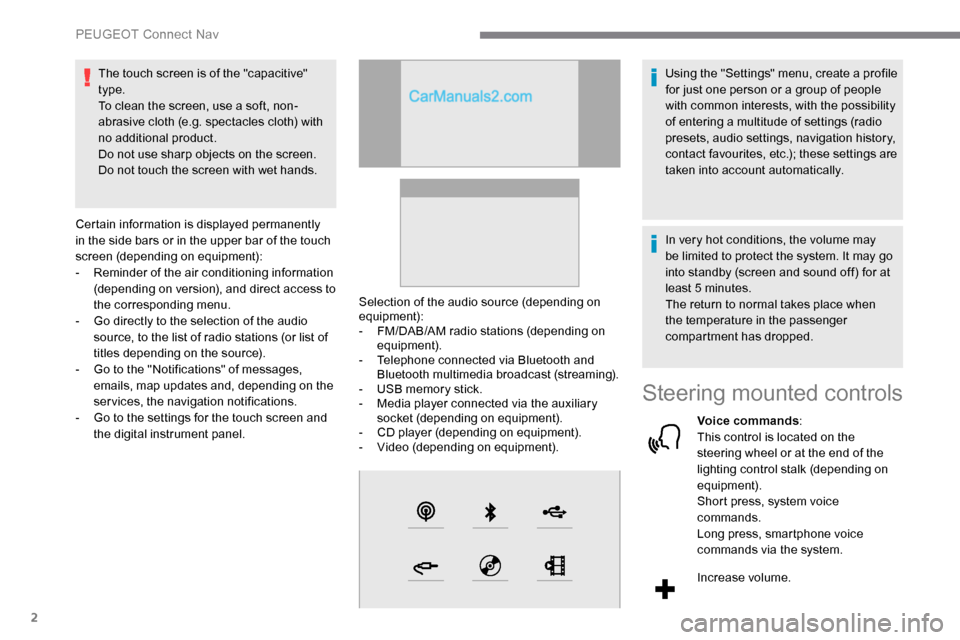
the digital instrument panel. Selection of the audio source (depending on
equipment):
-
F
M/DAB/AM radio stations (depending on
equipment).
-
T
elephone connected via Bluetooth and
Bluetooth multimedia broadcast (streaming).
-
U
SB memory stick.
-
M
edia player connected via the auxiliary
socket (depending on equipment).
-
C
D player (depending on equipment).
-
V
ideo (depending on equipment).Using the "Settings" menu, create a profile
for just one person or a group of people
with common interests, with the possibility
of entering a multitude of settings (radio
presets, audio settings, navigation history,
contact favourites, etc.); these settings are
taken into account automatically.
In very hot conditions, the volume may
be limited to protect the system. It may go
into standby (screen and sound off) for at
least 5 minutes.
The return to normal takes place when
the temperature in the passenger
compartment has dropped.
Steering mounted controls
Voice commands
:
This control is located on the
steering wheel or at the end of the
lighting control stalk (depending on
equipment).
Short press, system voice
commands.
Long press, smartphone voice
commands via the system.
Increase volume.
PEUGEOT Connect Nav
Page 276 of 324
4
21,518,5
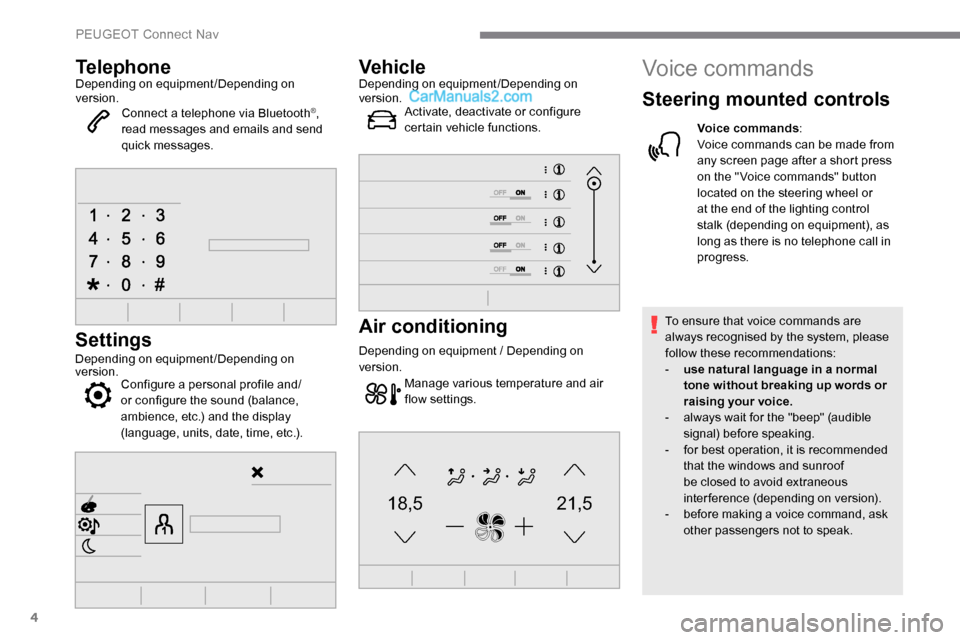
TelephoneDepending on equipment/Depending on
version.Connect a telephone via Bluetooth
®,
read messages and emails and send
quick messages.
Settings
Depending on equipment/Depending on
version. Configure a personal profile and/
or configure the sound (balance,
ambience, etc.) and the display
(language, units, date, time, etc.).
VehicleDepending on equipment/Depending on
version.
Activate, deactivate or configure
certain vehicle functions.
Air conditioning
Depending on equipment / Depending on
version.
Manage various temperature and air
flow settings.
Voice commands
Steering mounted controls
Voice commands :
Voice commands can be made from
any screen page after a short press
on the " Voice commands" button
located on the steering wheel or
at the end of the lighting control
stalk (depending on equipment), as
long as there is no telephone call in
progress.
To ensure that voice commands are
always recognised by the system, please
follow these recommendations:
-
u
se natural language in a normal
tone without breaking up words or
raising your voice.
-
a
lways wait for the "beep" (audible
signal) before speaking.
-
f
or best operation, it is recommended
that the windows and sunroof
be closed to avoid extraneous
interference (depending on version).
-
b
efore making a voice command, ask
other passengers not to speak.
PEUGEOT Connect Nav
Page 277 of 324
5
First steps
Example of a "voice command" for
navigation:
"Navigate to address 11 regent
street, London"
Example of a "voice command" for
the radio and media:
"Play ar tist Madonna"
Example of a "voice command" for
the telephone:
"Call David Miller'' "
The voice commands, with a choice of
17 languages (Arabic, Brazilian, Czech,
Danish, Dutch, English, Farsi, French,
German, Italian, Norwegian, Polish,
Portuguese, Russian, Spanish, Swedish,
Turkish), are made using the language
previously chosen and set in the system.
For some voice commands, there are
alternative synonyms.
Example: Guide to / Navigate to / Go to
/ ...
The voice commands in Arabic for:
"Navigate to address" and "Display POI in
the city", are not available.
Information - Using the
system
Press the Push To Talk button
and tell me what you'd like
after the tone. Remember you
can interrupt me at any time
by pressing this button. If you
press it again while I'm waiting
for you to speak, it'll end the
conversation. If you need to
start over, say "cancel". If you
want to undo something, say
"undo". And to get information
and tips at any time, just say
"help". If you ask to me do
something and there's some
information missing that I need,
I'll give you some examples
or take you through it step by
step. There's more information
available in "novice" mode.
You can set the dialogue mode
to "expert" when you feel
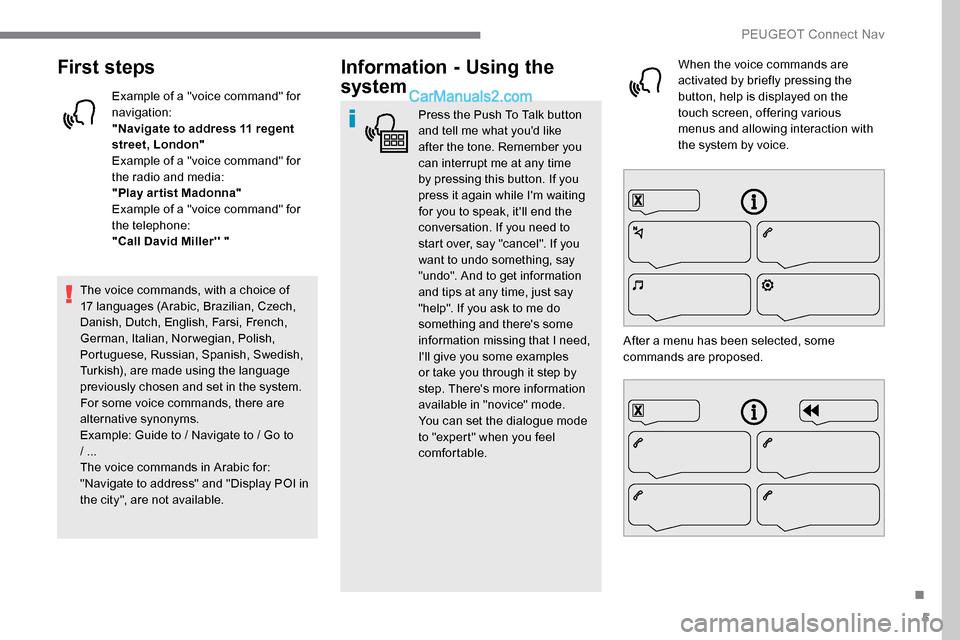
comfortable. When the voice commands are
activated by briefly pressing the
button, help is displayed on the
touch screen, offering various
menus and allowing interaction with
the system by voice.
After a menu has been selected, some
commands are proposed.
.
PEUGEOT Connect Nav
Page 284 of 324

12
Select "My destinations ".
Select the " Recent" tab.
Select the address chosen in the list to display
the " Guidance criteria ".
Press " OK" to start navigation.
Select " Position " to visualise the arrival
point geographically.
To "My home" or
"My work"
Press Navigation to display the
primary page.
Press the " MENU" button to go to the
secondary page.
Select "My destinations ".
Select the " Preferred" tab.
Select " My home ".
Or Select "My work ".
Or
Select a preset favourite destination.
To a contact
Press Navigation to display the
primary page.
Press the " MENU" button to go to the
secondary page.
Navigation
Choice of a destination
To a new destination
Press Navigation to display the
primary page.
Press the " MENU" button to go to the
secondary page.
Select "Enter address ".
Select the " Country".
Enter the " City", the " Street " and the
" Number " and confirm by pressing
on the suggestions displayed.
Press " OK" to select the " Guidance
criteria ".
And/or Select "See on map " to select the
" Guidance criteria ".
Press " OK" to start navigation.
Zoom out /in using the touch buttons or
with two fingers on the screen. In order to be able to use the navigation,
it is necessary to fill in the "
City", the
" Street " and the " Number" on the
virtual keyboard or take it from the
list in " Contact " or in the " History" of
addresses.
Without confirmation of the house number,
the navigation system will show one of the
ends of the street.
To a recent destination
Press Navigation to display the
primary page.
Press the " MENU" button to go to the
secondary page.
PEUGEOT Connect Nav
Page 285 of 324
13
Select "My destinations ".
Select the " Contact" tab.
Select a contact in the list to start navigation.
To points of interest (POI)
Points of interest (POI) are listed in different
categories. Press Navigation to display the
primary page.
Press the " MENU" button to go to the
secondary page.
Select "Points of interest ".
Select the " Tr a v e l", or "Leisure "
or " Commercial" or " Public" or
" Geographic " tab.
Or Select "Search" to enter the name
and address of a POI. Press "
OK" to start calculation of
the route.
To a point on the map
Press Navigation to display the
primary page.
Explore the map by sliding a finger on the
screen.
Select the destination by pressing on the map.
Tap the screen to place a marker
and display the sub-menu.
Press this button to start navigation.
Or Press this button to save the
address displayed.
A long press on an item opens a list of
POIs nearby.
To GPS coordinates
Press Navigation to display the
primary page. Explore the map by sliding a finger on the
screen.
Touch the screen with a finger to go to the next
image.
Press this button to display the world
map.
Using the grid, select the desired
country or region by zooming.
Press this button to display or enter
the GPS coordinates.
A marker is displayed in the middle
of the screen, with the " Latitude"
and " Longitude " coordinates.
Choose the type of coordinates:
DMS for: Degrees, Minutes, Seconds.
DD for: Degrees, Decimals. Press this button to start navigation.
Or Press this button to save the
address displayed.
OR Press this button to enter the value
for "Latitude " using the virtual
keypad.
.
PEUGEOT Connect Nav