2019 Peugeot Expert Screen
[x] Cancel search: ScreenPage 246 of 324
12
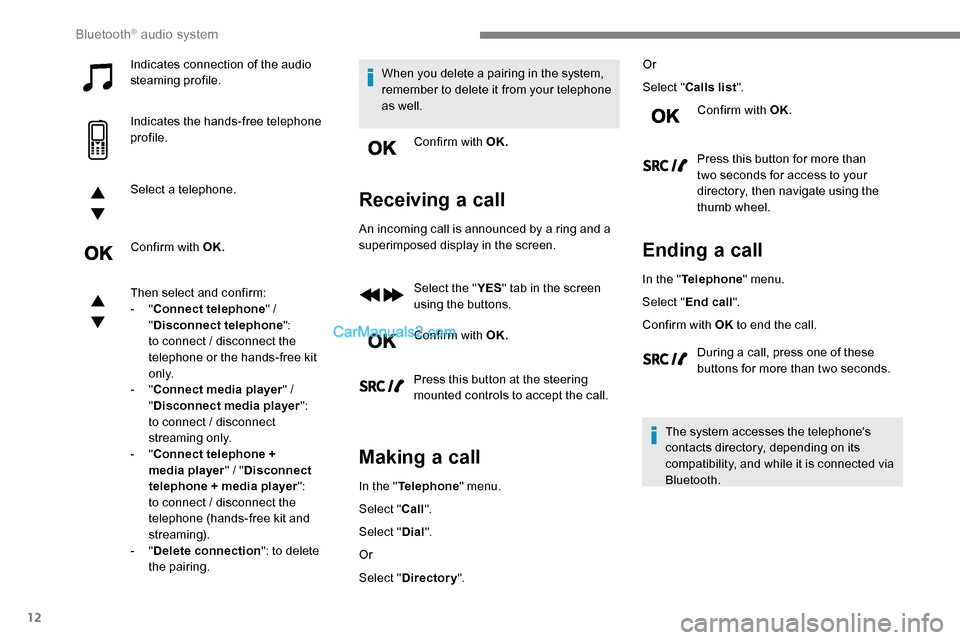
Indicates connection of the audio
steaming profile.
Indicates the hands-free telephone
profile.
Select a telephone.
Confirm with OK.
Then select and confirm:
- "Connect telephone " /
" Disconnect telephone ":
to connect / disconnect the
telephone or the hands-free kit
o n l y.
-
"Connect media player " /
" Disconnect media player ":
to connect / disconnect
streaming only.
-
"Connect telephone +
media player " / "Disconnect
telephone + media player ":
to connect / disconnect the
telephone (hands-free kit and
streaming).
-
"Delete connection ": to delete
the pairing. When you delete a pairing in the system,
remember to delete it from your telephone
as well.
Confirm with OK.
Receiving a call
An incoming call is announced by a ring and a
superimposed display in the screen.
Select the " YES" tab in the screen
using the buttons.
Confirm with OK.
Press this button at the steering
mounted controls to accept the call.
Making a call
In the " Telephone " menu.
Select " Call".
Select " Dial".
Or
Select " Directory ". Or
Select "
Calls list ".
Confirm with OK.
Press this button for more than
two seconds for access to your
directory, then navigate using the
thumb wheel.
Ending a call
In the " Telephone " menu.
Select " End call".
Confirm with OK to end the call.
During a call, press one of these
buttons for more than two seconds.
The system accesses the telephone's
contacts directory, depending on its
compatibility, and while it is connected via
Bluetooth.
Bluetooth® audio system
Page 251 of 324

17
Media
QUESTIONRESPONSESOLUTION
The Bluetooth connection is cut. The battery of the peripheral device may not be
sufficiently charged.Charge the battery of the peripheral device.
The message "USB device error" is displayed
in the screen. The USB memory stick is not recognised.
The USB memory stick may be corrupt.Reformat the USB memory stick.
The CD is ejected every time or is not played. The CD is upside down, cannot be read, does not contain audio files or contains audio files of
a format not recognised by the audio system.
The CD is protected by an anti-pirating system
not recognised by the audio system.-
C
heck that the CD is inserted in the player
the right way up.
-
C
heck the condition of the CD: the CD
cannot be played if it is too badly damaged.
-
C
heck the content in the case of a recorded
CD: consult the advice in the "Audio"
section.
-
D
ue to insufficient quality, certain burned
CDs will not be read by the audio system.
The CD sound is of poor quality. The CD used in scratched or of poor quality. Insert good quality CDs and store them in
suitable conditions.
The audio settings (bass, treble, ambience) are
unsuitable. Return bass and treble settings to 0, without
selecting an ambience.
I am unable to play the music files on my
smartphone via the USB port. Depending on the smartphone, access by the
audio system to music on the smartphone may
have to be approved on the latter.Manual activate the MTP profile on the
smartphone (USB settings menu).
.
Bluetooth® audio system
Page 253 of 324
1
PEUGEOT Connect
Radio
Multimedia audio system -
Applications - Bluetooth®
telephone
Contents
First steps
1
S
teering mounted controls
2
M
enus
3
A
pplications
5
R
adio
5
D
AB radio (Digital Audio Broadcasting)
7
M
edia
8
T
elephone
1
0
Settings
1
4
Frequently asked questions
1
6
The various functions and settings
described differ according to the version
and configuration of the vehicle. For safety reasons and because they
require continued attention on the part of
the driver, the following operations must
be carried out with the vehicle stationary
and the ignition on:
-
Us
ing a smartphone.
-
P
airing a Bluetooth mobile phone to
the hands-free Bluetooth system of the
car radio.
-
Sm
artphone connection operations for
CarPlay
®, MirrorLinkTM or Android Auto
(certain applications interrupt their
display when the vehicle starts to move
again).
-
T
he configuration of profiles.
The system is protected in such a way that
it will only operate in the vehicle.
The display of the message Energy
Economy Mode signals that a change to
standby is imminent.
The link below gives access to the OSS
(Open Source Software) code for the
system.
https://www.groupe-psa.com/fr/oss/
https://www.groupe-psa.com/en/oss/
First steps
With the engine running, a press
mutes the sound.
With the ignition off, a press turns
the system on.
Increase or decrease the volume using
the wheel or the "plus" or "minus" buttons
(depending on the equipment).
Use the buttons on either side of or below the
touch screen for access to the menus, then
press the virtual buttons in the touch screen.
Depending on the model, use the "Source" or
"Menu" buttons on the left of the touch screen
for access to the menus, then press the virtual
buttons in the touch screen.
At all times it is possible to display the rolling
menus by pressing the screen briefly with three
fingers.
All of the touch areas of the screen are white.
For pages with multiple tabs at the bottom of
the screen, it is possible to switch between
pages either by tapping the tab for the desired
page, or by using a finger, sliding the pages to
the left or to the right.
Press in the grey zone to go back up a level or
to confirm.
.
PEUGEOT Connect Radio
Page 254 of 324
2
The touch screen is of the "capacitive"
type.
To clean the screen, use a soft, non-
abrasive cloth (e.g. spectacles cloth) with
no additional product.
Do not use sharp objects on the screen.
Do not touch the screen with wet hands.
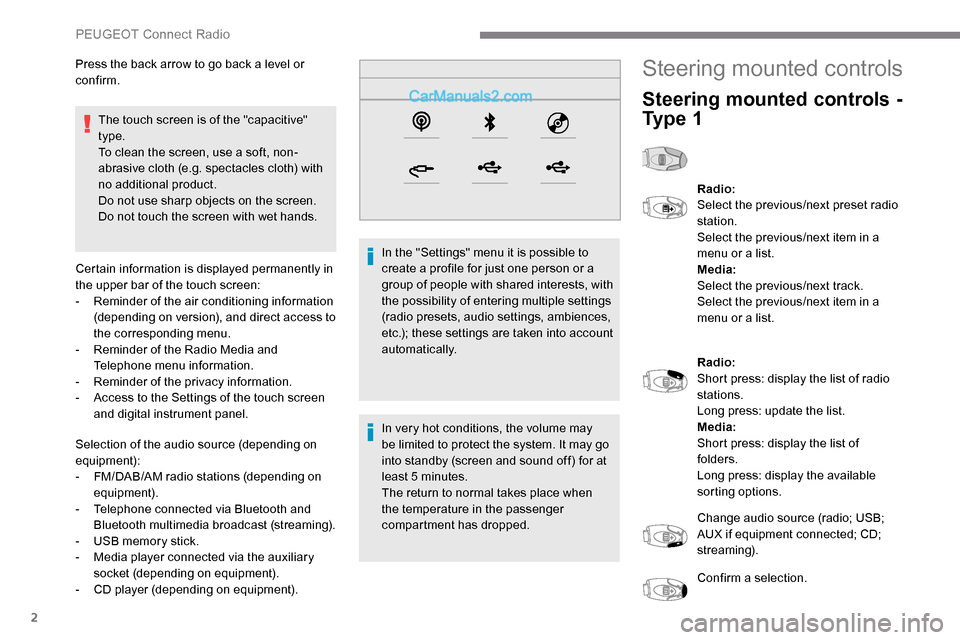
Certain information is displayed permanently in
the upper bar of the touch screen:
-
R
eminder of the air conditioning information
(depending on version), and direct access to
the corresponding menu.
-
R
eminder of the Radio Media and
Telephone menu information.
-
R
eminder of the privacy information.
-
A
ccess to the Settings of the touch screen
and digital instrument panel.
Selection of the audio source (depending on
equipment):
-
F
M/DAB/AM radio stations (depending on
equipment).
-
T
elephone connected via Bluetooth and
Bluetooth multimedia broadcast (streaming).
-
U
SB memory stick.
-
M
edia player connected via the auxiliary
socket (depending on equipment).
-
C
D player (depending on equipment). In the "Settings" menu it is possible to
create a profile for just one person or a
group of people with shared interests, with
the possibility of entering multiple settings
(radio presets, audio settings, ambiences,
etc.); these settings are taken into account
automatically.
In very hot conditions, the volume may
be limited to protect the system. It may go
into standby (screen and sound off) for at
least 5 minutes.
The return to normal takes place when
the temperature in the passenger
compartment has dropped.
Press the back arrow to go back a level or
confirm.
Steering mounted controls
Steering mounted controls -
Ty p e 1
Radio:
Select the previous/next preset radio
station.
Select the previous/next item in a
menu or a list.
Media:
Select the previous/next track.
Select the previous/next item in a
menu or a list.
Radio:
Short press: display the list of radio
stations.
Long press: update the list.
Media:
Short press: display the list of
folders.
Long press: display the available
sorting options.
Change audio source (radio; USB;
AUX if equipment connected; CD;
streaming).
Confirm a selection.
PEUGEOT Connect Radio
Page 262 of 324

10
It is recommended that file names are less
than 20 characters long and do not contain
any special characters (e.g. « » ? . ; ù) so as to
avoid any reading or display problems.
Use only USB memory sticks in FAT32 format
(File Allocation Table).
It is recommended that the original USB
cable for the portable device be used.
In order to be able to play a burned CDR or
CDRW, select standards ISO 9660 level 1, 2, or
Joliet, if possible, when burning the CD.
If the disc is burned in another format, it may
not be played correctly.
It is recommended that the same burning
standard be always used on an individual disc,
with the lowest speed possible (4x maximum)
for the best acoustic quality.
In the particular case of a multi-session CD, the
Joliet standard is recommended.
TelephoneMirrorLinkTM smartphone
connection
The "MirrorLinkTM" function requires a
compatible smartphone and applications.
Telephone not connected by
Bluetooth®
Connect a USB cable. The
smartphone charges when
connected by the USB cable.
From the system, press
" Telephone " to display the primary
page.
Press " MirrorLink
TM" to start the
application in the system.
Depending on the smartphone, it may be
necessary to activate the " MirrorLink
TM"
function. During the procedure, several
screen pages relating to certain
functions are displayed.
Accept to start and complete the
connection. When connecting a smartphone
to the system, it is recommended
that Bluetooth
® be started on the
smartphone.
Telephone connected by
Bluetooth®
From the system, press
" Telephone " to display the primary
page.
USB sockets
Depending on equipment, for more information
on the USB sockets compatible with the
CarPlay
®, MirrorLinkTM or Android Auto
applications, refer to the "Ease of use and
comfort" section. The synchronisation of a smartphone
allows users to display applications
adapted to the CarPlay
®, MirrorLinkTM
or Android Auto
technology of the
smartphone on the vehicle screen. For
the CarPlay
® technology, the CarPlay®
function must be activated on the
smartphone beforehand.
For the communication process between
the smartphone and the system to
work, it is essential in all cases that the
smartphone is unlocked.
As the principles and standards are
constantly changing, it is recommended
that you keep the smar tphone's
operating system up-to- date, as well
as the date and time of the smar tphone
and of the system .
For the list of eligible smartphones, go to
the Brand's national website.
Connect a USB cable. The
smartphone charges when
connected by the USB cable.
PEUGEOT Connect Radio
Page 263 of 324
11
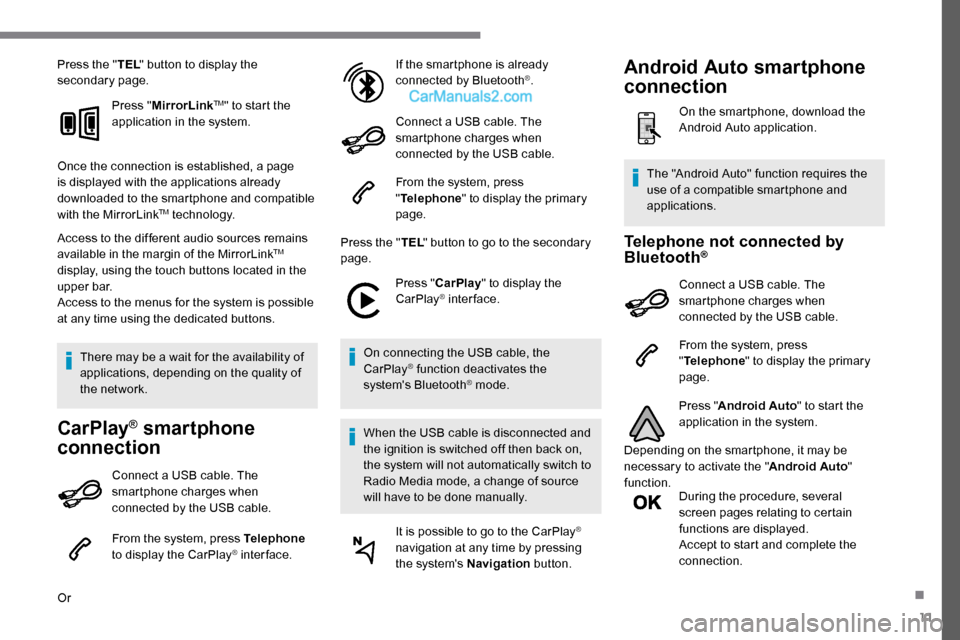
Press the "TEL" button to display the
secondary page.
Press "MirrorLink
TM" to start the
application in the system.
Once the connection is established, a page
is displayed with the applications already
downloaded to the smartphone and compatible
with the MirrorLink
TM technology.
Access to the different audio sources remains
available in the margin of the MirrorLink
TM
display, using the touch buttons located in the
u p p e r b a r.
Access to the menus for the system is possible
at any time using the dedicated buttons.
There may be a wait for the availability of
applications, depending on the quality of
the network.
CarPlay® smartphone
connection
Connect a USB cable. The
smartphone charges when
connected by the USB cable.
From the system, press Telephone
to display the CarPlay
® inter face.
Or If the smartphone is already
connected by Bluetooth
®.
Connect a USB cable. The
smartphone charges when
connected by the USB cable.
From the system, press
" Telephone " to display the primary
page.
Press the " TEL" button to go to the secondary
page.
Press "CarPlay " to display the
CarPlay
® inter face.
On connecting the USB cable, the
CarPlay
® function deactivates the
system's Bluetooth® mode.
When the USB cable is disconnected and
the ignition is switched off then back on,
the system will not automatically switch to
Radio Media mode, a change of source
will have to be done manually. It is possible to go to the CarPlay
®
navigation at any time by pressing
the system's Navigation button.
Telephone not connected by
Bluetooth®
Connect a USB cable. The
smartphone charges when
connected by the USB cable.
From the system, press
"Telephone " to display the primary
page.
Press " Android Auto " to start the
application in the system.
Depending on the smartphone, it may be
necessary to activate the " Android Auto"
function. During the procedure, several
screen pages relating to certain
functions are displayed.
Accept to start and complete the
connection.
The "Android Auto" function requires the
use of a compatible smartphone and
applications.
Android Auto smartphone
connection
On the smartphone, download the
Android Auto application.
.
Page 265 of 324
13
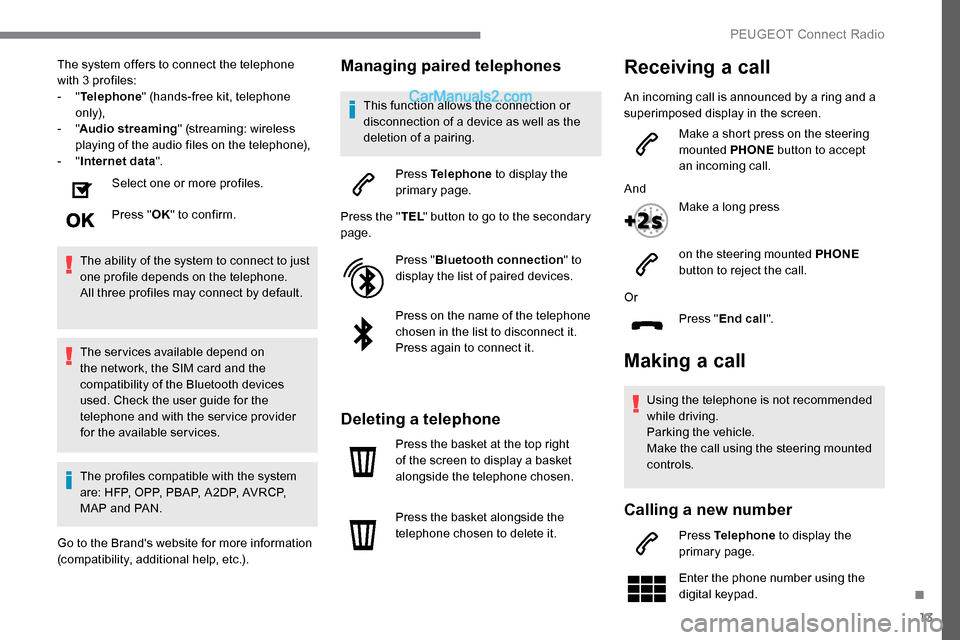
The system offers to connect the telephone
with 3 profiles:
- "Telephone " (hands-free kit, telephone
only),
-
"Audio streaming " (streaming: wireless
playing of the audio files on the telephone),
-
"Internet data ".
Select one or more profiles.
Press " OK" to confirm.
The ability of the system to connect to just
one profile depends on the telephone.
All three profiles may connect by default.
The services available depend on
the network, the SIM card and the
compatibility of the Bluetooth devices
used. Check the user guide for the
telephone and with the service provider
for the available services.
The profiles compatible with the system
are: HFP, OPP, PBAP, A 2DP, AVRCP,
MAP and PAN.
Go to the Brand's website for more information
(compatibility, additional help, etc.).Managing paired telephones
This function allows the connection or
disconnection of a device as well as the
deletion of a pairing.
Press Telephone to display the
primary page.
Press the " TEL" button to go to the secondary
page.
Press "Bluetooth connection " to
display the list of paired devices.
Press on the name of the telephone
chosen in the list to disconnect it.
Press again to connect it.
Deleting a telephone
Press the basket at the top right
of the screen to display a basket
alongside the telephone chosen.
Press the basket alongside the
telephone chosen to delete it.
Making a call
Using the telephone is not recommended
while driving.
Parking the vehicle.
Make the call using the steering mounted
controls.
Calling a new number
Press Telephone to display the
primary page.
Enter the phone number using the
digital keypad.
Or
Press "End call".
Receiving a call
An incoming call is announced by a ring and a
superimposed display in the screen.
Make a short press on the steering
mounted PHONE button to accept
an incoming call.
And Make a long press
on the steering mounted PHONE
button to reject the call.
.
PEUGEOT Connect Radio
Page 266 of 324

14
Press "Call" to start the call.
Calling a contact
Press Telephone to display the
primary page.
Or make a long press
on the steering mounted TEL button.
Press " Contacts ".
Select the desired contact from the list offered. Press "Call".
Calling a recently used
number
Press Telephone to display the
primary page.
Or Make a long press
on the steering mounted button.
Press " Recent calls ".
Select the desired contact from the list offered. It is always possible to make a call directly
from the telephone; as a safety measure,
first park the vehicle.
Setting the ringtone
Press Telephone
to display the
primary page.
Press the " OPTIONS" button to go to the
secondary page.
Press "Ring volume " to display the
volume bar.
Press the arrows or move the slider
to set the ring volume.
Settings
Setting the profiles
Press " Profiles ".
Select " Profile 1 " or "Profile 2 " or "Profile 3 "
or " Common profile ". Press this button to enter a name for
the profile using the virtual keypad.
Press "
OK" to save.
Press the back arrow to confirm.
Press this button to activate the
profile.
Press the back arrow again to
confirm.
Press this button to reinitialise the
profile selected.
Adjust brightness
Press Settings to display the
primary page.
Press Brightness .
Move the cursor to adjust the
brightness of the screen and/or of
the instrument panel (according to
ve r s i o n).
Press in the grey zone to confirm.
Press Settings
to display the
primary page.
PEUGEOT Connect Radio