2019 NISSAN LEAF navigation
[x] Cancel search: navigationPage 202 of 610

TheOK,buttons
also control audio and control panel func-
tions in some conditions. Most screens and
menus offer instruction prompts of the
steering switches to indicate how to con-
trol the vehicle information display. White
dots appear on the lef t side of the vehicle
information display when there is more
than one page of menu items. The OK,
andchange the audio source and the
buttons also control voice recognition
manual mode. For additional information,
refer to the separate NissanConnect®
Manual (for Leaf ).
STARTUP DISPLAY
With the vehicle in the ON position, the ve-
hicle information display may display the
following screens:
• Battery information
• Audio
• Navigation
• Energy Economy
• Safety Shield
• Warnings
• Settings
Warnings will only display if there are any
present. For additional information, refer to
“Vehicle information display warnings and
indicators” in this section.
To control which items display in the ve-
hicle information display, refer to “Meter
settings” in this section.
SETTINGS
The settings mode allows you to change
the information displayed in the vehicle in-
formation display as well as enable and
disable various vehicle features and sys-
tems. The settings include:
• VDC Setting
• Driver Assistance
• Customize Display
• Vehicle Settings
• EV Settings
• TPMS Settings
• Maintenance
• Clock
• Unit/Language
• Factory Reset
Instruments and controls2-29
Page 205 of 610

Customize Display
The customize display menu allows the
user to change the settings for the vehicle
information display.
Menu ItemResult
Main Menu Selection Displays the available main menu selection options.
Cruise (if so equipped) Allows user to turn the Cruise screen on or off in the vehicle information display.
Driving Aids Allows user to turn the safety shield screen on or off in the vehicle information dis-
play.
Status Allows user to turn the status screen on or off in the vehicle information display.
Tire Pressures Allows user to turn the tire pressures screen on or off in the vehicle information dis-
play.
Drive Computer Allows user to turn the drive computer screen on or off in the vehicle information
display.
Chassis Control Allows user to turn the chassis control screen on or off in the vehicle information
display.
ECO Info Settings Displays the available ECO Info Settings.
ECO Drive Report Allows user to turn the ECO drive report on or off.
View History Allows user to view and reset the ECO drive report history.
Navigation Settings Displays the available navigation settings.
Alerts Allows user to turn the navigation alerts on or off.
Cruise Screen Transition (if so equipped) Allows user to turn the Cruise screen transition on or off.
Welcome Effect Displays the available welcome effects.
Gauges Allows user to turn the gauges effect on or off.
Animation Allows user to turn the animation effect on or off.
2-32Instruments and controls
Page 219 of 610
NOTE:
This system is disabled until a driver
enables it using the vehicle informa-
tion display. For additional informa-
tion, refer to “How to use the vehicle
information display ” in this section.
For additional information, refer to “Rear
Door Alert” in this section.
Check Rear Seat For All Articles
(if so equipped)
When the system is enabled, this message
appears when the vehicle comes to a com-
plete stop, the vehicle is transitioned from
the D (Drive) position to P (Park) position,
and the driver exits the vehicle. This mes-
sage alerts the driver, af ter a period of time,
to check for items in the rear seat af ter the
audible alert has been provided.
NOTE:
This system is disabled until a driver
enables it using the vehicle informa-
tion display. For additional informa-
tion, refer to “How to use the vehicle
information display ” in this section.
For additional information, refer to “Rear
Door Alert” in this section.
e—Pedal system failure! Press
brake pedal to slow or stop (if so
equipped)
This warning is display when the e-Pedal
system is malfunctioning. Have the system
checked. It is recommended that you visit a
NISSAN certified LEAF dealer for this ser-
vice.
WARNING INFORMATION DISPLAYS
(MODELS WITH A NAVIGATION
SYSTEM)
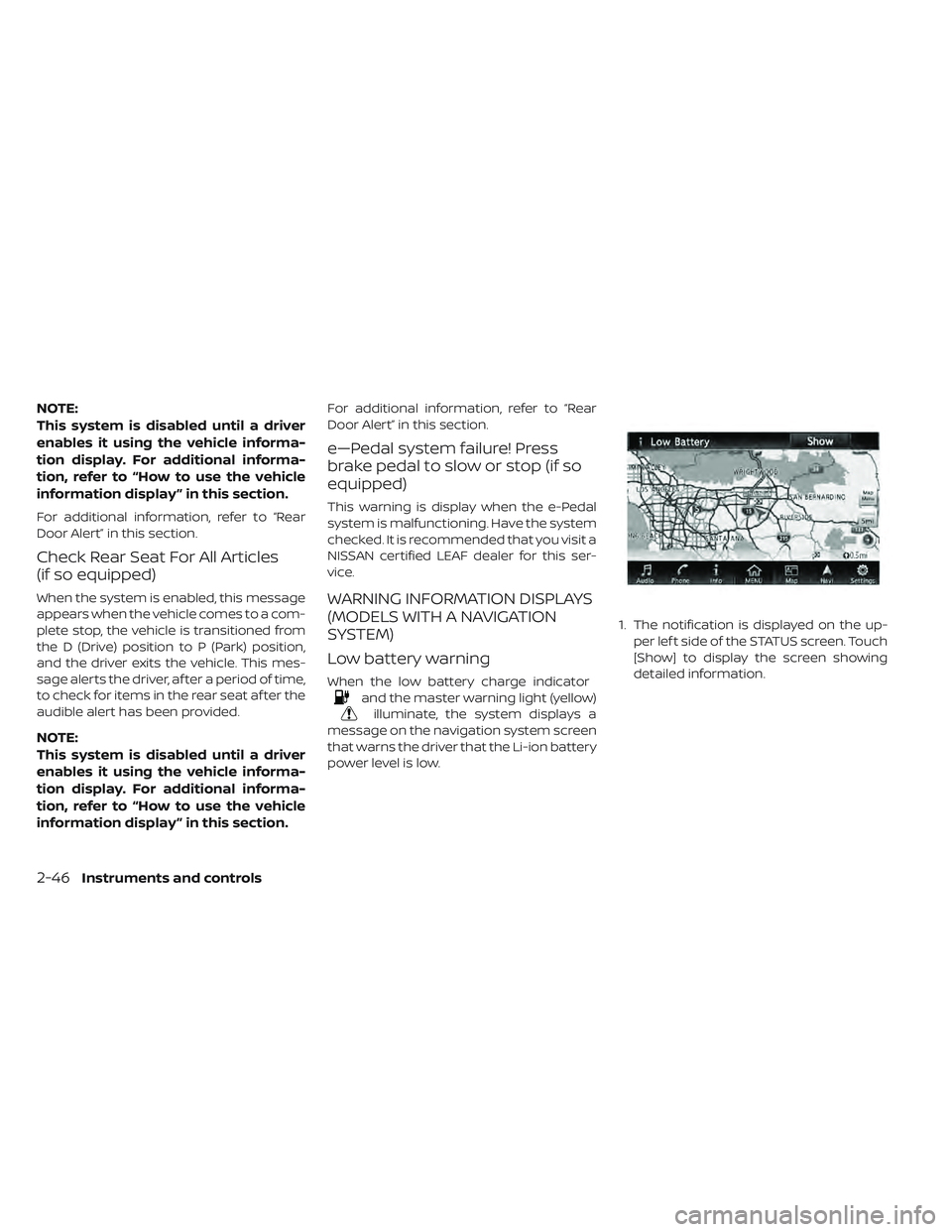
Low battery warning
When the low battery charge indicator
and the master warning light (yellow)
illuminate, the system displays a
message on the navigation system screen
that warns the driver that the Li-ion battery
power level is low. 1. The notification is displayed on the up-
per lef t side of the STATUS screen. Touch
[Show] to display the screen showing
detailed information.
2-46Instruments and controls
Page 267 of 610

HOW TO USE REMOTE KEYLESS
ENTRY FUNCTION
WARNING
• Radio waves could adversely affect electric medical equipment. Those
who use a pacemaker should con-
tact the electric medical equipment
manufacturer for the possible influ-
ences before use.
• The Intelligent Key transmits radio waves when the buttons are
pressed. The FAA advises that the
radio waves may affect aircraf t
navigation and communication sys-
tems. Do not operate the Intelligent
Key while on an airplane. Make sure
the buttons are not operated unin-
tentionally when the unit is stored
during a flight.
CAUTION
• Do not allow the Intelligent Key, which contains electrical compo-
nents, to come into contact with
water or salt water. This could affect
the system function.
• Do not drop the Intelligent Key.
• Do not strike the Intelligent Key sharply against another object.
• Do not change or modif y the Intelli- gent Key.
• Wetting may damage the Intelligent Key. If the Intelligent Key gets wet,
immediately wipe until it is com-
pletely dry.
• Do not place the Intelligent Key for an extended period in an area where
temperatures exceed 140°F (60°C).
• Do not attach the Intelligent Key with a key holder that contains a
magnet.
• Do not place the Intelligent Key near equipment that produces a mag-
netic field, such as a TV, audio equip-
ment, personal computers or cellu-
lar phone. The remote keyless entry function can op-
erate all door locks using the remote key-
less entry function of the Intelligent Key.
The remote keyless entry function can
operate at a distance of approximately
33 f t (10 m) from the vehicle. The operating
distance depends upon the conditions
around the vehicle.
The remote keyless entry function will not
operate:
• When the Intelligent Key is not within the
operational range.
• When the doors are open or not closed securely.
• When the Intelligent Key battery is discharged.
CAUTION
When locking the doors using the Intel-
ligent Key, be sure not to leave the key
in the vehicle.
3-14Pre-driving checks and adjustments
Page 280 of 610

4 Monitor, climate, audio, phone and
voice recognition systems
NissanConnect® Manual (for Leaf )
(if so equipped).......................4-3
RearView Monitor (if so equipped) ...........4-4
RearView Monitor system operation .......4-5
How to read the displayed lines ..........4-6
Difference between predicted and actual
distances .........................4-7
How to park with predictive course lines
(if so equipped) .................... .4-8
Adjusting the screen
(models with 40 kWh battery) ...........4-10
Adjusting the screen
(models with 62 kWh battery) ...........4-11
How to turn on and off predictive course lines
(for models with 40 kWh battery) .........4-11
How to turn on and off predictive course lines
(for models with 62 kWh battery) .........4-11
RearView Monitor system limitations ......4-11
System maintenance ................4-13
Intelligent Around View Monitor
(if so equipped) .......................4-14
Intelligent Around View Monitor system
operation ........................4-16 Difference between predicted and actual
distances
........................4-19
How to park with predictive course lines . . . .4-20
How to switch the display .............4-22
Adjusting the screen ................ .4-22
Intelligent Around View Monitor system
limitations ........................4-23
System maintenance ................4-25
Moving Object Detection (MOD)
(if so equipped) ......................4-26
MOD system operation ...............4-27
Turning MOD ON and OFF .............4-28
MOD system limitations ..............4-28
System maintenance ................4-29
Vents ............................ .4-30
Heater and air conditioner (automatic) .......4-31
Displaying climate control system status
screen (models with navigation system) . . . .4-32
Operating tips .................... .4-33
In-cabin microfilter ................. .4-34
Automatic climate control
(models without Navigation System) ......4-35
Page 281 of 610

Automatic climate control
(models with Navigation System)........4-38
Climate ctrl. timer .................. .4-41
Audio system (models without NissanConnect®
System) .......................... .4-46
Radio .......................... .4-46
FM radio reception ................. .4-47
AM radio reception ................. .4-47
Satellite radio reception ...............4-48
Audio operation precautions ...........4-48
FM/AM/SAT radio with Compact Disc (CD)
player...........................4-55
USB (Universal Serial Bus) connection port . . .4-61
iPod® player operation ...............4-62
Bluetooth® streaming audio ............4-65
Aux device player operation ............4-65
CD care and cleaning ................4-66
Steering wheel switch for audio control . . . .4-66 Antenna
.......................... .4-67
Car phone or CB radio .................4-68
Bluetooth® Hands-Free Phone System without
Navigation System (for models without
NissanConnect® system) ................4-68
Regulatory information ...............4-70
Using the system .................. .4-70
Control buttons ................... .4-71
Connecting procedure ...............4-72
Voice commands .................. .4-73
Making a call ......................4-74
Receiving a call ................... .4-75
During a call ......................4-75
Ending a call ......................4-75
Text messaging (if so equipped) .........4-76
Bluetooth® settings ................. .4-77
Manual control .................... .4-78
Troubleshooting guide ...............4-79
Page 282 of 610

Refer to the NissanConnect® Manual (for
Leaf ) that includes the following informa-
tion.
• EV-Specific functions
• Audio
• Hands-Free Phone
• NissanConnect® EV and Services
• Apple CarPlay™
• Android Auto™
• Navigation
• Voice recognition
• Information and settings viewable on thesystem
NISSANCONNECT® MANUAL (FOR
LEAF) (IF SO EQUIPPED)
Monitor, climate, audio, phone and voice recognition systems4-3
Page 289 of 610
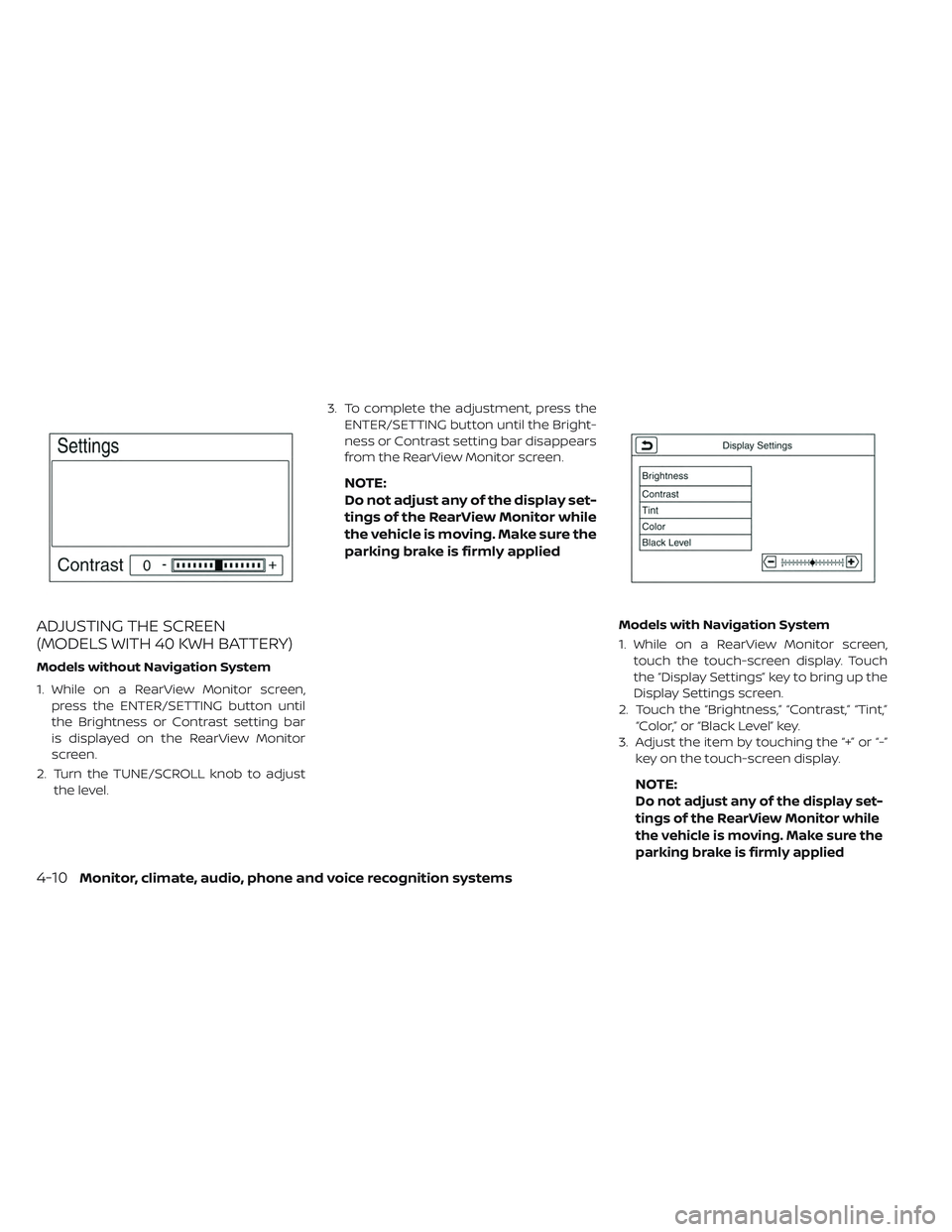
ADJUSTING THE SCREEN
(MODELS WITH 40 KWH BATTERY)
Models without Navigation System
1. While on a RearView Monitor screen,press the ENTER/SETTING button until
the Brightness or Contrast setting bar
is displayed on the RearView Monitor
screen.
2. Turn the TUNE/SCROLL knob to adjust the level. 3. To complete the adjustment, press the
ENTER/SETTING button until the Bright-
ness or Contrast setting bar disappears
from the RearView Monitor screen.
NOTE:
Do not adjust any of the display set-
tings of the RearView Monitor while
the vehicle is moving. Make sure the
parking brake is firmly applied
Models with Navigation System
1. While on a RearView Monitor screen,touch the touch-screen display. Touch
the “Display Settings” key to bring up the
Display Settings screen.
2. Touch the “Brightness,” “Contrast,” “Tint,” “Color,” or “Black Level” key.
3. Adjust the item by touching the “+” or “-” key on the touch-screen display.
NOTE:
Do not adjust any of the display set-
tings of the RearView Monitor while
the vehicle is moving. Make sure the
parking brake is firmly applied
4-10Monitor, climate, audio, phone and voice recognition systems