2019 NISSAN KICKS light
[x] Cancel search: lightPage 233 of 444
When a compatible storage device is
plugged into the connection port, compat-
ible audio files on the storage device can be
played through the vehicle’s audio system.
The port is illuminated for better visibility
when the headlight switch is in the ON po-
sition.
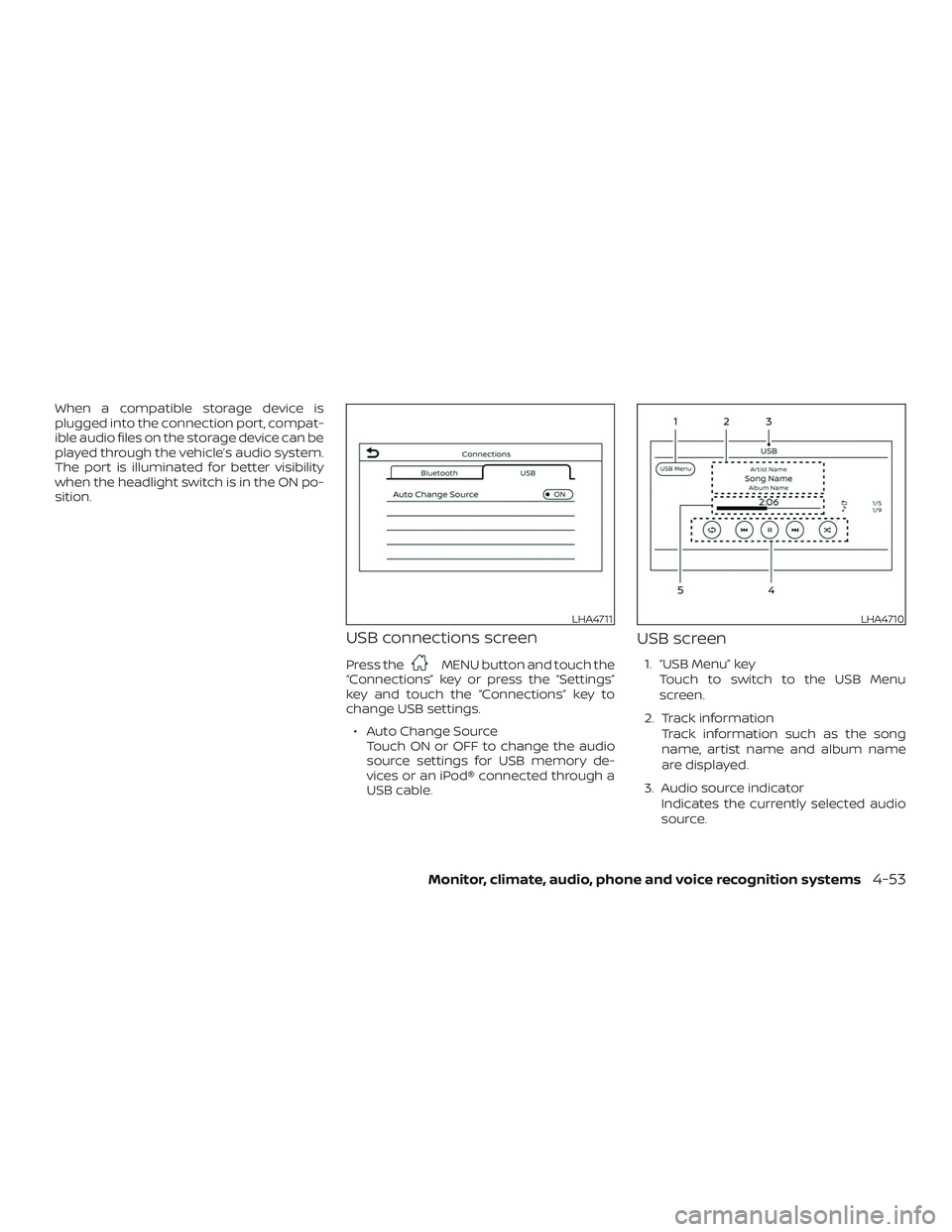
USB connections screen
Press theMENU button and touch the
“Connections” key or press the “Settings”
key and touch the “Connections” key to
change USB settings.
∙ Auto Change Source Touch ON or OFF to change the audio
source settings for USB memory de-
vices or an iPod® connected through a
USB cable.
USB screen
1. “USB Menu” key
Touch to switch to the USB Menu
screen.
2. Track information Track information such as the song
name, artist name and album name
are displayed.
3. Audio source indicator Indicates the currently selected audio
source.
LHA4711LHA4710
Monitor, climate, audio, phone and voice recognition systems4-53
Page 236 of 444
supports charging via a USB connection, its
battery will be charged while connected to
the vehicle with the ignition switch in the
ON position. The port is illuminated for bet-
ter visibility when the headlight switch is in
the ON position.
While connected to the vehicle, the iPod®
can only be operated by the vehicle audio
controls.
To disconnect the iPod® from the vehicle,
remove the USB end of the cable from the
USB connection port on the vehicle, then
remove the cable from the iPod®.
* iPod® is a trademark of Apple Inc., regis-
tered in the U.S. and other countries.
Compatibility
The following models are compatible:∙ iPod® Classic 5th generation (firmware version 1.3.0 or later)
∙ iPod® Classic 6th generation (firmware version 2.0.1 or later)
∙ iPod® Classic 7th generation (firmware version 2.0.4 or later) ∙ iPod® Touch 2nd generation (firmware
version 4.2.1 or later)*
∙ iPod® Touch 3rd generation (firmware version 5.1 or later)
∙ iPod® Touch 4th generation (firmware version 5.1 or later)
∙ iPod® nano - 1st generation (firmware version 1.3.1 or later)
∙ iPod® nano - 2nd generation (firmware version 1.1.3 or later)
∙ iPod® nano - 3rd generation (firmware version 1.1.3 or later)
∙ iPod® nano - 4th generation (firmware version 1.0.4 or later)
∙ iPod® nano - 5th generation (firmware version 1.0.2 or later)
∙ iPod® nano - 6th generation (firmware version 1.1 or later)
∙ iPhone® 3G (firmware version 4.2.1 or later) ∙ iPhone® 3GS (firmware version 5.1 or
later)
∙ iPhone® 4 (firmware version 5.1 or later)
∙ iPhone® 4S (firmware version 5.1 or later)
* Some features of this iPod® may not be
fully functional.
Make sure that your iPod® firmware is up-
dated to the version indicated above.
4-56Monitor, climate, audio, phone and voice recognition systems
Page 238 of 444
Changing play mode
Repeat mode
Touch the “
” key on the iPod® screen
to change the repeat mode. The following
modes are available.
No text displayed: Repeat off
All: Repeat all
One: Repeat track
Random mode
Touch the “
” key on the screen to
change the random mode as follows.
“
” is not highlighted: Random off
“
” highlighted: Random on
iPod® Menu
Touch the “iPod Menu” key on the iPod®
screen to display the iPod® Menu screen.
“Now Playing” key Touch to display the USB screen.
“Folder List” key
(if so equipped) Touch to display the folder
list. Touch an item on the list
to select the folder. The sub-
folder or track list will be
displayed. Select a sub-folder
or track from the list.
“Album Artwork”
key Touch to run on/off the al-
bum artwork display on the
USB screen.
“Playlists” key Touch to display the list ac- cording to the selected item.
“Artists” key
“Albums” key
“Songs” key
“Podcasts” key
“Genres” key
“Composers” key
“Audiobooks” key
“iTunes Radio”
key
BLUETOOTH® STREAMING AUDIO
If you have a compatible Bluetooth® audio
device that is capable of playing audio files,
the device can be connected to the vehi-
cle’s audio system so that the audio files on
the device play through the vehicle’s
speakers. For additional information, refer
to “FM/AM radio” in this section.
NOTE:
For additional information regarding
Bluetooth® Streaming Audio, refer to the
cellular phone owner’s manual.
4-58Monitor, climate, audio, phone and voice recognition systems
Page 239 of 444
Connecting procedure
NOTE:
The connecting procedure must be per-
formed when the vehicle is stationary. If
the vehicle starts moving during the pro-
cedure, the procedure will be canceled.
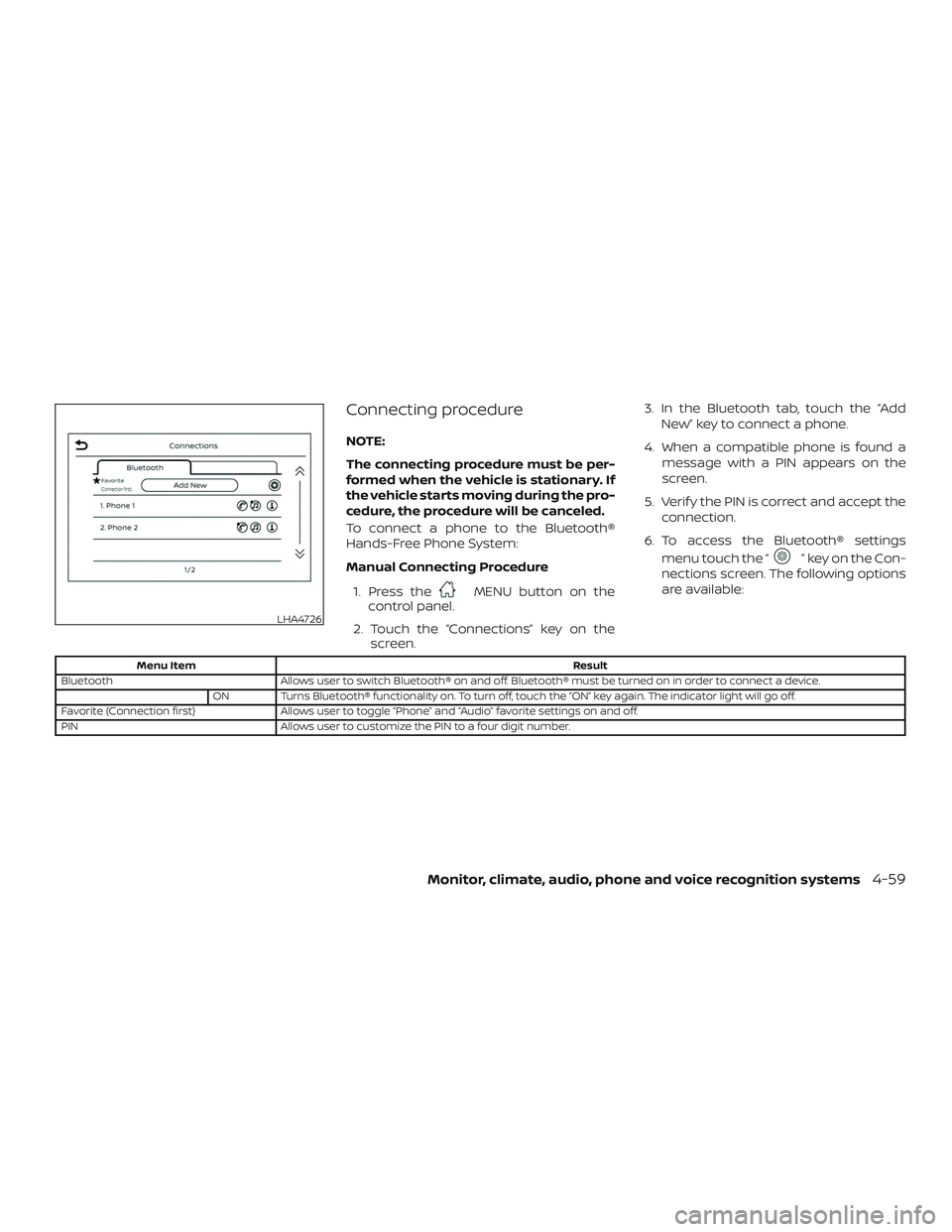
To connect a phone to the Bluetooth®
Hands-Free Phone System:
Manual Connecting Procedure1. Press the
MENU button on the
control panel.
2. Touch the “Connections” key on the screen. 3. In the Bluetooth tab, touch the “Add
New” key to connect a phone.
4. When a compatible phone is found a message with a PIN appears on the
screen.
5. Verif y the PIN is correct and accept the connection.
6. To access the Bluetooth® settings menu touch the “
” key on the Con-
nections screen. The following options
are available:
Menu Item Result
Bluetooth Allows user to switch Bluetooth® on and off. Bluetooth® must be turned on in order to connect a device.
ON Turns Bluetooth® functionality on. To turn off, touch the “ON” key again. The indicator light will go off.
Favorite (Connection first) Allows user to toggle “Phone” and “Audio” favorite settings on and off.
PIN Allows user to customize the PIN to a four digit number.
LHA4726
Monitor, climate, audio, phone and voice recognition systems4-59
Page 252 of 444
You can use thebutton to
interrupt the system feedback
and give a command at once.
If an iPhone® is connected, Siri®
can be accessed by pressing
the
button for more than
two seconds. For additional
information, refer to “Siri® Eyes
Free” in this section.
PHONE BUTTON
To answer an incoming call or to
end a call press the
button.
To reject a call press and hold
the
button.
CONNECTING PROCEDURE
NOTE:
The connecting procedure must be per-
formed when the vehicle is stationary. If
the vehicle starts moving during the pro-
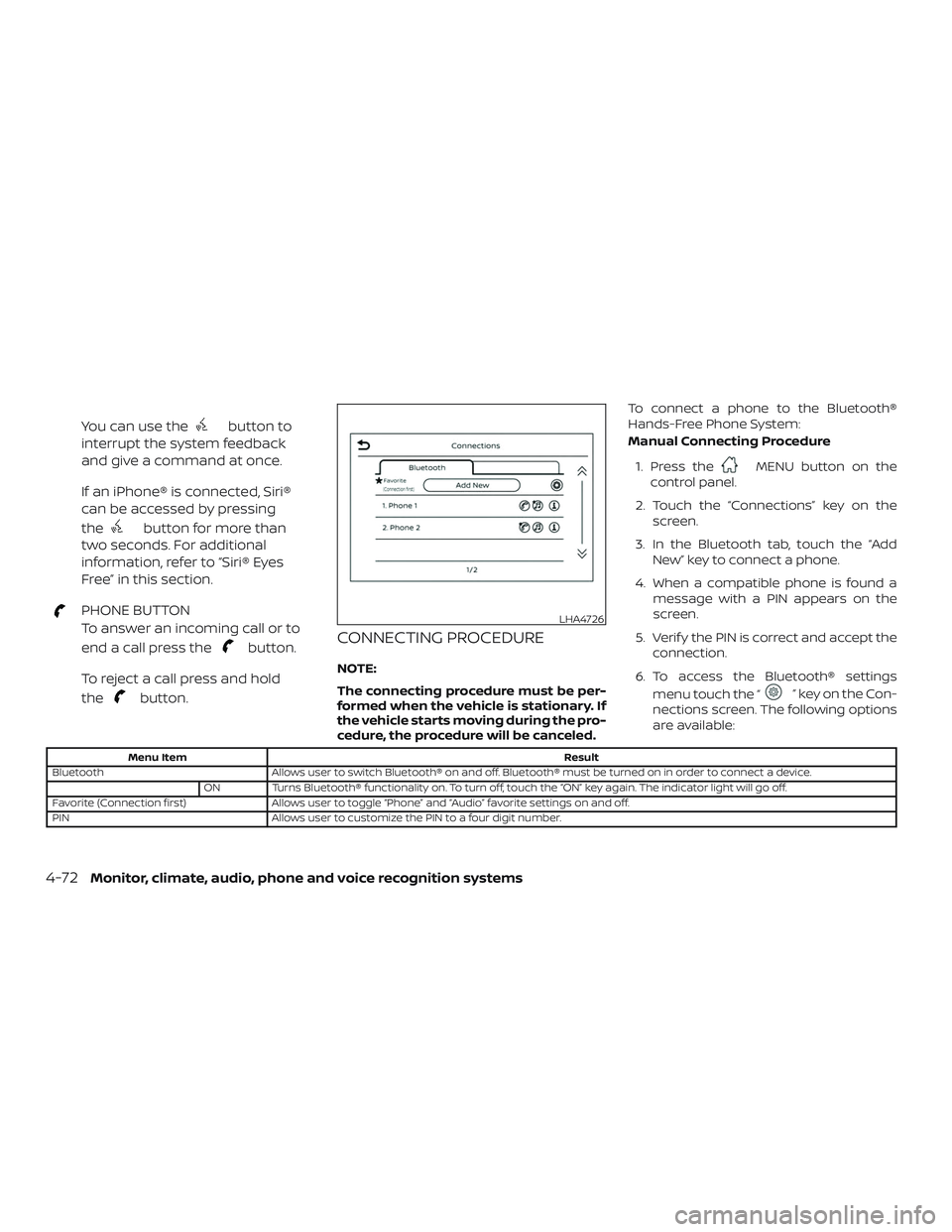
cedure, the procedure will be canceled. To connect a phone to the Bluetooth®
Hands-Free Phone System:
Manual Connecting Procedure
1. Press the
MENU button on the
control panel.
2. Touch the “Connections” key on the screen.
3. In the Bluetooth tab, touch the “Add New” key to connect a phone.
4. When a compatible phone is found a message with a PIN appears on the
screen.
5. Verif y the PIN is correct and accept the connection.
6. To access the Bluetooth® settings menu touch the “
” key on the Con-
nections screen. The following options
are available:
Menu Item Result
Bluetooth Allows user to switch Bluetooth® on and off. Bluetooth® must be turned on in order to connect a device.
ON Turns Bluetooth® functionality on. To turn off, touch the “ON” key again. The indicator light will go off.
Favorite (Connection first) Allows user to toggle “Phone” and “Audio” favorite settings on and off.
PIN Allows user to customize the PIN to a four digit number.
LHA4726
4-72Monitor, climate, audio, phone and voice recognition systems
Page 255 of 444
“Select Phone”
Speak this command to access the Con-
nections menu. For additional information,
refer to “Bluetooth® connections screen” in
this section.
“Add Phone”
Speak this command to access the Con-
nections menu. For additional information,
refer to “Bluetooth® connections screen” in
this section.
“Settings”
Speak this command to access the Sys-
tem Voice settings menu. The system will
exit Voice Recognition mode. Touch one of
the following options on the screen to
change the settings.∙ Beep Only for Opening Prompt By touching the “ON” key, the indicator
light will illuminate, the system voice will
turn off and only a tone will sound when
the Bluetooth® Hands-Free Phone Sys-
tem is activated. To turn the system
voice back on, touch the “ON” key again,
the indicator light will turn off. ∙ Best Match List
When the system doesn’t recognize a
phonebook name or dial number, it will
provide a list of similar sounding results.
To turn this off, touch the “ON” key, the
indicator light will turn off. To turn on,
touch the “ON” key again, the indicator
light will turn on.PHONE DISPLAY SCREEN
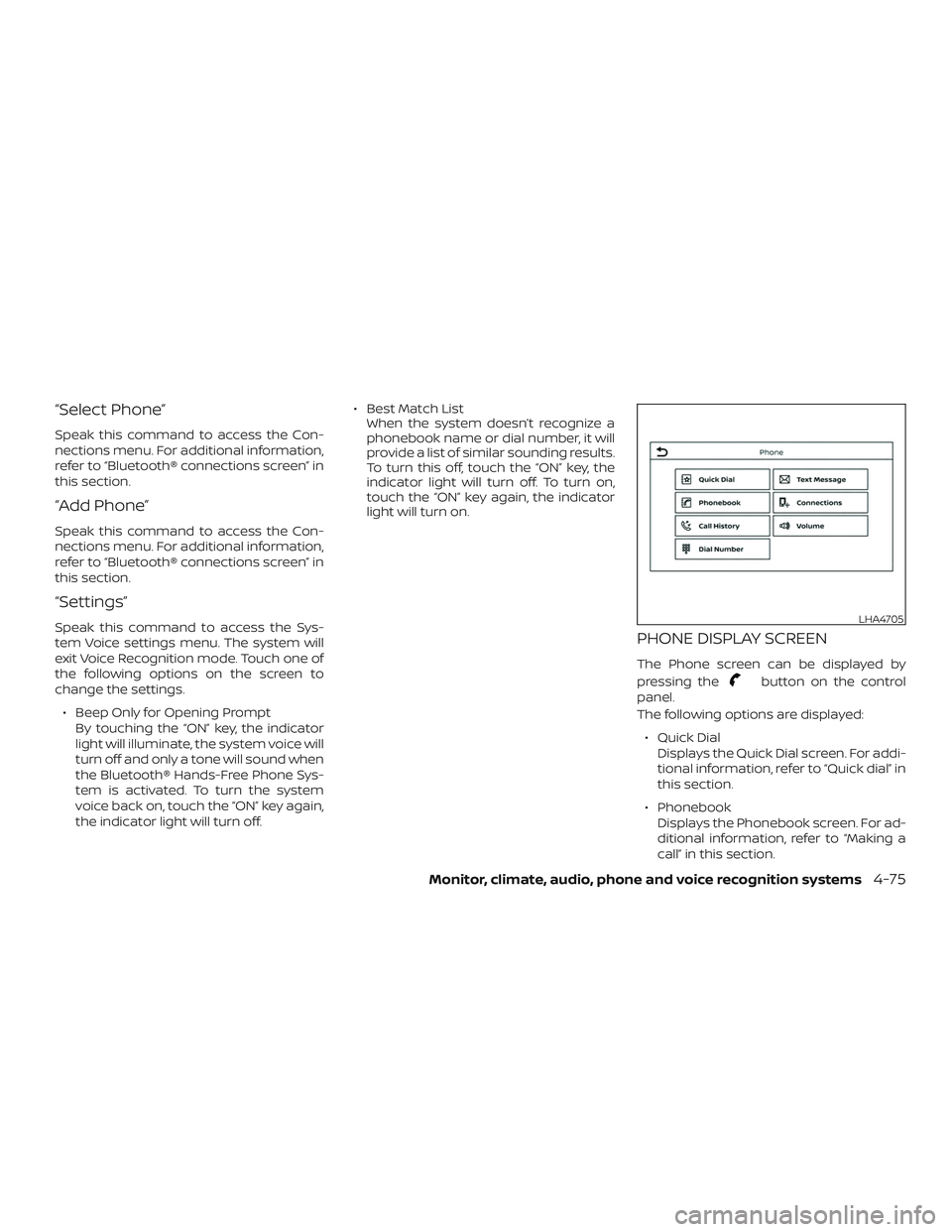
The Phone screen can be displayed by
pressing the
button on the control
panel.
The following options are displayed:
∙ Quick Dial Displays the Quick Dial screen. For addi-
tional information, refer to “Quick dial” in
this section.
∙ Phonebook Displays the Phonebook screen. For ad-
ditional information, refer to “Making a
call” in this section.
LHA4705
Monitor, climate, audio, phone and voice recognition systems4-75
Page 270 of 444
When the system detects a malfunction,
the telltale will flash for approximately one
minute and then remain continuously illu-
minated. This sequence will continue upon
subsequent vehicle start-ups as long as
the malfunction exists. When the malfunc-
tion indicator is illuminated, the system
may not be able to detect or signal low tire
pressure as intended. TPMS malfunctions
may occur for a variety of reasons, includ-
ing the installation of replacement or alter-
nate tires or wheels on the vehicle that
prevent the TPMS from functioning prop-
erly. Always check the TPMS malfunction
telltale af ter replacing one or more tires or
wheels on your vehicle to ensure that the
replacement or alternate tires and wheels
allow the TPMS to continue to function
properly.
Additional information:∙ When replacing a wheel without the TPMS such as a spare tire, the TPMS
does not monitor the tire pressure of
the spare tire.
∙
The TPMS will activate only when the ve-
hicle is driven at speeds above 16 mph
(25 km/h). Also, this system may not de-
tect a sudden drop in tire pressure (for
example, a flat tire while driving).
∙ The low tire pressure warning light does
not automatically turn off when the tire
pressure is adjusted. Af ter the tire is in-
flated to the recommended pressure,
the vehicle must be driven at speeds
above 16 mph (25 km/h) to activate the
TPMS and turn off the low tire pressure
warning light. Use a tire pressure gauge
to check the tire pressure.
∙ The “Tire Pressure Low — Add Air” warn- ing appears each time the ignition
switch is placed in the ON position as
long as the low tire pressure warning
light remains illuminated.
∙ The “Tire Pressure Low — Add Air” warn- ing appears in the vehicle information
display when the low tire pressure
warning light is illuminated and low tire
pressure is detected. The “Tire Pressure
Low — Add Air” warning turns off when
the low tire pressure warning light turns
off.
∙ The “Tire Pressure Low — Add Air” warn- ing does not appear if the low tire pres-
sure warning light illuminates to indi-
cate a TPMS malfunction. ∙ Tire pressure rises and falls depending
on the heat caused by the vehicle’s op-
eration and the outside temperature.
Do not reduce the tire pressure af ter
driving because the tire pressure rises
af ter driving. Low outside temperature
can lower the temperature of the air
inside the tire which can cause a lower
tire inflation pressure. This may cause
the low tire pressure warning light to
illuminate. If the warning light illumi-
nates, check the tire pressure for all four
tires.
∙ The Tire and Loading Information label is located in the driver’s door opening.
∙ You can also check the pressure of all tires (except the spare tire) on the ve-
hicle information display screen. The or-
der of the tire pressure figures dis-
played on the screen corresponds with
the actual order of the tire position.
For additional information, refer to “Low tire
pressure warning light” in the “Instruments
and controls” section and “Tire Pressure
Monitoring System (TPMS)” in the “In case of
emergency” section of this manual.
5-4Starting and driving
Page 271 of 444
WARNING
∙ Radio waves could adversely affectelectric medical equipment. Those
who use a pacemaker should contact
the electric medical equipment
manufacturer for the possible influ-
ences before use.
∙
If the low tire pressure warning light
illuminates while driving, avoid sudden
steering maneuvers or abrupt braking,
reduce vehicle speed, pull off the road
to a safe location and stop the vehicle
as soon as possible. Driving with under-
inflated tires may permanently dam-
age the tires and increase the likeli-
hood of tire failure. Serious vehicle
damage could occur and may lead to
an accident and could result in serious
personal injury. Check the tire pressure
for all four tires. Adjust the tire pressure
to the recommended COLD tire pres-
sure shown on the Tire and Loading In-
formation label to turn the low tire
pressure warning light off. If you have a
flat tire, replace it with a spare tire as
soon as possible. (For additional infor-
mation, refer to “Flat tire” in the “In case
of emergency ” section for changing a
flat tire.)
∙ When replacing a wheel without the TPMS such as the spare tire, when a
spare tire is mounted or a wheel is
replaced, the TPMS will not function
and the low tire pressure warning
light will flash for approximately
1 minute. The light will remain on af ter
1 minute. Have your tires replaced
and/or TPMS system reset as soon as
possible. It is recommended that you
visit a NISSAN dealer for this service.
∙ Replacing tires with those not origi- nally specified by NISSAN could affect
the proper operation of the TPMS.
∙ Do not inject any tire liquid or aerosol tire sealant into the tires, as this may
cause a malfunction of the tire pres-
sure sensors.CAUTION
∙ The TPMS may not function properlywhen the wheels are equipped with
tire chains or the wheels are buried in
snow.
∙ Do not place metalized film or any metal parts (antenna, etc.) on the win-
dows. This may cause poor reception
of the signals from the tire pressure
sensors, and the TPMS will not func-
tion properly.
Some devices and transmitters may tem-
porarily interfere with the operation of the
TPMS and cause the low tire pressure
warning light to illuminate.
Some examples are: ∙ Facilities or electric devices using simi- lar radio frequencies are near the ve-
hicle.
∙ If a transmitter set to similar frequen- cies is being used in or near the vehicle.
∙ If a computer (or similar equipment) or a DC/AC converter is being used in or
near the vehicle.
Starting and driving5-5