2019 MERCEDES-BENZ GLS SUV stop start
[x] Cancel search: stop startPage 259 of 729
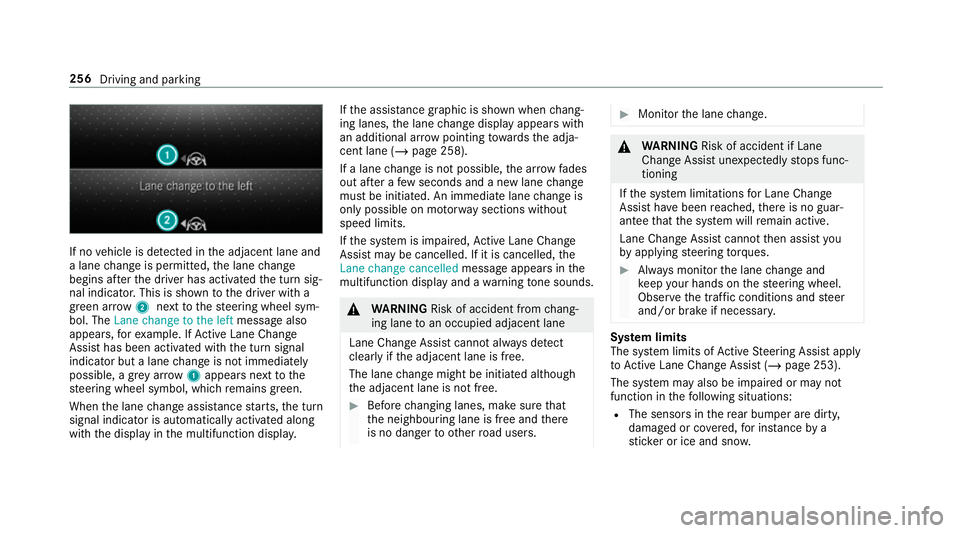
If no
vehicle is de tected in the adjacent lane and
a lane change is permit ted, the lane change
begins af terth e driver has activated the turn sig‐
nal indicator. This is shown tothe driver with a
green ar row 2 next tothesteering wheel sym‐
bol. The Lane change to the left message also
appears, forex ample. If Active Lane Change
Assi sthas been activated with the turn signal
indicator but a lane change is not immediately
possible, a gr eyarrow 1appears next tothe
st eering wheel symbol, which remains green.
When the lane change assis tance starts, the turn
signal indicator is automatically activated along
with the display in the multifunction displa y.If
th e assis tance graphic is shown when chang‐
ing lanes, the lane change display appears with
an additional ar rowpointing towa rdsth e adja‐
cent lane (/ page 258).
If a lane change is not possible, the ar row fades
out af ter a few seconds and a new lane change
must be initiated. An immediate lane change is
on lypossible on mo torw ay sections without
speed limits.
If th e sy stem is impaired, Active Lane Change
Assi stmay be cancelled. If it is cancelled, the
Lane change cancelled message appears inthe
multifunction display and a warning tone sounds. &
WARNING Risk of accident from chang‐
ing lane toan occupied adjacent lane
Lane Chan geAssi stcannot al ways detect
clearly if the adjacent lane is free.
The lane change might be initiated although
th e adjacent lane is not free. #
Before changing lanes, make sure that
th e neighbouring lane is free and there
is no danger to otherroad users. #
Monitor the lane change. &
WARNING Risk of accident if Lane
Change Assi stunexpectedly stops func‐
tioning
If th e sy stem limitations for Lane Change
Assist ha vebeen reached, there is no guar‐
antee that the sy stem will remain active.
Lane Change Assist cannot then assist you
by applying steering torques. #
Alw ays monitor the lane change and
ke ep your hands on thesteering wheel.
Obser vethe tra ffic conditions and steer
and/or brake if necessar y. Sy
stem limits
The sy stem limits of Active Steering Assist apply
to Active Lane Change Assi st (/ page 253).
The sy stem may also be impaired or may not
function in thefo llowing situations:
R The sensors in there ar bumper are dirty,
damaged or co vered, for ins tance by a
st icke r or ice and sno w.256
Driving and parking
Page 263 of 729
pedal. Ne
ver attem pttolea vetheve hi‐
cle if it is being held byHill Start Assist. HOLD function
HOLD function
The HOLD function holds
theve hicle at a stand‐
st ill without requ iring youto depress the brake
pedal, e.g. while waiting in traf fic.
The HOLD function is only an aid. The responsi‐
bility forth eve hicle safely standing still remains
with the driver.
Sy stem limitations
The HOLD function is only intended toprov ide
assis tance when driving and is not a su fficient
means of safeguarding theve hicle against rolling
aw ay when stationar y.
R The incline must not be greater than 30%. Ac
tivating/deactivating the HOLD function &
WARNING Risk of an accident due tothe
HOLD function being activated when you
lea vetheve hicle
If yo u lea vetheve hicle while only the HOLD
function is braking theve hicle, theve hicle
can rollaw ay inthefo llowing situations:
R Ifth ere is a malfunction in the sy stem or
in the po wer supply.
R Ifth e HOLD function is deactivated by
depressing the accelerator pedal or brake
pedal, e.g. byave hicle occupant. #
Alw ays deactivate the HOLD function
and secure theve hicle against rolling
aw ay before leaving theve hicle. *
NO
TEDama gefrom auto matic braking If one of
thefo llowing functions is switched
on, theve hicle brakes automatically in cer‐
ta in situations:
R Active Brake Assi st
R Active Dis tance Assi stDISTRONIC
R HOLD function
R Active Parking Assist
To avo id damage totheve hicle, deactivate
th ese sy stems in thefo llowing or similar sit‐
uations: #
During towing #
In a car wash Re
quirements:
R The vehicle is stationar y.
R The driver's door is closed or the seat belt on
th e driver's side is fastened.
R The engine is running or has been au tomati‐
cally switched off bythe ECO start/ stop
function. 260
Driving and parking
Page 282 of 729
R
there is no trailer coupled
R theve hicle is outdoors
R the de tected la tera l inclination of theve hicle
must not exceed appr ox.15 °
R the sy stem is within its operating temp era‐
ture
R the on-board voltage is suf ficiently high
Multimedia sy stem:
4 © 5
Settings 5
Assistance
5 Offroad Assist
Re covery mode
Re covery mode assi ststh e driver when pulling
aw ay on rough terrain, such as sand or sn ow.#
Select Free driving mode. #
Select Start.
Re covery mode is activated. #
Select Stoptostop reco very mode.
Re covery mode is auto maticallydeactivated in
th efo llowing situations:
R you are actually tr avelling fasterthan
15 km/h R
afte r a running time of 30 seconds
R it is de tected that an object has hit the
underbody of theve hicle hard
R not all conditions are met
% Further information on reco very mode
(/ page 274).
Individual wheel con trol
Individual wheel control enables theve hicle le vel
to be set separately for each wheel. #
Select Individual wheel control. #
Set theve hicle le velfo rth e desired wheel.
% You can also use theto uch displ aytoset the
le ve lfo r two or more wheels at the same
time. #
Select Resettoset all wheels tothe default
setting.
Individual wheel control is automatically deacti‐
va ted in thefo llowing situations:
R you are tra velling fasterthan 15 km/h
R it is de tected that an object has hit the
underbody of theve hicle hard R
not all conditions are met
% Further information on individual wheel con‐
trol (/ page275). Pa
rking Assist PARKTRONIC Fu
nction of Parking Assist PARKTRONIC
Pa rking Assist PARKTRONIC is an electronic
parking assi stance sy stem with ultrasound. It
monitors the area around your vehicle using six
sensors on the front bumper and six sensors on
th ere ar bumper. Parking Assist PARKTRONIC
sho wsyouth e dis tance between your vehicle
and a de tected obs tacle visually and audibly.
Pa rking Assist PARKTRONIC is on lyan aid. It is
not a substitute foryo ur attention tothe sur‐
ro undings. The responsibility for safe manoeu‐
vring and parking remains with you. Make sure
th at there are no persons, animals or objects in
th e manoeuvring area while manoeuvring and
parking in/exiting parking spaces.
In thest andard setting, an intermit tent wa rning
to ne sounds from a di stance of appr oximately
0.3 m toan obs tacle in front and appr oximately Driving and parking
279
Page 299 of 729
#
Con firm selected parking space 4.
% The turn signal indicator is switched on auto‐
matically when the parking procedure
begins. The turn signal indicator is switched
off automatically when you swit chtoh .
Yo u are responsible for selecting the turn signal
in accordance with the traf fic conditions. If nec‐
essar y,select the turn signal accordingly. &
WARNING Risk of accident due tovehi‐
cle swinging out while parking or pulling
out of a parking space
While parking or exiting a parking space, the
ve hicle swings out and can drive onto areas
of the oncoming lane.
This could cause youto collide wi thobjects
or other road users. #
Pay attention toobjects and other road
users. #
Where necessar y,stop theve hicle or
cancel the parking procedure with
Ac tive Parking Assist. #
If,forex ample, thePlease engage reverse
gear message appears in the media display:
select the cor responding transmission posi‐
tion.
The vehicle drives into the selected parking
space.
On completion of the parking procedure, the
Parking Assist finished, take control of vehicle
display message appears. Further manoeuvring
may still be necessar y. #
After completion of the parking procedure,
safeguard theve hicle against rolling away.
When requ ired bylegal requirements or local
conditions: turn the wheels towa rdsth eke rb.
% You can stop theve hicle and change the
transmission position du ring the parking pro‐
cedure. The sy stem then calculates a new
ve hicle path. The parking procedure can
th en be continued. If no new vehicle path is
av ailable, the transmission position will be
ch anged again. If theve hicle has not yet
re ached the parking space, the parking pro‐
cedure will be cancelled, should a gear be
ch anged. Exiting a pa
rking space with Active Parking
Assist
Re quirements:
R The vehicle has been par ked with Active
Pa rking Assist.
Please no tethat you are responsible forth eve hi‐
cle and sur roundings during the entire parking
procedure. #
Start theve hicle. 296
Driving and parking
Page 327 of 729
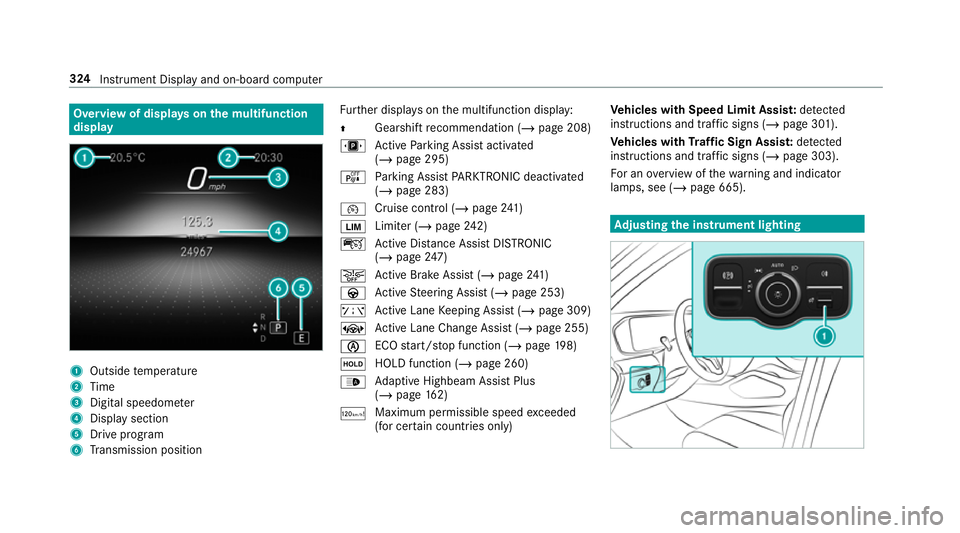
Overview of displa
yson the multifunction
display 1
Outside temp erature
2 Time
3 Digital speedome ter
4 Displ aysection
5 Drive program
6 Transmission position Fu
rther displa yson the multifunction display:
Z Gearshift
recommendation (/ page 208)
u Active Parking Assist activated
(/ page 295)
é Parking Assist PARKTRONIC deacti vated
( / page 283)
¯ Cruise control (/
page241)
È Limi
ter (/ page242)
ç Active Dis tance Assi stDISTRONIC
(/ page 247)
æ Ac
tive Brake Assi st (/ page 241)
à Active Steering Assist (/ page 253)
ê Active Lane Keeping Assist (/ page 309)
± Active Lane Change Assi st (/ page 255)
è ECO
start/ stop function (/ page198)
ë HOLD fu
nction (/ page 260)
_ Ad
aptive Highbeam Assist Plus
(/ page 162)
ð Ma
ximum pe rmissible speed exceeded
(for cer tain countries only) Ve
hicles with Speed Limit Assis t:de tected
instructions and traf fic signs (/ page 301).
Ve hicles with Traf fic Sign Assis t:de tected
instructions and traf fic signs (/ page 303).
Fo r an overview of thewa rning and indicator
lamps, see (/ page 665). Ad
justing the in stru ment lighting 324
Instrument Displ ayand on-board computer
Page 333 of 729
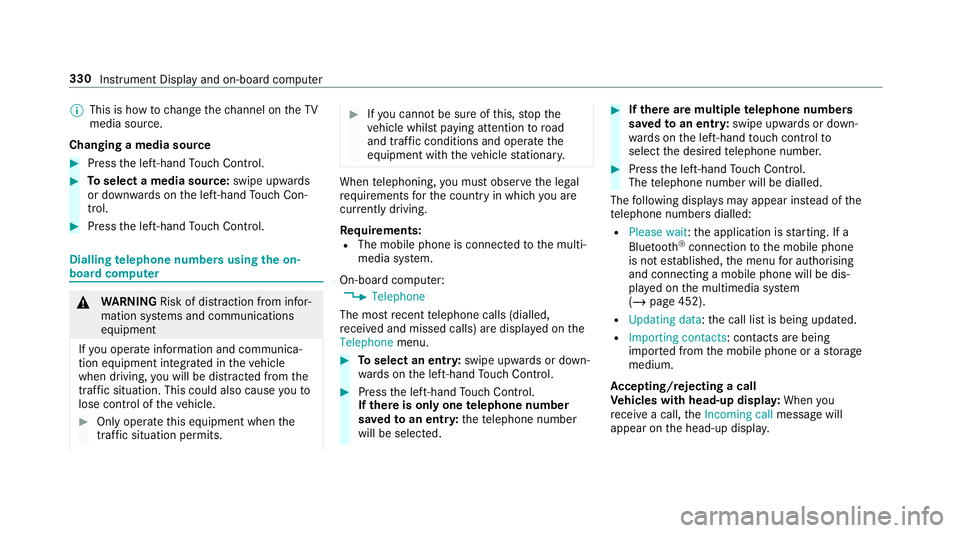
%
This is how tochange thech annel on theTV
media source.
Changing a media source #
Press the left-hand Touch Control. #
Toselect a media source: swipe upwards
or down wards on the left-hand Touch Con‐
trol. #
Press the left-hand Touch Control. Dialling
telephone numbers using the on-
board compu ter &
WARNING Risk of di stra ction from infor‐
mation sy stems and communications
equipment
If yo u operate information and communica‐
tion equipment integ rated in theve hicle
when driving, you will be distracted from the
traf fic situation. This could also cause youto
lose control of theve hicle. #
Only operate this equipment when the
traf fic situation permits. #
Ifyo u cannot be sure of this, stop the
ve hicle whilst paying attention toroad
and traf fic conditions and ope rate the
equipment with theve hicle stationar y. When
telephoning, you must obse rveth e legal
re qu irements forth e count ryin which you are
cur rently driving.
Re quirements:
R The mobile phone is connec tedto the multi‐
media sy stem.
On-board computer: 4 Telephone
The most recent telephone calls (dialled,
re cei ved and missed calls) are displa yed on the
Telephone menu. #
Toselect an entr y:swipe upwards or down‐
wa rds on the left-hand Touch Control. #
Press the left-hand Touch Control.
If th ere is only one telephone number
sa ve dto an entr y:thete lephone number
will be selec ted. #
Ifth ere are multiple telephone numbers
sa ve dto an entr y:swipe upwards or down‐
wa rds on the left-hand touch cont rolto
select the desired telephone number. #
Press the left-hand Touch Control.
The telephone number will be dialled.
The following displa ysmay appear ins tead of the
te lephone numbers dialled:
R Please wait :th e application is starting. If a
Blue tooth ®
connection tothe mobile phone
is not es tablished, the menu for auth orising
and connecting a mobile phone will be dis‐
pla yed on the multimedia sy stem
(/ page 452).
R Updating data: the call list is being updated.
R Importing contacts : contacts are being
impor ted from the mobile phone or a storage
medium.
Ac cepting/rejecting a call
Ve hicles with head-up displa y:When you
re cei vea call, theIncoming call message will
appear on the head-up displa y.330
Instrument Display and on-board computer
Page 336 of 729
Note
s on operating saf ety &
WARNING Risk of di stra ction from infor‐
mation sy stems and communications
equipment
If yo u operate information and communica‐
tion equipment integ rated in theve hicle
when driving, you will be distracted from the
traf fic situation. This could also cause youto
lose control of theve hicle. #
Only operate this equipment when the
traf fic situation permits. #
Ifyo u cannot be sure of this, stop the
ve hicle whilst paying attention toroad
and traf fic conditions and ope rate the
equipment with theve hicle stationar y. &
WARNING Risk of an accident from
ope rating mobile communication equip‐
ment while theve hicle is in motion
Mobile communications devices distract the
driver from the traf fic situation. This could also cause
the driver tolose control of the
ve hicle. #
Asthe driver, only operate mobile com‐
munications devices when theve hicle is
st ationar y. #
As a vehicle occupant, only use mobile
communications devices in the areas
intended forth is purpose, e.g. in the
re ar passenger compartment. Fo
ryo ur ow n sa fety, al ways obser vethefo llow‐
ing points when operating mobile communica‐
tions equipment and especially your voice con‐
trol sy stem:
R Obser vethe legal requ irements forth e coun‐
try in which you are driving.
R While driving, on ly operate mobile communi‐
cations equipment and your voice control
sy stem when the tra ffic conditions permit it.
Yo u may otherwise be distracted from the
traf fic conditions and cause an accident,
inju ring yourself and others.
R Ifyo u use thevo ice control sy stem in an
emer gency your voice can change and your te
lephone call, e.g. an emer gency call, can
th ereby be unnecessarily dela yed.
R Familiarise yourself with thevo ice control
sy stem functions before starting the journe y. Operation
Overview of operating the multifunction
st
eering wheel LINGU
ATRO NIC is operational appr oximately
th irty seconds af terth e ignition is switched on. LINGU
ATRO NIC 333
Page 372 of 729
R
Favoured drive program
These settings are sa ved under the name you
wish when setting up a theme (/ page 369). On
th e next mo torw ay jou rney you can select this
th eme and thereby restore your settings.
Content of a theme
Depending on vehicle equipment thefo llowing
settings can be sa ved in a theme:
R Setting of the Instrument Display
(/ page 322)
R Setting of the Head-up Display (/ page 331)
R Setting of the ambient lighting (/ page164)
R Active audio sou rce, e.g. radio or USB
R Starting sc reen forth e media display
R Visual style (/ page 388)
R DYNA MIC SELECT drive program
(/ page 204)
R Eco start/ stop setting (/ page 200)
R Navigation sy stem settings
% Atheme conta insthe cur rently acti veset‐
tings in theve hicle. Calling up
themes
Multimedia sy stem:
4 © #
When the home screen is shown, swipe up
until THEMES appears. #
Select a theme.
Creating new themes
Re quirements:
R The settings which are tobe sa ved in the
th eme are active.
The overview sho wsthe settings which can
be sa ved in a theme (/ page 368).
Multimedia sy stem:
4 © 5
THEMES #
Select WSet theme .
The settings which are sa ved in theth eme
are shown. #
Select Continue r. #
Select additional settings which are tobe
sa ve d in theth eme. R
Select Audio, tosave the active audio set‐
tings in theth eme.
R Select Navigation (Navigation), tosave
th e active navigation settings in the
th eme. #
Select Continue r. #
Select an entry screen. #
Select Continue r. #
Select an image. #
Enter the names into the entry field and con‐
fi rm with a. #
Tosave ath eme: select Save.
When the maximum number that can be
sa ve d is reached: #
Select afromthe prom pt. #
Select a theme that should be overwritten.
The settings which are sa ved in theth eme
are shown. #
Select Continue r. #
Select additional settings which are tobe
sa ve d in theth eme. MBUX multimedia sy
stem 369