2019 MERCEDES-BENZ GLE COUPE change time
[x] Cancel search: change timePage 315 of 697
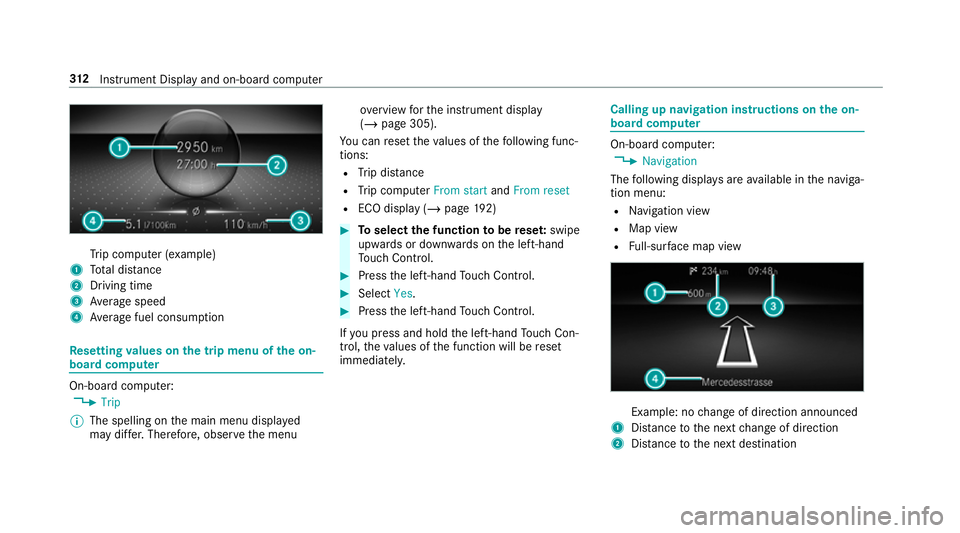
Tr
ip computer (e xamp le)
1 Total dis tance
2 Driving time
3 Average speed
4 Average fuel consum ption Re
setting values on the trip menu of the on-
board compu terOn-board computer:
4 Trip
% The spelling on the main menu displa yed
may dif fer. Therefore, obser vethe menu ove
rview forth e instrument display
(/ page 305).
Yo u can reset theva lues of thefo llowing func‐
tions:
R Trip dis tance
R Trip computer From startandFrom reset
R ECO display (/ page192) #
Toselect the function tobe rese t:swipe
upwards or down wards on the left-hand
To uch Control. #
Press the left-hand Touch Control. #
Select Yes. #
Press the left-hand Touch Control.
If yo u press and hold the left-hand Touch Con‐
trol, theva lues of the function will be reset
immediatel y. Calling up navigation instructions on
the on-
board compu ter On-board computer:
4 Navigation
The following displa ysare available in the naviga‐
tion menu:
R Navigation view
R Map view
R Full-sur face map view Example: no
change of direction announced
1 Distance tothe next change of direction
2 Distance tothe next destination 312
Instrument Display and on-board computer
Page 316 of 697
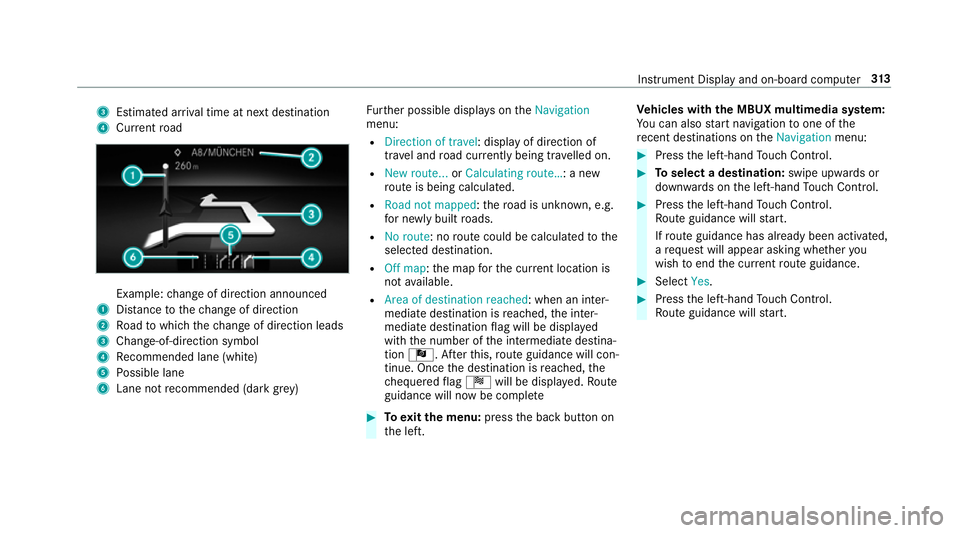
3
Estima ted ar riva l time at next destination
4 Current road Example:
change of direction announced
1 Distance tothech ange of direction
2 Road towhich thech ange of direction leads
3 Chan ge-of-direction symbol
4 Recommended lane (white)
5 Possible lane
6 Lane not recommended (da rkgrey) Fu
rther possible displa yson theNavigation
menu:
R Direction of travel: display of direction of
tra vel and road cur rently being tr avelled on.
R New route... orCalculating route… : a new
ro ute is being calculated.
R Road not mapped :th ero ad is unknown, e.g.
fo r newly built roads.
R No route: no route could be calculated tothe
selected destination.
R Off map: the map forth e cur rent location is
not available.
R Area of destination reached: when an inter‐
mediate destination is reached, the inter‐
mediate destination flag will be displa yed
with the number of the intermediate destina‐
tion Î. Af terth is, route guidance will con‐
tinue. Once the destination is reached, the
ch equered flag Í will be displa yed. Ro ute
guidance will now be co mplete #
Toexitth e menu: pressthe back button on
th e left. Ve
hicles with the MBUX multimedia sy stem:
Yo u can also start navigation toone of the
re cent destinations on theNavigation menu: #
Press the left-hand Touch Control. #
Toselect a destination: swipe upwards or
down wards on the left-hand Touch Control. #
Press the left-hand Touch Control.
Ro ute guidance will start.
If ro ute guidance has already been activated,
a re qu est will appear asking whe ther you
wish toend the cur rent route guidance. #
Select Yes. #
Press the left-hand Touch Control.
Ro ute guidance will start. In
stru ment Display and on-board computer 313
Page 323 of 697
R
Ifyo u use thevo ice control sy stem in an
emer gency your voice can change and your
te lephone call, e.g. an emer gency call, can
th ereby be unnecessarily dela yed.
R Familiarise yourself with thevo ice control
sy stem functions before starting the journe y.
R Comply with the loading guidelines
(/ page 122). Operation
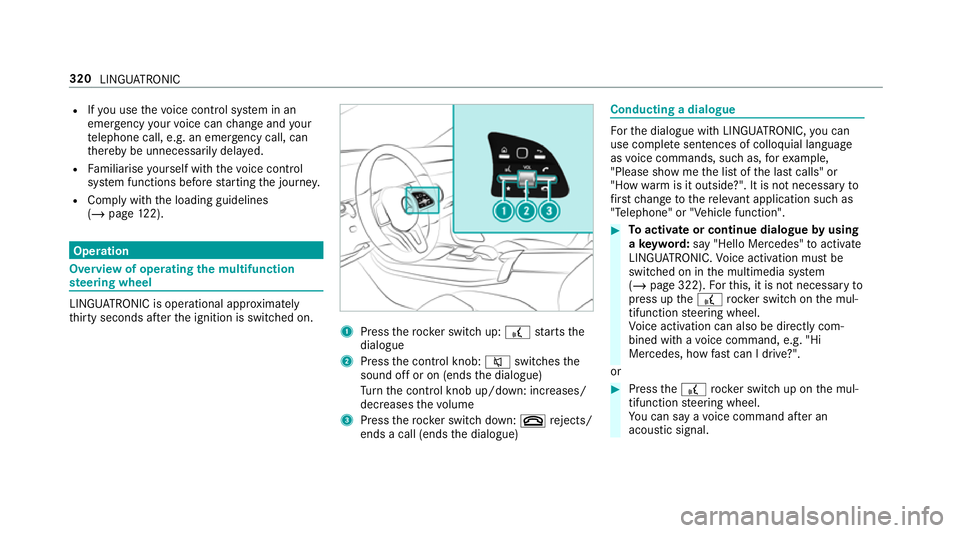
Overview of operating
the multifunction
st eering wheel LINGU
ATRO NIC is operational appr oximately
th irty seconds af terth e ignition is switched on. 1
Press therock er switch up: £starts the
dialogue
2 Press the control knob: 8switches the
sound off or on (ends the dialogue)
Tu rn the control knob up/down: increases/
decreases thevo lume
3 Press therock er switch down: ~rejects/
ends a call (ends the dialogue) Conducting a dialogue
Fo
rth e dialogue with LINGU ATRO NIC, you can
use co mplete sentences of colloquial language
as voice commands, such as, forex ample,
"Please show me the list of the last calls" or
"How warm is it outside?". It is not necessary to
fi rs tch ange tothere leva nt application su chas
"Telephone" or "Vehicle function". #
Toactivate or continue dialogue byusing
a ke yword: say "Hello Mercedes" toactivate
LINGU ATRO NIC. Voice activation must be
switched on in the multimedia sy stem
(/ page 322). Forth is, it is not necessary to
press up the£ rock er switch on the mul‐
tifunction steering wheel.
Vo ice activation can also be directly com‐
bined with a voice command, e.g. "Hi
Mercedes, how fastcan I drive?".
or #
Press the£ rocker switch up on the mul‐
tifunction steering wheel.
Yo u can say a voice command af ter an
acou stic signal. 320
LINGU ATRO NIC
Page 324 of 697
#
Tocor rect an ent ry:say theCorrection
vo ice command. #
Toselect an entry from the selection lis t:
say the line number or the conte nts. #
Tobrows eth e selection lis t:say theNext
or Back voice command. #
Tointer rupt the dialogue: saythePause
vo ice command.
The dialogue can be continued with the
"Hello Mercedes" voice command or by
pressing up the£ rock er switch on the
multifunction steering wheel. #
Tojump tothe preceding dialogue: saythe
Back voice command. #
Tojump back totheto p dialogue le vel:
say theHome voice command. #
Tocancel the dialogue: saytheClose voice
command or press the8 or~ button
on the multifunction steering wheel. #
Tointer rupt avo ice output: speak inthe
middle of a voice dialogue when the sy stem
is still answering.
The voice output is shor tened and the con‐
clusion is reached more quickl y.
% The Voice barge-in option must be switched
on in the multimedia sy stem forth is
(/ page 322). Overview of operable functions in LINGUA‐
TRONIC
Yo
u can use the LINGU ATRO NIC voice control
sy stem tooperate thefo llowing functions
depending on theve hicle equipment:
R Telephone
R Text messa geand e-mail
R Navigation
R Address book
R Radio
R Media
R Vehicle functions
R Weather Fu
ll functionality is only available foryo u with
activation of online voice control (/ page 322). Note
s onthe language setting Yo
u can change the language of LINGU ATRO NIC
via the sy stem language settings. If the set sys‐
te m language is not suppor tedby LINGUA‐
TRONIC, English will be selected.
LINGU ATRO NIC is available in thefo llowing lan‐
guages:
R German
R English
R French
R Italian
R Dutch
R Polish
R Portuguese
R Russian
R Swedish
R Spanish
R Czech LINGU
ATRO NIC 321
Page 372 of 697
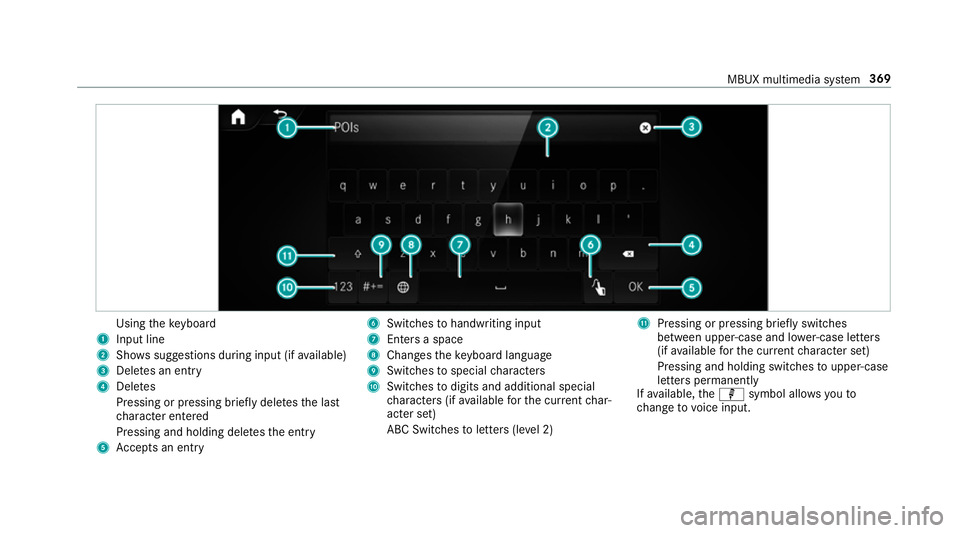
Using
theke yboard
1 Input line
2 Shows suggestions during input (if available)
3 Dele tes an entry
4 Dele tes
Pressing or pressing brief lydele testh e last
ch aracter entered
Pressing and holding dele testh e entry
5 Accepts an entry 6
Switches tohandwriting input
7 Enters a space
8 Changes theke yboard language
9 Switches tospecial characters
A Swit ches todigits and additional special
ch aracters (if available forth e cur rent char‐
acter set)
ABC Swit ches toletters (le vel 2) B
Pressing or pressing brief lyswitches
between upper-case and lo wer-case letters
(if available forth e cur rent character set)
Pressing and holding swit ches toupper-case
letters permanently
If av ailable, thep symbol allo wsyouto
ch ange tovoice input. MBUX multimedia sy
stem 369
Page 375 of 697
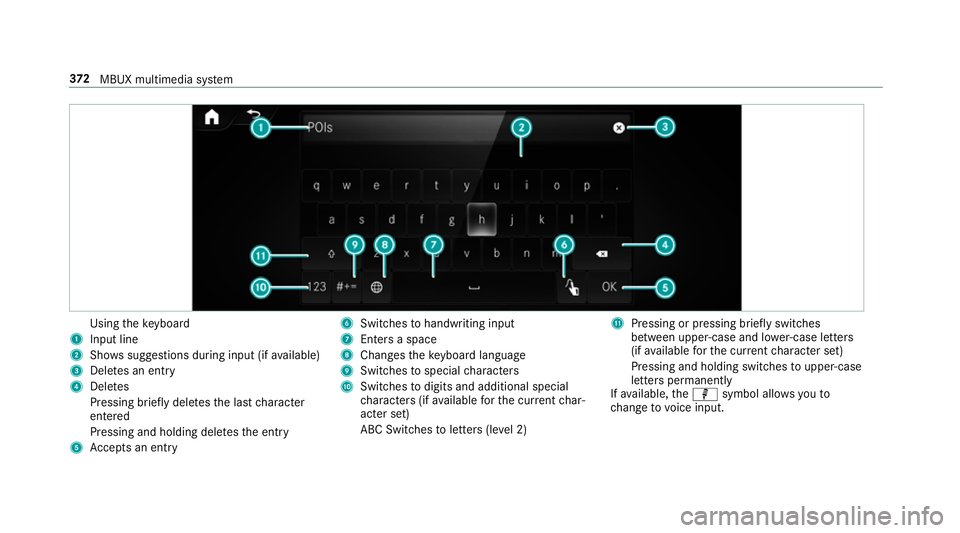
Using
theke yboard
1 Input line
2 Shows suggestions during input (if available)
3 Dele tes an entry
4 Dele tes
Pressing brief lydele testh e last character
entered
Pressing and holding dele testh e entry
5 Accepts an entry 6
Switches tohandwriting input
7 Enters a space
8 Changes theke yboard language
9 Switches tospecial characters
A Swit ches todigits and additional special
ch aracters (if available forth e cur rent char‐
acter set)
ABC Swit ches toletters (le vel 2) B
Pressing or pressing brief lyswitches
between upper-case and lo wer-case letters
(if available forth e cur rent character set)
Pressing and holding swit ches toupper-case
letters permanently
If av ailable, thep symbol allo wsyouto
ch ange tovoice input. 372
MBUX multimedia sy stem
Page 377 of 697
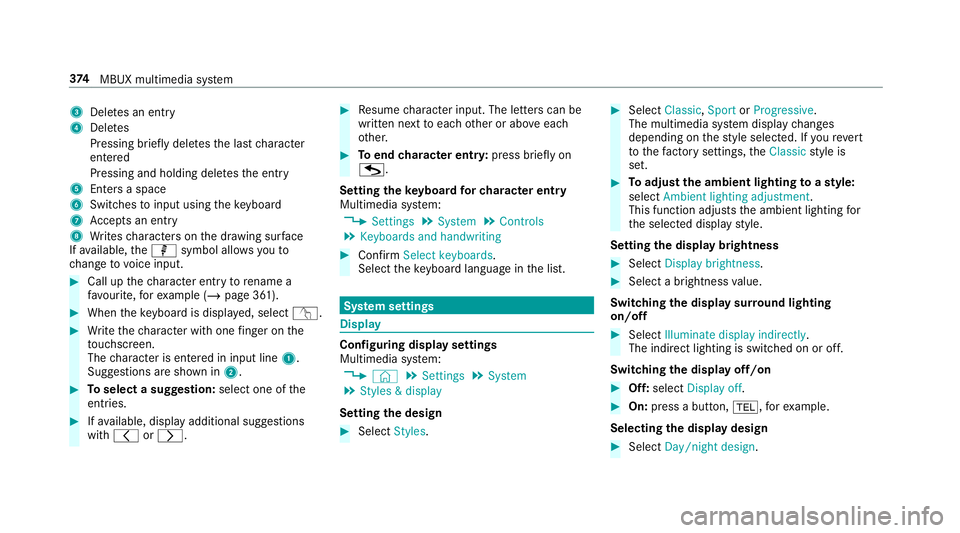
3
Deletes an entry
4 Deletes
Pressing brief lydele testh e last character
entered
Pressing and holding dele testh e entry
5 Enters a space
6 Switches toinput using theke yboard
7 Accepts an entry
8 Writes characters on the dr awing sur face
If av ailable, thep symbol allo wsyouto
ch ange tovoice input. #
Call up thech aracter ent ryto rename a
fa vo urite, forex ample (/ page 361). #
When theke yboard is displa yed, select v. #
Write thech aracter with one finger on the
to uchsc reen.
The character is entered in input line 1.
Suggestions are shown in 2.#
Toselect a suggestion: select one ofthe
entri es. #
Ifav ailable, display additional suggestions
with q orr. #
Resume character input. The letters can be
written next toeach other or abo veeach
ot her. #
Toend character entr y:press briefly on
G.
Setting theke yboard forch aracter entry
Multimedia sy stem:
4 Settings 5
System 5
Controls
5 Keyboards and handwriting #
Confirm Select keyboards.
Select theke yboard language in the list. Sy
stem settings Display
Configuring display settings
Multimedia sy
stem:
4 © 5
Settings 5
System
5 Styles & display
Setting the design #
Select Styles. #
Select Classic ,Sport orProgressive .
The multimedia sy stem display changes
depending on thest yle selected. If youre ve rt
to thefa ctory settings, theClassic style is
set. #
Toadjust the ambient lighting toastyl e:
select Ambient lighting adjustment.
This function adjusts the ambient lighting for
th e selected display style.
Setting the display brightness #
Select Display brightness . #
Select a brightness value.
Switching the display sur round lighting
on/off #
Select Illuminate display indirectly .
The indirect lighting is switched on or off.
Switching the display off/on #
Off: select Display off . #
On: press a button, %,forex ample.
Selecting the display design #
Select Day/night design .374
MBUX multimedia sy stem
Page 384 of 697
R
The vehicle is stationar y.
R The ignition is switched on.
R A USB device is connected.
Multimedia sy stem:
4 © 5
Settings 5
System
5 System backup #
Select Import data orExport data.
Importing #
Select a data storage medium.
A prom ptappears asking whe ther youre ally
wish to overwrite the cur rent da ta. If da ta
originates from ano ther vehicle, this is recog‐
nised du ring da tareading. #
Con firm the prom pt.
The files are impor ted. The multimedia sy stem is
re star ted once the data has been impor ted.
% Current vehicle settings can be edited af ter
th e import.
Exporting
If PIN pr otection is activated, your PIN is reques‐
te d. #
Ente rth efo ur-digit PIN. #
Select a data storage medium.
A prom ptappears asking whe ther youre ally
wish tocar ryout theex port. #
Confirm the prom pt.
The data is expor ted. The data export may
ta ke several minutes.
% After successful export, the data is sa ved in
th e "MyMercedesBac kup" directory which
can be found on thestorage medium. Ac
tivating/deactivating PIN pr otection Re
quirements:
R Tounlo ckthe PIN: there is an Internet con‐
nection.
R A Mercedes me account exists at http://
www.me rcedes.me.
R An individual user profile is active
(/ page 355). Multimedia sy
stem:
4 © 5
Settings 5
System
5 PIN protection
Setting the PIN #
Select Set PIN. #
Enter a four-digit PIN. #
Enterth efo ur-digit PIN again.
If bo thPINs match, PIN pr otection is active.
Changing the PIN #
Select Change settings. #
Enterth e cur rent PIN. #
Select Change PIN . #
Set a new PIN.
Ac tivating PIN pr otection for data export #
Select Protect data export .
Ac tivate or deacti vate the function.
Un blocking the PIN via the Mercedes me por‐
tal
If th e PIN has been entered incor rectly three
times, the PIN will be bloc ked. You can ha ve a MBUX multimedia sy
stem 381