2019 MERCEDES-BENZ GLC SUV service
[x] Cancel search: servicePage 287 of 673
R
Limiter (/ page 223)
R Active Dis tance Assi stDISTRONIC
(/ page 228)
* NO
TEEngine damage due toexc essively
high engine speeds The engine will be damaged if
you drive with
th e engine in theov errevving range. #
Do not drive wi th the engine in theove r‐
re vving range. The fuel supply will be inter
rupted toprotect the
engine when there d mark on there v counter
(o ve rrev ving range) is reached.
During no rmal operating conditions, the coolant
te mp erature display 4may rise to120 °C. &
WARNING Danger of bu rns when open‐
ing the bonn et
If yo u open the engine bonn etwhen the
engine has overheated or during a fire inthe
engine compartment, you could come into
contact with hot gases or other escaping
operating fluids. #
Before opening the bonn et, allow the
engine tocool down. #
Intheeve nt of a fire inthe engine com‐
partment, keep the engine bonn et
closed and call thefire service. Ve
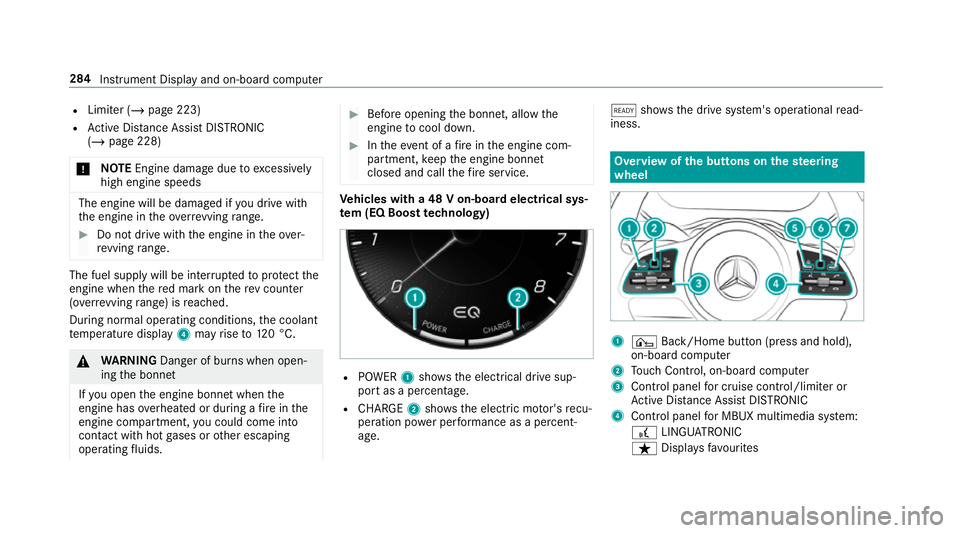
hicles with a 48 V on-board electrical sys‐
te m (EQ Boo sttech nology) R
POWER 1shows th e electrical drive sup‐
port as a percentage.
R CHARGE 2showsthe electric mo tor's recu‐
peration po wer per form ance as a percent‐
age. õ
showsthe drive sy stem's operational read‐
iness. Overview of
the but tons on thest eering
wheel 1
¤ Back/Home button (press and hold),
on-board computer
2 Touch Control, on-board co mputer
3 Control panel for cruise control/limiter or
Ac tive Dis tance Assi stDISTRONIC
4 Control panel for MBUX multimedia sy stem:
£ LINGU ATRO NIC
ß Displa ysfavo urites 284
Instru ment Display and on-board computer
Page 288 of 673
VO
L: control knob, adjusts thevo lume or
switches the sound off 8(press)
6 Makes/accepts a call
~ Rejects/ends a call
5 ò Calls up the home screen
6 Touch Control multimedia sy stem
7 % Back button Operating
the on-boa rdcompu ter
Mercedes-AMG vehicles: observeth e no tes in
th e Supplement. Otherwise, you may failto rec‐
ognise dangers. &
WARNING Risk of di stra ction from infor‐
mation sy stems and communications
equipment
If yo u operate information and communica‐
tion equipment integ rated in theve hicle
when driving, you will be distracted from the
traf fic situation. This could also cause youto
lose control of theve hicle. #
Only operate this equipment when the
traf fic situation permits. #
Ifyo u cannot be sure of this, stop the
ve hicle whilst paying attention toroad
and traf fic conditions and ope rate the
equipment with theve hicle stationar y. Obser
vethe legal requ irements forth e count ry
in which you are cur rently driving when operat‐
ing the on-board computer.
% The on-board computer displa yswill appear
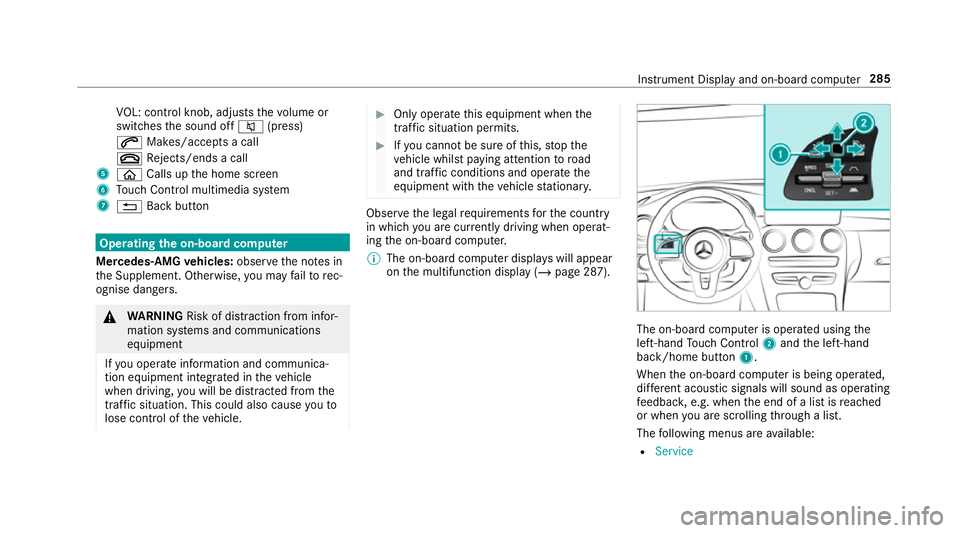
on the multifunction display (/ page 287). The on-board computer is operated using
the
left-hand Touch Control 2and the left-hand
back/home button 1.
When the on-board computer is being operated,
dif fere nt acoustic signals will sound as operating
fe edbac k,e.g. when the end of a list is reached
or when you are sc rolling thro ugh a list.
The following menus are available:
R Service In
stru ment Display and on-board computer 285
Page 291 of 673
Fu
rther displa yson the multifunction display:
Z Gearshift
recommendation (/ page 192)
ë Active Parking Assist activated
(/ page 261)
é Parking Assist PARKTRONIC deacti vated
( / page 250, 249, 250)
¯ Cruise control (/
page 222)
È Limi
ter (/ page 223)
ç Active Dis tance Assi stDISTRONIC
(/ page 228)
æ Ac
tive Brake Assi st (/ page 221)
è Active Steering Assist (/ page 234)
à Ac
tive Lane Keeping Assist (/ page273)
± Active Lane Change Assi st (/ page 236)
è ECO
start/ stop function (/ page181)
ë HOLD fu
nction (/ page 240)
_ Ad
aptive Highbeam Assist (/ page146)
Ad aptive Highbeam Assist Plus
(/ page 147)
ð Maximum pe rmissible speed exceeded
(for cer tain countries only) Ve
hicles with Traf fic Sign Assis t:de tected
instructions and traf fic signs (/ page 268). Ad
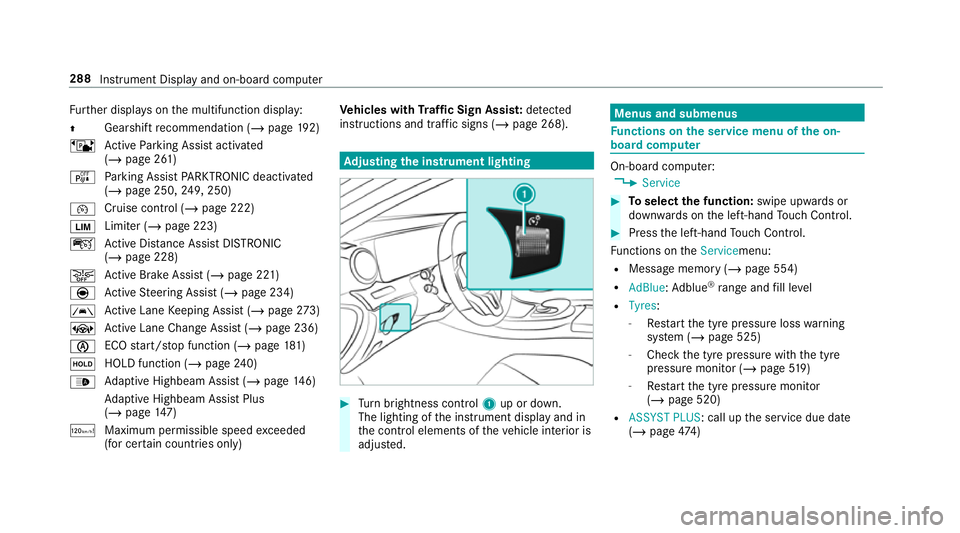
justing the in stru ment lighting #
Turn brightness control 1up or down.
The lighting of the instrument display and in
th e control elements of theve hicle interior is
adjus ted. Menus and submenus
Fu
nctions on the service menu of the on-
board compu ter On-board computer:
4 Service #
Toselect the function: swipe upwards or
down wards on the left-hand Touch Control. #
Press the left-hand Touch Control.
Fu nctions on theServicemenu:
R Message memory (/ page 554)
R AdBlue :Ad blue ®
ra nge and fill le vel
R Tyres:
- Restart the tyre pressure loss warning
sy stem (/ page 525)
- Check the tyre pressure with the tyre
pressure monitor (/ page519)
- Restart the tyre pressure monitor
(/ page 520)
R ASSYST PLUS: call up the service due date
(/ page 474) 288
Instrument Displ ayand on-board computer
Page 304 of 673
R
Continued dialogue: saytheHelp voice
command during a voice dialogue. Foreve ry
st ep of the dialogue youre cei vematching
information.
R Speci fic function: saythevo ice command
fo rth e desired function, e.g. with "Hello
Mercedes, I need help with thera dio" or af ter
pressing the£ rock er switch on the multi‐
function steering wheel up, say theHelp for
the telephone voice command, forex ample. Note
s on optimal use of LINGU ATRO NIC No
tes on how toimpr overecognition:
R Activate online voice control (/ page 300).
R Only operate LINGU ATRO NIC from the driv‐
er's seat.
R Say thevo ice commands cohe rently and
clearly, but do not exaggerate thewo rds.
R Avoid loud noises that cause inter fere nce
while making a voice command ent ry, e.g.
th e enter tainment in there ar-passen ger
compa rtment.
R Forte lephone or add ress book entries: -
Only create sensible address book entri es
in the sy stem/mobile phone, e.g. enter
surname and firs t name in the cor rect
fi eld.
- Do not use any abbr eviations, unneces‐
sary spaces or special characters.
R Forra dio or TVprog ramme names: say
th eRead out station list voice command and
say the desired station name in thewa ythe
vo ice output reads aloud to you.
% Toimpr overecognition, depending on the
outside temp erature, either the blo wersfor
ve ntilation or heating are reduced when LIN‐
GU ATRO NIC is star ted. Note
s on online voice control Online
voice control impr oves recognition and
makes additional results available as a result of
ex tern al information, e.g. information about POIs
and about thewe ather. Wetherefore recom‐
mend that you activate online voice control.
Yo u will need a Mercedes me user account for
th is. If you do not yet ha vea user account youha
ve tocrea teone and connect it with your vehi‐
cle (/ page 438).
Then call up your Mercedes me user account.
The Mercedes me services are shown and can
be activated (/ page 438).
In addition, online voice control must be activa‐
te d (/ page 300). Essential
voice commands Note
s onthevo ice commands Aside from
theex act voice commands (see the
"Voice command" column in thefo llowing tables)
to call up specific functions, in most cases LIN‐
GU ATRO NIC also under stands a great ma nypar‐
aphrases from daily usage. Examples of these
are lis ted in the "Colloquial examples" column.
Fo r some languages ho weverth ese examples
are on lyavailable toa limited extent. LING
UATRONIC 301
Page 319 of 673
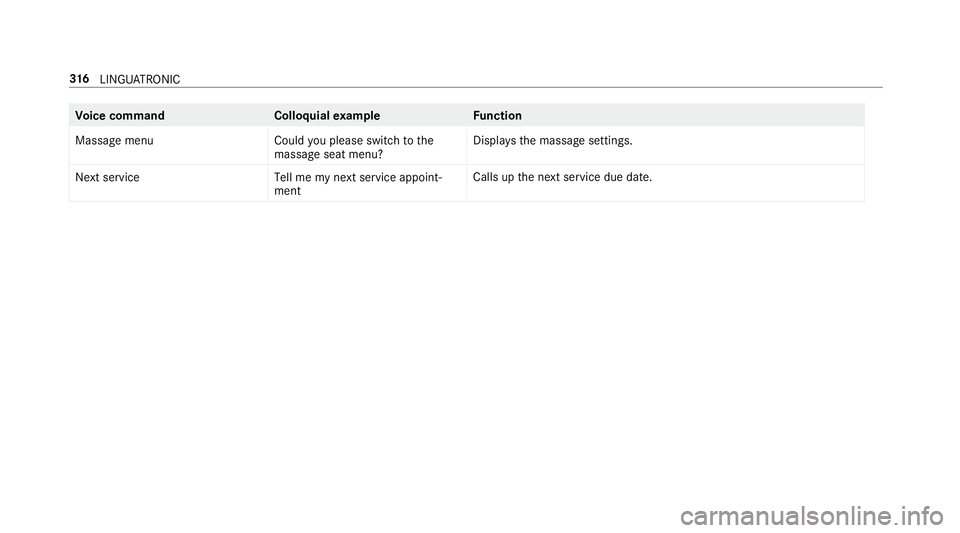
Vo
ice command Colloquialexample Function
Massage menu Could you please switch to the
massage seat menu? Displa
ys the massage settings.
Next servic eT ell me my next service appoint-
ment Calls up
the next service due date. 316
LINGU ATRO NIC
Page 321 of 673
%
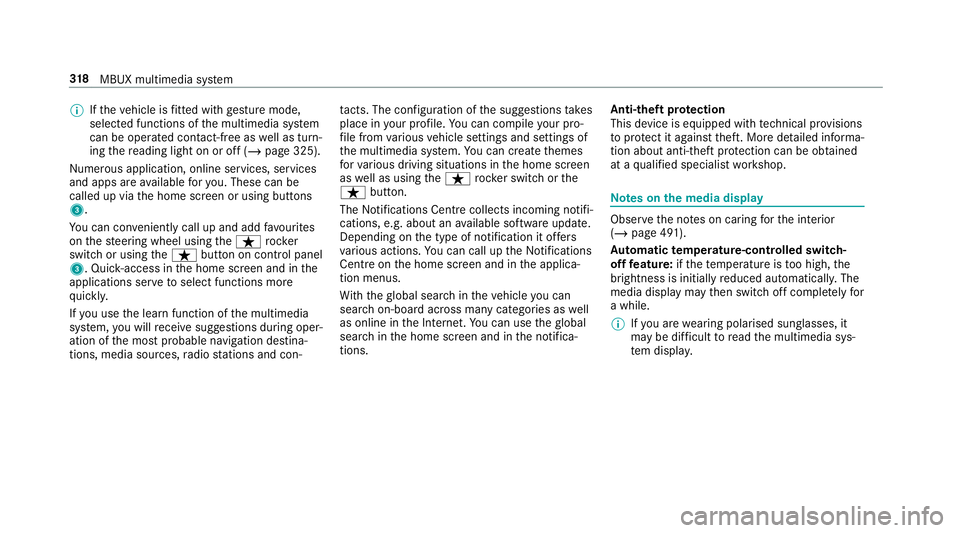
Ifth eve hicle is fitted wi thgesture mode,
selected functions of the multimedia sy stem
can be operated conta ct-free aswell as turn‐
ing there ading light on or off (/ page 325).
Nu merous application, online services, services
and apps are available foryo u. These can be
called up via the home screen or using buttons
3.
Yo u can co nveniently call up and add favo urites
on thesteering wheel using theß rock er
switch or using theß button on control panel
3. Quic k-access in the home screen and in the
applications ser vetoselect functions more
qu ickl y.
If yo u use the learn function of the multimedia
sy stem, you will recei vesuggestions during oper‐
ation of the most probable navigation destina‐
tions, media sources, radio stations and con‐ ta
cts. The configu ration of the suggestions takes
place in your profile. You can co mpileyour pro‐
fi le from various vehicle settings and settings of
th e multimedia sy stem. You can create themes
fo rva rious driving situations in the home screen
as well as using theß rocker switch or the
ß button.
The Notifications Centre collects incoming notifi‐
cations, e.g. about an available software update.
Depending on the type of notification it of fers
va rious actions. You can call up the Notifications
Centre on the home screen and in the applica‐
tion menus.
Wi th th eglobal sear chintheve hicle you can
sear chon-board across many categories as well
as online in the Internet. You can use theglobal
sear chinthe home screen and in the notifica‐
tions. Anti-theft pr
otection
This device is equipped with tech nical pr ovisions
to protect it against theft. More de tailed informa‐
tion about anti-theft pr otection can be obtained
at a qualified specialist workshop. Note
s onthe media display Obser
vethe no tes on caring forth e interior
(/ page 491).
Au tomatic temperature-cont rolled switch-
off feature: ifth ete mp erature is too high, the
brightness is initially reduced automatically. The
media display may then switch off comple tely for
a while.
% Ifyo u are wearing polarised sun glasses, it
may be dif ficult toread the multimedia sys‐
te m displa y. 318
MBUX multimedia sy stem
Page 335 of 673
R
The personalisation service is activated.
Fo r additional users of theve hicle:
R You ha vea Mercedes me user account.
R The vehicle owner has invited youto connect
yo ur user account on Mercedes me with that
of his vehicle.
R You ha veaccep tedth e invitation.
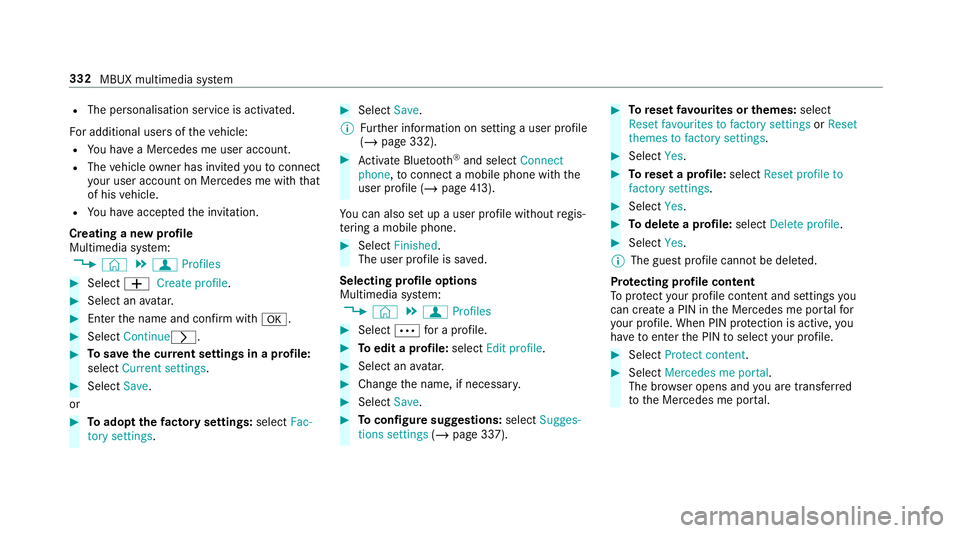
Creating a new profile
Multimedia sy stem:
4 © 5
f Profiles #
Select WCreate profile .#
Select an avatar. #
Enterth e name and confi rmwith a. #
Select Continuer .#
Tosave the cur rent settings in a profile:
select Current settings. #
Select Save.
or #
Toadopt thefa ctory settings: selectFac-
tory settings. #
Select Save.
% Further information on setting a user profile
(/ page 332). #
Activate Blu etoo th®
and select Connect
phone, toconnect a mobile phone wi th the
user profile (/ page413).
Yo u can also set up a user profile without regis‐
te ring a mobile phone. #
Select Finished.
The user profile is sa ved.
Selecting profile options
Multimedia sy stem:
4 © 5
f Profiles #
Select Äfor a profile. #
Toedit a profile: selectEdit profile . #
Select an avatar. #
Chan gethe name, if necessar y. #
Select Save. #
Toconfigure suggestions: selectSugges-
tions settings (/page 337). #
Toreset favo urites or themes: select
Reset favourites to factory settings orReset
themes to factory settings. #
Select Yes. #
Toreset a profile: selectReset profile to
factory settings. #
Select Yes. #
Todel ete a profile: selectDelete profile . #
Select Yes.
% The guest profile cannot be dele ted.
Pr otecting profile content
To protect your profile content and settings you
can crea tea PIN in the Mercedes me por talfor
yo ur profile. When PIN pr otection is active, you
ha ve toenter the PIN toselect your profile. #
Select Protect content . #
Select Mercedes me portal.
The br owser opens and you are trans ferred
to the Mercedes me por tal. 332
MBUX multimedia sy stem
Page 336 of 673
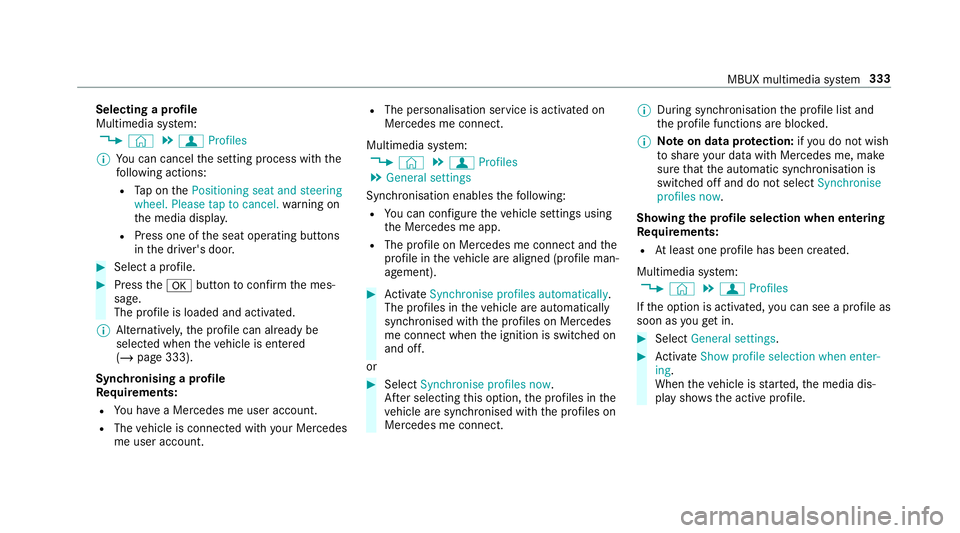
Selecting a profile
Multimedia sy
stem:
4 © 5
f Profiles
% You can cancel the setting process with the
fo llowing actions:
R Tap on thePositioning seat and steering
wheel. Please tap to cancel. warning on
th e media displa y.
R Press one of the seat operating buttons
in the driver's door. #
Select a profile. #
Press thea button toconfirm the mes‐
sage.
The profile is loaded and activated.
% Alternatively, the profile can already be
selected when theve hicle is entered
(/ page 333).
Synchronising a profile
Re quirements:
R You ha vea Mercedes me user account.
R The vehicle is connected with your Mercedes
me user account. R
The personalisation service is activated on
Mercedes me connect.
Multimedia sy stem:
4 © 5
f Profiles
5 General settings
Synchronisation enables thefo llowing:
R You can configure theve hicle settings using
th e Mercedes me app.
R The profile on Mercedes me connect and the
profile in theve hicle are aligned (profile man‐
agement). #
Activate Synchronise profiles automatically.
The profiles in theve hicle are automatically
synchronised with the profiles on Mercedes
me connect when the ignition is switched on
and off.
or #
Select Synchronise profiles now.
Af ter selecting this option, the profiles in the
ve hicle are synchronised with the profiles on
Mercedes me connect. %
During synchronisation the profile lis tand
th e profile functions are bloc ked.
% Note on data pr otection: ifyo u do not wish
to share your data with Mercedes me, make
sure that the automatic synchronisation is
switched off and do not select Synchronise
profiles now .
Showing the profile selection when entering
Re quirements:
R Atleast one profile has been created.
Multimedia sy stem:
4 © 5
f Profiles
If th e option is activated, you can see a profile as
soon as youget in. #
Select General settings. #
Activate Show profile selection when enter-
ing .
When theve hicle is star ted, the media dis‐
play sho wsthe active profile. MBUX multimedia sy
stem 333