2019 LINCOLN MKZ ECO mode
[x] Cancel search: ECO modePage 331 of 595

Cooling system
•Protect against freezing temperatures.
•When removing your vehicle fromstorage, check coolant fluid level.Confirm that there are no cooling systemleaks and that fluid is at therecommended level.
Battery
•Check and recharge as necessary. Keepconnections clean.
•If storing your vehicle for more than 30days without recharging the battery, werecommend that you disconnect thebattery cables to maintain battery chargefor quick starting.
Note:It is necessary to reset memoryfeatures if battery cables are disconnected.
Brakes
•Make sure the brakes and parking brakerelease fully.
Tires
•Maintain recommended air pressure.
Miscellaneous
•Make sure all linkages, cables, levers andpins under your vehicle are covered withgrease to prevent rust.
•Move vehicles at least 25 ft (7.5 m) every15 days to lubricate working parts andprevent corrosion.
Removing Vehicle From Storage
When your vehicle is ready to come out ofstorage, do the following:
•Wash your vehicle to remove any dirt orgrease film build-up on window surfaces.
•Check windshield wipers for anydeterioration.
•Check under the hood for any foreignmaterial that may have collected duringstorage such as mice or squirrel nests.
•Check the exhaust for any foreignmaterial that may have collected duringstorage.
•Check tire pressures and set tire inflationper the Tire Label.
•Check brake pedal operation. Drive yourvehicle 15 ft (4.5 m) back and forth toremove rust build-up.
•Check fluid levels (including coolant, oiland gas) to make sure there are no leaks,and fluids are at recommended levels.
•If you remove the battery, clean thebattery cable ends and check fordamage.
Contact an authorized dealer if you have anyconcerns or issues.
BODY STYLING KITS
The distance between the underside of yourvehicle and the ground is less than that ofother models. Drive with extreme care toavoid damage to your vehicle.
328
MKZ (CC9) Canada/United States of America, enUSA, Edition date: 201805, First-Printing
Vehicle Care
Page 393 of 595

CD and CD Player Information
Note:CD units play commercially pressed4.7 in (12 cm) audio compact discs only. Dueto technical incompatibility, certainrecordable and re-recordable compact discsmay not function correctly when used in thevehicle’s CD player.
Note: Do not insert CDs with homemadepaper (adhesive) labels into the CD playeras the label may peel and cause the CD tobecome jammed. You should use apermanent felt tip marker rather thanadhesive labels on your homemade CDs. Ballpoint pens may damage CDs. Ask anauthorized dealer for more information.
Note:Do not use any irregularly shapeddiscs or discs with a scratch protection filmattached.
Always handle discs by their edges only. Clean the disc with an approved CD cleaneronly. Wipe it from the center of the disctoward the edge. Do not clean in a circularmotion.
Do not expose discs to direct sunlight or heatsources for extended periods.
MP3 and WMA Track and FolderStructure
Audio systems capable of recognizing andplaying MP3 and WMA individual tracks andfolder structures work as follows:
•There are two different modes for MP3and WMA disc playback: MP3 and WMAtrack mode (system default) and MP3 andWMA folder mode.
•MP3 and WMA track mode ignores anyfolder structure on the MP3 and WMAdisc. The player numbers each MP3 andWMA track on the disc (noted by the MP3or WMA file extension) from T001 to amaximum of T255. The maximum numberof playable MP3 and WMA files may beless depending on the structure of theCD and exact model of radio present.
•MP3 and WMA folder mode representsa folder structure consisting of one levelof folders. The CD player numbers allMP3 and WMA tracks on the disc (notedby the MP3 or WMA file extension) andall folders containing MP3 and WMA files,from F001 (folder) T001 (track) to F253T255.
•Creating discs with only one level offolders helps with navigation through thedisc files.
If you are burning your own MP3 and WMAdiscs, it is important to understand how thesystem reads the structures you create. Whilevarious files may be present (files withextensions other than MP3 and WMA), onlyfiles with the MP3 and WMA extension areplayed; other files are ignored by the system.This enables you to use the same MP3 andWMA disc for a variety of tasks on your workcomputer, home computer and yourin-vehicle system.
390
MKZ (CC9) Canada/United States of America, enUSA, Edition date: 201805, First-Printing
Audio System
Page 394 of 595

In track mode, the system displays and playsthe structure as if it were only one level deep(all MP3 and WMA files play, regardless ofbeing in a specific folder). In folder mode,the system only plays the MP3 and WMA filesin the current folder.
AUDIO UNIT
WARNING: Driving while distractedcan result in loss of vehicle control, crashand injury. We strongly recommend that youuse extreme caution when using any devicethat may take your focus off the road. Yourprimary responsibility is the safe operationof your vehicle. We recommend against theuse of any hand-held device while drivingand encourage the use of voice-operatedsystems when possible. Make sure you areaware of all applicable local laws that mayaffect the use of electronic devices whiledriving.
Note: The touchscreen system controls mostof the audio features.
Adjusting the Volume
Turn to adjust the volume.
Changing Radio Stations
In radio mode, turn to search through theradio frequency band.
In satellite radio mode, turn to find theprevious or next available satellite radiostation.
Ejecting the CD (If Equipped)
Press and release the button toeject a CD.
391
MKZ (CC9) Canada/United States of America, enUSA, Edition date: 201805, First-Printing
Audio SystemE265373 E265696 E265032
Page 395 of 595
Inserting a CD (If Equipped)
Insert a CD into the CD slot.
Selecting the Audio Modes
Press and release the button toaccess different audio modes, forexample AM, FM and CD.
Switching the Audio Unit On and Off
Press and release the button.
Using Seek, Fast Forward and Reverse
In radio mode, select a frequency band andpress and release either button. The systemstops at the first station it finds in thatdirection.
In CD mode, press and release to select thenext or previous track. Press and hold tomove quickly forward or backward throughthe current track.
In satellite radio mode, press and release toselect the next or previous satellite radiostation. If you select a specific category (suchas jazz, rock or news), press to find the nextor previous station in the category you select.
USB PORT
WARNING: Driving while distractedcan result in loss of vehicle control, crashand injury. We strongly recommend that youuse extreme caution when using any devicethat may take your focus off the road. Yourprimary responsibility is the safe operationof your vehicle. We recommend against theuse of any hand-held device while drivingand encourage the use of voice-operatedsystems when possible. Make sure you areaware of all applicable local laws that mayaffect the use of electronic devices whiledriving.
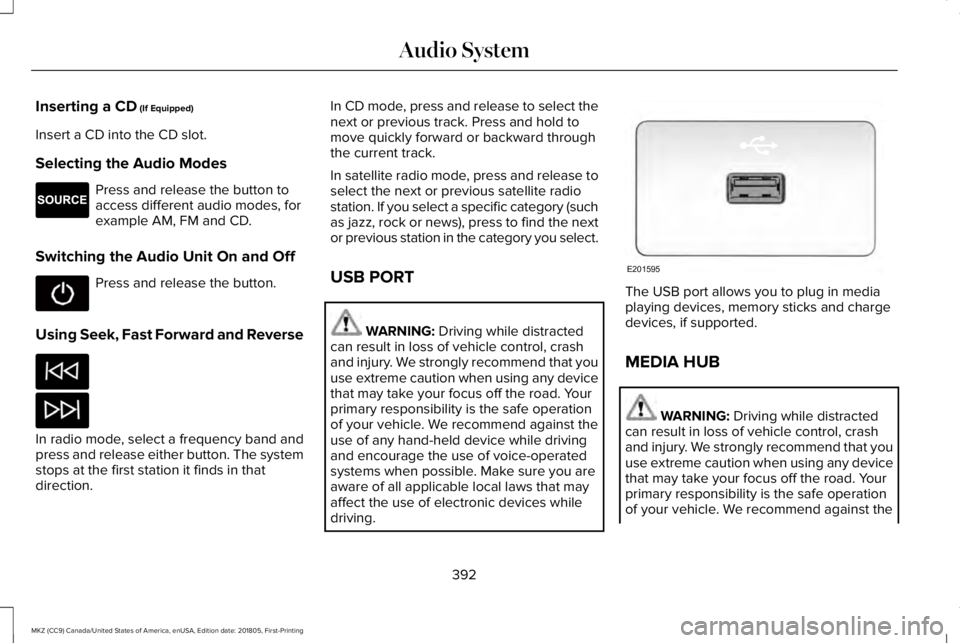
The USB port allows you to plug in mediaplaying devices, memory sticks and chargedevices, if supported.
MEDIA HUB
WARNING: Driving while distractedcan result in loss of vehicle control, crashand injury. We strongly recommend that youuse extreme caution when using any devicethat may take your focus off the road. Yourprimary responsibility is the safe operationof your vehicle. We recommend against the
392
MKZ (CC9) Canada/United States of America, enUSA, Edition date: 201805, First-Printing
Audio SystemE265276 E201595
Page 403 of 595

FunctionsFeature Bar Item
Connect and control SYNC 3 compatible apps running on your iphoneor android device. Also, access built-in additional features such asSiriusXM Traffic and Travel Link (if equipped).
Apps
If your vehicle is a hybrid, plug-in hybrid, or electric this is also whereyour settings and power information is located.
You can customize your system with various settings for the touch-screen display, feature preferences, and how you want to interactwith your vehicle.
Settings
Cleaning the Touchscreen
You can remove fingerprints with a dry,clean, soft cloth.
If dirt or fingerprints are still on the screen,apply a small amount of alcohol to the clothand try to clean it again.
Note: Do not use detergent or any type ofsolvent to clean the touchscreen.
Note:Do not pour or spray alcohol onto thetouchscreen.
Using Voice Recognition
Using voice commands allows you to keepyour hands on the wheel and focus on whatis in front of you. The system providesfeedback through audible tones, prompts,questions and spoken confirmationsdepending on the situation and the chosenlevel of interaction (voice settings).
The system also asks short questions(confirmation prompts) when it is not sure ofyour request or when there are multiplepossible responses to your request.
When using voice commands, words andicons may appear in the status bar indicatingthe status of the voice command session.See Using Voice Recognition (page 411).
Accessing and Adjusting ModesThrough Your Vehicle InformationDisplay (If Equipped)
Depending on your vehicle and selectedoptions you may be able to control some ofthe SYNC 3 features on your informationdisplay.
You can make the following adjustmentsusing the information display SYNC 3 screen:
400
MKZ (CC9) Canada/United States of America, enUSA, Edition date: 201805, First-Printing
SYNC™ 3
Page 405 of 595

Note:If your vehicle is not equipped withnavigation, compass appears in the displayinstead of navigation. If you press the rightarrow to go into the compass menu, you cansee the compass graphic. The compassdisplays the direction in which the vehicle istraveling, not true direction (for example, ifthe vehicle is traveling west, the middle ofthe compass graphic displays west; northdisplays to the left of west though its truedirection is to the right of west).
Using the Controls on the SteeringWheel
Depending on your vehicle and optionpackage, you can use different controls onyour steering wheel to interact with thetouchscreen system in different ways.
VOL: Control the volume of audio output.
Mute: Mute the audio output.
Voice: Press to start a voice session. Pressagain to stop the voice prompt andimmediately begin speaking. Press and holdto end a voice session.
SEEK NEXT:
•While in radio mode, press to seekbetween memory presets.
•While in USB, Bluetooth Audio or CDmode, press to seek between songs orpress and hold to fast seek.
SEEK PREVIOUS:
•While in radio mode, press to seekbetween memory presets.
•While in USB, Bluetooth Audio or CDmode, press to seek between songs orpress and hold to fast seek.
PHONE ACCEPT: Press to answer a call orswitch between calls.
PHONE REJECT: Press to end a call or rejectan incoming call.
Note:On some models, SEEK NEXT may becombined with PHONE REJECT and SEEKPREVIOUS may be combined with PHONEACCEPT.
M: Touch the control repeatedly to switchbetween media sources (modes).
See Steering Wheel (page 80).
Using Your Bezel Controls
Depending on your vehicle and optionpackage, you may also have these controlson your instrument panel:
•Power: Switch the audio system on andoff.
•VOL: Control the volume of playingaudio.
•Seek and Tune: Use as you normallywould in audio modes.
•Eject: Eject a CD from the audio system.
•SOURCE or MEDIA: Press repeatedly toadvance through available media modes.
•SOUND: Press to access the Soundmenu where you can adjust sound andother audio settings.
•1-6: Press and hold to store or press toselect an AM, FM or SIRIUS memorypreset. See Audio System (page 389).
402
MKZ (CC9) Canada/United States of America, enUSA, Edition date: 201805, First-Printing
SYNC™ 3
Page 436 of 595
You can use the forward, reverse, pause orplay buttons to control the audio playback.Bluetooth Stereo or USB
Bluetooth Stereo and USB allow you toaccess media that you store on yourBluetooth device or USB device such asmusic, audio books or podcasts.
The following buttons are available for Bluetooth and USB:
FunctionButton
Pressing the repeat button toggles the repeat setting through three modes: repeat off (button nothighlighted), repeat all (button highlighted) and repeat track (button highlighted with a small numberone).
Repeat
Play the tracks in random order.Shuffle
You can use the forward, reverse, pause orplay buttons to control the audio playback.
To get more information about the currentlyplaying track, press the cover art or Infobutton.
For some devices, SYNC 3 is able to provide30-second skip buttons when you listen toaudio books or podcasts. These buttonsallow you to skip forward or backward withina track.
While playing audio from a USB device youcan look for certain music by selecting thefollowing:
433
MKZ (CC9) Canada/United States of America, enUSA, Edition date: 201805, First-Printing
SYNC™ 3
Page 441 of 595

Note: the passenger sidetemperature and the DUALindication automatically turn onwhen you or your passenger adjustthe passenger temperature.
Passenger temperature: Touch upor down to adjust the temperature.G
Fan speed: Touch up or down toincrease or decrease the volumeof air that circulates in your vehicle.
H
Note: You cannot adjust the fanspeed when the system is set toAUTO, MAX A/C or MAX Defrost.
A/C: A pop-up appears on thescreen to display the airconditioning options.
I
MAX A/C: Touch the button toactivate and maximize cooling. Thedriver and passenger temperaturesare set to LO, recirculated air flowsthrough the instrument panelvents, air conditioningautomatically turns on and the fanautomatically adjusts to the highestspeed.
A/C: Touch to switch the airconditioning on or off. Use A/Cwith recirculated air to improvecooling performance andefficiency.
Note: In certain conditions (forexample, Max Defrost), the airconditioning compressor maycontinue to operate even whenyou switch the air conditioning A/Cbutton off.
Recirculated air: Touch to switchthe recirculated air on or off. Whenrecirculated air is on, it may reducethe amount of time needed to cooldown the interior (when used withA/C) and help reduce odors fromreaching the interior.
Note: Recirculated air may turn offautomatically (or the system mayprevent it from turning on) in allairflow modes except MAX A/C toreduce risk of fogging. It may alsoturn on and off automatically inPanel or Panel/Floor airflow modesduring hot weather in order toimprove cooling efficiency.
Manual airflow distributioncontrols: Select these controlsindividually, together, or withDefrost to direct the air flow to thearea you desire.
J
Panel: Distributes air through theinstrument panel vents.
Floor: Distributes air through thedemister vents, floor vents and rearseat floor vents.
438
MKZ (CC9) Canada/United States of America, enUSA, Edition date: 201805, First-Printing
SYNC™ 3