2019 LEXUS UX250H audio
[x] Cancel search: audioPage 164 of 476

1644-2. Driving procedures
2Set the parking brake (P.172),
and shift the shift lever to P
( P.167).
3
Press the power switch.
4
Release the brake pedal and check
that “ACCESSORY” or “IGNI-
TION ON” is not shown on the
meter.
Modes can be changed by pressing
the power switch with the brake pedal
released. (The mode changes each
time the switch is pressed.) 1
OFF*
The emergency flashers can be used.
2ACC
Some electrical components such as the
audio system can be used.
“ACCESSORY” will be displayed on the
meter.
3ON
All electrical components can be used.
“IGNITION ON” will be displayed on the
meter.
*: If the shift lever is in a position other than
P when turning off the hybrid system, the
power switch will be turned to ACC, not
to OFF.
■Auto power off function
If the vehicle is left in ACC for more than
20 minutes or ON (the hybrid system is not
operating) for more than an hour with the
shift lever in P, the power switch will auto-
matically turn off. However, this function
cannot entirely prevent 12-volt battery dis-
charge. Do not leave the vehicle with the
power switch in ACC or ON for long peri-
ods of time when the hybrid system is not
WARNING
■Stopping the hybrid system in an
emergency
●If you want to stop the hybrid system in
an emergency while driving the vehi-
cle, press and hold the power switch
for more than 2 seconds, or press it
briefly 3 times or more in succession.
( P.378)
However, do not touch the power
switch while driving except in an emer-
gency. Turning the hybrid system off
while driving will not cause loss of
steering or braking control, however,
power assist to the steering will be lost.
This will make it more difficult to steer
smoothly, so you should pull over and
stop the vehicle as soon as it is safe to
do so.
●If the power switch is operated while
the vehicle is running, a warning mes-
sage will be shown on the multi-infor-
mation display and a buzzer sounds.
●When restarting the hybrid system
after an emergency shutdown, shift the
shift lever to N and press the power
switch shortly and firmly.
Changing power switch modes
Page 212 of 476

2124-5. Using the driving support systems
ft. (3 m) or more.
• No system malfunctions are detected. ( P.213)
●Lane centering function
This function operates when all of the fol-
lowing conditions are met.
• LTA is turned on.
• Setting for “Steering Assist” and “Lane
Center” in of th e multi-information
display are set to “On”. ( P.87)
• This function recognizes white (yellow) lane lines or the position of a preceding
vehicle (except when the preceding vehi-
cle is small, such as a motorcycle).
• The dynamic radar cruise control with full-speed range is operating in vehicle-
to-vehicle distance control mode.
• Width of traffic lane is approximately 10 to 13 ft. (3 to 4 m).
• Turn signal lever is not operated.
• Vehicle is not being driven around a
sharp curve.
• No system malfunctions are detected.
( P.213)
• Vehicle does not acc elerate or deceler-
ate by a fixed amount or more.
• Steering wheel is not operated with a steering force level su itable for changing
lanes.
• ABS, VSC, TRAC and PCS are not oper- ating.
• TRAC or VSC is not turned off.
• Hands off steering wheel warning is not
displayed. ( P.212)
• The vehicle is being driven in the center
of a lane.
• Steering assist function is not operating.
■Temporary cancelation of functions
●When operation conditions are no longer
met, a function may be temporarily can-
celed. However, when the operation con-
ditions are met again, operation of the
function is automa tically restored.
( P.211)
●If the operation conditions ( P.211) are
no longer met while the lane centering
function is operating, the steering wheel
may vibrate and the buzzer may sound to
indicate that the function has been tem-
porarily canceled. However, if the “Steer-
ing wheel vibration” customization setting is set to “On”, the system will notify
the driver by vibrating the steering wheel
instead of sounding the buzzer.
■Steering assist function/lane centering
function
●Depending on the vehicle speed, lane
departure situation, road conditions, etc.,
the driver may not feel the function is
operating or the function may not oper-
ate at all.
●The steering control of the function is
overridden by the driver’s steering wheel
operation.
●Do not attempt to test the operation of
the steering assist function.
■Lane departure alert function
●The warning buzzer may be difficult to
hear due to external noise, audio play-
back, etc. Also, it may be difficult to feel
steering wheel vibrations due to the road
conditions, etc.
●If the edge of the course* is not clear or
straight, the lane departure alert function
may not operate.
●Vehicles with Blind Spot Monitor: It may
not be possible for the system to deter-
mine if there is a danger of a collision with
a vehicle in an adjacent lane.
●Do not attempt to test the operation of
the lane departure alert function.
*: Boundary between asphalt and the side
of the road, such as grass, soil, or a curb
■Hands off steering wheel warning
In the following situations, a warning mes-
sage urging the driver to hold the steering
wheel and the symbol sh own in the illustra-
tion are displayed on the multi-information
display to warn the driver. The warning
stops when the system determines that the
driver holds the steering wheel. Always
keep your hands on the steering wheel
when using this system , regardless of warn-
ings.
Page 235 of 476

2354-5. Using the driving support systems
4
Driving
●The following situations may occur
during use.
• Depending on the shape of the object
and other factors, the detection distance
may shorten, or detection may be impos-
sible.
• There will be a short delay between object detection and display. Even at low
speeds, there is a possibility that the
object will come within the sensor’s
detection areas before the display is
shown and the warning beep sounds.
• It might be difficult to hear the buzzer due to the volume of the audio system or air
flow noise of the air conditioning system.
■Conditions under which the function
may not function correctly
Certain vehicle conditions and the sur-
rounding environment may affect the ability
of a sensor to correctly detect objects. Par-
ticular instances where this may occur are
listed below.
●There is dirt, snow or ice on a sensor.
(Cleaning the sensors will resolve this
problem.)
●A sensor is frozen. (Thawing the area will
resolve this problem.)
In especially cold weather, if a sensor is
frozen the sensor display may be dis-
played abnormally, or objects, such as a
wall, may not be detected.
●A sensor is covered in any way.
●When a sensor or the area around a sen-
sor is extremely hot or cold.
●On an extremely bumpy road, on an incline, on gravel, or on grass.
●The vicinity of the vehicle is noisy due to
vehicle horns, motorcycle engines, air
brakes of large vehicles, or other loud
noises producing ultrasonic waves.
●There is another vehicle equipped with
parking assist sensors in the vicinity.
●A sensor is coated with a sheet of spray
or heavy rain.
●If a sensor is hit by a large amount of
water, such as when driving on a flooded
road.
●If the vehicle is significantly tilted.
●The vehicle is approaching a tall or
curved curb.
●If objects draw too close to the sensor.
■Objects which may not be properly
detected
The shape of the object may prevent the
sensor from detectin g it. Pay particular
attention to the following objects:
●Wires, fences, ropes, etc.
●Cotton, snow and other materials that
absorb sound waves
●Sharply-angled objects
●Low objects
●Tall objects with upper sections project-
ing outwards in the direction of your vehi-
cle
People may not be de tected if they are
wearing certain types of clothing.
■Certification
Page 240 of 476
2404-5. Using the driving support systems
■Outside rear view mirror indicator visi-
bility
In strong sunlight, the outside rear view mir-
ror indicator may be difficult to see.
■Hearing the RCTA buzzer
The RCTA buzzer may be difficult to hear
over loud noises, such as if the audio system
volume is high.
■When “Rear Cross Traffic Alert
Unavailable” is shown on the multi-
information display
Ice, water, snow, mud, etc., may be attached
to the rear bumper around the sensors.
( P.228) Remove the ice, snow, mud, etc.,
attached to the rear bumper around the
sensors to return the function to normal.
Additionally, the function may not operate
normally when used in extremely hot or
cold environments.
■Rear side radar sensors
P.228
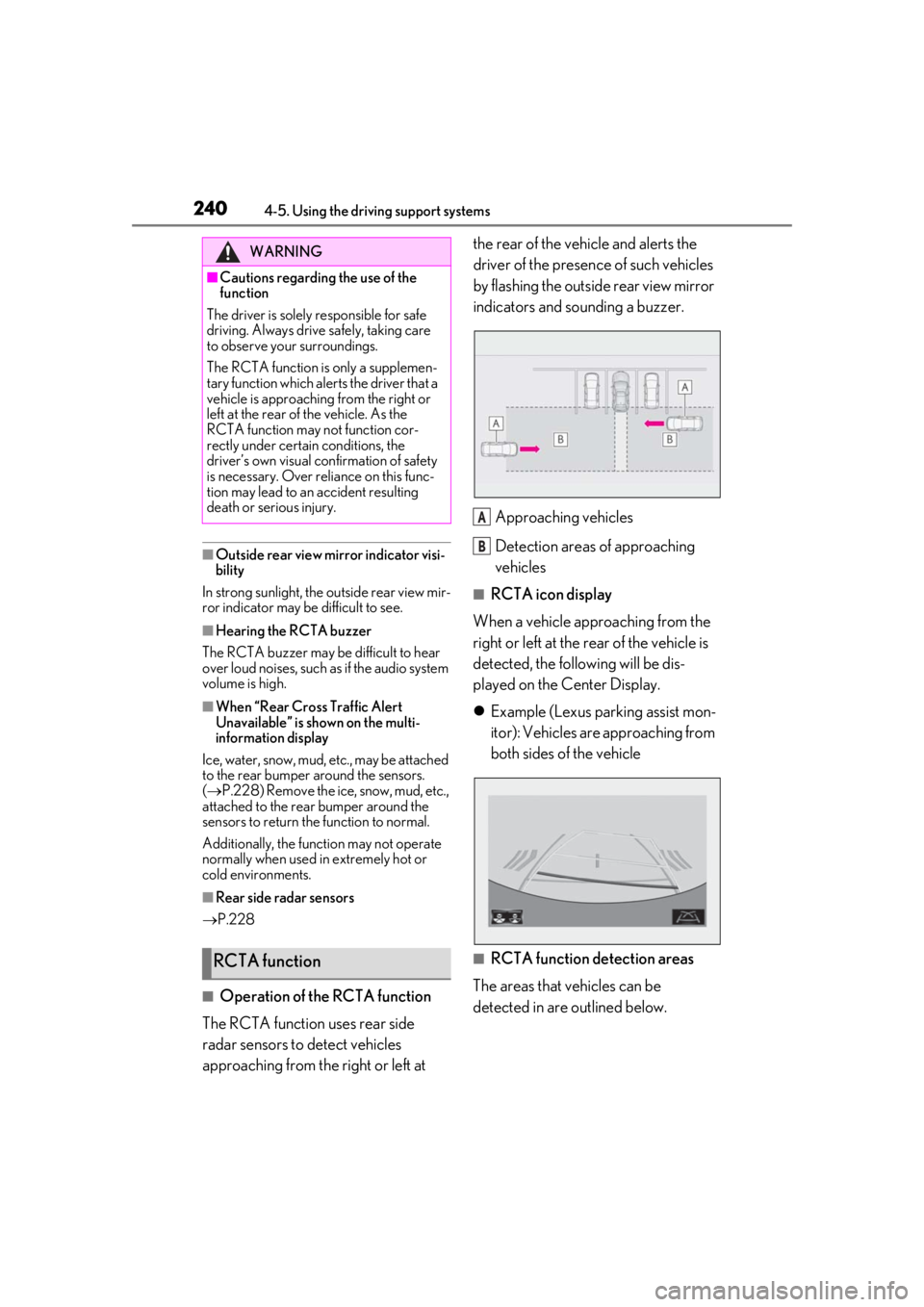
■Operation of the RCTA function
The RCTA function uses rear side
radar sensors to detect vehicles
approaching from the right or left at the rear of the vehicle and alerts the
driver of the presence of such vehicles
by flashing the outside rear view mirror
indicators and sounding a buzzer.
Approaching vehicles
Detection areas of approaching
vehicles
■RCTA icon display
When a vehicle approaching from the
right or left at the rear of the vehicle is
detected, the following will be dis-
played on the Center Display.
Example (Lexus parking assist mon-
itor): Vehicles are approaching from
both sides of the vehicle
■RCTA function detection areas
The areas that vehicles can be
detected in are outlined below.
WARNING
■Cautions regarding the use of the
function
The driver is solely responsible for safe
driving. Always driv e safely, taking care
to observe your surroundings.
The RCTA function is only a supplemen-
tary function which alerts the driver that a
vehicle is approaching from the right or
left at the rear of the vehicle. As the
RCTA function may not function cor-
rectly under certain conditions, the
driver’s own visual confirmation of safety
is necessary. Over reli ance on this func-
tion may lead to an accident resulting
death or serious injury.
RCTA function
A
B
Page 272 of 476
2725-1. Remote Touch
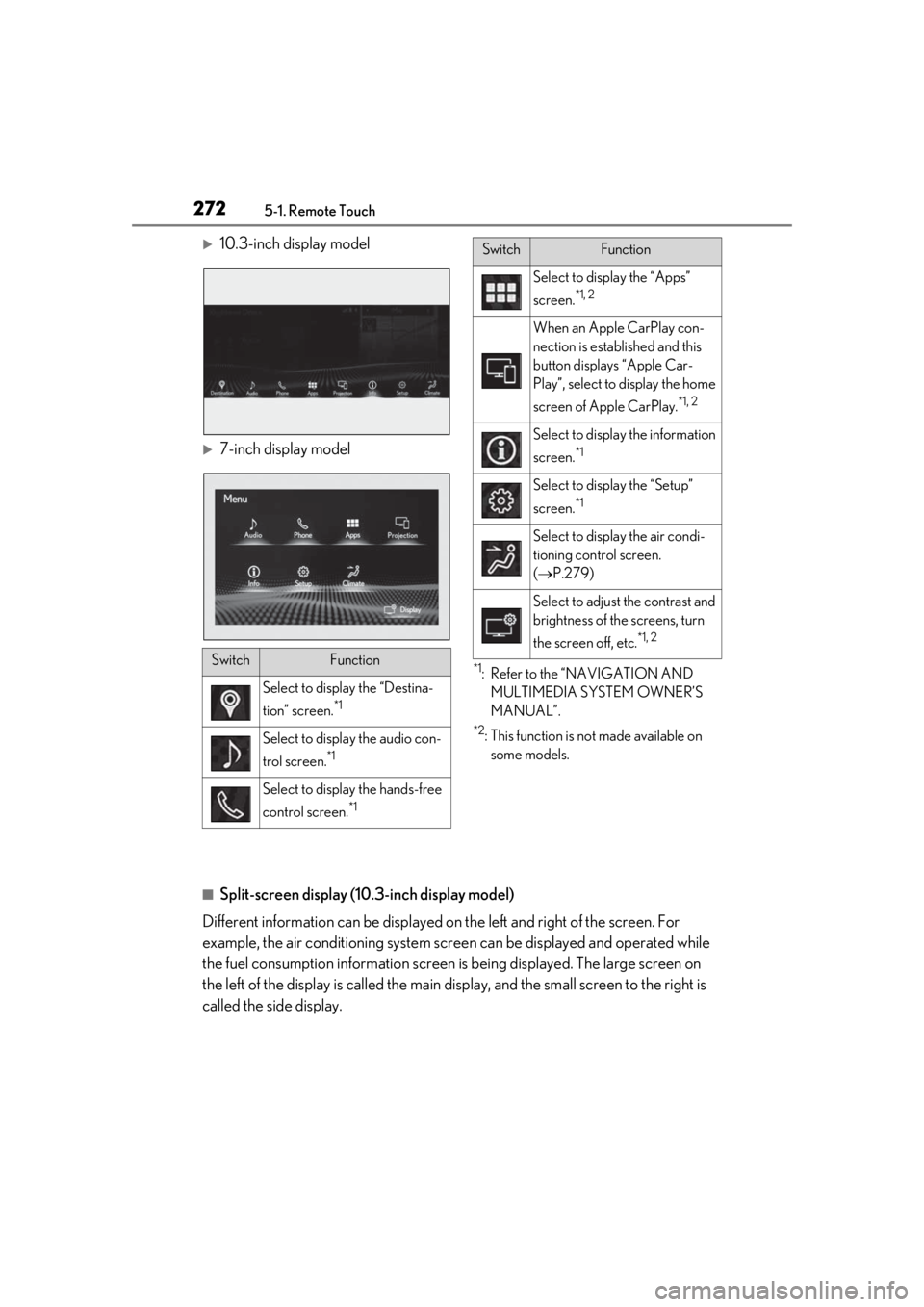
10.3-inch display model
7-inch display model
*1: Refer to the “NAVIGATION AND MULTIMEDIA SYSTEM OWNER’S
MANUAL”.
*2: This function is not made available on some models.
■Split-screen display (10.3-inch display model)
Different information can be displayed on the left and right of the screen. For
example, the air conditioning system scre en can be displayed and operated while
the fuel consumption informat ion screen is being displayed. The large screen on
the left of the display is called the main display, and the small screen to the right is
called the side display.
SwitchFunction
Select to displa y the “Destina-
tion” screen.
*1
Select to display the audio con-
trol screen.
*1
Select to display the hands-free
control screen.
*1
Select to display the “Apps”
screen.
*1, 2
When an Apple CarPlay con-
nection is established and this
button displays “Apple Car-
Play”, select to display the home
screen of Apple CarPlay.
*1, 2
Select to display the information
screen.
*1
Select to display the “Setup”
screen.
*1
Select to display the air condi-
tioning control screen.
( P.279)
Select to adjust the contrast and
brightness of the screens, turn
the screen off, etc.
*1, 2
SwitchFunction
Page 273 of 476
2735-1. Remote Touch
5
Interior features
■Main display
For details about the functions and
operation of the main display, refer to
the respective section and “NAVIGA-
TION AND MULTIMEDIA SYSTEM
OWNER’S MANUAL”.
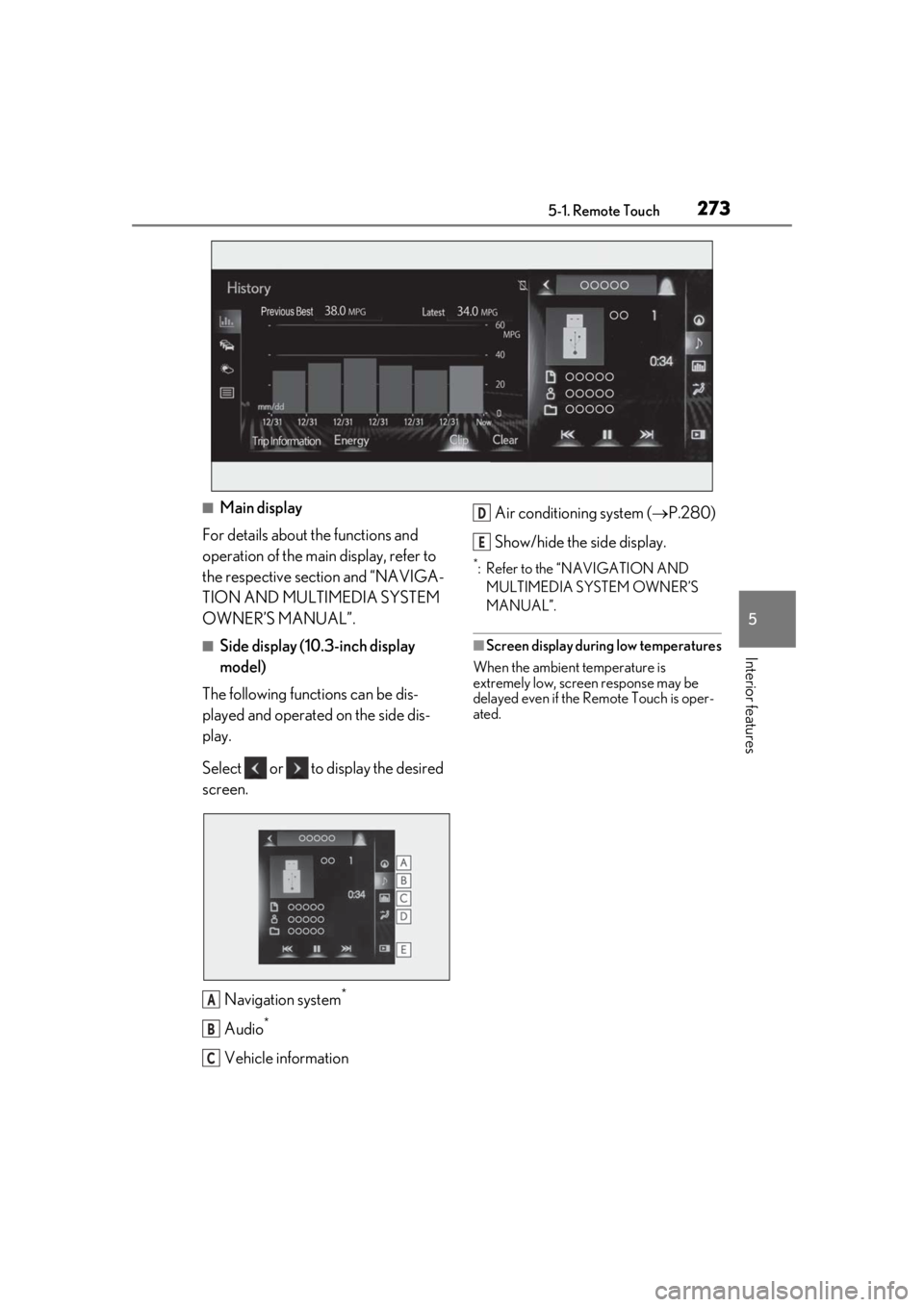
■Side display (10.3-inch display
model)
The following functions can be dis-
played and operated on the side dis-
play.
Select or to display the desired
screen.
Navigation system
*
Audio*
Vehicle information Air conditioning system (
P.280)
Show/hide the side display.
*: Refer to the “NAVIGATION AND MULTIMEDIA SYSTEM OWNER’S
MANUAL”.
■Screen display during low temperatures
When the ambient temperature is
extremely low, screen response may be
delayed even if the Remote Touch is oper-
ated.
A
B
C
D
E
Page 326 of 476
3266-1. Maintenance and care
Remove dirt using a water-damp-
ened soft cloth or synthetic chamois.
Wipe the surface with a dry soft
cloth to remove any remaining
moisture.
■Cleaning the areas with satin-finish
metal accents
The metal areas use a layer of real metal for
the surface. It is necessary to clean them
regularly. If dirty area s are left uncleaned for
long periods of time, they may be difficult to
clean.
■Cleaning the leather
Remove dirt and dust using a vac-
uum cleaner.
Wipe off any excess dirt and dust
with a soft cloth dampened with
diluted detergent.
Use a diluted water solution of approxi-
mately 5% neutral wool detergent.
Wring out any excess water from
the cloth and thoroughly wipe off all
remaining traces of detergent.
Wipe the surface with a dry, soft
cloth to remove any remaining
moisture. Allow the leather to dry in
a shaded and ventilated area.
NOTICE
■Cleaning detergents
●Do not use the following types of
detergent, as they may discolor the
vehicle interior or cause streaks or
damage to painted surfaces:
• Non-seat portions: Organic sub- stances such as benzene or gasoline,
alkaline or acidic solutions, dye, and
bleach
• Seats: Alkaline or acidic solutions, such as thinner, benzene, and alcohol
●Do not use polish wax or polish
cleaner. The instrument panel’s or
other interior part’s painted surface
may be damaged.
■Water on the floor
Do not wash the vehicle floor with water.
Vehicle systems such as the audio system
may be damaged if water comes into
contact with electrical components such
as the audio system above or under the
floor of the vehicle. Water may also
cause the body to rust.
■When cleaning the inside of the wind-
shield
Do not allow glass cleaner to contact the
lens. Also, do not touch the lens.
( P.192)
■Cleaning the inside of the rear win-
dow
●Do not use glass cleaner to clean the
rear window, as this may cause dam-
age to the rear window defogger
heater wires or antenna. Use a cloth
dampened with lukewarm water to
gently wipe the window clean. Wipe
the window in strokes running parallel
to the heater wires or antenna.
●Be careful not to scratch or damage
the heater wires or antenna.
■Cleaning the front side windows
Do not use any compound or abrasive
product (e.g., glass cleaner, detergent,
wax) to clean the windows. It may dam-
age the coating.
Cleaning the areas with satin-fin-
ish metal accents
Cleaning the leather areas
Page 392 of 476

3927-2. Steps to take in an emergency
■PCS warning light (warning buzzer)
■Hybrid system overheat warning light* (warning buzzer)
*: This light illuminates on the multi-information display.
■Low traction battery charge warning light* (warning buzzer)
*: This light illuminates on the multi-information display.
■Warning buzzer
In some cases, the bu zzer may not be heard
due to being in a noisy location or audio
sound.
■Front passenger detection sensor, seat
belt reminder and warning buzzer
●If luggage is placed on the front passen-
ger seat, the front passenger detection sensor may cause the warning light to
flash and the warning buzzer to sound
even if a passenger is not sitting in the
seat.
●If a cushion is placed on the seat, the sen-
sor may not detect a passenger, and the
warning light may not operate properly.
■SRS warning light
This warning light system monitors the air-
Warning lightDetails/Actions
(flashes or illumi- nates)
When a buzzer sounds simultaneously:
Indicates a malfunction has occurred in the PCS (Pre-Collision System)
Have the vehicle inspected by your Lexus dealer immediately.
If a buzzer does not sound:
The PCS (Pre-Collision System) has become temporarily unavailable,
corrective action may be necessary.
Follow the instructions displayed on the multi-information display.
( P.196, 395)
If the PCS (Pre-Collision System) or VSC (Vehicle Stability Control)
system is disabled, the PCS warning light will illuminate.
P.204
Warning lightDetails/Actions
Indicates the hybrid system has overheated
This light may be displayed when dr iving under severe operating condi-
tions. (For example, when driving up a long steep hill.)
Stop the vehicle in a safe place.
Handling method ( P.410)
Warning lightDetails/Actions
(orange)
Indicates that the hybrid battery (traction battery) is low
Restart the hybrid system when starting the vehicle.