Page 164 of 607
477
Features of your vehicle
Master Warning Mode
This warning light informs the driv-er the following situations
- Blind Spot Detection (BSD) mal-function (if equipped)
- Tire Pressure Monitoring System (TPMS) malfunction (if equipped)
- Autonomous Emergency Braking (AEB) malfunction (if equipped)
- Lamp malfunction and so on.
The Master Warning Light illumi-
nates when more than one of the
above warning situations occur. At
this time, the LCD Modes Icon will
change from ( ) to ( ).
If the warning situation is solved, the
master warning light will be turned off
and the LCD Modes Icon will be
changed back to its previous icon ( ).
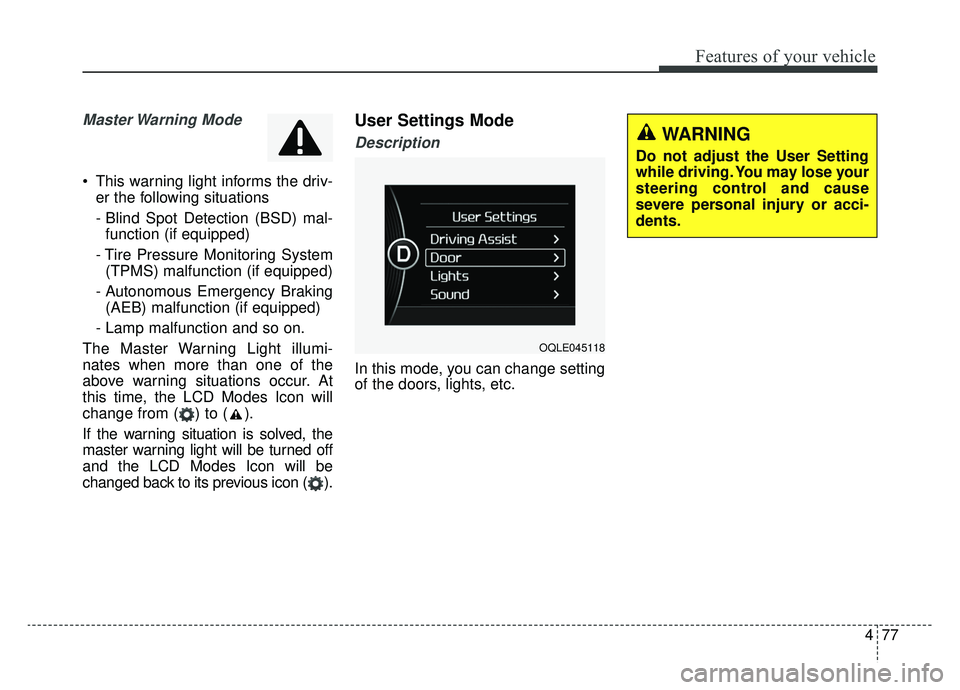
User Settings Mode
Description
In this mode, you can change setting
of the doors, lights, etc.
OQLE045118
WARNING
Do not adjust the User Setting
while driving. You may lose your
steering control and cause
severe personal injury or acci-
dents.
Page 278 of 607
Audio system
515
✽ ✽NOTICE -Using the
Bluetooth®Wireless Technology
Cellular Phone
• Bluetooth®Wireless Technology
Handsfree refers to a device which
allows the user to conveniently
make phone calls with Bluetooth
®
Wireless Technology mobile
phones through the audio system.
• Bluetooth
®Wireless Technology
allows devices to be connected in a
short distance, including hands-
free devices, stereo headsets, wire-
less remote controllers, etc. For
more information, visit the
Bluetooth
®Wireless Technology
website at www
.Bluetooth.com.
Before using Bluetooth®Wireless
Technology audio features.
• The Bluetooth
®word mark and
logos are registered trademarks
owned by Bluetooth
®SIG, Inc.
and any use of such marks by Kia
is under license. Other trade-
marks and trade names are those
of their respective owners. A
Bluetooth
®enabled cell phone is
required to use Bluetooth®Wireless
Technology. (Continued)(Continued)
•
Bluetooth
®Wireless Technology
features supported within the
vehicle are as follows. Some fea-
tures may not be supported
depending on your Bluetooth
®
Wireless Technology device.
- Answering and placing
Bluetooth
®Wireless Technology
Handsfree calls
- Menu operation during call (Switch to Private, Switch to call
waiting, Outgoing volume)
- Download Call History
- Download Mobile Phone book
- Phone book/Call History Auto Download
- Bluetooth
®Wireless Technology
device auto connection
- Bluetooth
®Wireless Technology
Audio
• Before using Bluetooth
®Wireless
Technology related features of the
audio system, refer your phone’s
User’s Manual for phone-side
Bluetooth
®Wireless Technology
operations. (Continued)(Continued)
• The phone must be paired to the
audio system to use Bluetooth
®
Wireless Technology related fea-
tures.
• Pairing and connecting a Bluetooth
®Wireless Technology
enabled mobile phone will work
only when the Bluetooth
®Wireless
Technology option within your
mobile phone has been turned on.
(Methods of turning on the
Bluetooth
®Wireless Technology
enabled feature may differ
depending on the mobile phone.)
• Do not use a cellular phone or per- form Bluetooth
®Wireless
Technology settings (e.g. pairing a
phone) while driving.
• Even if the phone supports Bluetooth
®Wireless Technology,
the phone will not be found during
device searches if the phone has
been set to hidden state or the
Bluetooth
®Wireless Technology
has been deactivated. Disable the
hidden state or activate the
Bluetooth
®Wireless Technology
prior to searching/connecting with
the car audio system. (Continued)
Page 319 of 607
Audio system
56
5 Media Display
This feature is used to change the
information displayed within USB
and MP3 CD modes.
Folder File : Displays file name and
folder name.
Album Artist Song : Displays album name/ a r tist name/ song name.
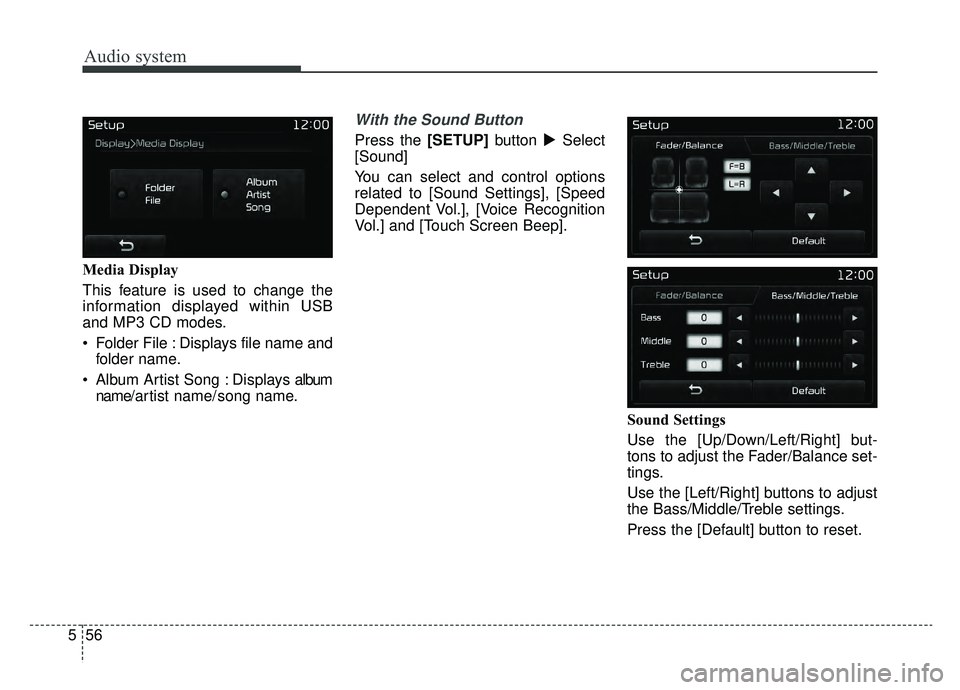
With the Sound Button
Press the [SETUP] button �Select
[Sound]
You can select and control options
related to [Sound Settings], [Speed
Dependent Vol.], [Voice Recognition
Vol.] and [Touch Screen Beep].
Sound Settings
Use the [Up/Down/Left/Right] but-
tons to adjust the Fader/Balance set-
tings.
Use the [Left/Right] buttons to adjust
the Bass/Middle/Treble settings.
Press the [Default] button to reset.
Page 321 of 607
Audio system
58
5
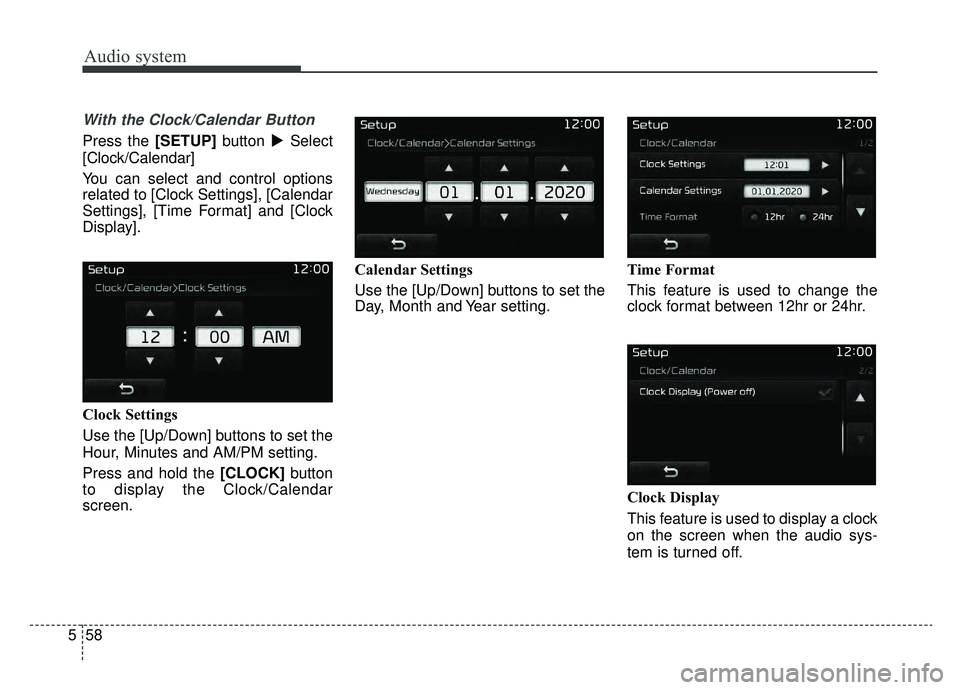
With the Clock/Calendar Button
Press the [SETUP] button �Select
[Clock/Calendar]
You can select and control options
related to [Clock Settings], [Calendar
Settings], [Time Format] and [Clock
Display].
Clock Settings
Use the [Up/Down] buttons to set the
Hour, Minutes and AM/PM setting.
Press and hold the [CLOCK] button
to display the Clock/Calendar
screen. Calendar Settings
Use the [Up/Down] buttons to set the
Day, Month and Year setting.
Time Format
This feature is used to change the
clock format between 12hr or 24hr.
Clock Display
This feature is used to display a clock
on the screen when the audio sys-
tem is turned off.
Page 379 of 607
651
Driving your vehicle
AUTONOMOUS EMERGENCY BRAKING (AEB) (IF EQUIPPED)
The AEB system is to reduce or to
avoid accident risk. It recognizes the
distance from the vehicle ahead or
the pedestrian through the sensors
(i.e. radar and camera), and, if nec-
essary, warns the driver of accident
risk with the warning message or the
warning alarms.✽ ✽NOTICE
Take the following precautions when
using the Autonomous Emergency
Braking (AEB):
• This system is only a supplemental
system and it is not intended to,
nor does it replace the need for
extreme care and attention of the
driver. The sensing range and
objects detectable by the sensors
are limited. Pay attention to the
road conditions at all times.
• NEVER drive too fast in accor- dance with the road conditions or
while cornering.
• Always drive cautiously to prevent unexpected and sudden situations
from occurring. AEB does not stop
the vehicle completely and does
not avoid collisions.
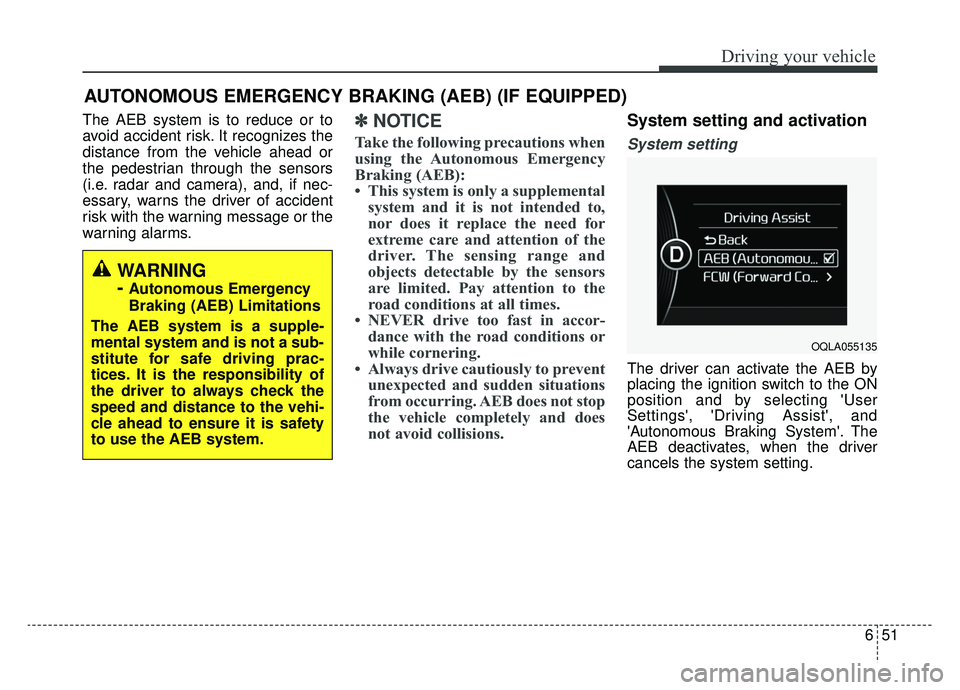
System setting and activation
System setting
The driver can activate the AEB by
placing the ignition switch to the ON
position and by selecting 'User
Settings', 'Driving Assist', and
'Autonomous Braking System'. The
AEB deactivates, when the driver
cancels the system setting.
WARNING
-
Autonomous Emergency
Braking (AEB) Limitations
The AEB system is a supple-
mental system and is not a sub-
stitute for safe driving prac-
tices. It is the responsibility of
the driver to always check the
speed and distance to the vehi-
cle ahead to ensure it is safety
to use the AEB system.
OQLA055135
Page 380 of 607
Driving your vehicle
52
6
The warning light illumi-
nates on the LCD display,
when you cancel the AEB
system. The driver can
monitor the AEB ON/OFF status on
the LCD display. When the warning
light remains ON with the AEB acti-
vated, we recommend you to have
the system checked by an authorized
Kia dealer.
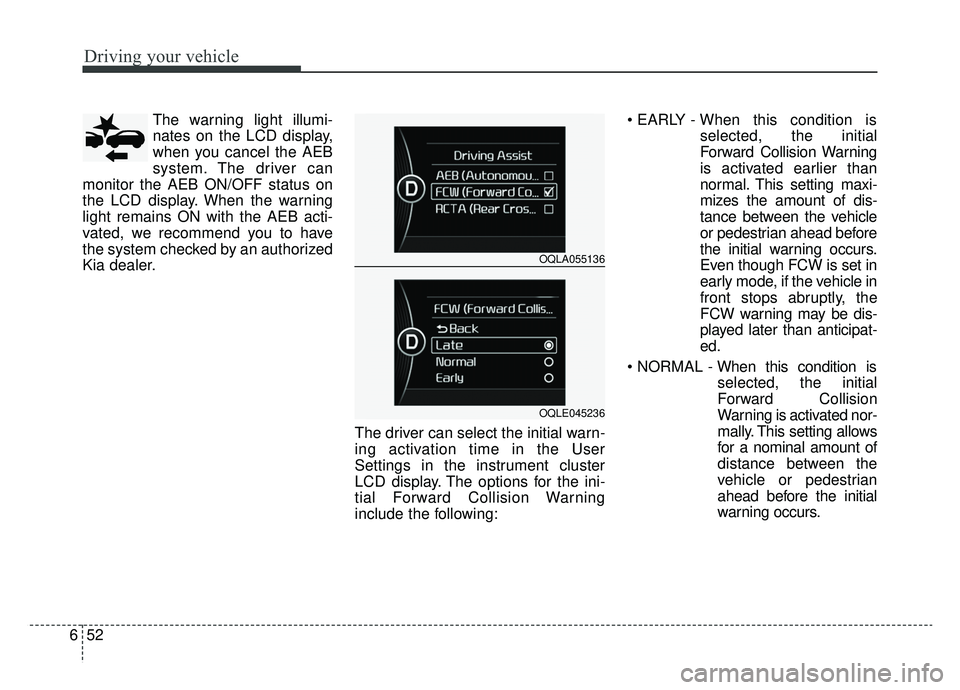
The driver can select the initial warn-
ing activation time in the User
Settings in the instrument cluster
LCD display. The options for the ini-
tial Forward Collision Warning
include the following:
selected, the initial
Forward Collision Warning
is activated earlier than
normal. This setting maxi-
mizes the amount of dis-
tance between the vehicle
or pedestrian ahead before
the initial warning occurs.
Even though FCW is set in
early mode, if the vehicle in
front stops abruptly, the
FCW warning may be dis-
played later than anticipat-
ed.
selected, the initial
Forward Collision
Warning is activated nor-
mally. This setting allows
for a nominal amount of
distance between the
vehicle or pedestrian
ahead before the initial
warning occurs.
OQLA055136
OQLE045236
Page 390 of 607
Driving your vehicle
62
6
✽ ✽
NOTICE
The system may temporarily cancel
due to the strong electric waves.
Pay great caution to the vehicle in
front, when it has heavy loading
extended rearward, or when it has
higher ground clearance.
The sensor only detects pedestri- an, not carts, bicycles, motorcy-
cles, luggage bags, or strollers.
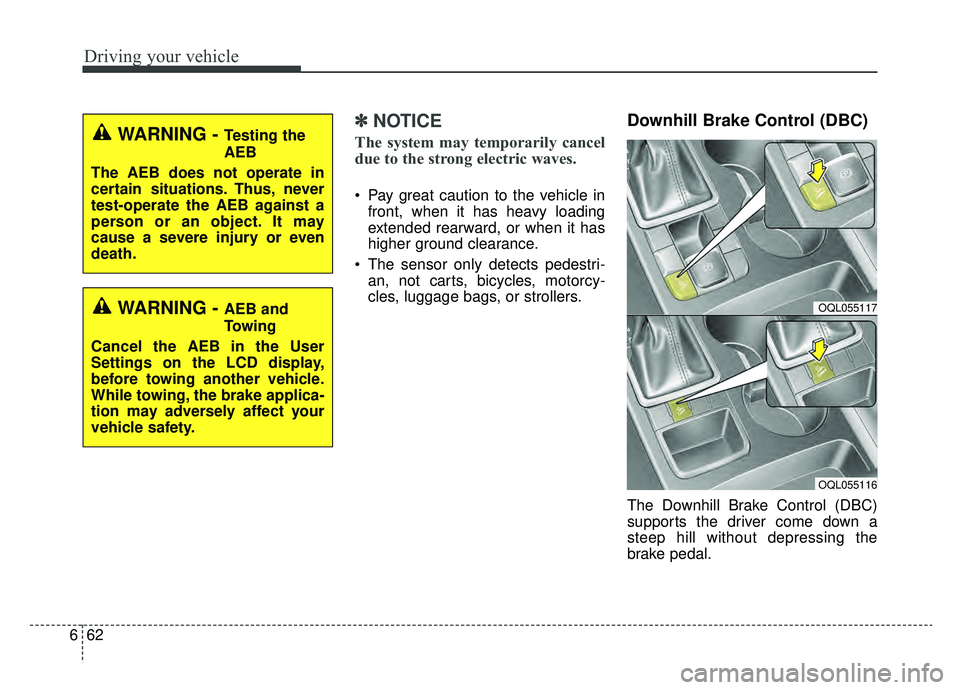
Downhill Brake Control (DBC)
The Downhill Brake Control (DBC)
supports the driver come down a
steep hill without depressing the
brake pedal.
WARNING - Testing the
AEB
The AEB does not operate in
certain situations. Thus, never
test-operate the AEB against a
person or an object. It may
cause a severe injury or even
death.
WARNING - AEB and
Towing
Cancel the AEB in the User
Settings on the LCD display,
before towing another vehicle.
While towing, the brake applica-
tion may adversely affect your
vehicle safety.OQL055117
OQL055116
Page 401 of 607
673
Driving your vehicle
BSD (Blind Spot Detection) /
LCA (Lane Change Assist)
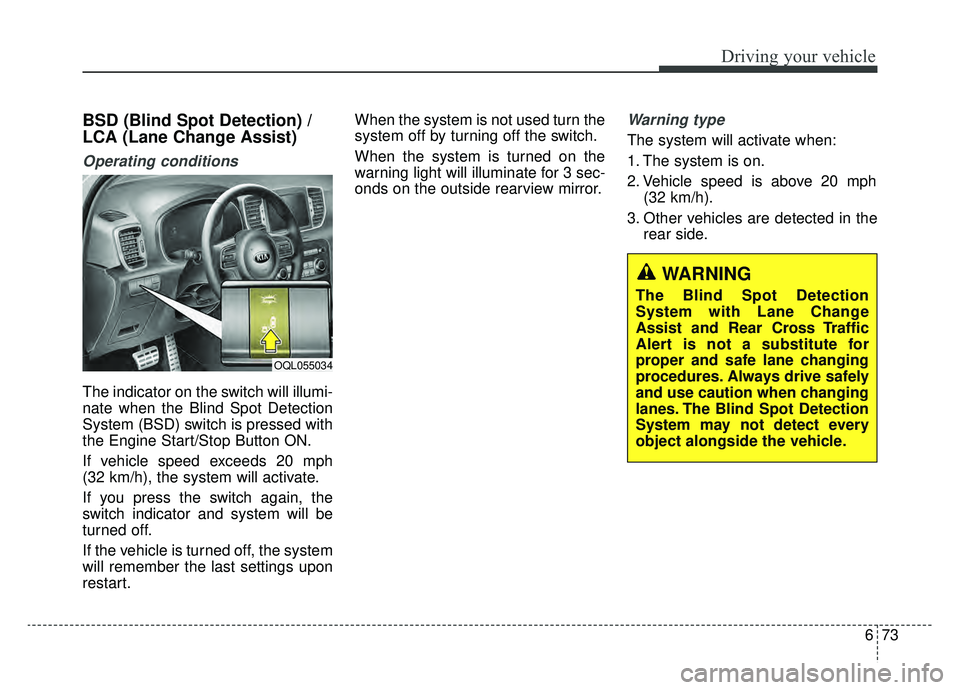
Operating conditions
The indicator on the switch will illumi-
nate when the Blind Spot Detection
System (BSD) switch is pressed with
the Engine Start/Stop Button ON.
If vehicle speed exceeds 20 mph
(32 km/h), the system will activate.
If you press the switch again, the
switch indicator and system will be
turned off.
If the vehicle is turned off, the system
will remember the last settings upon
restart.When the system is not used turn the
system off by turning off the switch.
When the system is turned on the
warning light will illuminate for 3 sec-
onds on the outside rearview mirror.
Warning type
The system will activate when:
1. The system is on.
2. Vehicle speed is above 20 mph
(32 km/h).
3. Other vehicles are detected in the rear side.
WARNING
The Blind Spot Detection
System with Lane Change
Assist and Rear Cross Traffic
Alert is not a substitute for
proper and safe lane changing
procedures. Always drive safely
and use caution when changing
lanes. The Blind Spot Detection
System may not detect every
object alongside the vehicle.
OQL055034