Page 224 of 564
Features of your vehicle
138
4
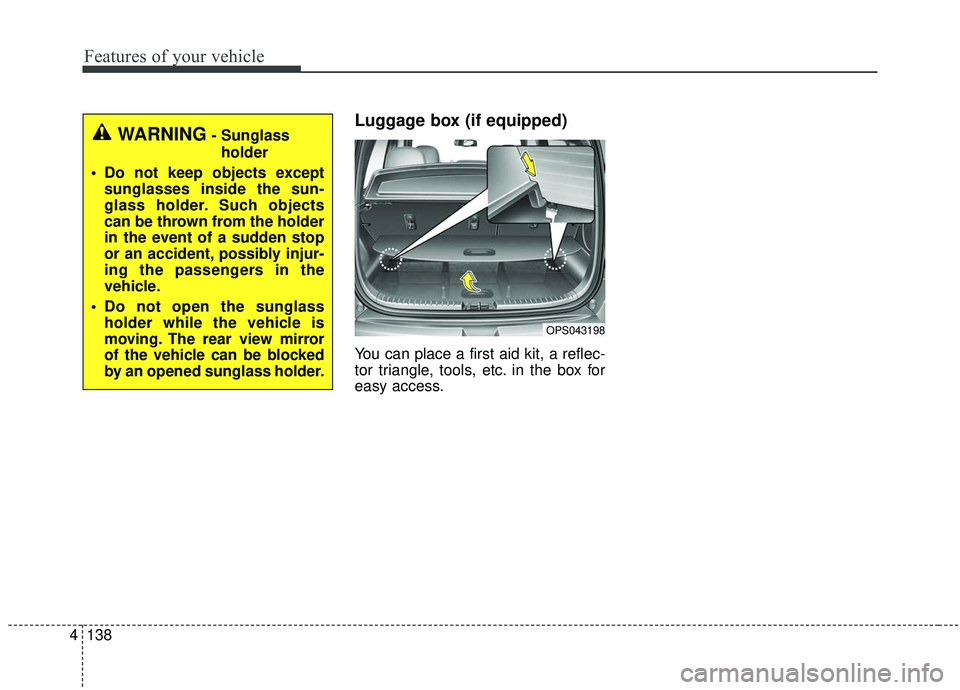
Luggage box (if equipped)
You can place a first aid kit, a reflec-
tor triangle, tools, etc. in the box for
easy access.
OPS043198
WARNING- Sunglass
holder
Do not keep objects except sunglasses inside the sun-
glass holder. Such objects
can be thrown from the holder
in the event of a sudden stop
or an accident, possibly injur-
ing the passengers in the
vehicle.
Do not open the sunglass holder while the vehicle is
moving. The rear view mirror
of the vehicle can be blocked
by an opened sunglass holder.
Page 234 of 564
Features of your vehicle
148
4
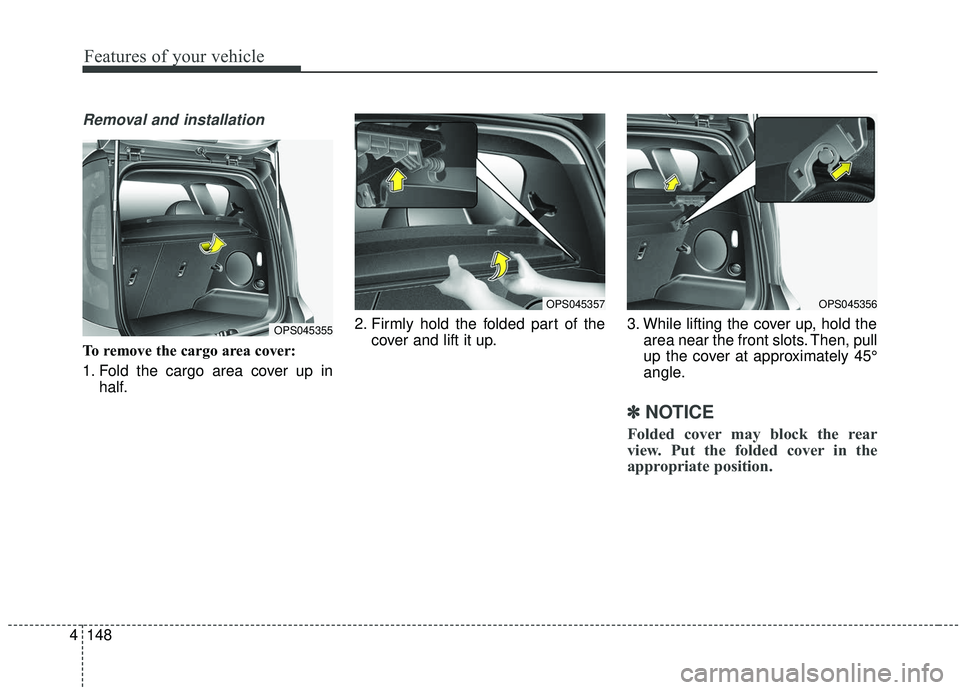
Removal and installation
To remove the cargo area cover:
1. Fold the cargo area cover up in
half. 2. Firmly hold the folded part of the
cover and lift it up. 3. While lifting the cover up, hold the
area near the front slots. Then, pull
up the cover at approximately 45°
angle.
✽ ✽NOTICE
Folded cover may block the rear
view. Put the folded cover in the
appropriate position.
OPS045355
OPS045357OPS045356
Page 240 of 564
Audio system
52
If you install aftermarket HID head
lamps, your vehicle’s audio and elec-
tronic devices may malfunction.Antenna (if equipped)
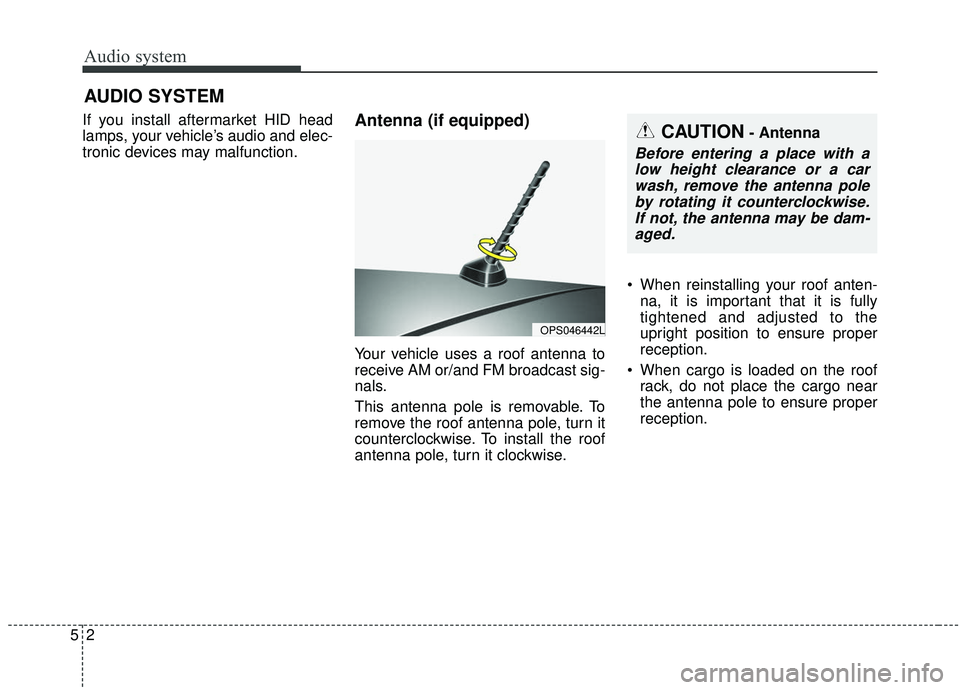
Your vehicle uses a roof antenna to
receive AM or/and FM broadcast sig-
nals.
This antenna pole is removable. To
remove the roof antenna pole, turn it
counterclockwise. To install the roof
antenna pole, turn it clockwise. When reinstalling your roof anten-
na, it is important that it is fully
tightened and adjusted to the
upright position to ensure proper
reception.
When cargo is loaded on the roof rack, do not place the cargo near
the antenna pole to ensure proper
reception.
AUDIO SYSTEM
OPS046442L
CAUTION- Antenna
Before entering a place with alow height clearance or a carwash, remove the antenna poleby rotating it counterclockwise.If not, the antenna may be dam-aged.
Page 245 of 564
Audio system
75
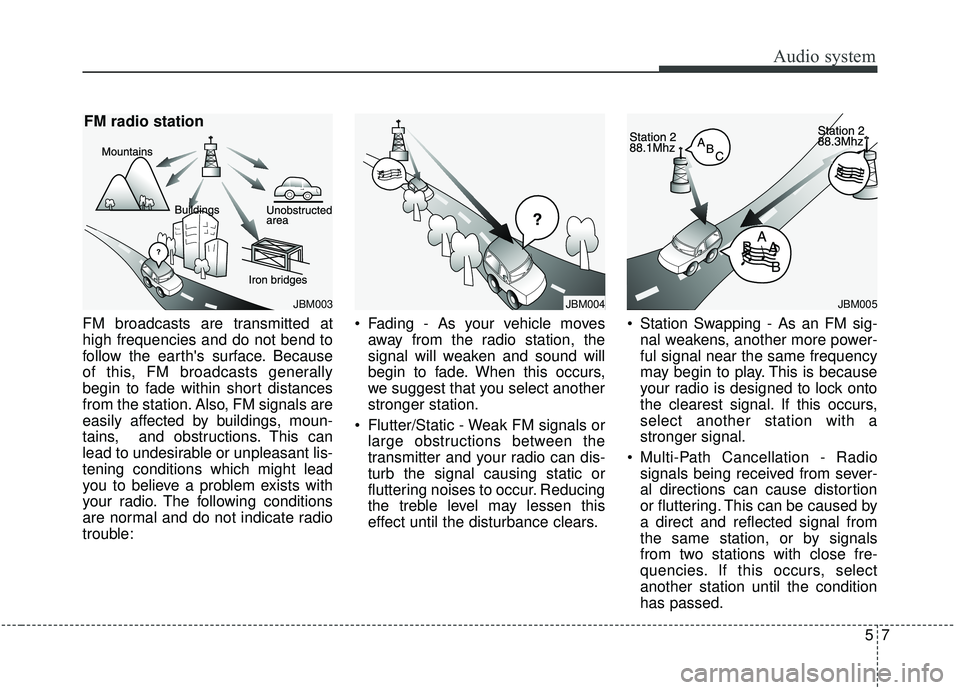
FM broadcasts are transmitted at
high frequencies and do not bend to
follow the earth's surface. Because
of this, FM broadcasts generally
begin to fade within short distances
from the station. Also, FM signals are
easily affected by buildings, moun-
tains, and obstructions. This can
lead to undesirable or unpleasant lis-
tening conditions which might lead
you to believe a problem exists with
your radio. The following conditions
are normal and do not indicate radio
trouble:
Fading - As your vehicle moves
away from the radio station, the
signal will weaken and sound will
begin to fade. When this occurs,
we suggest that you select another
stronger station.
Flutter/Static - Weak FM signals or large obstructions between the
transmitter and your radio can dis-
turb the signal causing static or
fluttering noises to occur. Reducing
the treble level may lessen this
effect until the disturbance clears. Station Swapping - As an FM sig-
nal weakens, another more power-
ful signal near the same frequency
may begin to play. This is because
your radio is designed to lock onto
the clearest signal. If this occurs,
select another station with a
stronger signal.
Multi-Path Cancellation - Radio signals being received from sever-
al directions can cause distortion
or fluttering. This can be caused by
a direct and reflected signal from
the same station, or by signals
from two stations with close fre-
quencies. If this occurs, select
another station until the condition
has passed.
JBM003
FM radio station
JBM005JBM004
Page 250 of 564
Audio system
512(6)
DISP
Turn the display on or off.
(7) CLOCK
Display the time/date/day.
(8) SETUP
Access Display, Sound, Date/Time,
Bluetooth, System, Screen Saver
and Display Off settings. (9)
TUNE knob
Turn to navigate through the sta- tions/songs list.
Press to select an item.
(10) RESET
Shutdown and restart the system.
Page 258 of 564
![KIA SOUL 2019 Owners Manual Audio system
520List
A list of all channels is displayed.
Select the desired channel.
Favorite channels can be saved to
[Presets] by selecting the [+].
Menu
Select the [Menu], and select the
desired f](/manual-img/2/40387/w960_40387-257.png "KIA SOUL 2019 Owners Manual Audio system
520List
A list of all channels is displayed.
Select the desired channel.
Favorite channels can be saved to
[Presets] by selecting the [+].
Menu
Select the [Menu], and select the
desired f")
Audio system
520List
A list of all channels is displayed.
Select the desired channel.
Favorite channels can be saved to
[Presets] by selecting the [+].
Menu
Select the [Menu], and select the
desired function.
Presets: Save up to 40 frequently
used channels.
To listen to a preset, select the
desired channel.
Press and hold the desired slot
from 1 through 40. This saves the
current channel in the selected
slot.
If the slot is empty, simply selecting
saves the channel to the slot.
Categories: Channels can be searched by category.
Direct Tune: The desired channel can be selected by entering num-
bers.
Sound Settings: Audio sound set- tings can be changed. Tag Song: Tag the current song
information.
When an Apple device (iPhone
®,
iPod®) is connected, tagged song
information is sent automatically to
the connected device.
✽ ✽ NOTICE
Up to 50 songs can be tagged.
Scan: All channels available in the
vehicle's current location are
played for ten seconds each.
Program Schedule: View the pro- gram schedule.
Featured Favorites: The Featured Favorites feature allows SiriusXM™
to broadcast additional presets.
- Example 1: During holidays,“Holiday Music” might include all
SiriusXM™ channels that are
playing holiday music for easy
access by users.
Multiple sets of Featured Favorites
data can be broadcast by
SiriusXM™ and can change from
time to time. Information: View detailed channel
information.
Category Lock: Search or scan channels in the current category
only.
Page 289 of 564
Audio system
51
5
✽ ✽
NOTICE
• When paired devices are deleted,
the call history and contacts of the
device saved to the audio system
are deleted.
• For Bluetooth
®Wireless Technology
connections with low connection pri-
ority, some time may be required for
the connection to be established.
• Contacts can be downloaded only from the currently connected
Bluetooth
®Wireless Technology
device.
• If no Bluetooth
®Wireless Technology
device is connected, the Download
Contacts button is disabled.
System
Press the [SETUP] button on the
audio system ➟ Select [System].
Memory Information: View My Music memory usage.
Voice Recognition Guidance: Adjust the length of the voice
recognition prompt.
Language: Change the user lan- guage.
Screen Saver
Set the information displayed when
the audio system is switched off or
the screen is turned off.
Press the [SETUP] button on the
audio system ➟ Select [Screen
Saver].
Analog: An analog clock is dis- played.
Digital: A digital clock is displayed.
None: No information is displayed.
Display Off
To prevent glare, the screen can be
turned off with the audio system in
operation.
Press the [SETUP] button on the
audio system ➟ Select [Display Off].
✽ ✽
NOTICE
Use ‘Screen Saver’ to set the infor-
mation to be displayed when the
screen is turned off.
Page 294 of 564

Driving your vehicle
46
Before entering vehicle
• Be sure that all windows, outsidemirror(s), and outside lights are
clean.
Check the condition of the tires.
Check under the vehicle for any sign of leaks.
Be sure there are no obstacles behind you if you intend to back up.
Necessary inspections
Fluid levels, such as engine oil,
engine coolant, brake fluid, and
washer fluid should be checked on a
regular basis, at the exact interval
depending on the fluid. Further
details are provided in chapter 8,
“Maintenance”.
Before starting
Close and lock all doors.
Position the seat so that all con-trols are easily reached.
Buckle your seat belt.
Adjust the inside and outside rearview mirrors.
Be sure that all lights work.
Check all gauges.
Check the operation of warning lights when the ignition switch is
turned to the ON position.
Release the parking brake and make sure the brake warning light
goes out.
For safe operation, be sure you are
familiar with your vehicle and its
equipment.
BEFORE DRIVING
WARNING
Driving while distracted can
result in a loss of vehicle con-
trol, that may lead to an acci-
dent, severe personal injury,
and death. The driver’s primary
responsibility is in the safe and
legal operation of a vehicle, and
use of any handheld devices,
other equipment, or vehicle sys-
tems which take the driver’s
eyes, attention and focus away
from the safe operation of a
vehicle or which are not permis-
sible by law should never be
used during operation of the
vehicle.