2019 KIA SOUL phone
[x] Cancel search: phonePage 284 of 564

Audio system
546Phone voice commands
Voice commands associated with phone functions can
be used after a
Bluetooth®Wireless Technology device
has been connected.
To use voice commands using contact names, such as ‘Call John Smith’, download contacts beforehand.
After contacts are downloaded over
Bluetooth®
Wireless Technology, some time may be required for
conversion of contact info into voice data. During this
conversion, phone calls cannot be made by saying con-
tact names. The time required for contact info conver-
sion depends on the number of entries in Contacts.
When the ‘Call
friend with the name ‘John Smith’ is saved to Contacts
under the nickname ‘Buddy’, ‘Call John Smith’ is not
recognized as a valid command. Instead, ‘Call Buddy’ is
recognized.
✽ ✽ NOTICE
When dialing by name, if there are similar names or
multiple subentries (mobile, work, home, other), you
may be prompted to select the contact desired from a
list.
CommandFeatures
●CallDownloaded contacts are shown on-screen.
Dial by stating the name of the desired contact.
●Call historyRecent call history is shown on the screen.
State the number of the item on the screen to
dial.
●RedialImmediately redial the last outgoing phone
number in Call History.
CommandFeatures
●Call
Immediately dial the phone number under
E.g. Call
●Call
MobileImmediately dial the number saved under
‘mobile’ for
E.g. Call
●Call
WorkImmediately dial the number saved under
‘work’ for
E.g. Call
●Call
HomeImmediately dial the number saved under
‘home’ for
E.g. Call
●Call
Other
Immediately dial the number saved under
‘other’ and not ‘cell, home, or work’ for
in downloaded contacts
.
E.g. Call
●Dial NumberDisplay a screen enabling you to say a phone
number to dial.
Page 285 of 564
Audio system
47
5
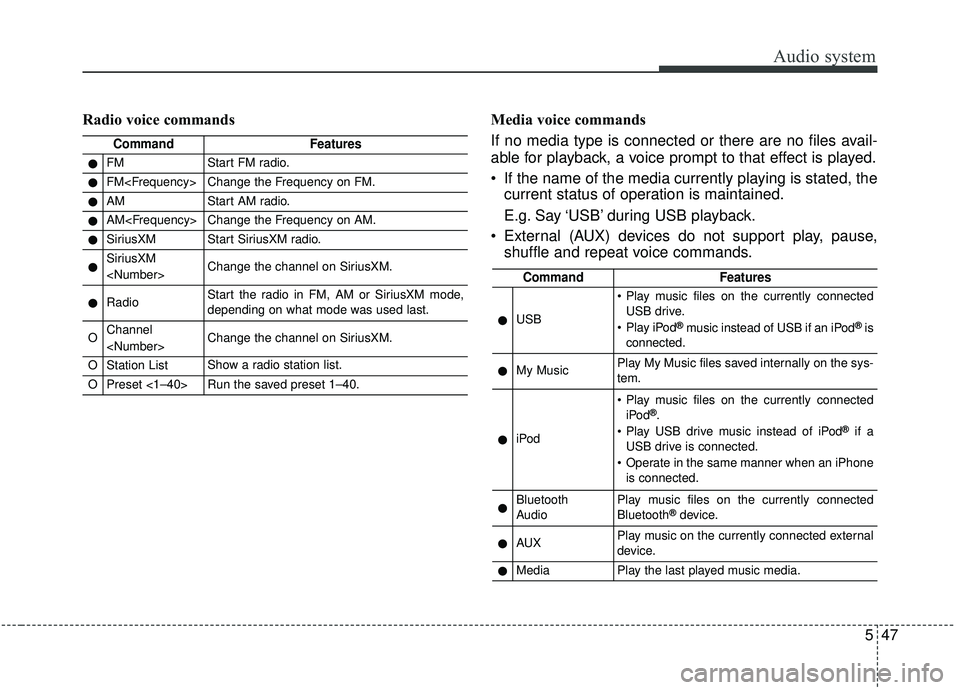
Radio voice commands Media voice commands
If no media type is connected or there are no files avail-
able for playback, a voice prompt to that effect is played.
If the name of the media currently playing is stated, the current status of operation is maintained.
E.g. Say ‘USB’ during USB playback.
External (AUX) devices do not support play, pause, shuffle and repeat voice commands.
CommandFeatures
●FMStart FM radio.
●FM
●AMStart AM radio.
●AM
●SiriusXMStart SiriusXM radio.
●SiriusXM
●RadioStart the radio in FM, AM or SiriusXM mode,
depending on what mode was used last.
OChannel
OStation ListShow a radio station list.
OPreset <1–40>Run the saved preset 1–40.
CommandFeatures
●USB
Play music files on the currently connected
USB drive.
Play iPod
®music instead of USB if an iPod®is
connected.
●My MusicPlay My Music files saved internally on the sys-
tem.
●iPod
Play music files on the currently connected iPod®.
Play USB drive music instead of iPod®if a
USB drive is connected.
Operate in the same manner when an iPhone is connected.
●Bluetooth
AudioPlay music files on the currently connected
Bluetooth®device.
●AUXPlay music on the currently connected external
device.
●MediaPlay the last played music media.
Page 287 of 564
Audio system
49
5
Siri
✽ ✽
NOTICE - Using Siri
• Android device is not supported to
use Siri.
• If you want to use Siri, you have to connect your iOS device to the
multimedia system through
Bluetooth
®Wireless Technology.
(Please check whether your iOS
device supports Siri and turning
Siri On)
• If the iOS version is changed, the functions and response may be dif-
ferent according to the iOS device
and the latest version.
• Siri automatically stops in the fol- lowing events.
1) Outgoing and incoming phone calls.
2) Media (USB, etc.) is connected. (Siri mode is maintained when
iPod
®s are connected)
3) Rear camera is activated
(if
equipped).
4) Vehicle is started or engine is
turned off. (Continued)(Continued)
5) Screen transition buttons, such as RADIO or MEDIA, are
selected.
6) When a pop-up message is dis- played on the screen due to
accidental execution of Siri.
• The microphone is located above the driver’s seat. To ensure proper
Siri, state your voice while main-
taining proper driving posture.
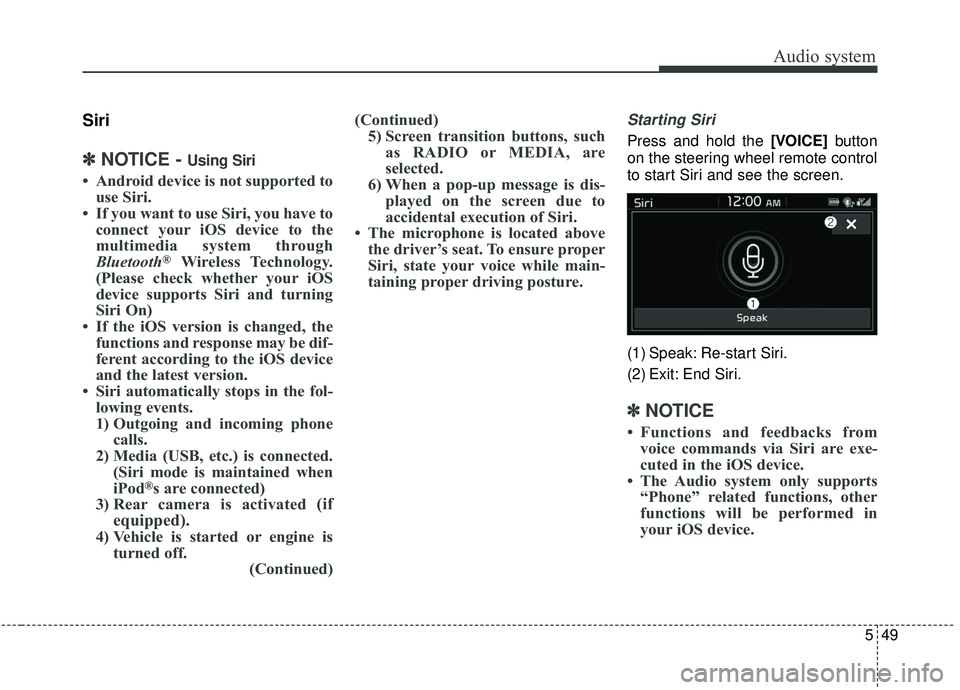
Starting Siri
Press and hold the [VOICE] button
on the steering wheel remote control
to start Siri and see the screen.
(1) Speak: Re-start Siri.
(2) Exit: End Siri.
✽ ✽ NOTICE
• Functions and feedbacks from
voice commands via Siri are exe-
cuted in the iOS device.
• The Audio system only supports “Phone” related functions, other
functions will be performed in
your iOS device.
Page 556 of 564
Index
2I
Air bag - advanced supplemental restraint system . . . . 3-42Adding equipment to or modifying your air bag-equipped vehicle . . . . . . . . . . . . . . . . . . . . 3-68
Air bag warning label. . . . . . . . . . . . . . . . . . . . . . . . 3-68
Air bag warning light . . . . . . . . . . . . . . . . . . . . . . . . 3-45
Curtain air bag . . . . . . . . . . . . . . . . . . . . . . . . . . . . . 3-61
Driver's and passenger's front air bag . . . . . . . . . . . 3-56
How does the air bag system operate. . . . . . . . . . . . 3-43
Occupant Detection System (ODS) . . . . . . . . . . . . . 3-49
Side air bag. . . . . . . . . . . . . . . . . . . . . . . . . . . . . . . . 3-59
SRS Care . . . . . . . . . . . . . . . . . . . . . . . . . . . . . . . . . 3-67
SRS components and functions . . . . . . . . . . . . . . . . 3-46
Air cleaner . . . . . . . . . . . . . . . . . . . . . . . . . . . . . . . . . . 8-36\
Filter replacement. . . . . . . . . . . . . . . . . . . . . . . . . . . 8-36
Air conditioning system . . . . . . . . . . . . . . . . . . . . . . . 9-6
Appearance care . . . . . . . . . . . . . . . . . . . . . . . . . . . . . . 8-94 Exterior care . . . . . . . . . . . . . . . . . . . . . . . . . . . . . . . 8-94
Interior care . . . . . . . . . . . . . . . . . . . . . . . . . . . . . . . 8-99
Audio (with Touch Screen). . . . . . . . . . . . . . . . . . . . . . 5-10 Feature of Your Audio . . . . . . . . . . . . . . . . . . . . . . . 5-11
Media . . . . . . . . . . . . . . . . . . . . . . . . . . . . . . . . . . . . \
5-21
Phone . . . . . . . . . . . . . . . . . . . . . . . . . . . . . . . . . . . . \
5-32
Radio . . . . . . . . . . . . . . . . . . . . . . . . . . . . . . . . . . . . \
5-17
Setup . . . . . . . . . . . . . . . . . . . . . . . . . . . . . . . . . . . . \
. 5-50
Siri . . . . . . . . . . . . . . . . . . . . . . . . . . . . . . . . . . . . \
. . 5-49 SiriusXM . . . . . . . . . . . . . . . . . . . . . . . . . . . . . . . . . 5-19
Voice Recognition . . . . . . . . . . . . . . . . . . . . . . . . . . 5-41
Audio System . . . . . . . . . . . . . . . . . . . . . . . . . . . . . . . . . 5-2 Antenna . . . . . . . . . . . . . . . . . . . . . . . . . . . . . . . . . . . 5-\
2
Audio remote control . . . . . . . . . . . . . . . . . . . . . . . . . 5-3
AUX and USB port . . . . . . . . . . . . . . . . . . . . . . . . . . 5-4
How vehicle audio works . . . . . . . . . . . . . . . . . . . . . . 5-6
Speaker lights . . . . . . . . . . . . . . . . . . . . . . . . . . . . . . . 5-4
Automatic climate control system . . . . . . . . . . . . . . . 4-117 Automatic heating and air conditioning. . . . . . . . . 4-118
Checking the amount of air conditioner refrigerant and compressor lubricant . . . . . . . . . . . . . . . . . . . . . . 4-129
Climate control air filter. . . . . . . . . . . . . . . . . . . . . 4-129
Manual heating and air conditioning . . . . . . . . . . . 4-119
System operation . . . . . . . . . . . . . . . . . . . . . . . . . . 4-127
Automatic transaxle . . . . . . . . . . . . . . . . . . . . . . . . . . . 6-19 Automatic transaxle operation . . . . . . . . . . . . . . . . . 6-19
Good driving practices . . . . . . . . . . . . . . . . . . . . . . . 6-25
Autonomous Emergency Braking (AEB) . . . . . . . . . . . 6-50 Brake operation . . . . . . . . . . . . . . . . . . . . . . . . . . . . 6-54
Limitations of the system . . . . . . . . . . . . . . . . . . . . . 6-58
Sensor to detect the distance from the vehicle in front (Front radar) . . . . . . . . . . . . . . . . . . . . . . . . . . . . . . 6-55
System malfunction . . . . . . . . . . . . . . . . . . . . . . . . . 6-56
System setting and activation . . . . . . . . . . . . . . . . . . 6-50
A