2019 KIA SOUL phone
[x] Cancel search: phonePage 273 of 564
![KIA SOUL 2019 Owners Manual Audio system
35
5
1. When the [PHONE] button on the
audio system or the [CALL] button
on the steering wheel remote con-
trol is pressed, the following screen
is displayed. Devices can now be
paired.
(](/manual-img/2/40387/w960_40387-272.png "KIA SOUL 2019 Owners Manual Audio system
35
5
1. When the [PHONE] button on the
audio system or the [CALL] button
on the steering wheel remote con-
trol is pressed, the following screen
is displayed. Devices can now be
paired.
(")
Audio system
35
5
1. When the [PHONE] button on the
audio system or the [CALL] button
on the steering wheel remote con-
trol is pressed, the following screen
is displayed. Devices can now be
paired.
(1) Vehicle Name: Searched name in
Bluetooth®Wireless Technology
device
.
✽ ✽ NOTICE
The vehicle name in the image above
is an example. Refer to your device
for the actual name of your device.
2. Search for available Bluetooth®
Wireless Technology devices in
the
Bluetooth®Wireless Technology
menu of your
Bluetooth®Wireless
Technology device (cell phone,
etc.). 3. Confirm that the vehicle name in
your
Bluetooth®Wireless Technology
device matches the vehicle name
shown on the audio screen, then
select it.
4-1. For devices that require passkey entry, a passkey entry screen is
shown on your
Bluetooth®
Wireless Technology device.
- Enter the passkey ‘0000’, inyour
Bluetooth®Wireless
Technology device.
4-2. For devices that require passkey confirmation, the following
screen is shown on the audio
system. A 6-digit passkey input
screen is shown in the
Bluetooth®Wireless Technology
device. - After confirming that the 6-
digit passkey on the audio
screen and the
Bluetooth®
Wireless Technology de vice are
identical, select [OK] in your
Bluetooth®Wireless Technology
device.
✽ ✽ NOTICE
The 6-digit passkey in the image
above is an example. Refer to your
vehicle for the actual passkey.
Page 274 of 564
![KIA SOUL 2019 Owners Manual Audio system
536Pairing a second Bluetooth
®Wireless
Technology device
Press the [SETUP] button on the
audio system ➟ Select [Bluetooth] ➟
Select [Connections] ➟ Select [Add
New].
- The pairing](/manual-img/2/40387/w960_40387-273.png "KIA SOUL 2019 Owners Manual Audio system
536Pairing a second Bluetooth
®Wireless
Technology device
Press the [SETUP] button on the
audio system ➟ Select [Bluetooth] ➟
Select [Connections] ➟ Select [Add
New].
- The pairing")
Audio system
536Pairing a second Bluetooth
®Wireless
Technology device
Press the [SETUP] button on the
audio system ➟ Select [Bluetooth] ➟
Select [Connections] ➟ Select [Add
New].
- The pairing procedure from this point is identical to [Pairing the first
Bluetooth device].✽ ✽ NOTICE
•Bluetooth®Wireless Technology
standby mode lasts for three min-
utes. If a device is not paired with-
in three minutes, pairing is can-
celed. Start over from the begin-
ning.
• For most Bluetooth
®Wireless
Technology devices, a connection
is established automatically after
pairing. Some devices, however,
require separate confirmation
when connecting after pairing. Be
sure to check your Bluetooth
®
Wireless Technology device after
pairing to confirm that it has con-
nected.
Connecting Bluetooth®Wireless
Technology devices
If there are no connected devices
Press the [PHONE] button on the
audio system or the [CALL] button in
the steering wheel remote control ➟
List of paired
Bluetooth®Wireless
Technology devices ➟Select the
desired
Bluetooth®Wireless Technology
device from the list ➟ Connect
Bluetooth®
Wireless Technology.
Page 275 of 564
![KIA SOUL 2019 Owners Manual Audio system
37
5
If there are connected devices
Press the [PHONE] button on the
audio system ➟ Select [Settings] ➟
Select [Connections] ➟Select
Bluetooth®Wireless Technology device
to connect](/manual-img/2/40387/w960_40387-274.png "KIA SOUL 2019 Owners Manual Audio system
37
5
If there are connected devices
Press the [PHONE] button on the
audio system ➟ Select [Settings] ➟
Select [Connections] ➟Select
Bluetooth®Wireless Technology device
to connect")
Audio system
37
5
If there are connected devices
Press the [PHONE] button on the
audio system ➟ Select [Settings] ➟
Select [Connections] ➟Select
Bluetooth®Wireless Technology device
to connect ➟ Select [Connect] ➟
Connect
Bluetooth®Wireless Technology.
✽ ✽ NOTICE
• Only one Bluetooth®Wireless
Technology device can be connect-
ed at a time.
• When a Bluetooth
®Wireless
Technology device is connected,
other devices cannot be paired.
Accepting/rejecting phone calls
Receiving phone calls with
Bluetooth®Wireless Technology con-
nected.
(1) Caller name: If the caller number is in your contacts, the correspon-
ding name is displayed.
(2) Incoming phone number: Incoming phone number is displayed.
(3) Accept: Accept call.
(4) Reject: Reject call.
✽ ✽ NOTICE
• When the incoming call screen is
displayed, audio mode and the set-
tings screen cannot be shown.
Only call volume control is sup-
ported.
• Some Bluetooth
®Wireless Technology
devices may not support the call
reject function.
• Some Bluetooth
®Wireless Technology
devices may not support the phone
number display function.
Page 276 of 564
![KIA SOUL 2019 Owners Manual Audio system
538
Operation during calls
Incoming call with Bluetooth®
Wireless Technology connected ➟
Select [Accept].
(1) Display Call duration: Call duration display.
(2) Caller name: If the cal](/manual-img/2/40387/w960_40387-275.png "KIA SOUL 2019 Owners Manual Audio system
538
Operation during calls
Incoming call with Bluetooth®
Wireless Technology connected ➟
Select [Accept].
(1) Display Call duration: Call duration display.
(2) Caller name: If the cal")
Audio system
538
Operation during calls
Incoming call with Bluetooth®
Wireless Technology connected ➟
Select [Accept].
(1) Display Call duration: Call duration display.
(2) Caller name: If the caller number is in your contacts, the corresponding
name is displayed.
(3) Incoming phone number: Incoming phone number is displayed.
(4) Keypad: Number keypad for Automatic Response Service input
is displayed.
(5) Private: Call is transferred to a cell phone.
(6) Outgoing Volume: Adjust outgo- ing voice volume.
(7) End: End call.
✽ ✽ NOTICE
• Some Bluetooth®Wireless Technology
devices may not support the
Private function.
• The outgoing voice volume may vary depending on the type of
Bluetooth
®Wireless Technology
device. If the outgoing voice vol-
ume is too high or low, adjust the
Microphone Outgoing Volume.
Favorites
Press the [PHONE] button on the
audio system ➟ Select [Favorites] ➟
Favorites list displayed.
(1) Favorites list: A list of paired favorites is displayed.
Connect a call when selected.
(2) Add to Favorites: Add a down- loaded phone number to favorites.
(3) Delete: Delete a saved favorites.
Page 277 of 564
Audio system
39
5
✽ ✽
NOTICE
• Up to 20 favorites can be saved for
each connected Bluetooth®
Wireless Technology device.
• Favorites can be accessed when the Bluetooth
®Wireless Technology
device they were paired from is
connected.
• The audio system does not down- load favorites from Bluetooth
®
Wireless Technology devices.
Favorites must be newly saved
before use.
• To add to favorites, contacts must be downloaded first.
• Saved favorites are not updated even if the contacts of the connected
Bluetooth
®Wireless Technology
device are changed. In this case,
favorites need to be deleted and
added again.
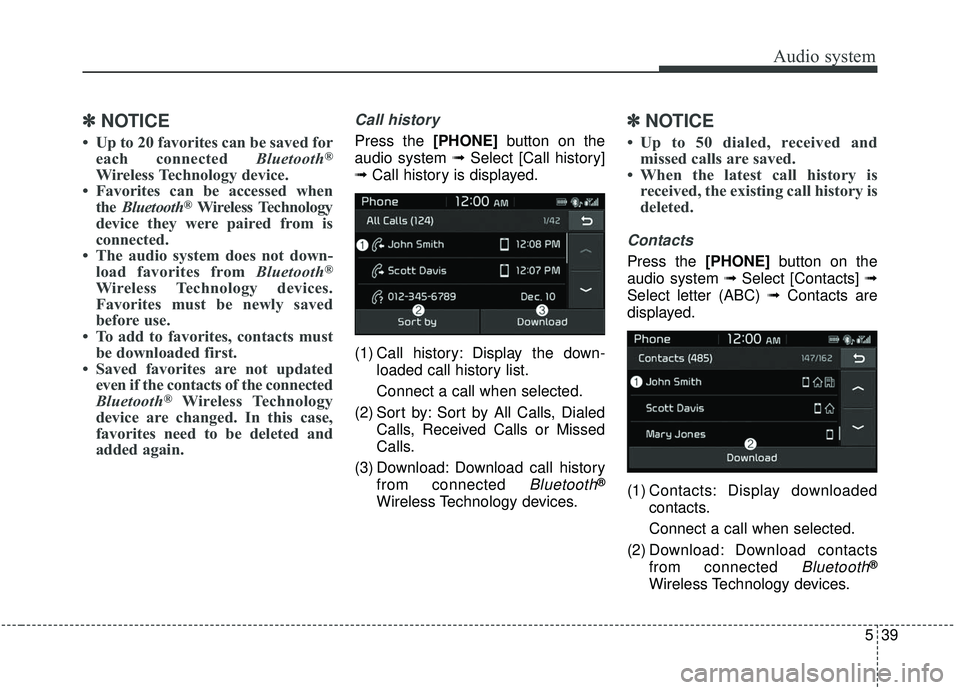
Call history
Press the [PHONE] button on the
audio system ➟ Select [Call history]
➟ Call history is displayed.
(1) Call history: Display the down- loaded call history list.
Connect a call when selected.
(2) Sort by: Sort by All Calls, Dialed Calls, Received Calls or Missed
Calls.
(3) Download: Download call history from connected
Bluetooth®
Wireless Technology devices.
✽ ✽NOTICE
• Up to 50 dialed, received and
missed calls are saved.
• When the latest call history is received, the existing call history is
deleted.
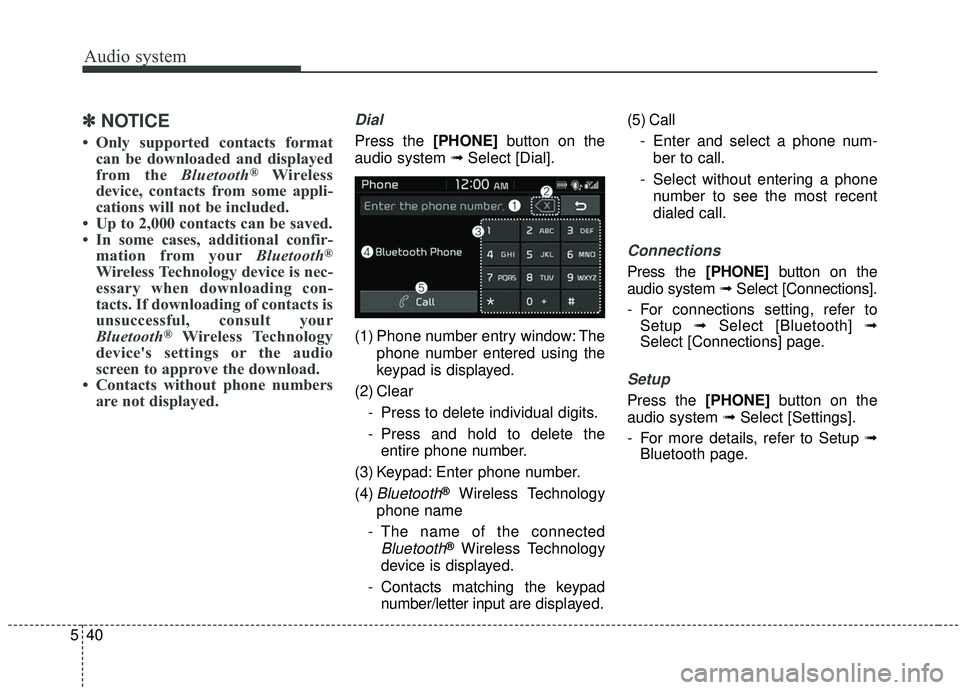
Contacts
Press the [PHONE] button on the
audio system ➟ Select [Contacts] ➟
Select letter (ABC) ➟ Contacts are
displayed.
(1) Contacts: Display downloaded contacts.
Connect a call when selected.
(2) Download: Download contacts from connected
Bluetooth®
Wireless Technology devices.
Page 278 of 564
Audio system
540
✽ ✽NOTICE
• Only supported contacts format
can be downloaded and displayed
from the Bluetooth
®Wireless
device, contacts from some appli-
cations will not be included.
• Up to 2,000 contacts can be saved.
• In some cases, additional confir- mation from your Bluetooth
®
Wireless Technology device is nec-
essary when downloading con-
tacts. If downloading of contacts is
unsuccessful, consult your
Bluetooth
®Wireless Technology
device's settings or the audio
screen to approve the download.
• Contacts without phone numbers are not displayed.
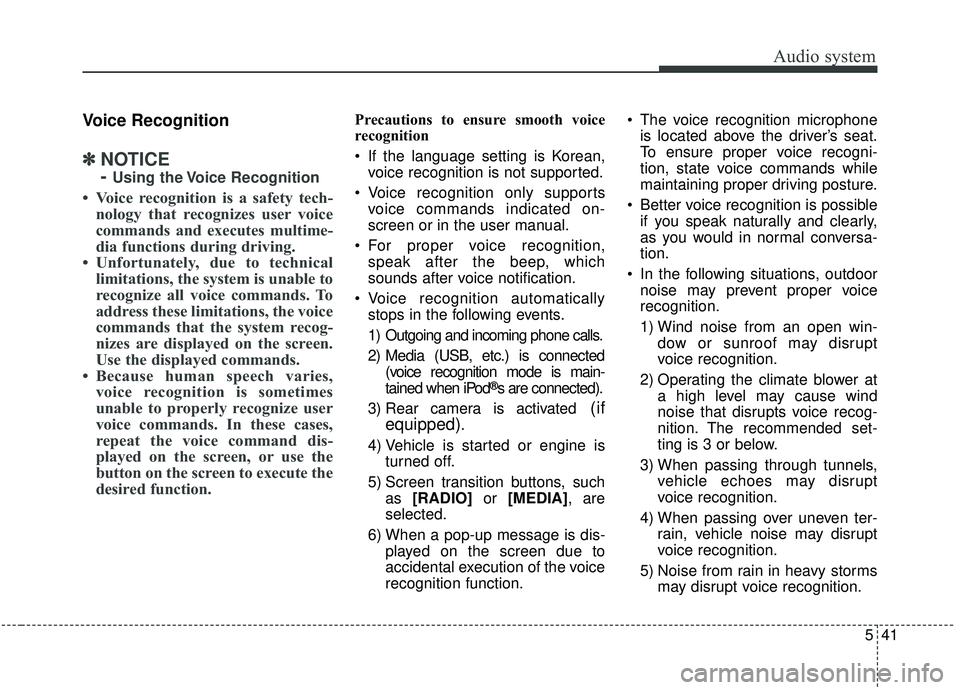
Dial
Press the [PHONE] button on the
audio system ➟ Select [Dial].
(1) Phone number entry window: The phone number entered using the
keypad is displayed.
(2) Clear - Press to delete individual digits.
- Press and hold to delete theentire phone number.
(3) Keypad: Enter phone number.
(4)
Bluetooth®Wireless Technology
phone name
- The name of the connected
Bluetooth®Wireless Technology
device is displayed.
- Contacts matching the keypad number/letter input are displayed.(5) Call
- Enter and select a phone num-ber to call.
- Select without entering a phone number to see the most recent
dialed call.
Connections
Press the [PHONE] button on the
audio system ➟ Select [Connections].
- For connections setting, refer to Setup ➟Select [Bluetooth] ➟
Select [Connections] page.
Setup
Press the [PHONE] button on the
audio system ➟ Select [Settings].
- For more details, refer to Setup ➟ Bluetooth page.
Page 279 of 564
Audio system
41
5
Voice Recognition
✽ ✽
NOTICE
-
Using the Voice Recognition
• Voice recognition is a safety tech-
nology that recognizes user voice
commands and executes multime-
dia functions during driving.
• Unfortunately, due to technical limitations, the system is unable to
recognize all voice commands. To
address these limitations, the voice
commands that the system recog-
nizes are displayed on the screen.
Use the displayed commands.
• Because human speech varies, voice recognition is sometimes
unable to properly recognize user
voice commands. In these cases,
repeat the voice command dis-
played on the screen, or use the
button on the screen to execute the
desired function.
Precautions to ensure smooth voice
recognition
If the language setting is Korean,
voice recognition is not supported.
Voice recognition only supports voice commands indicated on-
screen or in the user manual.
For proper voice recognition, speak after the beep, which
sounds after voice notification.
Voice recognition automatically stops in the following events.
1) Outgoing and incoming phone calls.
2) Media (USB, etc.) is connected (voice recognition mode is main-
tained when iPod
®s are connected).
3) Rear camera is activated
(if
equipped)
.
4) Vehicle is started or engine is turned off.
5) Screen transition buttons, such as [RADIO] or [MEDIA], are
selected.
6) When a pop-up message is dis- played on the screen due to
accidental execution of the voice
recognition function. The voice recognition microphone
is located above the driver’s seat.
To ensure proper voice recogni-
tion, state voice commands while
maintaining proper driving posture.
Better voice recognition is possible if you speak naturally and clearly,
as you would in normal conversa-
tion.
In the following situations, outdoor noise may prevent proper voice
recognition.
1) Wind noise from an open win- dow or sunroof may disrupt
voice recognition.
2) Operating the climate blower at a high level may cause wind
noise that disrupts voice recog-
nition. The recommended set-
ting is 3 or below.
3) When passing through tunnels, vehicle echoes may disrupt
voice recognition.
4) When passing over uneven ter- rain, vehicle noise may disrupt
voice recognition.
5) Noise from rain in heavy storms may disrupt voice recognition.
Page 283 of 564
Audio system
45
5
(6) Help: Available voice commands
displayed in stages.
(7) Exit: End voice recognition.
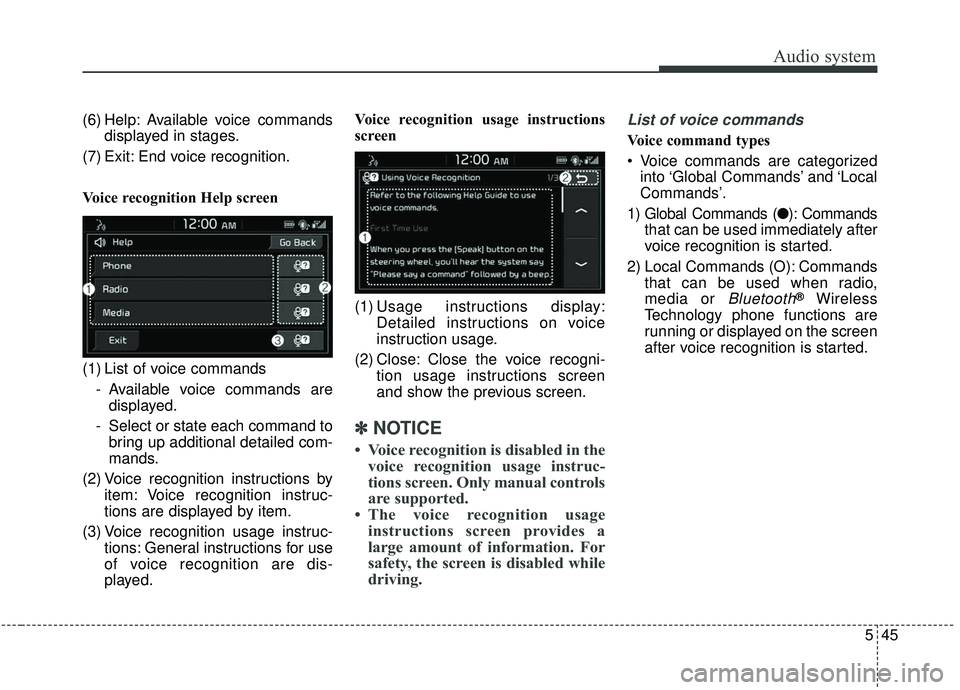
Voice recognition Help screen
(1) List of voice commands - Available voice commands aredisplayed.
- Select or state each command to bring up additional detailed com-
mands.
(2) Voice recognition instructions by item: Voice recognition instruc-
tions are displayed by item.
(3) Voice recognition usage instruc- tions: General instructions for use
of voice recognition are dis-
played. Voice recognition usage instructions
screen
(1) Usage instructions display:
Detailed instructions on voice
instruction usage.
(2) Close: Close the voice recogni- tion usage instructions screen
and show the previous screen.
✽ ✽NOTICE
• Voice recognition is disabled in the
voice recognition usage instruc-
tions screen. Only manual controls
are supported.
• The voice recognition usage instructions screen provides a
large amount of information. For
safety, the screen is disabled while
driving.
List of voice commands
Voice command types
Voice commands are categorized
into ‘Global Commands’ and ‘Local
Commands’.
1) Global Commands (● ): Commands
that can be used immediately after
voice recognition is started.
2) Local Commands (O): Commands that can be used when radio,
media or
Bluetooth®Wireless
Technology phone functions are
running or displayed on the screen
after voice recognition is started.