Page 239 of 564

Audio system
Audio System . . . . . . . . . . . . . . . . . . . . . . . . . . . . . . 5-2
• Antenna . . . . . . . . . . . . . . . . . . . . . . . . . . . . . . . . . . . . \
. 5-2
• Audio remote control . . . . . . . . . . . . . . . . . . . . . . . . . . 5-3
• AUX and USB port . . . . . . . . . . . . . . . . . . . . . . . . . . . . 5-4
• Speaker lights. . . . . . . . . . . . . . . . . . . . . . . . . . . . . . . . . 5-4
• How vehicle audio works . . . . . . . . . . . . . . . . . . . . . . . 5-6
Audio (With Touch Screen) . . . . . . . . . . . . . . . . . . 5-10
• Feature of Your Audio . . . . . . . . . . . . . . . . . . . . . . . . . 5-11
• Radio . . . . . . . . . . . . . . . . . . . . . . . . . . . . . . . . . . . . \
. . . 5-17
• SiriusXM . . . . . . . . . . . . . . . . . . . . . . . . . . . . . . . . . . . 5-\
19
• Media . . . . . . . . . . . . . . . . . . . . . . . . . . . . . . . . . . . . \
. . 5-21
• Phone . . . . . . . . . . . . . . . . . . . . . . . . . . . . . . . . . . . . \
. . 5-32
• Voice Recognition . . . . . . . . . . . . . . . . . . . . . . . . . . . . 5-41
• Siri . . . . . . . . . . . . . . . . . . . . . . . . . . . . . . . . . . . . \
. . . . . 5-49
• Setup . . . . . . . . . . . . . . . . . . . . . . . . . . . . . . . . . . . . \
. . . 5-50
Declaration of Conformity . . . . . . . . . . . . . . . . . . 5-52
• IC . . . . . . . . . . . . . . . . . . . . . . . . . . . . . . . . . . . . \
. . . . . 5-52
5
Page 246 of 564
Audio system
58
Using a cellular phone or a two-way radio
When a cellular phone is used inside
the vehicle, noise may be produced
from the audio system. This does not
mean that something is wrong with
the audio equipment. In such a case,
try to operate mobile devices as far
from the audio equipment as possi-
ble.
When using a communication sys-
tem such as a cellular phone or a
radio set inside the vehicle, a sepa-
rate external antenna must be fitted.
When a cellular phone or a radio set
is used with an internal antenna
alone, it may interfere with the vehi-
cle's electrical system and adversely
affect safe operation of the vehicle.
WARNING- Cell phone use
Do not use a cellular phone
while driving. Stop at a safe
location to use a cellular phone.
WARNING- Antenna
Do not touch the antenna dur-
ing thunder or lightening as
such acts may lead to lightning
induced electric shock.WARNING- Driver Distraction
Do not stare at the screen while driving. Staring at the
screen for prolonged periods
of time could lead to traffic
accidents.
Using the phone while driving may lead to a lack of attention
of traffic conditions and
increase the likelihood of acci-
dents. Use the phone feature
after parking the vehicle.
WARNING- Audio System
Do not disassemble, assem- ble, or modify the audio sys-
tem. Such acts could result in
fire or electric shock.
Exercise caution not to spill water or introduce foreign
objects into the device. Such
acts could lead to smoke, fire,
or product malfunction.
CAUTION
Refrain from use if the screen isblank or no sound can be heardas these signs may indicateproduct malfunction. Continueduse in this condition may fur-ther damage the system.
Page 247 of 564
Audio system
95
iPod®
iPod®is a registered trademark of Apple Inc.
Bluetooth®Wireless Technology
The Bluetooth®word mark and logos are registered
trademarks owned by Bluetooth SIG, Inc. and any use of
such marks by Kia is under license.
Other trademarks and trade names are those of their
respective owners.
A Bluetooth
®enabled cell phone is required to use
Bluetooth®Wireless Technology.
Page 249 of 564
Audio system
11
5
Feature of Your Audio
Head unit
❈ The actual image in the vehicle
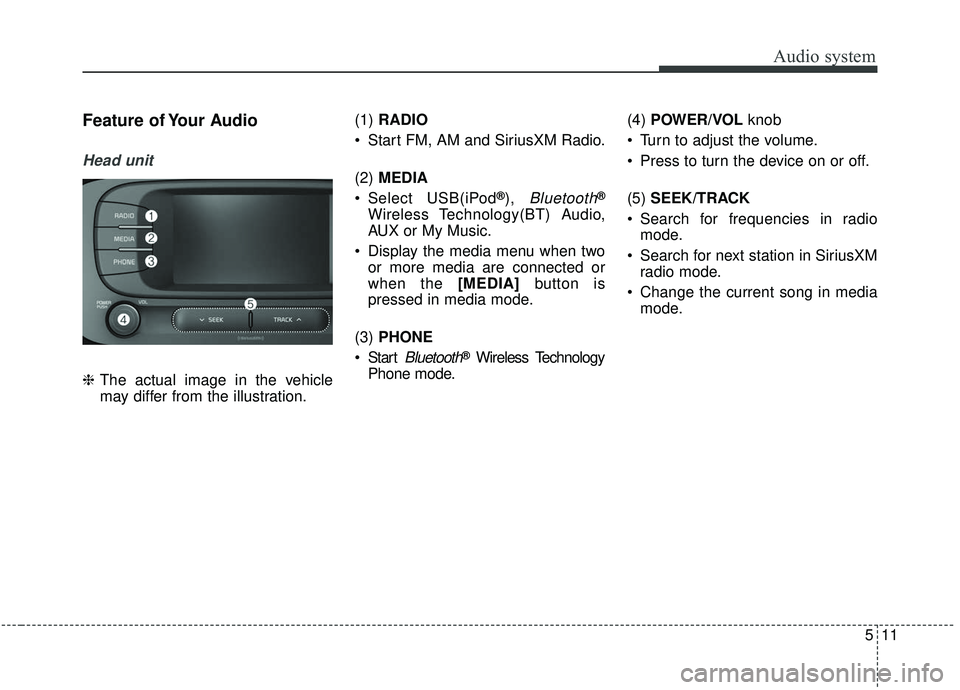
may differ from the illustration. (1)
RADIO
Start FM, AM and SiriusXM Radio.
(2) MEDIA
Select USB(iPod
®), Bluetooth®
Wireless Technology(BT) Audio,
AUX or My Music.
Display the media menu when two or more media are connected or
when the [MEDIA] button is
pressed in media mode.
(3) PHONE
Start
Bluetooth®Wireless Technology
Phone mode. (4)
POWER/VOL knob
Turn to adjust the volume.
Press to turn the device on or off.
(5) SEEK/TRACK
Search for frequencies in radio mode.
Search for next station in SiriusXM radio mode.
Change the current song in media mode.
Page 251 of 564
Audio system
13
5
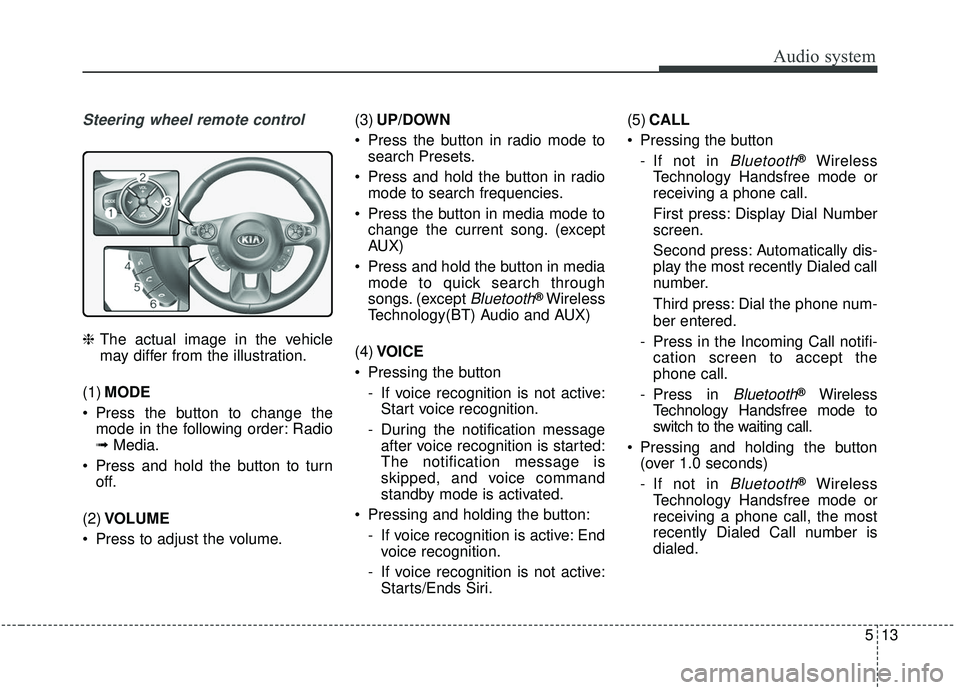
Steering wheel remote control
❈ The actual image in the vehicle
may differ from the illustration.
(1) MODE
Press the button to change the mode in the following order: Radio
➟ Media.
Press and hold the button to turn off.
(2) VOLUME
Press to adjust the volume. (3)
UP/DOWN
Press the button in radio mode to search Presets.
Press and hold the button in radio mode to search frequencies.
Press the button in media mode to change the current song. (except
AUX)
Press and hold the button in media mode to quick search through
songs. (except
Bluetooth®Wireless
Technology(BT) Audio and AUX)
(4) VOICE
Pressing the button - If voice recognition is not active:Start voice recognition.
- During the notification message after voice recognition is started:
The notification message is
skipped, and voice command
standby mode is activated.
Pressing and holding the button: - If voice recognition is active: Endvoice recognition.
- If voice recognition is not active: Starts/Ends Siri. (5)
CALL
Pressing the button - If not in
Bluetooth®Wireless
Technology Handsfree mode or
receiving a phone call.
First press: Display Dial Number
screen.
Second press: Automatically dis-
play the most recently Dialed call
number.
Third press: Dial the phone num-
ber entered.
- Press in the Incoming Call notifi- cation screen to accept the
phone call.
- Press in
Bluetooth®Wireless
Technology Handsfree mode to
switch to the waiting call.
Pressing and holding the button (over 1.0 seconds)
- If not in
Bluetooth®Wireless
Technology Handsfree mode or
receiving a phone call, the most
recently Dialed Call number is
dialed.
Page 252 of 564
- Press in Bluetooth®Wireless
Technology Handsfree mode to
transfer the call to your cell
phone.
- Press in cell phone mode to switch to
Bluetooth®Wireless
Technology Handsfree mode.
(6) END
Press in
Bluetooth®Wireless
Technology Handsfree mode to
end the phone call.
Press in the incoming call screen to reject the call.
WARNING- Driver
Distraction
Do not stare at the screen while driving. Staring at the
screen for prolonged periods
of time could lead to traffic
accidents.
Using the phone while driving may lead to a lack of attention
of traffic conditions and
increase the likelihood of acci-
dents. Use the phone feature
after parking the vehicle.
WARNING- Audio System
Do not disassemble, assem- ble, or modify the audio sys-
tem. Such acts could result
accidents, fire or electric
shock.
Exercise caution not to spill water or introduce foreign
objects into the device. Such
acts could lead to smoke, fire,
or product malfunction.
WARNING
Do not use a cellular phone
while driving. Stop at a safe
location to use a cellular phone.
Audio system
514
WARNING- Distracted
Driving
Driving while distracted can
result in a loss of vehicle con-
trol that may lead to an acci-
dent, severe personal injury,
and death. The driver’s primary
responsibility is in the safe and
legal operation of a vehicle, and
use of any handheld devices,
other equipment, or vehicle sys-
tems which take the driver’s
eyes, attention and focus away
from the safe operation of a
vehicle or which are not permis-
sible by law should never be
used during operation of the
vehicle.
Page 254 of 564
Audio system
516
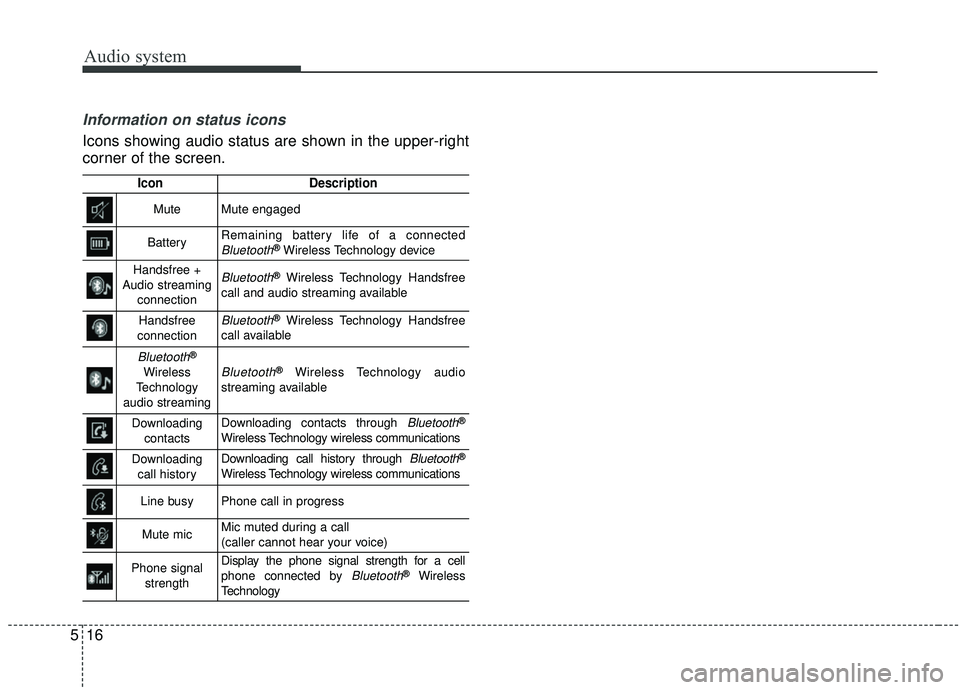
Information on status icons
Icons showing audio status are shown in the upper-right
corner of the screen.
IconDescription
MuteMute engaged
BatteryRemaining battery life of a connectedBluetooth®Wireless Technology device
Handsfree +
Audio streaming connectionBluetooth®Wireless Technology Handsfree
call and audio streaming available
Handsfree
connectionBluetooth®Wireless Technology Handsfree
call available
Bluetooth®
Wireless
Technology
audio streamingBluetooth®Wireless Technology audio
streaming available
Downloading contactsDownloading contacts through Bluetooth®
Wireless Technology wireless communications
Downloading call historyDownloading call history through Bluetooth®
Wireless Technology wireless communications
Line busyPhone call in progress
Mute micMic muted during a call
(caller cannot hear your voice)
Phone signal strengthDisplay the phone signal strength for a cell
phone connected by Bluetooth®Wireless
Technology
Page 258 of 564
![KIA SOUL 2019 Owners Manual Audio system
520List
A list of all channels is displayed.
Select the desired channel.
Favorite channels can be saved to
[Presets] by selecting the [+].
Menu
Select the [Menu], and select the
desired f](/manual-img/2/40387/w960_40387-257.png "KIA SOUL 2019 Owners Manual Audio system
520List
A list of all channels is displayed.
Select the desired channel.
Favorite channels can be saved to
[Presets] by selecting the [+].
Menu
Select the [Menu], and select the
desired f")
Audio system
520List
A list of all channels is displayed.
Select the desired channel.
Favorite channels can be saved to
[Presets] by selecting the [+].
Menu
Select the [Menu], and select the
desired function.
Presets: Save up to 40 frequently
used channels.
To listen to a preset, select the
desired channel.
Press and hold the desired slot
from 1 through 40. This saves the
current channel in the selected
slot.
If the slot is empty, simply selecting
saves the channel to the slot.
Categories: Channels can be searched by category.
Direct Tune: The desired channel can be selected by entering num-
bers.
Sound Settings: Audio sound set- tings can be changed. Tag Song: Tag the current song
information.
When an Apple device (iPhone
®,
iPod®) is connected, tagged song
information is sent automatically to
the connected device.
✽ ✽ NOTICE
Up to 50 songs can be tagged.
Scan: All channels available in the
vehicle's current location are
played for ten seconds each.
Program Schedule: View the pro- gram schedule.
Featured Favorites: The Featured Favorites feature allows SiriusXM™
to broadcast additional presets.
- Example 1: During holidays,“Holiday Music” might include all
SiriusXM™ channels that are
playing holiday music for easy
access by users.
Multiple sets of Featured Favorites
data can be broadcast by
SiriusXM™ and can change from
time to time. Information: View detailed channel
information.
Category Lock: Search or scan channels in the current category
only.